How to Use Externally-Hosted MP4 Videos
Fielo Learning allows the use of MP4 videos. These videos can be stored natively inside Salesforce through the Notes & Attachments section of Courses Modules. However, for compatibility reasons, it is only possible to load files up to 25 MB. For larger ones, it is necessary to host them in an external folder. This folder may be on a network, web provider, or FTP server, for example.
The external link must follow certain rules to work as expected and display the video.
1. Configuring the course to display the video hosted externally
1.1 Go to Courses and inactivate it.
1.2 Go to the Module of the course where the MP4 video should be called and inactive it
1.3 In the Module, click on the Edit button
1.4 Fill in all the fields. Select “MP4” in the Content Type picklist
1.5 Fill in the Content Plus field with the appropriate path to the external link, according to the rules below:
• The link must be in a web format (starting with https:// ) – this is how Salesforce connects to external links.
• The last part of the link must contain the name of the MP4 file and ends with the extension .mp4
Example (hypothetical):
File: newcigarette.mp4
Folder in 23video repository: \Video23\PMI\Marketing\Courses
How it must entered in the Module form: https://Video23/PMI/Marketing/Courses/newcigarrete.mp4
Here is an example of a Brazilian site that works in Module: https://www.gov.br/pt-br/midias-agorabrasil/video-fundo.mp4
2. Configure Remote Site Settings
2.1 On Setup page, type “Remote Site Settings” on the Quick Find textbox
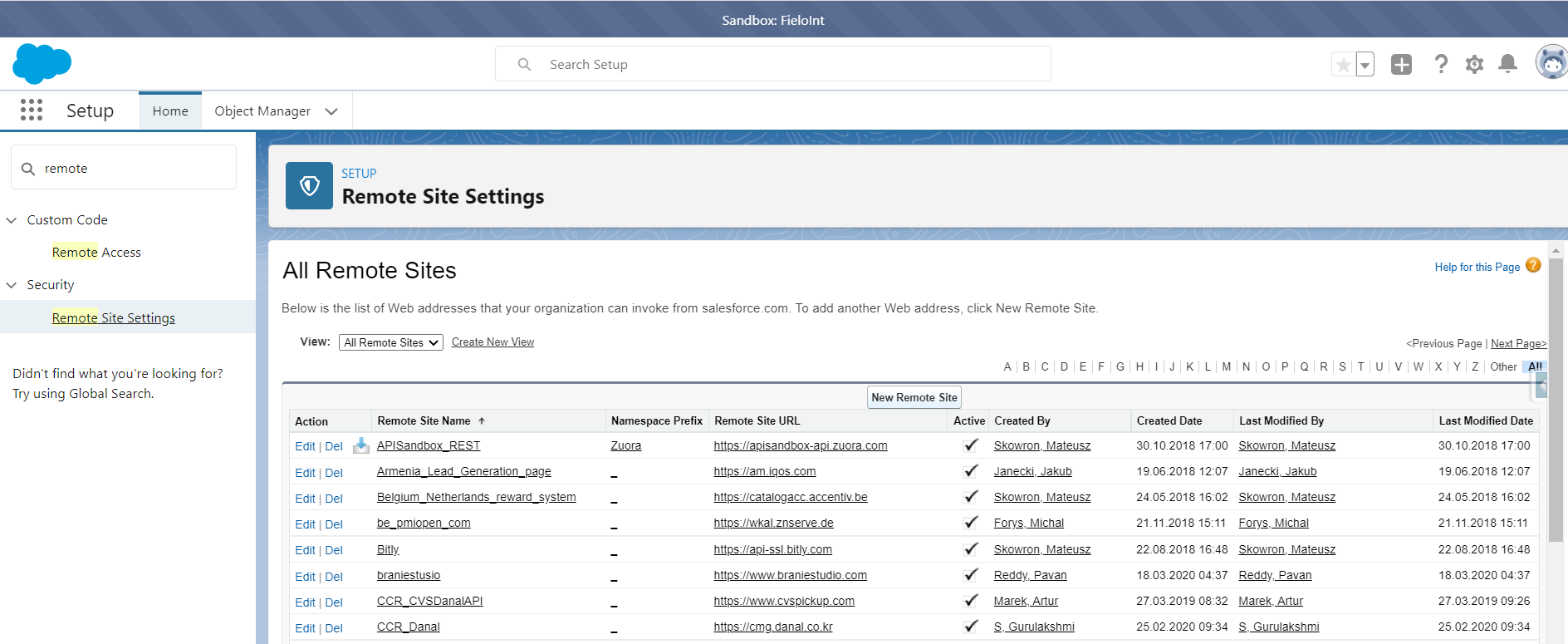
2.2 Click on the New Remote Site button. You’ll be sent to the page below:
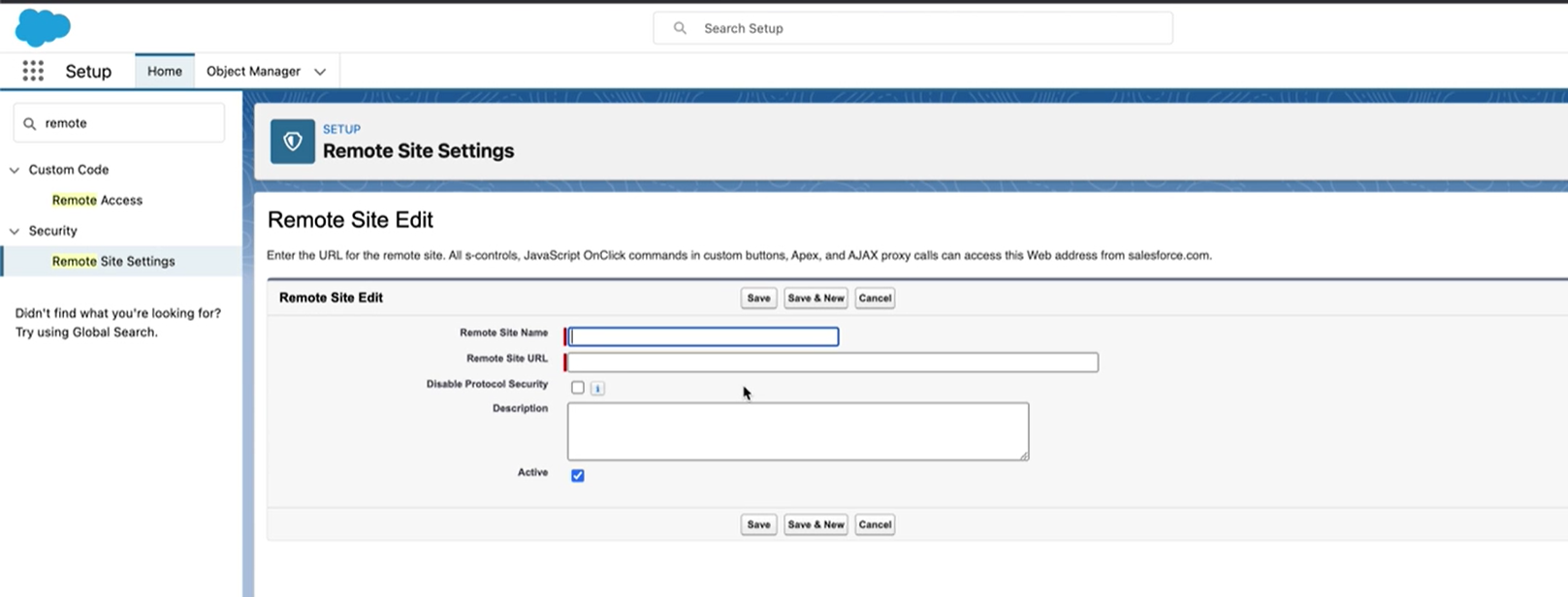
2.3 In each field, type:
• Remote Site name: a name that makes sense to you and everybody else and be easy to identify what it is for.
Ex.: GovBR
• Remote site URL: the site domain
Ex.: https://www.gov.br
• Disable Protocol Security: good to leave it unchecked
• Description: one that identifies what this remote site is made for
• Active: Make sure this is checked
Here is how it should look:
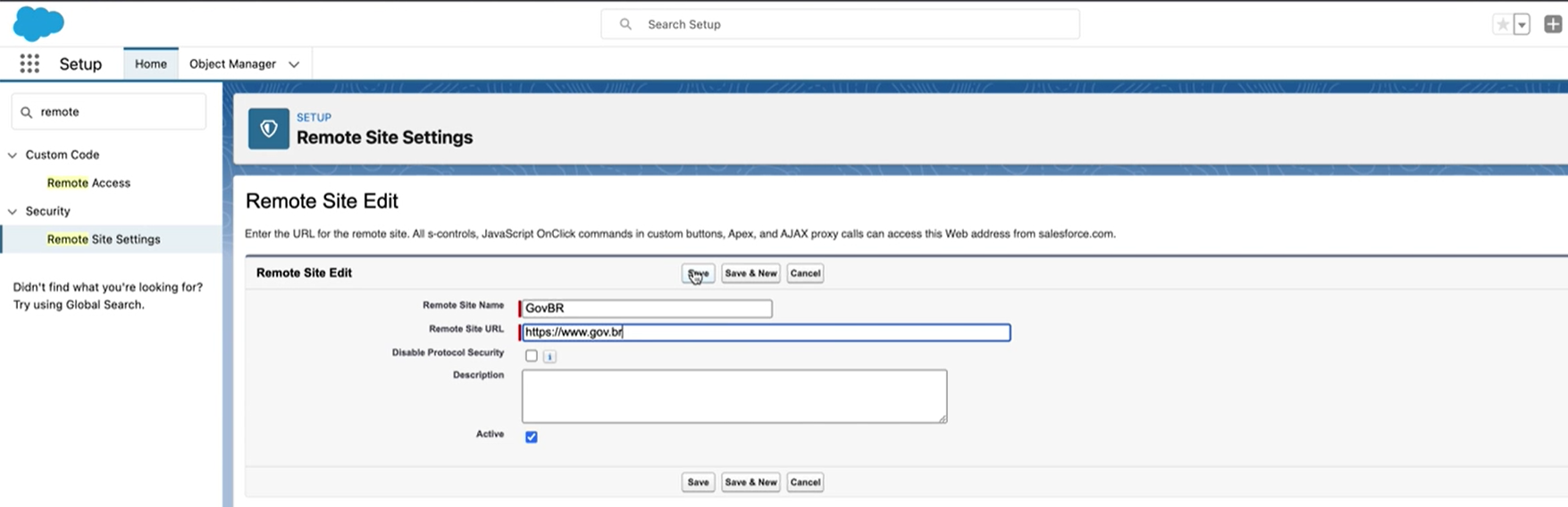
2.4 Click on the Save button.
3. On the Quick Find textbox, type “CSP” and select CSP Trusted Sites
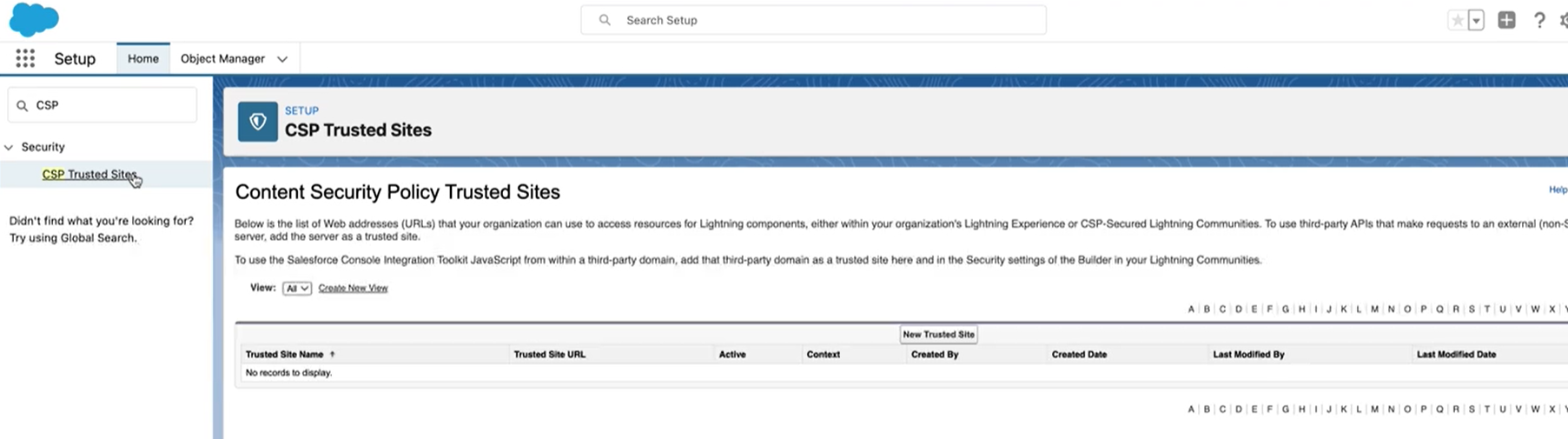
3.1 Click on the “New Trusted Site” button
3.2 Fill in the fields and checkboxes as shown below:
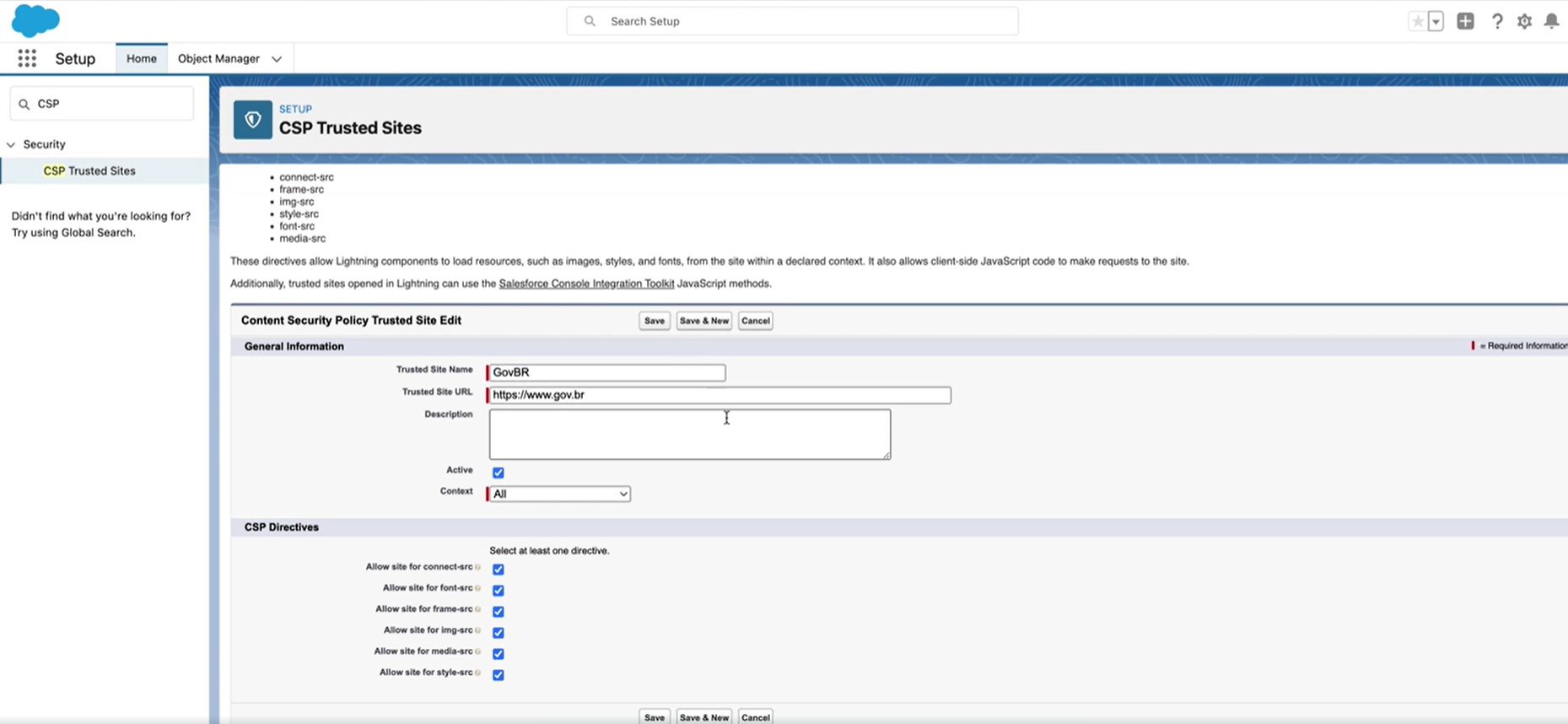
NoteSelect which resources Lightning components can load from this site. To reduce the size of the HTTP header, only select the resources that are necessary.
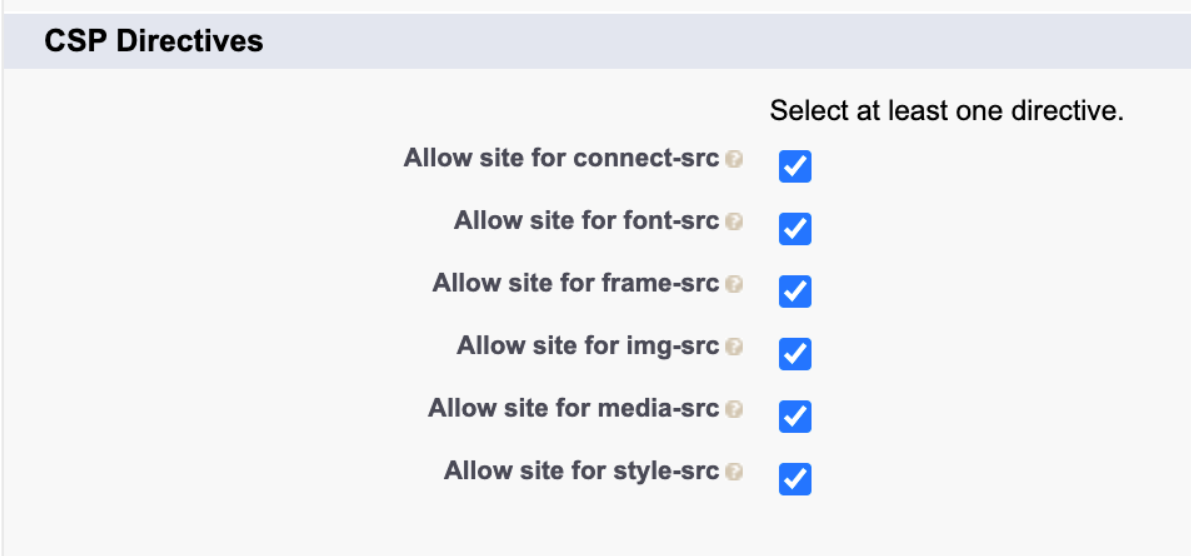
Your MP4 video provider may not require all of them. Check what is required to properly display the video.
3.3 Click on the Save button.
Additional Resources
By configuring Remote Site Settings and CSP Trusted Sites, MP4 videos hosted in an external link can be accessed and played.
For further information about CSP Trusted Sites, refer to https://sforce.co/3uRBjvC
For further information about Remote Site Settings, refer to https://help.salesforce.com/s/articleView?id=sf.configuring_remoteproxy.htm&type=5
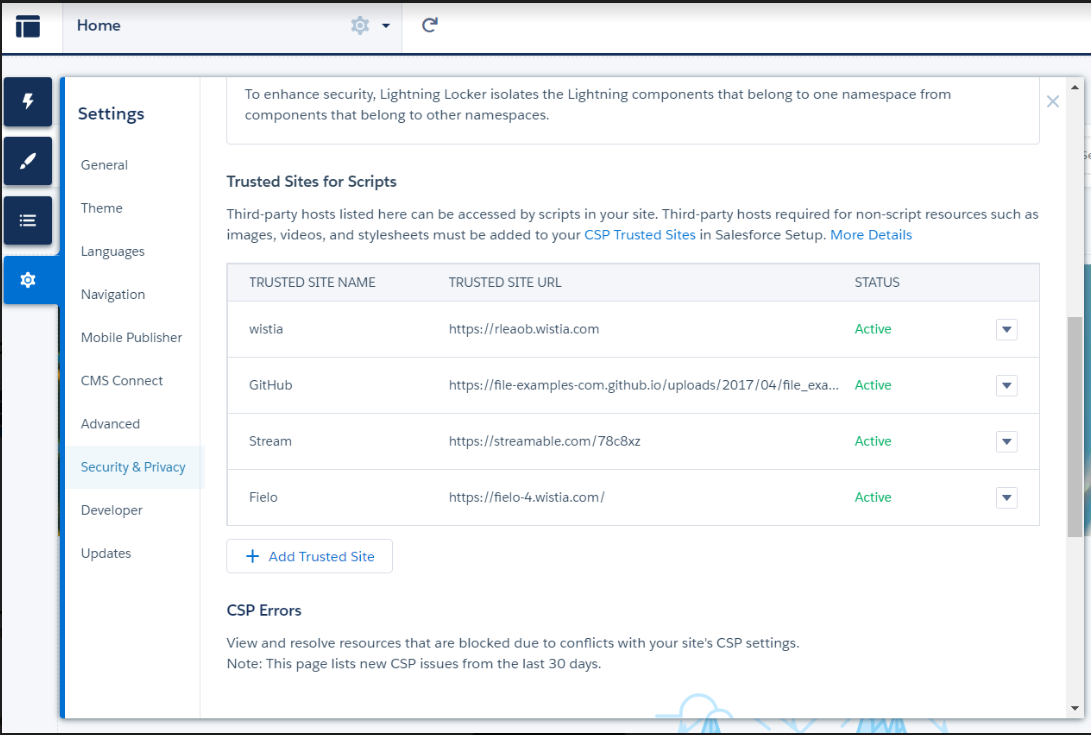
Example of how to configure Trusted Sites in the Experience Builder: