
Find on this page a few additional ways to use, edit, or create records related to Fielo's features so that you can make the most of them.
The incentives leverage Fielo's engines, which track member activities on any custom or standard Salesforce object, and reward members whenever the criteria for rewarding have been met. An easier and quicker way of creating an incentive is to use the Quicktart tool, which makes available some useful templates that come with out-of-the-box rewarding, criteria, and targeting.
Quickstart Compatible
By default, it is not possible to edit an incentive using the Quickstart if it is not Quickstart Compatible.
However, you can change the incentive's FieloPLT__IsQuickstartCompatible__c field from false to true if necessary. You will need to give your Salesforce User permission to do so and, then, change the field's value through the Salesforce Inspector.
To give the permission to your User, go to Setup, enter "Visualforce Pages" in the Quick Find box, and select it. Click A to see all pages beginning with A, then select Audit Permission.
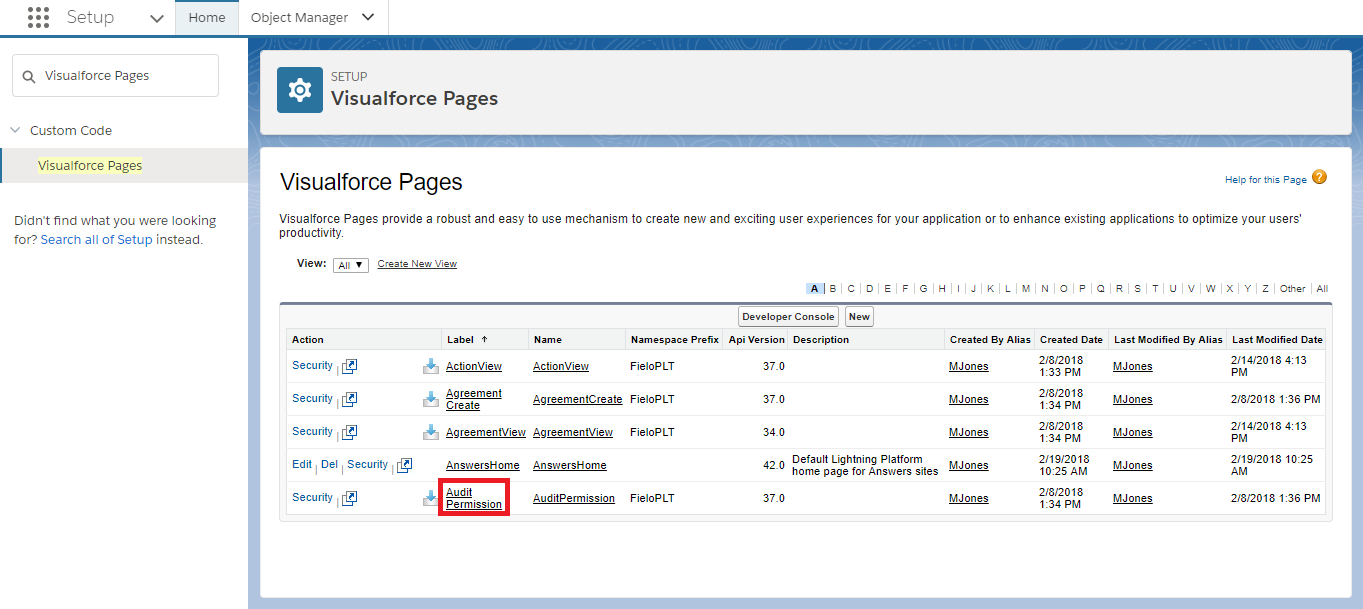
Audit Permission Visualforce Page
Click Preview.
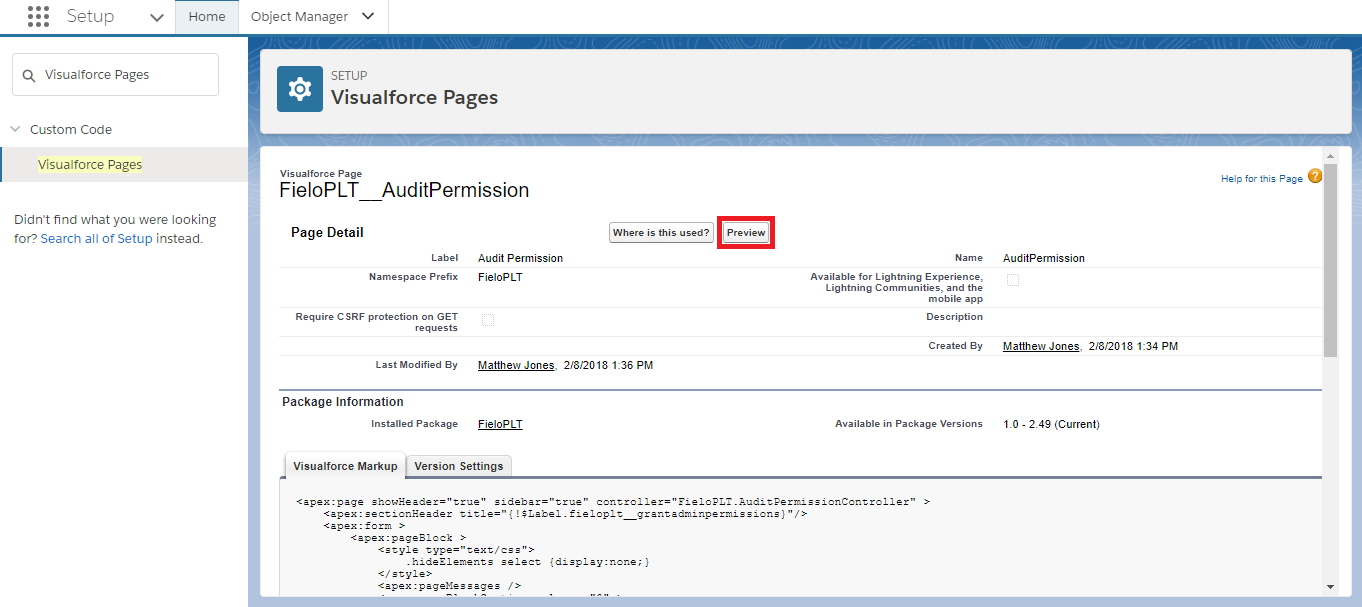
Audit Permission - Preview
In User, using Lookup, enter the name of your own System Administrator User. Then, click inside the To field and choose a date for the permission to end. This can be tomorrow or any other date in the future. Finally, click Save.

Grant Admin permissions
Libraries are stacks that extend Fielo's functionalities. They comprise a suite of data such as Behavior Types, Actions, Templates, and Models designed to achieve more capabilities for your incentive and loyalty program.
As such, and trying to make the work easier for the developers who want to create extensions, Fielo makes it possible for you to develop a new library, change the default local library and publish it without too much trouble.
Let's understand how.
Developer Mode
The first thing you must do is to activate the Developer Mode in your Org because this will enable some features and options that are by default inactivated. For that, follow these steps:
- From Salesforce's Setup, look for Custom Settings and access it.
- Click on Manage next to FieloPLT's Public Settings.
- Click on Edit.
- Check the Developer Mode field.
- Save.
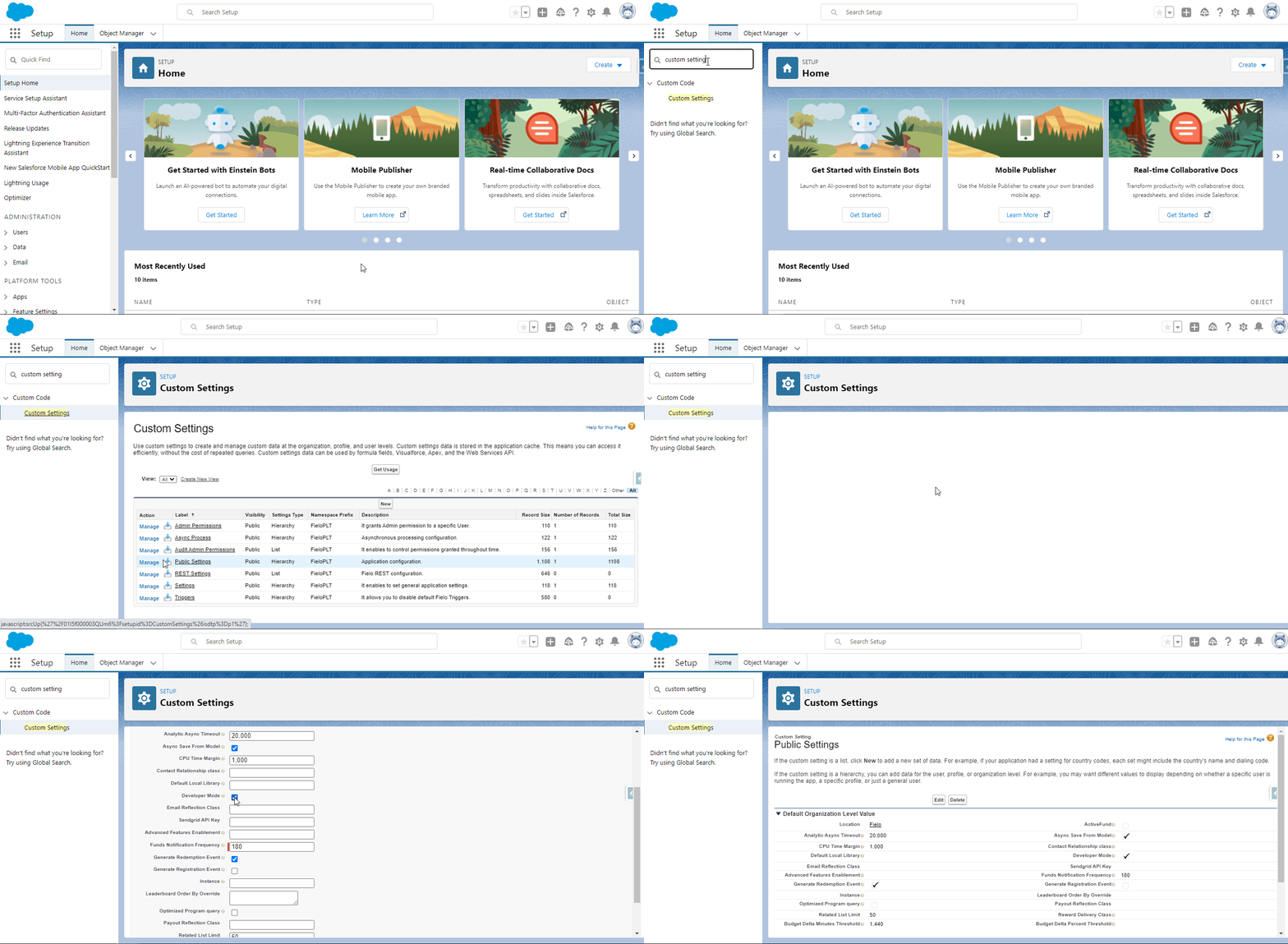
Enabling Developer Mode
Develop a New Library
When the Developer Mode is enabled, the Users can create a new library directly from the platform, by using the New Library button that will appear in the Tools tab. With that, developers may create their own Libraries to save their configuration within it to export later.
To create the library, you just need to enter a name for it, and its version number.
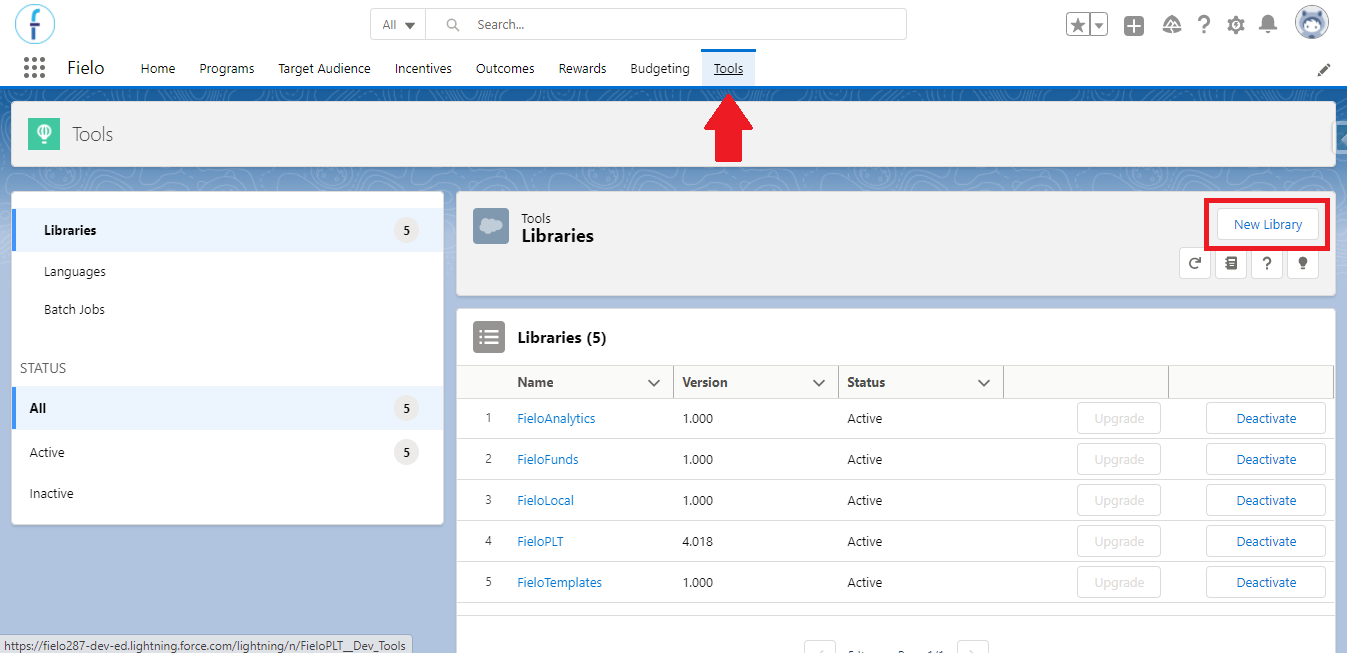
Update the Library's Static Resource
It is possible to, at any time, update your library to store the resource in a version control system (e.g. GitHub), migrate the library from one environment to another, or package new libraries or extensions in an easier way. This last one means that you'll have less manual effort to update the JSON and upload it as a static resource.
You can do that by clicking on the button that you will find on every library page, on the top right corner:
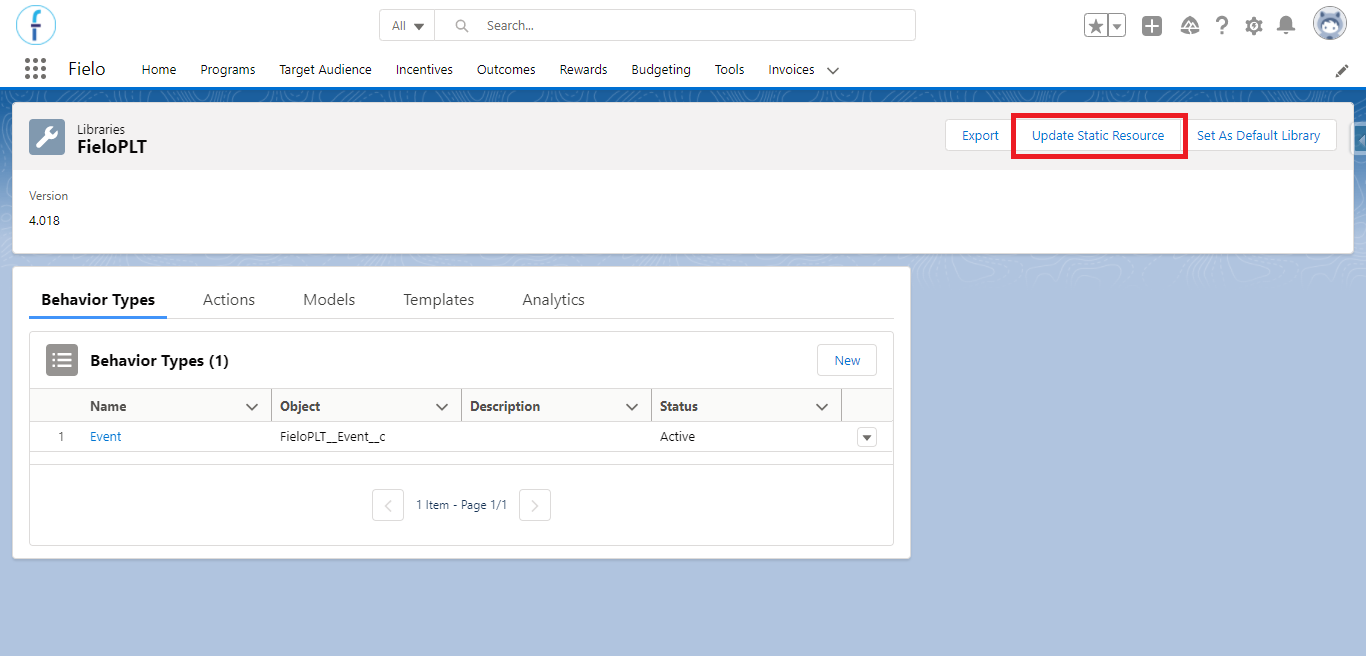
'Update static resource' button
Change the Default Local Library
When Developer Mode is on, the Set As Default Library button appears on the library's page. With this, the developers may change the default library on which all their Fielo configurations (such as Models, Behaviors Types, and Templates) will be stored.
This library is commonly known as the "Local Development Library".
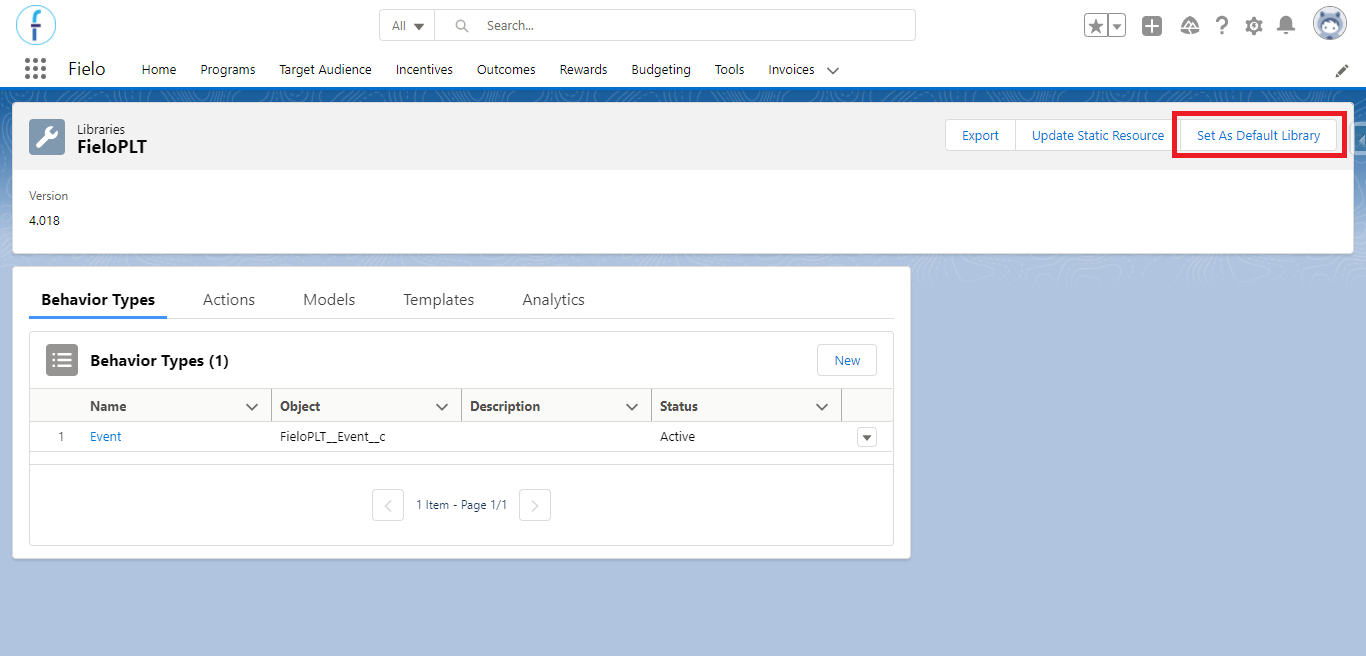
'Set as default library' button
Publish Library
This feature is meant for the Users that did some configurations in the Fielo Platform and want to store them in a new library. Usually this is done so that they can store the library in a version control system or make a deployment to other environments.
The Publish Library button moves all the contents of the Local Library to a new library. You will find it only on the Local Library's page.
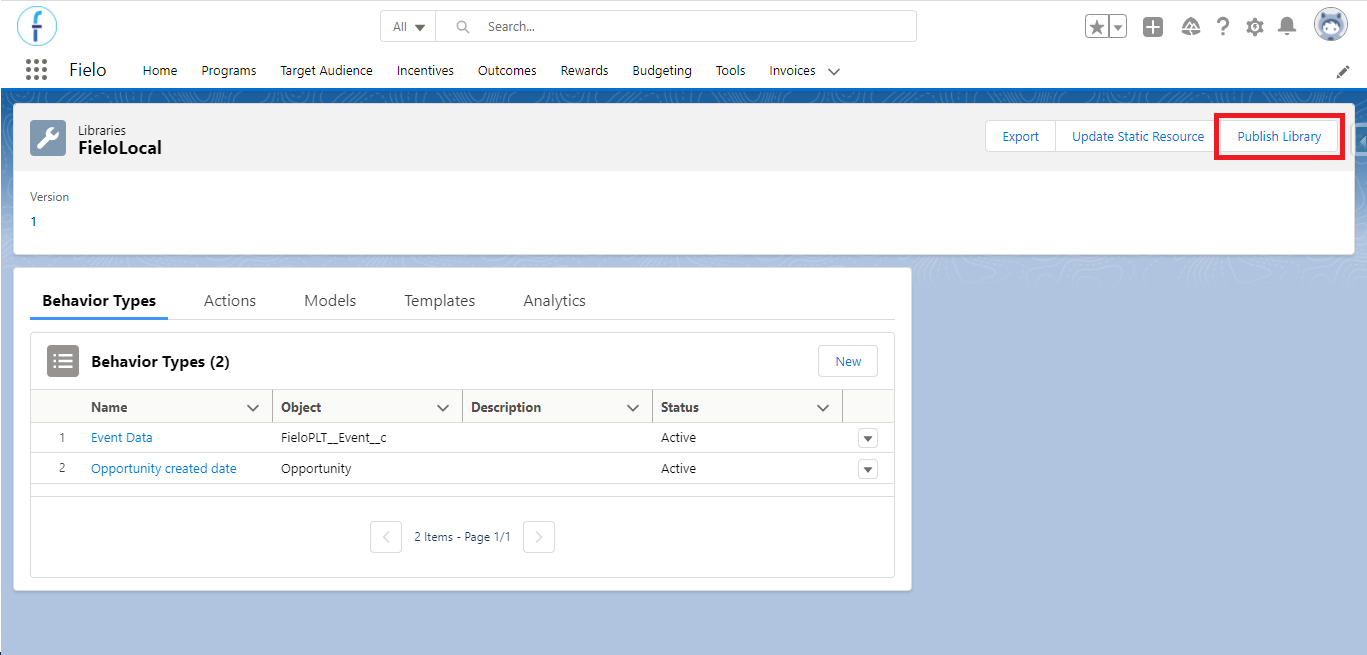
'Publish library' button
Fielo Platform Cache
You can view all configurations stored inside the Platform by the cache to confirm that everything is as it is supposed to be.
For that, open the App Launcher and look for "Fielo Cache". There, you will be able to refresh the cache stored so it updates the data shown and see how it was used in Behavior Types, Currencies, Programs, Promotions, Challenges, Criteria, Versions, Analytics, and Libraries.
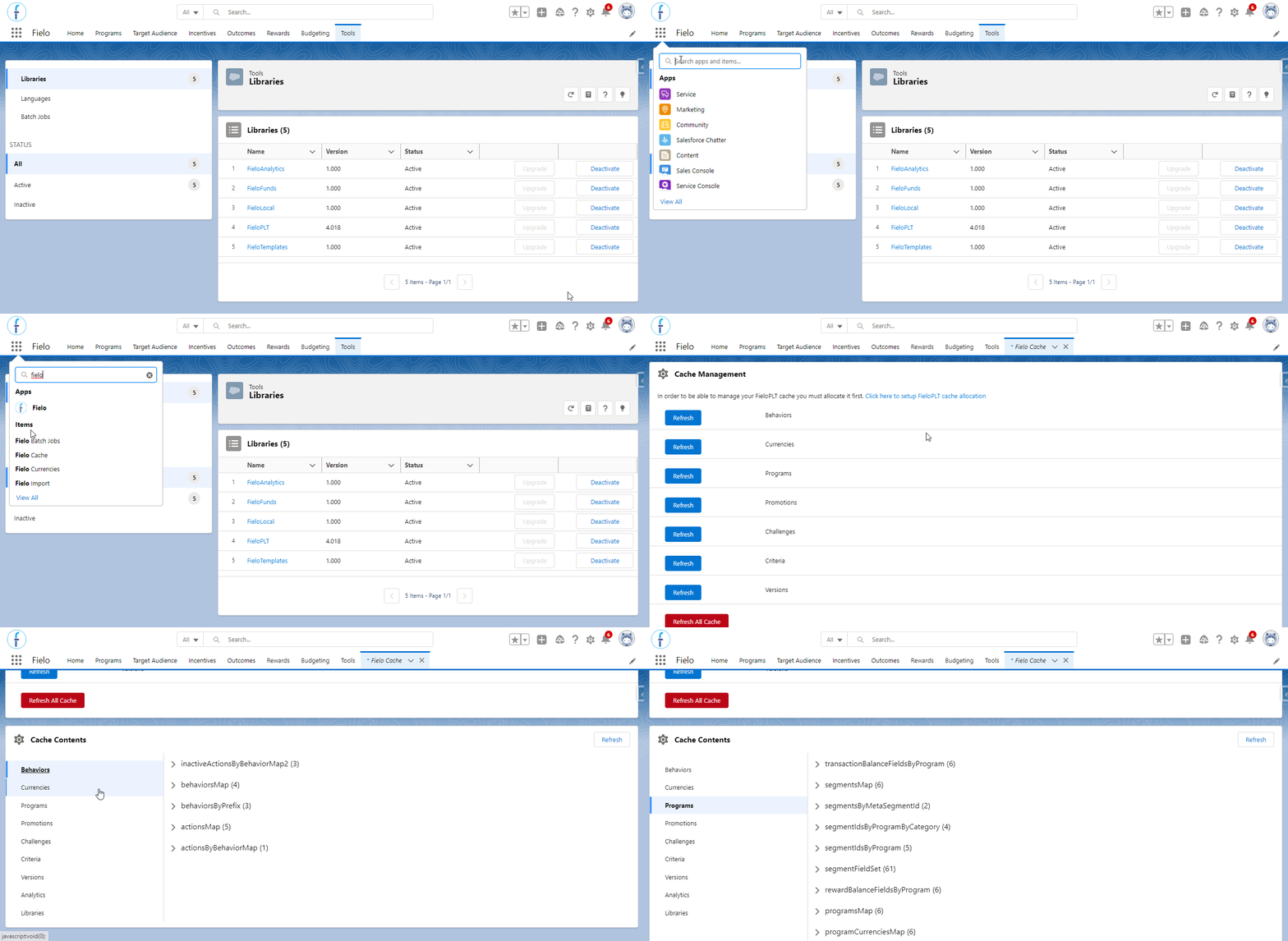
Fielo Cache page