
How to connect to Salesforce with Postman and test Fielo's REST APIs.
Setting up Salesforce
First of all, we need to setup a Connected App in our org. To do so, follow the steps below:
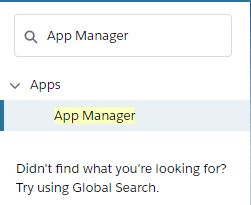
- In your Salesforce org, go to Setup and search for App Manager. The option will be right below Apps, as shown below:
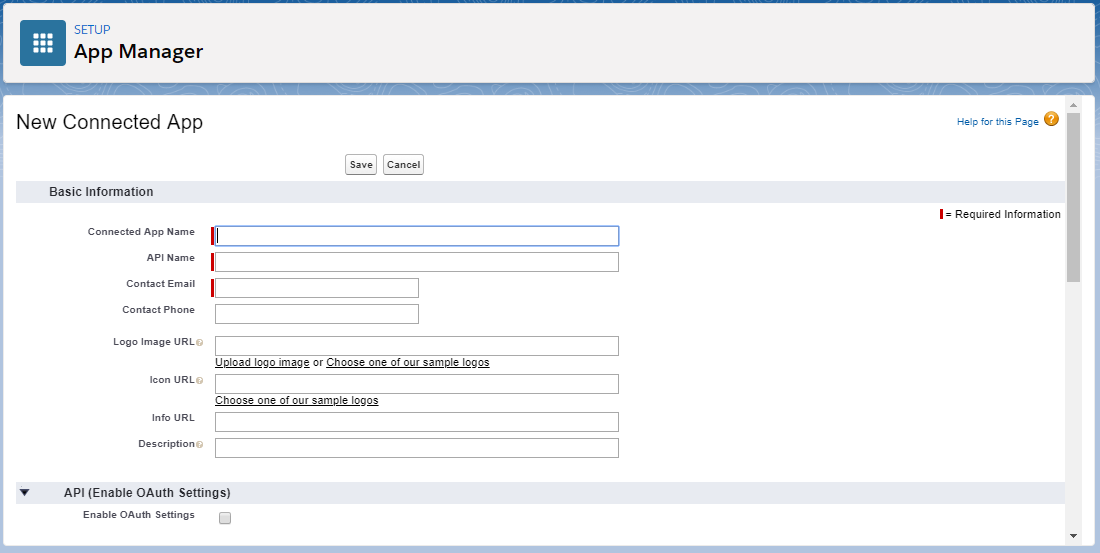
- Click it and then click New Connected App on the top right side screen that just opened, leading you to the creation page, as shown below:
-
In the form, fill in Connected App Name, API Name and Contact Email, leaving the rest empty.
-
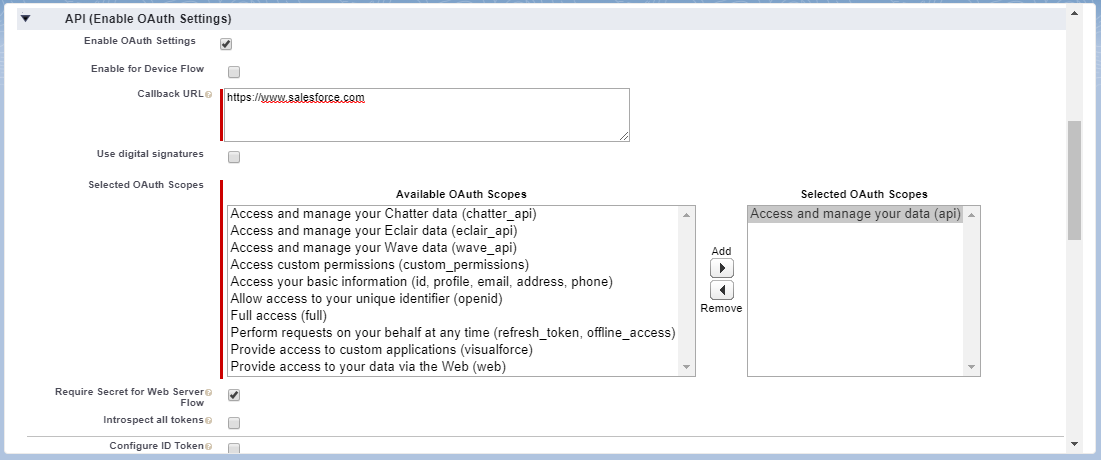
Scroll down to the API (Enable OAuth Settings) section and click on the Enable OAuth Settings checkbox. The following fields will show up:
-
The Callback URL is used for servers to communicate, but as this Connected App is meant to be used with Postman, you can place any URL there. The example above uses https://www.salesforce.com.
-
You will also need to select Access and manage your data (api) and add it to the Selected OAuth Scopes section, as shown in the example above.
-
Leave all other options empty, scroll down and click Save and in the next page, Continue, which will lead you to a page like the one below:
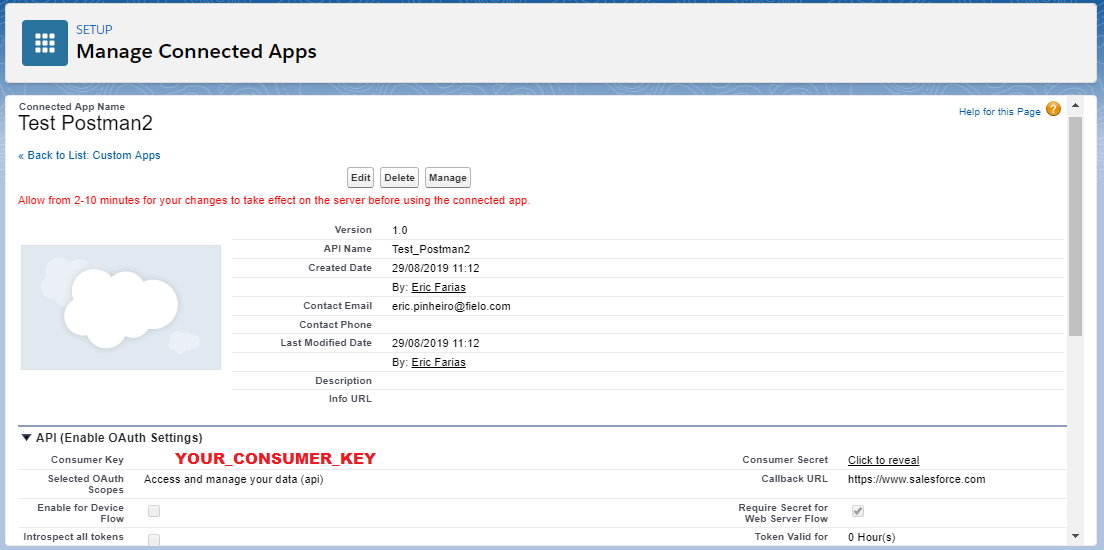
Connected App created!In the API (Enable OAuth Settings) section, you'll find your Consumer Key and Consumer Secret (Click to reveal for it to become visible). You will be using them to establish the connecting with Postman.
Setting up Postman
You will need to download and install Postman to proceed with the next steps.
The goal of the process is to get a Session Token, which will enable you to use Fielo's REST APIs.
Getting the Access TokenAt this point, you will also need to have your Org's Access Token. If you lost it, the only way of getting it back is by resetting it. For Developer Org, click here to reset. For Sandboxes instead, click here.
- To get started, you need to change the request method to POST and enter the request URL. For Developer Org, use https://login.salesforce.com/services/oauth2/token, and for Sanbox, use https://test.salesforce.com/services/oauth2/token, as shown below:

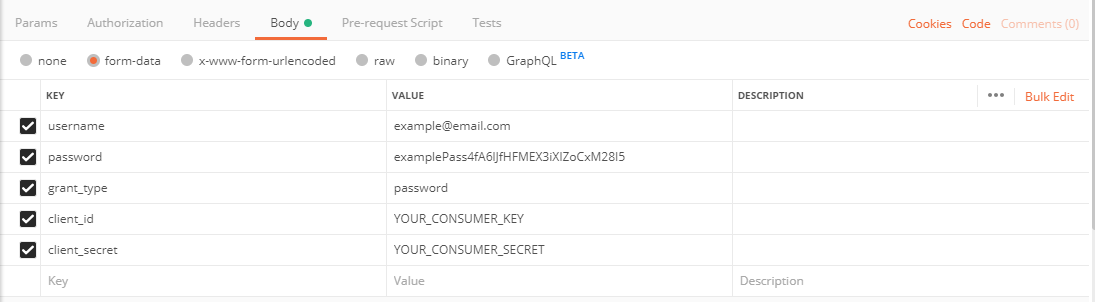
- In the Body tab, select form-data. Now, you will need to enter keys and values. Here's what needs to be added:
| Key | Value |
|---|---|
| username | Your Org's login Email. |
| password | Your Org's login password + Access Token. |
| grant_type | password |
| client_id | Consumer Key of your Salesforce Org's Connected App. |
| client_secret | Consumer Secret of your Salesforce Org's Connected App. |
In the password value, you'll need to place your Org's password concatenated with the access token, meaning there's no space between them. You can see in the example below how it should look like.
Upon clicking Send, you'll get back a JSON response with the Session Token. Copy it as it's used to send requests with Fielo's REST APIs.
Import Fielo's REST APIs to Postman
By clicking the button below, you'll be able to import all Fielo's pre-configured REST APIs to Postman.
Some parameters must be replaced with the correct data before performing the request.
