By default. when a member is created, the contact is matched to the user by comparing Emails. If you want to customize the mechanism of how the contact is matched to the Member in the creation process of a program, follow the steps below:
Create Apex Class
In your Org, go to Setup and search for Apex Classes in the Quick Find box. Click New to add your class.
public with sharing class ContactRelationshipDefault implements FieloPLT.ContactRelationship{
    public static List<Contact> getRelatedContacts(List<FieloPLT__Member__c> members){
        // Logic to match Member with Contacts
        //This will return a list of contacts that with an order that will match against each member

        List<Contact> contacts = new List<Contact>();
        return contacts;
    }
}
Once the class has been created, you’ll need to add it as a value to the Custom Setting.
Adding value to the custom setting
Still on Setup, look for Custom Settings and click it.
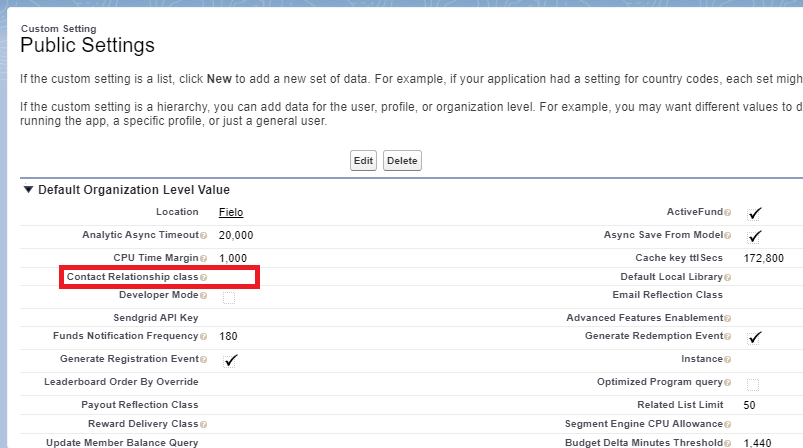
Find the custom settings for FieloPLT called Public Settings and click on Manage. Specify the class you created in the Contact Relationship Class setting.