
Now that we have everything we need to package our Behavior App, we can proceed to deploy our project source to the packaging org.
Authorize the Packaging Org
- If you don't have your packaging org authorized in your SFDX project, run the following command line:
sfdx force:auth:web:login -a fieloCasesApp-master- The browser will automatically open. From there, you should provide your credentials, and the VSCode will tell if everything went well.
Create your Unmanaged Package
Access the Org that you are going to use as the packaging Org that one you authorized on the last section.
- Go to
Setup > Package Manager. - Click on New.
- Name the package the way you want and Save. Take note of the name, for later.
Convert Your Project
Run the following command line to convert your project to the metadata API.
sfdx force:source:convert --outputdir ../YourPackageName --packagename YourPackageName
YourPackageName is the name of the unmanaged package you created in the previous step.
Deploy Your Metadata to the Org
After generating your project's source in metadata format in the previous step, run the following command. This will deploy the converted metadata to the Org and assign it to the unmanaged package.
sfdx force:mdapi:deploy --deploydir ../YourPackageName --targetusername fieloCasesApp-master -w -1You may check the deployment status of your deployment in Setup > Deployment Status.
Upload Your App (as an unmanaged package)
After you have created the unmanaged package and deployed the metadata to the Org, you can check if your package has the correct components:
- Go to
Setup > Package Manager > YourPackageName. - Check its components:
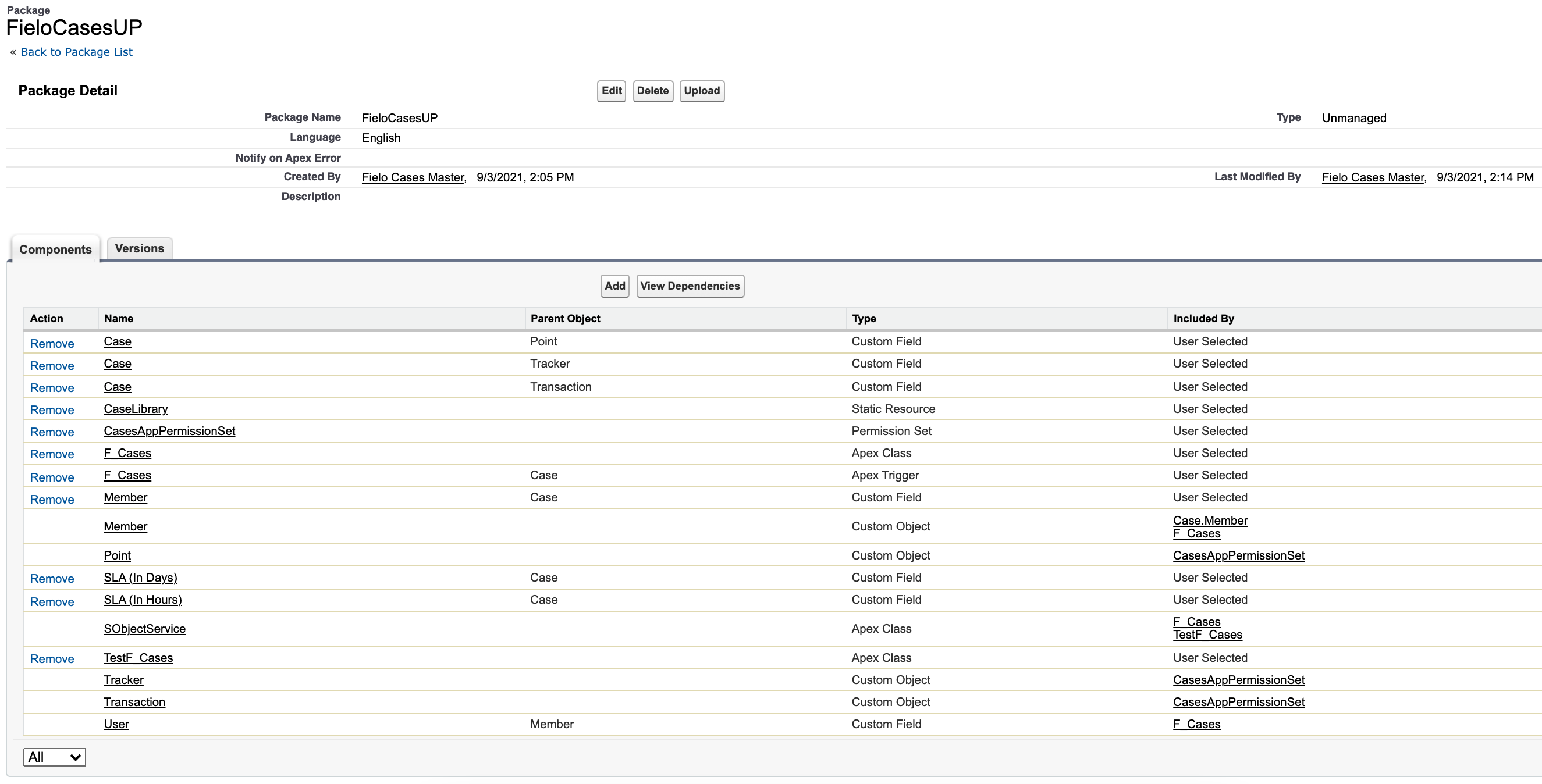
- If everything is correct, you can upload your first version. This can be done through the UI or with the following command line:
sfdx force:package1:version:create --packageid YourPackageId --name "YourPackageName v1.0" --version "1.0" -w 180
YourPackageId: is the id in the url when you are in the package detail in theSetup > Package Managerit starts with 033...