
Right before you finish creating a Rule for a Promotion, you’re expected to set a reward that will be given to the member if they accomplish the rule objective. However, you'll see that only some options are available by default: currencies, instant rewards and badges, which work in a specific way that cannot be much customized.
What would you do in case you wanted to offer a different kind of reward?
Imagine a scenario where you have a retailer shop and you want to incentivize the members of your program to buy more. For that, you create a promotion that will give them a 20% discount if they purchase anything that costs more than $3,000. In order to be able to set his up, you'd need to create create your own Additional Rewarding method.
It could also be used when you want to give a voucher for members who performs the action that the Rule incentivizes. With vouchers, you have even more options, since it is possible to define an expiration date, burn them when they are used and setup other customizations. The ways to use this method truly depends on what is your objectives.
To create an Additional Rewarding follow the steps below:
The additional method will only work with No Competition Rules.
Create Apex Class
In your Org, go to Setup and search for Apex Classes in the Quick Find box. Click New, add your class.
global with sharing class CustomRewardingClass implements FieloPLT.RuleRewarding{

  global void reflectionRewarding(List<FieloPLT__Transaction__c> transactions){
		// Your business logic should be added here
   }
  global void revertRewarding(List<FieloPLT__Transaction__c> transactions){
    // Your business logic should be added here
   }
}
Before leaving, click Save.
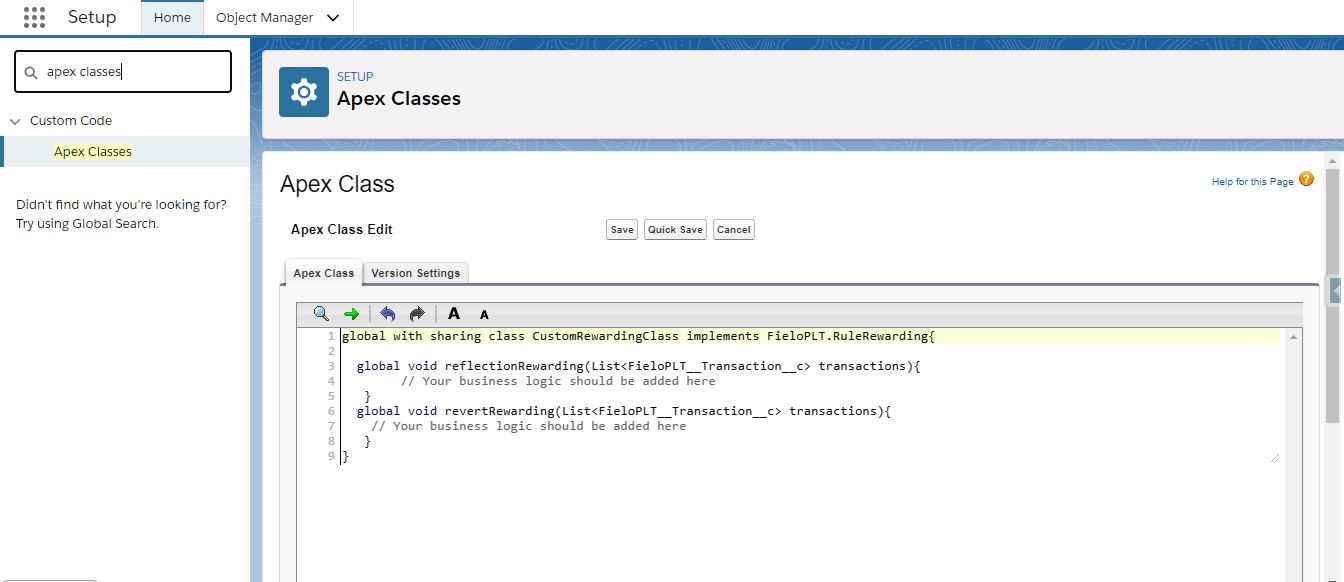
CustomRewardingClass
Adding the Custom Class to the Reward Page
Still on Setup, click on the Object Manager tab and look for Rule.
On the right menu, click on Fields and Relationships and look for the Reward Delivery Class field. Under Values, click New. Enter the name of the Apex class you've created (e.g. CustomRewardingClass) and click Save.
Your class will now be available to assign as an additional rewarding.