
Promotion Rules
Create and manage Rules for your Promotions
Rules define what your members can do to get currencies (e.g. the standard Point), instant rewards and/or badges. When a member performs an incentivized action, the rule criteria are evaluated and, if met, the currencies or rewards you specify are given.
There are a lot of different rules that can be made but let's make one for Tread Manufacturing scenario.
The company has an overstock of 2 complementary products, so they decide to create a new product bundle with these 2 products. The program admin wants to create a new promotion that will give an extra 200 Points to the members who submit invoices with at least 500 unites of the product bundle. Let's see how that can happen.
Creating Rules
After creating a promotion, they start creating rules. From Incentives find and click on the promotion you want to create a rule for. Click New on the right side of the screen.
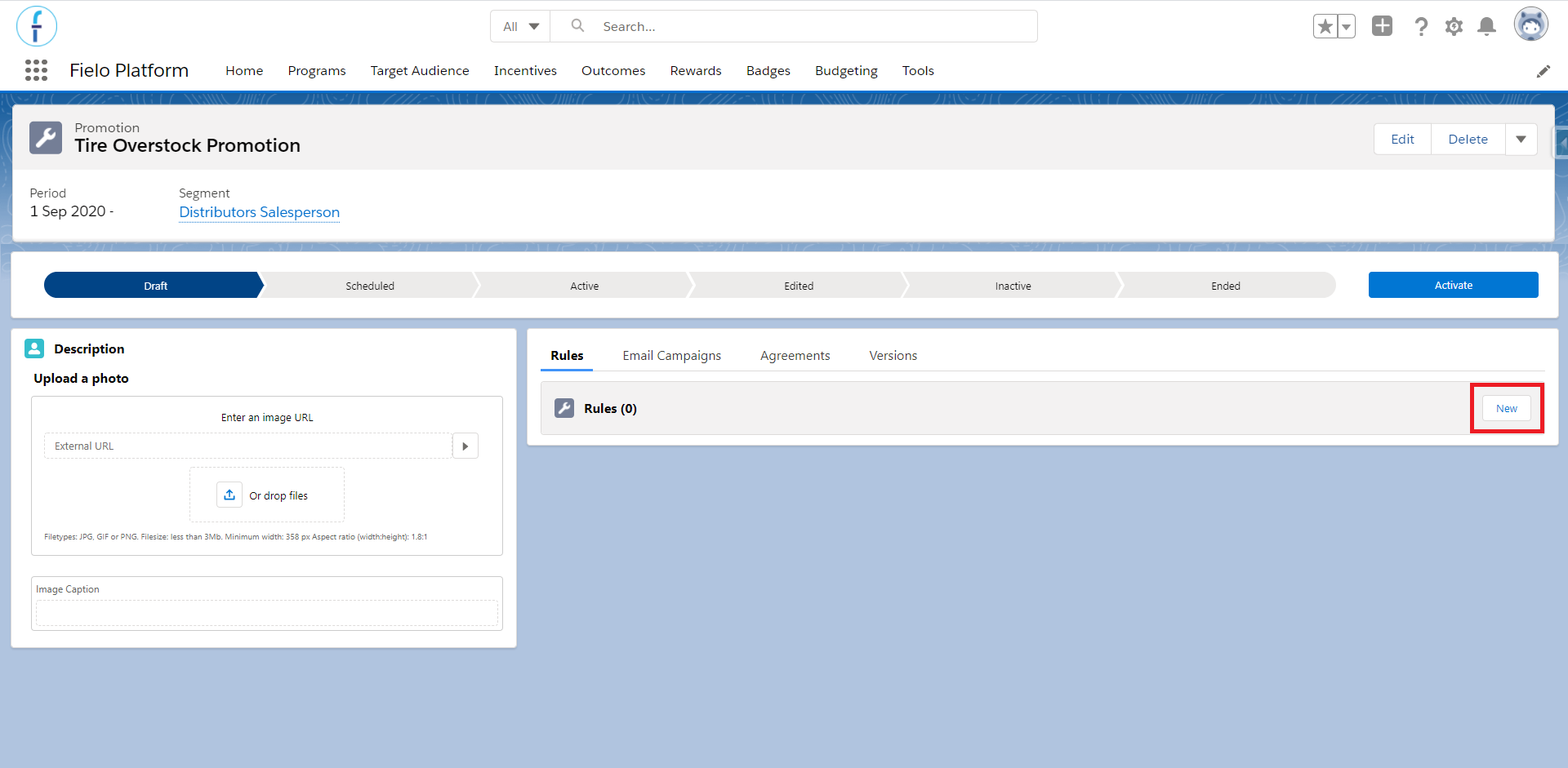
Extend Rule FormYou can extend the Rule form in order to add more fields. See how to do that in our Extending a Form page.
Basic Info
Define name and description
First, you must choose a name for your rule as well as a description that best fits the rule. Members will be reading this so make sure it will be easy for them to understand.
When do you want this Rule to apply?
You will need to define when the rule will be triggered. By default, Always will be selected. You will have two options to choose from:
Always (No Competition) - The Single Action Engine evaluates all Rules, no matter their type as long as they meet their Criteria. As a result, you can choose to give a Currency, Instant Rewards and/or Instant Badges for each Rule.
Currencies in RulesOnly rules whose type is Always can grant different currencies in the same rule.
Only when it awards the most points (Best Option) - The Single Action Engine evaluates all Best Option rules in the program (to which the member is eligible to) and which share the same currency as well as action. As a result, currencies are given only for the rule that represents the best choice for the member, that is, the rule that grants the greatest amount of a currency.
'Only when it awards the most points' & Currency CappingWhen applying currency caps to Only when it awards the most points rules, any limits related to capping will be calculated before evaluating which rule offers the best option to a member. In other words, caps are taken into account when determining which rule gives the most currency. See Currency and Points Capping for details.
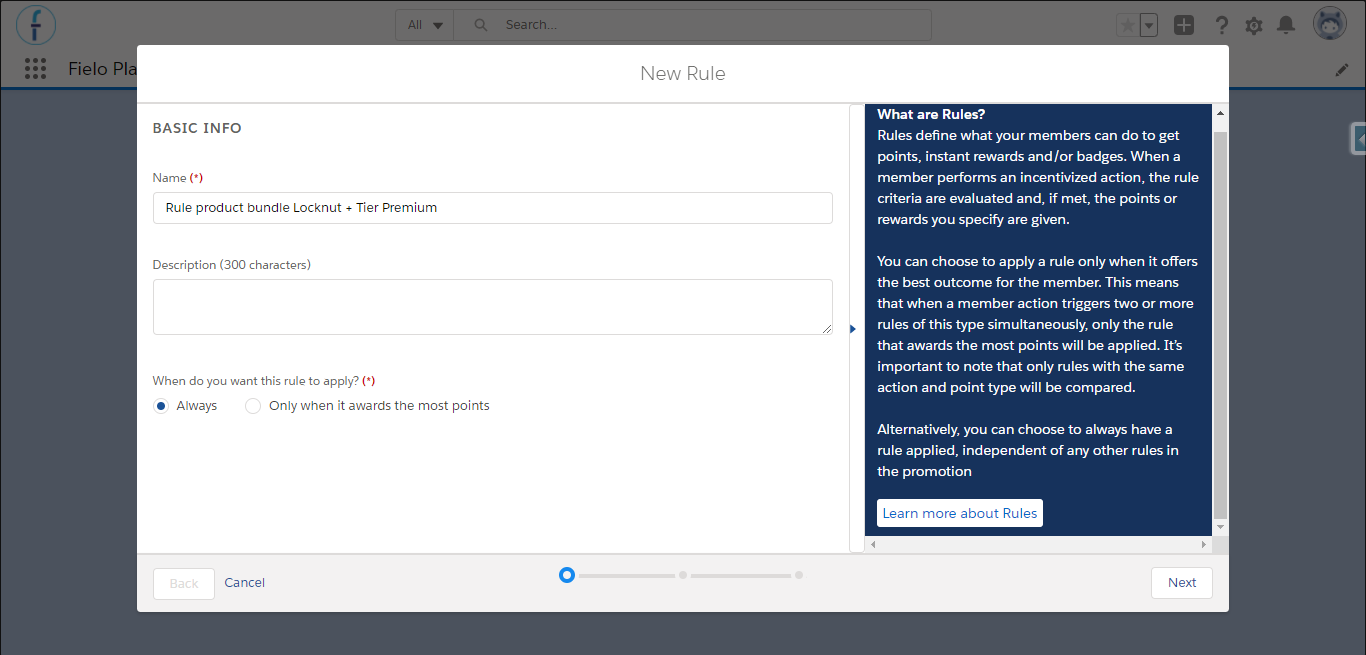
Now that you have created the basic information, you can click Next to define the criteria.
Criteria
Criteria govern rules as they are the conditions that evaluate the incentivized action, that is, the behavior you have chosen to drive in your members. Criteria are based on fields of the selected action or some other records related to the action (e.g. If your action is Transaction, you can set a rule that evaluates the complete transaction or a specific record related of transaction such as Transaction > Points).
When these conditions are met, your members obtain the outcome that you want, which can be currencies (if Rule Type is Only when it awards the most points), or currencies, instant rewards and/or badges (if Rule Type is Always).
Actions must be already created and available before creating rules.
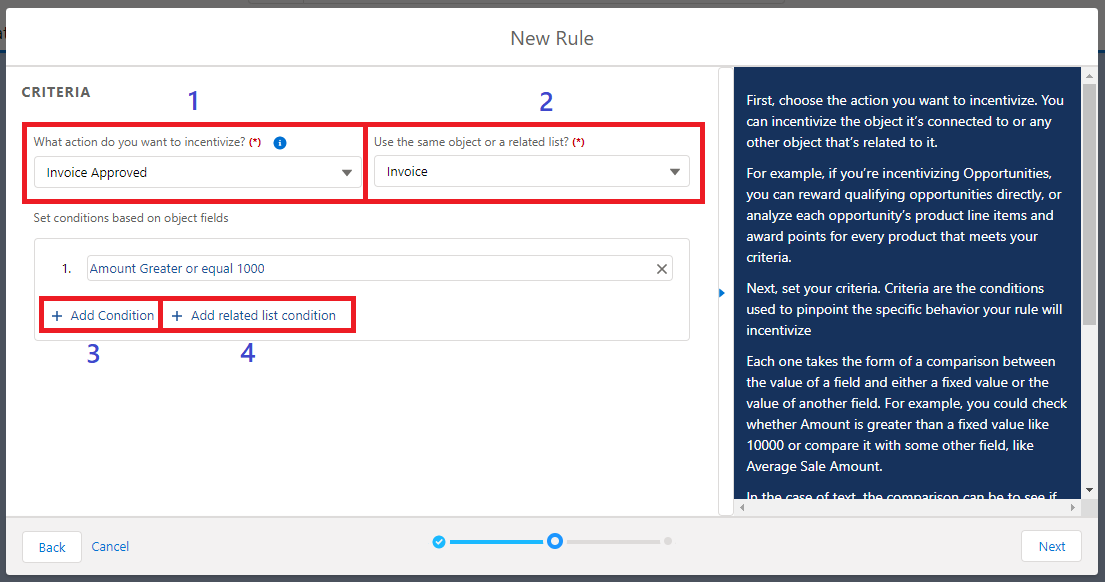
-
What action do you want to incentivize?
Choose which Action - from those that you have previously created in your Org - will trigger the rewarding. It shows the specific source for the Action, which is a custom or standard object. -
Use the same object or a related list?
This is where you will define the target object. It allows you to pick the same object you want to incentivize (the one related to the Action) or any other object that has a lookup relationship with it. Depending on that, you will have different criteria choices.
For example, imagine that you will reward the member every time that a Purchase is created, but want only those with the Purchase Items with the name "Locknut" to apply: the Rule would be triggered by the Purchase, but in "Use the same object or a related list?", you would select the Purchase Item object. -
Set conditions based on object fields
Rules also allow extra filters, which are fields from target object that refine rules conditions. Those fields can be compared to a specific value or even to another field by using relational operators such as "Equals", "Greater than", "Less than", etc.- The "Is", "Is Not", "Contains", and "Does Not Contain" operators support single or multiple values. When providing multiple values, the criterion will evaluate to true if any one of the provided values is or is not present on the record (depending on the operator selected). Multiple values should be comma-separated; up to 255 characters are allowed in the value field.
-
Add Related List Conditions
Depending on what object you have in "Use the same object or a related list?", this will allow you to create a condition based on that object. Using a related list also allows you to count the records that comply with the condition or sum the value from them.
For example, a program administrator can create a rule to give Points to members who buy a product bundle in the same purchase. Purchase Details are stored in a Related List. So, the Rule should consider if - in the Product Details records of the business transaction related - are at least 2 products of all the components of the product bundle.
Let's walk through how Tread would set up their rule:
They already have a promotion create called “Sell at least 500 units of the Product bundle Locknut + Tier Premium”. They will add a new rule called "Rule Product bundle Locknut + Tier Premium".
In the criteria section, they will select the action: Invoice > FieloPRP__Member__c and then select Invoice as the related object. Since they want to bundle 2 different products, they will need to create 2 related list conditions.
1) They will click_Add Related List Condition_ and make sure the object path is the following:
"Invoice > Invoice Item > Product > Product Name equals"
The Operator should be set to equals with a fixed value of “Locknut”. When they click Next there will have 2 ways to aggregate the matched records, Count and Sum. They will click Sum and have the Operator set to Equal and the Value says "500".
2) They will click_Add Related List Condition_ and make sure the object path is the following:
"Invoice > Invoice Item > Product"
The Operator should be set to equals with a fixed value of “Tier Premium”. When they click Next there will have two ways to aggregate the matched records, Count and Sum. They will click Sum and have the Operator set to Equal and the Value says "500".
Lastly, they will set the "Process When" option to "All conditions are true".
It should look something like the example below.
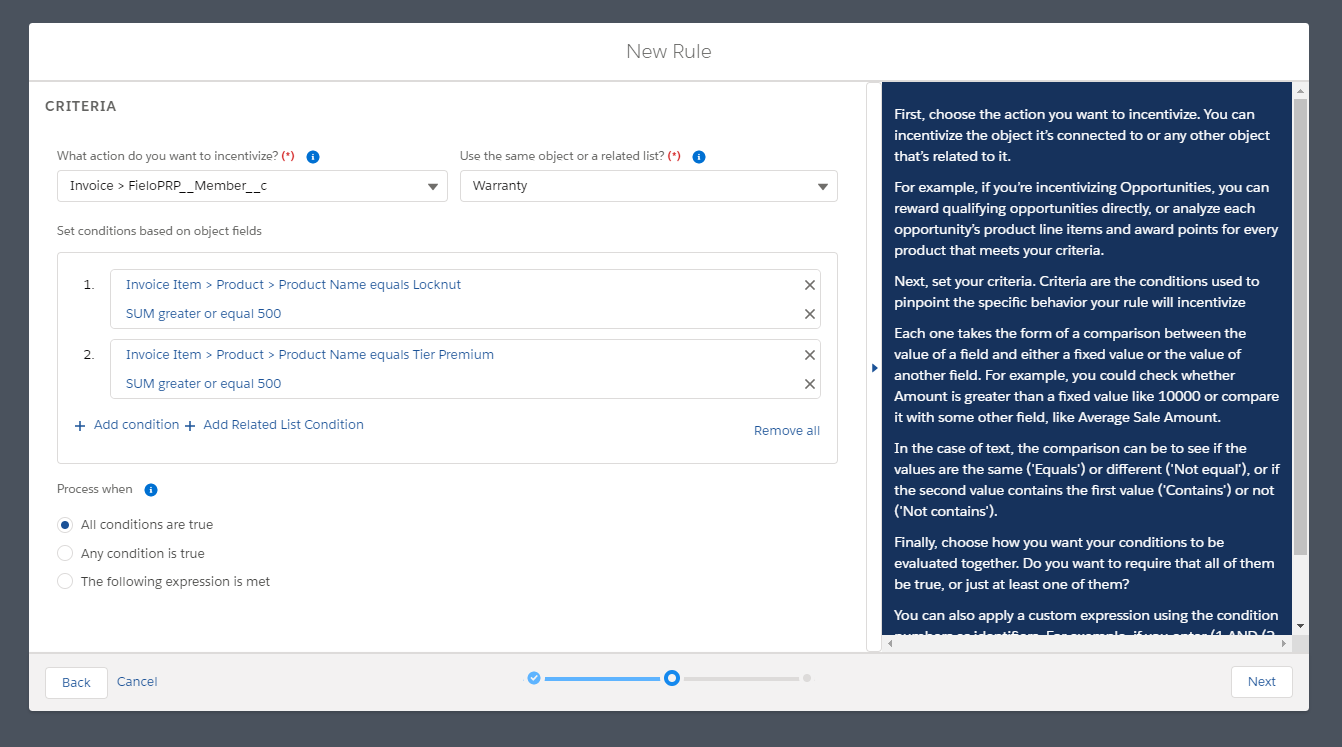
Rule Name and Type
In the example, Tread wanted to process the Rule only when all the conditions are met, but you may want to select Any condition is true or The following expression is met.
In case you choose the last option, you'll need to provide a formula. For example, if you enter (1 AND (2 OR 3)), a Member activity that meets your first criterion and your second or your third criterion (or both) will count toward the Rule.
When entering a formula, make sure to add up to two conditions between the same parenthesis. For example, instead of (1 AND 2 AND 3), use ((1 AND 2) AND 3).
Once you have determined your criteria, if any, you can click Next.
Number of conditions in RulesIt is not possible to activate the Promotion if any of its Rules have more than 33 conditions in the criteria.
Reward Types
Decide how you’ll reward members for performing the incentivized action. You can choose one or any combination of currencies (standard and custom), a badge, an instant reward or a custom rewarding class.
Rules that reward Only when it awards the most points can only give Points and/or custom currencies.
Choose Currency
Currencies are a fast, simple way to award members and incentivize your member's behavior. Once you've defined your Rule Type and Criteria, you can choose in which way rules will grant Points and any other currency (if applicable).
By default, negative rewarding is not allowed. If your use case requires this, contact us.
Currency Conversion: Mode and Value
You can decide how currencies are converted into different modes depending on how you want to manage currencies and award your members. There are three ways to award currencies:
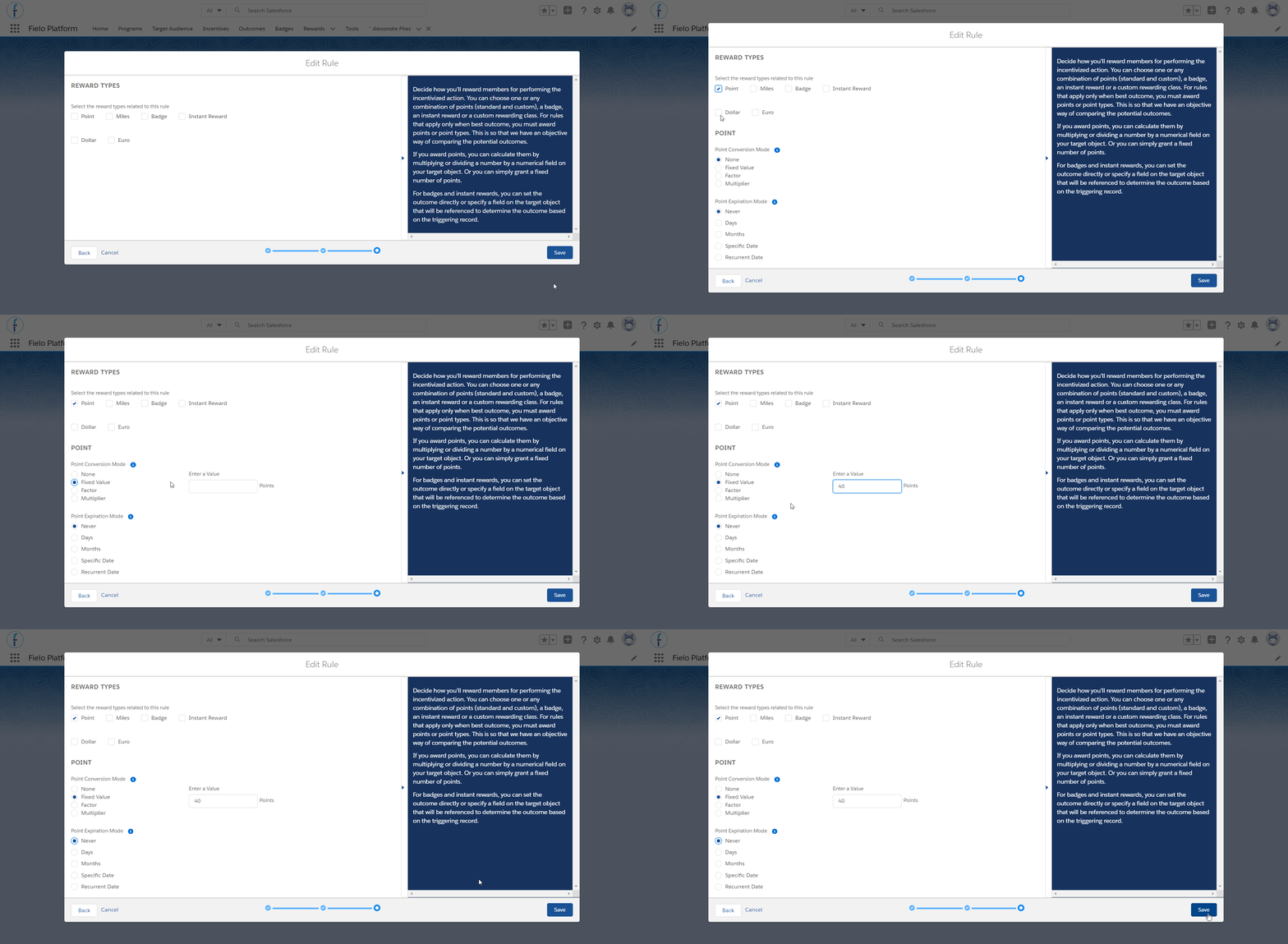
Points
- None is only available when having more than one currency, i.e. you are giving Miles but not Points, or when your rule type is Always - in which case you must select either an Instant Reward or Instant Badge.
- Fixed Value awards Members with a fixed amount of a currency. In the Conversation Value field, enter the amount of a currency winning Members will earn. E.g. If Conversion Value is 100 it means that every time Members meet the Rule Criteria they will obtain 100 Points.
- Factor gives members an amount of currencies by dividing the target object (defined in "Use the same object or a related list?") of a rule by the fixed number you enter in the Conversation Value field. E.g. If your target object is Transaction > Points, you can divide any numerical field from Points by 2.
- Multiplier awards currencies to members by multiplying the target object (defined in "Use the same object or a related list?") of a rule by the fixed number you enter in the Conversation Value field. E.g. If your target object is Transaction > Points, you can multiply any numerical field from points - balance - by 2.
- Percentage is specific for when the chosen currency generates payout. It awards the amount by calculating the percentage of any numerical field of a Challenge, Mission or Promotion Member, according to the value you enter in the Conversation Value field. You can add 2 decimal numbers to the percentage at the most (e.g. 2.45%).
Using multiplier and factor with fractional valuesNote that, if the numerical field from the target object or the Conversion Value is a fraction and it is multiplied or divided by an integer, the system will round the result down (until .4) or up (from .5).
For example, imagine that you have a transaction with 0.4 Points and it should be multiplied by 1; the result will be 0. If the transaction has 0.6 Points instead, the result will be 1.
Optionally, you may also specify an Expiration Mode for currencies that don't generate payout, which determines when currencies awarded will expire from a winning member's profile:
- Use Never when you don't want currencies to expire
- Use Days to specify a fixed number of days that currencies will be valid.
- Use Months to specify a fixed number of months that currencies will be valid.
- By default, monthly expiration occurs at the same time of the month as the accrual. Optionally, you can choose to group all currency expiring in a given month into the First Day of the Month or the Last Day of the Month.
- Use Specific Date to specify a particular expiration date for all currencies awarded through this rule.
- Use Recurrent Date to specify the month and day all currencies awarded through this rule will expire every year.
Choose an Instant Reward
When your rule type is Always, you can award your members granting them an instant reward and/or a badge. These instant rewards and badges are the ones that you've set up for rewarding in a rule, challenge or mission. You can give your members an instant reward and/or a badge together with currencies or without them as well.
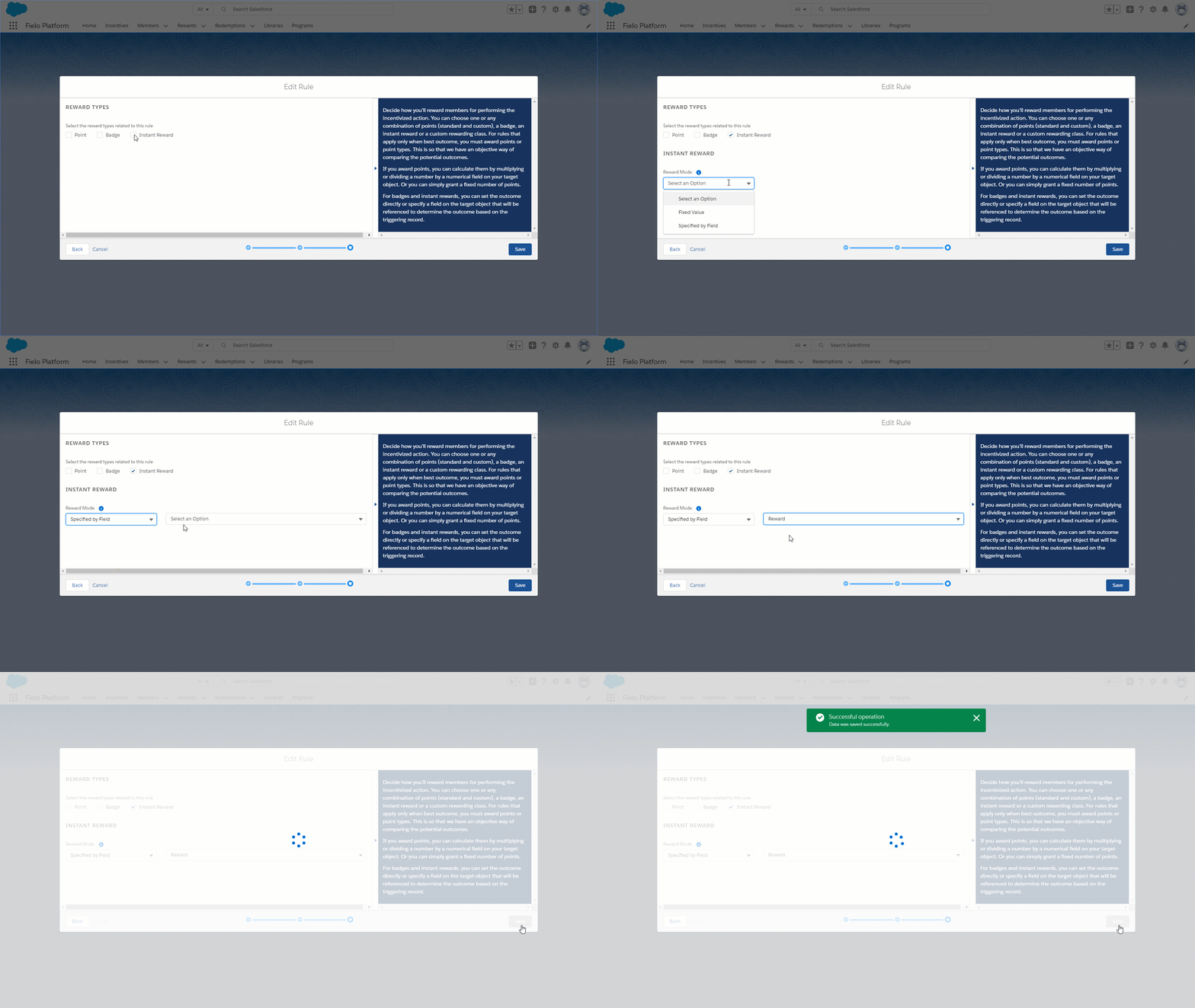
Instant Rewards and Instant Badges
Instant rewards are a great way to give your members immediate gratification when they meet a rule. You can set rules to give your members Instant Rewards in two different ways:
- Fixed Value mode awards a specific instant reward from all available rewards which are as instant rewards.
- Specified by Field mode lets you grant instant rewards based on a dynamic field.
Optionally, you can set Stock Control , which determines not to process the transaction if reward is out of stock.
Instant rewards will only be visible when you are using Always to apply the rule.
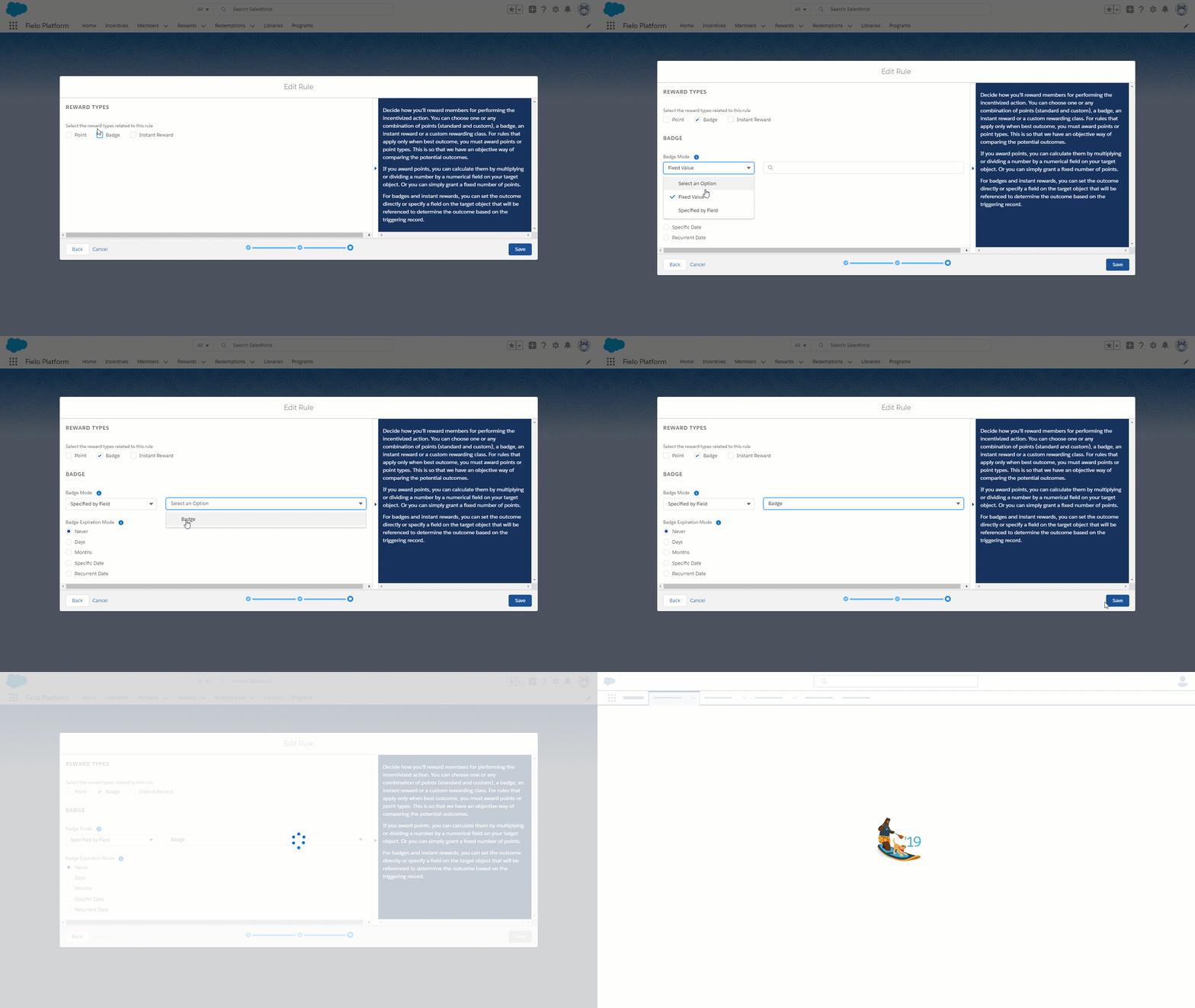
Choose a Badge
Badges are perfect for members to boast about their performance or accomplishment. They're a great reputation builder for any partner or employee community!
- Fixed value mode awards a specific number of instant badges chosen from the available badges.
- Specified by field mode lets you grant instant badges based on a dynamic field.
Additional Rewarding
Optionally, you can specify a Badge Expiration Mode, which determines when the badge will expire from a winning member's profile:
- Use Never when you don't want the badge to expire
- Use Days to specify a fixed number of days that a winning member will hold the badge.
- Use Months to specify a fixed number of months that a winning member will hold the badge.
- Use Specific Date to specify a particular expiration date for all badges rewarded through this rule.
- Use Recurrent Date to specify the month and day all badges rewarded through this rule will expire every year.
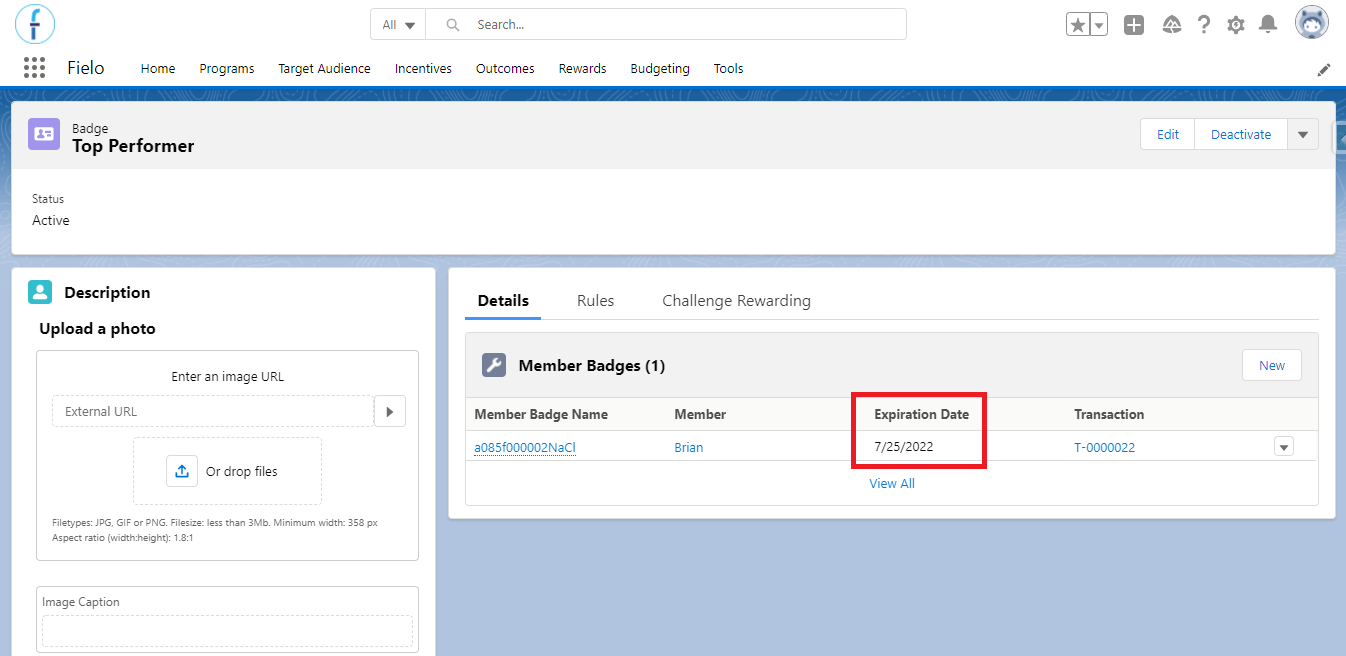
The badge's expiration is stored in the Badge Member record, which is created when a member receives the badge. You can keep track of that in the Badge Members related list within the badge view page, and the Member will see the badge as expired through the Profile and Badges Lightning Components for sites.
Specify Additional Rewarding (Only 'Always' Rules)
In case you'd like to award members with something other than Currencies, Badges or the regular Rewards, you can implement an Apex Class with custom functionality that will allow you to offer additional rewarding, such as a special benefit or a ticket.
The code will be executed when the member performs an action that accomplishes the rule, giving you further rewarding flexibility.
Learn more how to do that here.
Rule Management Tools
You can edit or delete each rule no matter its status.
Edit
After creating the number of rules you want your promotion to have, you can edit any section within the rule.
To edit a rule, click in the row corresponding to the rule and select Edit.
You can always edit rules in an Active promotion without affecting what has been processed so far.
Delete
To delete a rule, click in the row corresponding to the rule and select Delete. It is not possible to delete a Rule if the Promotion has only 1 Rule.
Rules Audit
You can keep track of the record that was responsible for generating a Currency reward through its Point record page.
For that, you must first create a lookup field in the Point object for the object(s) being incentivized in the Rule. If you have more than one Rule incentivizing different objects, there should be one field for each object you want to incentivize.
- Go to the Object Manager in your Org.
- Look for and access the Point object. Once there, enter the Fields & Relationships tab.
- Go through the steps to create a new field. It must have the Lookup Relationship data type and be related to a detail object (the one that you will incentivize), from a master-detail relationship. E.g. the Opportunity Product object.
- Go to your Promotion and create the Rule, choosing the detail object that you defined in the lookup in Use the same object or a related list?. For example:
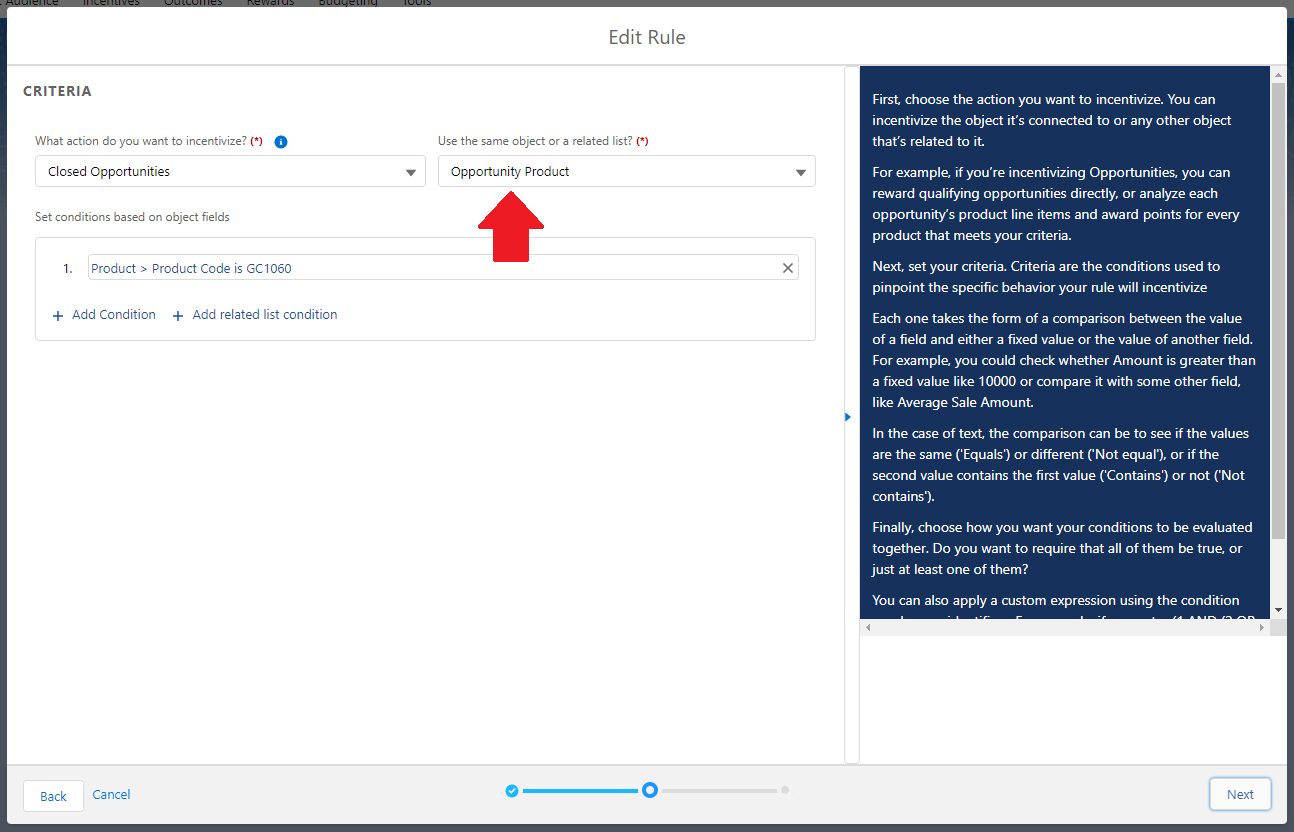
Opportunity Product in the Rule
Important!This feature is only available for behaviors based on Master-Detail relationships, as the one explained in the example.
You must create the lookup field in the Point object before creating the Rule. Or, after you create the field, inactivate the Promotion and activate it again. Only after this, will the field show up on the Point record page.
Remember that the Rule is processed only when the Master record is updated. For example, if you update the Opportunity Product instead of the Opportunity, Fielo will ignore this update in the product.
After you follow the steps above, the engine will automatically update the field when processing the Rule, creating a link between the processed record and the point outcome.
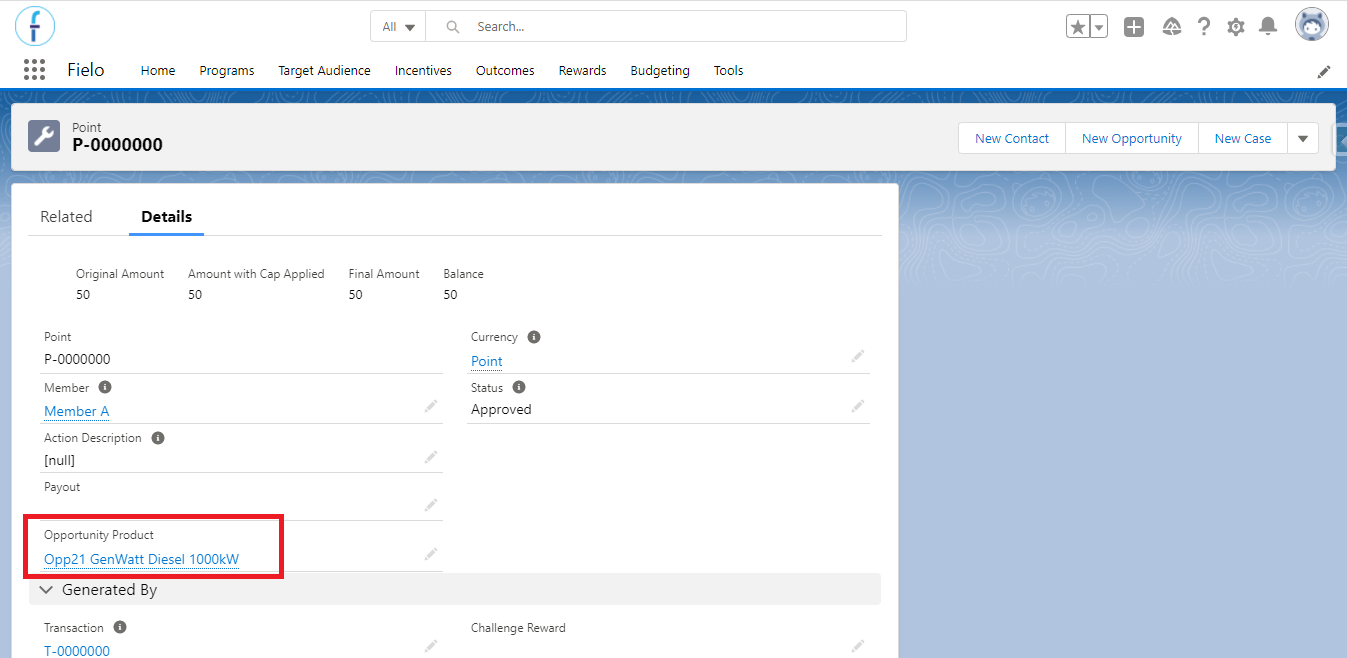
Opportunity Product lookup field in the Point object
Updated 7 months ago