
Installation and Setup
Learning v1.102.7
Requirements
Be sure you've first installed and set up Fielo, and that you're using FieloPLT v2.144 or above.
Install the Learning Package
Click here to log in to your org and begin installation.
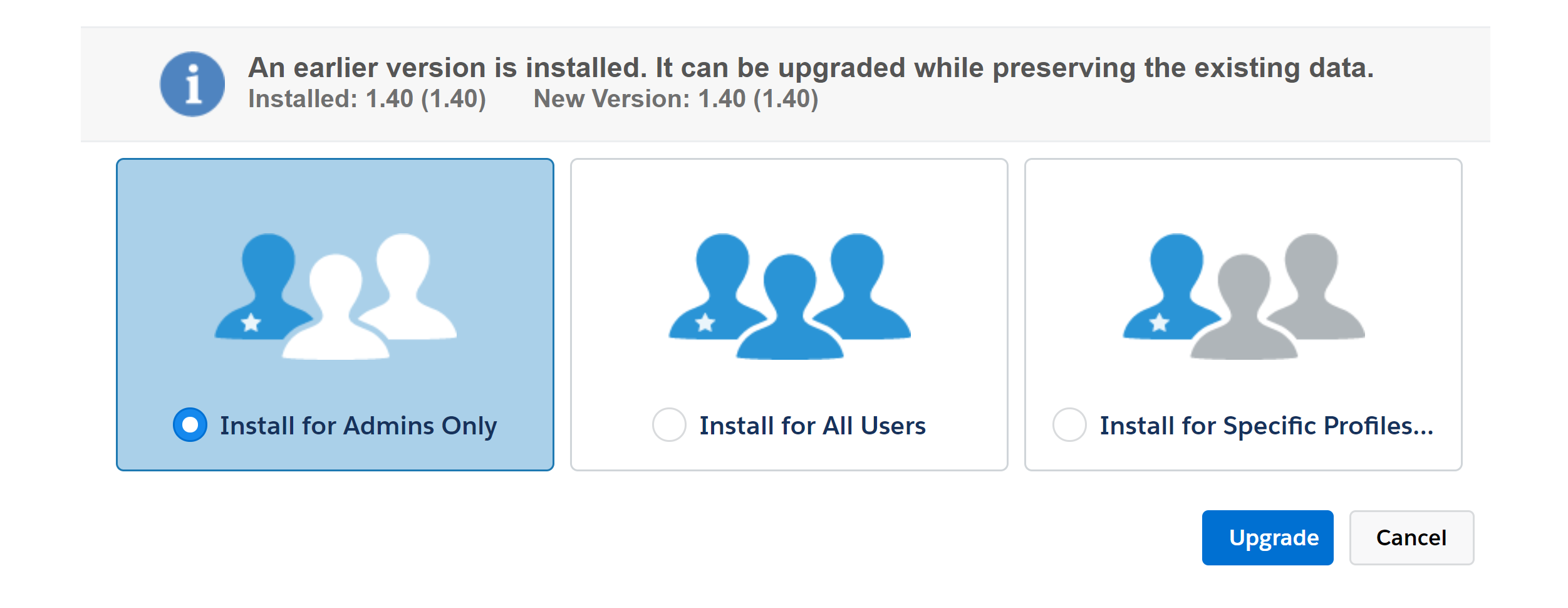
Choose which users in your org will be configuring. If it will be just you and/or other admins, select Install for Admins only and click Install. When the installation process ends, the org administrator will be notified by email.
Provide User Permissions
Identify the users that will participate in Fielo Learning courses as members and grant them the Fielo Learning Community permission set.
Edit Sharing Settings
Your new Experience Cloud site will require edits to the Sharing Settings section. Click on Setup from the top right navigation. Under the Home tab, search in the Quick Find box for Sharing Settings. Go into on Sharing Settings and click on the Edit button. You will need to ensure the following options have the correct settings for Default External Access.
Go through the list to find and change the settings for each item in the picture below. For example, find Course within the list and ensure that it is set to Public Read Only or Public Read/Write.
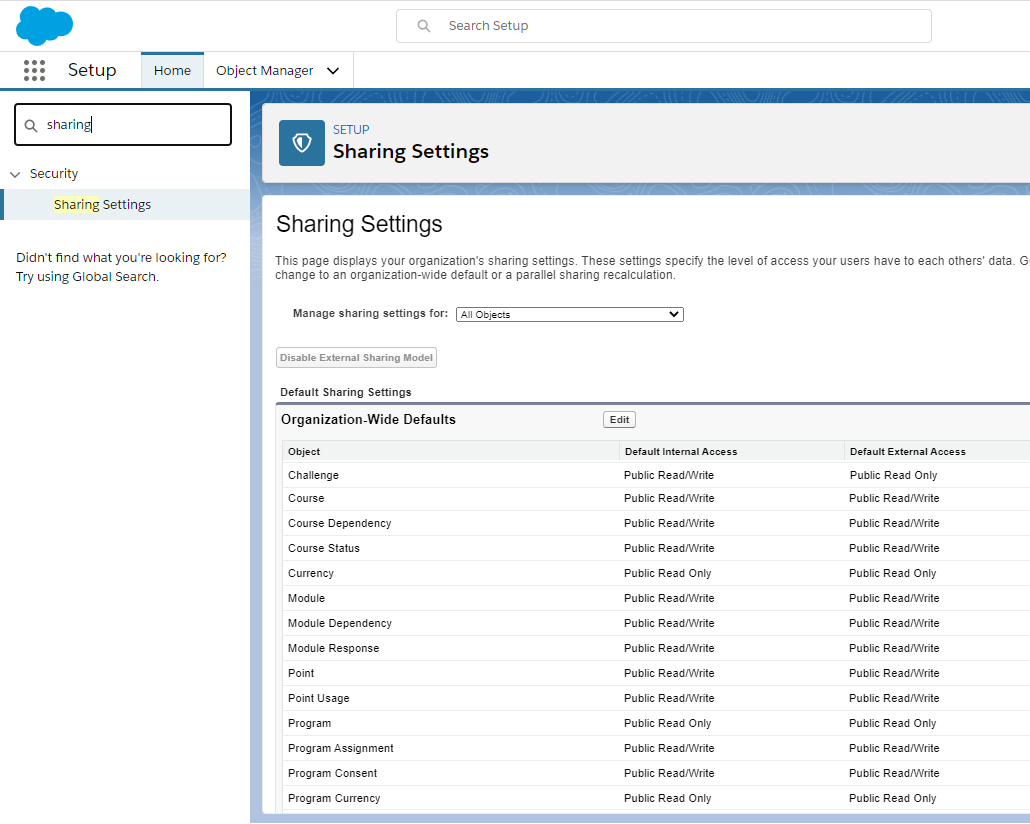
Once you have gone through all the items listed in the image above, go ahead and click Save.
Enable the FieloELR Library
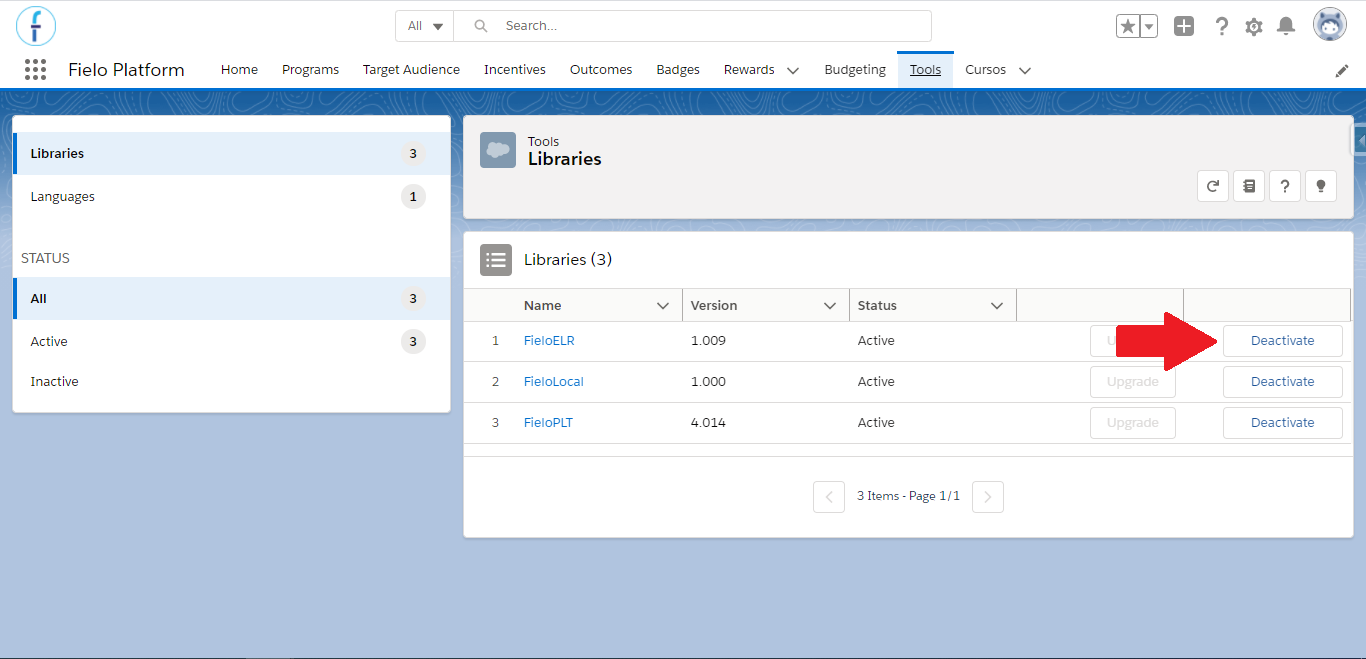
After installing Learning package, you need to activate the FieloELR library so that behaviors and page settings for Learning are enabled.
From the App Launcher () choose Fielo Platform. From Tools, access the Libraries section and hit Activate for FieloELR.
Add the Courses Tab
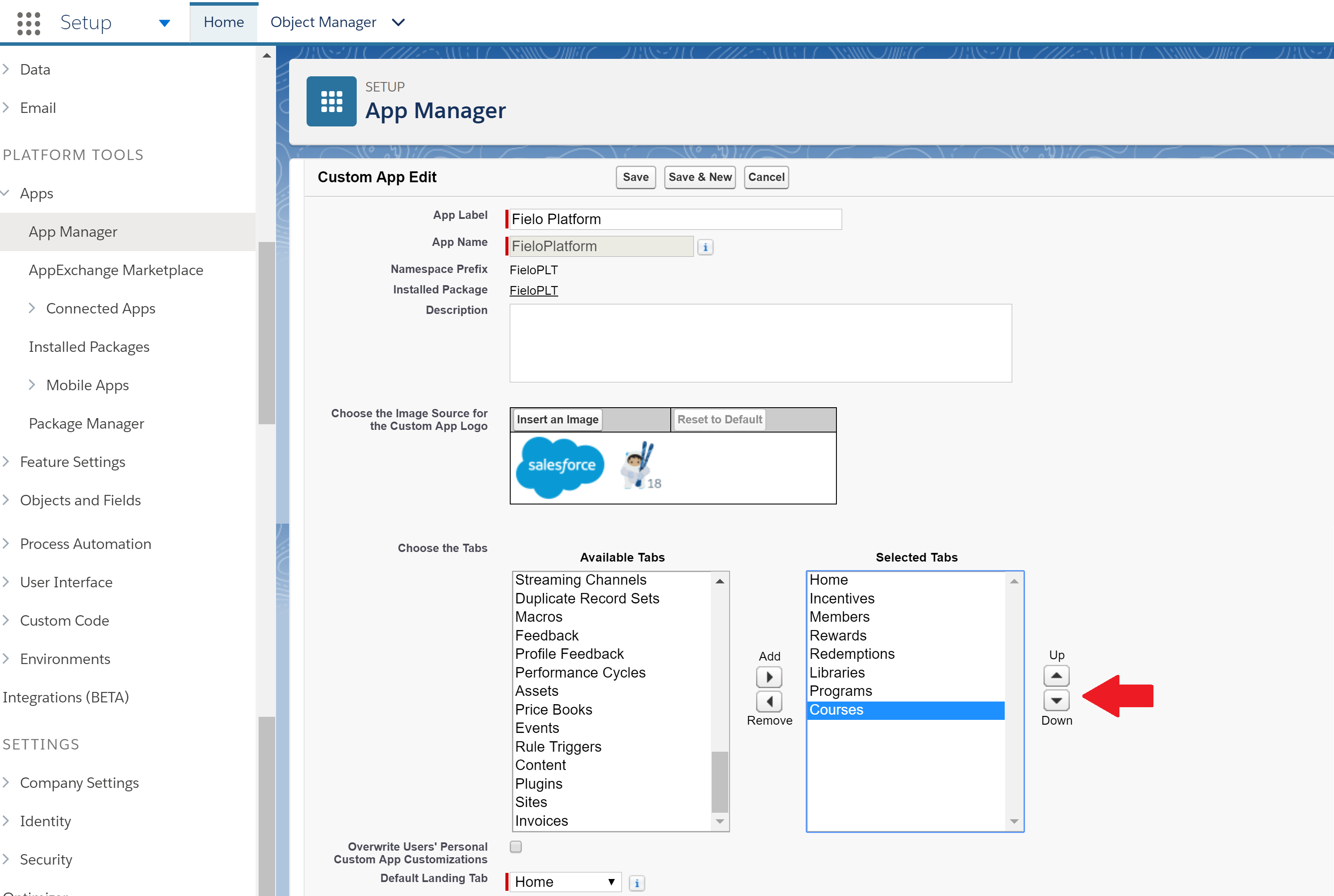
To access Learning, you'll need to add a new tab so that you can access it from the platform. Note: This may have happened automatically in the previous step if you're using Lightning Experience.
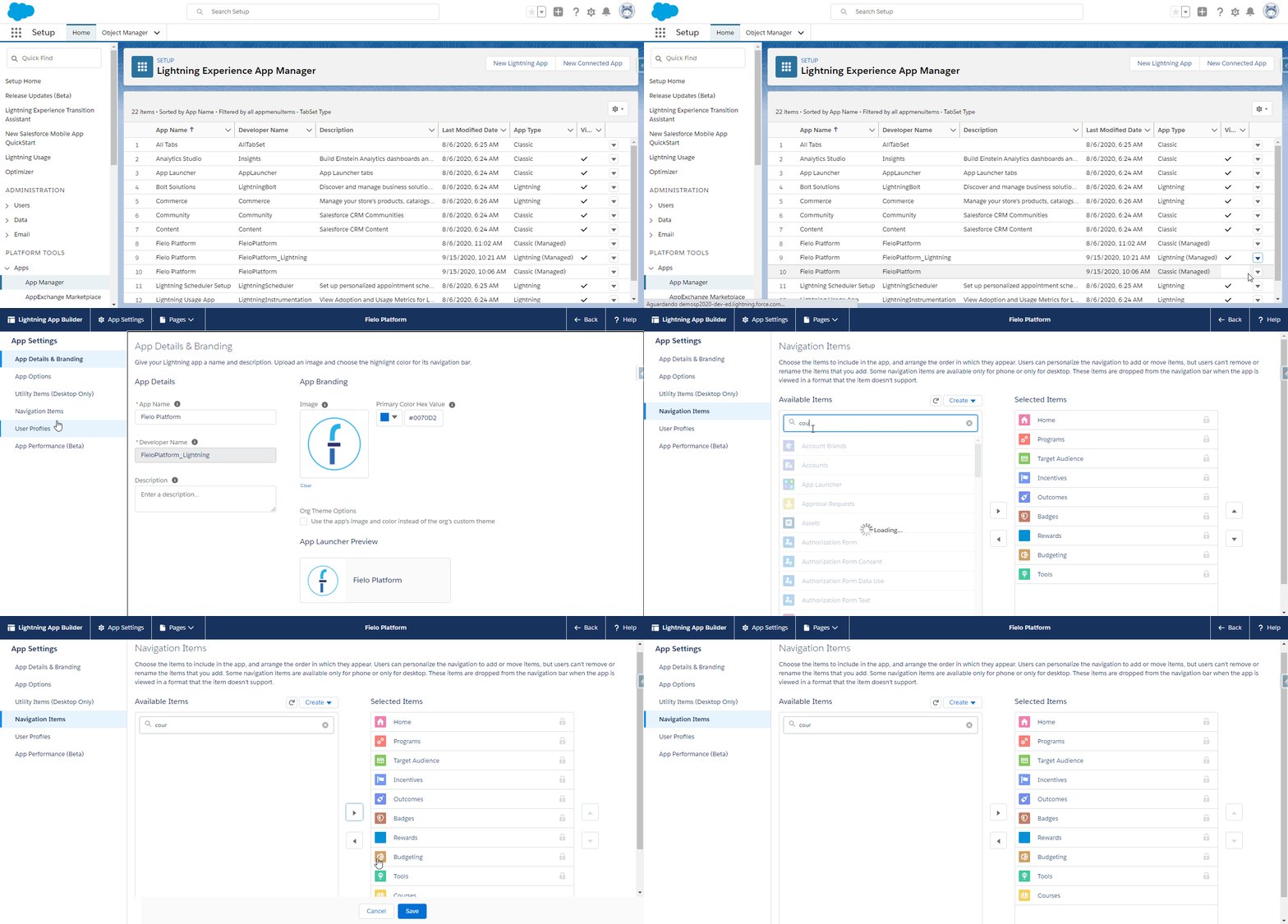
From Salesforce Setup, search for and selected App Manager. In the row corresponding to Fielo Platform Classic, click and choose Edit. Then select Courses from Available Tabs to add it to the Selected Tabs list.
In case the tab was not added automatically when using Lightning Experience, in the row corresponding to Fielo Platform Lightning, within the App Manager, click and choose Edit. Next, access the Navigation Items tab, look for and select Courses to add to the Selected Items column.
Don't forget to save after!
Configure SCORM Settings (Optional)
If you've subscribed to our SCORM service, let us know the org(s) you will be installing on so that we can provide you the configuration details. Then, you'll need to configure the SCORM settings on each org.
You're ready to go!Now, it's time to start setting up your courses.
Updated over 1 year ago