
Installation and Setup
Install and configure Fielo Wallet v1.33
Requirements
Be sure you've first installed and set up Fielo.
- Install the Fielo Wallet Package
Click here to log in to your org and begin installation.
Before continuing, please make sure you are on Fielo R1’24 (PLT v2.186) or above, so that you are able to install the latest Fielo Wallet version
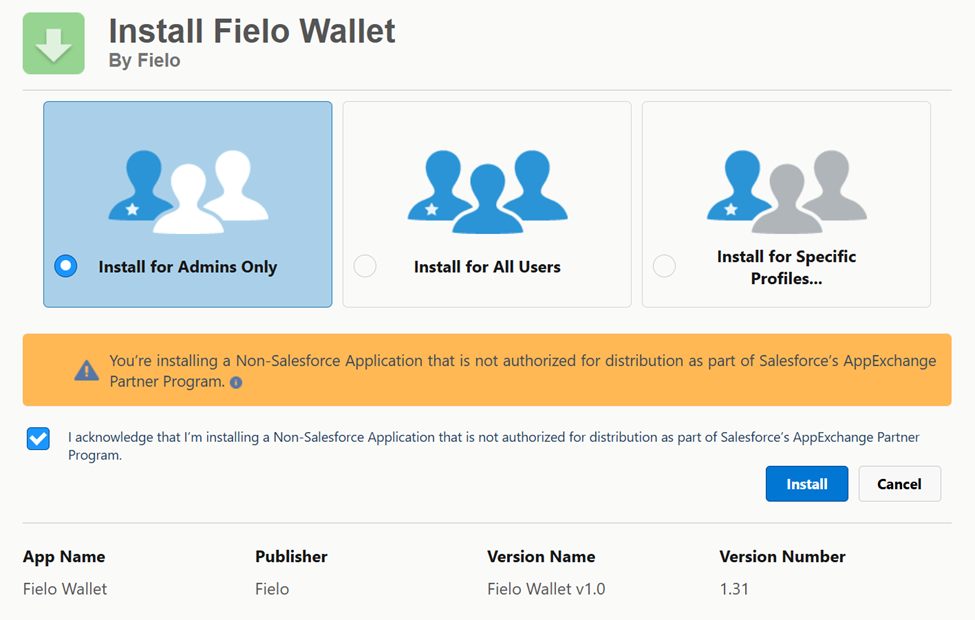
Choose which users in your org will be configuring. If it will be just you and/or other admins, select Install for Admins only and click Install. When the installation process ends, the org administrator will be notified by email.
-
Post-installation steps
-
Update/Extend Fielo Currency Form
-
Go to Setup > Object Manager > Currency
-
Go to Field Sets
-
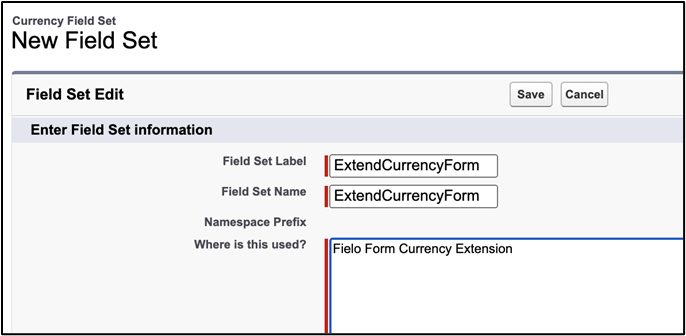
If you have already a custom Field Set with api name equals ExtendCurrencyForm click on it
-
If you don't have one, create a new one like the following:
-
-
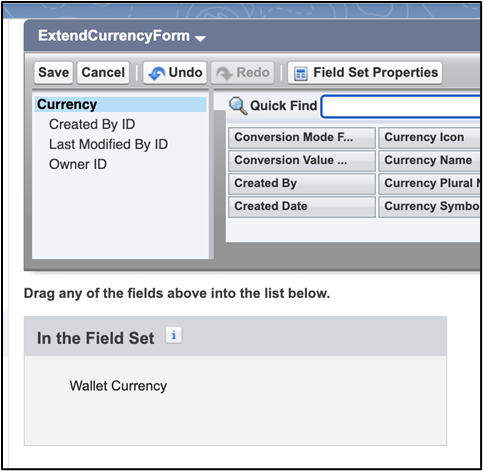
Add the field Wallet Currency to the In the Field Set area.
-
Click Save
-
-
Update Currency LEX Page
-
Go to Setup > Object Manager > Currency
-
Go to Lightning Record Pages
-
If you have already a custom page for currencies
- click on it
- In the details page, click Edit
-
If don't have a custom page for currencies:
- click on the "Currency" page that appears on the list
- In the details page, click Clone
-
In the Lightning App Builder go to the tab Fields (in the top left)
-
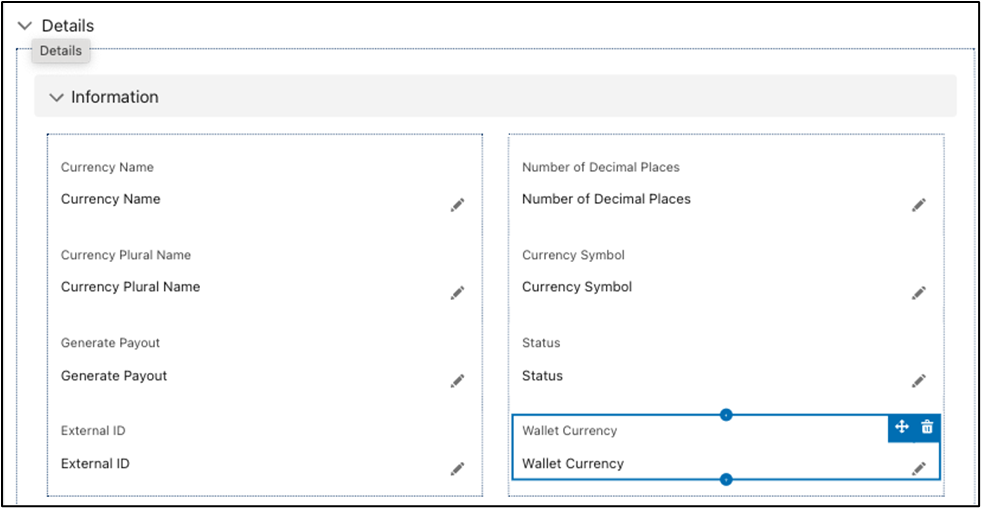
Drag & drop the field Wallet Currency to the Details > Information section
-
Click on Save
-
If the Activation wizard appears, assign this page as org default for Desktop and phone.
-
Click on Save after the activation wizard ends.
-
-
Update Reward LEX Page
-
Go to Setup > Object Manager > Reward
-
Go to Page Layouts
-
Click on the page layout you choose
-
In the details page, click Edit
-
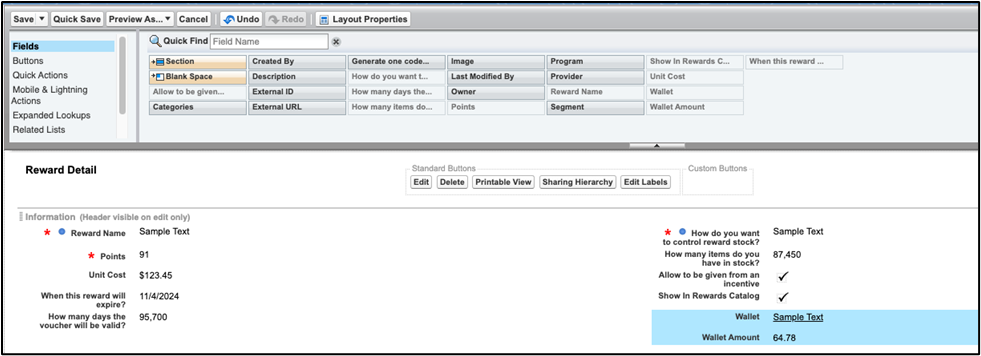
Drag & Drop the fields Wallet and Wallet Amount to the Reward Detail
-
Click on Save
-
-
Update/Extend Fielo Rewards Form
-
Go to Setup > Object Manager > Reward
-
Go to Field Sets
-
If you have already a custom Field Set with api name equals ExtendRewardForm click on it
-
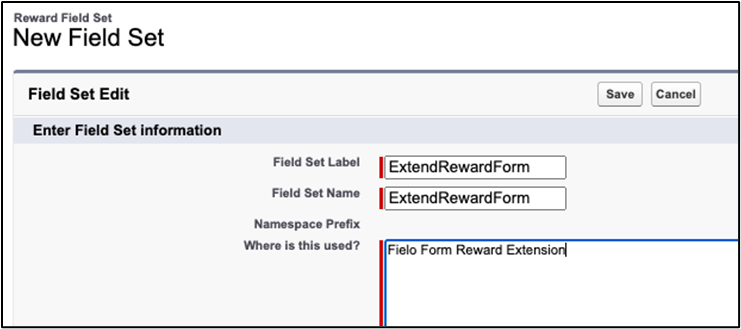
If you don't have one, create a new one like the following:
-
-
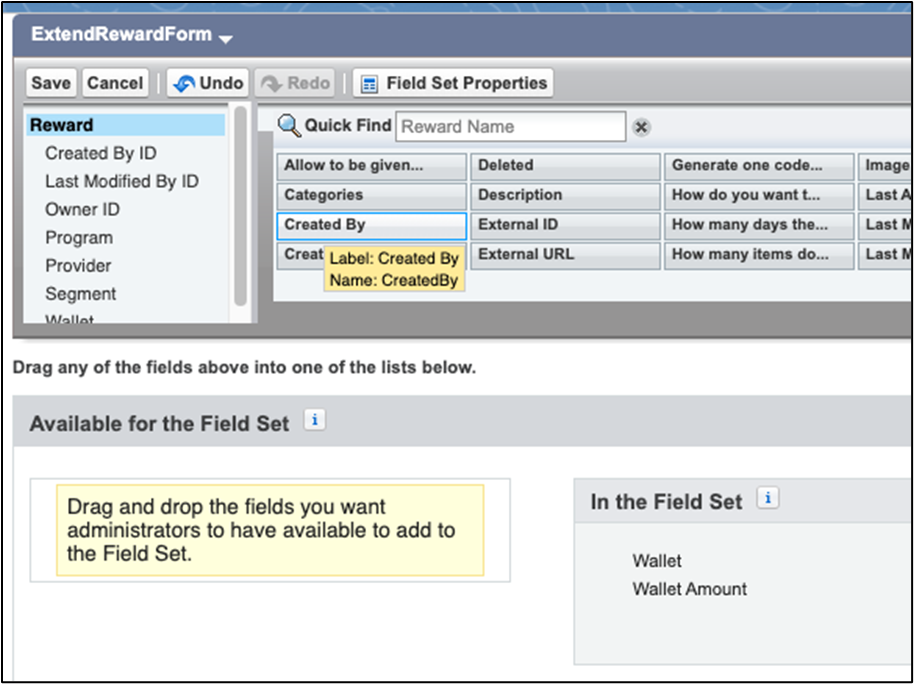
Add the field Wallet and Wallet Amount to the In the Field Set area.
-
Click Save
-
-
Update Triggers Custom Settings
-
Go to Setup > Custom Settings > Triggers
-
Click Manage
-
If there any records created, edit each one of them making sure to set the following fields to True:
- Fielo Wallet Currency
- Fielo Wallet Program Currencies
- Fielo Wallet Redemption Item
- Fielo Wallet Redemption
- Fielo Wallet Reward
- Fielo Wallet Rule
-
If no records are present, no action is needed for this step.
-
-
You're ready to go!Congrats. Now you are ready to use the Fielo Wallet Package!
ImportantIf you are using the Point approval process, remember to make the approval process ignore the negative point records related to wallet currencies. If not this will not decrease the wallet currency consumptions unless you approve all member redemptions consumptions of the wallet.
Updated over 1 year ago