
To create a KPI using the bar chart type, follow the steps below.
- Create a report through Salesforce. You can learn how to do that in the Reports & Dashboards for Lightning Experience trailhead.
- In our example, the Report type is Opportunities with Member. The Group Rows option is set to Program Name and the Group Columns, to Closed Date.
- Save the report in the Public Reports folder. Its name will be "Closed Opportunities by Day" (unique name "Closed_Opportunities_by_Day_13O").
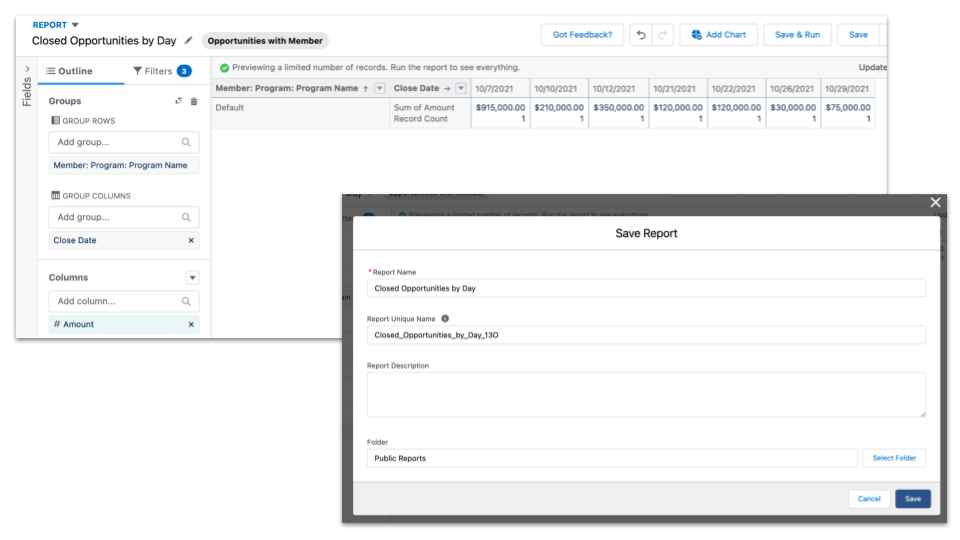
Report example - Bar chart type
- From the Fielo Platform, go to the Tools tab.
- Enter the FieloLocal library and, from there, click on the Analytics section.
- Click New and provide the following information. The fields not displayed here can be left blank.
| Field | Value |
|---|---|
| KPI Name | Closed Opportunities |
| External Id | ClosedOpportunities |
| Available Charts | Bar |
| Library | FieloLocal |
| Type | Program |
| Report Filter | |
| Report Type | Standard |
| Report Objective Field | s!Opportunity.Amount |
| Report Unique Name | Closed_Opportunities_by_Day_13O |
| Report Metadata | {"size":"small","styleClass":"","cacheResults":true,"hideOnError":false,"rendered":true,"showRefreshButton":true} |
If you want to take a look at the report fields information, the KPI detail page has a button labeled View Details that should take you to the Visualforce page that displays some report runtime information.
- In the KPI record detail page, go to the Related tab and click new on the KPI Domains related list.
- Provide the following fields:
| Field | Value |
|---|---|
| External Id | ClosedOpportunities |
| Chart | Bar |
| Dashboard | DS-0000 (search for the one with external id = FieloPLTDashboardProgramDefault ) |
| KPI | Closed Opportunities |
| Metadata | {"runMode":"sync","showAnimation":true,"limit":10,"size":"2x2"} |
| Order | The last existing order in the chosen dashboard +1 |
- Access the Home tab in the Fielo Platform. The new KPI should appear in the Program tab inside the Command Center.