
The Import/Export and Data Portability utilities provide a simple way for you to specify what data you want to export. Exporting is available for Programs, Members (via Data Portability), Incentives, Rewards and Libraries.
Create an Export Config file
The first thing you need to do is to create an Export Config file. Export Config is a JSON file that includes two elements:
- configObjects: Here you can define all metadata from the objects you need to export, which includes their External ID and the fields to exclude.
- configModel: Here you define the data model to export, being sure to include any parent or related objects and lookup fields. You can also define a record filter using a whereCondition
{
   "configObjects":[
      {
         "apiName":"ExampleObject__c",
         "externalId":"ExampleField_ExternalID",
         "fieldsToExclude":"ExcludedField1__c,ExcludedField2__c",         "fieldsToExcludeModel":"ExcludedField1__c,ExcludedField2__c,ExcludedField3__c"
      },
      {
         "apiName":"AnotherExampleObject__c",
         "externalId":"AnotherExampleField_ExternalID"
      }
   ],
   "configModel":[
      {
         "apiName":"ExampleObject__c",
         "relatedObjects":[
            {
               "apiName":"RelatedObject__c",
               "relationship":"LookupExampleField",
               "relatedObjects":[
                  {
                     "apiName":"ParentObject__c",
                     "relationship":"LookupExampleField",
                     "whereCondition":"[{\"field\":\"AFieldToFilter__c\",\"operator\": \"=\",\"value\":\"SomeValue\"}]"
                  }
               ]
            },
            {
               "apiName":"AnotherRelatedObject__c",
               "relationship":"AnotherLookupExampleField"

            }
         ]
      }
   ]
}
Format your whereCondition
If using a WHERE condition, it must be in the form of a JSON string. For instance, the SOQL fragment WHERE FieloPLT__IsActive__c = true OR FieloPLT__IsActive__c = false AND LastModifiedById IN IsActive can be expressed as follows:
[
  {
    "andOrOperator": "",
    "field": "FieloPLT__IsActive__c",
    "operator": "=",
    "value": "true",
    "subQueryFilter": null
  },
  {
    "andOrOperator": "or",
    "field": "FieloPLT__IsActive__c",
    "operator": "=",
    "value": "false",
    "subQueryFilter":
    {
      "field": "IsActive",
      "objectName": "User",
      "filters":
      [
        {
          "andOrOperator": "and",
          "field": "LastModifiedById",
          "operator": "in",
          "value": "IsActive",
          "subQueryFilter": null
        }
      ]
    }
  }
]
Each JSON object represents an expression.
For the "andOrOperator" key, use an empty string ("") for the first expression. Use "and" or "or" in subsequent expressions to indicate the relation with the previous expression. If your WHERE condition will only contain one expression, set "andOrOperator" to null.
For "field", enter the API name of the field being used in the expression.
For "operator", specify how you want to compare "field" with "value". Use can choose from "=", "!=", "<", "<=", ">", ">=", "in", "not in" and "like".
For "value", enter the value you want to compare "field" with, which could be "true" or "false", a numerical value, or even the API name of another field.
For simple queries, you can set "subQueryFilter" to null. If using subqueries, the object should specify the "field" to be compared and, for "objectName", the API name of its related object. The subquery "filters" have the same structure as simple queries.
Now, imagine that you've created your own Page Settings to customize certain page layouts and you only need to export these Page Settings, but not the whole FieloLocal library - no Actions nor Models. To do this, the first thing you need to do is create a Config as follows:
{
   "configObjects":[],
   "configModel":[
      {
         "apiName":"FieloPLT__PageSettings__c",
         "whereCondition":"[{\"field\":\"FieloPLT__Library__r.Name\",\"operator\": \"=\",\"value\":\"FieloLocal\"}]",
         "relatedObjects":[]
      }
   ]
}
Upload Your Configurations to Salesforce
Once the config file is ready, it's time to upload it to Salesforce.
First, go to Salesforce Setup and access Static Resources. Click New to create a new Static Resource.
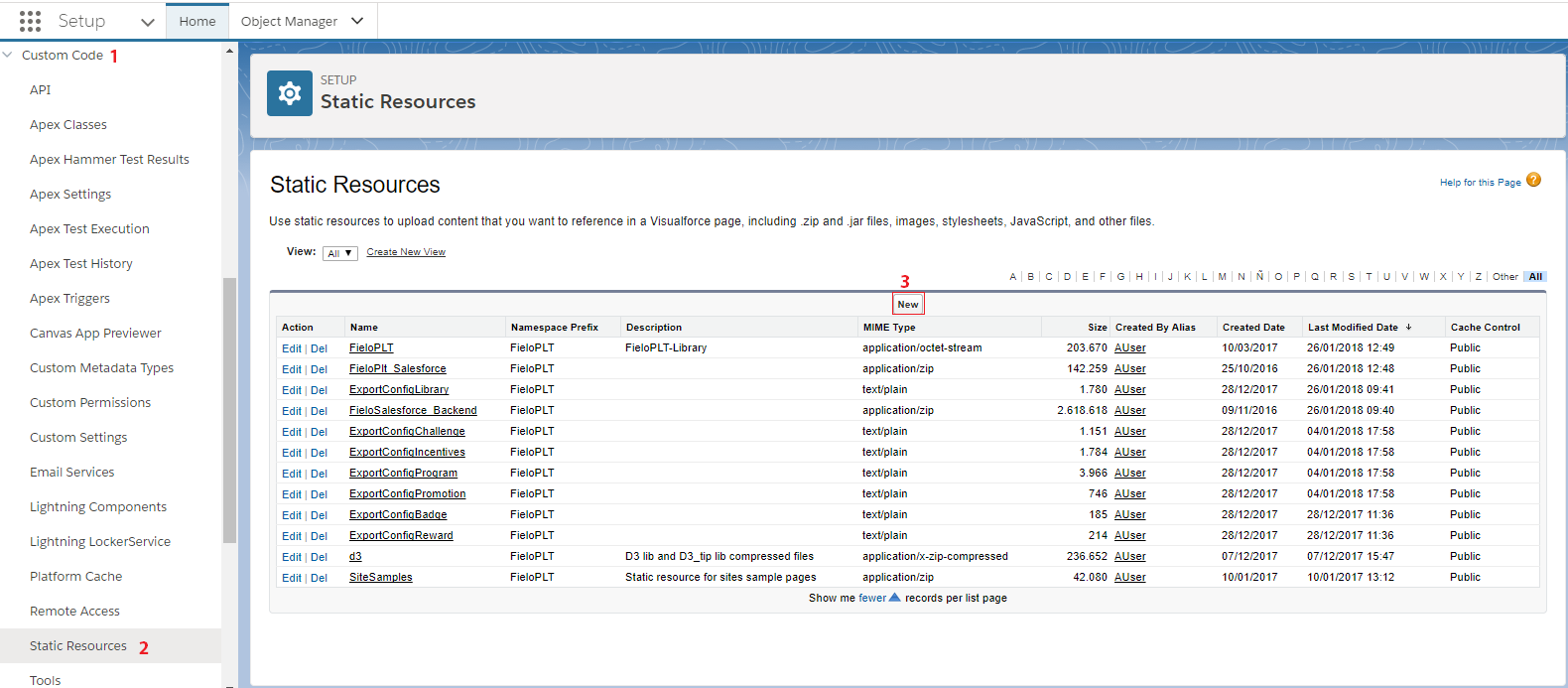
New Static Resource
Now, enter the name for your Static Resource and upload the config file containing the JSON definition of what we want to export.
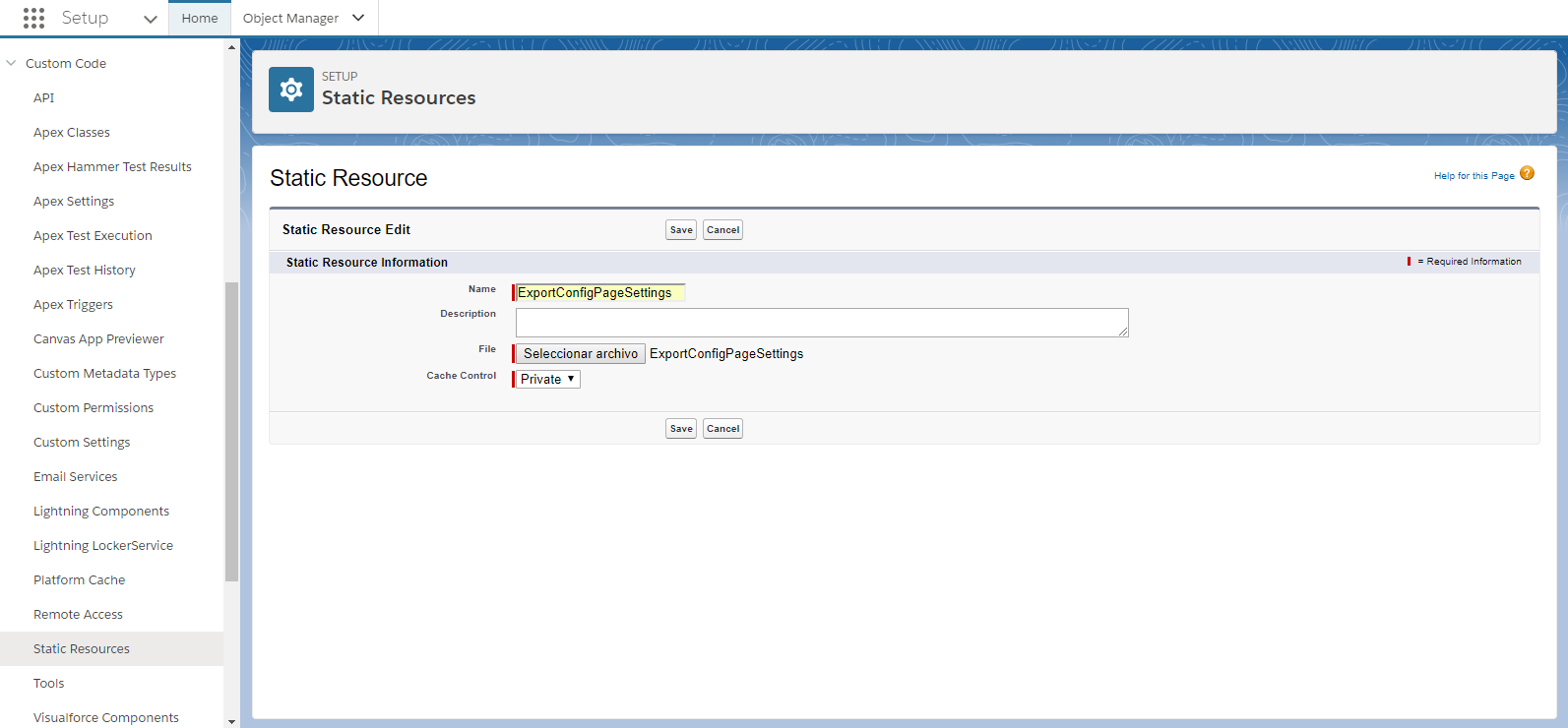
In this example, we're using the JSON config file for the Page Settings that we created before.
After clicking Save, you're ready to use your new JSON config file.
We advise you to give your Static Resource and JSON config the same name.
Link Your Config File to a Library
Lastly, you need to connect the configurations you've created before to the corresponding Fielo Library.
Internally, all information from each Fielo product is stored in different Libraries, i.e. all data included in Programs, Members, Incentives, Rewards, etc. is stored in FieloPLT library; all Courses, Modules and Questions are linked to the FieloELR library, and all Invoices to the FieloPRP library.
So, once you've created and uploaded your config JSON file to Salesforce, go to the appropriate library where the information you're exporting is stored. Here we're accessing FieloLocal library as we're using the same example from our custom Page Settings.
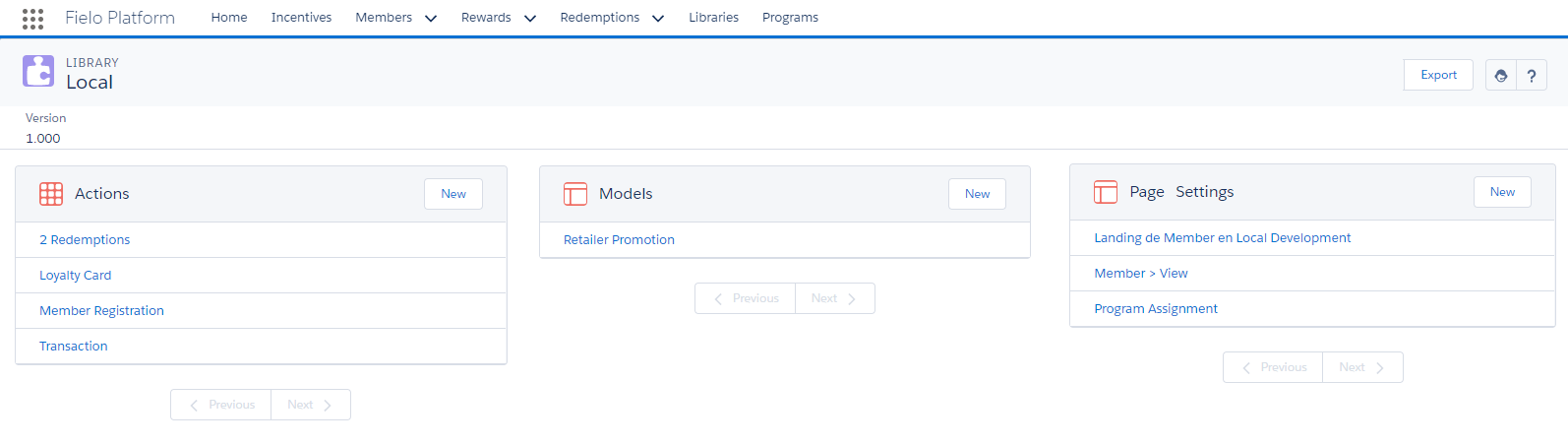
Page Settings in Local Development Library
Now, switch to Salesforce Classic and change the URL by deleting /apex/apex/LibraryView?id=and adding ?nooverride. You'll notice that library details are displayed, including a Resources field.
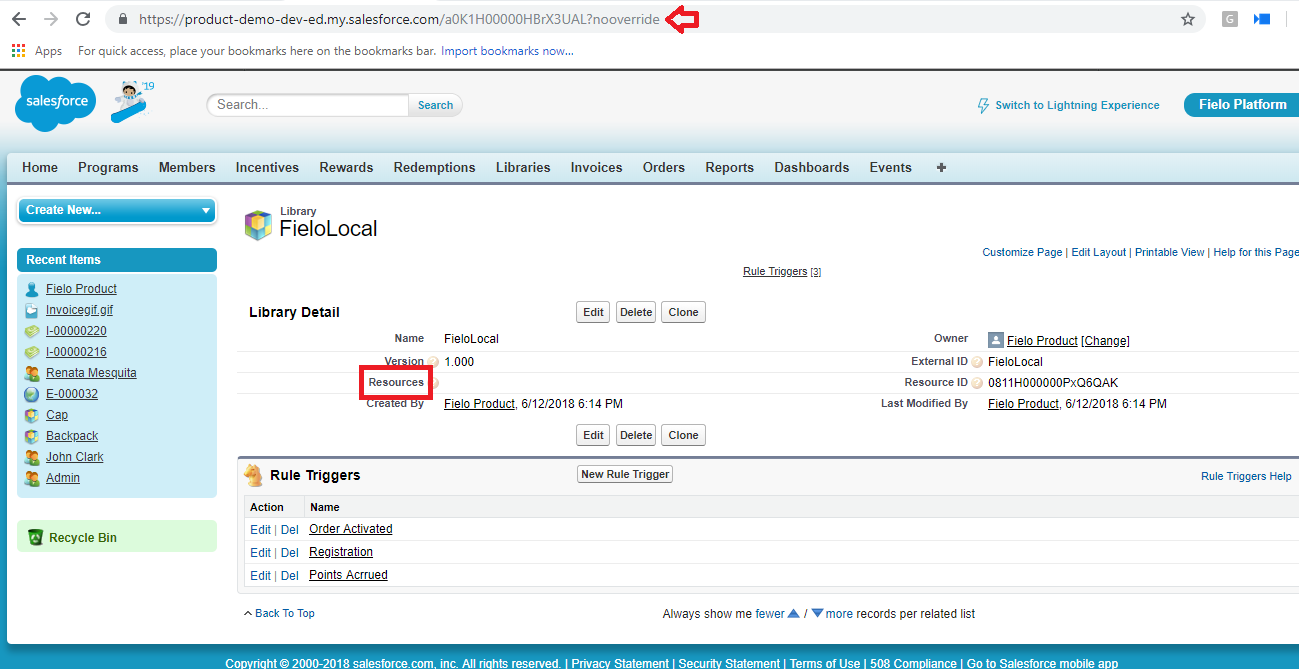
Add the key-value pair corresponding to the name of the object you want to export and the name of the static resource you created - in our example {"pagesettings":"ExportConfigPageSettings"} - that you created before and hit Save.
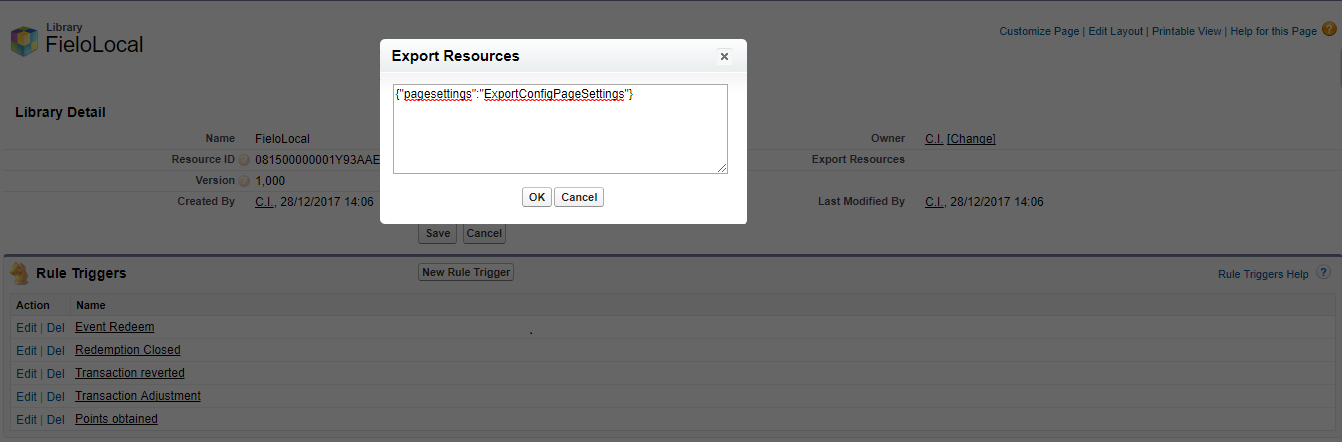
Resources
Note that the JSON object can contain multiple key-value pairs, separated by commas, for various object-resource pairings. Here are some possible options from the FieloPLT library:
| Key | Object / Purpose |
|---|---|
"programs" | Program export |
"libraries" | Library export |
"promotions" | Promotion export |
"challenges" | Challenge export |
"incentives" | Promotion and Challenge export |
"rewards" | Reward export |
"badges" | Badge export |
"members" | Member (Data Portability) export |
"memberAnonymize" | Configs for Member anonymizaton |
"memberMerge" | Configs for the Merge Members API method |
Using your Config File
Once you've created and uploaded the JSON config file containing the data you'd like to export, and linked it to Fielo, you can access it to download the data.
For that, you need to access a base URL as follows:
https://[app:Instance URL]/apex/fieloplt__xmlexport?exportPoint=yourConfig
You can include other parameters in the URL depending on the information you want your JSON export file to have:
- exportPoint: Name of the config to download. This parameter is mandatory.
- library: Here you can define the Library in which the Export Point is stored.
- exportType:
- exportRecords: Here you can set the IDs of the records to export. The parameter should be structured as follows:
ExampleObject__c:recordId1,recordId2;AnotherExampleObject__c:recordId1.
For our Page Settings example, the URL we use is made up like this:
https://[app:Instance URL]/apex/fieloplt__xmlexport?exportPoint=pagesettings&library=FieloLocal