
Challenge & Mission Rewarding
Choose how you'll reward Members for completing Challenges and Missions
Challenge Rewarding
Challenge Rewards are how Members are rewarded for successfully completing a Challenge. They can take the form of Points, Instant Rewards and/or Badges.
Before setting up rewarding for your Challenge, be sure that you've created at least one Mission.
Challenge Rewarding Tables
Rewarding Tables allow you to configure how one or multiple Challenge Rewards are awarded to Members who have successfully completed your Challenge. Depending on the number and type of Mission(s) you're using in your Challenge, there are several Rewarding Tables to choose from.
Missions with Objective
Challenges which include one or more Missions with Objective, and no Missions without Objective, can have the following Rewarding Tables:
- Singular Table
Use the Singular Table if your Challenge will have just one Challenge Reward. You can set a Limit for the number of times a Member will be eligible for the reward.
- Time Table
Use the Time Table to award different Challenge Rewards depending on the order in which Members successfully complete your Challenge. For each Challenge Reward, you'll specify a Position number which indicates whether the reward will be given to the Member who completes the Challenge first (Position: 1), second (Position: 2) and so on.
Challenges which include multiple Missions with Objective, and no Missions without Objective, can have the following Rewarding Tables:
- Level Table
Use the Level Table to award Challenge Rewards one or more times over the life of your Challenge. For each Challenge Reward, you'll set criteria for which Mission(s) a Member will need to accomplish to win the reward.
- Mission Table
Use the Mission Table if you'll have multiple Challenge Rewards, but want to award no more than one of them at the conclusion of your Challenge. For each Challenge Reward, you'll set criteria for which Mission(s) a Member will need to accomplish to win the reward. When your Challenge has finished, Members will receive any Challenge Reward they've won. Members who've met the criteria for multiple Challenge Rewards will receive the one that you created first.
Missions without Objective
Challenges which include one or more Missions without Objective can have the following Rewarding Tables:
- Position Range
Use Position Range to award Challenge Rewards based on participating Members' performance rankings at the conclusion of your Challenge. For each Challenge Reward, you'll specify the range of rankings that will qualify for the reward.
- Value Range
Use Value Range to award Challenge Rewards based on participating Members' performance metrics at the conclusion of your Challenge. For each Challenge Reward, you'll specify the range of performance values that will qualify for the reward.
Combining Mission Types
You can assign one or more Missions with Objective together with a Mission without Objective in order to require that a Member meet the Objective(s) before starting the Mission without Objective. Challenge rewarding takes place through either the Position Range or Value Range tables, and only Members who first accomplish the Mission(s) with Objective are eligible to be rewarded.
This a great way to make Members pass some initial requirements before participating in open-ended competition with other Members. Once a Member has accomplished all of the Missions with Objective, the Member will be able to compete for Challenge Rewards in the Mission without Objective. Let's see an example.
Choosing a Rewarding Table
Once you've decided which Rewarding Table you'll use in your Challenge, you can define it by clicking Table on the Challenge Rewards card.
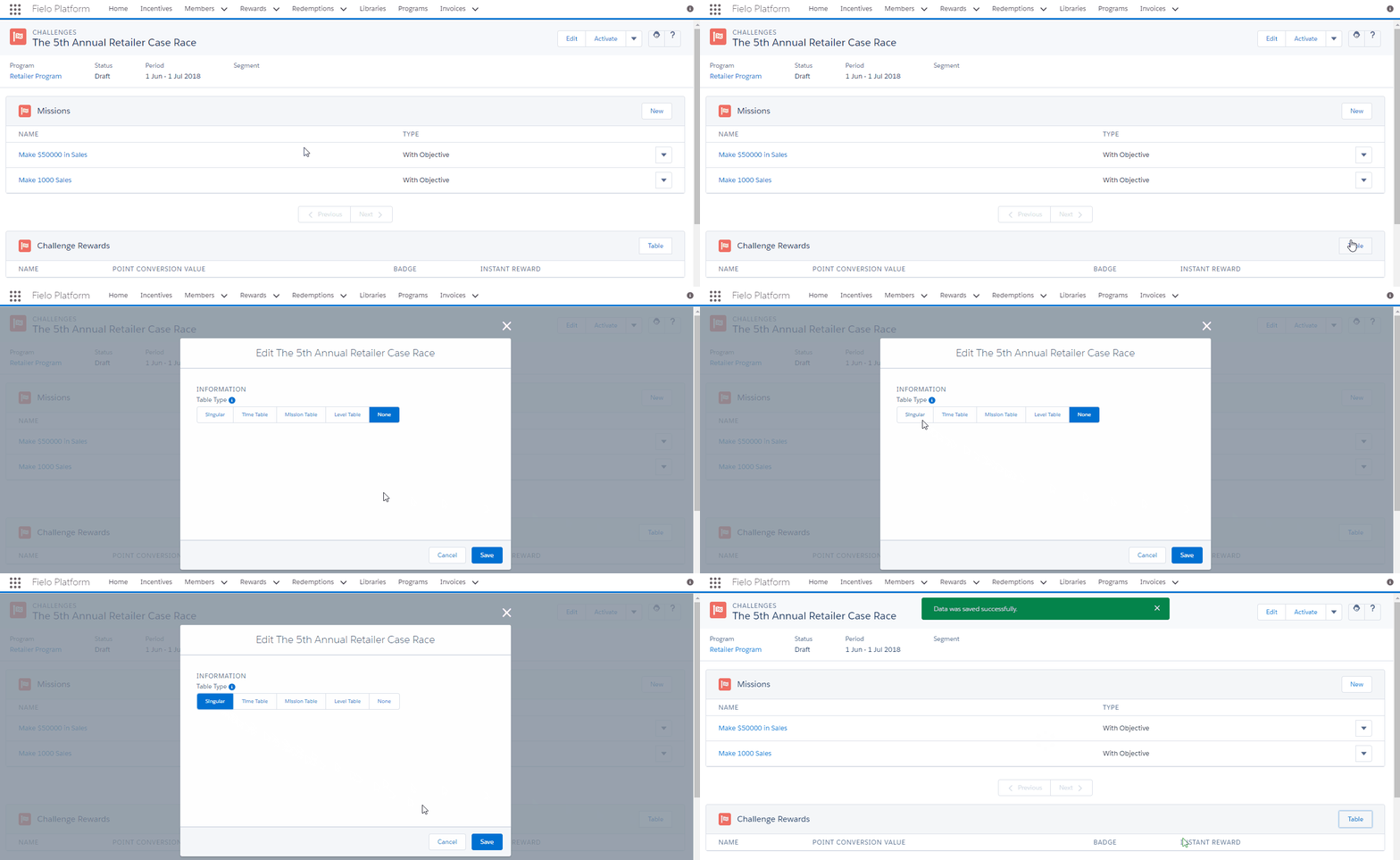
Changing Rewarding TablesIf you want to change your Rewarding Table after you've added Challenge Rewards, you'll have to delete those Challenge Rewards to make the change. So, it's a good idea to double check that the Rewarding Table you choose is right for your Challenge.
Creating a Challenge Reward
After choosing a Rewarding Table, you can start creating Challenge Rewards.
Challenge Rewards can award winning Members through Points, Instant Rewards and/or Badges. You can choose just one of these reward forms, mix and match them, or even define additional custom rewarding. Let's see how.
From your Challenge page, click New on the Challenge Rewards card.
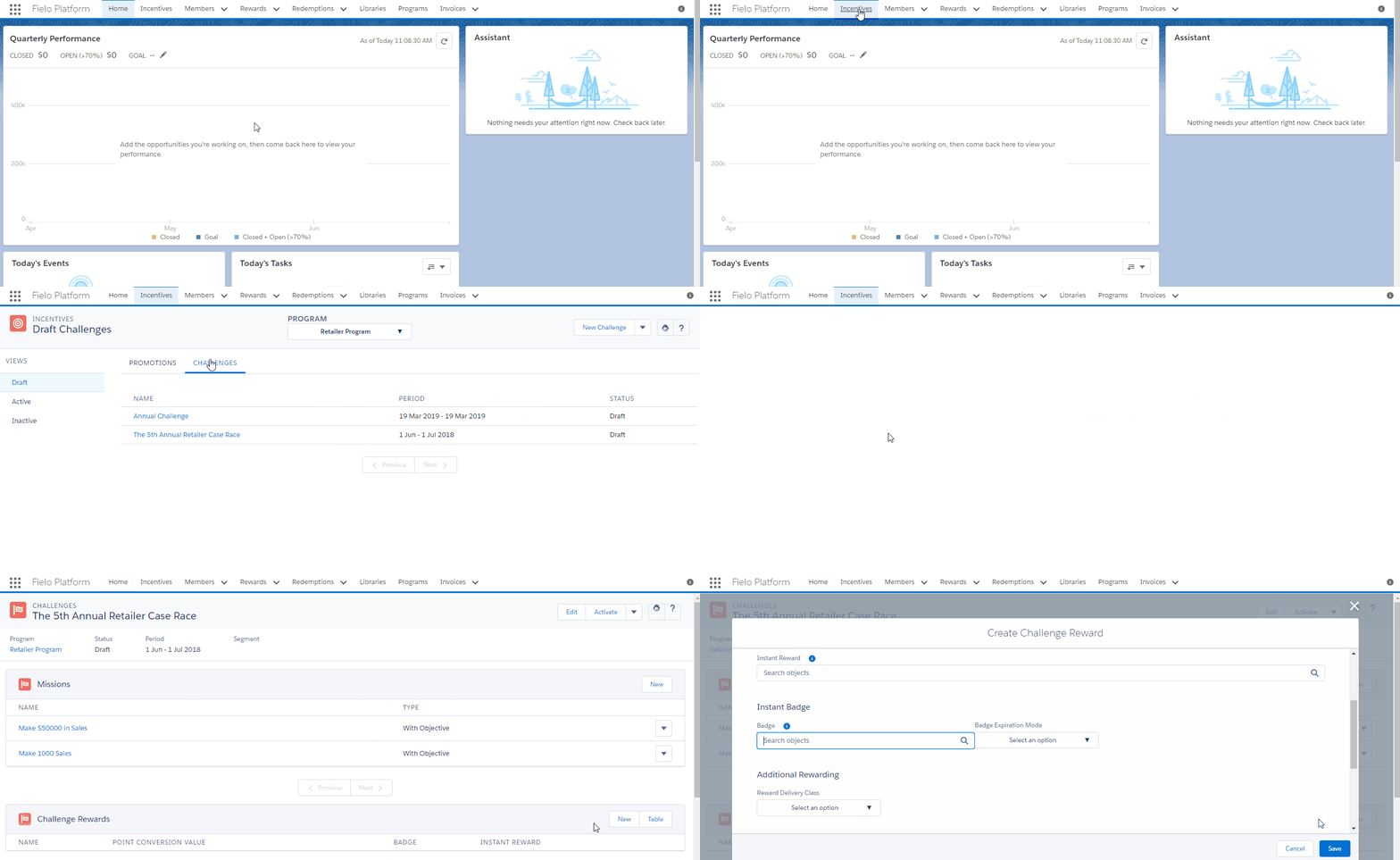
Choose a Rewarding Range (Position Range and Value Range Only)
Enter From and To values corresponding to the minimum and maximum performance rankings (for Position Range) or performance values (for Value Range) that a Member will have to achieve in order to qualify for the Challenge Reward.
For example, if using the Position Range table, you can target a reward to Members who finish the Challenge in 1st, 2nd or 3rd place by specifying a From value of 1 and a To value of 3.
Specify a Points Reward (If Any)
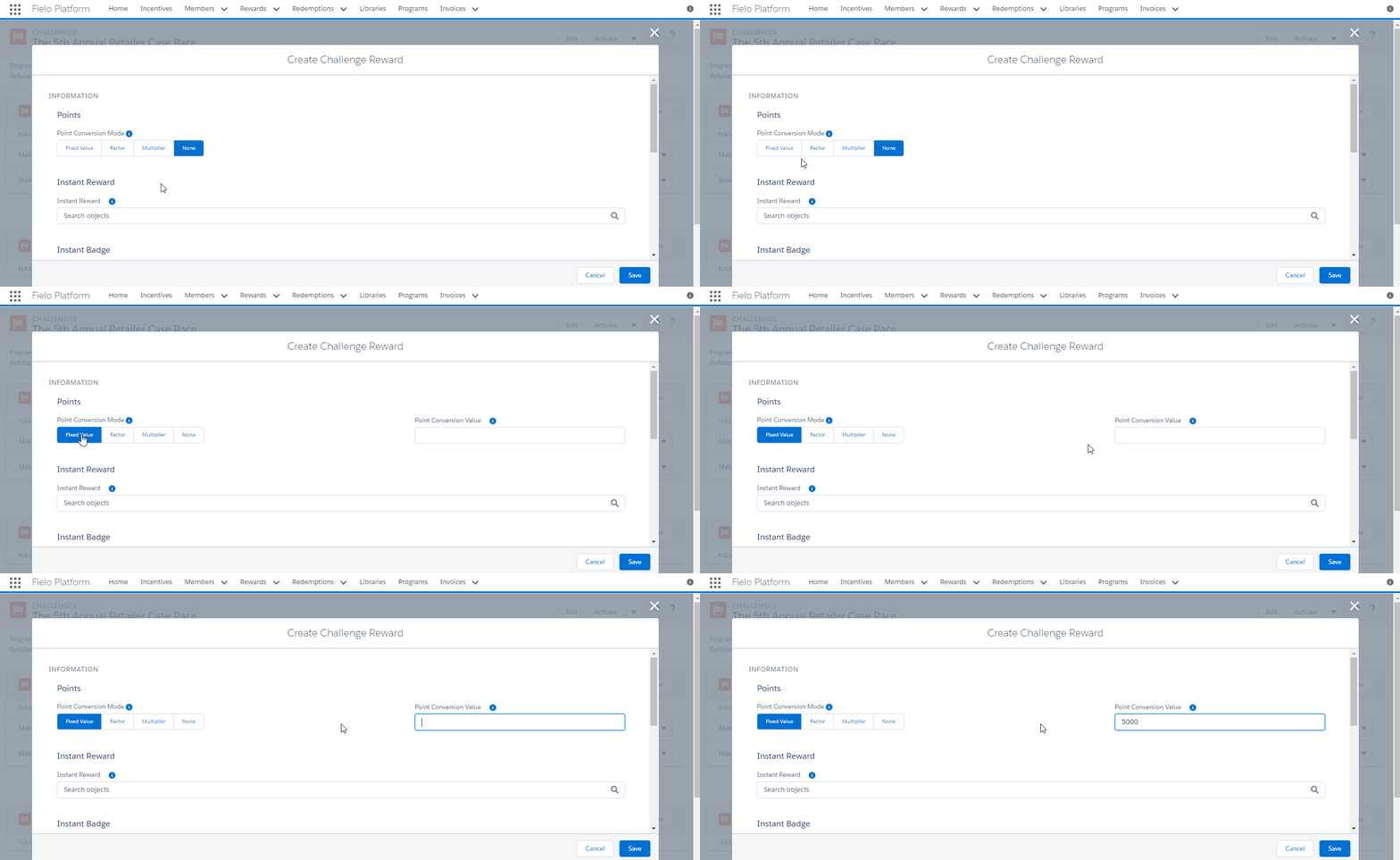
Points are a fast, simple way to reward Members for winning a Challenge. If your Challenge Reward will include Points, you'll need to choose a Point Conversation Mode and then specify either a fixed Points value or a Points Conversion Value.
Incentives cannot deduct points. Avoid inputting negative values.
There are three ways to award Points:
- Fixed Value mode awards a fixed number of Points. In the Point Conversation Value field, enter the number of Points winning Members will earn.
- Factor mode awards Points by dividing any numerical field of a Challenge Member by the fixed number you enter in the Point Conversation Value field.
- Multiplier mode awards Points by multiplying any numerical field of a Challenge Member by the fixed number you enter in the Point Conversation Value field.
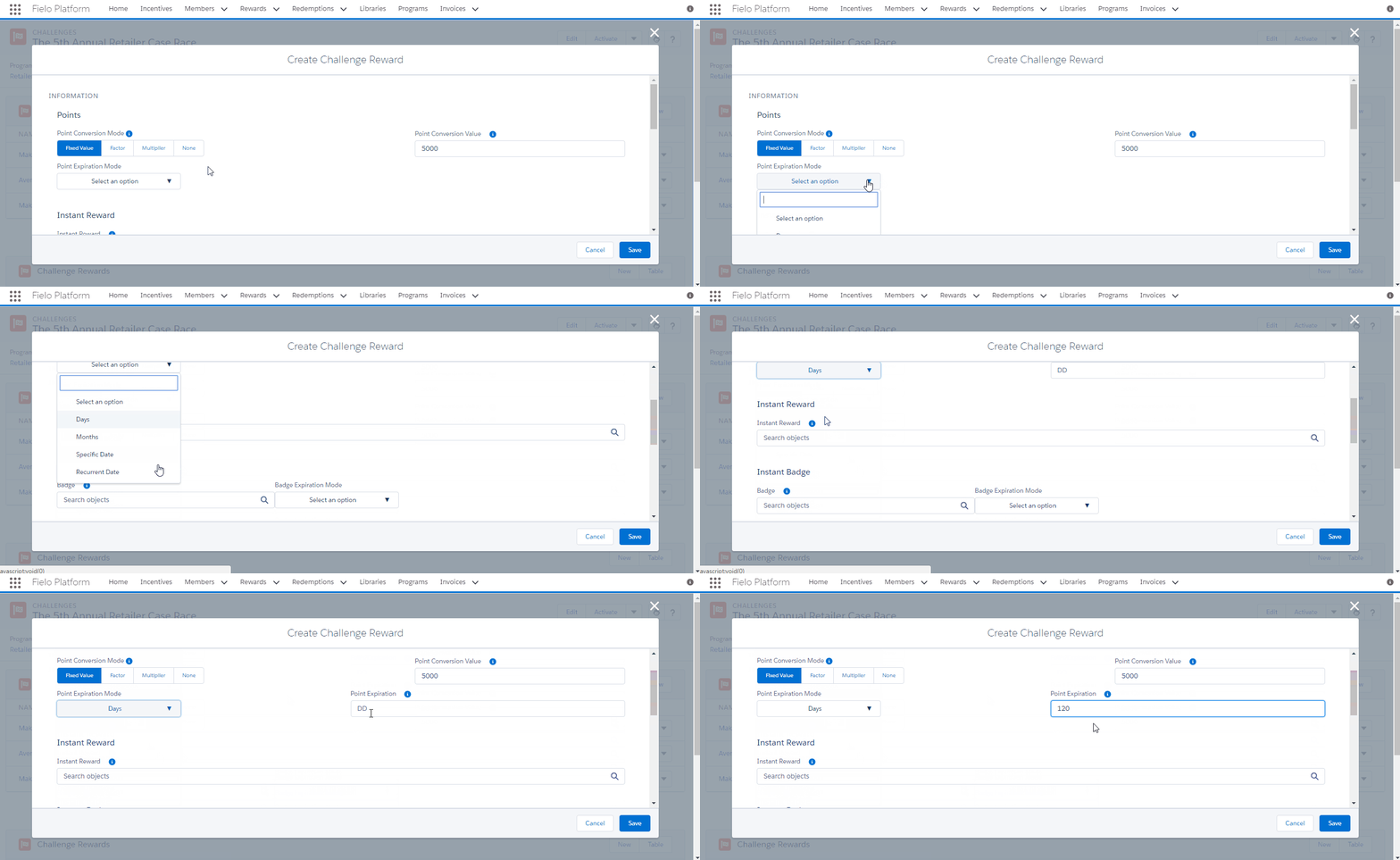
Optionally, you may also specify a Point Expiration Mode, which determines when Points awarded will expire from a winning Member's profile:
- Use Days to specify a fixed number of days that Points will be valid.
- Use Months to specify a fixed number of months that Points will be valid.
- Use Specific Date to specify a particular expiration date for all Points awarded through this Challenge Reward.
- Use Recurrent Date to specify the month and day all Points awarded through this Challenge Reward will expire every year.
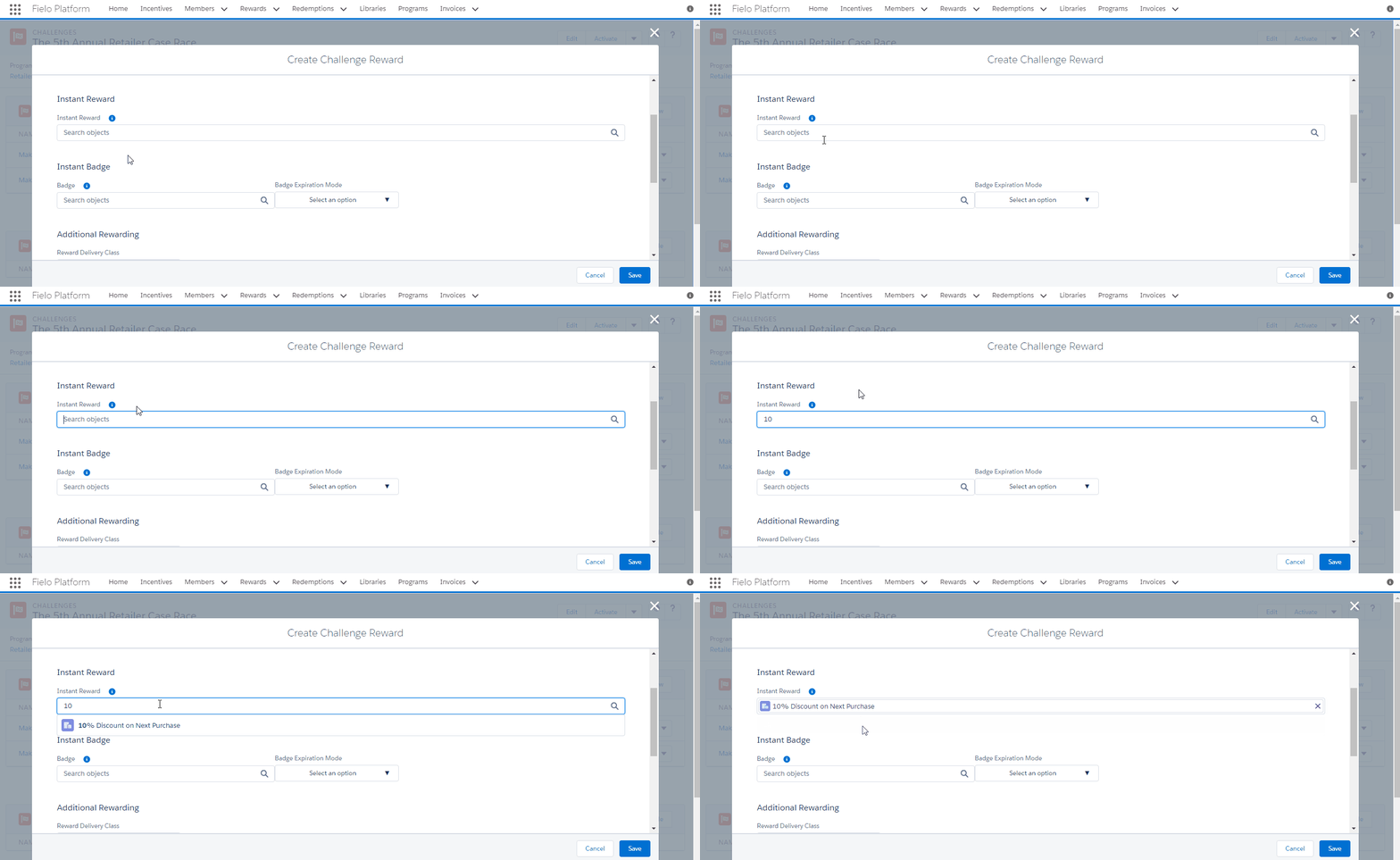
Enter an Instant Reward (If Any)
Instant Rewards are a great way to give your Members immediate gratification when they win a Challenge.
You can use any of your Rewards in a Challenge Reward. Simply ensure that Instant Reward is on in the Reward you want to use.
Enter a Badge (If Any)
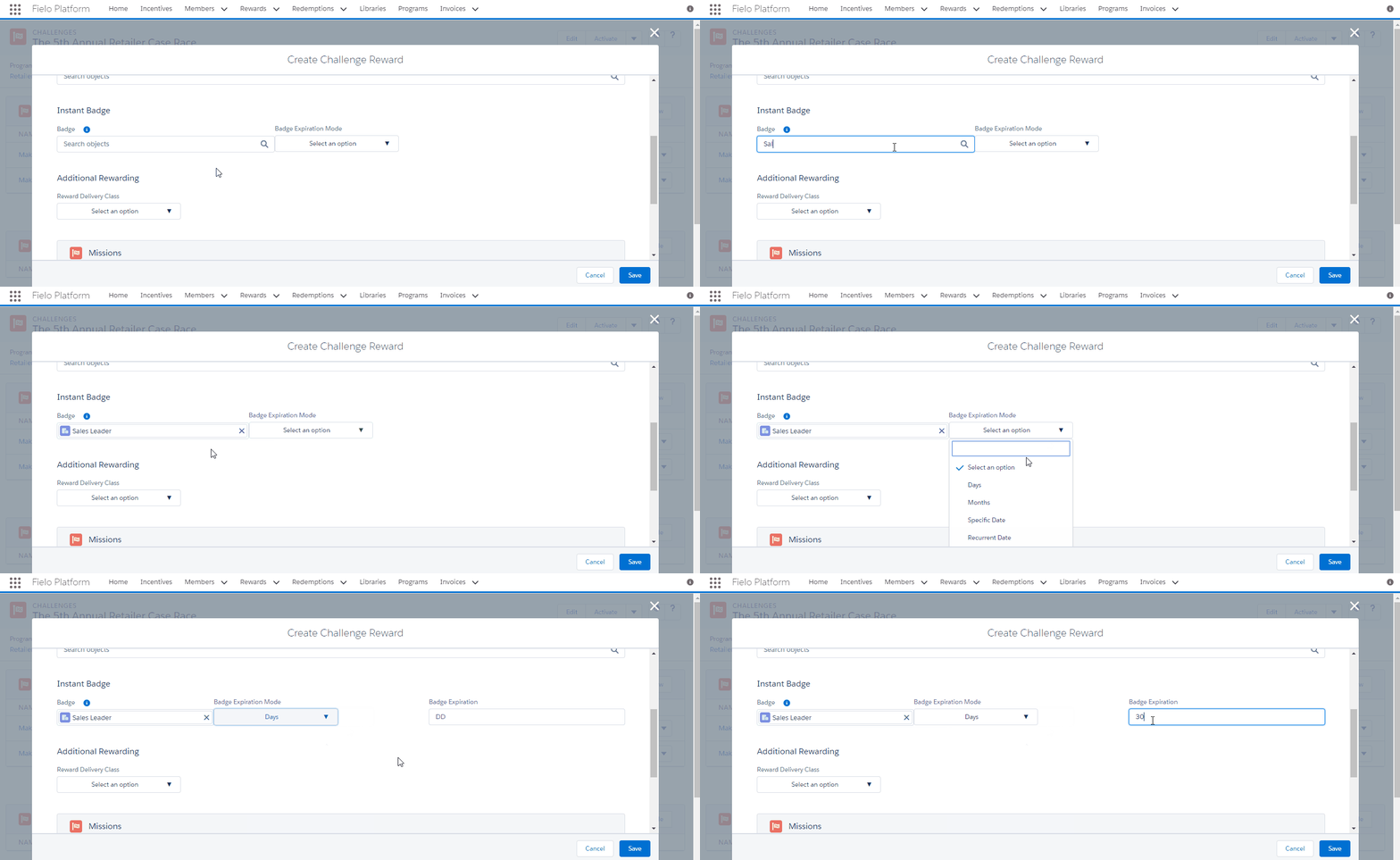
Badges are perfect for any Challenge where Members will want to boast about their performance or accomplishment. They're a great reputation builder for any partner or employee community!
Optionally, you can specify a Badge Expiration Mode, which determines when the Badge will expire from a winning Member's profile:
- Use Days to specify a fixed number of days that a winning Member will hold the Badge.
- Use Months to specify a fixed number of months that a winning Member will hold the Badge.
- Use Specific Date to specify a particular expiration date for all Badges rewarded through this Challenge Reward.
- Use Recurrent Date to specify the month and day all Badges rewarded through this Challenge Reward will expire every year.
Specify Additional Rewarding (Optional)
For further rewarding flexibility, you can implement an Apex Class with custom functionality. First, you'll need to add your custom functionality to the CustomRewardingClass class below:
//This class implements FieloPLT.ChallengeMemberDelivery interface. Class method attribute must be a list of Challenge Members (FieloPLT__ChallengeMember__c).

public with sharing class CustomRewardingClass implements
FieloPLT.ChallengeMemberDelivery{

    public void deliveryRewards(List<FieloPLT__ChallengeMember__c> challengeMembers){
            //Add custom functionality here
    }
}
With that ready, go to Setup and search for Apex Classes in the Quick Find box. Click New, add your class and click Save.
Then, from Object Manager, navigate to the Challenge Reward object. From Fields & Relationships, choose the Reward Delivery Class field.
Under Values, click New. Enter the name of the Apex class you've created (e.g. CustomRewardingClass) and click Save. Your class will now be available to assign as additional rewarding.
Enter a Limit (Singular Table Only)
If your Challenge is using the Singular Table, you can enter a Limit value to limit the number of times a Member can win the Challenge Reward.
For example, a Limit of 3 means that any Member who's won the Challenge Reward three times will not be eligible to win it a fourth time.
Enter a Position (Time Table Only)
If your Challenge is using the Time Table, enter the Position number that a Member will need to achieve to win the Challenge Reward.
For example, a Position of 2 means that the Member who finishes the Challenge second will win the Challenge Reward.
Set Mission Criteria (Level Table and Mission Table Only)
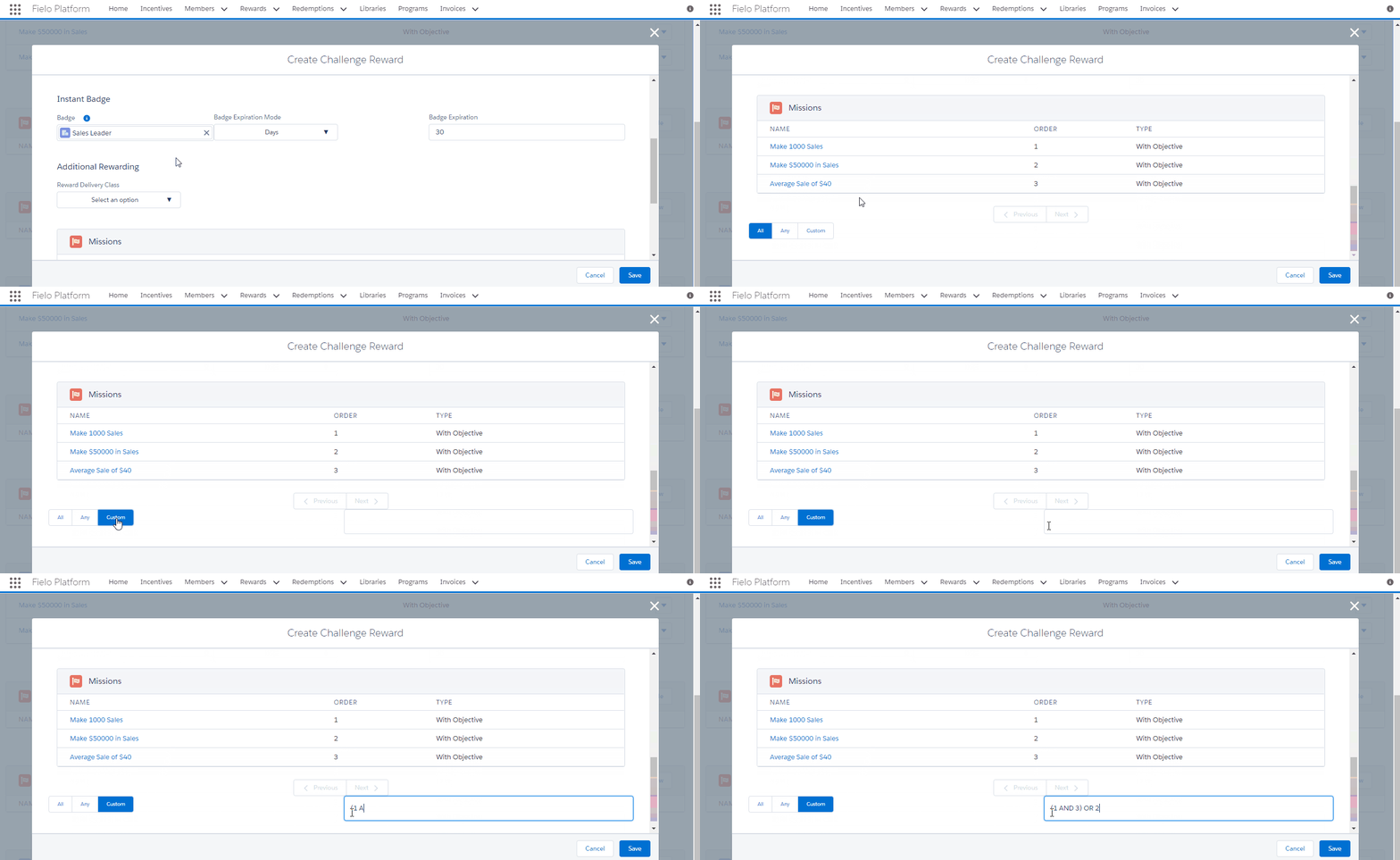
If your Challenge is using the Level Table or Mission Table, you can specify what Mission or combination of Missions need to be accomplished for a Member to qualify for the Challenge Reward:
- All means that a Member needs to accomplish all Missions to qualify for the Challenge Reward.
- Any means that a Member can qualify for the Challenge Reward by accomplishing any one of the Missions.
- Custom allows you to specify more complex criteria. If selected, you must enter a formula with logical operators and Mission Order numbers. For example, if you enter
(1 AND (2 OR 3)), a Member will need to accomplish the Mission whose Order is 1 and either the Mission whose Order is 2 or the Mission whose Order is 3 in order to qualify for the Challenge Reward.
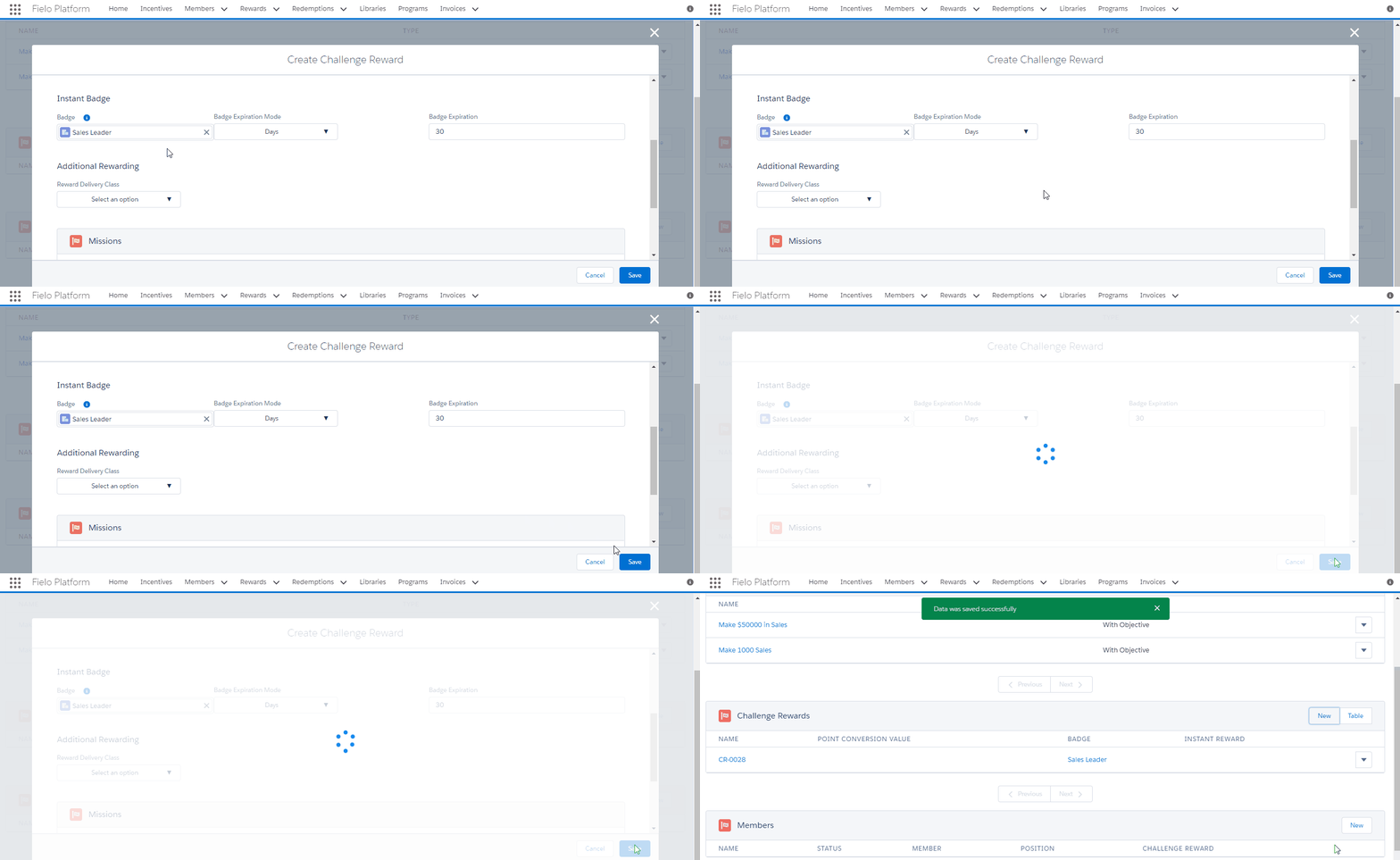
When you're ready to go, click Save.
Specify a Logical Expression (Singular Table, Time Table, Position Range and Value Range Only)
Once you've created your first Challenge Reward, you can specify a logical expression that determines which Mission(s) need to be accomplished for rewarding to occur. By default, all Missions will be required.
You can change this by clicking Logical Expression and specifying different Mission criteria. Refer to set Mission Criteria for more information on setting Mission criteria.
Mission Rewarding
Mission Rewards are a way to reward Members for successfully completing an individual Mission. Like Challenge Rewards, they can take the form of Points, Instant Rewards and/or Badges.
Mission Rewarding Tables
Rewarding Tables allow you to configure how Mission Rewards are awarded to Members who have successfully completed a Mission. Depending on the type of Mission and its Leaderboard Mode, there are several Rewarding Tables to choose from.
Both Mission Types
- Performance Value
For use with: No Leaderboard or Performance Leaderboard
Use Performance Value to reward Members based on performance metrics at the conclusion of a Mission. For each Mission Reward, you'll specify the range of performance values that will qualify a Member for the reward. - Performance Position
For use with: Performance Leaderboard
Use Performance Position to reward Members based on performance rankings at the conclusion of a Mission. For each Mission Reward, you'll specify the range of rankings that will qualify a Member for the reward.
Missions with Objective
- Singular Table
For use with: No Leaderboard, Time Leaderboard or Performance Leaderboard
Use the Singular Table if your Mission will have just one Mission Reward. - Time Table
For use with: Time Leaderboard
Use the Time Table to reward Members based on the order in which they accomplish a Mission. For each Mission Reward, you'll specify the range of time Positions that will qualify a Member for the reward.
Missions without Objective
- Cumulative
For use with: No Leaderboard or Performance Leaderboard
Use cumulative rewarding to provide successive, real-time rewarding to members according to their performance. Each time a member's performance passes into the next rewarding level, the member gets that reward immediately.
Adding a Mission Reward
From your Challenge page, on the Missions card, click in the row corresponding to the target Mission and select Mission Reward.
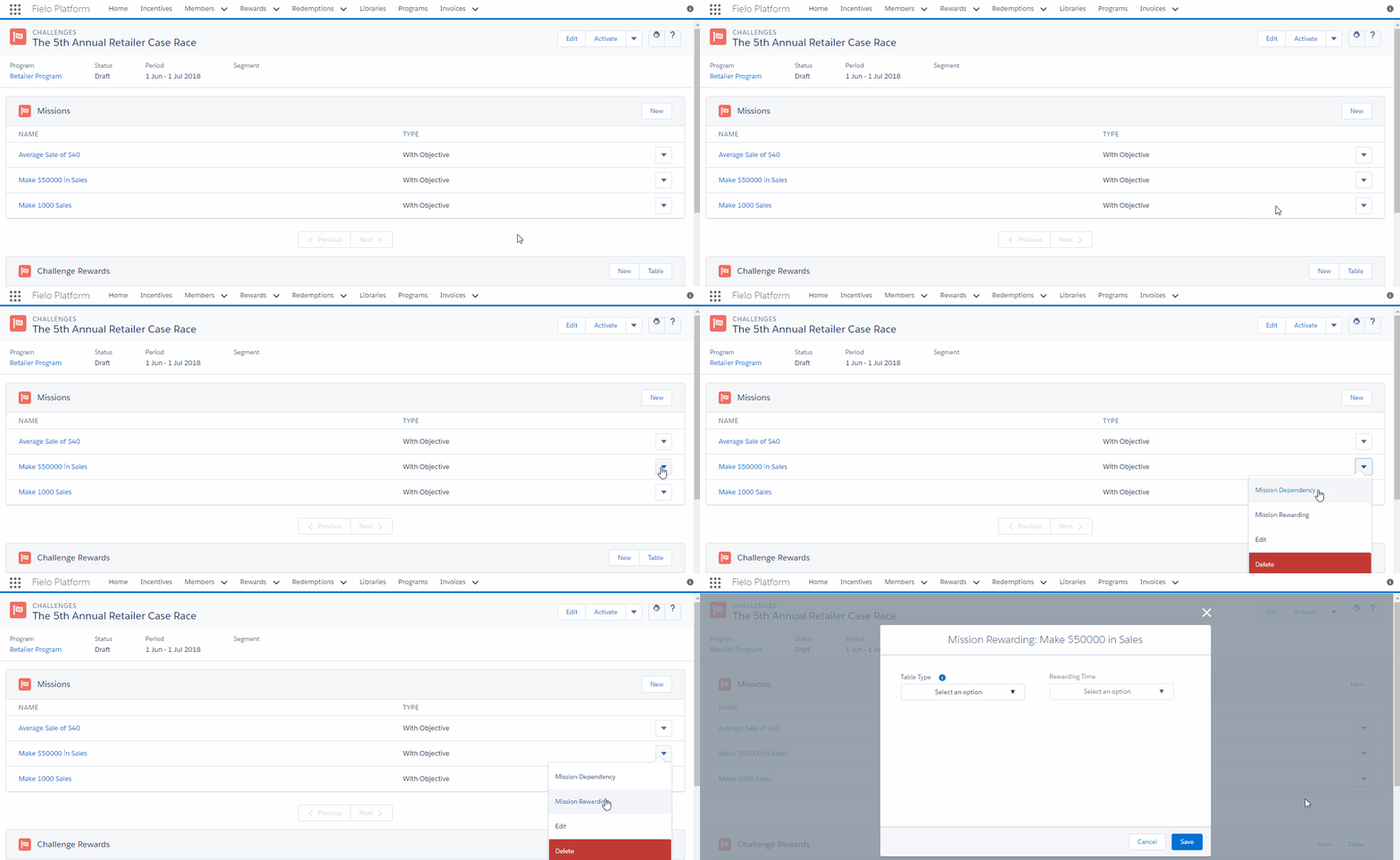
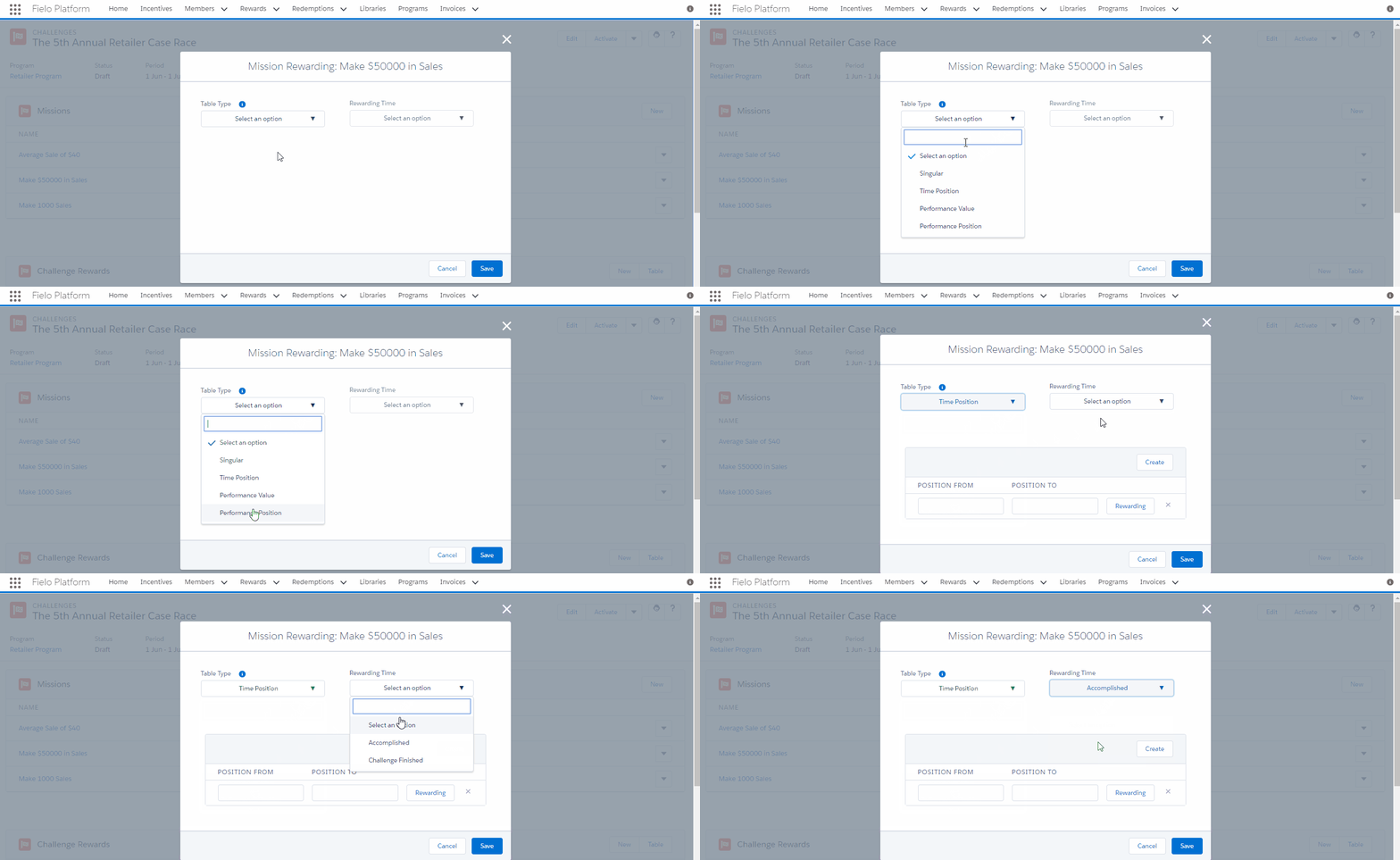
Choose the Rewarding Table you want to use. Then, choose when you want the rewarding to occur:
- Accomplished means that winning Members will be rewarded as soon as they accomplish the Mission. This option is only available for the Singular Table and Time Table.
- Challenge Finished means that winning Members will be rewarded at the conclusion of the Challenge that the Mission is a part of.
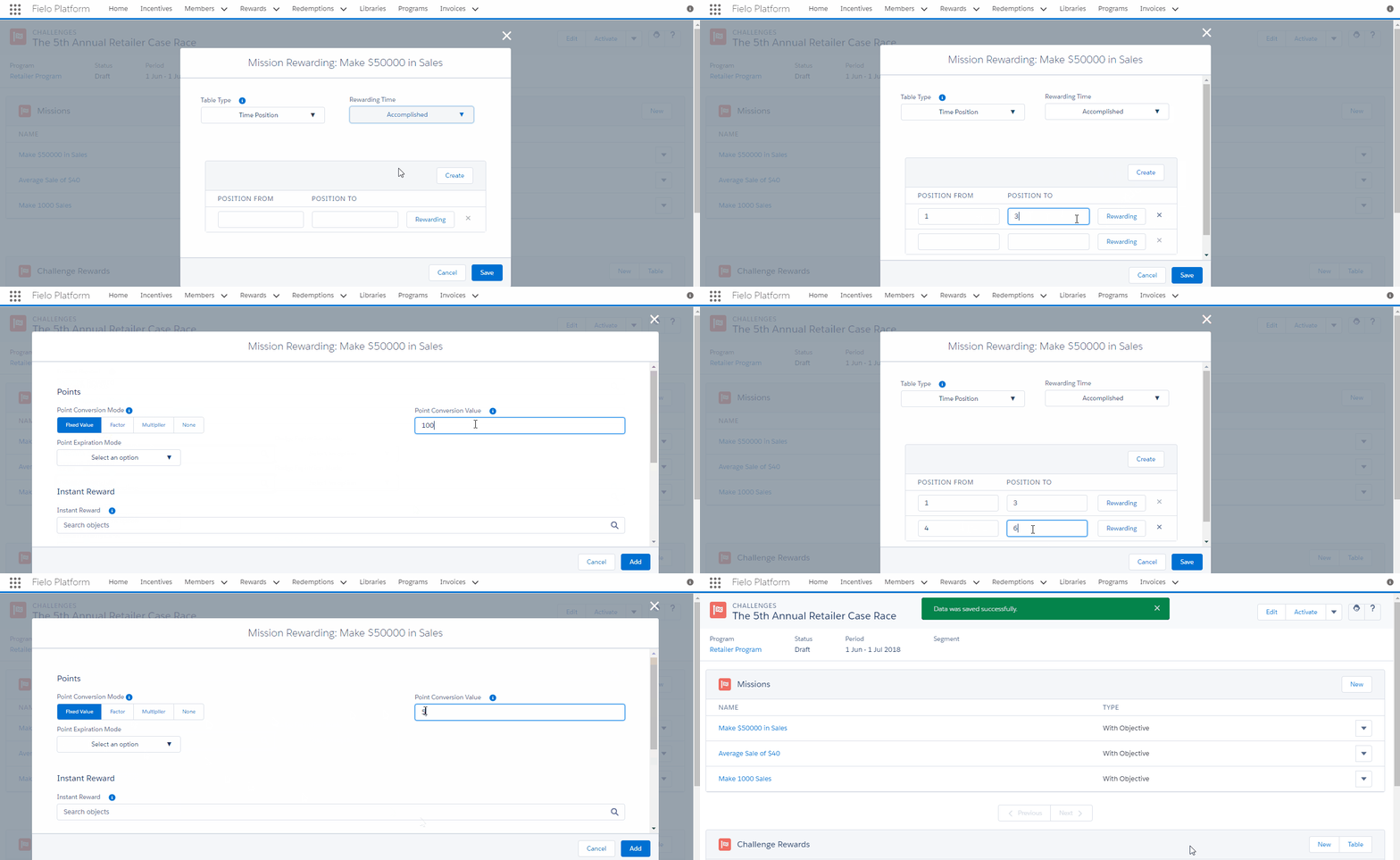
Finally, enter any range of values that your Rewarding Table might require, specify Rewarding (i.e. Points, Instant Rewards and/or Badges) and, when you're ready, click Save.
Updated over 1 year ago