
Adding Members
Add Members to your Program through Fielo and Salesforce
Fielo offers a variety of ways for you to add Members to your Program. We're all about getting you on the fast track to incentivizing the customers and partners who matter most!
You can add a new Member from a Salesforce Account or Salesforce Contact, or directly from IAS. Let's see how.
Adding a Member from a Salesforce Account
You can add a Member to your Program right from a Salesforce Account record. Business Accounts become Organization Members and Person Accounts become Individual Members.
The new Member will include the Account name and a lookup to the Account.
Before Starting
Before getting started, you'll want to make sure the Create Fielo Account button is included in the page layout for Accounts in your Org.
To do so, navigate to Account in the Salesforce Object Manager. Click Page Layouts and edit the Account Layout.
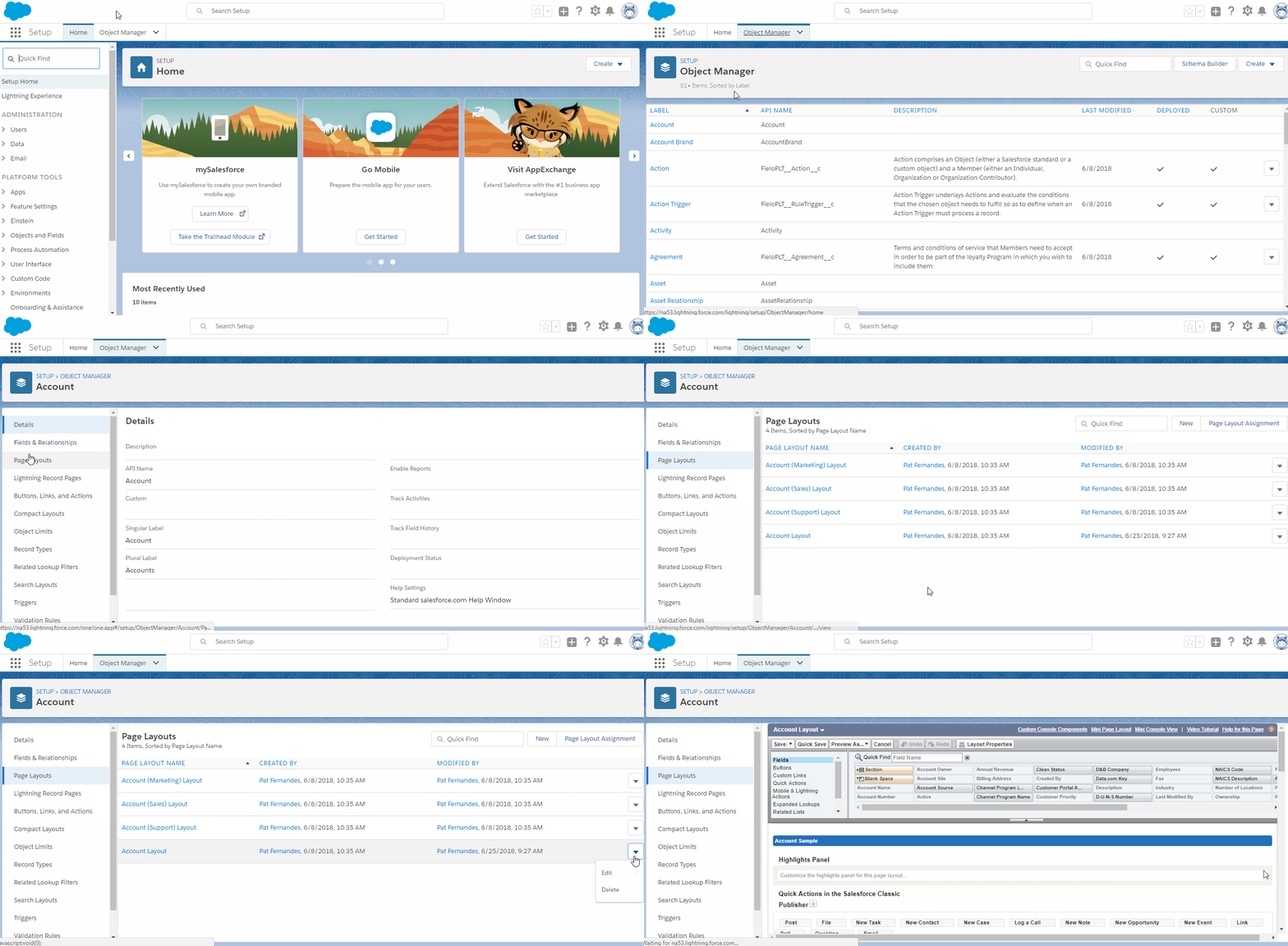
In the layout pane, click Mobile & Lightning Actions. Drag and drop Create Fielo Account into the Salesforce Mobile and Lightning Experience Actions area. Then click Save.
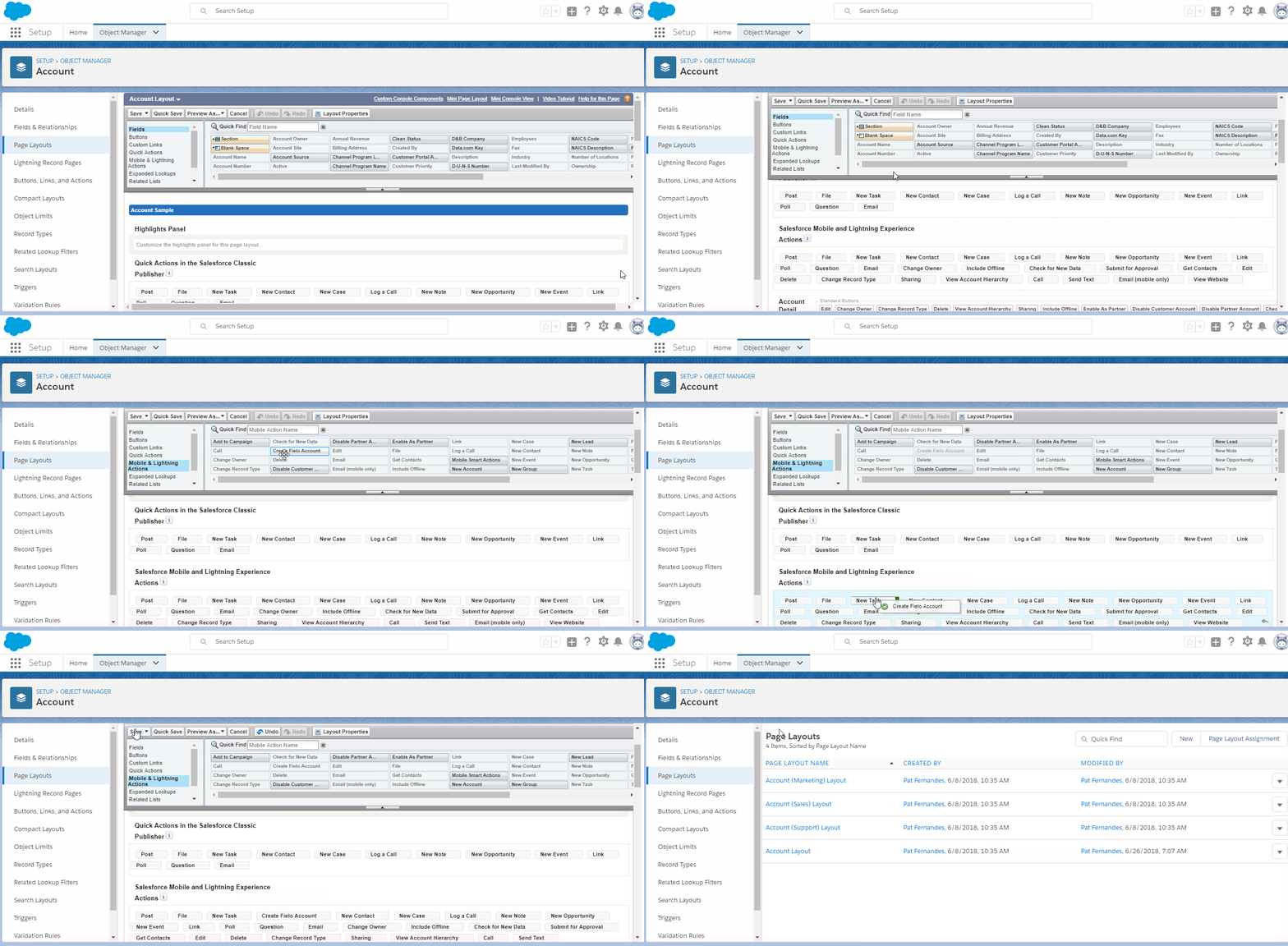
Adding a Member from an Account Record
Once you've made sure the Create Fielo Account button is enabled on your Account record pages, let's see how to use it.
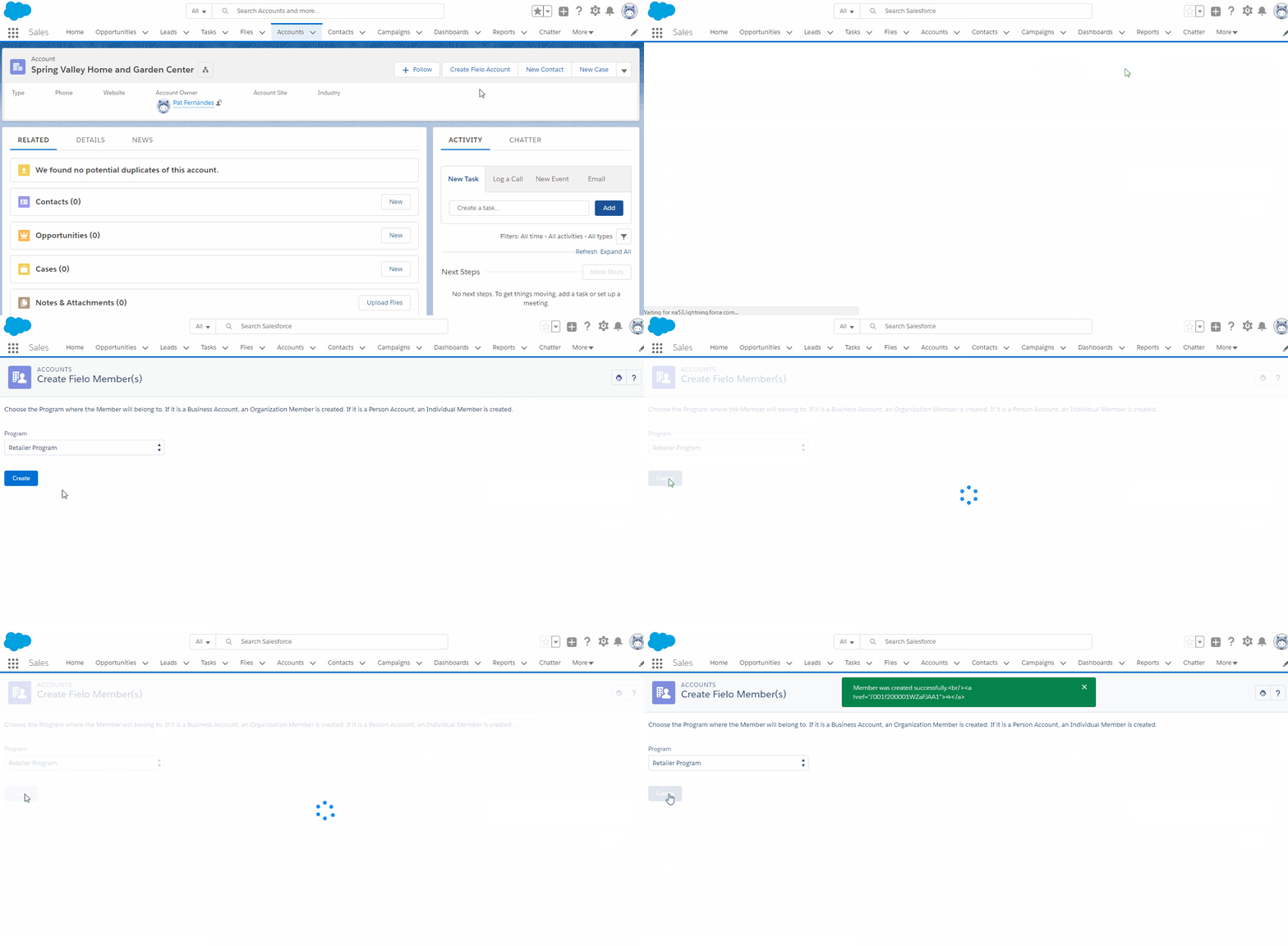
From an Account page, click Create Fielo Account. Depending on where in the layout you included the button, you may have to access it by clicking . Choose the Program you want the new Member to be a part of and click Create.
Adding a Member from a Salesforce Contact
You can also add a Member to your Program right from a Salesforce Contact record. You can make the Contact an Individual Member or an Organization Contributor Member.
The new Member will include the Contact name and email address, a lookup to the Contact and a lookup to the Account associated with the Contact (if any).
Before Starting
Before getting started, you'll want to make sure the Create Member button is included in the page layout for Contacts in your Org.
To do so, navigate to Contact in the Salesforce Object Manager. Click Page Layouts and edit the Contact Layout.
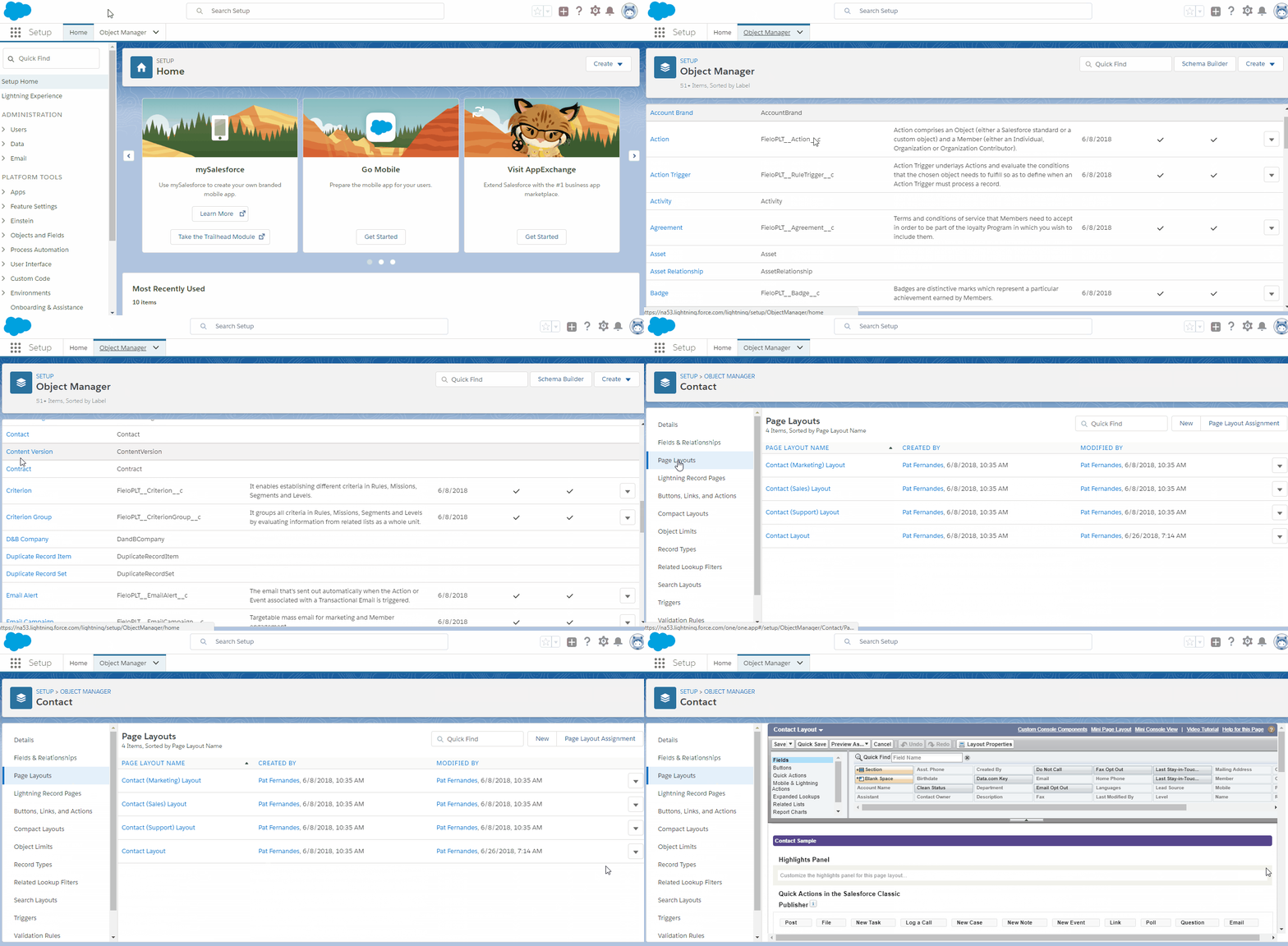
In the layout pane, click Mobile & Lightning Actions. Drag and drop Create Member into the Salesforce Mobile and Lightning Experience Actions area. Then click Save.
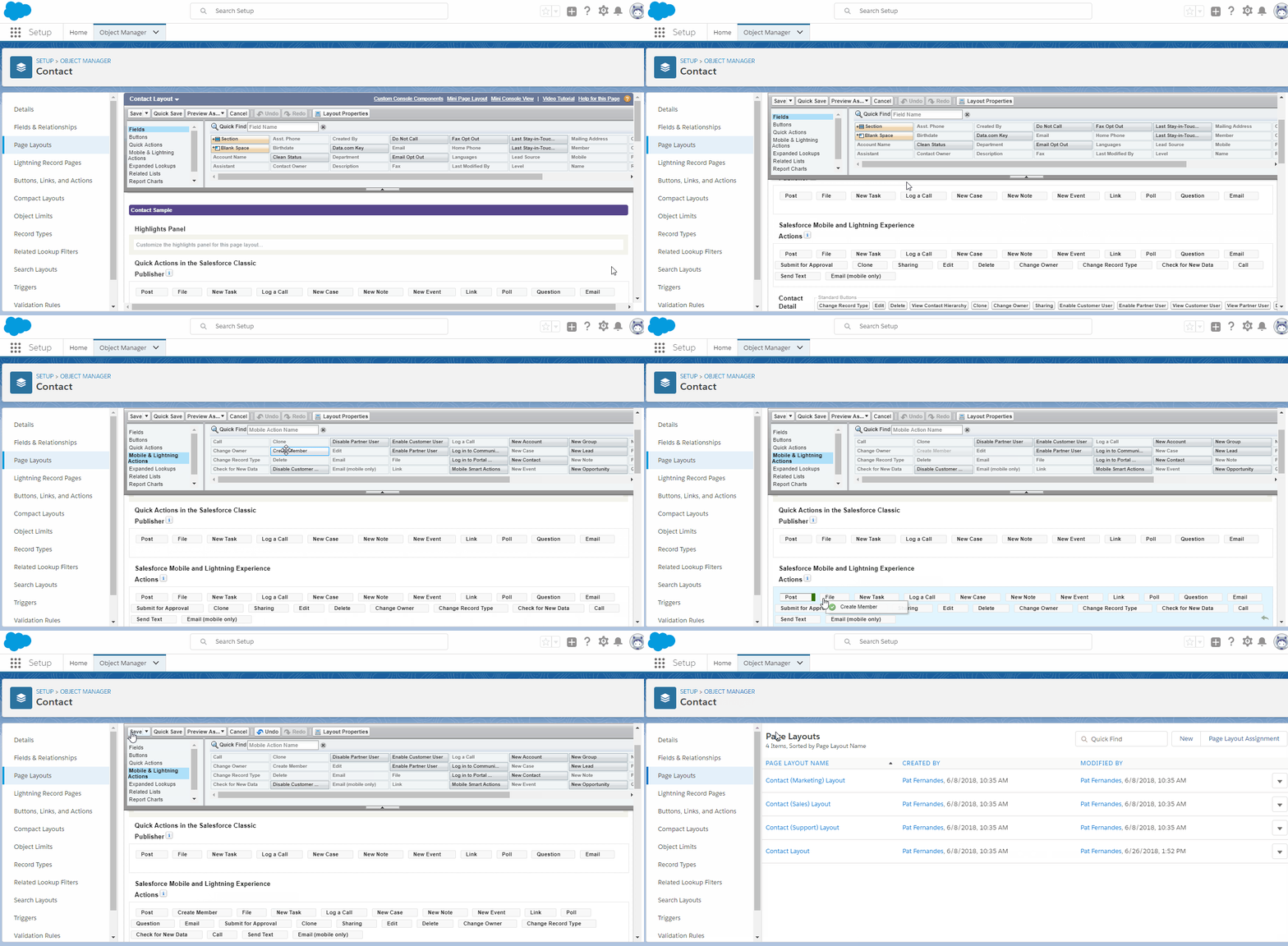
Adding a Member from a Contact Record
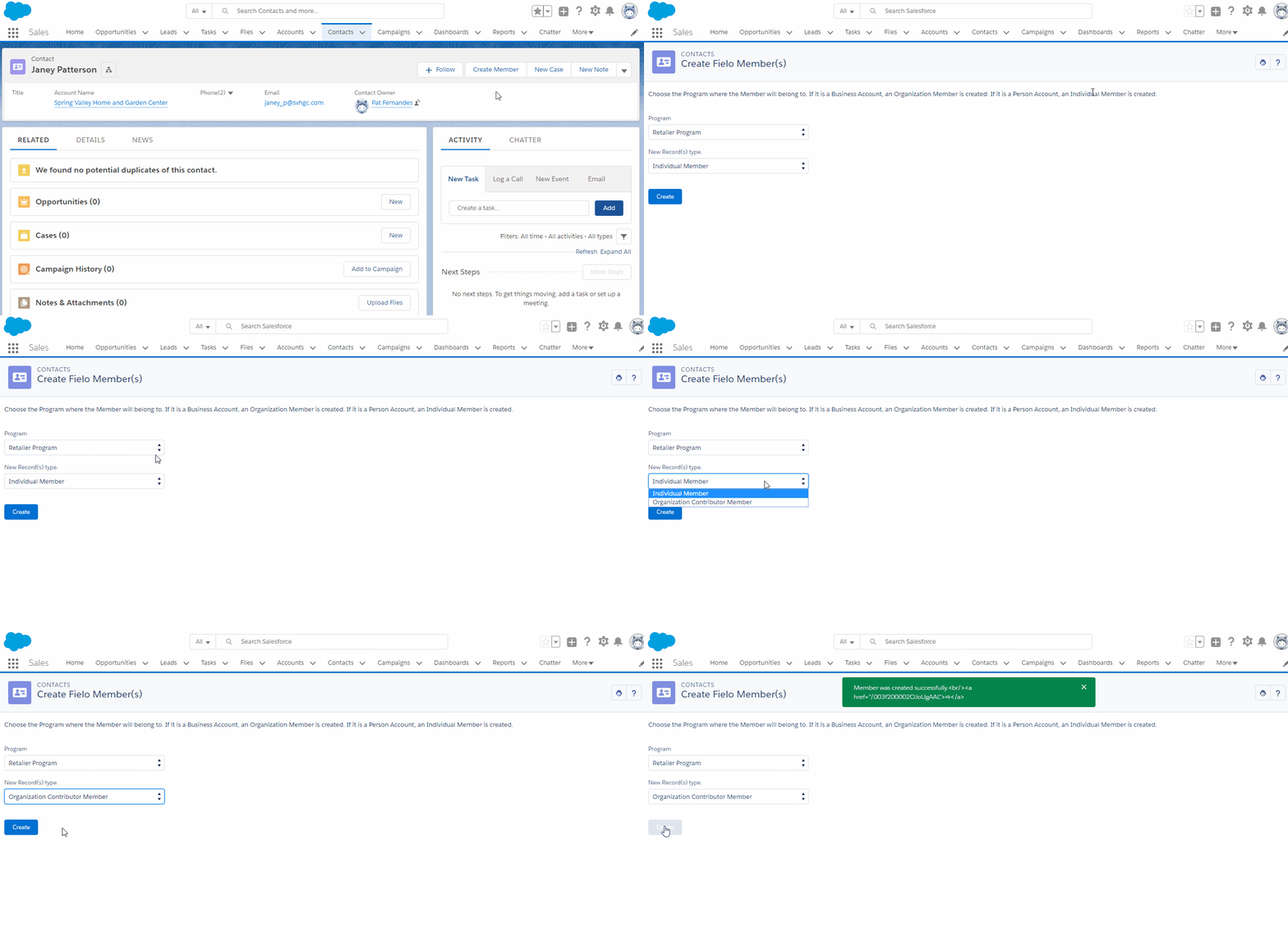
Once you've made sure the Create Member button is enabled on your Contact record pages, let's see how to use it.
From a Contact page, click Create Member. Depending on where in the layout you included the button, you may have to access it by clicking .
Choose the Program you want the new Member to be a part of. Then, choose whether you'd like the new Member to be an Individual Member or an Organization Contributor Member.
Organization Contributor MemberTo create a new Organization Contributor Member, the Contact must be associated with an Account that is an Organization Member in the Program you've chosen.
When you're ready, click Create.
Adding a Member from IAS
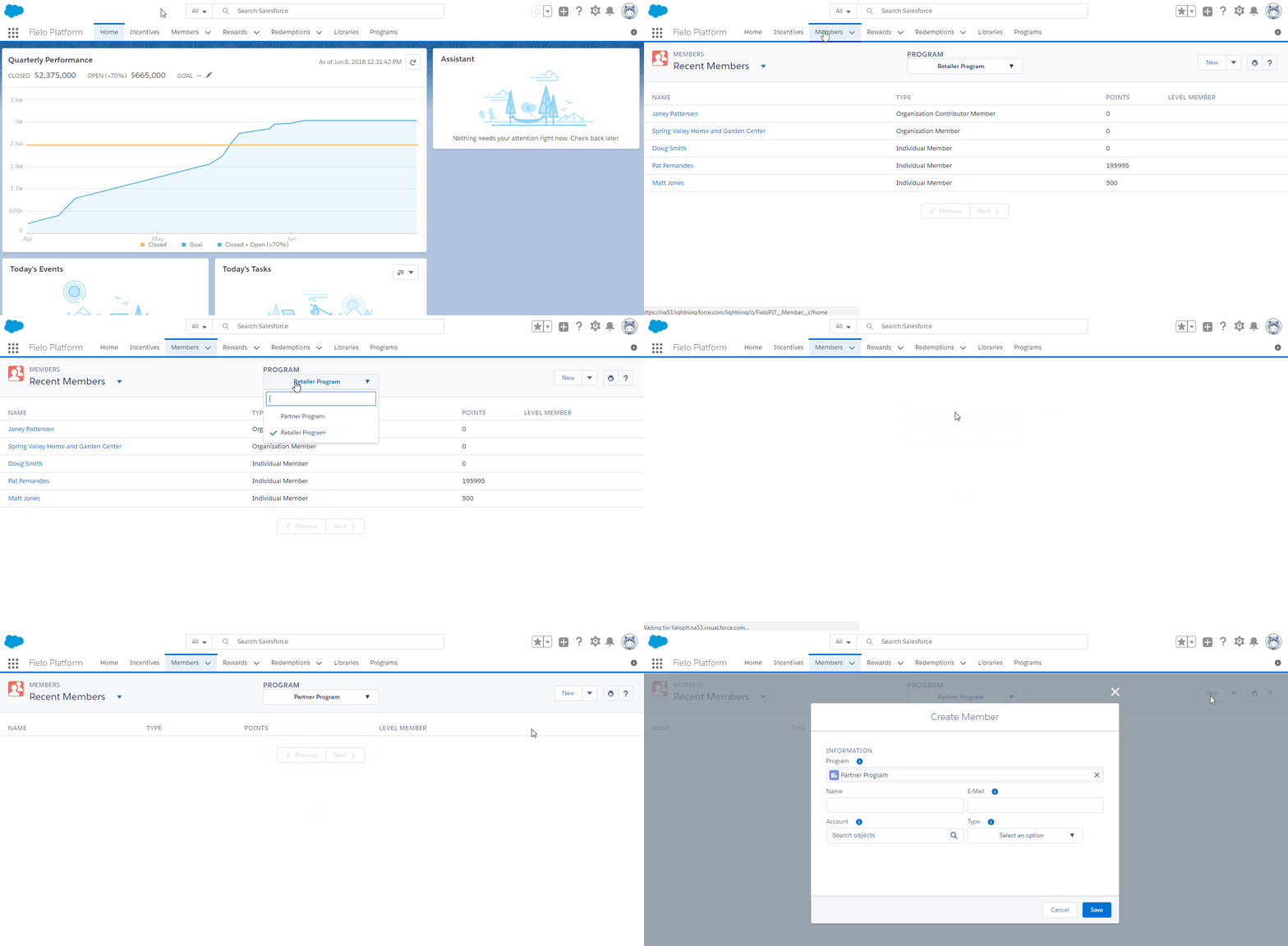
You can add a Member to your Program directly from IAS.
When creating a new Individual Member or Organization Contributor Member from IAS, the new record automatically includes a lookup to the Contact with the same email address. If no Contact with the same email address is found, a new Contact is created with the name and email address of the new Member and the Member includes a lookup to the new Contact.
To start, enter IAS and navigate to the Members tab. Choose the Program that you want to create a Member for and then click New.
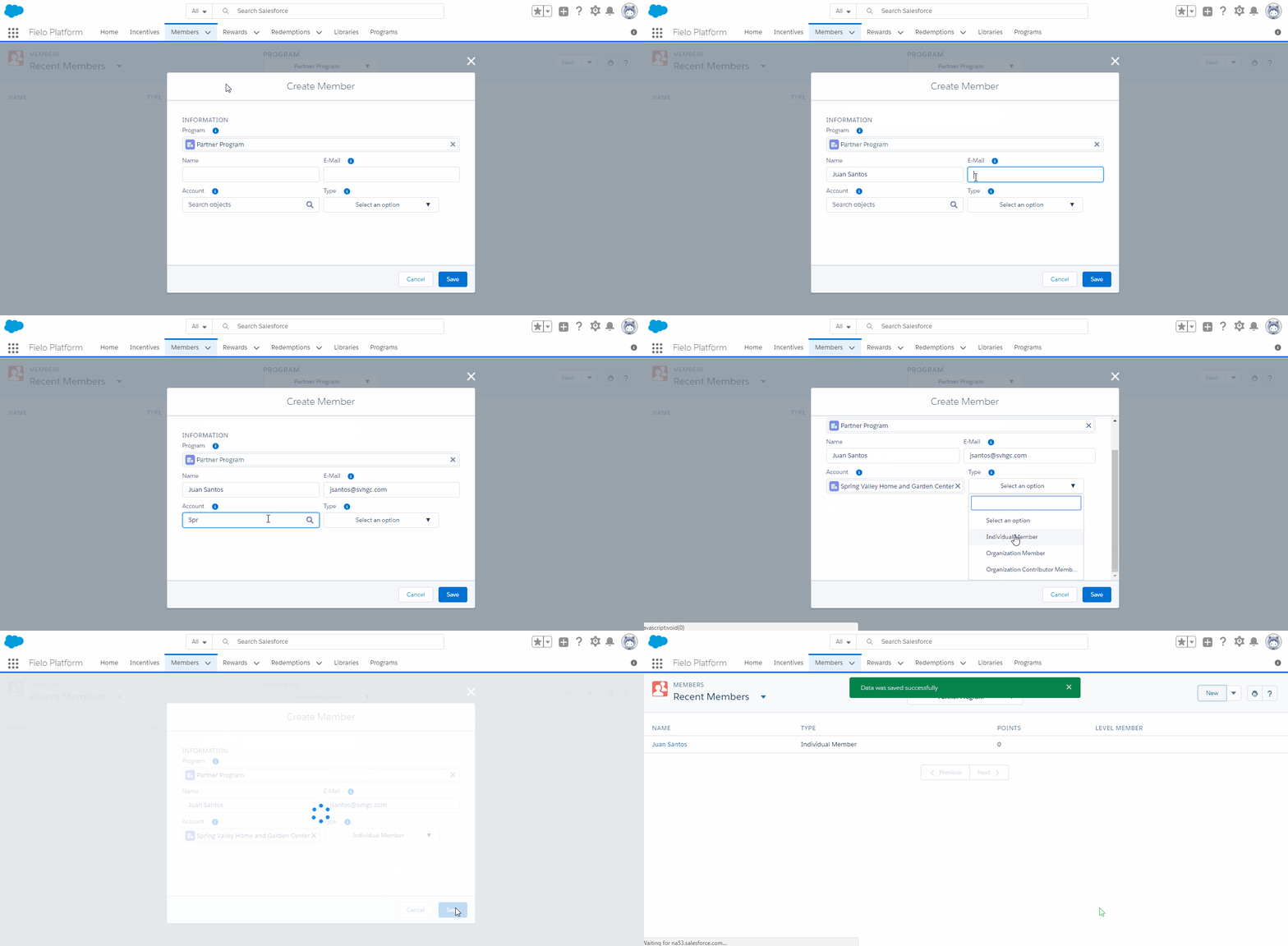
Enter the name and email address of the new Member, as well as the associated Account (if any). Then, choose a Membership Type.
Account Required for Organization MemberIf you're creating an Organization Member, you must enter an Account to associate with the new Member.
If you choose Organization Contributor Member, you'll also need to enter the Organization Member that the new Member will contribute to.
When you're ready, click Save.
Updated over 1 year ago