
Rules
Create and manage Rules for your Promotions
Rules define what your members can do to get points, instant rewards and/or badges. When a member performs an incentivized action, the rule criteria are evaluated and, if met, the points or rewards you specify are given.
Creating Rules
After creating a Promotion, you can start creating Rules. From Incentives> Promotions (any available Promotion), click New on the Rules card.
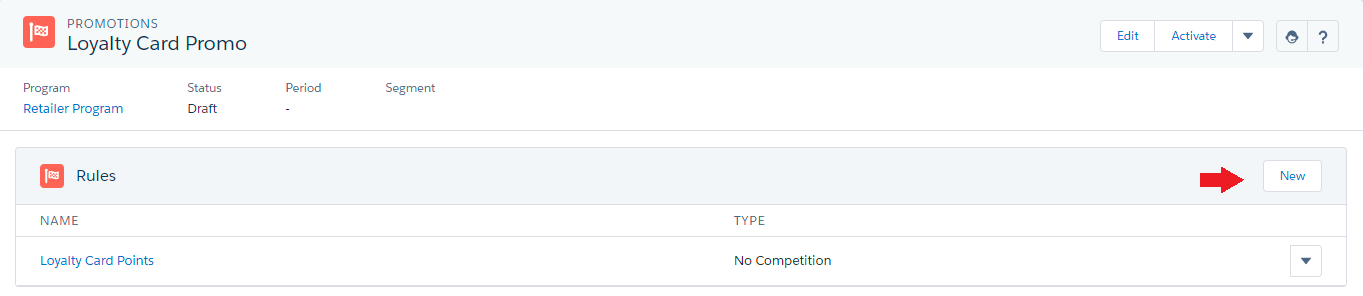
Creating a new Rule
Define Rule Name
First, you must choose a name for your Rule, which will identify the Rule on the Promotions page.
Select Rule Type
After entering the Rule name you need to choose a Rule Type.
You can choose to apply a rule only when it offers the best outcome for the member. This is called Best Option. When a member action triggers two or more Best Option rules simultaneously, only the rule that awards the most points will be applied.
Alternatively, you can choose to always have a rule applied, independent of any other rules in the promotion. This is called No Competition.
- Best Option Rules: Single Action Engine evaluates all Rules whose type is Best Option and which share the same Point Type and Action. As a result, Points are given only for the Rule that represents the best choice for the Member, that is, the Rule that grants the larger number of Points.
Best Option Rules & Points CappingWhen applying points caps to Best Option rules, any limits related to capping will be calculated before evaluating which rule offers the best option to a member. In other words, caps are taken into account when determining which rule gives the most points. See Points Capping for details.
- No Competition Rules: Single Action Engine evaluates all Rules, no matter their type as long as they meet their Criteria. As a result, you can choose to give Points, Instant Rewards and/or Instant Badges for each Rule.
Point Types in RulesOnly Rules whose type is No Competition can grant different Point Types in the same Rule.

Rule Name and Type
Define Behavior Criteria
Criteria governs Rules as they are the conditions that evaluate the incentivized Action, that is, the behavior you have chosen to drive in your Members. Criteria are based on fields of the selected Action or some other records related to the Action (e.g. If your Action is Transaction, you can set a Rule that evaluates the complete Transaction or a specific record related of Transaction such as Transaction> Points).
When these conditions are met, your Members obtain the outcome that you want, which can be Points (if Rule Type is Best Option), or Points, Instant Rewards and/or Instant Badges (if Rule Type is No Competition).
Actions must be already created and available before creating Rules.
Criteria is made up of three main items:
- Action
It shows the behavior and participants to incentivize in your loyalty Program. Actions comprise an Object (either a Salesforce standard or any custom object), which represents the behavior to incentivize, and a Member (either an Individual, Organization or Organization Contributor), which represents the participants of your program. - Target Object
It shows the specific source for the Action, which can be the same object or any other Object that has a lookup relationship with it. For example, if the Action object is Transaction, you can choose Transaction or any other related object - in this case, Points - as your Target Object.
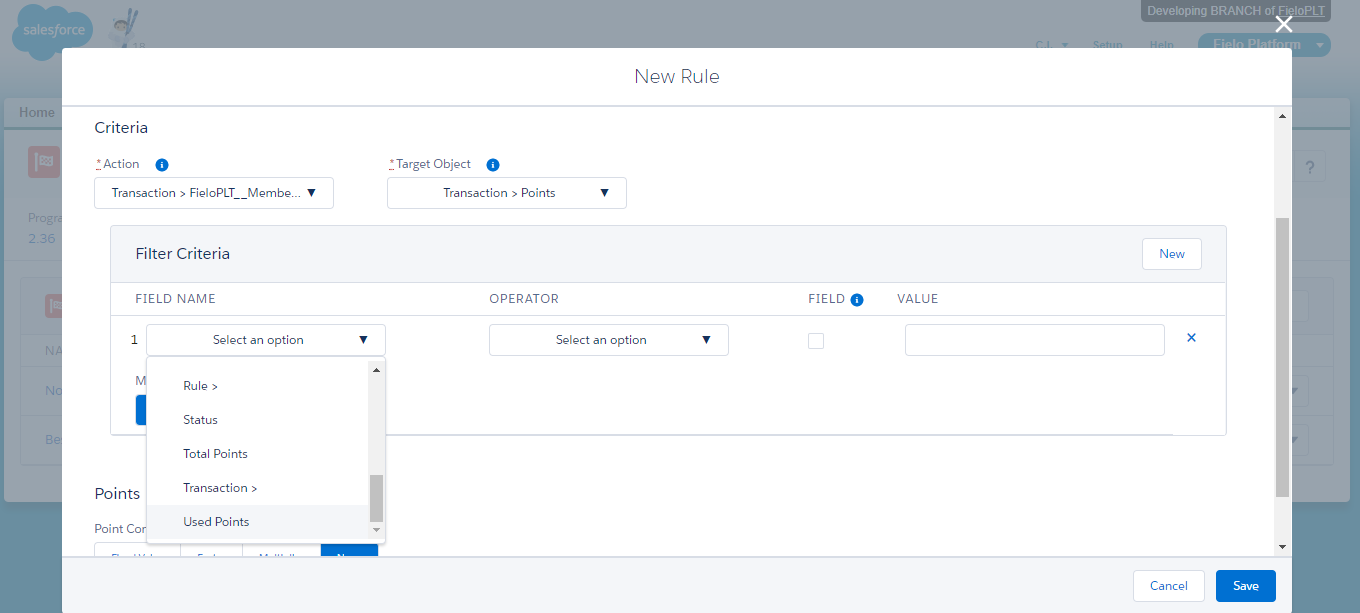
Rule: Criteria
- Filter Criteria
Rules also allow extra filters, which are fields from Target Object that refine Rules conditions. Those Fields can be compared to a specific Value or even to another Field by using relational operators such as "Equals", "Greater than", "Less than", etc.
Let's walk through how to apply this:
- Under Field Name, select the object or lookup relevant to your criterion. If you choose a lookup, select the field from that object that relates to your criterion.
- Under Operator, choose the operator that will compare the field with your criterion value.
- If you want to compare the value of the field in Field Name with the value of another field, tick Field. Otherwise, leave unticked .
- Under Value, enter the number or text value you want to compare with the field in Field Name or, if Field is , choose the field whose value you want to compare with the field in Field Name.
To add another criterion, click New and follow the same process to define it. You can remove a criterion by clicking .
In addition, you can set several Criteria filters and combine them using logical expressions to create more complex conditions.
- All means that a Member needs to accomplish all Rules to qualify for the award.
- Any means that a Member can qualify for the outcome by accomplishing any one of the Rules.
- Custom allows you to specify more complex criteria prioritization. If selected, you must enter a formula with logical operators and your criterion numbers. For example, if you enter
(1 AND (2 OR 3)), a Member activity that meets your first criterion and your second or your third criterion (or both) will count toward the Rule. While((1 AND 2) OR 3)finds records that meet either both the first two conditions or the third.
When entering a formula, make sure to add up to two conditions between the same parenthesis. For example, instead of (1 AND 2 AND 3), use ((1 AND 2) AND 3).
Choose Points
Points are a fast, simple way to award Members and incentivize your Members behavior. Once you've defined your Rule Type and Criteria, you can choose in which way Rules will grant Points and any Point Type (if applicable).
Rules cannot deduct points. Avoid inputting negative values.
Best Option Rules can only give Points and/or custom Point Types (when applicable).
Point Conversion: Mode and Value
You can decide how Points are converted into different modes depending on how you want to manage Points and award your Members. There are three ways to award Points:
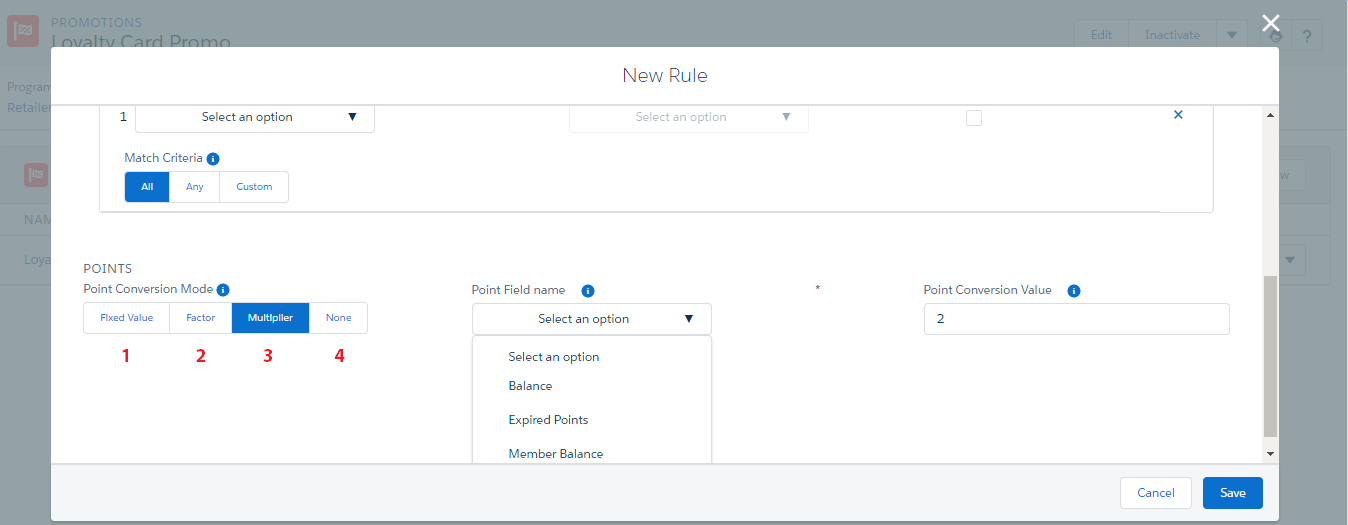
Points
- Fixed Value awards Members with a fixed number of Points. In the Point Conversation Value field, enter the number of Points winning Members will earn. E.g. If Point Conversion Value is 100 it means that every time Members meet the Rule Criteria they will obtain 100 Points.
- Factor gives Members a set of Points by dividing the Target Object of a Rule by the fixed number you enter in the Point Conversation Value field. E.g. If your Target Object is Transaction> Points, you can divide any numerical field from Points by 2.
- Multiplier awards Points to Members by multiplying the Target Object of a Rule by the fixed number you enter in the Point Conversation Value field. E.g. If your Target Object is Transaction> Points, you can multiply any numerical field from Points - Balance - by 2.
- None is only available when having more than a Point Type, i.e. you are giving Miles but not Points, or when your Rule Type is No Competition - in which case you must select either an Instant Reward or Instant Badge.
Optionally, you may also specify a Point Expiration Mode, which determines when Points awarded will expire from a winning Member's profile:
- Use Days to specify a fixed number of days that Points will be valid.
- Use Months to specify a fixed number of months that Points will be valid.
- Use Specific Date to specify a particular expiration date for all Points awarded through this Rule.
- Use Recurrent Date to specify the month and day all Points awarded through this Rule will expire every year.
Choose an Instant Reward and Instant Badge
When your Rule Type is No Competition, you can award your Members granting them an Instant Reward and/or an Instant Badge. These Instant Rewards and Instant Badges are the Rewards and Badges that you've set up for rewarding. You can give your Members an Instant Reward and/or an Instant Badge together with Points or without them as well.
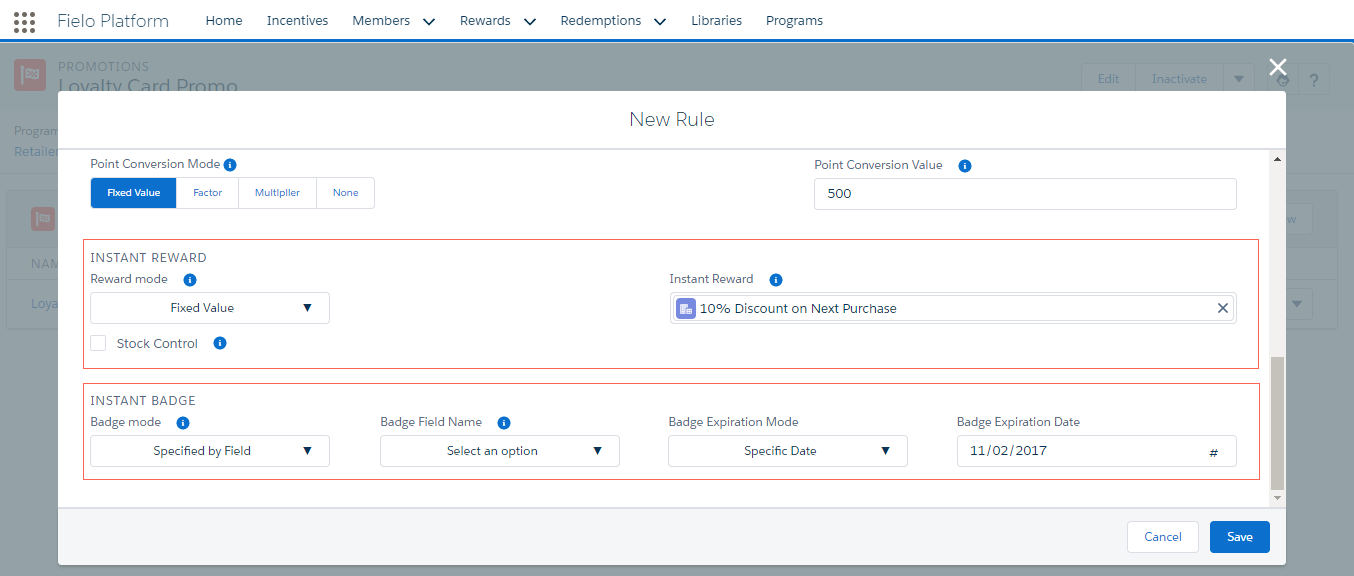
Instant Rewards and Instant Badges
Instant Reward
Instant Rewards are a great way to give your Members immediate gratification when they meet a Rule. You can set Rules to give your Members Instant Rewards in two different ways:
- Fixed Value mode awards a specific Instant Reward from all available Rewards which are as Instant Rewards.
- Specified by Field mode lets you grant Instant Rewards based on a dynamic field.
Optionally, you can set Stock Control , which determines not to process the Transaction if Reward is out of stock.
Instant Badge
Badges are perfect for Members to boast about their performance or accomplishment. They're a great reputation builder for any partner or employee community!
- Fixed value mode awards a specific number of Instant Badges chosen from the available Badges.
- Specified by field mode lets you grant Instant Badges based on a dynamic field.
Optionally, you can specify a Badge Expiration Mode, which determines when the Badge will expire from a winning Member's profile:
- Use Days to specify a fixed number of days that a winning Member will hold the Badge.
- Use Months to specify a fixed number of months that a winning Member will hold the Badge.
- Use Specific Date to specify a particular expiration date for all Badges rewarded through this Rule.
- Use Recurrent Date to specify the month and day all Badges rewarded through this Rule will expire every year.
Specify Additional Rewarding (Only 'No Competition' Rules)
For further rewarding flexibility, you can implement an Apex Class with custom functionality.
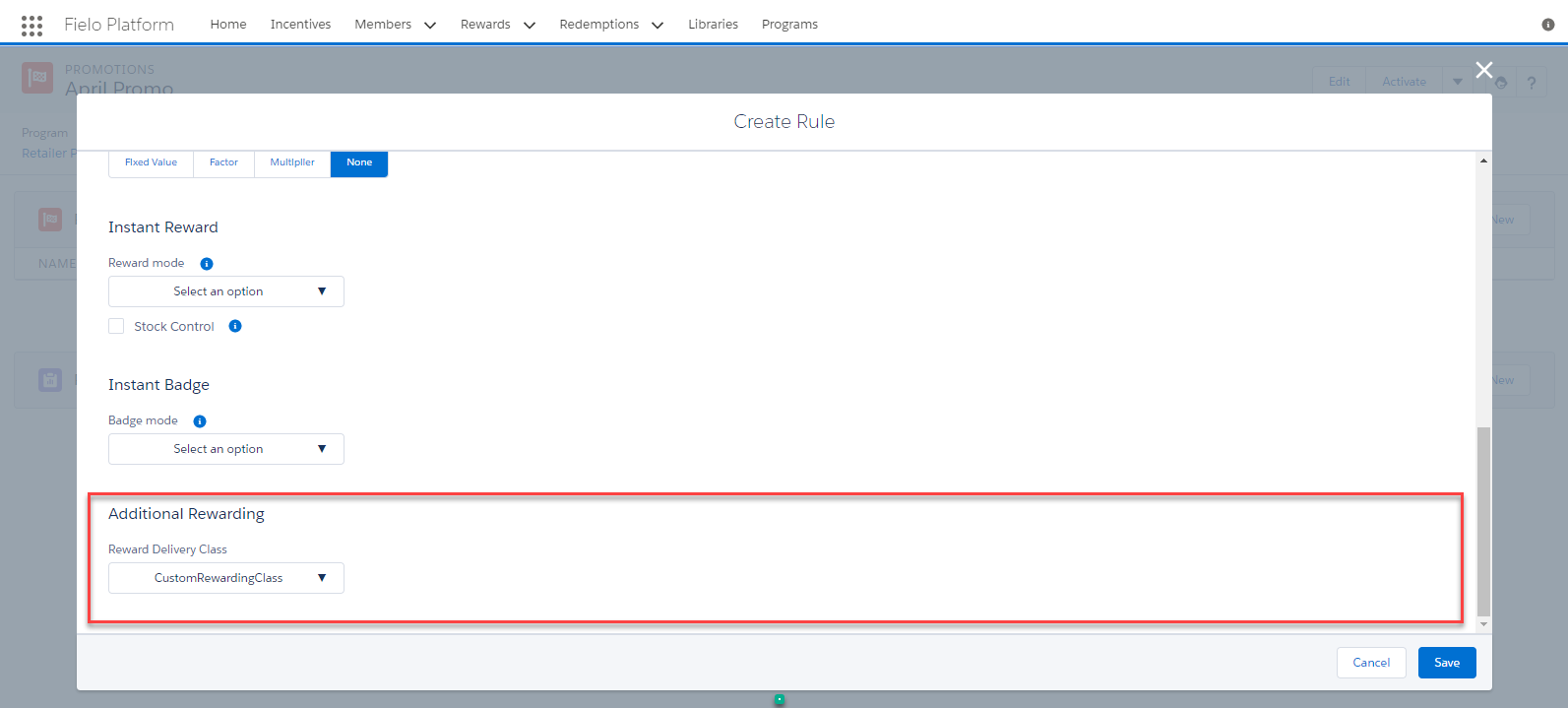
Additional Rewarding
First, you'll need to add your custom functionality to the CustomRewardingClass class below:
//The class implements FieloPLT.RuleRewarding interface.

public with sharing class CustomRewardingClass implements
FieloPLT.RuleRewarding{

   public void reflectionRewarding(List<FieloPLT__Transaction__c> transactions){
    }
    public void revertRewarding(List<FieloPLT__Transaction__c> transactions){
    }
}
With that ready, go to Setup and search for Apex Classes in the Quick Find box. Click New, add your class and click Save.
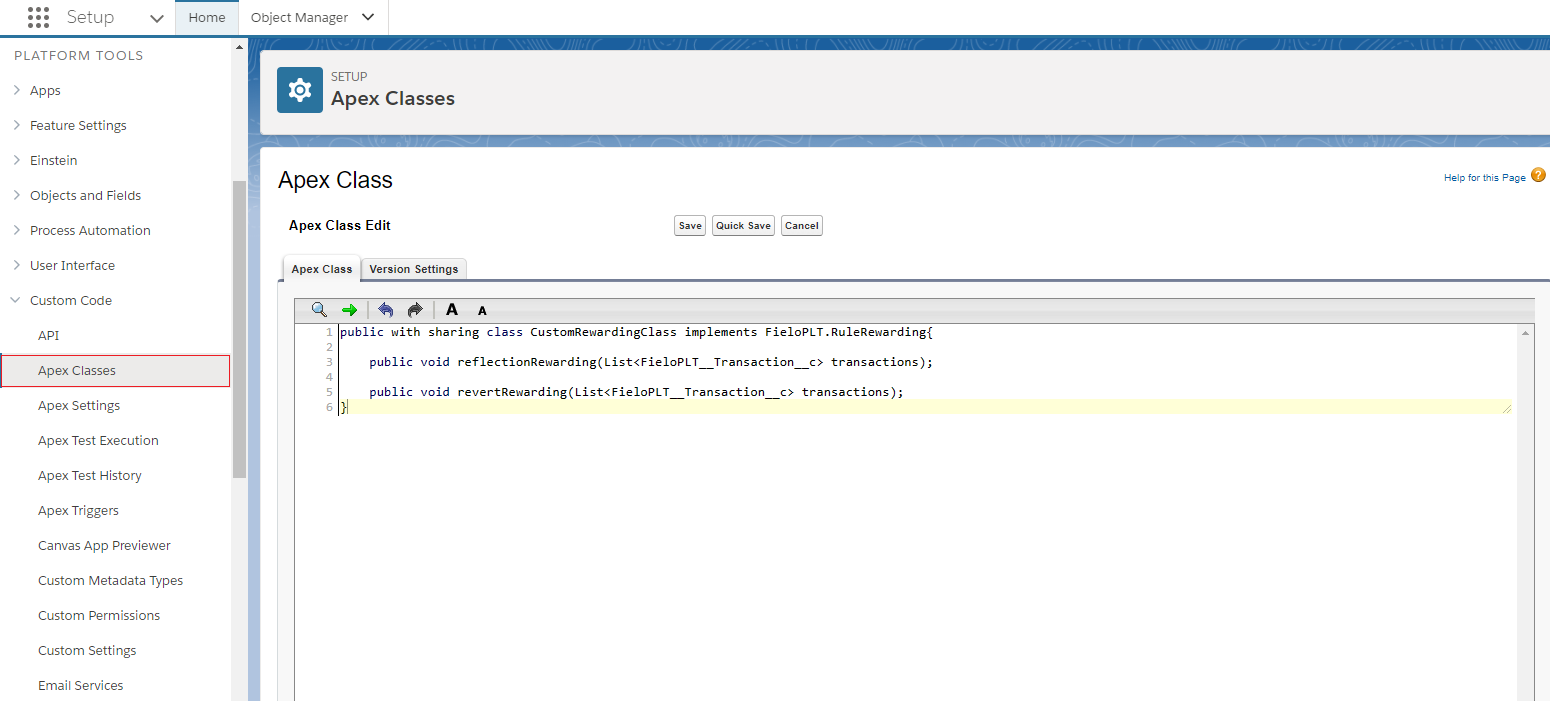
CustomRewardingClass
Then, from Object Manager, navigate to the Challenge Reward object. From Fields & Relationships, choose the Reward Delivery Class field.
Under Values, click New. Enter the name of the Apex class you've created (e.g. CustomRewardingClass) and click Save. Your class will now be available to assign as additional rewarding.
Rule Management Tools
You can edit or delete each Rule no matter its Status.
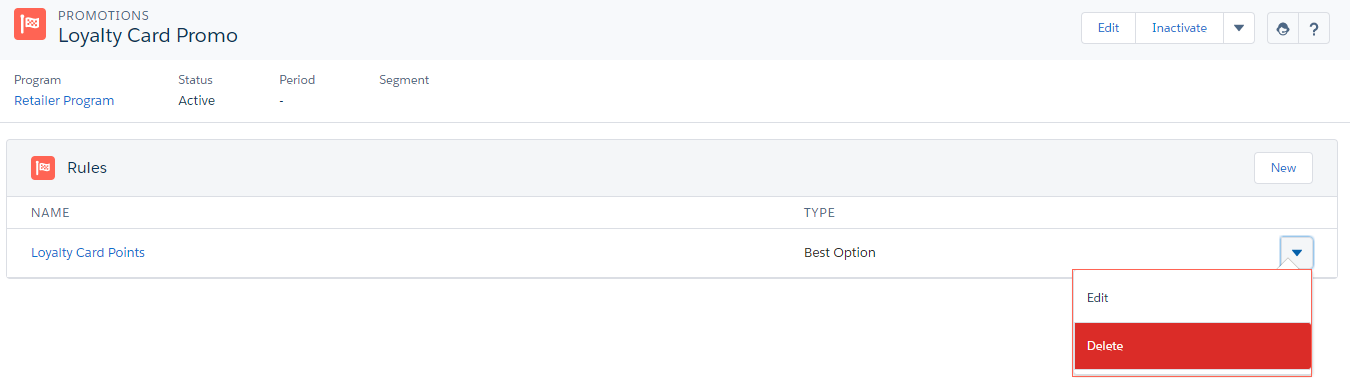
Rule Management Tools
Edit
After creating the number of Rules you want your Promotion to have, you can edit any section within the Rule.
To edit a Rule, click in the row corresponding to the Rule and select Edit.
You can always edit Rules in an Active Promotion without affecting what has been processed so far.
Delete
To delete a Rule, click in the row corresponding to the Rule and select Delete.
Updated over 1 year ago