
Teams
Create and manage Missions in a Challenge
What are teams?
Teams consist of one or more individual members that are brought together to work towards a common goal. Please remember that only active members will be able to join a team.
Create a new team
Make sure you are on the Teams tab and click on the New Team button.
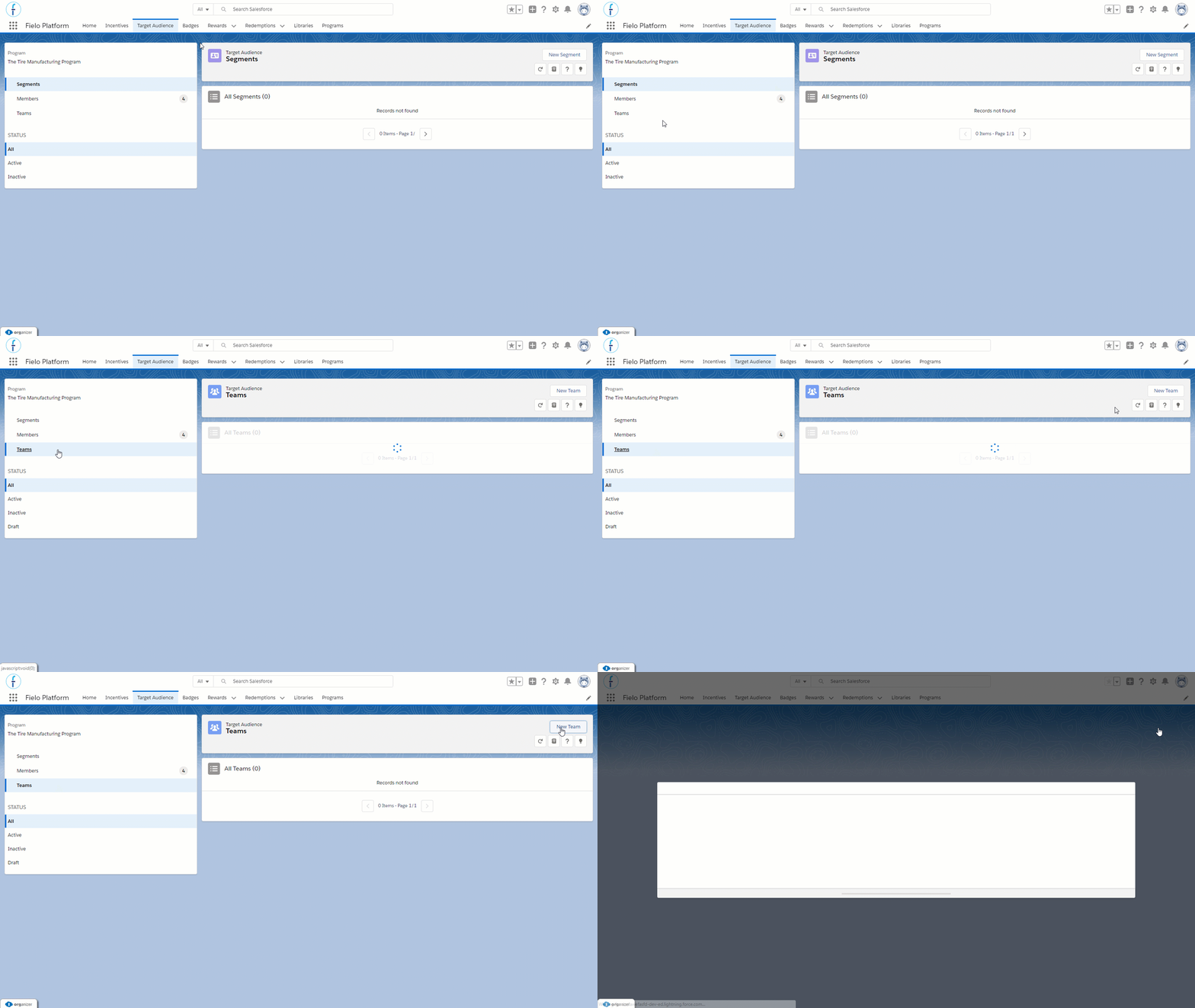
Create Team
Once you are in the New Team screen, choose an appropriate name for the team you want to create. In this case, Tread Manufacturing wants to create teams of their distributors, so they named this particular team "California Distributor".
Adding team members
All of your active members within the program will populate in the Add Members list at the bottom of the window. To add new members, select the checkbox to the right of the member name. In the example, Tread Manufacturing has a short list of distributors to choose from, but if the list was a lot longer, the search bar would probably be a better way to find specific people.
Once the members have been selected, click Save.
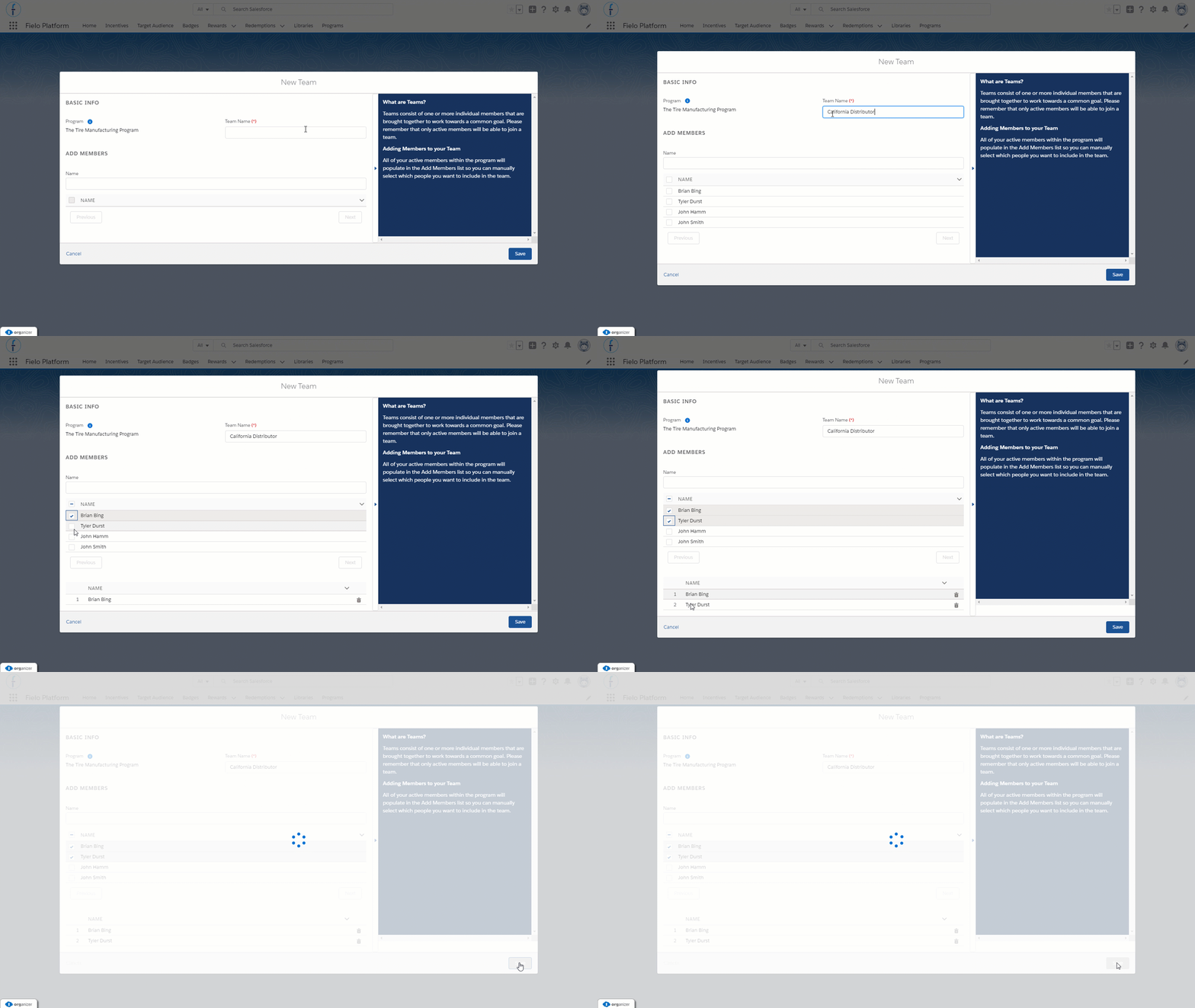
The team has now been create, but not yet activated.
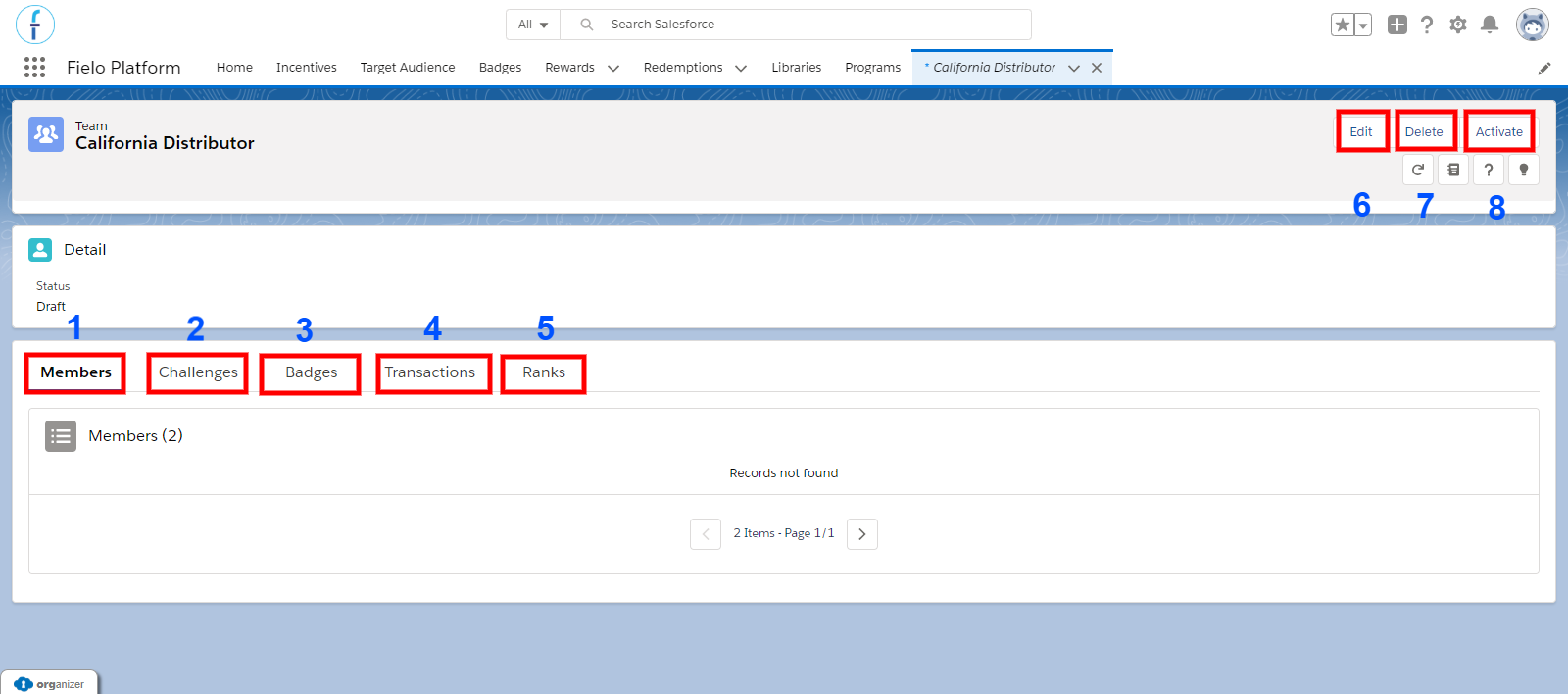
- Members - Lists the members that are part of this team
- Challenges - Lists the challenges that the team is currently enrolled in
- Badges - Lists the badges that have been achieved by the team
- Transactions - Lists the transactions the team has made
- Ranks - Lists all the ranks the team
- Edit - Edit the team
- Delete - Delete the team
- Activate -Activate the team
If the team is complete, click on Activate to have the team go live.
Edit a team
If a team needs to be edited, click on the Edit button where members can be removed or added.
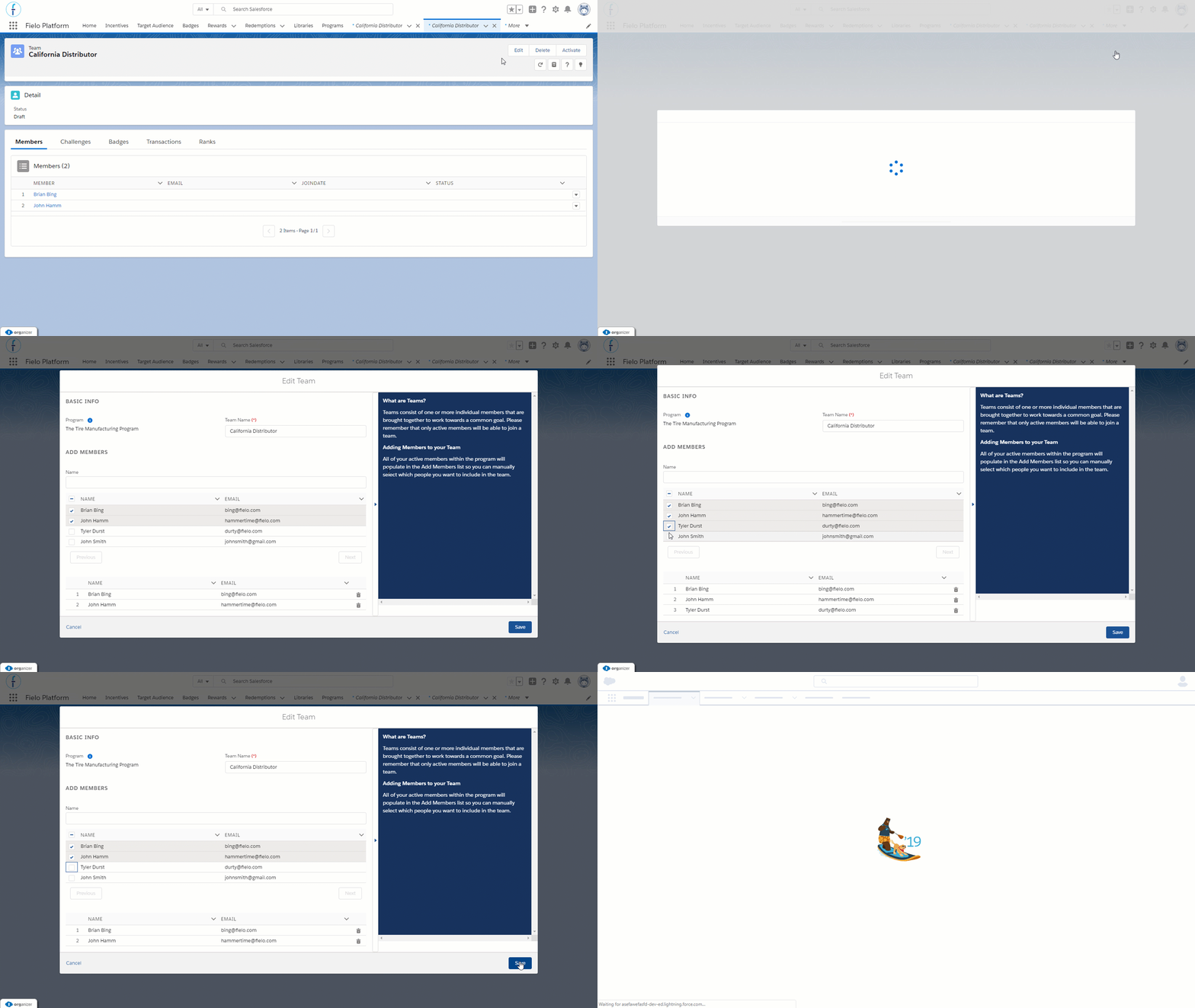
Delete a team
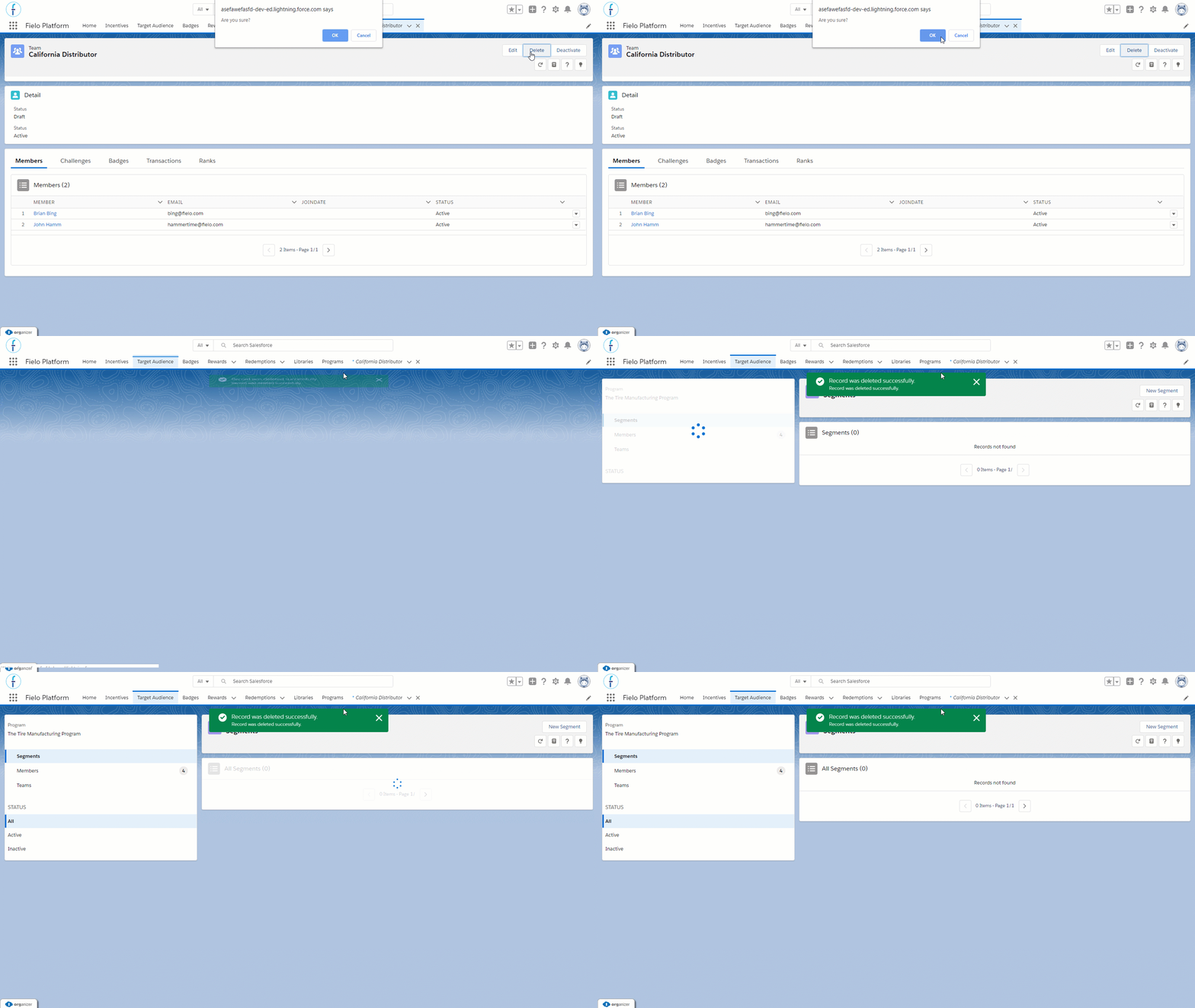
To delete a team, click on the "Delete" button and confirm your choice in the pop-up window.
Activate/ Deactivate a team
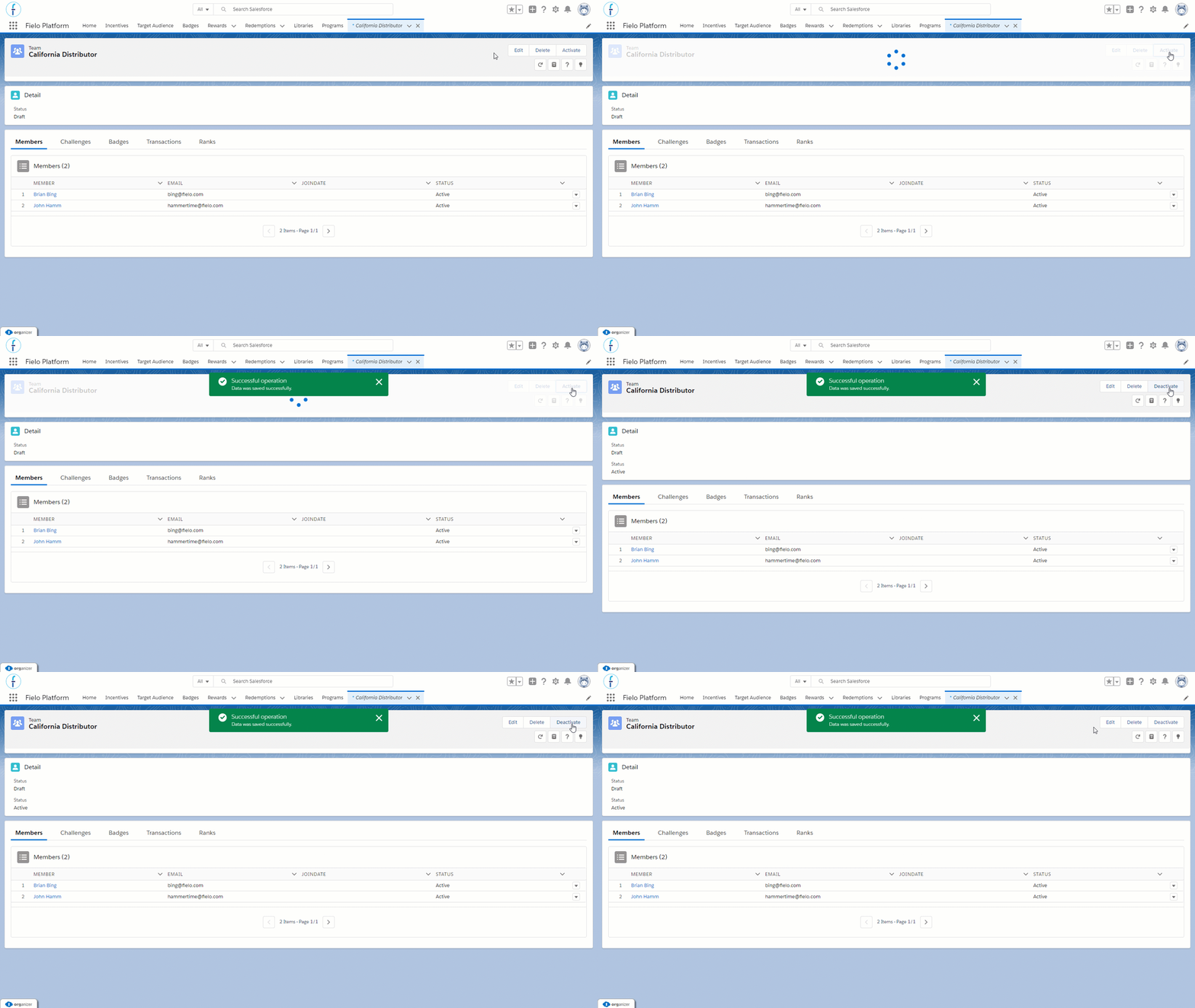
Make sure you activate your team!. Go to the top right and click "Activate". The same applies when you want to "deactivate" a team.
Remember that only active team will be able to participate in Challenges.
Once the team is participating in an Active challenge, you won't be able to inactivate it.
Updated over 1 year ago