
Rewards
Rewards are the prizes available to Members of a Program. You can offer any kind of product or service to incentivize your community: retail, travel, entertainment, experiences, etc. After earning Points through incentivized behavior, Members can exchange their points for Rewards.

Creating a Reward
In IAS, select the Rewards tab and, on the top right of the page, click New.

Create a New Reward
Program
Confirm that the Program shown is the one you want to create a Reward for. If not, click and enter the correct Program name.
You can also click and leave the Program field blank, in which case your Reward will be available across all of your Programs.
Reward Name
Choose an attractive name for your Reward. This name will be displayed to your Members on your loyalty portal.
Points
Enter the number of Points that a Member will need to redeem your Reward.
Expiration Date
Choose the date on which your Reward will no longer be valid to redeem. You can also leave this field blank, in which case your Reward will not expire.
Description
Enter a detailed description of your Reward. This description will be available to display to your Members on your loyalty portal.
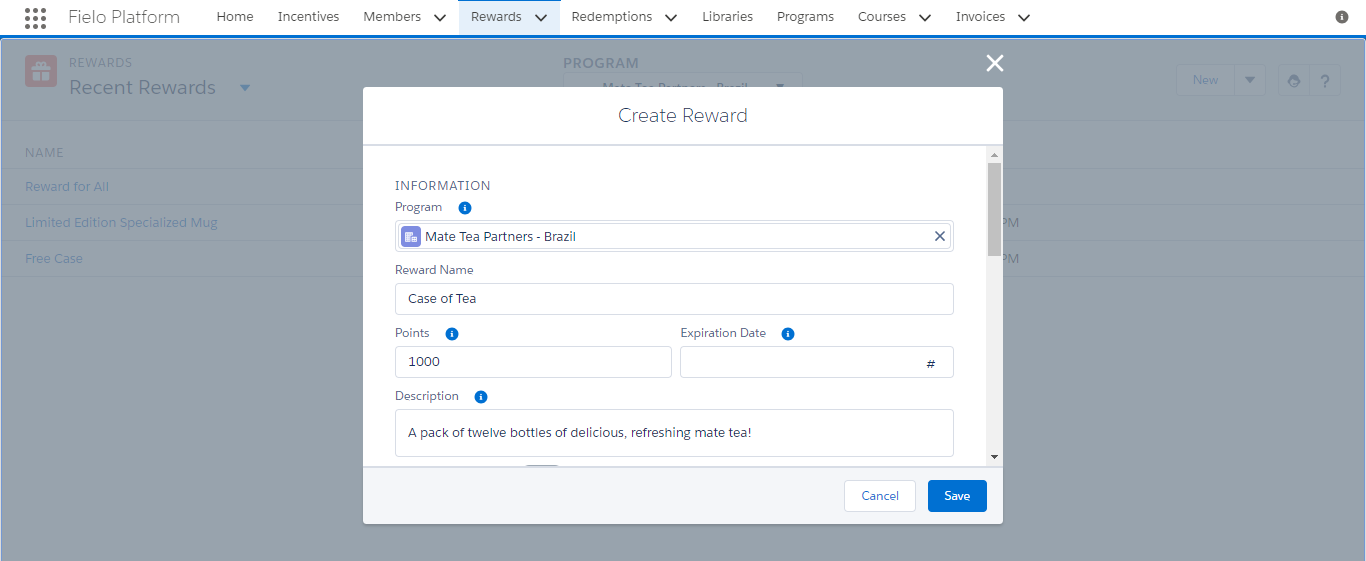
Reward information
Instant Reward
When , your Reward will be available to be given to Members instantly when they perform an incentivized behavior, either in Rules or in Challenge & Mission Rewards.
Instant Rewards and SegmentationWe recommend NOT applying segmentation to Instant Rewards. If you do, be sure that all members who might win this reward as part of an incentive are in at least one of the segments. Otherwise, incentive processing will fail.
Single Redemption Code
When , the unique code generated during redemption will encompass all redemption items related to this reward. This will apply only when the stock type is Unlimited and Controlled by Quantity.
Redemption Validity Period (Days)
Enter the number of days the unique code (a.k.a. voucher) generated by a redemption of this Reward will be valid. You can leave this field blank, in which case the code will not expire.
Stock Type
Decide how you want to manage the stock for this Reward:
- Choose Unlimited to allow your Reward to be redeemed an unlimited number of times (i.e. no stock control).
- Choose Controlled by Quantity to set a fixed available quantity of this Reward.
- In the Available Stock Quantity field, enter the quantity available for redemption.
- Choose Controlled by Item to limit redemption to a list of item codes, where each code represents an individual Reward Item available to be delivered to a Member who has redeemed the Reward. This option is often used for gift cards. See Loading Item Codes for details.
Rewards that are controlled by item cannot be reverted after a member has made a redemption.
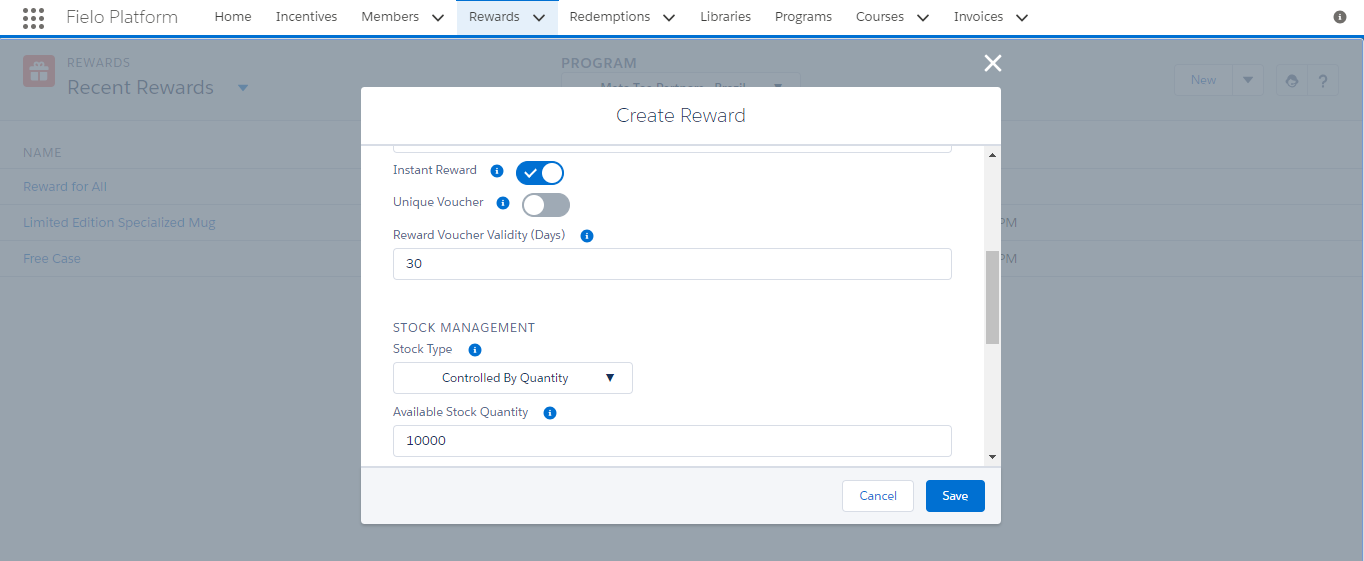
Reward Stock Management
Provider
Optionally, enter the Account name of the provider for this Reward.
Viewing and Editing the Provider FieldTo access the Provider field, it must be added to the Page Settings of the page(s) on which you want it to appear (e.g. Reward > New, Reward > Edit, Reward > View, etc.) See Page Settings for details.
Segment
Optionally, you can target your Reward to one or more Segments you've defined in your Program. To add a segment, select it on the list to the left and click . To remove one, select it on the lift to the right and click .
You can leave your Reward open to all segments by leaving the list on the right empty.
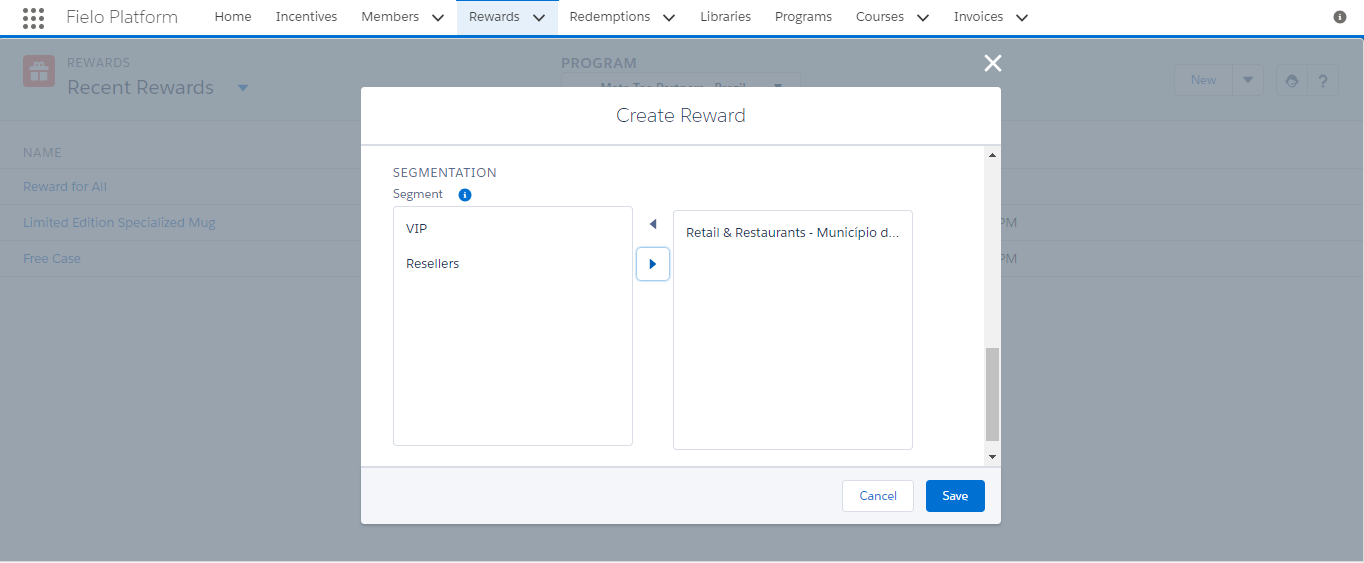
Segment Rewards
When you're ready to roll, click Save!
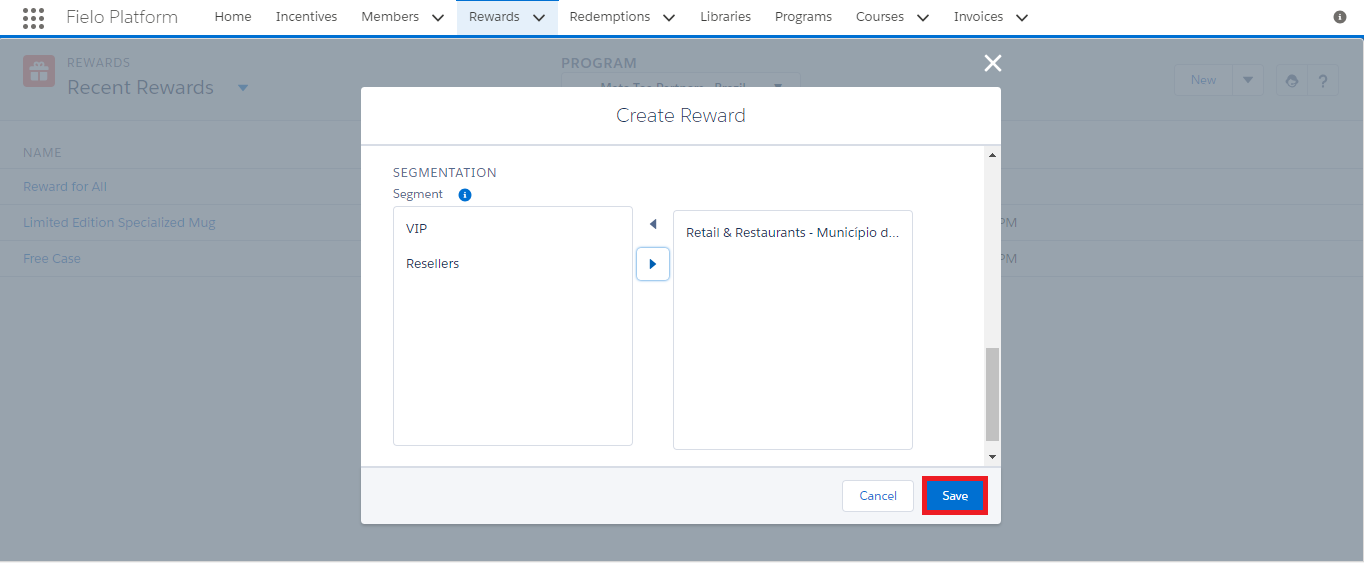
Adding a Reward Photo
Now that you've created your Reward, it's time to make it pop with a great photo! There are two ways you can include your photo: uploading it or specifying its external URL.
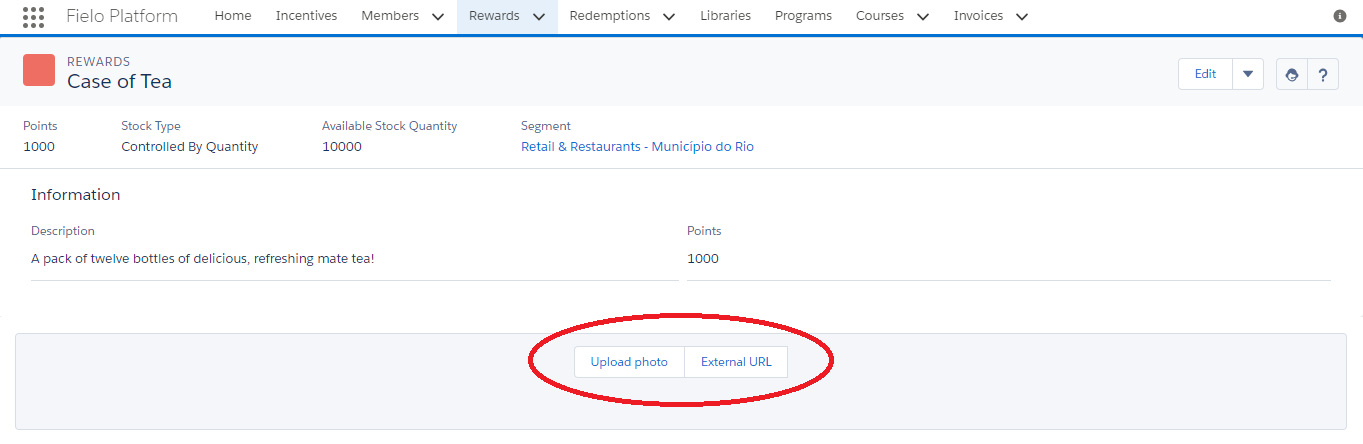
Uploading a Reward Photo
To upload your Reward photo, click Upload photo. Select a photo from your system and then use the crop tool to make it just right for your catalog.
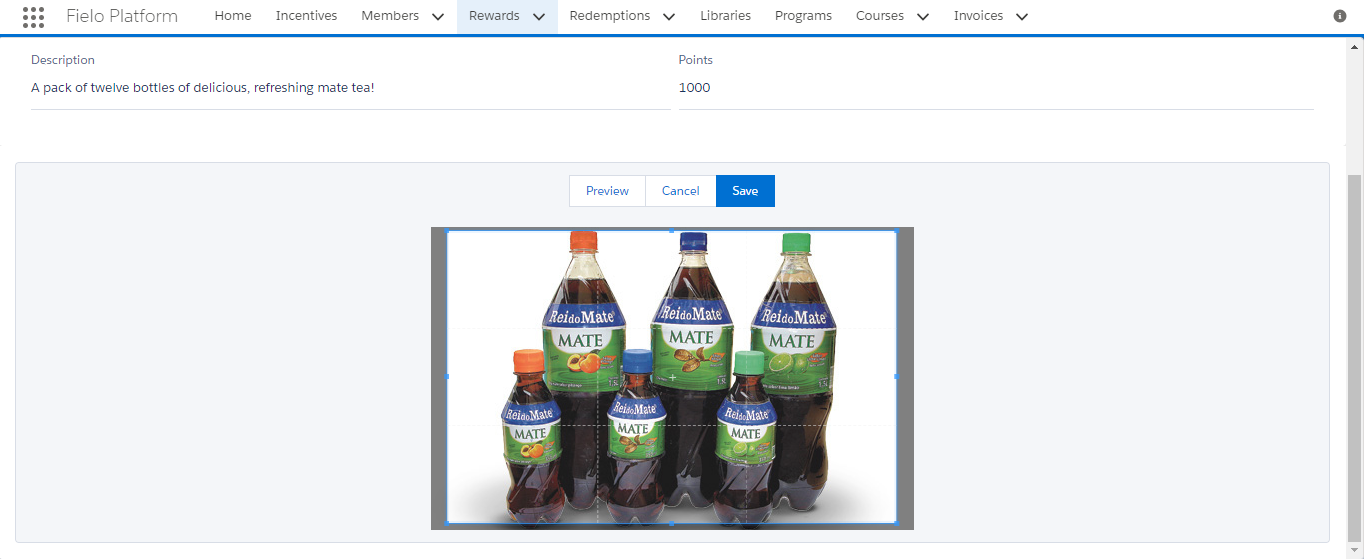
You can click Preview to see how the cropped version looks and, when you're ready, click Save.
Entering an External URL
To use an external URL for your photo, click External URL and enter the URL into the Image URL field.
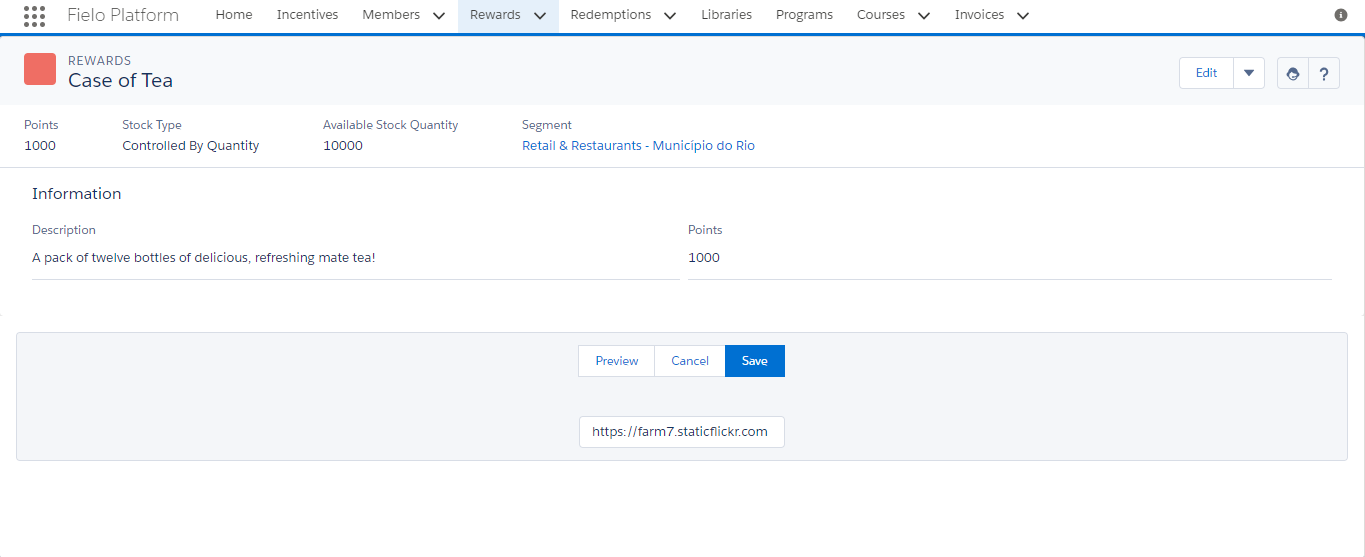
You can click Preview to see that your URL works and, when you're ready, click Save.
Replacing and Deleting a Reward Photo
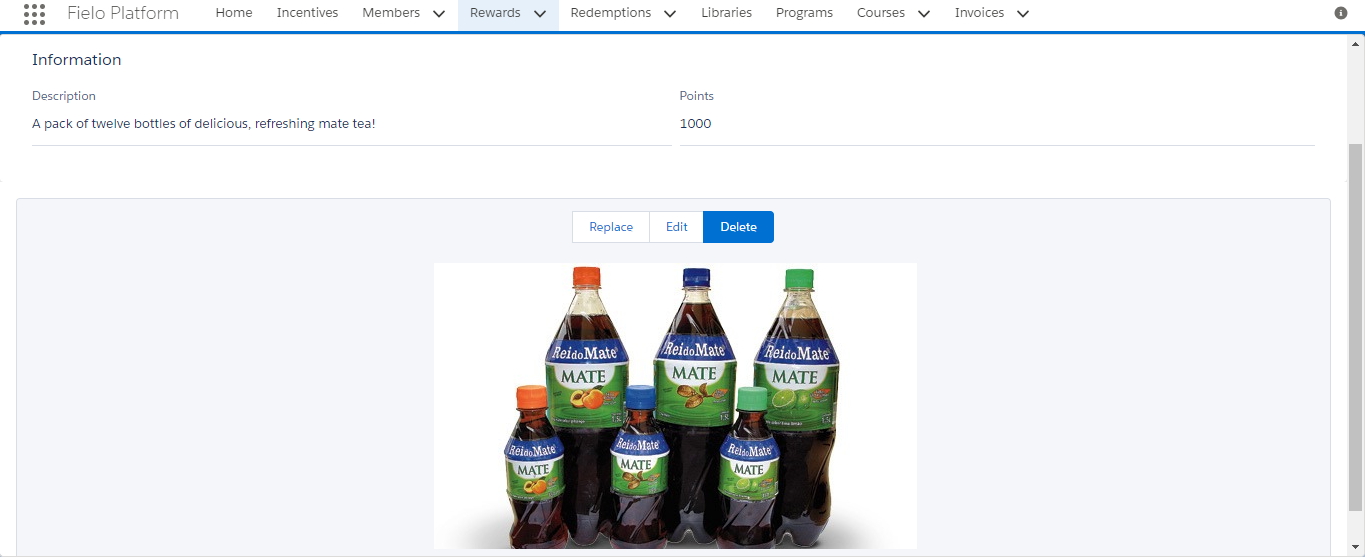
You can use a new photo for your reward by clicking Replace or delete it by clicking Delete. If your photo is uploaded, you can also recrop it by clicking Edit.
Loading Item Codes (For Rewards Controlled by Item)
If the stock for your Reward is Controlled by Item, you'll want to upload a list of alphanumeric codes, where each code represents an individual Reward Item to be delivered to a Member that has redeemed the Reward. Each Reward Item is unique and no longer available after being redeemed.
First, you'll need to create or generate a plain text file that contains your item codes, with each code separated by a line break (i.e. newline character). Here's an example:
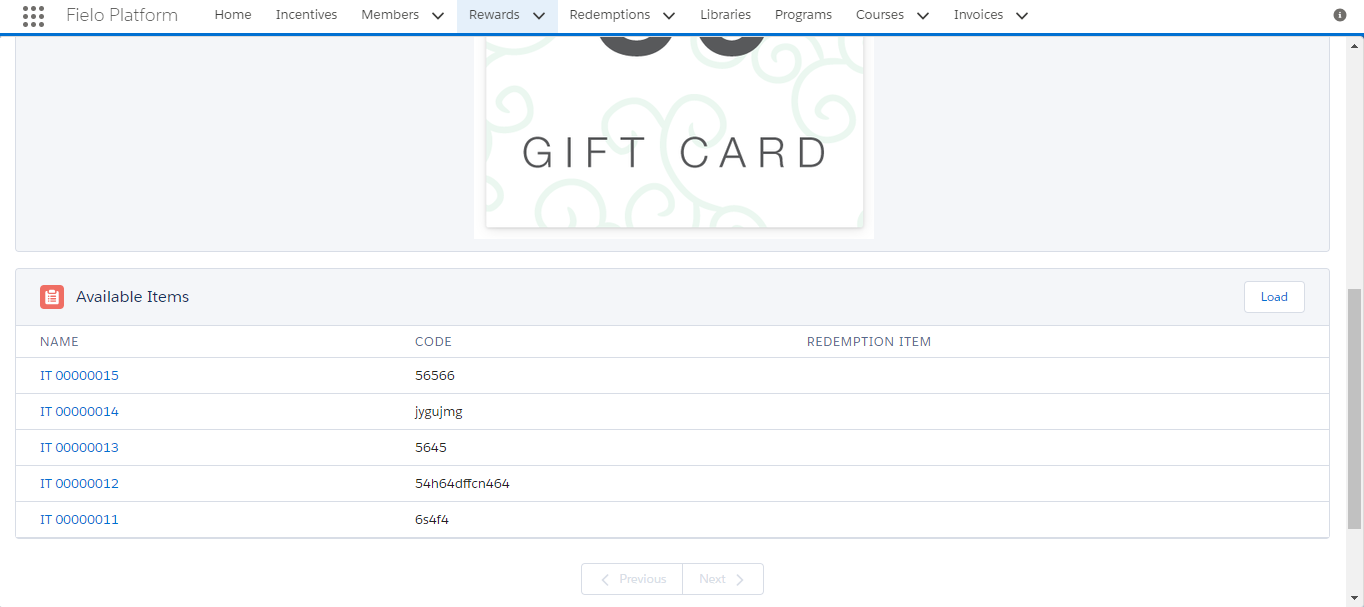
6s4f4
54h64dffcn464
5645
jygujmg
56566
Note that your item codes can include any combination of letters and numbers and don't necessarily need to all be of the same length. Codes have a maximum length of 80 characters and are not case sensitive.
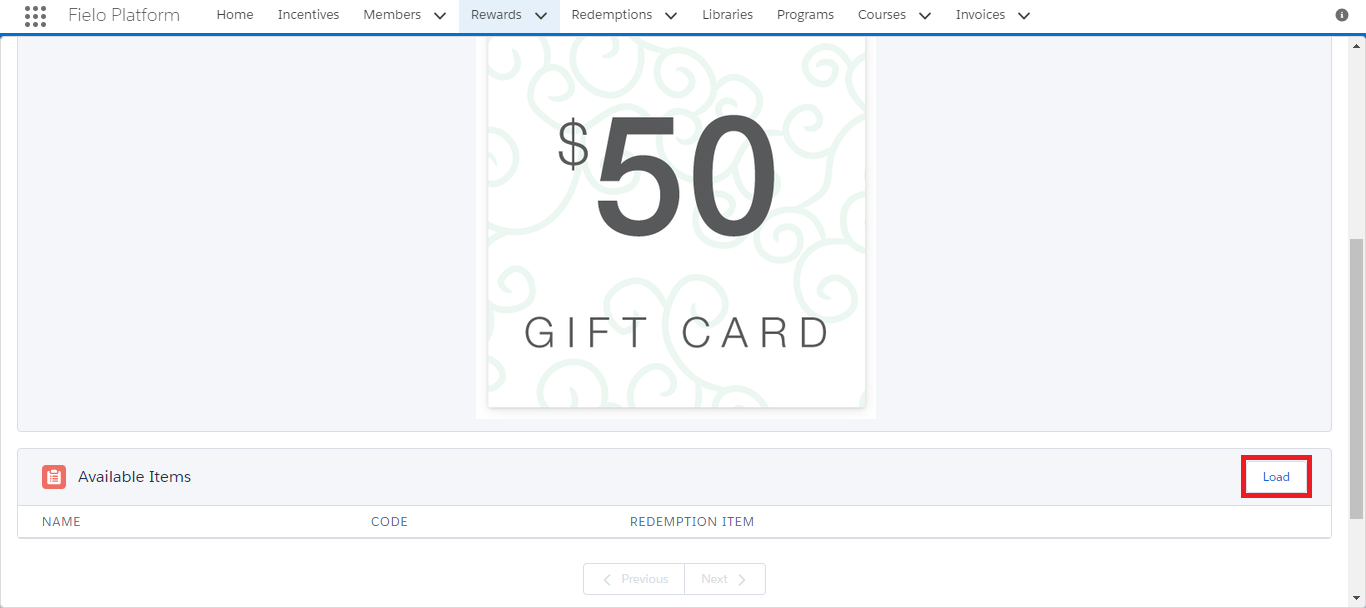
With your item code file ready, navigate to the Available Items related list on your Reward's record page and click Load.
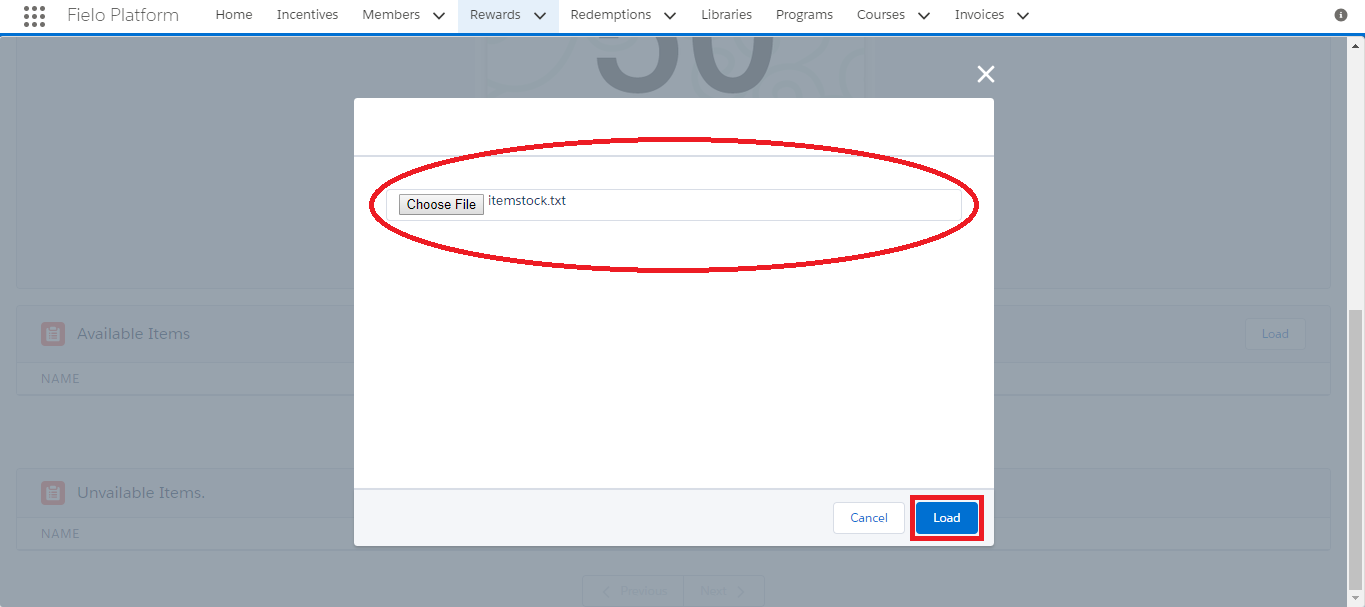
Select your item code file and click Load.
Success! Each item code in your file should appear as a Reward Item record in Available Items.
Rewards Management Tools
There are several Tools that let you manage Rewards. You can access these Tools by navigating to the Rewards tab and clicking .
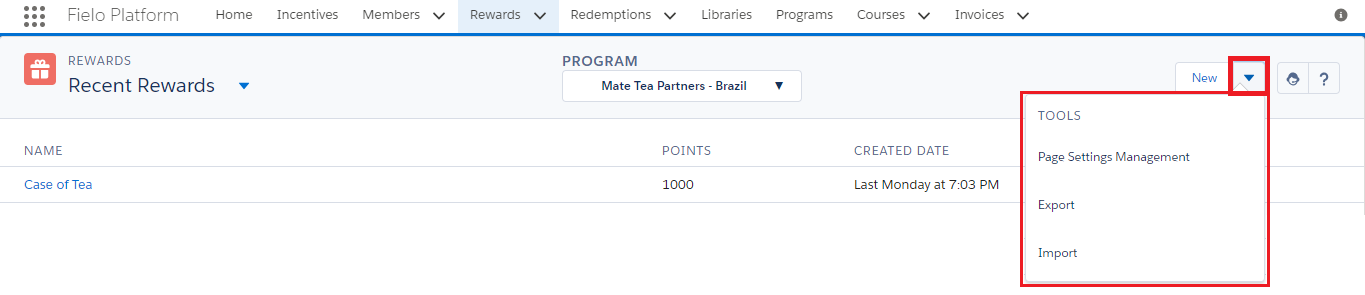
Rewards Management Tool Menu
Page Settings Management
Select Page Settings Management to configure the Page Settings for the Rewards list.
Export
Select Export to export all Rewards from the chosen Program. When exporting, you'll obtain a file in JSON format containing your FieloPLT__Rewards__c records.
Images and Reward Items Not Included in ExportNote that uploaded images, external image URLs and Reward Items are not included in Reward exports.
Import
Select Import to import Rewards you or a colleague has previously exported.
Simply upload a JSON file containing all the data for the Rewards you wish to import. In most cases, this will be one that's been previously exported from another ORG, so you won't need to make any changes. We do, however, advise you to validate the JSON file before uploading.
Once you're ready, just hit Import.
If the Rewards you're importing are given as Instant Rewards in Rules or Missions using your own custom Actions, you must first import those Actions into your Local Development Library.
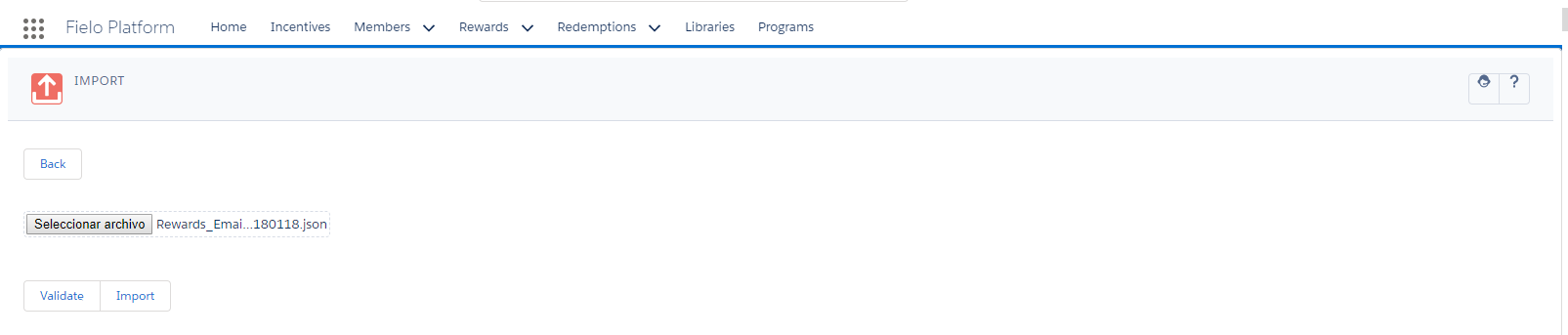
Importing Rewards
Updated over 1 year ago