
Promotions
Create and configure Promotions
Promotions are a way of encouraging members to behave in a particular way so as to drive their engagement. Promotions can be addressed to different audiences (depending on Segmentation) within a specific time period and may go through a range of statuses along their way.
Promotions consist of one or more rules.
Creating Promotions
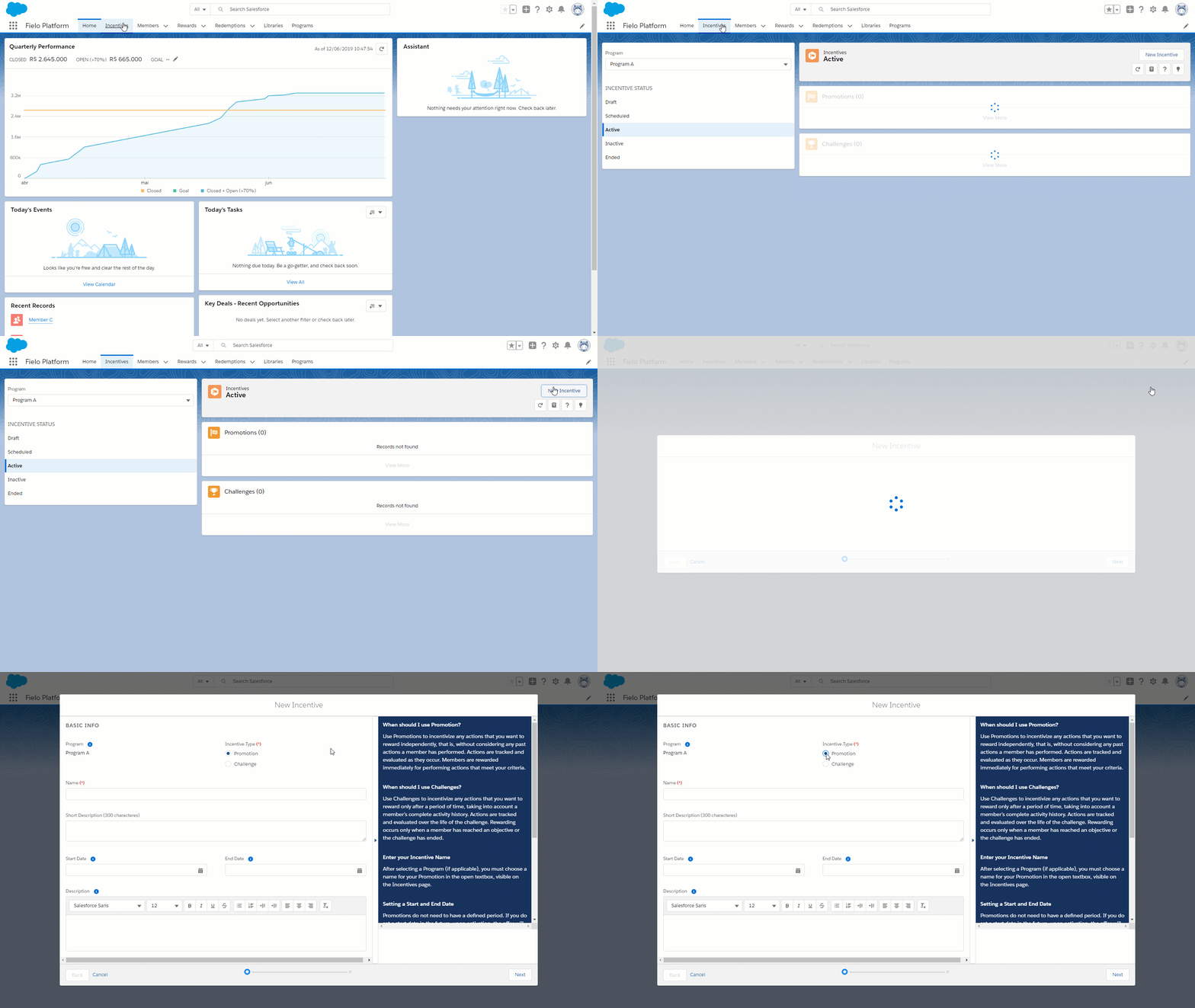
From Incentives, choose the Program you want to create a promotion for from the Program menu. Then, go to the right of the screen and click on the New Incentive button.
Choose Incentive Type
First, you need to specify whether you are creating a Promotion or a Challenge. In this case, click Promotion.
Enter a Name and Description
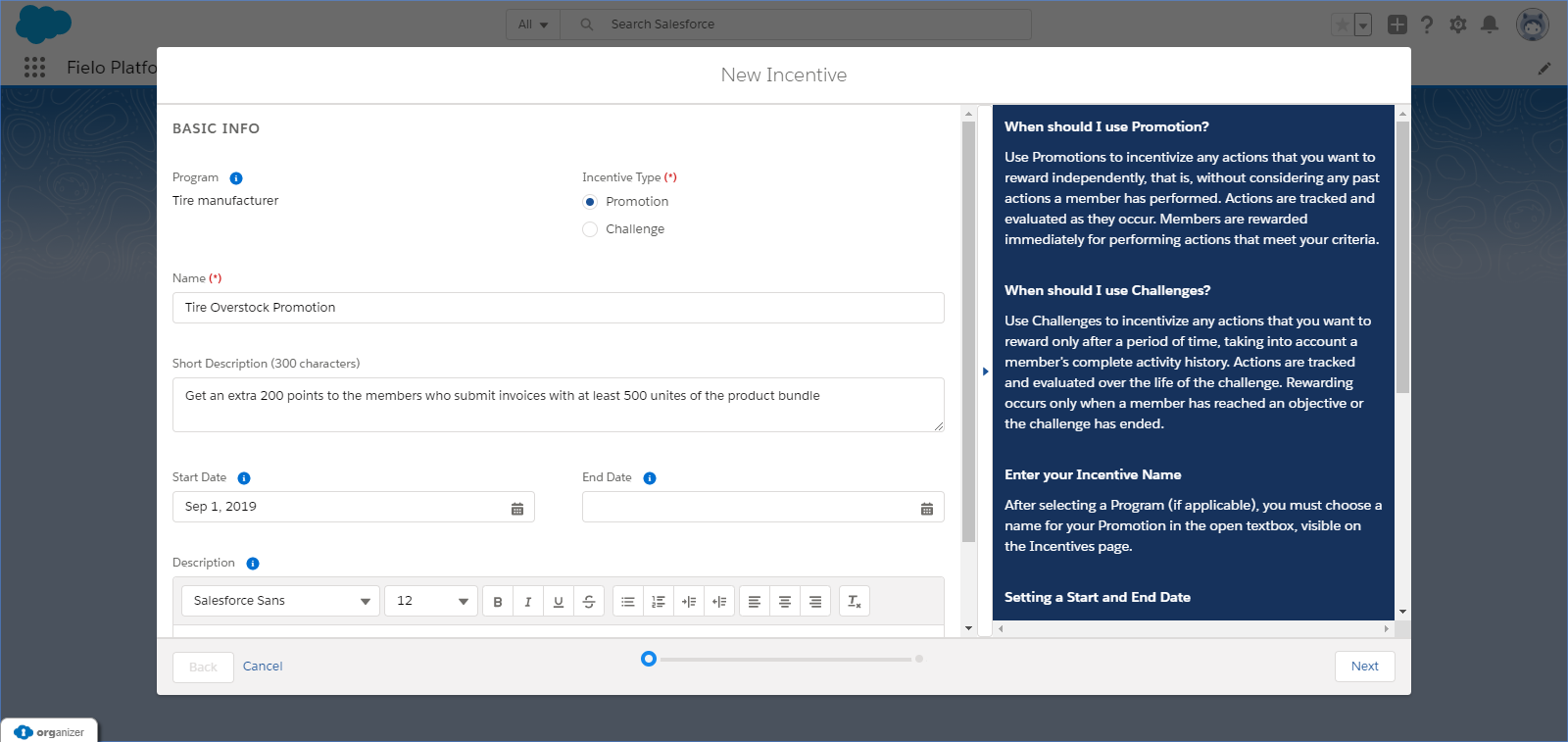
Enter a name and description for your promotion. Your members will see these, so make them exciting!
Set a Period
Promotions do not required any Start or End Date. In those cases, they become Active when manually activating them or otherwise they remain in draft status. If no end date is established, Promotion lasts indefinitely as long as it remains Active.
Creating Promotions
Choose Segments (Optional)
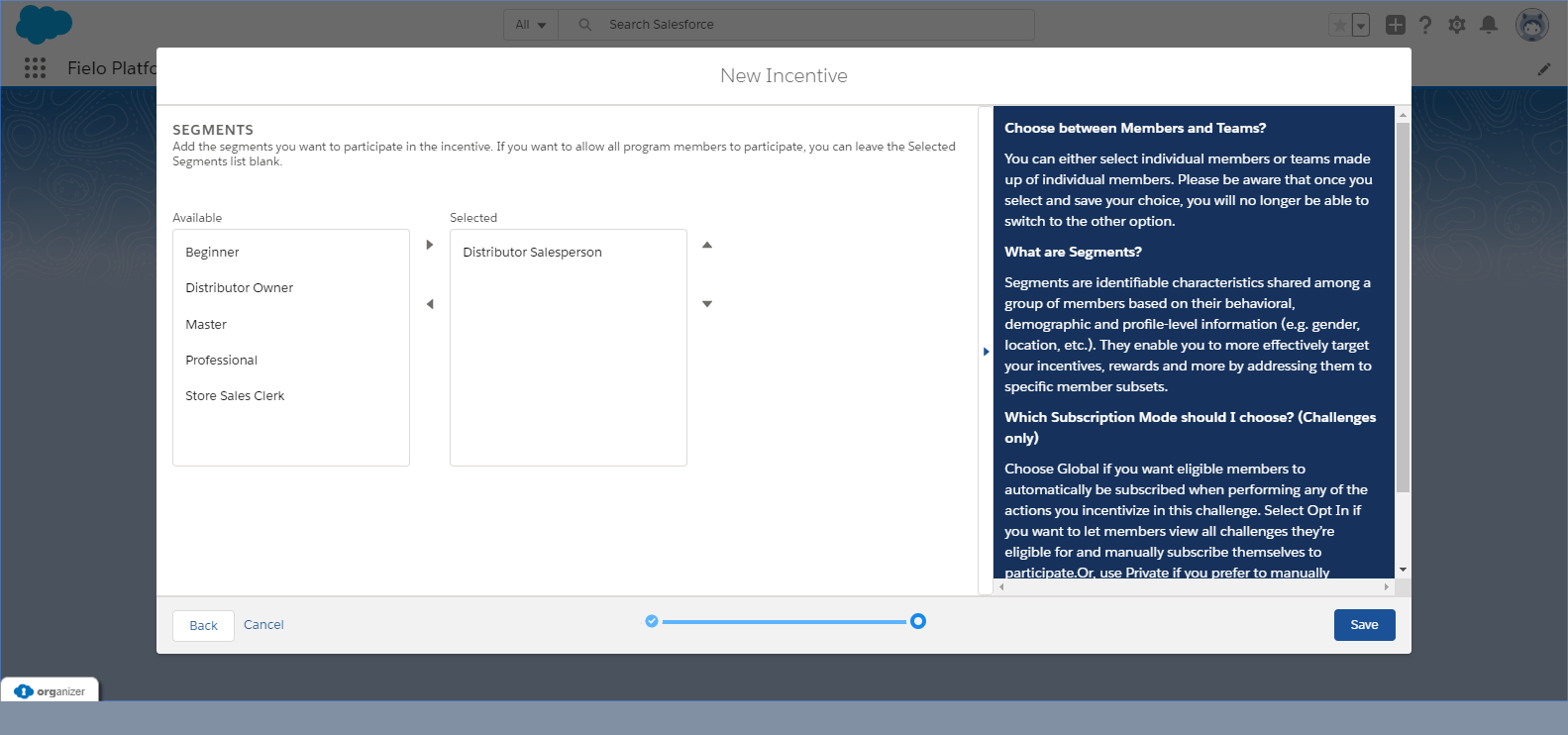
Optionally, you can target your promotions to one or more segments you've defined in your program. To add a segment, select it on the list to the left and click .To remove one, select it on the lift to the right and click .You can leave your promotion open to all segments by leaving the list on the right empty.
If you have no segments created, this section will not show as described.
When you're ready, click Save.
Promotion SegmentsOnly members who are part of the selected segments can be later included in the promotion.
Options within a Promotion
Now that you have created a promotion, you will gain access to additional features within your promotion.
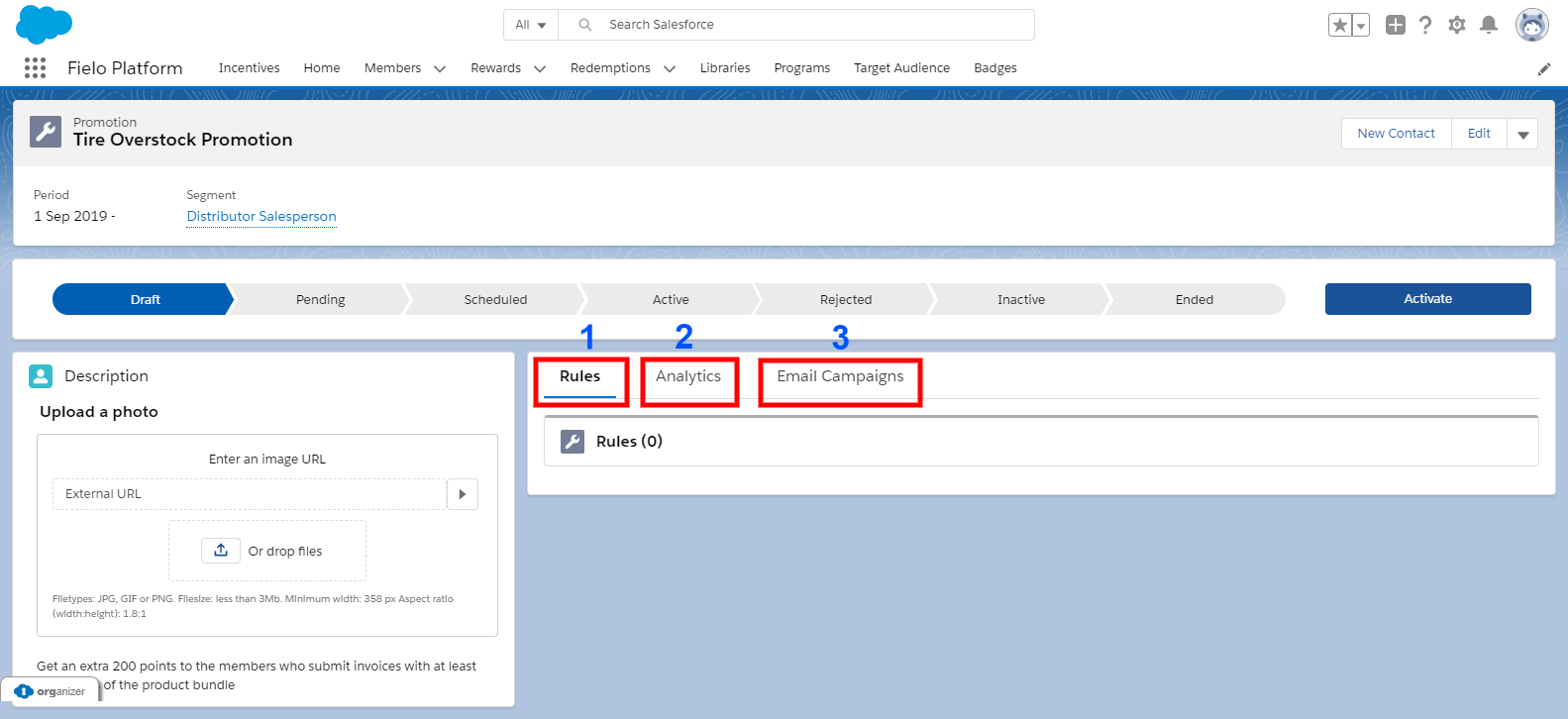
- Rules - Rules define what your members can do to get points, instant rewards and/or badges. When a member performs an incentivized action, the rule criteria are evaluated and, if met, the points or rewards you specify are given.
- Analytics - Be able to see the results and KPIs of this promotion
- Email Campaigns - The ability to create an email campaign for this promotion
Before activating your promotion, it must have at least one rule.
Activating Promotions
You must activate your promotions before members can participate in it.
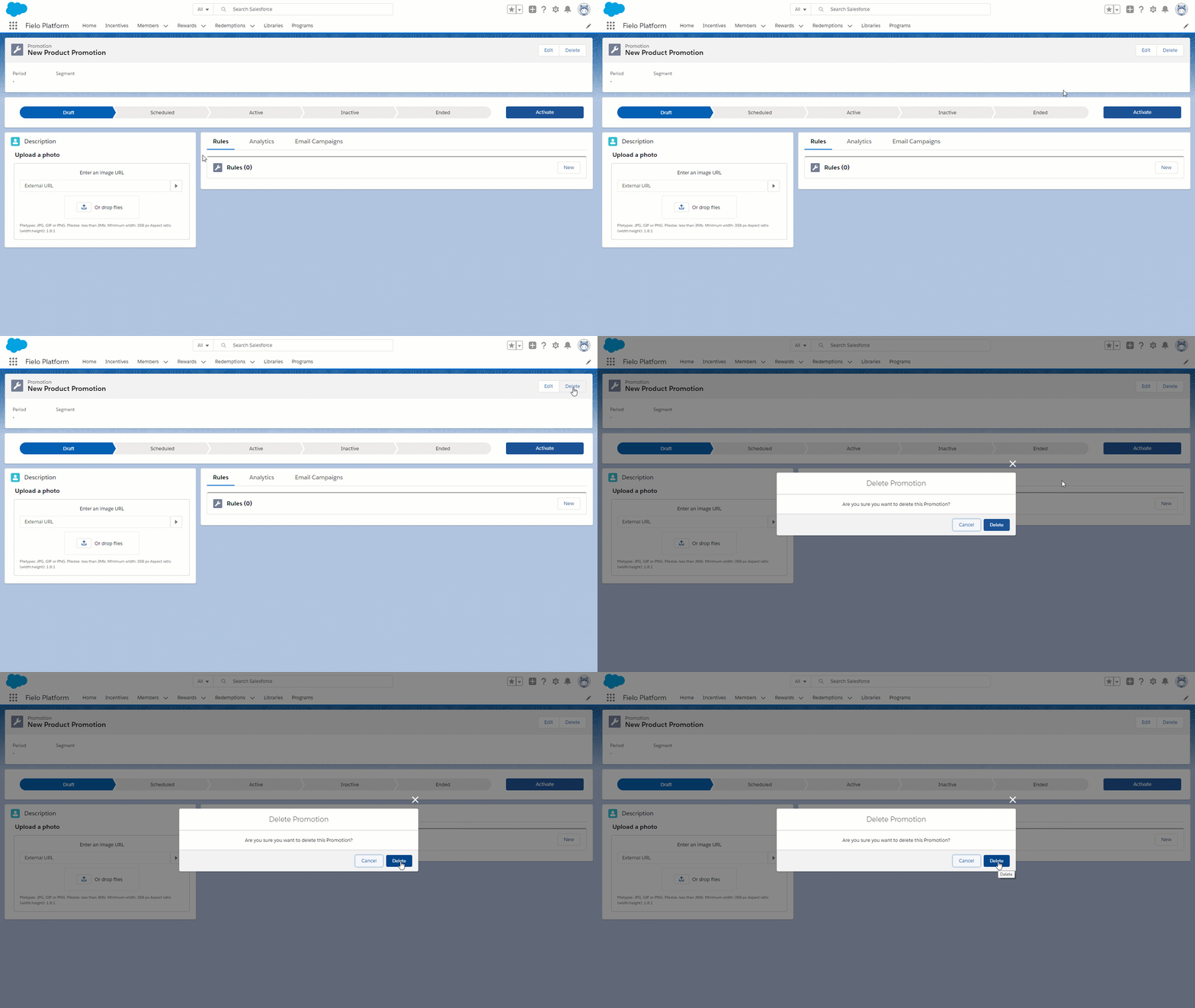
Delete
Select Delete to delete this challenge.
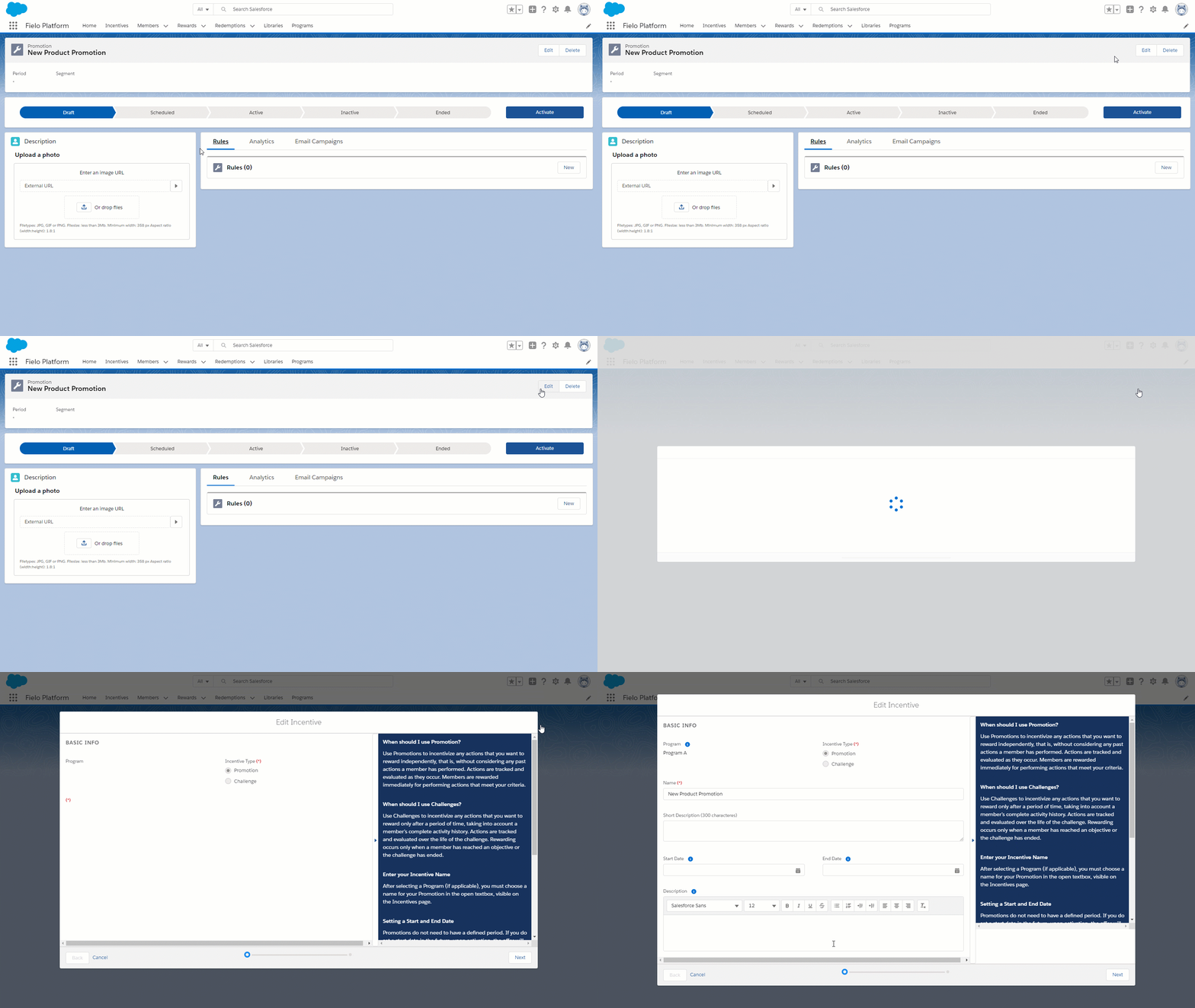
Editing Promotions
After creating and saving a promotion, your promotion has will be in draft mode. Keeping it in draft mode lets you to modify any information needed before promotion becomes active.
Updated over 1 year ago