
Segments
Segments are identifiable characteristics shared among a group of members based on their behavioral, demographic and profile-level information (e.g. gender, location, etc.). They enable you to more effectively target your incentives and rewards by creating member subsets.
Segmentation is applied to Active members only.
Fielo offers two types of Segments: Dynamic Segments and Manual Segments.
Segment Types
There are two types of segments that you can create within Fielo depending on your objectives. Take a look at the difference between them:
-
Dynamic Segments
Dynamic segments are based on criteria that you define, such as the member's billing state or the number of Points that they have. Members who meet these criteria are automatically included in the segment. -
Manual Segment
Choose Manual Segments when you want to manually populate the members within the segment. You can use them to define a custom, static group of members.
Manual segments settingsWhen you create a manual segment, you won't be able to enable real-time updates or analytics in the settings section.
Creating a Dynamic Segment
Start by going to the Target Audience tab and selecting the program you want to create a segment for. Go to the Segments section, click New Segment, and select Dynamic Segment.
Dynamic segments are continuously updated. This means that any member whose profile changes to fall within the criteria of a segment will automatically be included in that segment. As an example, a distributor that moves operations from California to Florida will automatically become part of the Florida Distributors segment.
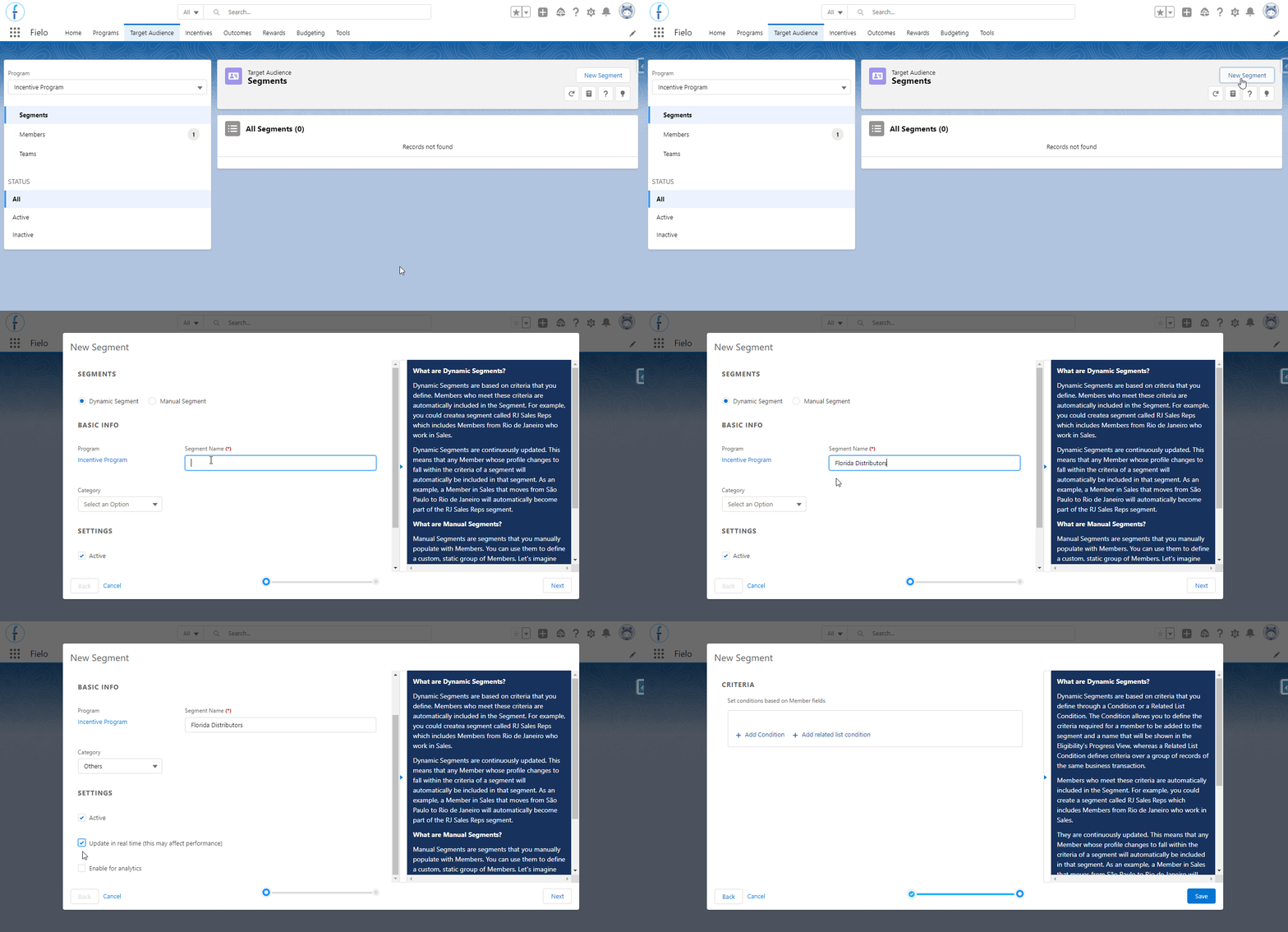
Creating a segment
1. Basic Info
Enter a relevant Name for the segment. We will call this segment "Florida Distributor"
2. Category
Select a category to which the segment will belong.
Note that it is not possible to edit or delete a category, but you can assign the new segment to any category or leave it without one.
3. Settings
- Active - If checked, the segment will be automatically activated after saving it.
- Update in real-time - Segments will be automatically calculated in real-time, as opposed to the default of every 24 hours.
- Enable for analytics - By enabling this option, the segment information will be stored as a record in an object called Member Segment, which will allow you to generate reports and dashboards using it as a parameter. When not enabled, the data will be stored more efficiently, but not available to be used in reports. You need to enable this if you wish for the Members per Segment KPI to display data.
The settings that we are going to use are Active and Update in real-time (this may affect performance). Once all the correct settings have been selected, click Next.
4. Setting Segment Criteria
Now, in Criteria, we'll specify the criteria for your segment. This is how the segment will be defined. There are two types of conditions for criteria, Add Condition & Add Related List Condition.
-
Add Condition - This allows you to define what criteria need to be met for a member to be added to the segment.
-
Add Related List Condition - This allows you to define criteria over a group of records of the same business transaction. This means it's now possible to create a segment over member related lists such as: Member Badges, Events, Transactions, Challenge Member, Mission Member, Member Courses, etc. For example, a segment could be Distributors in Florida that are going to a specific event.
Condition NameThe name will be displayed in your Challenges, Program Promotions or Incentives Lightning Components for experience cloud site, when the logged member does not apply to the related segment, and the Incentive was set to use Progress View as the Eligibility view mode.
If you set Progress View in your incentive, but do not inform a name for the condition, an error message will be displayed to the logged member when they open the Eligibility dashboard in the Lightning Component: “There was a problem retrieving the name of the requirement”
Each criterion takes the form of a logical or mathematical comparison between the value of a field and a fixed value or the value of another field; with the value being either a text or a number. For example, you could compare a member's Contact Mailing State with either the fixed value Florida or some other field, like Contact Other City.
In the criteria section, we will add a condition: Mailing State equals to Florida. Not only that, but we will also add a related list condition to require the member to have a badge called "Top Seller", which was created beforehand through Badges.
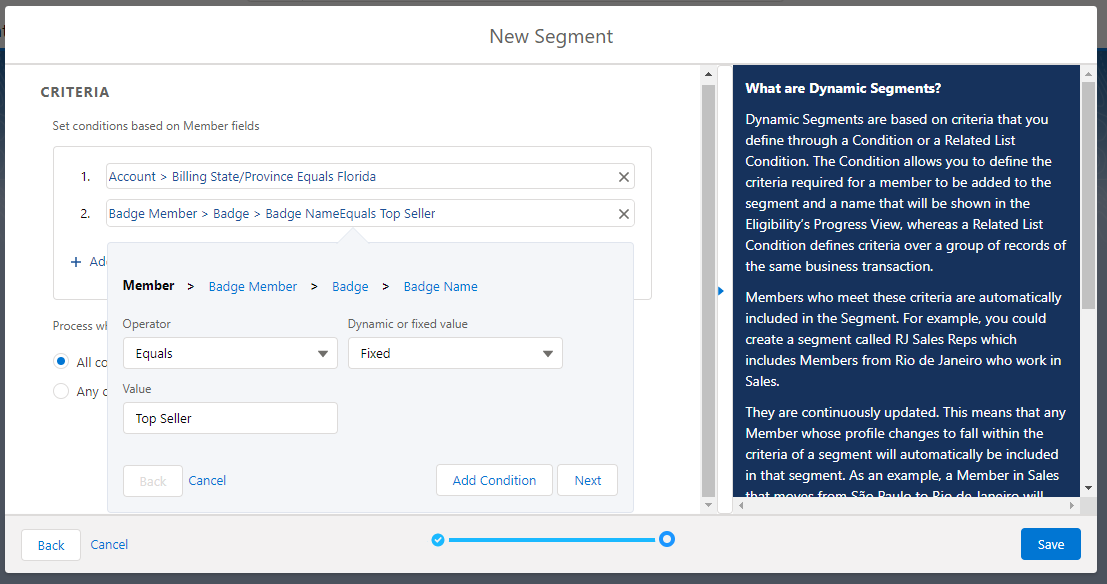
Defining segment's criteria
The next step is to set how to aggregate the matched records of the related list condition. It will be to COUNT with a greater or equals Value of “1” so that the member needs to have at least one badge.
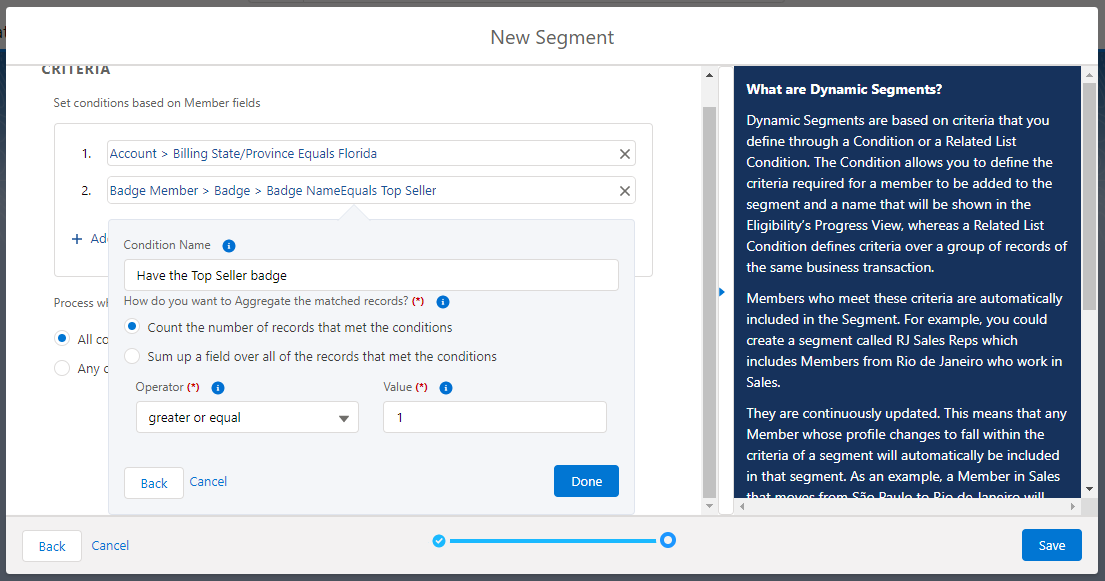
Defining segment's criteria aggregation
Finally, click on Save.
Segments created through the Program Setup Wizard
Dynamic segments created through the Program Setup provide more options for conditions definition, in that you can create criteria based on the member's activity performed within of or outside of some days or months.
This is a way of, for example, creating a segment that the member will be part of only if they have not created a transaction within the last 90 days. Then, you can use it to better target your next challenge to incentivize the members who apply to this segment, so they start to interact with the program again.
This is available only for Date or Date/Time field types and after checking the Compare with a relative value option.
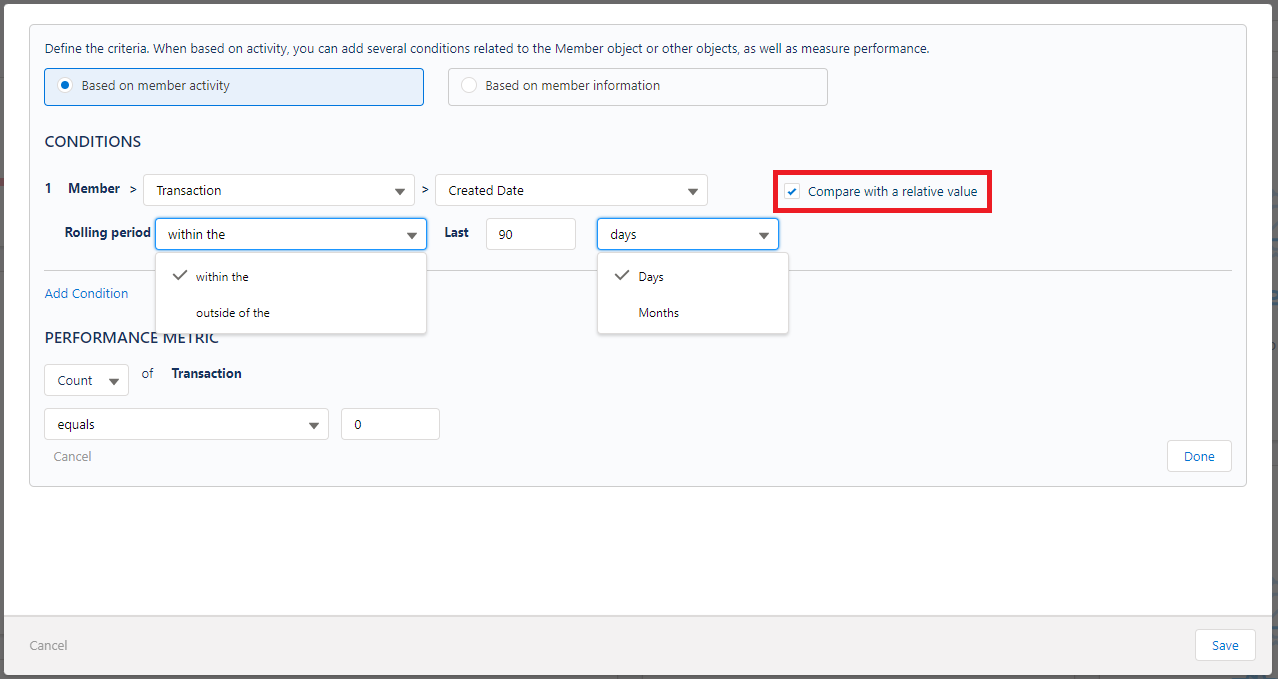
Creating segment conditions through the Program Setup
If you create any segment using the settings mentioned above or any condition that is not compatible with the default Fielo platform, you won't be able to edit it through it (i.e. through the Target Audience tab). These conditions, if any, will be highlighted.
Creating a Manual Segment
Once more, start by going to the Target Audience tab and selecting the program you want to create a segment for. Go to the Segments section, click New Segment, and select Manual Segment.
Let's imagine that you're launching a new product or campaign and you want to select a cross-section of members to participate. You can do so by creating a Manual Segment and manually adding some members from different age groups, different locations, etc. to build a sample.
1. Basic Info
Enter a relevant Name for the segment.
2. Category
Select a category to which the segment will belong.
Note that it is not possible to edit or delete a category, but you can assign the new segment to any category or leave it without one.
3. Settings
Active - If checked, the segment will be automatically activated after saving the new segment.
Make sure to check Active and click on Next.
4. Adding Members to a Manual Segment
On the second page, you will see a list of all of your active members within the program, which will populate in the Add Members list at the bottom of the window.
To add new members, select the checkbox to the right of the member name. In the example, we have a shor tlist of distributors to choose from, but if the list was a lot longer, the search bar would probably be a better way to find specific people.
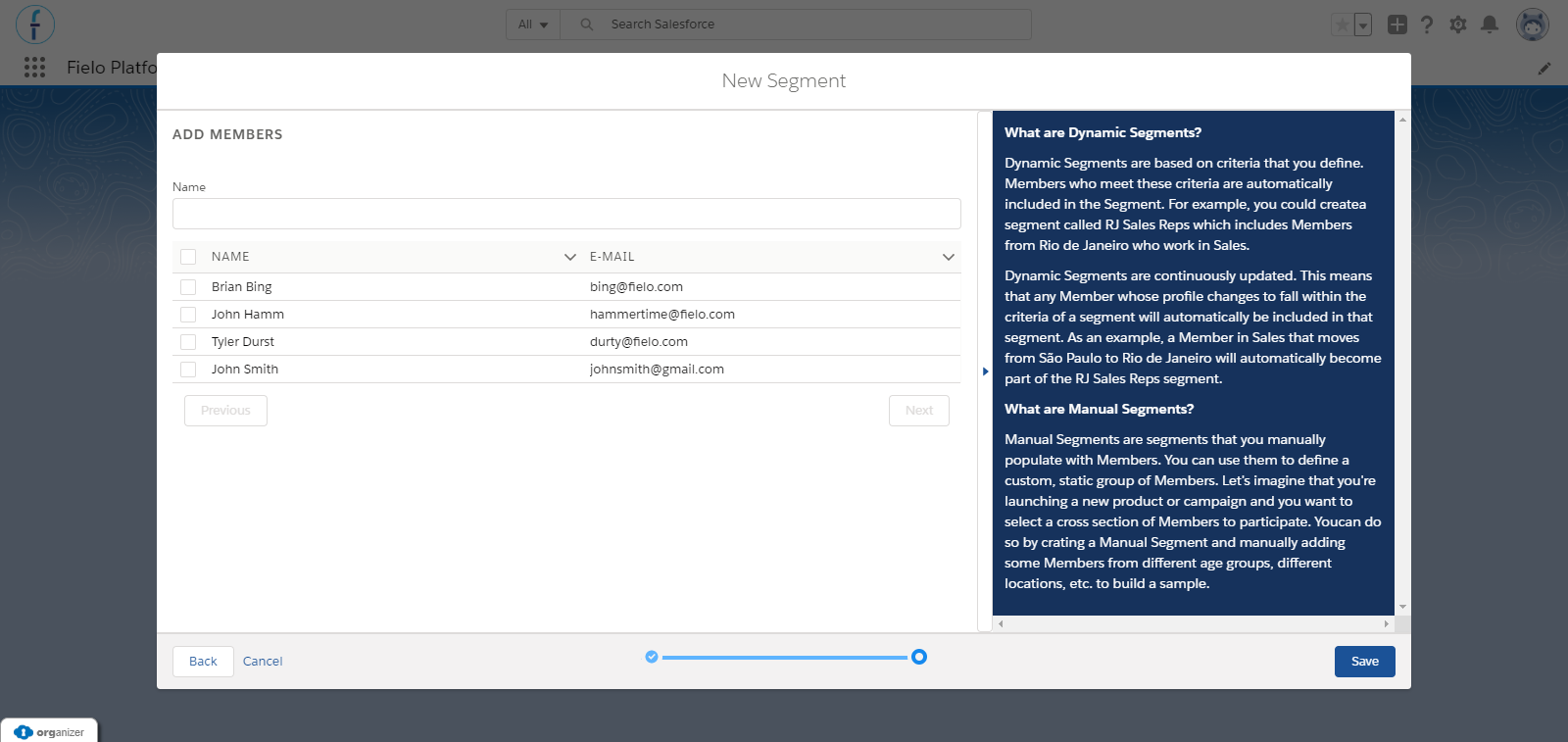
Selecting members for a manual segment
Once the members have been selected, click Save.
Recalculating segments
From the Program detail page, access Tools by clicking on the button. From Tools, you can select Batch Management. You'll be taken to the Batch Execution page. On this page, scroll down to the row named Assign Segments to Members, click Run.
This process will update the offline segment, that is, the dynamic segments that are not updated in real-time.
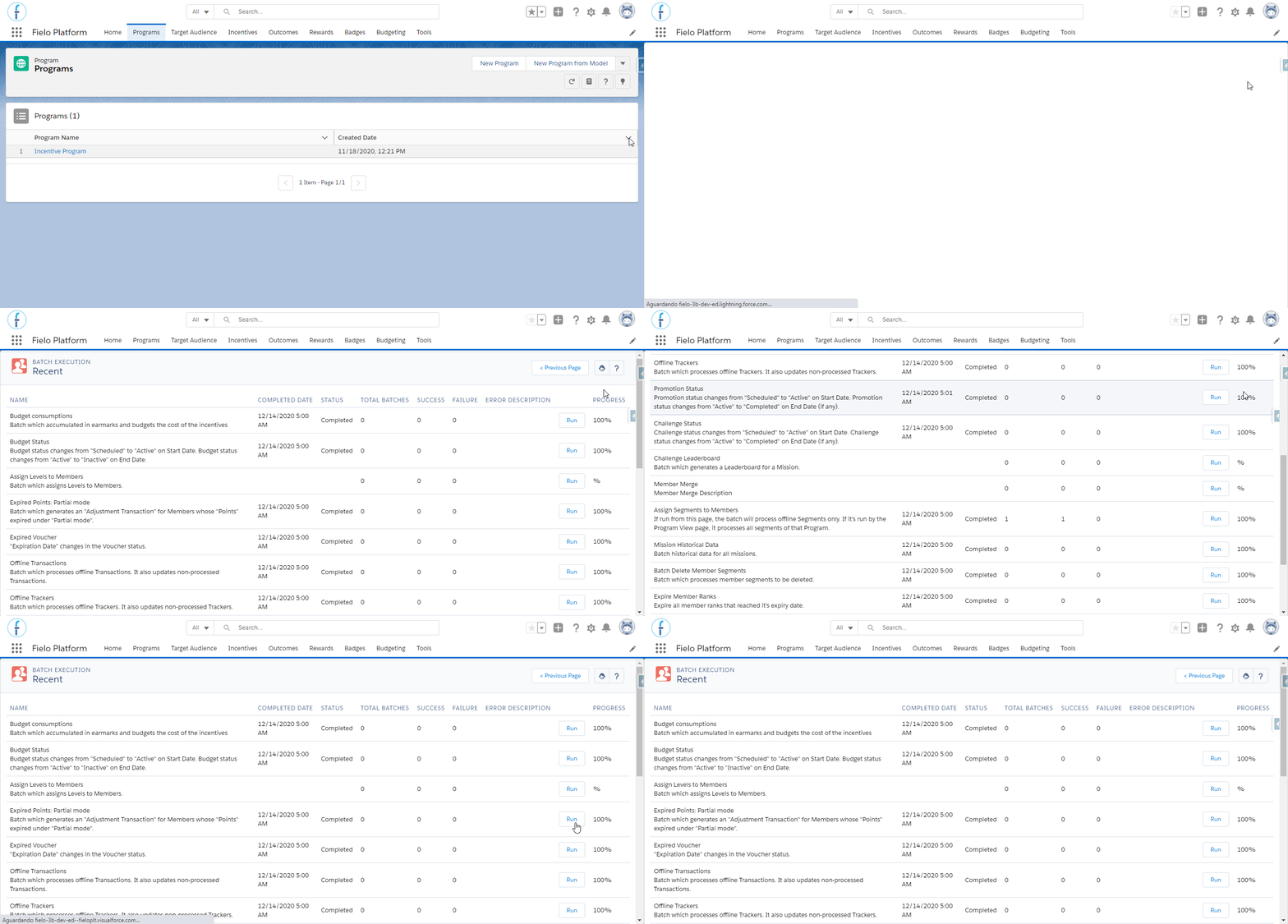
Executing the batch through the program management page, to recalculate segments
Tools
Access tools by clicking on the right side of Segment list item. From Tools, you can edit, delete, or deactivate the segment.
Note that, before deleting a Manual Segment, you'll first need to delete all of its Member Segments.
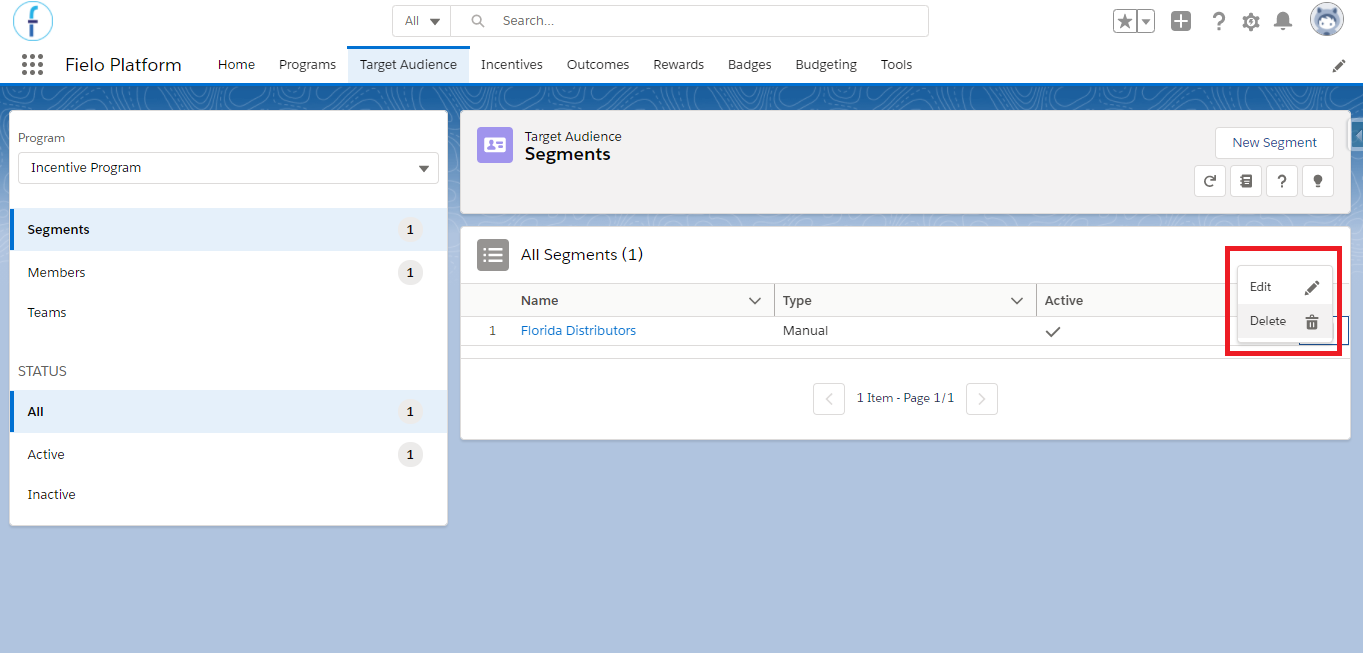
Segment tools
On the segment's page, there is a tab called Members with a list of all the members who are part of that segment, and also a Used In tab where you can check all the incentives, rewards, and cappings that use the segment. It is also possible to see all the segments that the member is part of on the member's page, within the Segments tab.
Note: if you have offline segments on your program that the member is part of, it will appear on the member's page only after the batch that recalculates the segment runs.
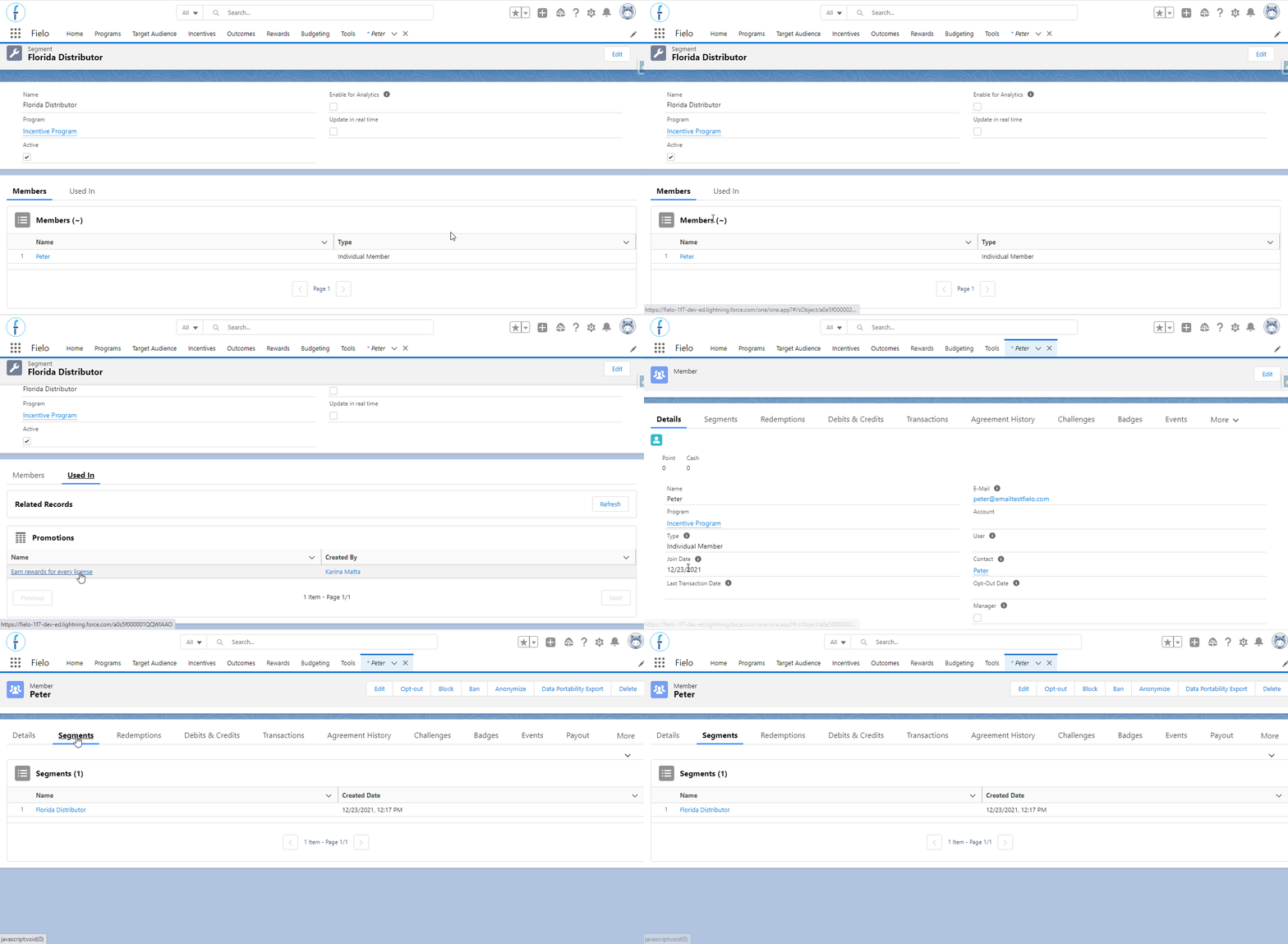
Check the members who are part of a segment
MetasegmentsIn Fielo, there are metasegments - which are created automatically whenever you select more than one segment (manual or dynamic) for your Promotions, Challenges and Rewards.
This is a background process that Fielo uses to store these segments information within only one record, so that it is easier to retrieve the information whenever needed.
Updated over 1 year ago