
Challenges
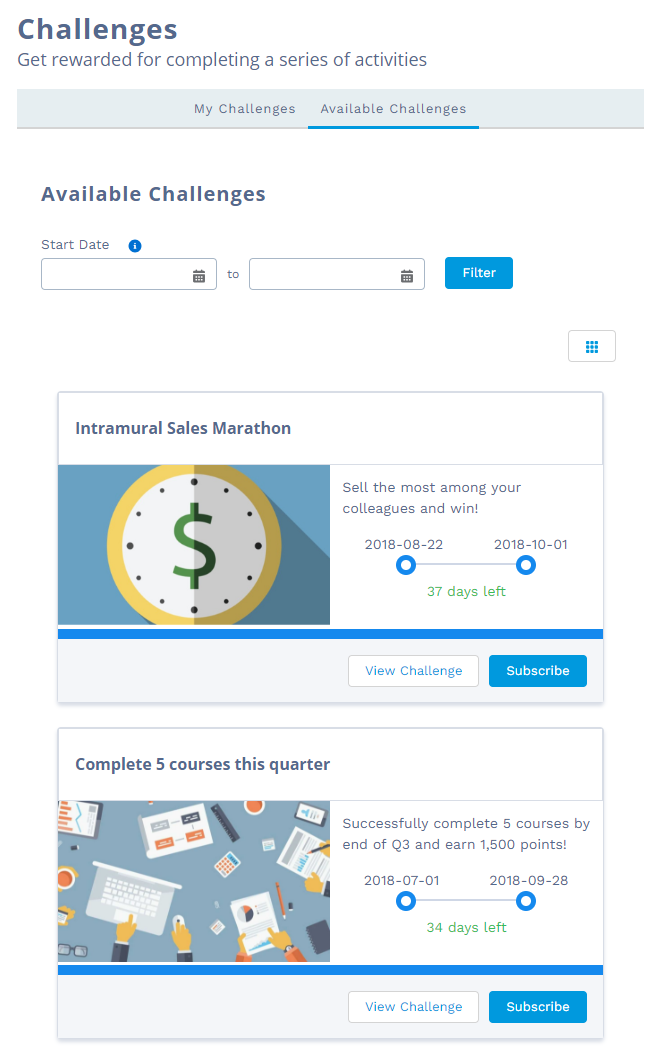
Challenges allows members to view and subscribe to all active challenges available to their segment(s), as well as see which challenges they're already participating in. Challenges also provides the roadmap of missions a member must accomplish in order to complete each challenge.
Configuring Challenges
Once you've added Member Selector and Challenges to your page, you can customize what data is shown and how it is shown.
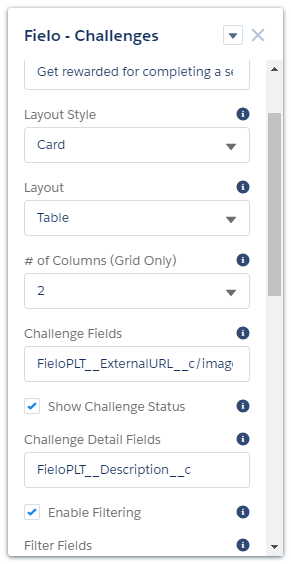
Challenges can be configured via the following properties:
- Title: Enter the title you want displayed at the top of the component.
- Subtitle: Enter the subtitle to be displayed below the title.
- Layout Style: Leave this setting at Card for an optimized UI experience or switch to None if you plan to customize the component using CSS.
- Layout: Choose Table to display challenges in list format or Grid to display them in tile format. Don't worry, your members will be able to toggle back and forth between the views.
- # of Columns (Grid Only): Choose the number of columns you want to be displayed in grid layout.
- Challenge Fields: Enter the API names of the fields you want to include in the challenge list, separated by commas. - Challenge Detail Fields: Enter the API names of the fields you want to be displayed in challenge detail views, separated by commas.
- Enable Filtering: Check this box to allow members to filter their challenges.
- Filter Fields: If filtering is enabled, enter the API names of the fields you want members to be able to filter challenges by.
- Enable Sorting: Check this box to allow members to sort challenges.
- Sort By Fields: If sorting is enabled, enter the API names of the fields you want members to be able to sort by, separated by commas.
- Show Missions: Check this box to display missions in challenge detail views.
- Mission Fields: If showing missions, enter the API names of the mission fields you want to be displayed in challenge detail views, separated by commas.
- Show Mission Progress: Check this box to show members how they're doing on their missions. This only applies to missions that have a fixed objective.
- Show Mission Leaderboard: Check this box to display the leaderboard for each mission that has one.
- Leaderboard Layout: Leave this setting at Card for an optimized UI experience or switch to None if you plan to customize the component using CSS.
- Leaderboard Fields: If showing leaderboards, enter the API names of the fields you want to include on them, separated by commas.
- Enable Leaderboard Paging: Check this box to allow leaderboard entries to be displayed in pages.
- # of Leaderboard Entries per Page: If leaderboard paging is enabled, enter the maximum number of entries you want to be displayed on a single page.
Updated over 1 year ago
Did this page help you?