
Points Capping
Set points accrual limits on promotions to control your program expenditure
You can limit how many points a member can accrue through promotions over a given time period. This serves as an automatic spending control that helps your incentive and loyalty program stay within budget.
Remember, capping is only for points awarded via promotions! Any caps you set will not apply to points awarded via challenges.
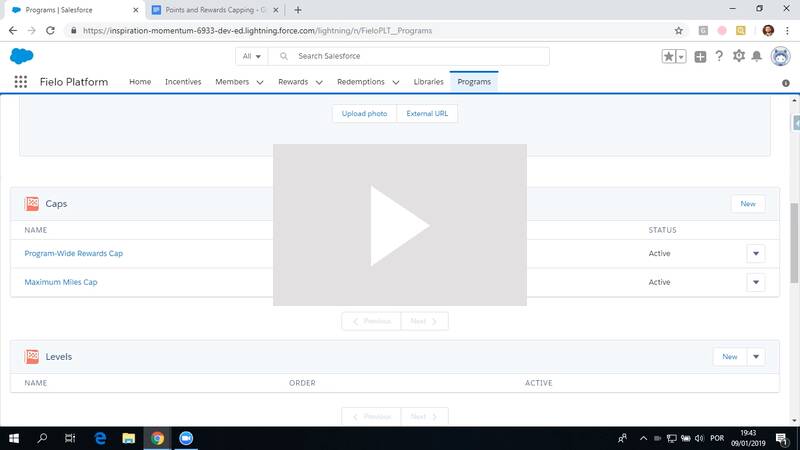
Caps are cyclical and can be applied on a rolling basis (e.g. over the last 120 days) or over a calendar period (i.e. every month, every quarter or every year). You can apply point accrual caps to an entire program or to specific rules.
When a rule awards more points than a member's remaining limit, the member will only receive a fraction of those points up to the hard limit you specify. For Best Option rules, capping will be applied before the best option is evaluated and granted to the member. This means that, even when using capping, members will always receive the greatest number of points to which they're entitled among all Best Option rules in a promotion.
In addition, transaction reversions are taken into account so that those points no longer count against the member's cap. For caps that apply throughout your entire program, positive adjustment transactions will automatically count against members' limits.
Creating a Cap
From the Programs tab, enter the program you want to create a cap for. On the Caps related list, click New.

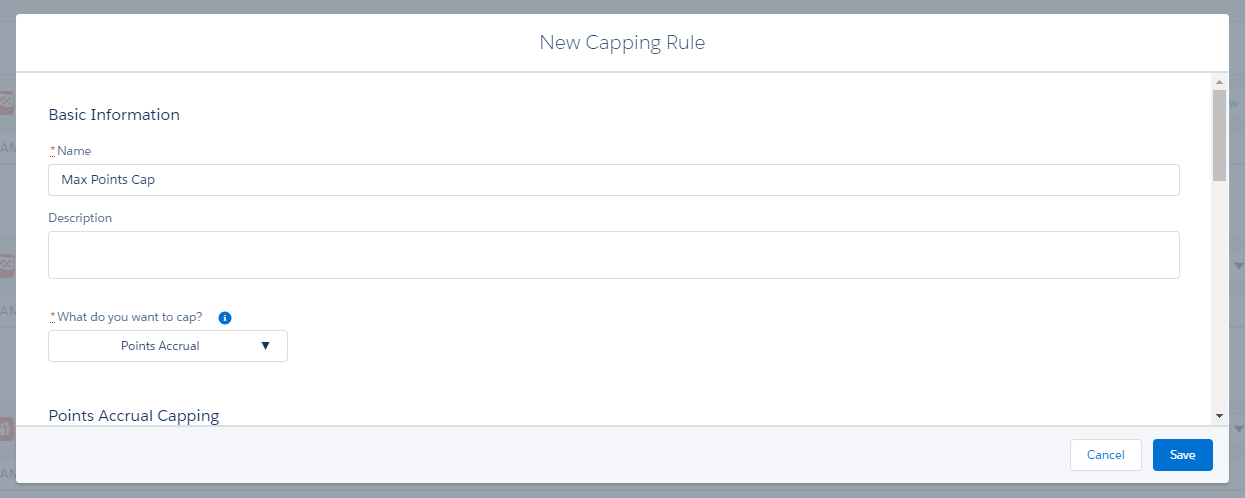
Enter a name and description. Then, under What do you want to cap?, choose Points Accrual.
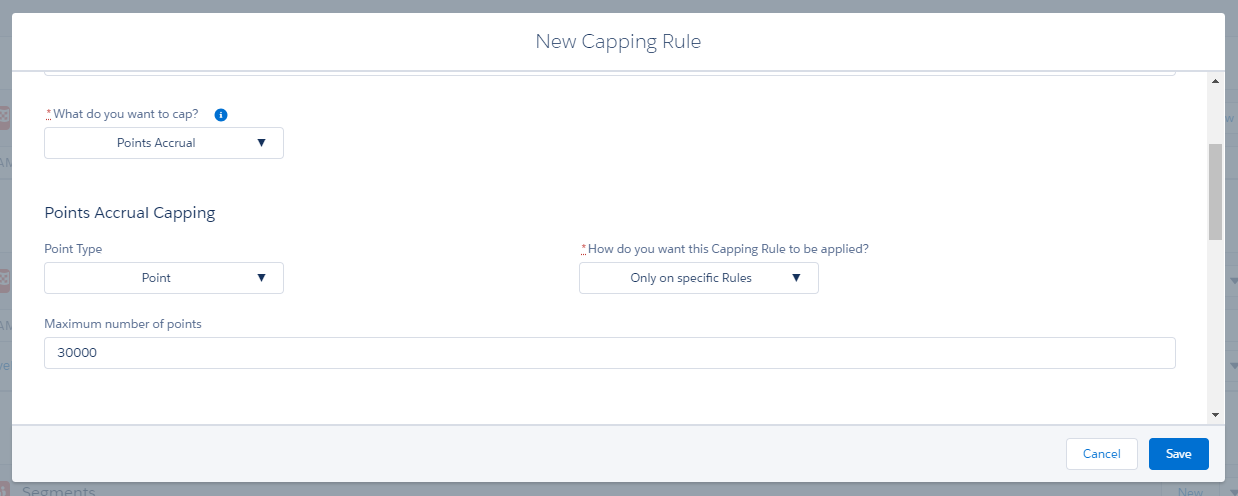
Select the type of point you want to limit and whether you want to apply the cap throughout your entire program or only on specific rules. Then, under Maximum number of points, enter the highest number of points you want a member to be able to earn in a given time period.
Next, specify the time period you want the cap to cover. You can use a:
- Rolling period, a set number of days or months up to today, or;
- Calendar period, such as Every Month, Every Quarter or Every Year.
We don't recommend it, but if you leave the accumulation period on None, the limit won't be renewed or lifted while the cap is active.
The rolling period limits points over a specified number of days or months prior to today, meaning that the number of points counting toward the limit is continuously updated to reflect only the transactions that occurred in the last x days/months.
The calendar period, on the other hand, automatically follows the months, quarters and years on the calendar to determine which transactions count toward the limit (e.g. March 1st - 31st for Every Month, January 1st - March 31st for Every Quarter, etc.). At the end of the calendar period, the points limit is reset.
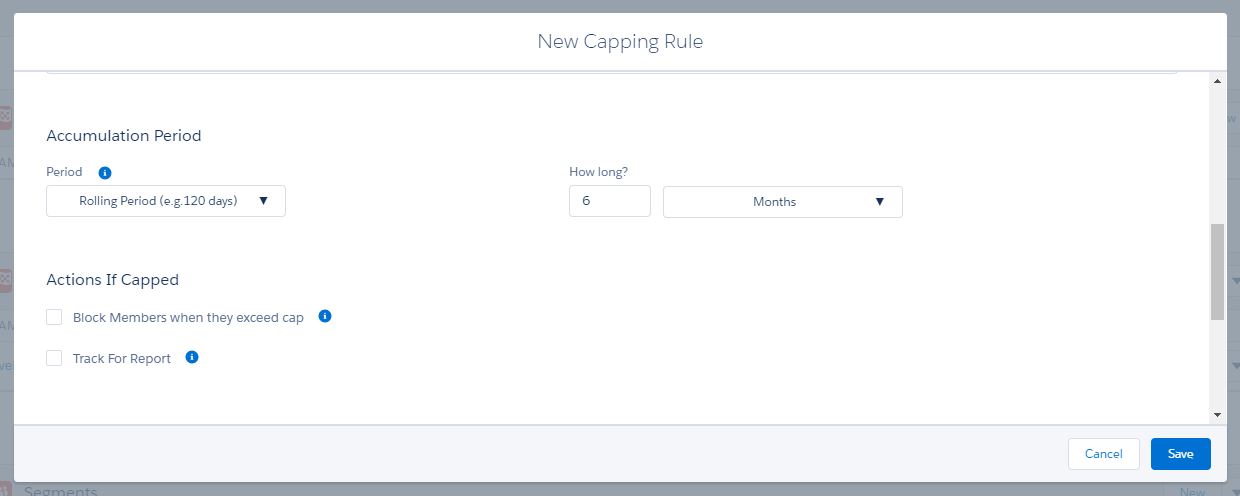
Now, you can select certain additional procedures to be carried out if a member exceeds the cap. For instance, if you set up your cap in order to prevent fraud, you may want to block members who exceed it. (Don't worry, you can unblock a member once the issue is resolved.)
You can also track the cap for reporting purposes. This means that the first time a member exceeds the cap during a capping period, a Cap Audit (FieloPLT__AuditCap__c) record is created. Then, in the Analytics folder of Salesforce Reports, you can access our Point Capping History by Member and Point Capping History by Program reports to get a full view of which caps were exceeded, by whom, etc.
If a member exceeds a cap multiple times during a capping period, only the first instance will be recorded for reporting purposes.
If you chose to cap points only on specific rules, now's the time to select which rule(s) you want the cap to apply to. If you choose multiple rules, points awarded from all of those rules will be put into the same "bucket" subject to the limit you specified above.
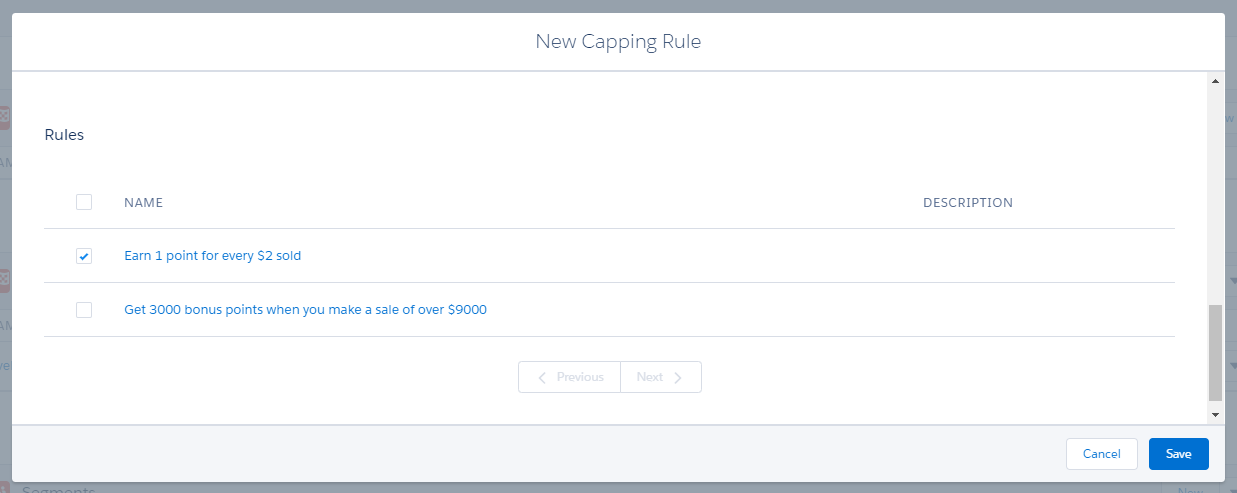
(Available only for caps on specific rules)
Otherwise, if your cap is for the entire program, you can use segmentation in order to apply it only to certain subset(s) of members. Leave the right-hand list blank if you want your cap to apply to all members.
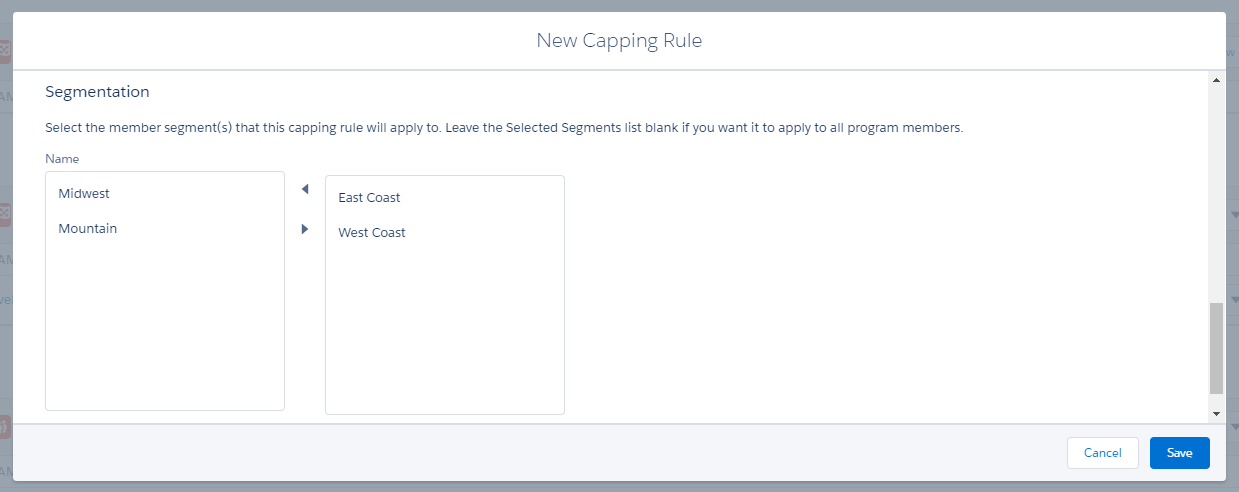
(Available only for caps on entire program)
When you're ready, click Save.
Activating a Cap
Once you've created a cap, it will be saved with the status of Draft. In order for the cap to go into effect, you'll need to activate it. Keep in mind that once you activate a cap, you will only be able to edit the Name, Description, Maximum number of points, and Track for Report fields.
On the Caps related list, click on the line corresponding to the cap and choose Activate / Deactivate.
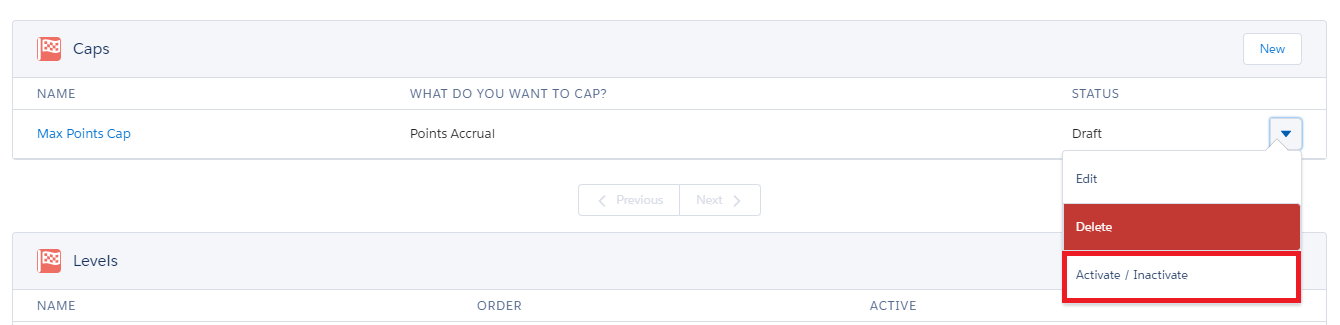
This is also how you can edit or deactivate your cap later on.
Updated over 1 year ago