
Consents
Tools to help make your program communication GDPR-compliant
Consents ensure that your program communication only reaches members who have opted in. This helps you comply with any privacy legislation that may impact your enterprise.
You can enable and disable consents for each of your programs on a granular level according to the needs of your business environment. When new members join a program—on a Community Cloud-based loyalty portal, for example—they are presented the consent(s) you've enabled for that particular program and given the opportunity to opt in to each one.
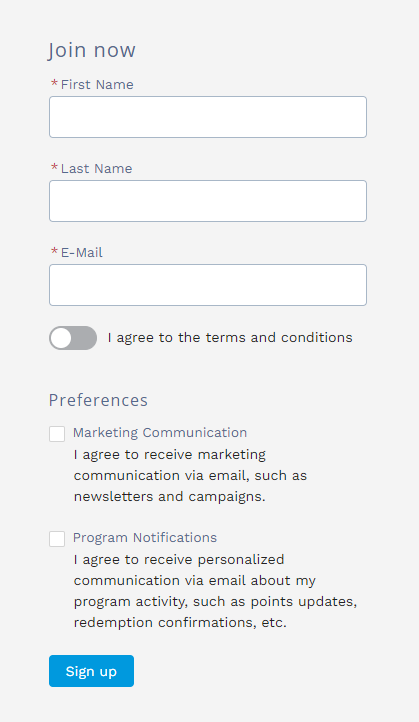
Consents in the Registration component for Community Cloud
Members also have the ability to change their minds later on.
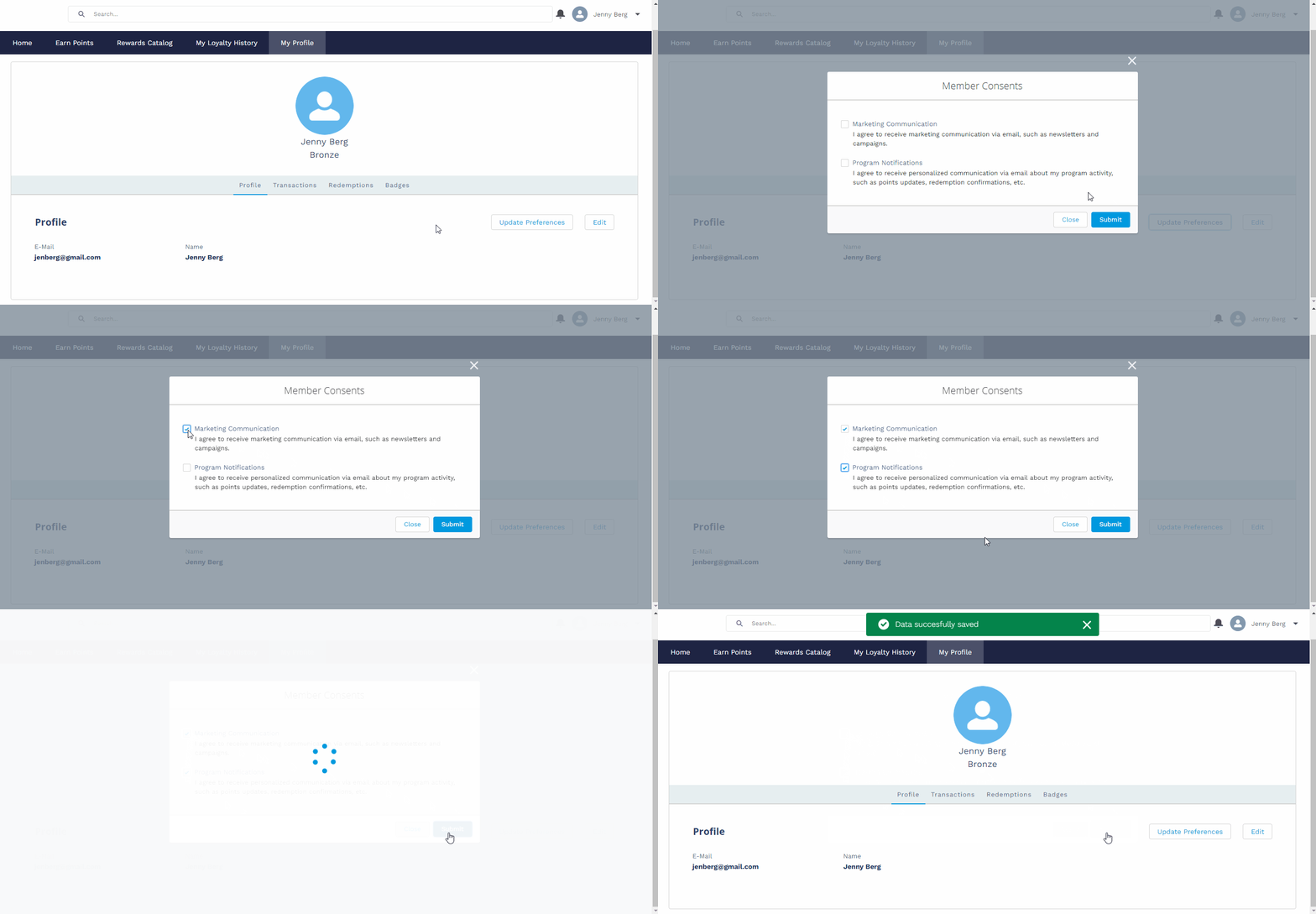
Consents in the Profile component for Community Cloud
Messaging includes two types of consents corresponding to the two kinds of communication that Fielo offers:
- Program Notifications requires members to opt in to receive Transactional E-mails, that is, individualized emails generated when a member performs an action. Any member who hasn't opted in will not be sent Transactional E-mails.
- Marketing Communication requires members to opt in to receive Campaign E-Mails, i.e. multiple-recipient promotional emails. Any member who hasn't opted in will not be sent Campaign E-mails.

Enabling and Disabling Program Consents
For each of your programs, you can specify which consents you need to request of your members. To do so, navigate to the Programs tab and select a program. Click and choose Manage Consents.
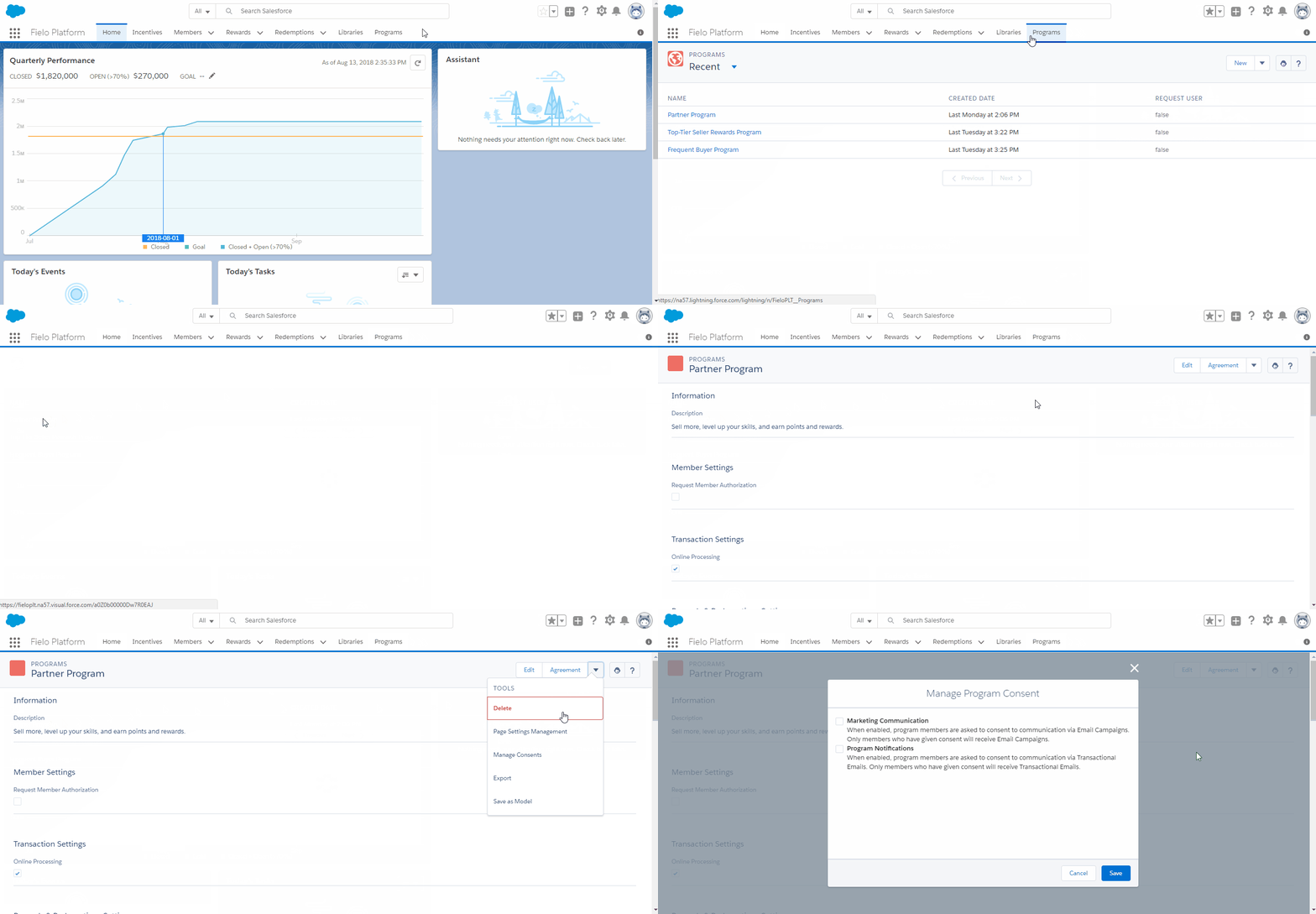
Enable the consents appropriate for your program and click Save.
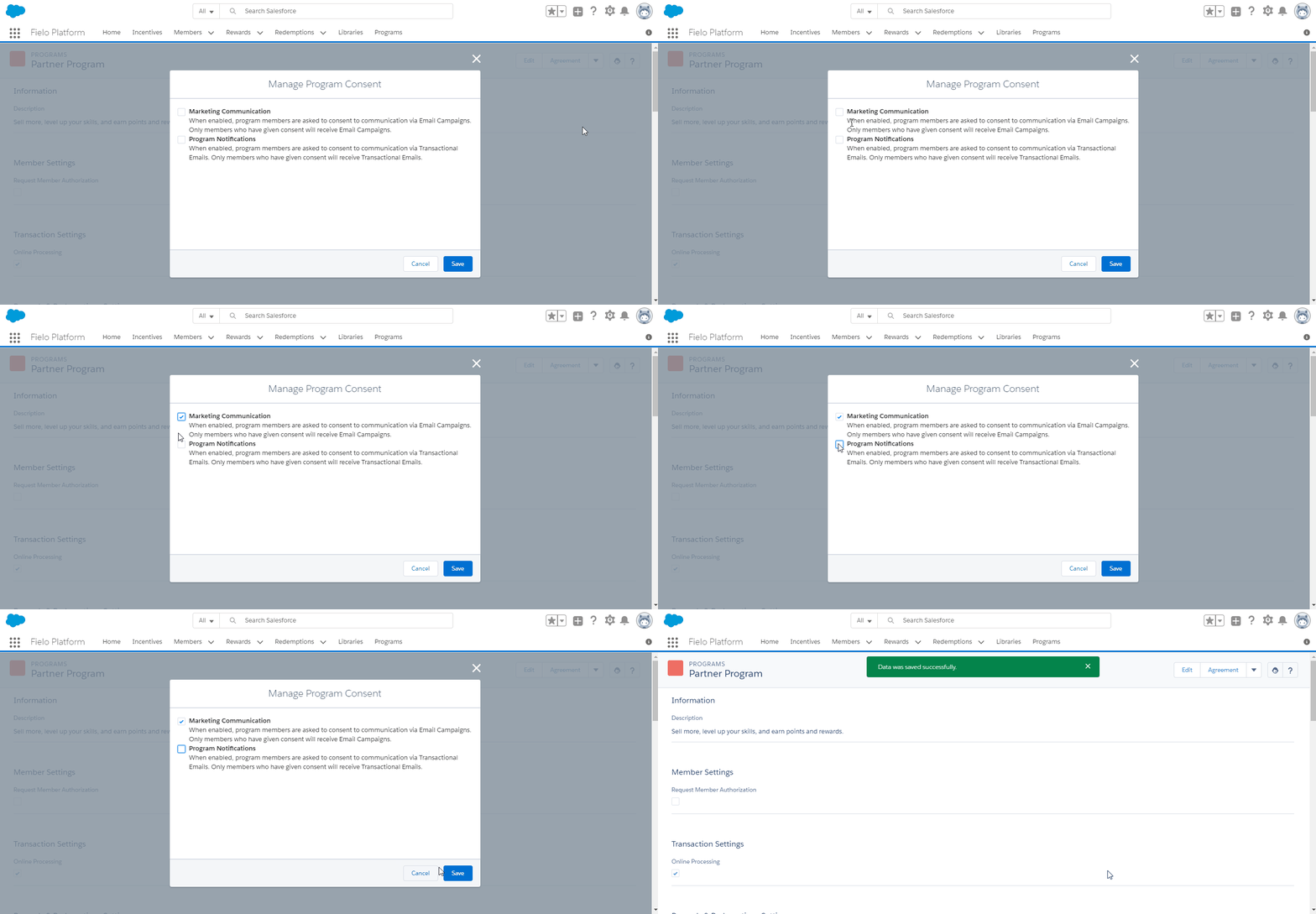
From now on, the consents that you've checked will be requested of all your members.
Enabling Consents in Programs with Preexisting MembersIf you enable a consent in a program that already has members, be aware that these members will need to proactively opt in to continue receiving the type of communication to which the consent applies.
Accessing a Member's Consents
You can view what consents a member has provided. Simply navigate to the Members tab and select a program. Click and choose Manage Consents.
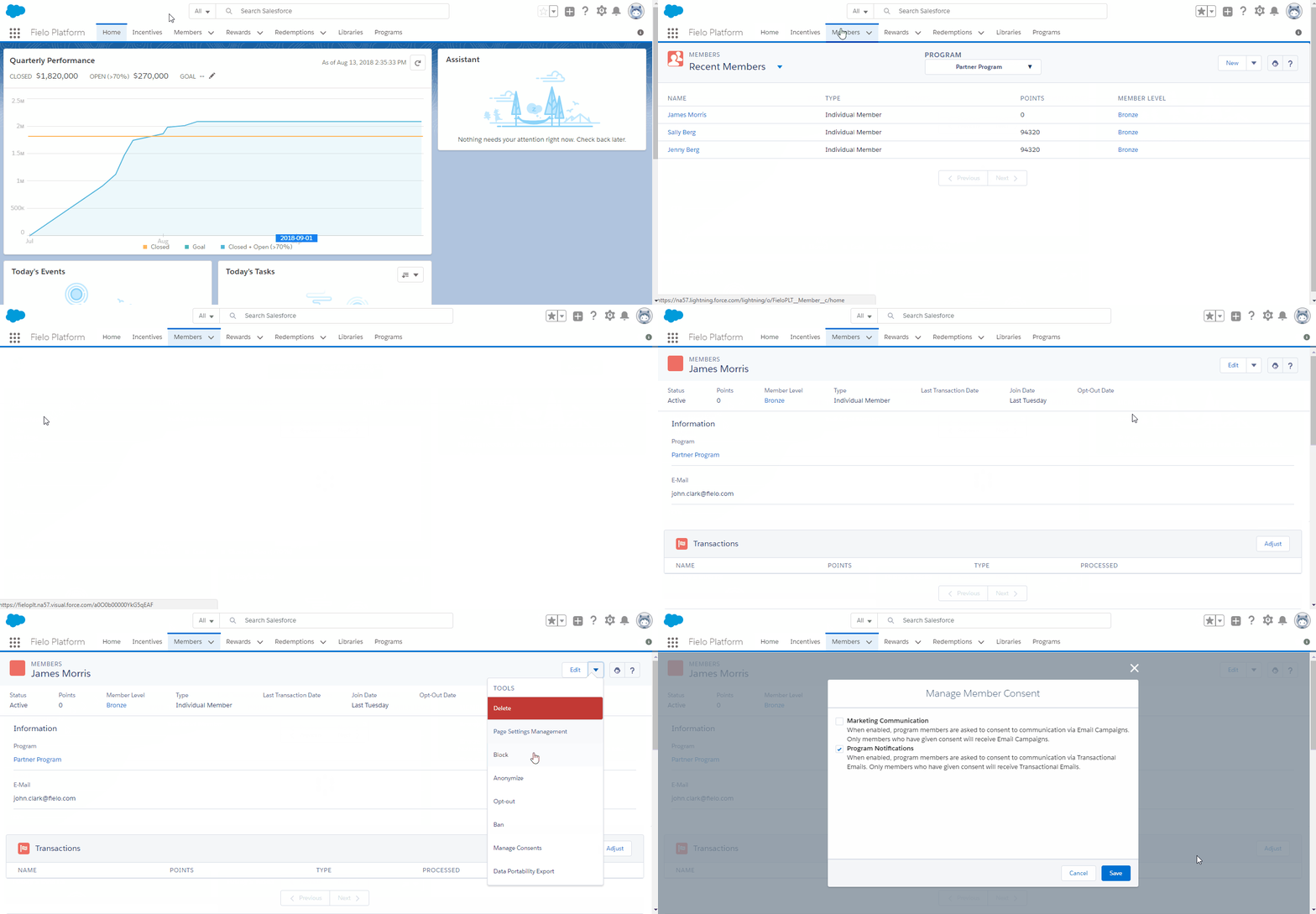
In this example, James Morris has consented to program notifications but not to marketing communication.
Careful! While you can edit a member's consents, you should only do so when authorized by the member.
Updated over 1 year ago