
Page Settings
Create and manage Page Settings
Page Settings control the layout and organization of buttons, fields, and related lists on Fielo pages. They also help determine which fields are visible, read only, and required. Page Settings allows extending and customizing Fielo pages content.
FieloPLT Page SettingsPlatform comes with its own default Page Settings which are part of FieloPLT Library.
Page Settings Types
Page Settings are divided into different types depending where the layout is applied on.
A. Landing
A Landing page lists a group of records for a specific object. From a Landing page, the marked areas can be modified - i.e. overwrite - (when using the Page Settings from Fielo PLT Library) or added (when creating a new one).
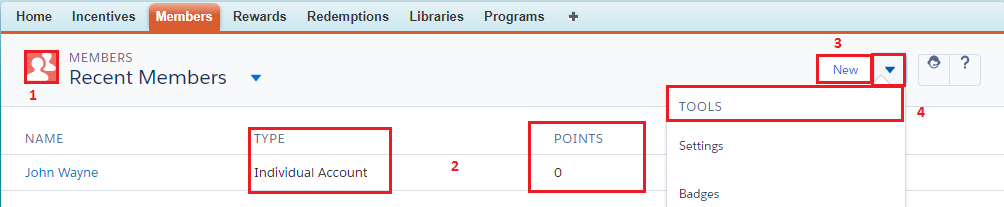
Member: Landing page
1. Icon
Iconic representation of the object (in this example, Members). Icons must follow the Lightning Design System Guidelines (E.g. Members icon is utility-sprite/svg/symbols.svg#people).
2. Fieldset
It defines which fields or group of fields are shown in a Landing page. In this example, Member's Landing page shows Type and Points.
{"Name":"FieloPLT__Type__c"},
{"Name":"FieloPLT__Points__c"}
Name fieldName field always appears by default.
Fieldsets can be overwritten with a customized label, instead of displaying their default field label:
{"Name":"FieloPLT__Type__c", "Label": "My example label"},
{"Name":"FieloPLT__Points__c" , "Label": "{!$Label.MyCustomLabel}"}
Attributes: Fieldset JSON files.Name attribute is mandatory for Fieldset.
Label is an optional attribute.
Field API namesField API names are case sensitive.
3. Buttons
It enables you to change or add buttons to your Landing page (in this example, New). Buttons may include a Standard Actions - New - or other custom Button by means of a JSON file in Landing record: Buttons.
{"Label": "My Custom Button Link", "Type": "Link", "Action": "/apex/c__MyLink?Id={!record.Id}"},
{"Label": "My Custom Button Action", "Type": "Action", "Action": "$Action.Method", "Confirm": true, "CssClasses": "slds-destructive"},
{"Label": "My Custom Button Remote", "Type": "Remote", "Action": "Remote Method"},
{"Label": "My Custom Button Modal", "Type": "Modal", "Action": "ID HTML"}
Attributes: Buttons JSON file.Label, Type and Action are mandatory attributes for Buttons.
Confirm and CssClasses are optional attributes.
4. Tools
Tools represents a dropdown menu button to perform different operations (in this example, to access Badges page).
Tools may include a Standard Action - Settings- or other custom Tools by means of a JSON file in Landing record: Tools.
{"Label": "My Custom Tool Link", "Type": "Link", "Action": "/apex/c__MyLink?Id={!record.Id}"},
{"Label": "My Custom Tool Action", "Type": "Action", "Action": "$Action.Method", "Confirm": true, "CssClasses": "slds-destructive"},
{"Label": "My Custom Tool Remote", "Type": "Remote", "Action": "Remote Method"},
{"Label": "My Custom Tool Modal", "Type": "Modal", "Action": "ID HTML"}
Attributes: Tools JSON file.Label, Type and Action are mandatory attributes for Tools.
Confirm and CssClasses are optional attributes.
B. New
A New page is a form which provides the controls for creating a new record - for example, the information needed to create a new Member.
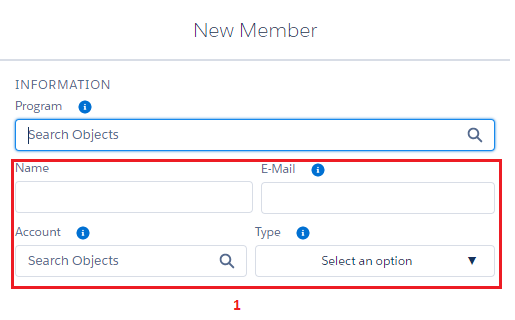
Member: New page
New Page TypeCreate a New page type only if the fields included in that New page differ from the fields in the Edit page. For example, in the case of a New Member page, it includes the field E-mail to complete, but on Edit Member page, E-mail field does not appear editable.
1. Sections
It allows you to decide which fields must be completed when creating a new record (in the above example, when creating a new Member you must include Member's Name, E-mail, Account and Type). Sections can be included by means of a JSON file in New record: Sections.
{ "Name" : "Information",
	"Rows" :[
		[{ "Name" : "FieloPLT__Program__c" , "Type" : "lookup" }],
		[
			{ "Name" : "Name" , "Type" : "input" },
			{ "Name" : "FieloPLT__Email__c" , "Type" : "input" }
		],
		[
			{ "Name" : "FieloPLT__Account__c" , "Type" : "lookup" },
			{ "Name" : "FieloPLT__Type__c" , "Type" : "picklist" , "Required" : true, "onchange" : "organizationType" }
		],
		[{ "Name" : "FieloPLT__OrganizationAccount__c" , "Type" : "lookup" }]
	]
}
Attributes: Sections JSON fileName and Type are mandatory attributes for Sections.
Required, onchage, WhereCondition and Label are optional attributes.
Type attribute valuesType attribute must include any of the following values:
- hidden
- input
- checkbox
- picklist
- multiselect
- radio
- lookup
- date
- datetime
C. View
A View page shows information about a particular record (in this example, about a specific Member, John Wayne).
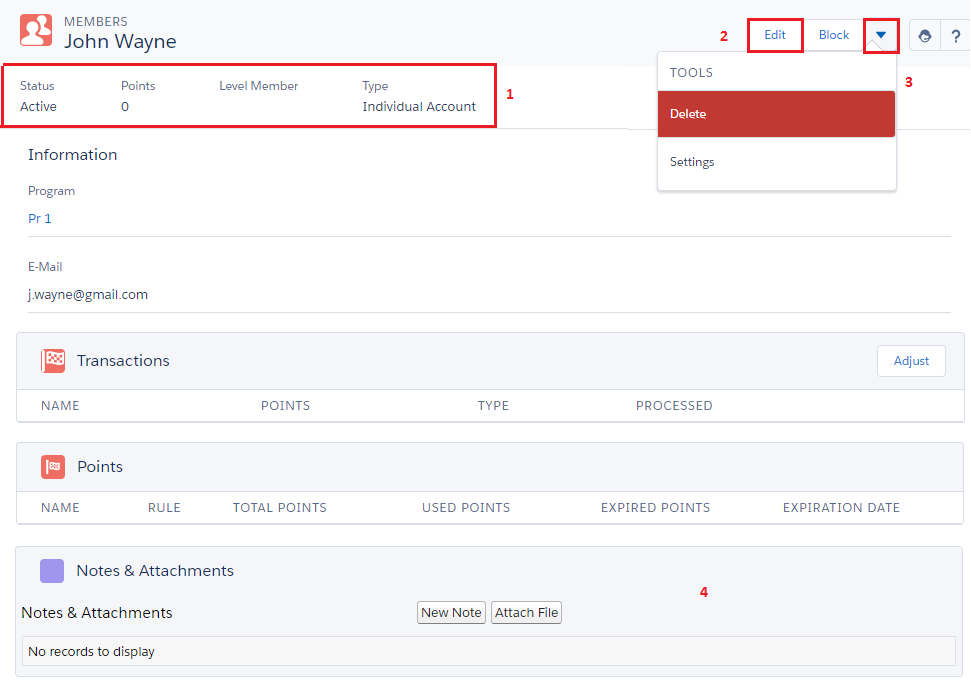
Member: View page
1. Fieldset
It defines which fields or group of fields are shown in a View page. In this example, Member's View page shows Status, Points, Level Member and Type.
{"Name":"FieloPLT__Status__c"},
{"Name":"FieloPLT__Points__c"},
{"Name":"FieloPLT__LevelMember__c"},
{"Name":"FieloPLT__Type__c"}
2. Buttons
It enables you to change or add Buttons to your View page (in this example, Edit). Buttons may include a Standard Actions - Edit- or other custom Button by means of a JSON file in View record: Buttons.
{"Label": "My Custom Button Link", "Type": "Link", "Action": "/apex/c__MyLink?Id={!record.Id}"},
{"Label": "My Custom Button Action", "Type": "Action", "Action": "$Action.Method", "Confirm": true, "CssClasses": "slds-destructive"},
{"Label": "My Custom Button Remote", "Type": "Remote", "Action": "Remote Method"},
{"Label": "My Custom Button Modal", "Type": "Modal", "Action": "ID HTML"}
3. Tools
Tools represents a dropdown menu button to perform different operations (in this example, to access Settings).
Tools may include a Standard Action - Delete, Clone, View, Settings, Approve and Sharing- or other custom Tools by means of a JSON file in View record: Tools.
{"Label": "My Custom Tool Link", "Type": "Link", "Action": "/apex/c__MyLink?Id={!record.Id}"},
{"Label": "My Custom Tool Action", "Type": "Action", "Action": "$Action.Method", "Confirm": true, "CssClasses": "slds-destructive"},
{"Label": "My Custom Tool Remote", "Type": "Remote", "Action": "Remote Method"},
{"Label": "My Custom Tool Modal", "Type": "Modal", "Action": "ID HTML"}
4. Related Standard
Related Standard represents Salesforce standard related lists (in this example,Notes & Attachaments).
D. Detail
A Detail page expands the available information shown in a specific record, for instance, Program and E-mail of a specific Member (e.g. John Wayne). A Detail page allows you to create multiple Sections displaying fields in different rows and columns.
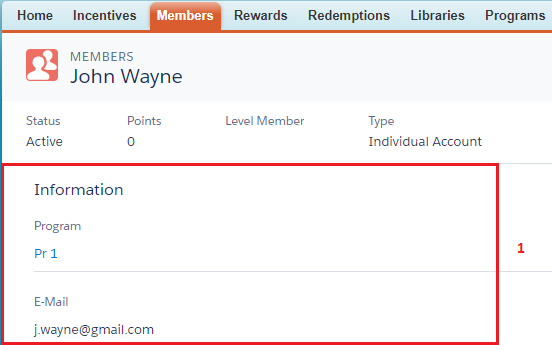
Member: Detail page
1. Sections
It allows you to decide which fields are shown when viewing a specific section of a record (in the above example, when viewing a particular Member you see Member's Program and E-mail).
{"Name": "Information",
	"Rows" :[
		[{ "Name" : "FieloPLT__Program__c" , "Type" : "lookup" }],
		[{ "Name" : "FieloPLT__Email__c" , "Type" : "input" }]
	]
}
In order to include more than one, Sections must be concatenated in the same JSON file, separated by comma (the example below shows fields displayed in columns).
{"Name": "Information",
	"Rows" :[
		[{ "Name" : "FieloPLT__Program__c" , "Type" : "lookup" },{ "Name" : "FieloPLT__Email__c" , "Type" : "input" }]
	]
},
{"Name": "Additional Information",
	"Rows" :[
		[{ "Name" : "FieloPLT__Points__c" , "Type" : "input" },{ "Name" : "FieloPLT__LastTransactionDate__c" , "Type" : "datetime" }]
	]
}
Attributes: Detail JSON fileName and Type are mandatory attributes for Detail.
Label is an optional attribute.
Type attribute valuesType attribute must include any of the following values:
- hidden
- input
- checkbox
- picklist
- multiselect
- radio
- lookup
- date
- datetime
E. Edit
An Edit page is a form which provides the controls for modifying fields of an existing record. In the following image, Member can have the selected information modified:
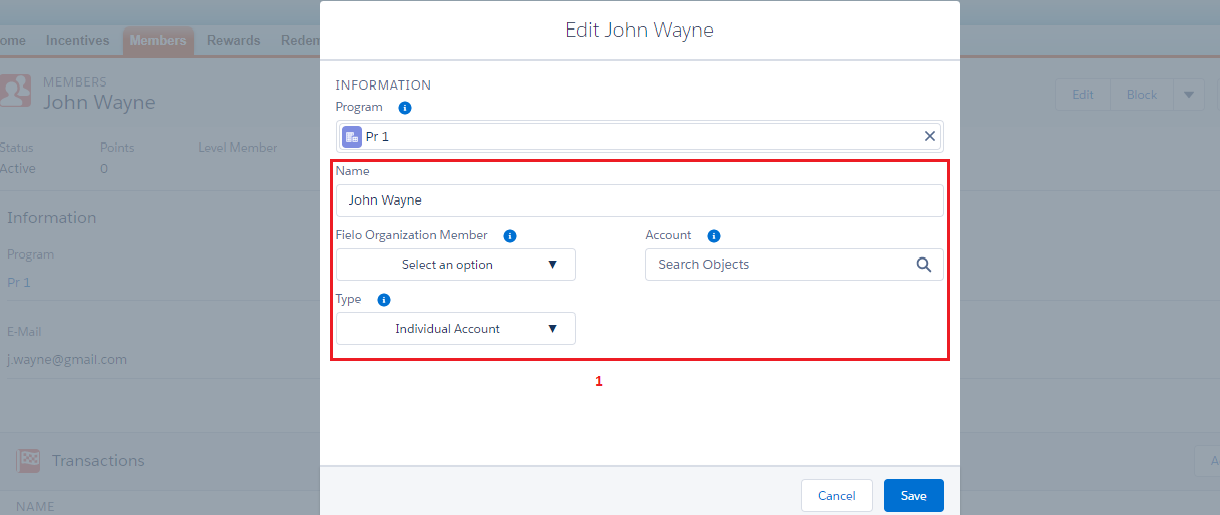
Member: Edit page
1. Sections
It allows you to decide which fields must be completed when modifying fields of an existing record (in the above example, when editing a Member - John Wayne - you can modify their Name, Account and Type). Sections can be included by means of a JSON file in Edit record: Sections.
{ "Name" : "Information",
	"Rows" :[
		[{ "Name" : "FieloPLT__Program__c" , "Type" : "lookup" }],
		[
			{ "Name" : "Name" , "Type" : "input" },
			{ "Name" : "FieloPLT__Email__c" , "Type" : "input" }
		],
		[
			{ "Name" : "FieloPLT__Account__c" , "Type" : "lookup" },
			{ "Name" : "FieloPLT__Type__c" , "Type" : "picklist" , "Required" : true, "onchange" : "organizationType" }
		],
		[{ "Name" : "FieloPLT__OrganizationAccount__c" , "Type" : "lookup" }]
	]
}You can show another record field (🔎 field) when searching for a record by means of the attribute MetaField.
{ "Name" : "FieloPLT__Reward__c" , "Type" : "lookup" ,"MetaField" : "FieloPLT__Points__c" }
Attributes: Edit JSON fileName and Type are mandatory attributes for Sections.
Required, onchange, WhereCondition and Label are optional attributes.
Type attribute valuesType attribute must include any of the following values:
- hidden
- input
- checkbox
- picklist
- multiselect
- radio
- lookup
- date
- datetime
F. Related
A Related page provides the controls for adding or managing related lists.
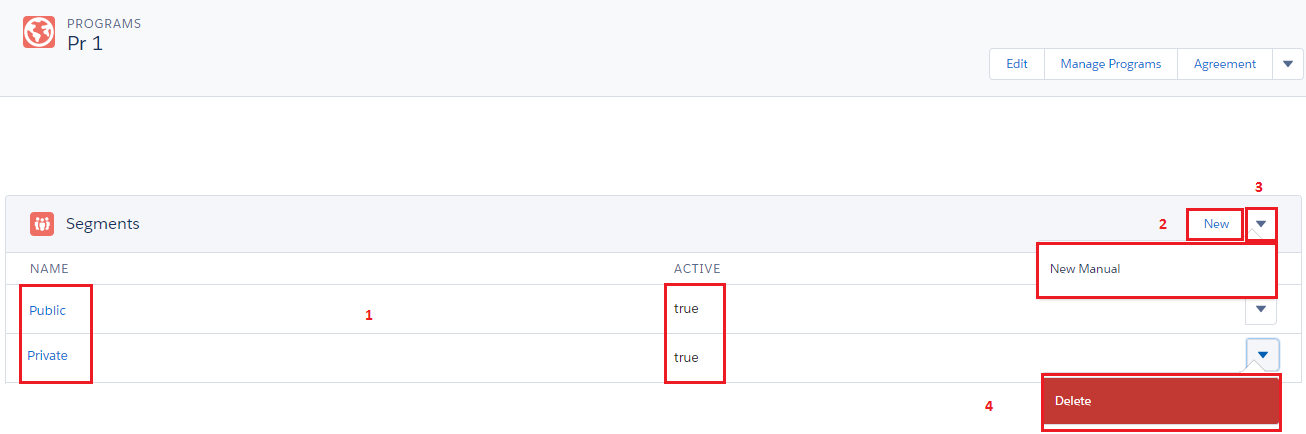
Program: Segment Related page.
1. Fieldset
It defines which fields or group of fields are displayed in a Related page. In this example, Segment Related page shows Name and Active.
{"Name":"FieloPLT__Name__c"},
{"Name":"FieloPLT__Active__c"}
2. Buttons
It enables you to change or add buttons to a Related page (in this example, New). Buttons may include a Standard Actions - New - or other custom Button by means of a JSON file in Related record: Buttons.
{"Label": "My Custom Button Link", "Type": "Link", "Action": "/apex/c__MyLink?Id={!record.Id}"},
{"Label": "My Custom Button Action", "Type": "Action", "Action": "$Action.Method", "Confirm": true, "CssClasses": "slds-destructive"},
{"Label": "My Custom Button Remote", "Type": "Remote", "Action": "Remote Method"},
{"Label": "My Custom Button Modal", "Type": "Modal", "Action": "ID HTML"}
3. Tools
Tools represents a dropdown menu button to perform different operations (in this example, create Manual Segments).
{"Label": "My Custom Tool Link", "Type": "Link", "Action": "/apex/c__MyLink?Id={!record.Id}"},
{"Label": "My Custom Tool Action", "Type": "Action", "Action": "$Action.Method", "Confirm": true, "CssClasses": "slds-destructive"},
{"Label": "My Custom Tool Remote", "Type": "Remote", "Action": "Remote Method"},
{"Label": "My Custom Tool Modal", "Type": "Modal", "Action": "ID HTML"}
Page Namespace PrefixNote that MyLink page requires the
c__prefix otherwise will try to link to MyLink page inside the Fielo package.
4. Actions
Actions represents a dropdown menu button to perform different operations on a record level (in this example, Badges).
Actions may include a Standard Action - Delete - or other custom Actions by means of a JSON file in Related record: Action.
{"Label": "My Custom Action Link", "Type": "Link", "Action": "/apex/c__MyLink?Id={!record.Id}"},
{"Label": "My Custom Action Action", "Type": "Action", "Action": "$Action.Method", "Confirm": true, "CssClasses": "slds-destructive"},
{"Label": "My Custom Action Remote", "Type": "Remote", "Action": "Remote Method"},
{"Label": "My Custom Action Modal", "Type": "Modal", "Action": "ID HTML"}
Updated over 1 year ago