
Challenges
Create and configure Challenges
Challenges are a way of encouraging members to perform particular behaviors and drive engagement. Challenges can be addressed to different audiences (depending on Segmentation) within a specific time period and may go through a range of statuses along the way.
Challenges include one or more Missions, which may include Objectives.
Creating a Challenge
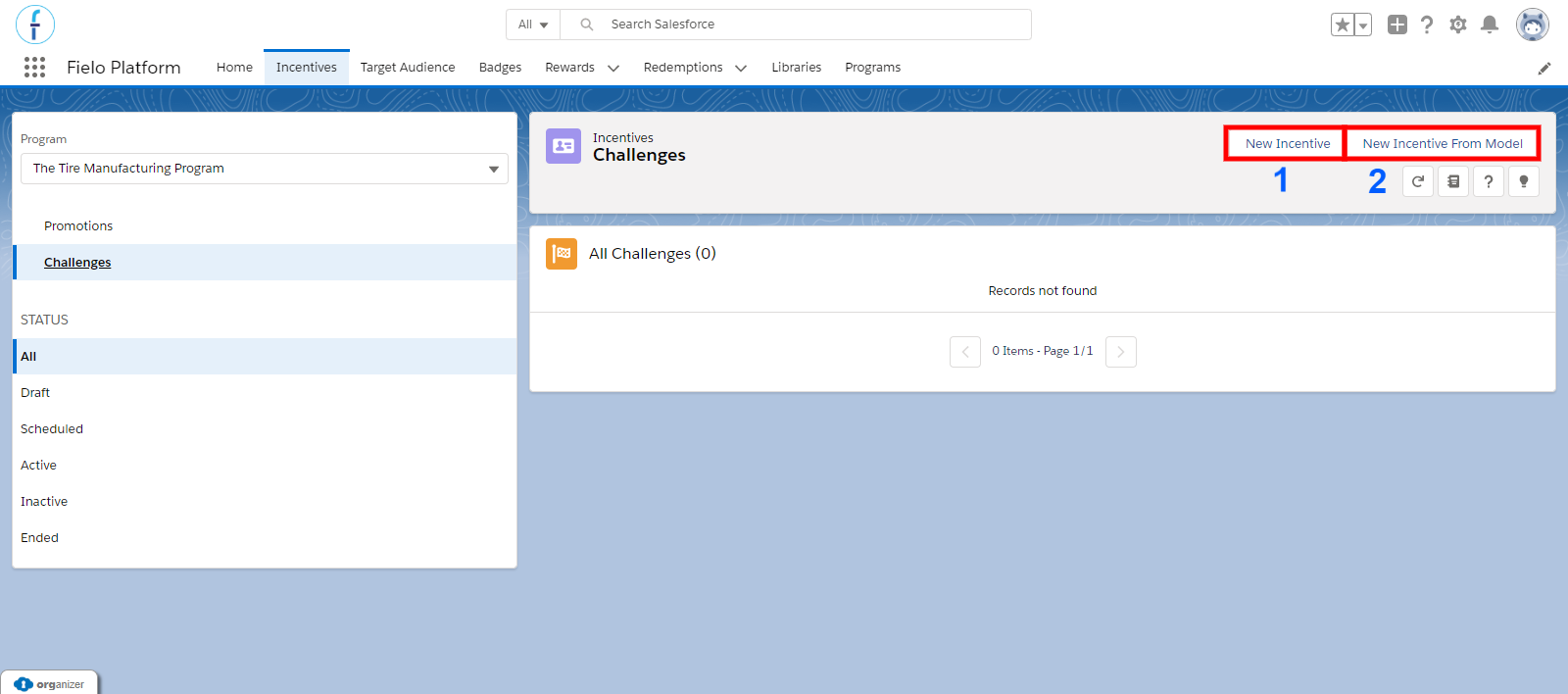
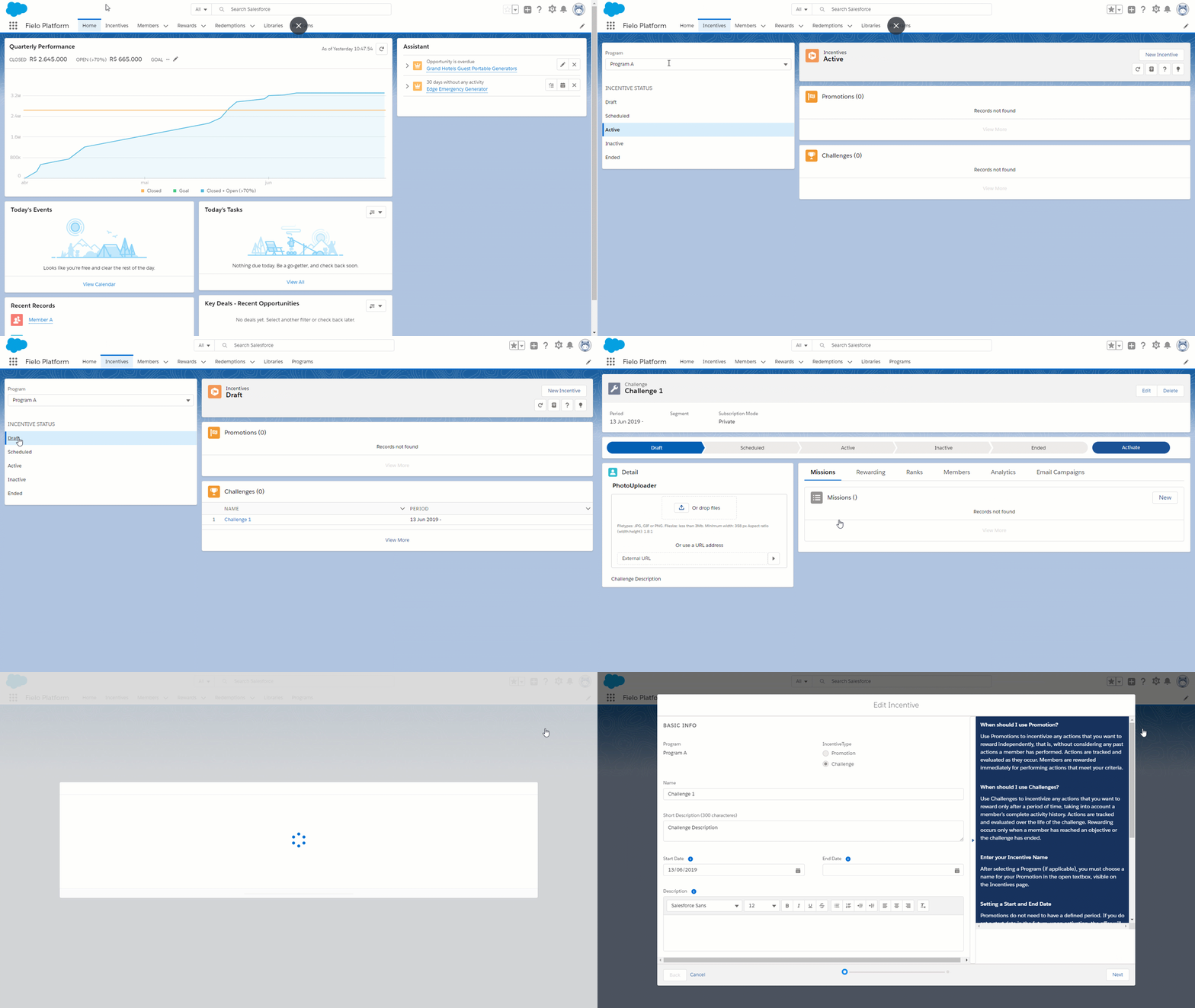
From Incentives, choose the Program you want to create a Challenge for from the Program menu. Then, go to the right of the screen and click on the New Incentive or New Incentive From Model button. Below is a brief description of each.
-
New Incentive - Creating a new Challenge from scratch.
-
New Incentive From Model - Models are pre-configured, reusable templates that allow you to create programs and incentives faster and easier. Create new models from existing programs and incentives and use them as a starting point for new ones.
We have a Wizard to help you along!We have included a handy Wizard to help you through the process. This will give you insight into what a feature will do as well as some examples along the way to help put it into context.
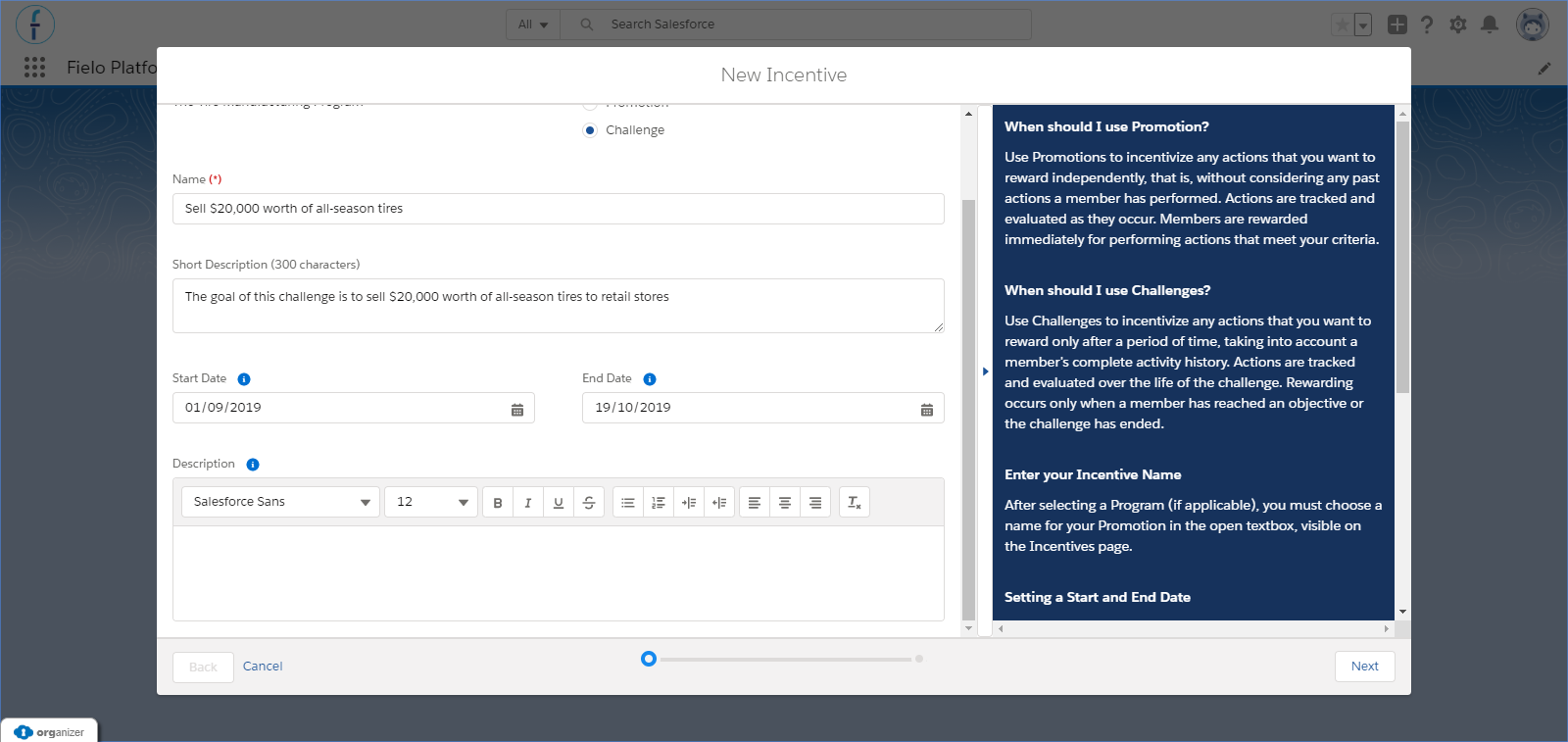
Tread Manufacturing wants to incentivize their distributors to sell $20,000 worth of all-season tires to retail stores, so let's see how they would do it.
Choose Incentive Type
First, you need to specify whether you are creating a Promotion or a Challenge. In this case, click Challenge.
Enter a Name and Description
Enter a name and description for your Challenge. Your members will see these, so make them exciting!
Set a Start and End Date
Next, choose start and end dates for your Challenge. Challenges must always have a Start Date and are automatically made Active on that day. They don't always need an end date; if one is not provided, the Challenge will last indefinitely.
Once all that has been entered, go to the lower left and click "Next".
Select a Target
Challenges can target two different audiences, Members or Teams. If you choose Members, the Segments section will appear below to allow you to choose how you want to segment individual members. Otherwise, if Teams was chosen, you go ahead and save the Challenge. You will be able to add your teams after the challenge has been created.
Otherwise, if you chose Member, please continue below to Segments and Subscription Mode
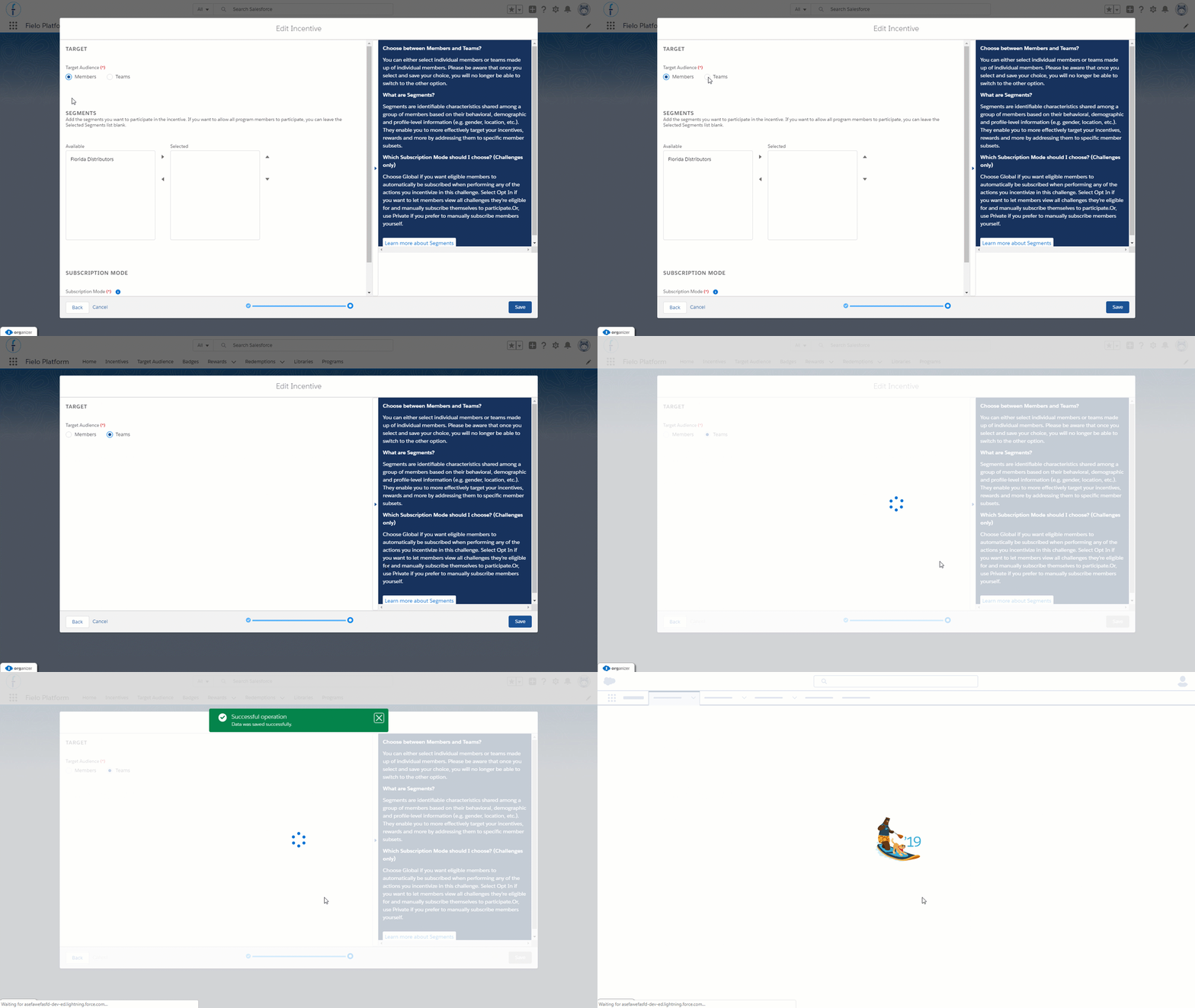
The segmentation section will not show if there are no segments set up. If you want more information on how to create a segment, click here.
Select a Segment (Optional)
You can target your Challenge to one or more segments you've defined in your program. To add a segment, select it on the list to the left and click . To remove one, select it on the lift to the right and click .You can leave your Challenge open to all segments by leaving the list on the right empty.
Please be aware that once you select and save your choice, you will no longer be able to switch to the other option.
Choose a Subscription Mode
If you don't have segments createdThe Segments section will just have an warning box informing you don't have any segments created. To include a segment in your program, go to the program detail page. In the Segments list, click on the "New" button.
Subscription Modes TypesGlobal: Use if you want members to automatically be subscribed when performing any of the actions you incentivize in this Challenge.
Private: Use Private if you prefer to manually subscribe members yourself.
Opt In: Use if you want to let members view all Challenges they’re eligible for and manually subscribe themselves to participate.
Lastly, choose a Subscription Mode that best suites the Challenge. Once you are done with that, click on the Save button.
Using Segments in your ChallengeNote that, if using segmentation, only members in your targeted segment(s) will be able to participate in your Challenge, regardless of Subscription Mode.
Editing a Challenge
Upon saving, your Challenge will be created with the status Draft. This is so that you can fully configure your challenge by creating Missions, assigning Rewards and more.
If you are already inside your challenge, go to the top right and click Edit.
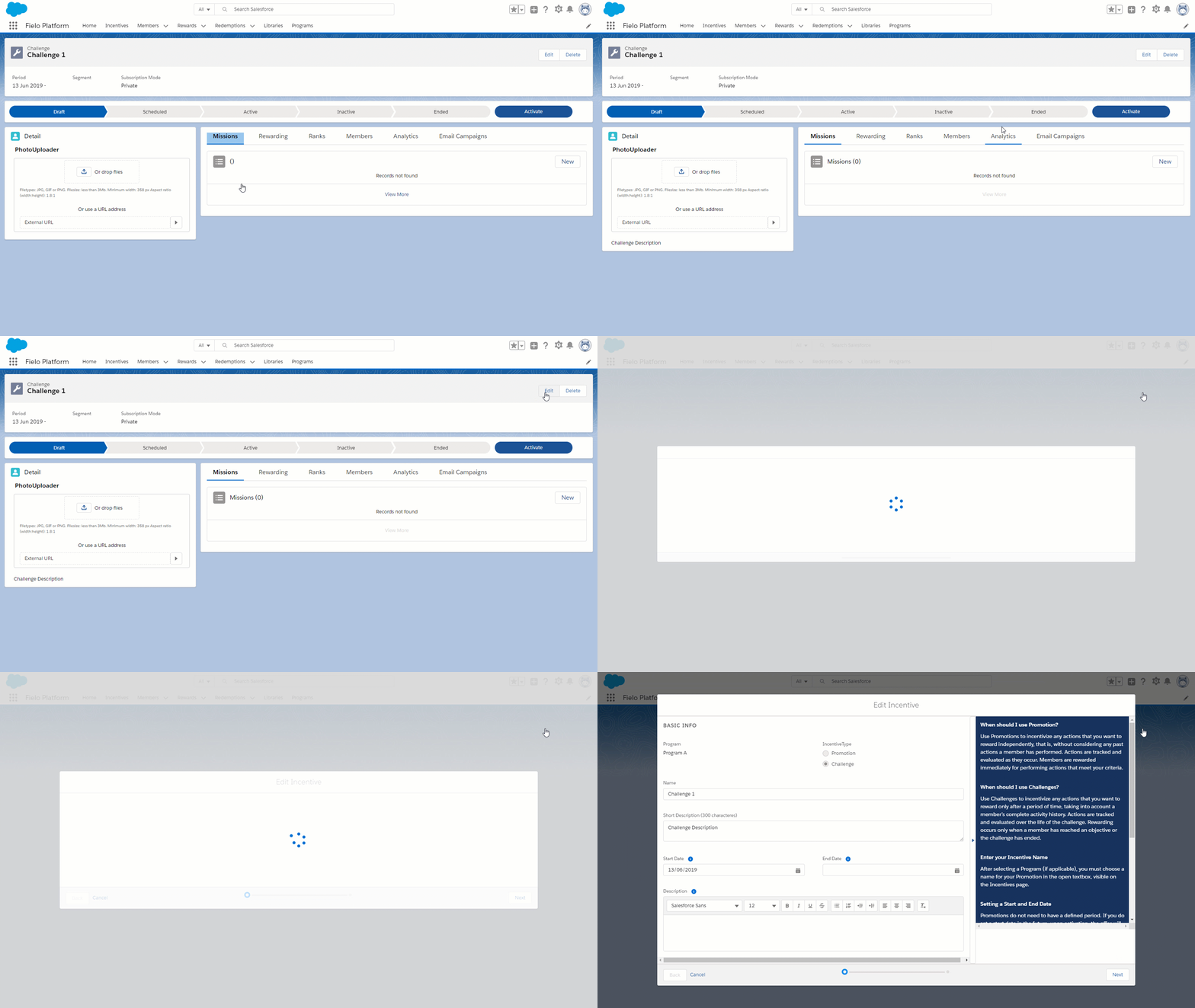
If you are coming from another location, go into the Incentives tab, choose your program from the Program menu, and click on the INCENTIVE STATUS where your program would be. (For example, if it is still in Draft mode, it would be under the Draft category)
Missions, Rewarding and MoreNow that you've created your Challenge, it's time to start building out the behavior(s) you want to incentivize by creating your first Mission!
Activating a Challenge
You must activate your Challenge before members can participate in it.
Before activating your Challenge, it must have at least one Mission or Ranking set up.
To activate a Challenge, click Activate on the Challenge page.
Delete
In order to delete this challenge, you need to go into the challenge itself and in the top right you need to select Delete.
Updated over 1 year ago