
Levels
Create and manage Member tiers
Levels rank members by including them into different groups (e.g. Bronze, Silver, Gold). Members can influence their level by engaging with the program and performing incentivized behaviors.
Creating a Level
Start by going to the Outcomes tab and select the program you want to create a level for. Go to the Levels section and click New Level.
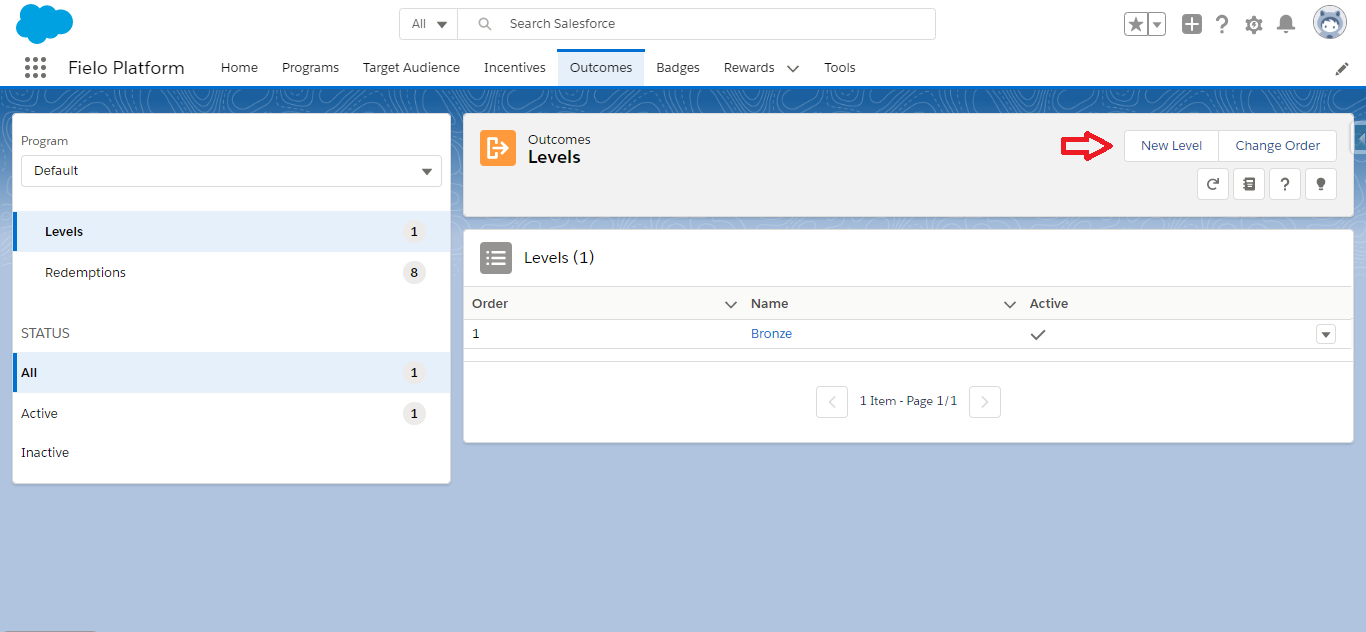
Program - Levels
Enter an appealing name for your level.
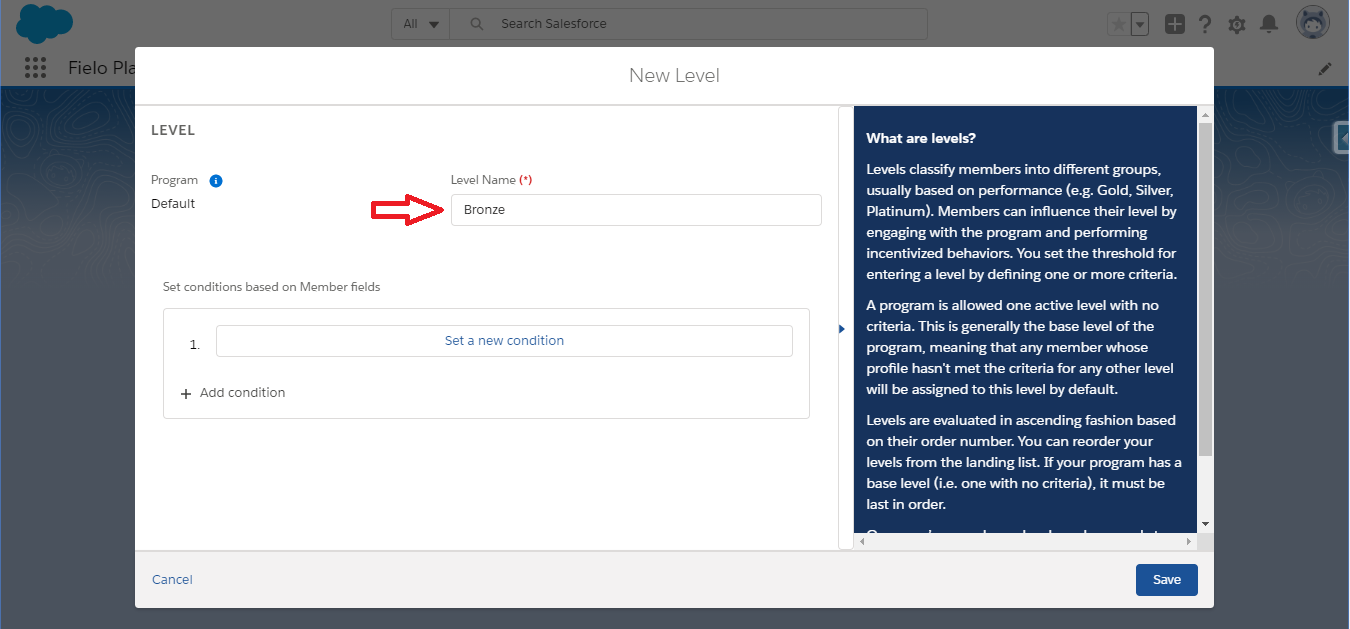
Create Level - Level Name
Now, in Filter Criteria, we'll specify the criteria for your level. These are how your level will be defined. Each criterion takes the form of a logical or mathematical comparison between the value of a field and either a fixed value or the value of another field. For example, you could compare a member's points count with either the fixed value 1000 or the value of some other numerical field.
For numbers, comparison operators include "Equals", "Greater than", "Less than", "Greater or equal", etc. In the case of text, the comparison can be to see if the values are the same ("Equals") or different ("Not equal"), or if the second value contains the first value ("Contains") or not ("Not contains").
A program is allowed one active level with no criteria. This is generally the base level of the program, meaning that any member whose profile hasn't met the criteria for any other level will be assigned to this level by default.
Let's walk through an example to see how to apply criteria:
Let's look at an example to see how it works.
- Under Field Name, select the Points field
- Under Operator, choose the operator that will compare the field with your criterion value. We will use Less or equal.
- If you want to compare the value of the field in Field Name with the value of another field, select Dynamic value. Otherwise, leave it as Fixed. We will be leaving it fixed for this example.
- Under Value, enter the number or text value you want to compare with the field in Field Name or, if Field is , choose the field whose value you want to compare with the field in Field Name. We will put "1,000" in the Value field.
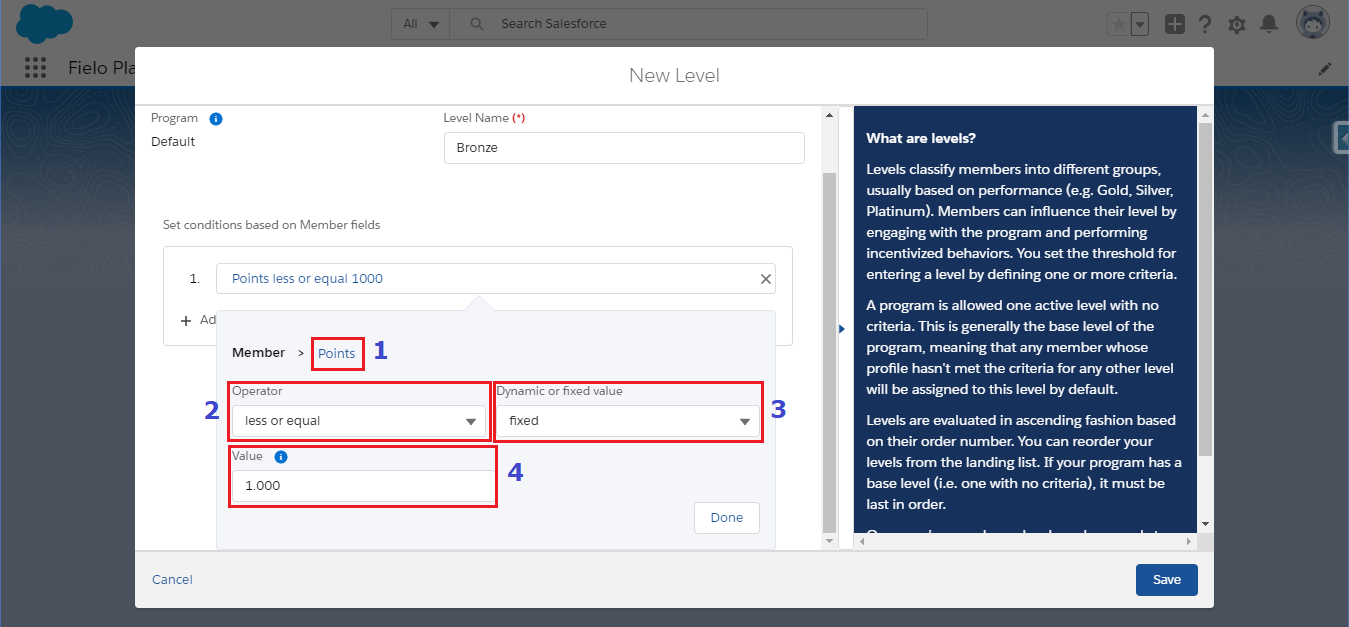
Create Level - Criterion
To add another criterion, click Add condition and follow the same process to define it. You can remove a criterion by clicking .
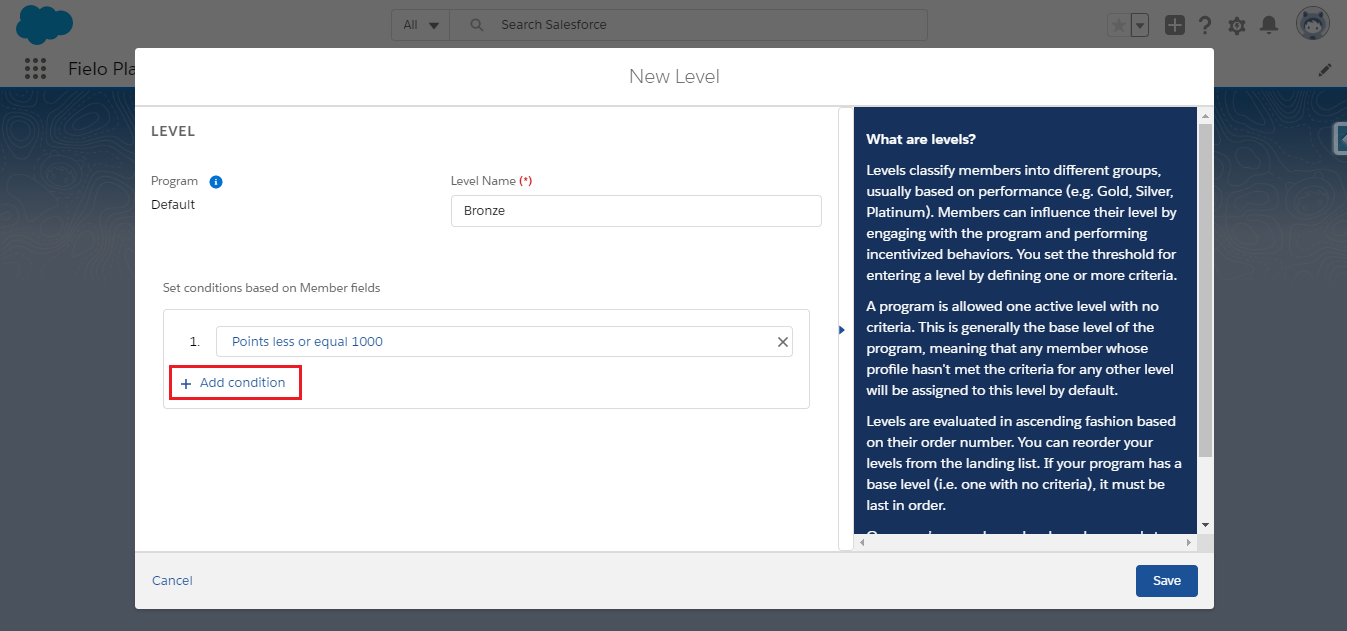
Create Level - New Criterion
When you've finished adding and defining criteria, you can then specify how they are evaluated via Match Criteria:
- All conditions are true means that all of your criteria will need to met for a member to be included in the level.
- Any condition is true means that a member whose profile meets any one of your criteria will be included in the level.
- The following expression is met allows you to specify more complex criteria prioritization. If selected, you must enter a formula with logical operators and your criterion numbers. For example, if you enter
(1 AND (2 OR 3)), a member who meets your first criterion and your second or your third criterion (or both) will be included in the level.
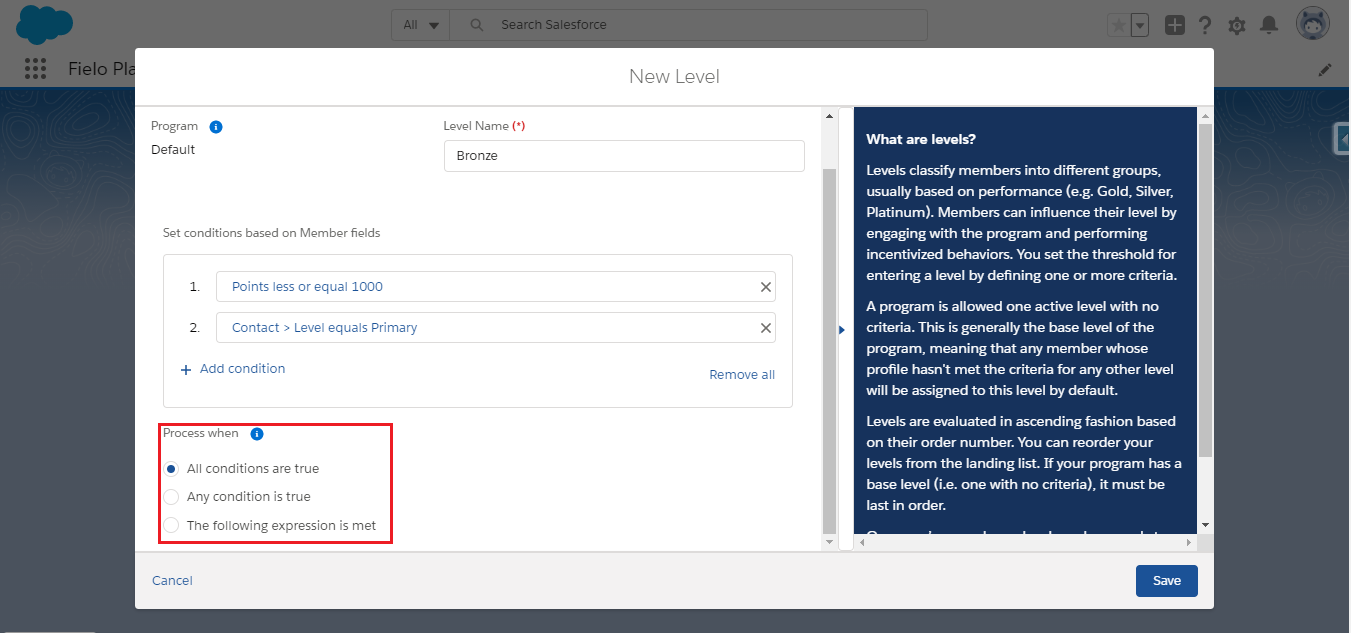
Create Level - Match Criteria
Once you're happy with everything, click Save.
Activating a Level
Once you've created a level, you'll need to activate it to make it available for use.
Click the level you have just created and hit the Activate button in the upper-right side of the screen.
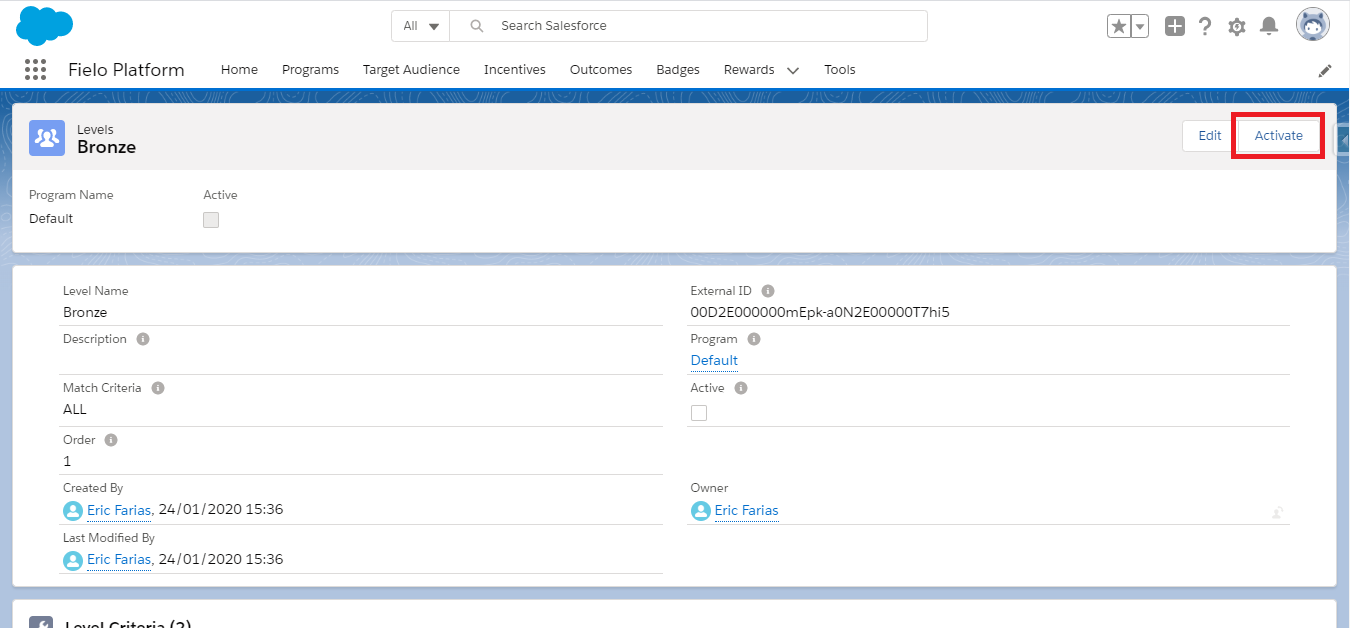
Edit Level
Changing the Level Order
The level order determines which level is evaluated first, second, third, etc. when Fielo assigns levels to members. Imagine the following level structure:
| Level Name | Criteria |
|---|---|
| Gold | Points ≥ 100000 |
| Silver | Points ≥ 10000 |
| Bronze | > 1000 |
In the above example, you would want to make Gold Order 1 so that a member who has more than 100,000 points be assigned Gold rather than Silver. Then, with Silver at Order 2, any member with over 10,000 but less than 100,000 points would be assigned to Silver. Bronze, the base level, would have to be evaluated last (in this case, Order 3) because it has a criteria that everyone else can fit into, less than 1000.
Now, let's see how to reorder your levels. From the Outcomes tab, in the Levels section, click Change Order. You'll be taken to the Reorder Levels page. Here, you can drag and drop your levels into the preferred order.
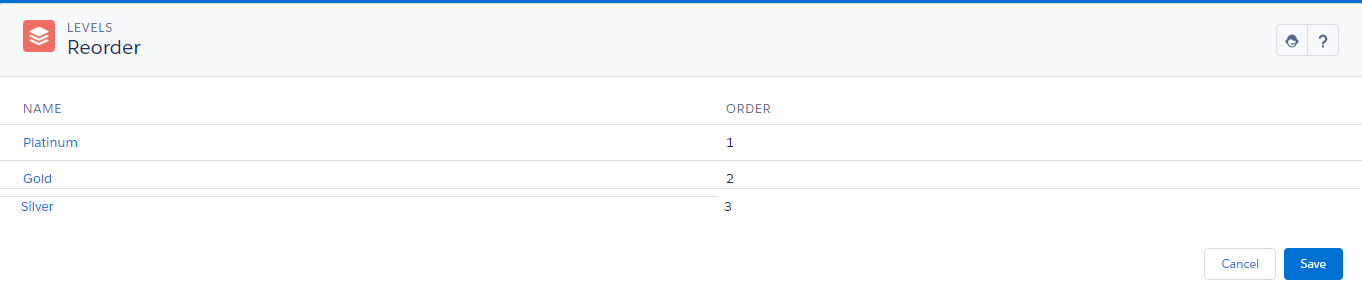
Reorder Levels
When you're ready, click Save.
Remember, if your program has a level with no criteria (i.e. a base level), it must be last in your Level Order.
Recalculating Levels
Member levels are automatically updated once a day. However, you can perform this update immediately by running a Batch.
From the Program detail page, in the Levels section, click and select Recalculate. You'll be taken to the Batch Execution page. On this page, in the row named Levels to Members Assignment, click Run.
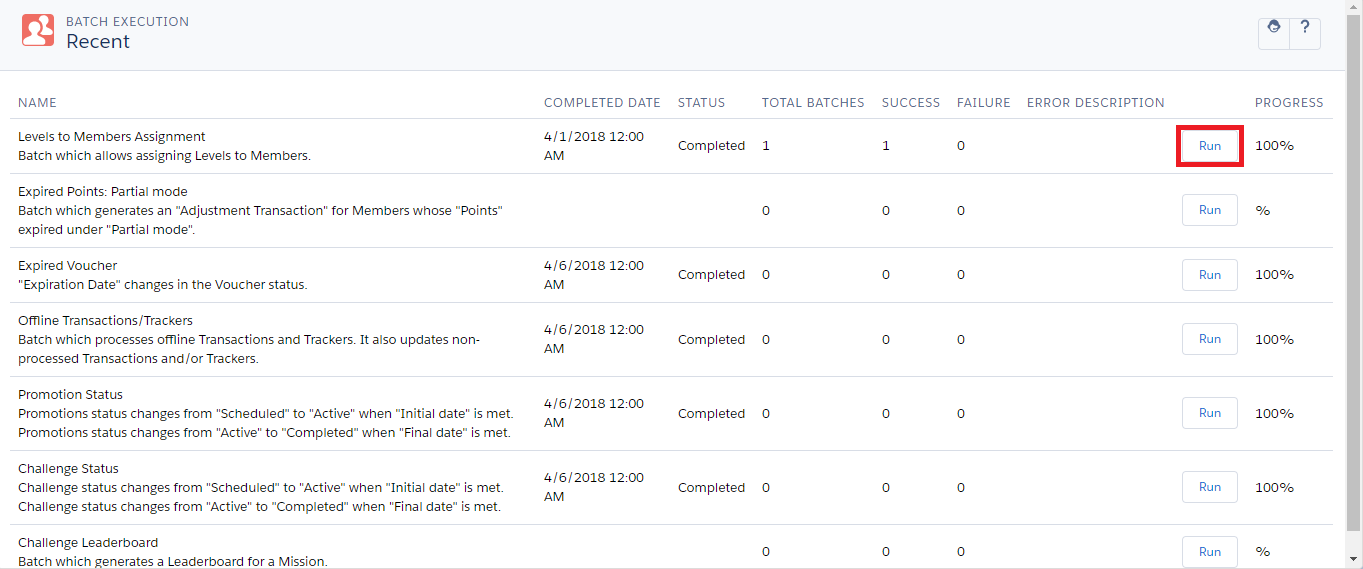
Run Levels to Members Assignment Batch
Updated over 1 year ago