
Incentives
Create and configure Promotions and Challenges to engage your community
Incentives are Fielo's core feature. Create incentives to guide your customers and partners toward desired behaviors and drive their engagement with your brand.
Incentives include the Promotions and Challenges that target Member behavior. Members can be rewarded through Points, Instant Rewards and/or Instant Badges.
It looks like your org doesn't have a domain name yetTo use Fielo's new Lightning-native UI, go to Salesforce Setup -> Company Settings -> My Domain and register a domain. Be sure to deploy your domain to all users. If you want a refresher on how to do this, follow the installation guide.
How Incentives Work
Incentives are where you define the behaviors you want to encourage and specify how you want those behaviors to be rewarded. They leverage Fielo's Single Action and Multi-Action Engines, which use Actions to track member activities on any Salesforce object, standard or custom. When criteria for rewarding has been met—that is, a member has performed the defined behavior(s)—a Transaction is generated to reward the winning member. It's that simple!
Promotions versus Challenges
When should I use Promotions?
Use promotions to incentivize any behavior(s) that you want to reward independently, that is, without considering any past behaviors a member has performed. Promotions leverage Fielo's Single Action Engine, meaning that Actions are tracked and evaluated on an individual basis. Members are rewarded immediately for performing targeted behaviors.
When should I use Challenges?
Use Challenges to incentivize any behavior(s) that you want to reward on an ongoing basis, that is, taking into account a member's complete history of performing the behavior(s). Challenges leverage Fielo's Multi-Action Engine, meaning that Actions are tracked and evaluated over the life of the Challenge. Members can be rewarded for performing the targeted set of behaviors either in real time or at the conclusion of the Challenge.
Creating Incentives
Check Promotions and Challenges to see how you can create Incentives.
Incentives: Views & Status
After adding some Incentives, you may need to move along their different views depending on their status.
- All: Showing all promotions and challenges
- Draft: Showing all promotions and challenges that have been created but have not been activated
- Scheduled: Showing all promotions and challenges that have been made but scheduled to be Active at a future date
- Active: Showing all promotions and challenges with an Active status
- Inactive: Showing all promotions and challenges with an Inactive status
- Ended: Showing all promotions and challenges that have ended
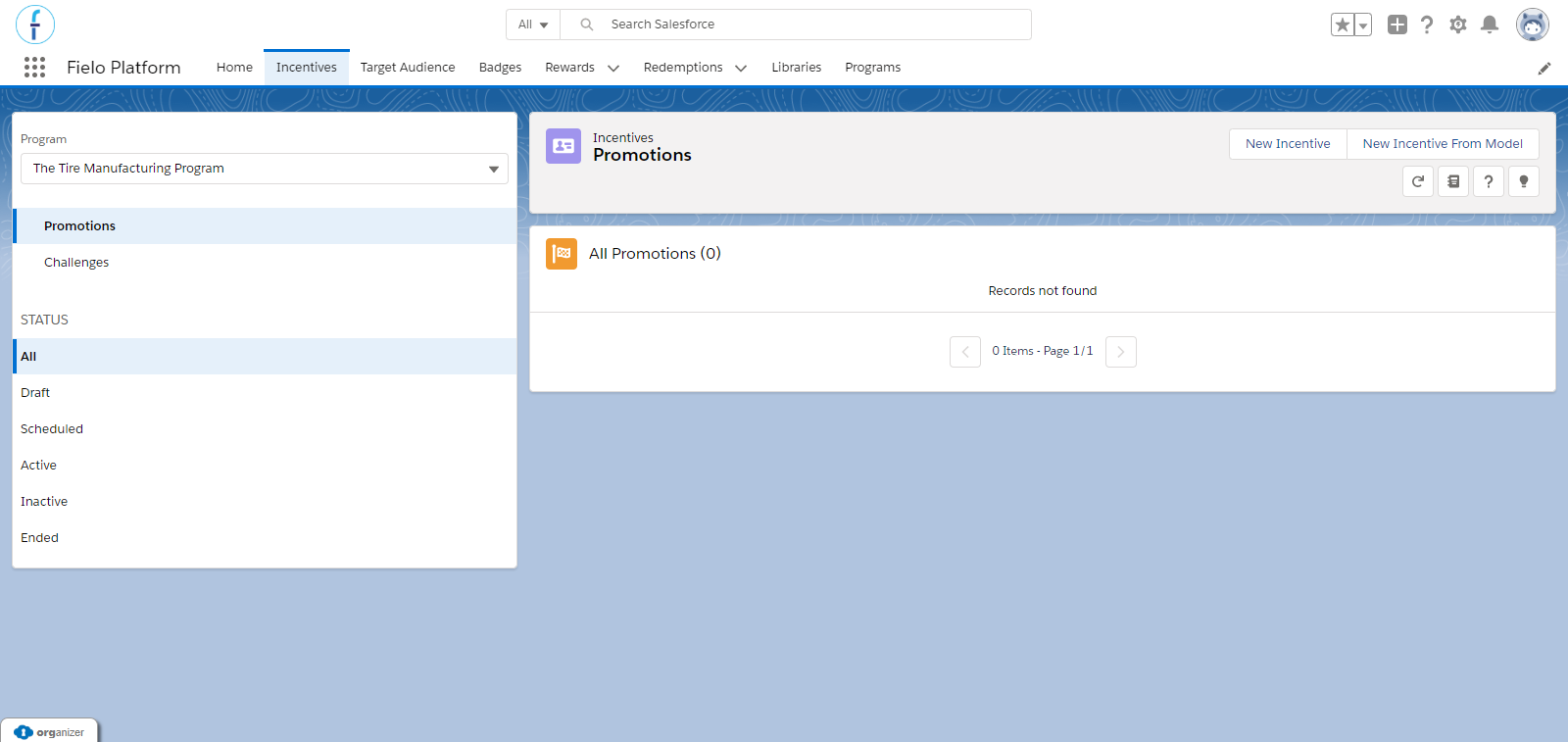
Incentives: Views & Status
Incentives go into a range of 6 different status, each allowing you to perform certain actions:
- Draft: Promotions or Challenges will be Draft when they're created and there is no Approval Process set. Promotions and Challenges become Active either by manually enabling them or when the corresponding Batch Processes are executed.
- Active: Incentives will appear as Active when they fall within the active period you set, that is, when they range between their Start and End Date (if established) or as of their Start Date.
- Pending: Promotions and Challenges can be configured to use an Approval Process. In order to do this, the value "Pending" should be added to the field Status for Promotion and Challenge, and then configure the Approval Process criterion as follows:
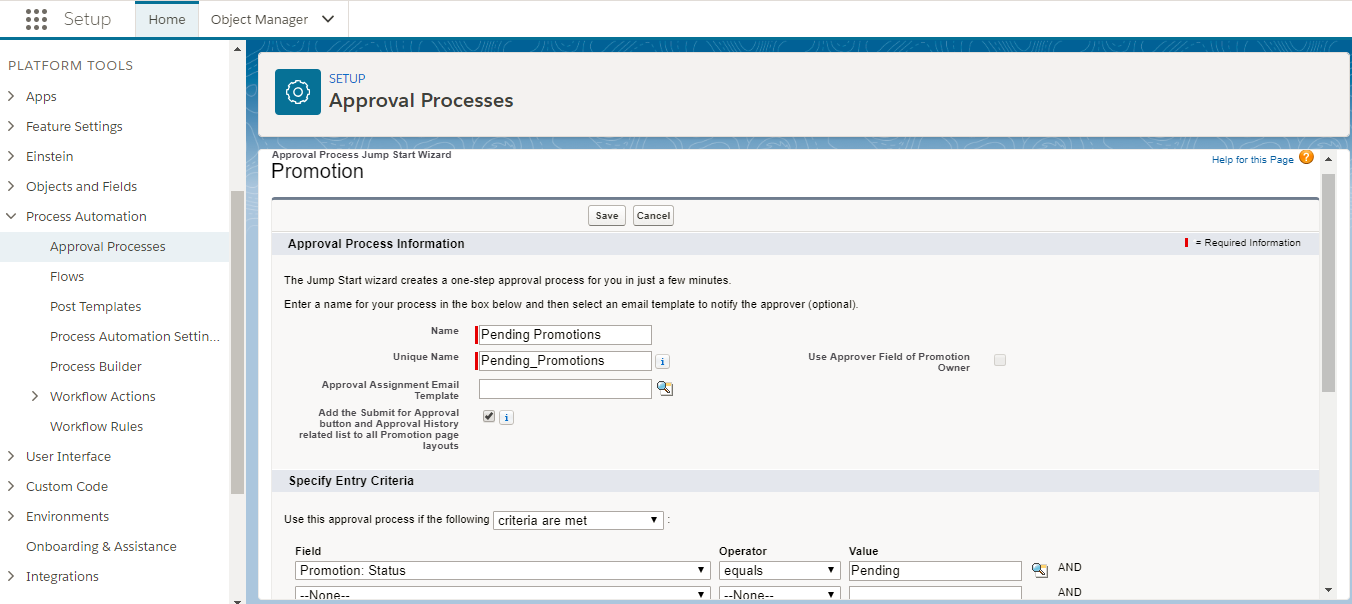
Approval Process for Pending Incentives
- Scheduled: Promotions and Challenges will appear as Scheduled when their Start Date is later than the current date. Processing takes place when the corresponding Batch Processes are executed.
- Inactive: Incentives which have been manually disabled.
- Completed: status when a Promotions and Challenges has an End Date that has already passed.
Incentives are automatically updated once a day. However, you can perform this update immediately by running a Batch. From Batch Execution page, click Run in the rows named Promotion Status and Challenge Status.
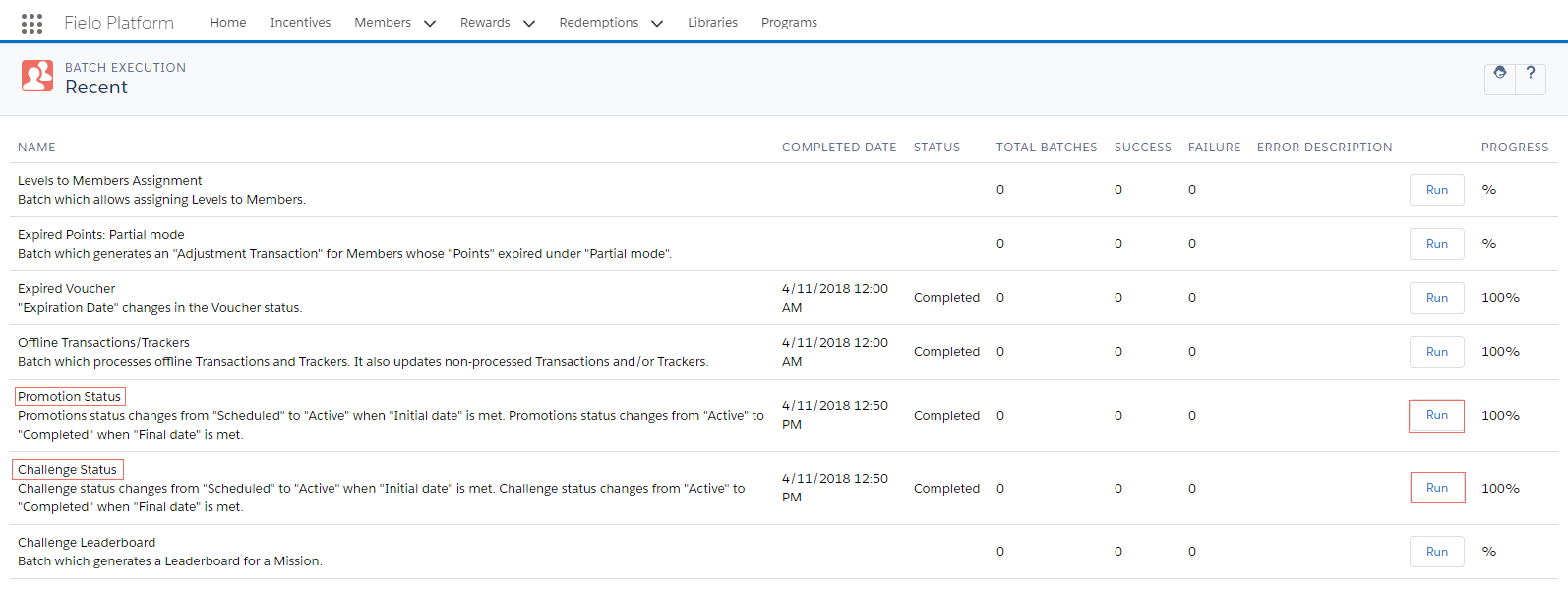
Incentives Statuses - Batch Processes
Multiple Program Management
If there's more than one Program available, you can choose the Program you wish Incentives to be created in.
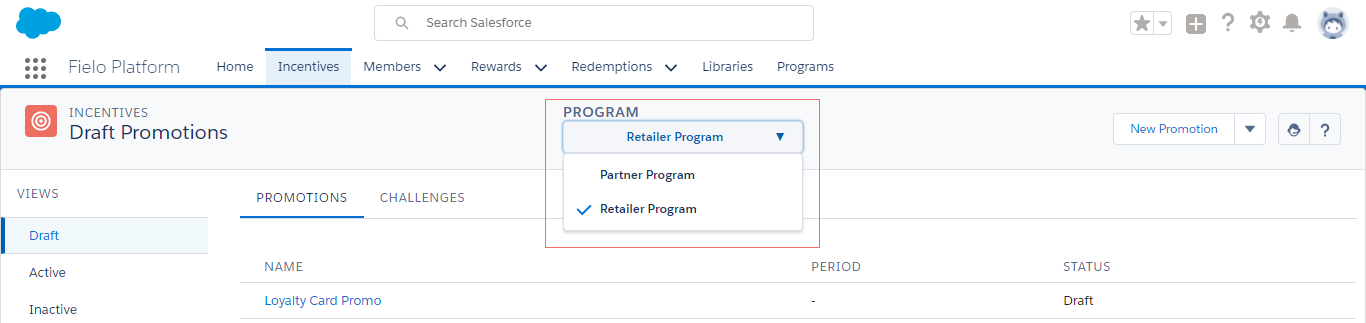
Multi Program Management
Incentives Management Tools
Several tools are part of Incentives tab to let you manage general configurations for Incentives, both Promotions and Challenges.
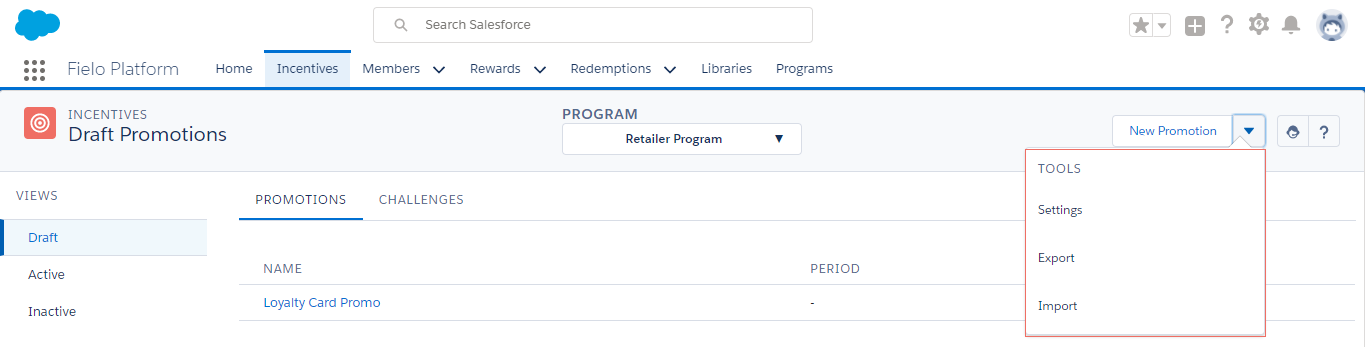
Incentive Tools
Page Settings Management
It allows you to customize Incentives Landing and New page design by using the applicable Page Settings configuration.
Export
It lets you export all data stored in Incentives, which can include Promotions and Challenges, along with their Rules and Missions, Challenge and Mission Rewards from the chosen Program. When exporting, you'll obtain a file in a JSON format containing the following object hierarchy:
Incentives (FieloPLT__Incentives__c)
FieloPLT__Promotion__cFieloPLT__Rule__cFieloPLT__Criterion__c
FieloPLT__KPIDomain__cFieloPLT__EmailCampaign__c
FieloPLT__Challenge__cFieloPLT__ChallengeReward__cFieloPLT__Mission__cFieloPLT__Criterion__cFieloPLT__ChallengeReward__c
FieloPLT__KPIDomain__cFieloPLT__EmailCampaign__c
Import
Select Import to import a Program you or a colleague has previously exported.
Simply upload a JSON file containing all the data for the Program you wish to import. In most cases, this will be one that's been previously exported from another ORG, so you won't need to make any changes. We do, however, advise you to validate the JSON file before uploading.
Once you're ready, just hit Import.
If the Incentives you're importing have Rules or Missions using your own custom Actions, you must import them first through your Local Development Library
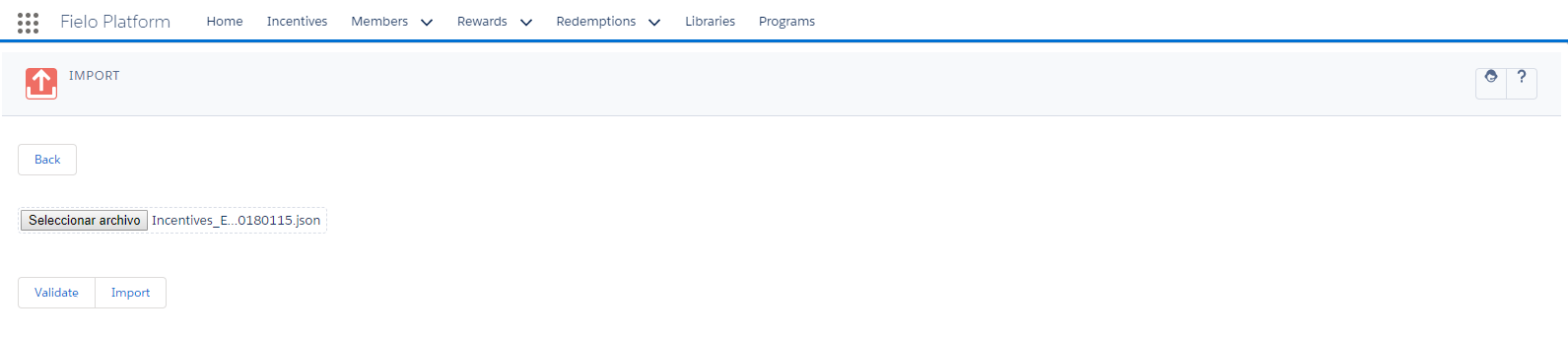
Importing Incentives
Updated over 1 year ago