
Program Settings
Configure your Program to use your Proof of Purchase App
Now that you have your Proof of Purchase App installed, it's time for you to set up your Program. The Proof of Purchase App uses and requires Program and Members up and running to work, so make sure you have them all set up before you start.
After creating your Program, you can start configuring your general Invoice Settings. Via Invoice Settings, you can determine whether:
- Invoices need to be authorized by a third party (Request Invoice Authorization).
- Products need to be listed when uploading an Invoice (Request Invoice Products).
Configuring Invoice Settings
First, go to the Program tab. When configuring your Program settings, there is a section called Invoice Settings. Here, you will have to determine whether the Invoice needs to be authorized by a third party (i.e. someone besides you) or if you'd like to be the only one. If you want the Invoices to be approved by a third party, Request Invoice Authorization.
When setting this option to (true), you must configure an Approval Process for the Invoices.
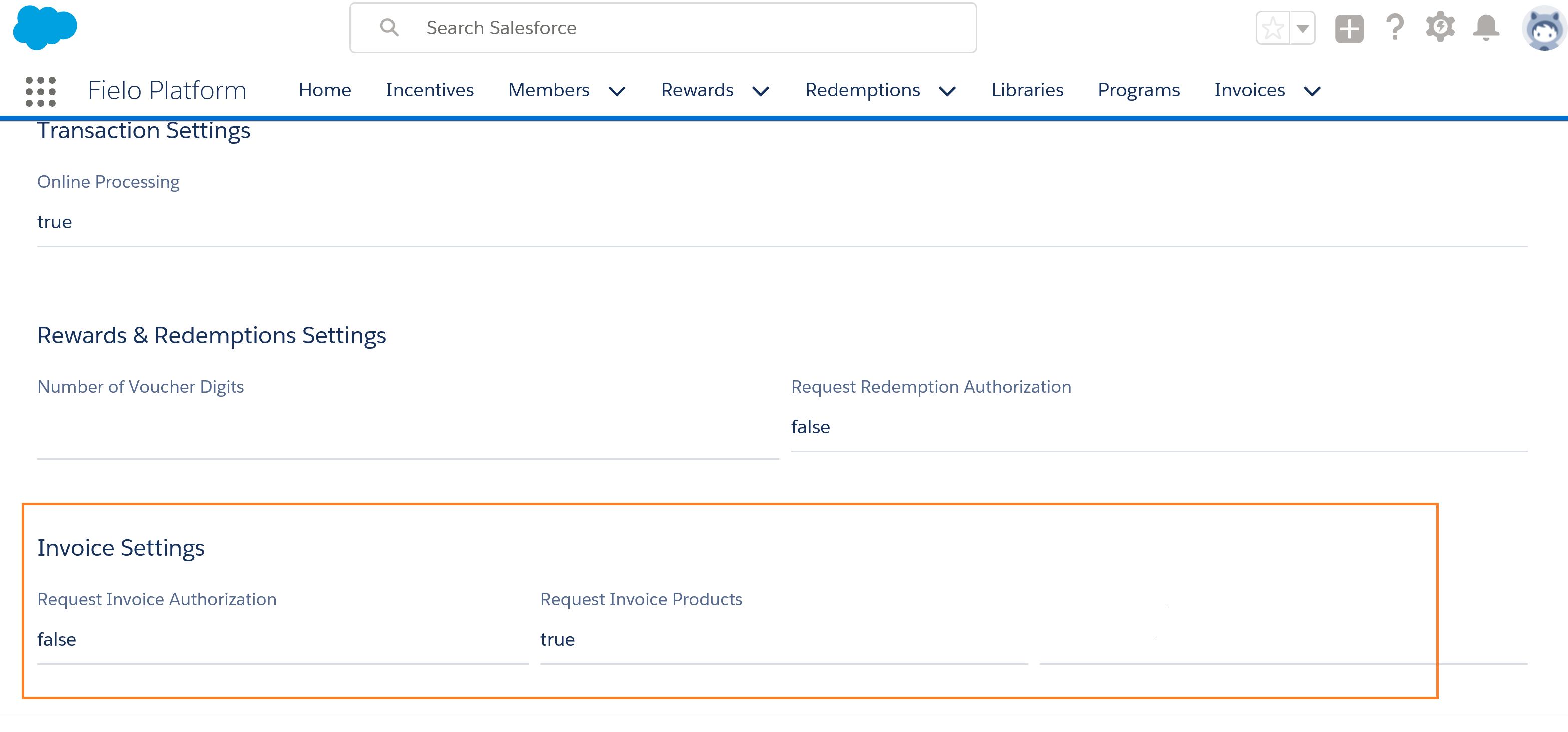
Program: Invoice Settings
It is also important to note that there can be two different types of Invoice:
1. Invoice including Products: you would select this option if you want to know which Products your contractors are buying, or if you want to reward them for buying a particular Product. Each Product is listed as an Invoice Item.
2. Invoice not including Products: you would go for this option if it does not matter to you which Products your contractor is purchasing, you just want to reward them for uploading an Invoice or for the amount they spent on the Invoice.
To configure the invoice including products, mark Request Invoice Products as (true).
Once happy with these settings, just hit Save.
If you want to cover both types of Invoices - Invoice including Products and Invoices not including Products - you should create two different Programs. The one you want to include Products should have the Request Invoice Products marked as (true).
Selecting particular products
If you want only certain Products to be selectable for your Members, one way to do that is using the Product Inject Query box. In this field, write the object name you want to include in the following format:
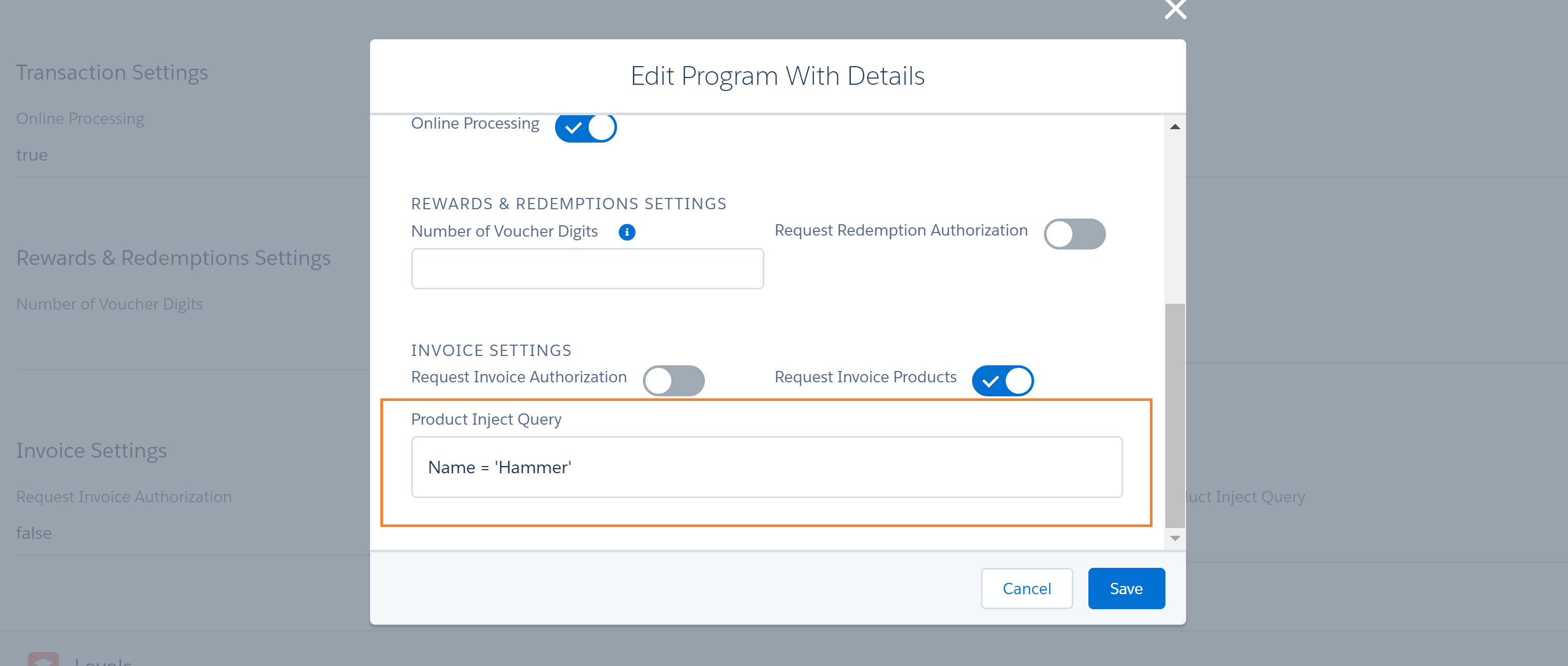
Hammer Product Inject
Updated over 1 year ago
What's next
After you've decided your settings for your Programs, it's time to configure how you'd upload Invoices or how your Members would do it.