
Badges
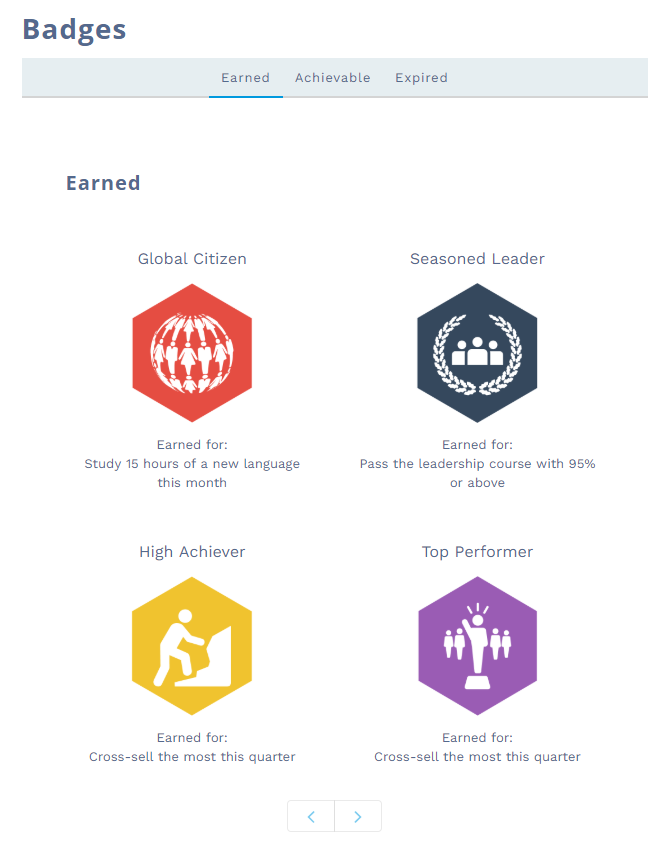
Badges displays all of the badges that a member has earned, as well as achievable badges, expired badges, and badges that are no longer available.
Earned badgesRegarding badges rewarded through a promotion rule, the Badges component will display only those that have fixed value as the Badge Mode.
Configuring Badges
Once you've added Member Selector and Badges to your page, you can customize what data is shown and how it is shown.
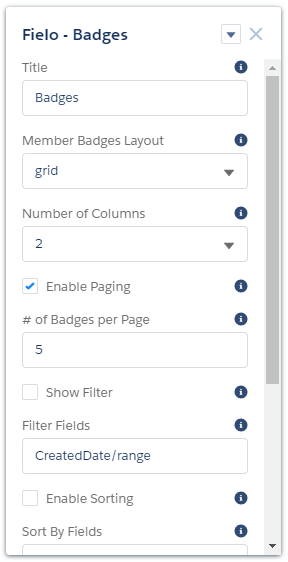
Badges can be configured via the following properties:
- Title: Enter the title you want displayed at the top of the component.
- Layout: Choose Table to display badges in list format or Grid to display them in tile format.
- # of Columns (Grid Only): If using grid layout, choose the number of columns you want to be displayed.
- Enable Paging: Check this box to allow badges to be displayed in pages.
- # of Badges per Page: If paging is enabled, enter the maximum number of badges you want to be displayed on a single page.
- Show Filter: Check this box to allow members to filter badges.
- Filter Fields: If filtering is enabled, enter the API names of the badge fields you want members to be able to filter by, separated by commas.
- Enable Sorting: Check this box to allow members to sort badges.
- Sort By Fields: If sorting is enabled, enter the API names of the fields you want members to be able to sort by, separated by commas.
- Badge Fields: Enter the API names of the fields you want to include in the badge list, separated by commas.
- Show Achievable Badges: Check this box to show members the badges they're eligible to earn.
- Show Unavailable Badges: Check this box to show members badges that they could have earned but are no longer available.
- Show Expired Badges: Check this box to show members badges that they've earned but have since expired.
Updated over 1 year ago
Did this page help you?