
My Invoices
Get Members uploading invoices right away in their Community portal
Are you using our Invoicing app with Salesforce Community Cloud? Take your loyalty portal to the next level! My Invoices lets your members quickly and easily upload invoices, incentivizing further purchasing behavior and putting them on the fast track to earning points and rewards. Let's see how!
How It Works
My Invoices allows your Members to prove purchasing behavior by uploading invoices directly through their Communities-based loyalty portal. Members can also review the approval statuses of invoices they've already uploaded.
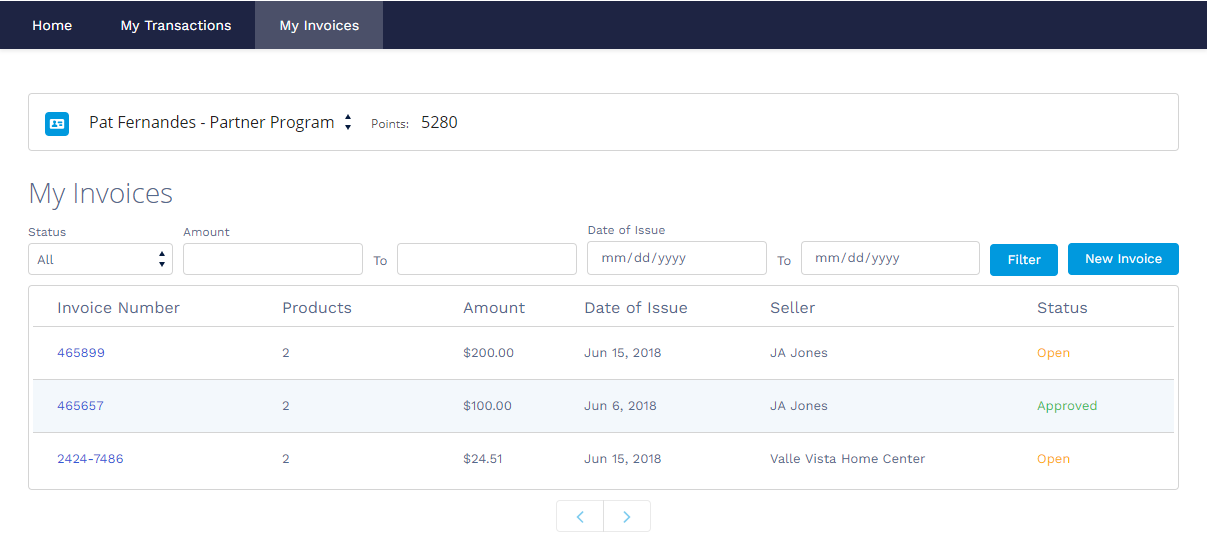
My Invoices
How a Member Uploads an Invoice
Members can upload an invoice by clicking New Invoice and following the prompts.
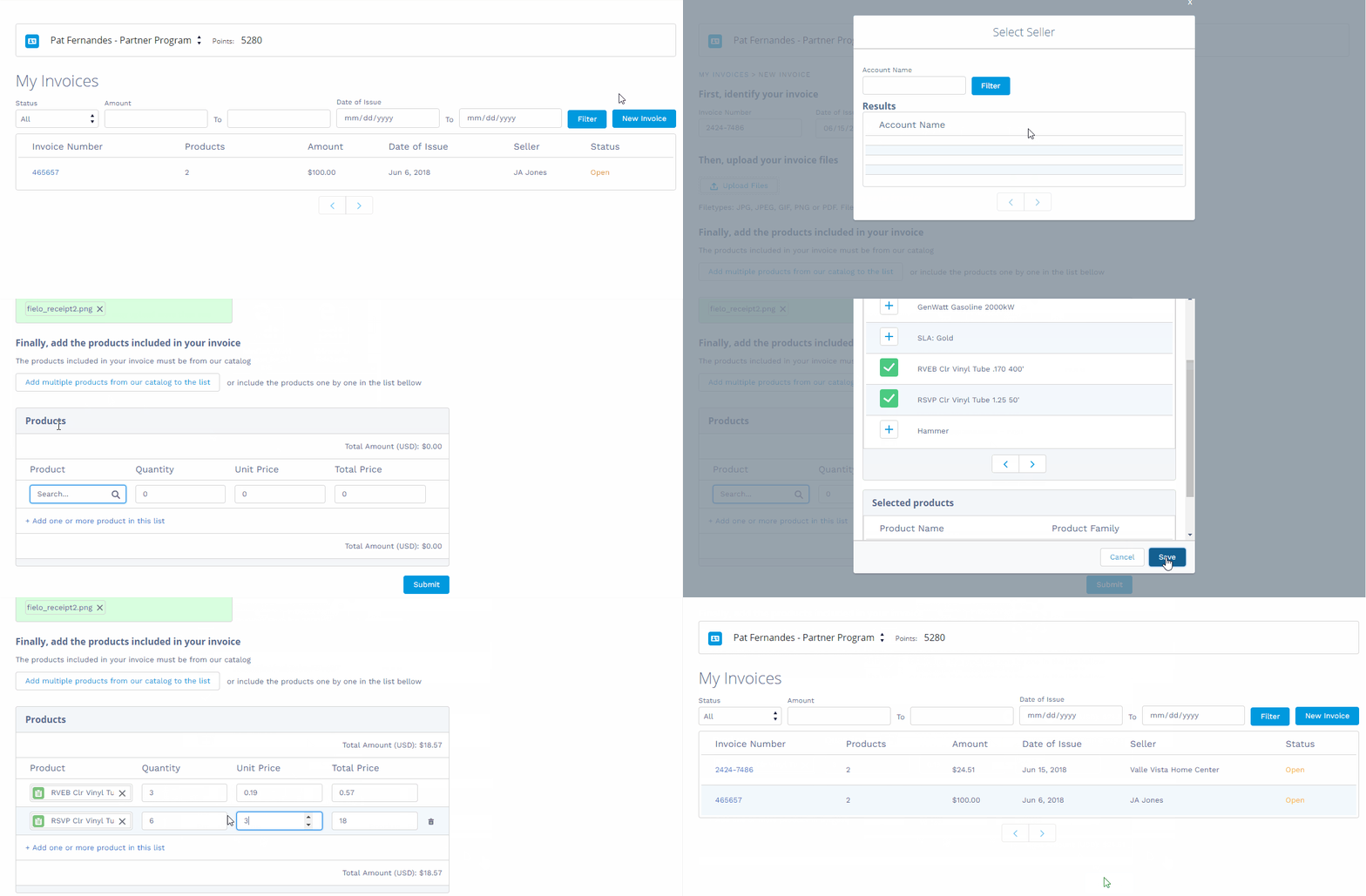
Uploading an Invoice
How a Member Reviews an Uploaded Invoice
Members can view invoices they've uploaded and filter them by status, amount and date. They can then select an invoice to see details.
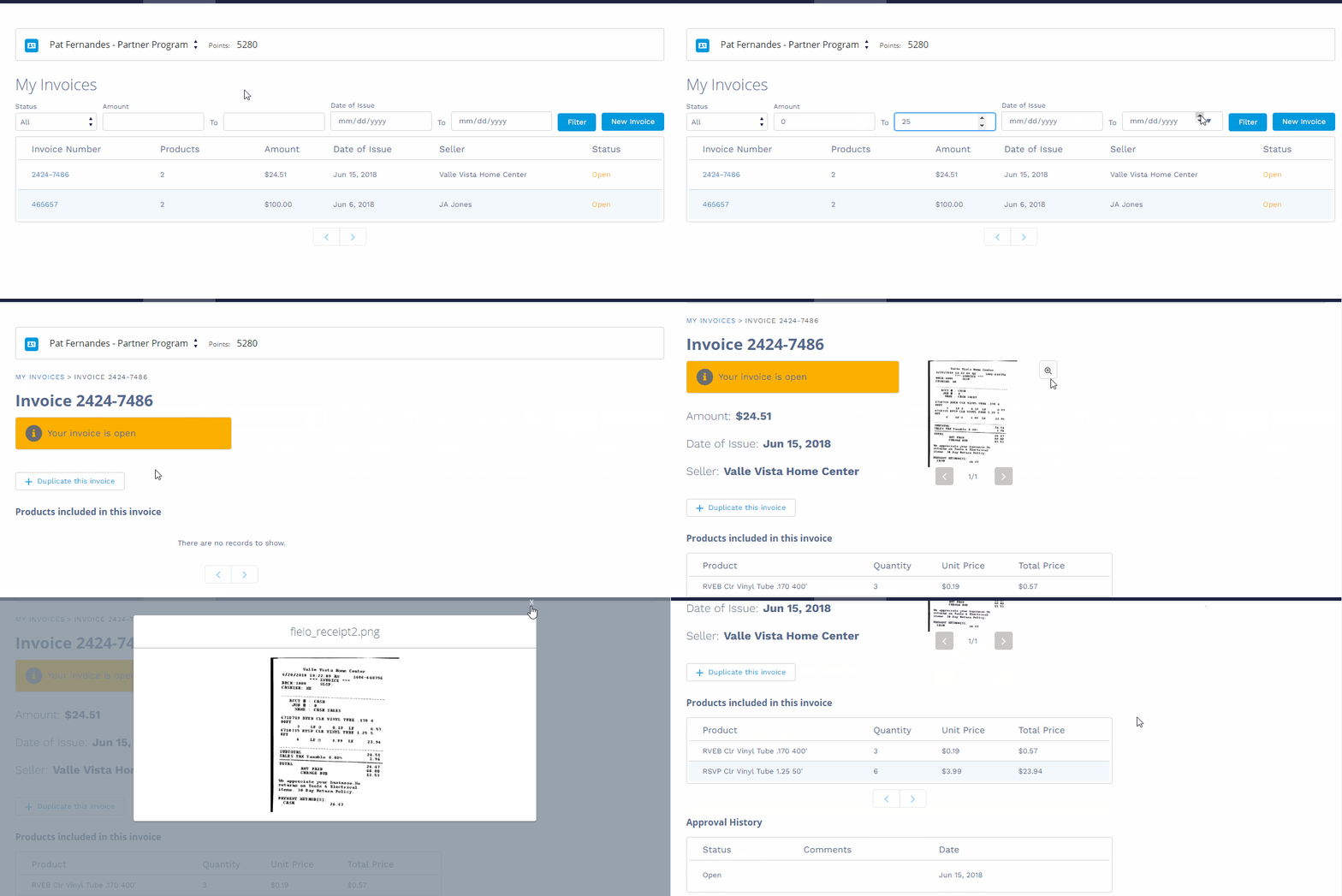
Filtering and Reviewing an Invoice
How a Member Duplicates an Invoice
For ease of use, Members can duplicate an invoice in order to submit a new one with similar information. This helps when a Member needs to correct a mistake or register a purchase that is similar to a past purchase.
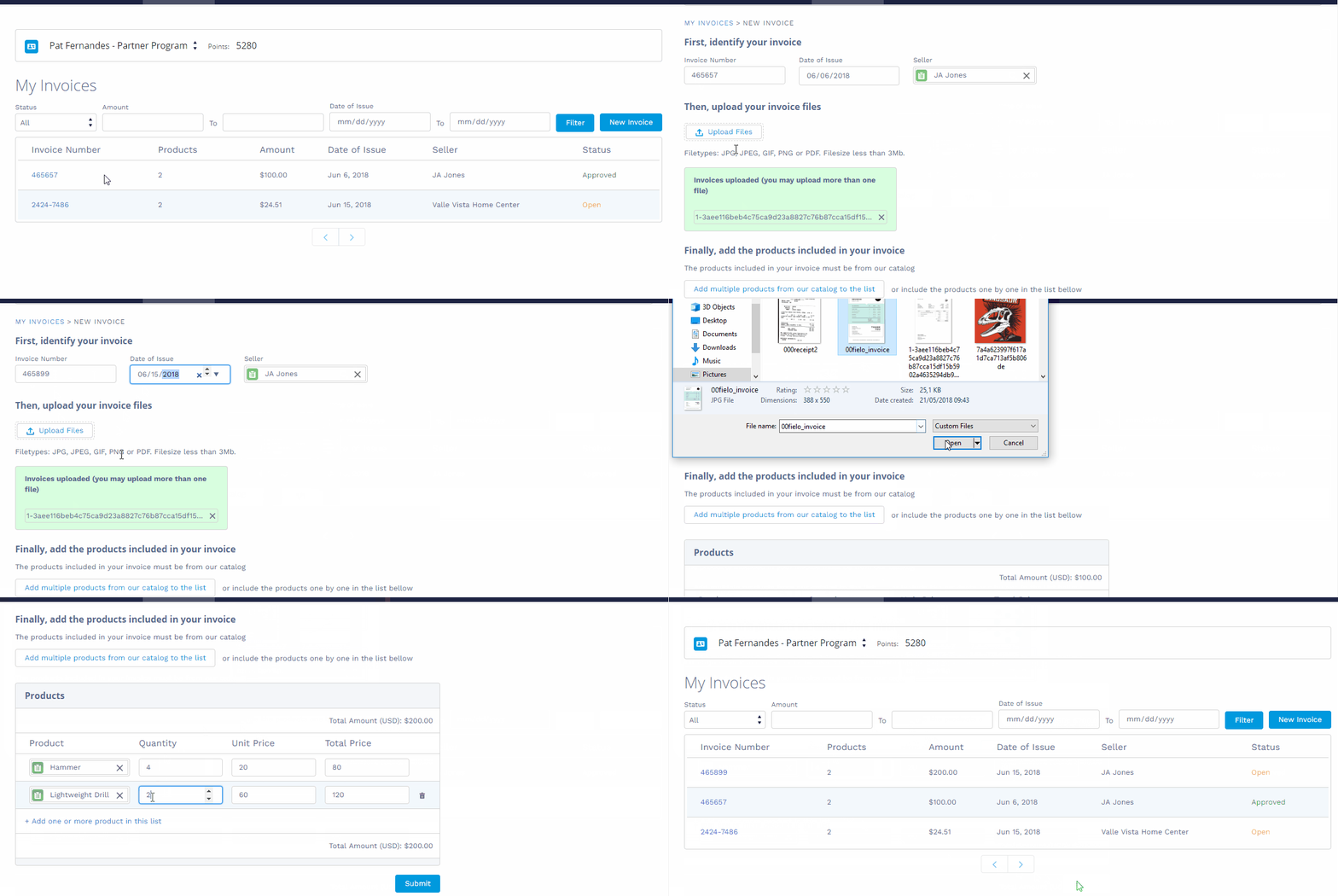
Duplicating and Submitting a Similar Invoice
Getting Started with My Invoices
First, choose or create the page in your Community that Members will view and upload invoices. We strongly recommend using My Invoices on a page that uses the 1 full-width column layout.
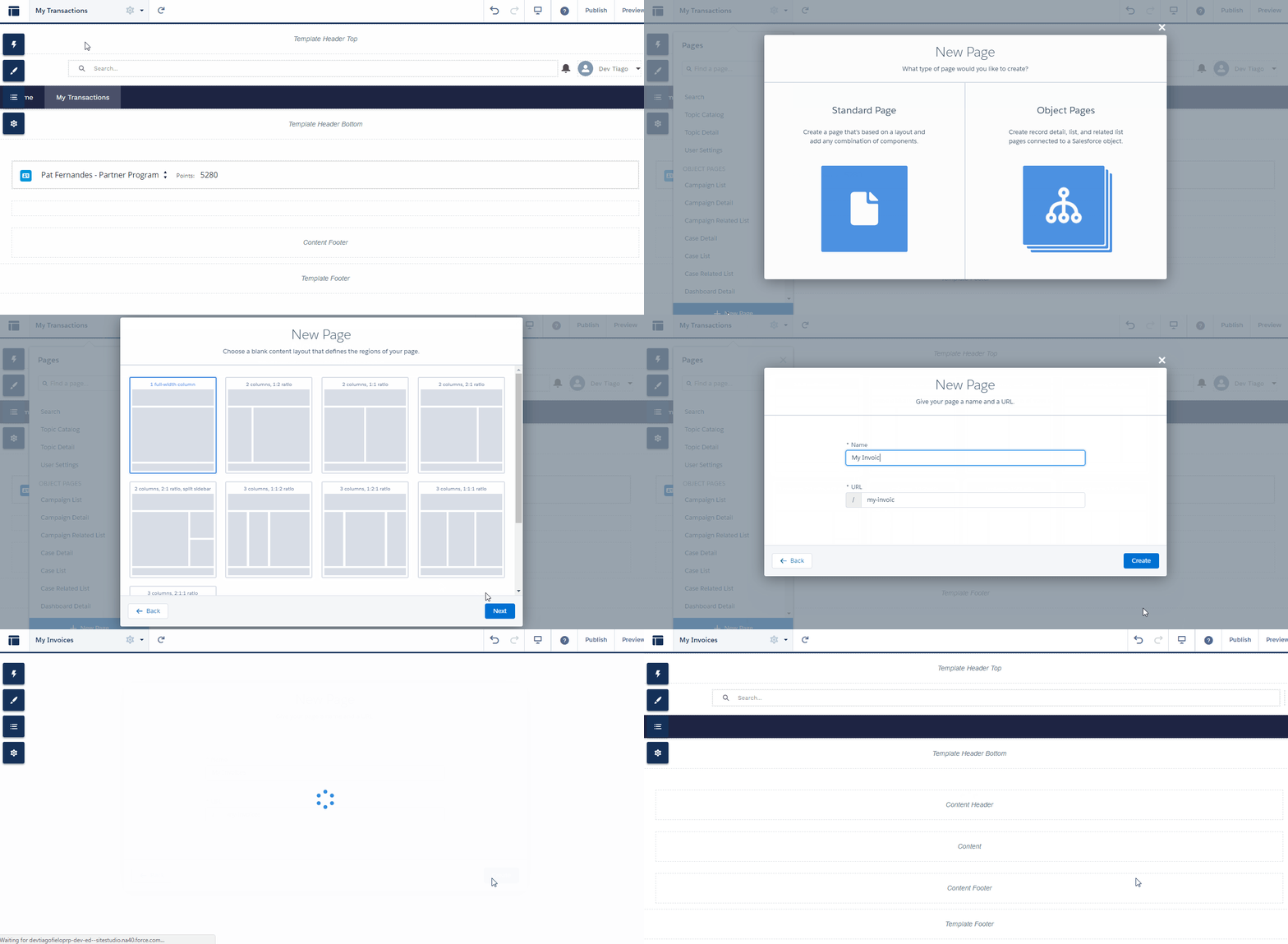
Creating a Page for My Invoices
Add Member Selector to your page.
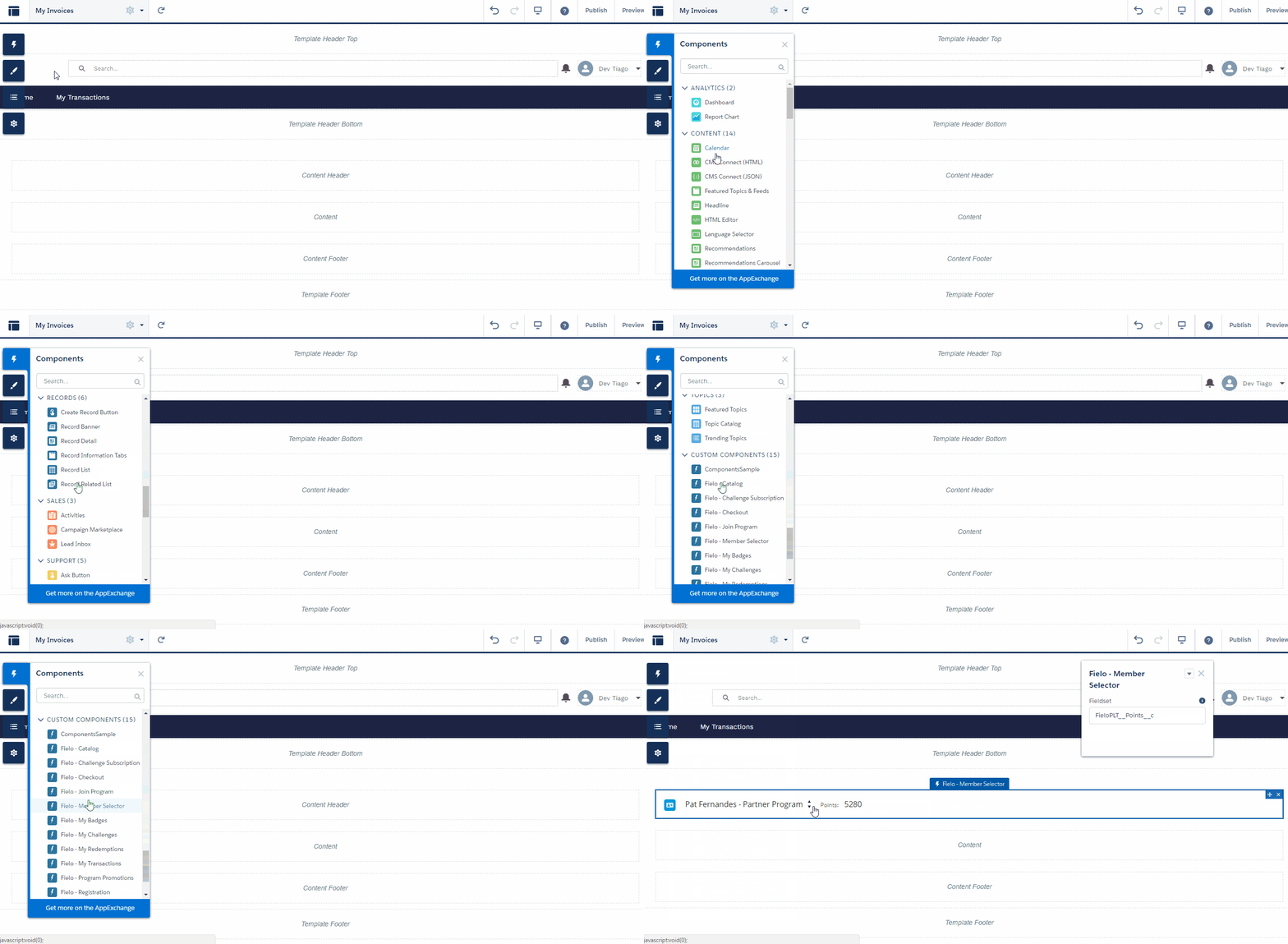
Adding Member Selector
Now, you're ready to add My Invoices.
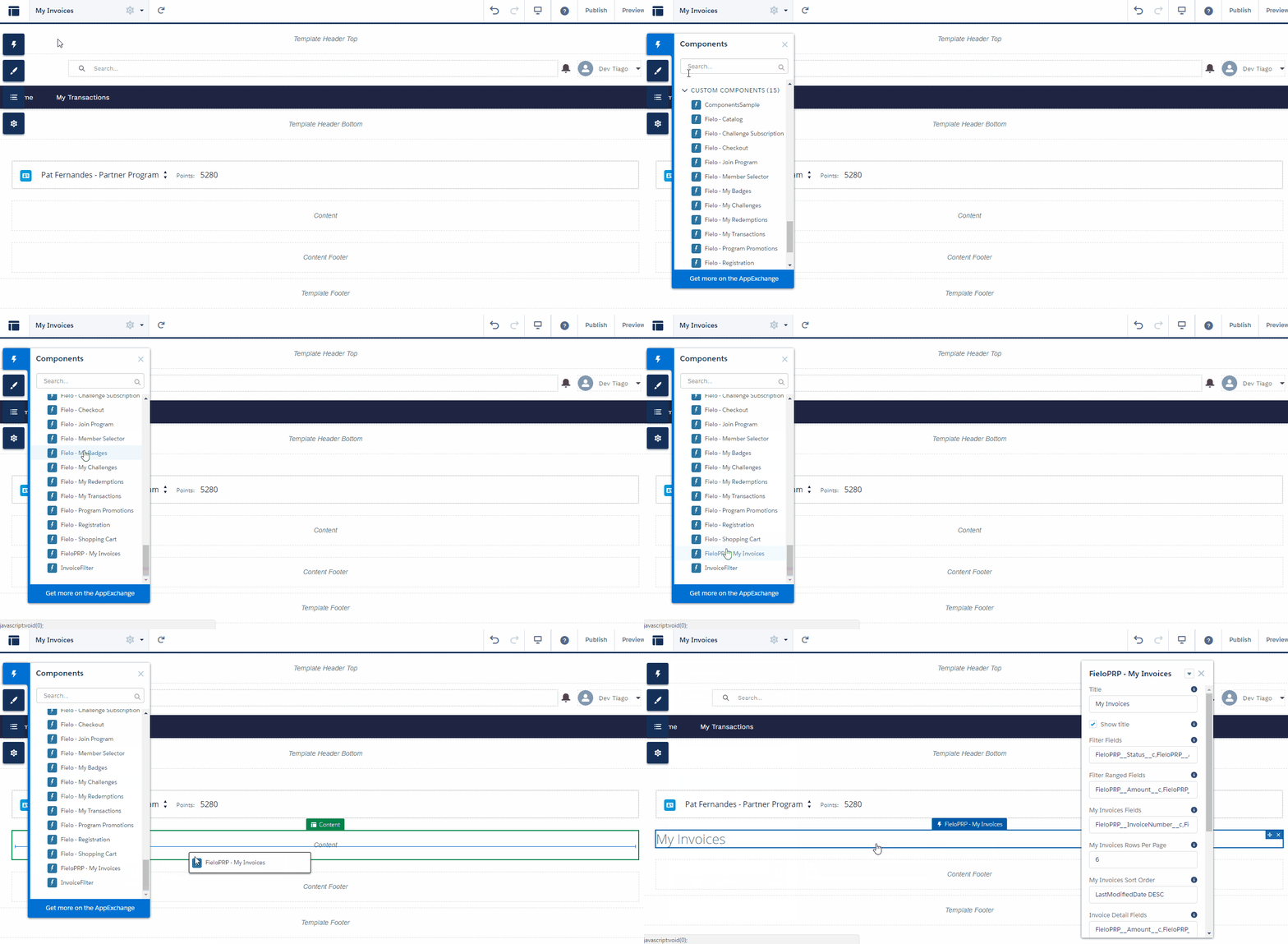
Adding My Invoices
Configuring My Invoices
My Invoices comes 100% ready to use, but you can add or remove content to tailor it to the specific needs of your loyalty program.
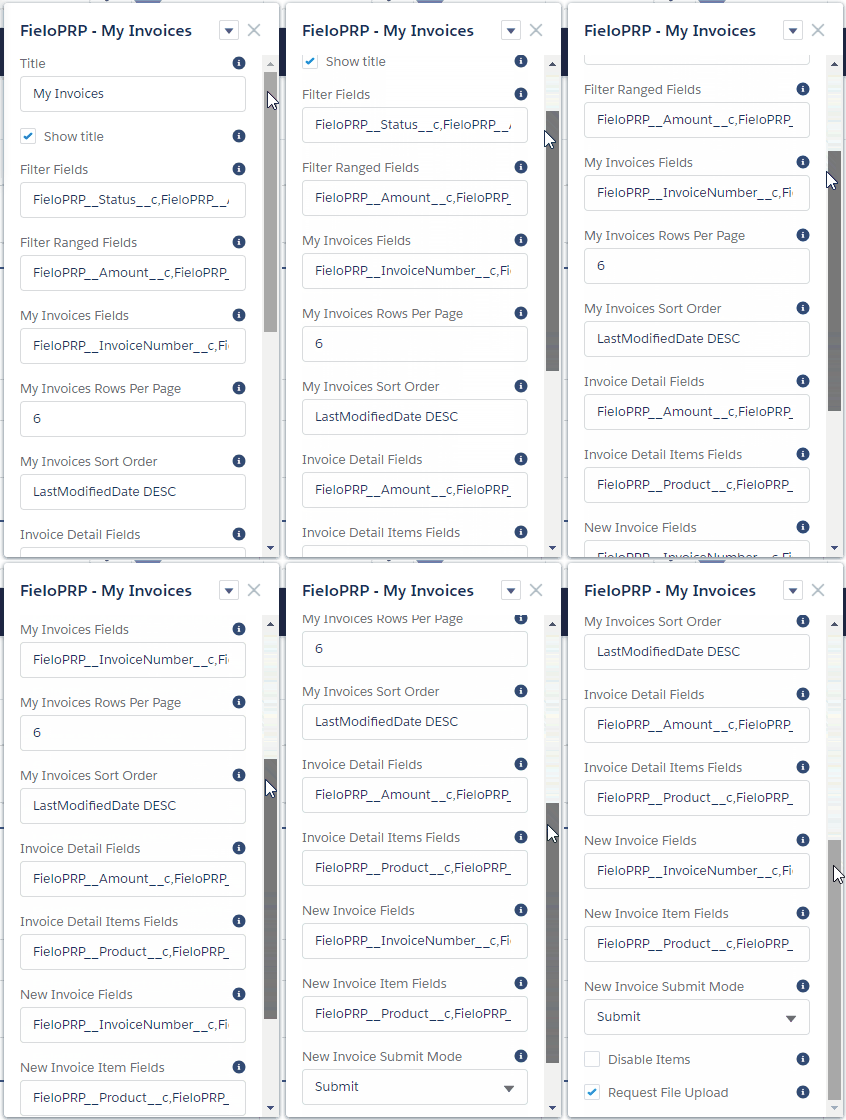
My Invoices can be customized via the following properties:
- Title: Enter the title you want to be displayed at the top of the component.
- Show Header: You can deactivate the title, filter(s) and New Invoice button by unticking this box.
- Filter Fields: Enter the API names of fields you want to use for Invoice filtering, separated by commas. The default fields are
FieloPRP__Status__c, FieloPRP__Amount__c, FieloPRP__Date__c. - Ranged Filter Fields: Enter the API names of any Filter Fields that involve a range of values, separated by commas. The default fields are
FieloPRP__Amount__c, FieloPRP__Date__c. - My Invoices Fields: Enter the API names of fields to include on the Invoice list, separated by commas. The default fields are
FieloPRP__InvoiceNumber__c, FieloPRP__InvoiceItems__r, FieloPRP__Transactions__r, FieloPRP__Trackers__r, FieloPRP__Amount__c, FieloPRP__Date__c/date, FieloPRP__Distributor__c, FieloPRP__Status__c. - My Invoices Rows Per Page: Enter the number of Invoices you want to be displayed on a single page.
- My Invoices Sort Order: Enter the API name of the field by which you want to sort Invoices, followed by ASC for ascending order or DESC for descending order. By default, Invoices are sorted by
LastModifiedDate DESC. - Invoice Detail Fields: Enter the API names of fields to include on the Invoice detail page, separated by commas. The default fields are
FieloPRP__Amount__c, FieloPRP__Date__c, FieloPRP__Distributor__c. - Invoice Detail Item Fields: Enter the API names of Invoice Item fields to include on the Invoice detail page, separated by commas. The default fields are
FieloPRP__Product__c, FieloPRP__Quantity__c, FieloPRP__UnitPrice__c, FieloPRP__TotalPrice__c. - New Invoice Fields: Enter the API names of fields to include on the New Invoice form, separated by commas. The default fields are
FieloPRP__InvoiceNumber__c, FieloPRP__Date__c, FieloPRP__Distributor__c. - New Invoice Item Fields: Enter the API names of Invoice Item fields to include on the New Invoice form, separated by commas. The default fields are
FieloPRP__Product__c, FieloPRP__Quantity__c, FieloPRP__UnitPrice__c, FieloPRP__TotalPrice__c. - New Invoice Approval Mode: Choose how you want submitted Invoices to be handled by Platform.
- Manual allows for manual adjustments of invoice data in the backend. New Invoices will be created with a status of Open.
- Approval Workflow submits invoices to an automated approval process. New Invoices will be created with a status of Pending Approval.
- Disable Invoice Items: Tick this box if you don't want to use Invoice Items in the component.
- Require File Upload: Tick this box to require Members to upload an image or PDF when submitting an Invoice.
Updated over 1 year ago