
Adding KPIs
Adding Key Performance Indicators (KPIs) to your Reports
Analytics has a feature which allows you to add KPIs to your Reports. That way you can measure how well your Program is doing against indicators and objectives you have set for yourself.
Two benefits of this feature are:
- Objectives: You can set Objectives; i.e. targets, and see how far you have come in reaching them.
- Program and Incentives centered: You can create Reports around particular Incentives - either Promotionsor Challenges - and Programs.
By setting up a KPI, you define how your Salesforce Report interacts with a Program or Incentive.
Creating a KPI
To start with, go to the Libraries tab, scroll down to Active Libraries and select FieloPLT.
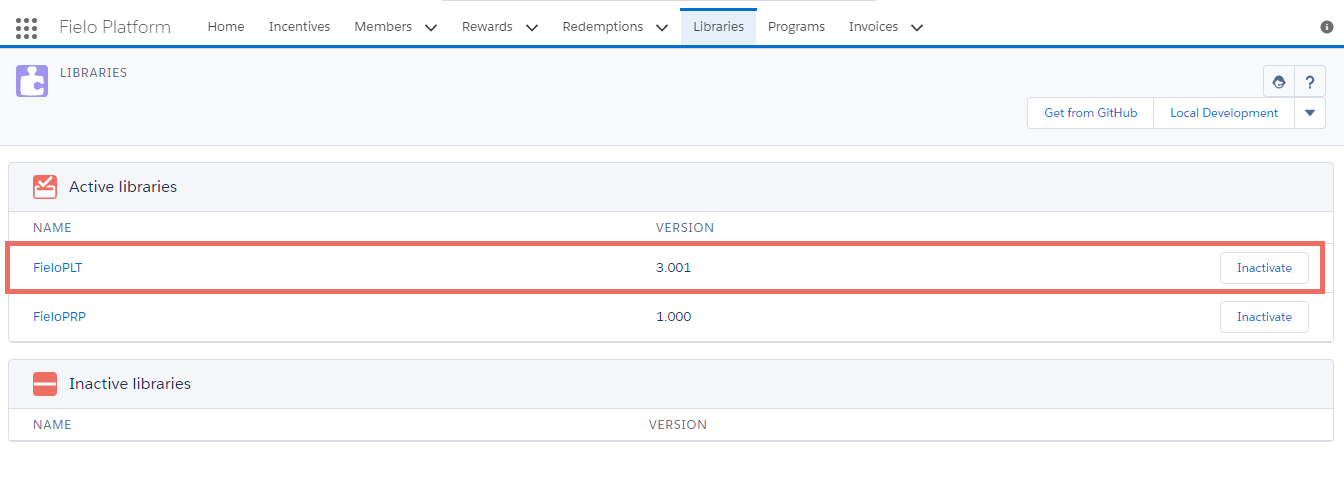
FieloPLT in Active Libraries
Then click on Event from the Actions box.
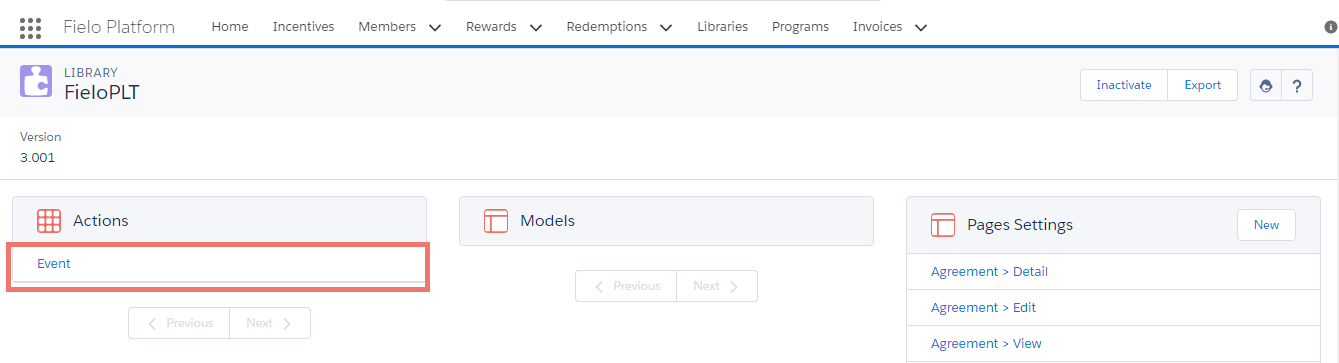
Event in Actions
Scroll down to KPIs and click New.
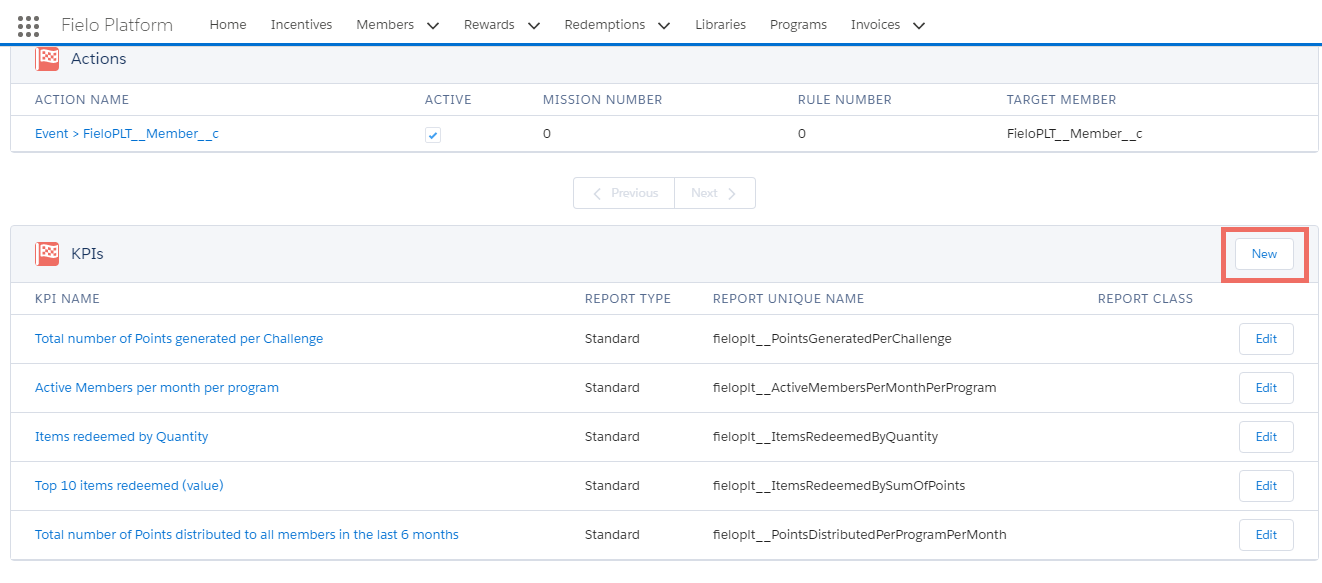
Creating a new KPI
Now, fill out the following fields in order:
- Action Trigger: Don't worry about this field, it will be filled out by default.
- KPI Name: The name you want to give to the KPI.
- Report Type: You should choose Standard. That means you'll use a standard Salesforce Report to measure this KPI.
- Type: Here you choose where you'll use your KPI — in a Program, Promotion or Challenge.
- Frequency: Select how often you want the KPI to be measured.
- Report Unique Name: Here you'll attach your KPI to a Report. Select from a picklist of all Salesforce Reports in your org.
- Report Objective Field: Select from a picklist which displays all of the possible measurements that can be used to assess an Objective.
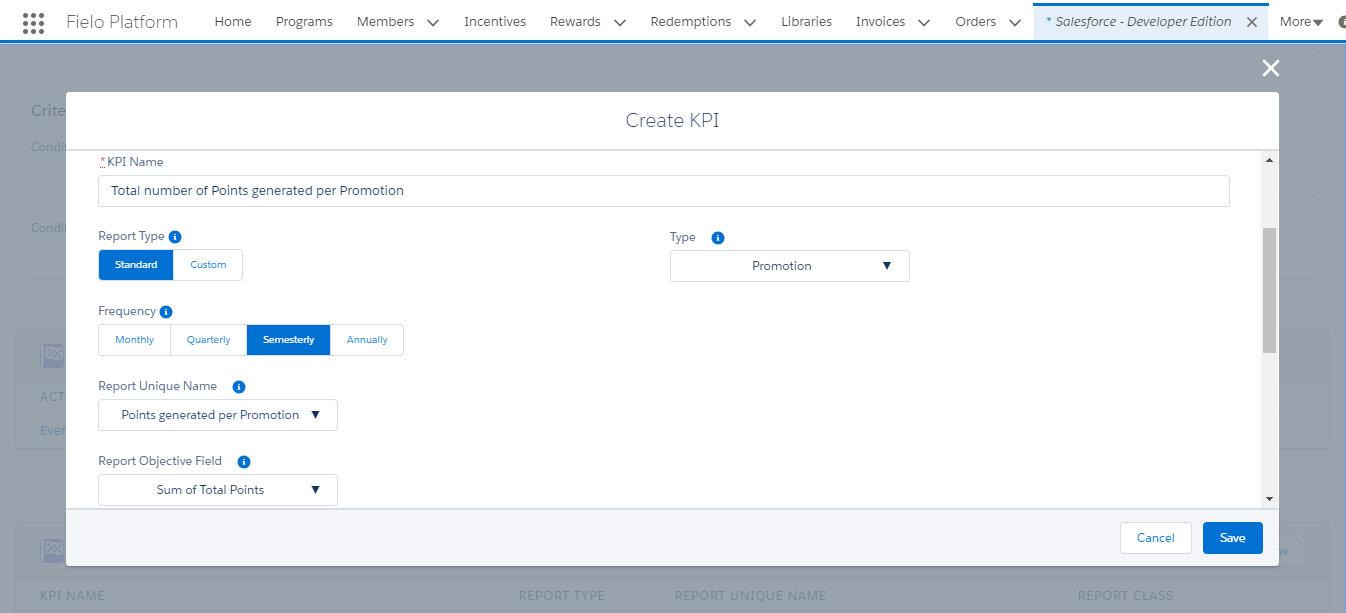
Example KPI: Points generated per Promotion
- Filter
Finally, you'll need to specify which records from the object you chose in Type (Program, Promotion or Challenge) you want to include in your report by filtering values from one or more fields.
Let's walk through how to apply this:
- Under Report Field, select the field you want to filter by.
- Under Operator, choose the operator with which you want to compare the field.
- If you want to compare the value of the field in Report Field with the value of another field, tick Field. Otherwise, leave unticked .
- Under Value, enter the number or text value you want to compare with the field in Report Field or, if Field is , choose the field whose value you want to compare with the field in Report Field.
To add another criterion, click New and follow the same process to define it. You can remove a criterion by clicking .
For example, if you want to generate a report on the points generated by a given Promotion, you can add the following filters:
- Promotion
equalsPromotion: Record ID- Point: Created Date
less or equalEnd Date- Point: Created Date
greater or equalStart DateThese filters ensure that the report will only include the current Promotion record and Points awarded during the Promotion period.
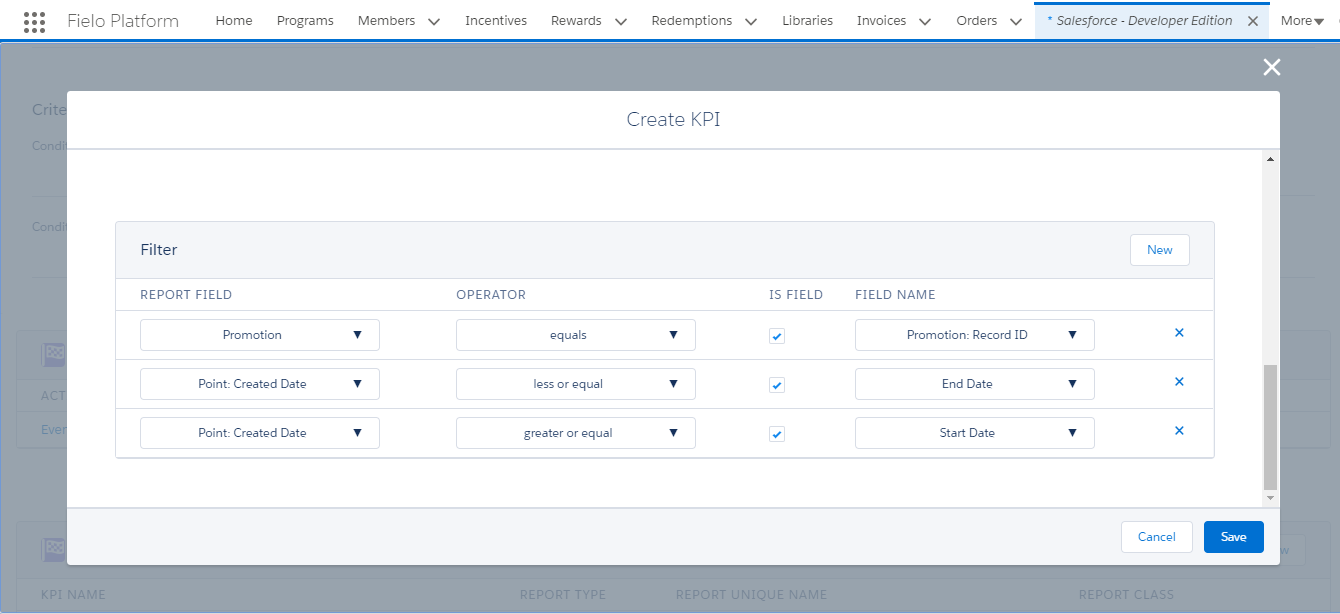
Example KPI: Points generated per Promotion
Now your KPI is ready! You'll be able to use it to make objective-orientated Reports for your Programs, Promotions and Challenges.
Updated over 1 year ago