
Getting Started with Fielo Components for Community Cloud
Give your Community users the best loyalty experience out there
Does your organization use Salesforce Community Cloud? With Fielo Lightning Components, you can build Fielo's best features into your Communities-based loyalty portal. They're easy to use. Simply drag and drop components onto your pages in Community Builder and, voilà, watch your members' incentive and loyalty experience come to life! Let's get started.
Browser CompatibilityFor maximum compatibility, we recommend that Fielo components be viewed in the latest version of Google Chrome.
Edit Sharing Settings
Your new community will require the edits to the Sharing Settings section. Click on Setup from the top right navigation. Under the Home tab, search in the Quick Find box for Sharing Settings. Go into on Sharing Settings and click on the Edit button. You will need to ensure the following optinos have the correct settings for Default Internal Access and Default External Access.
Go through the list and find and change the settings for each item in the picture below. For example, find User within the list and ensure that it is set to Public Read Only.
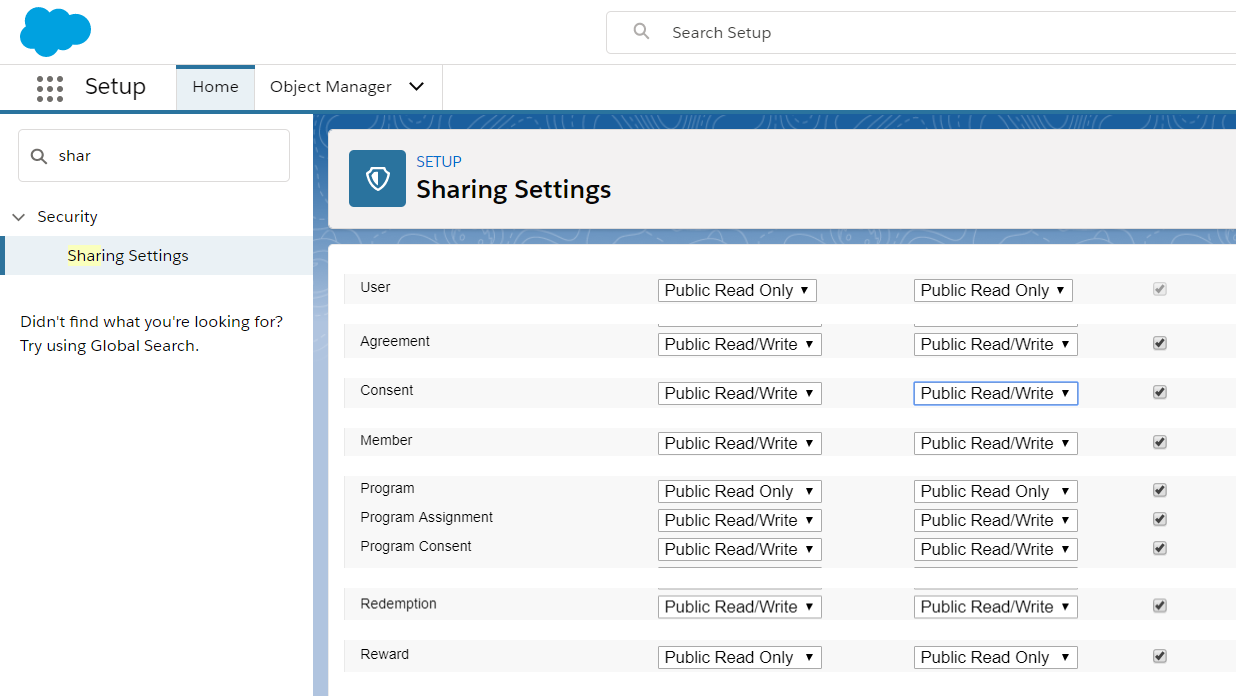
Once you have gone through all the items listed in the image above, go and click Save.
##Creating a Salesforce Community
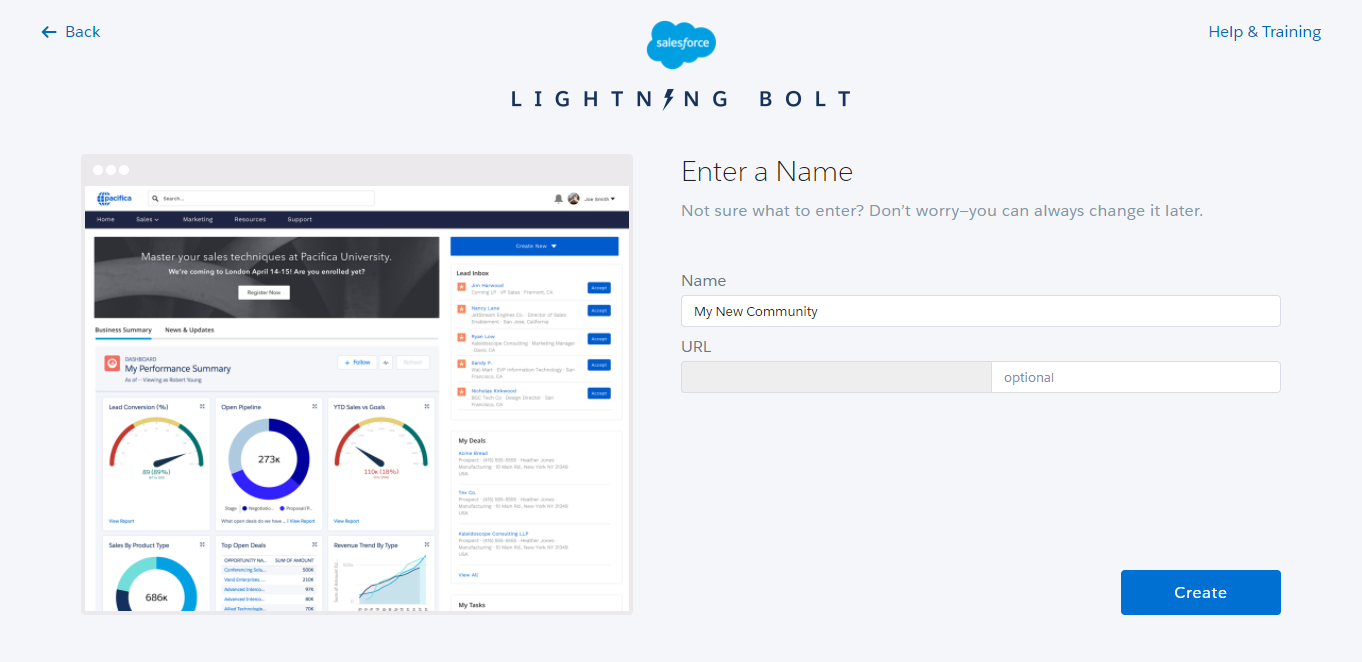
First thing's first: you must have a Community set up in your org. Be sure that you've enabled Communities and have the requisite Community User licenses.
You can get a quick introduction to Communities in the Community Cloud Basics Trailhead module. Then, learn about rollout strategies in the Community Rollout Strategy Trailhead module.
For a complete reference on creating a Community, check out Create Communities.
Getting Acquainted with Community Builder
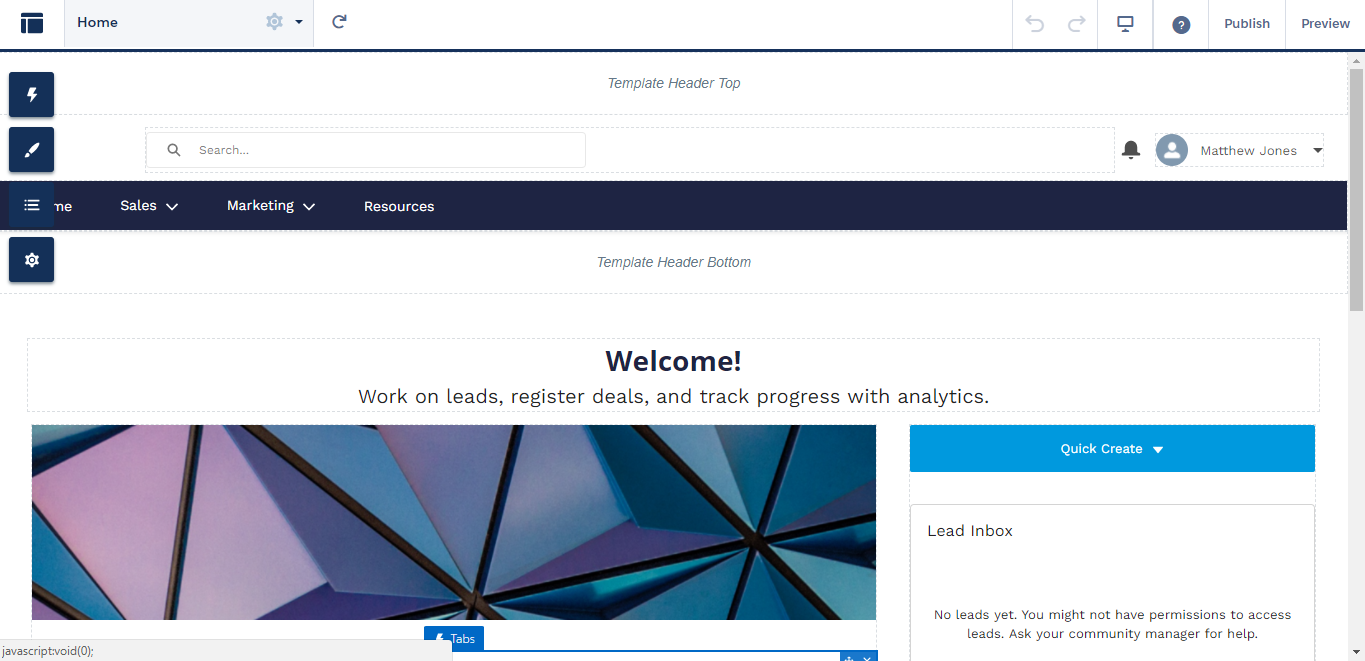
Community Builder is your tool for putting together an amazing loyalty portal for your member. In it, you can set up the page structure of your loyalty portal, add and edit content and much more. Take a look at Salesforce's Community Builder docs to learn about all of the features at your disposal.
Adding, Moving and Removing Lightning Components
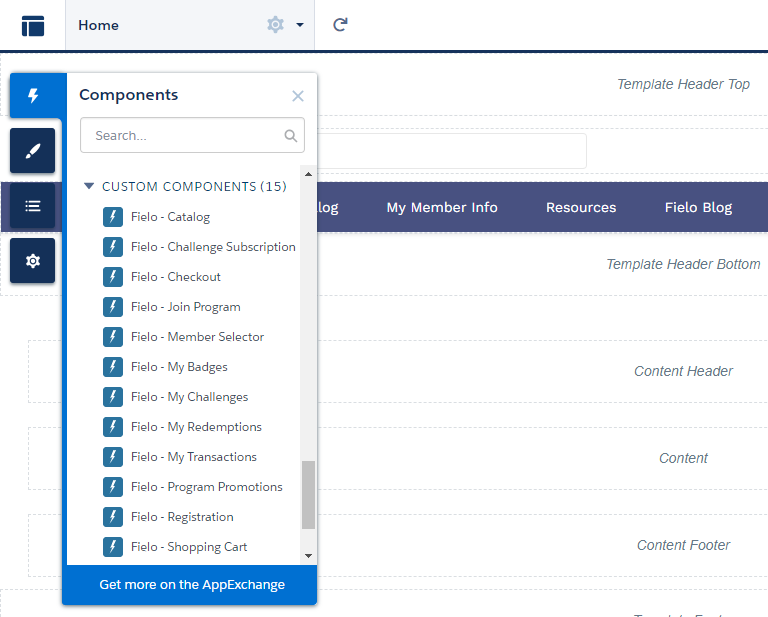
Lightning Components are very intuitive to add, move and remove. From any page in Community Builder, select the icon to see what components are available.
Lightning Components Menu
To add a component, click and drag it to the area of the page you would like to place it.
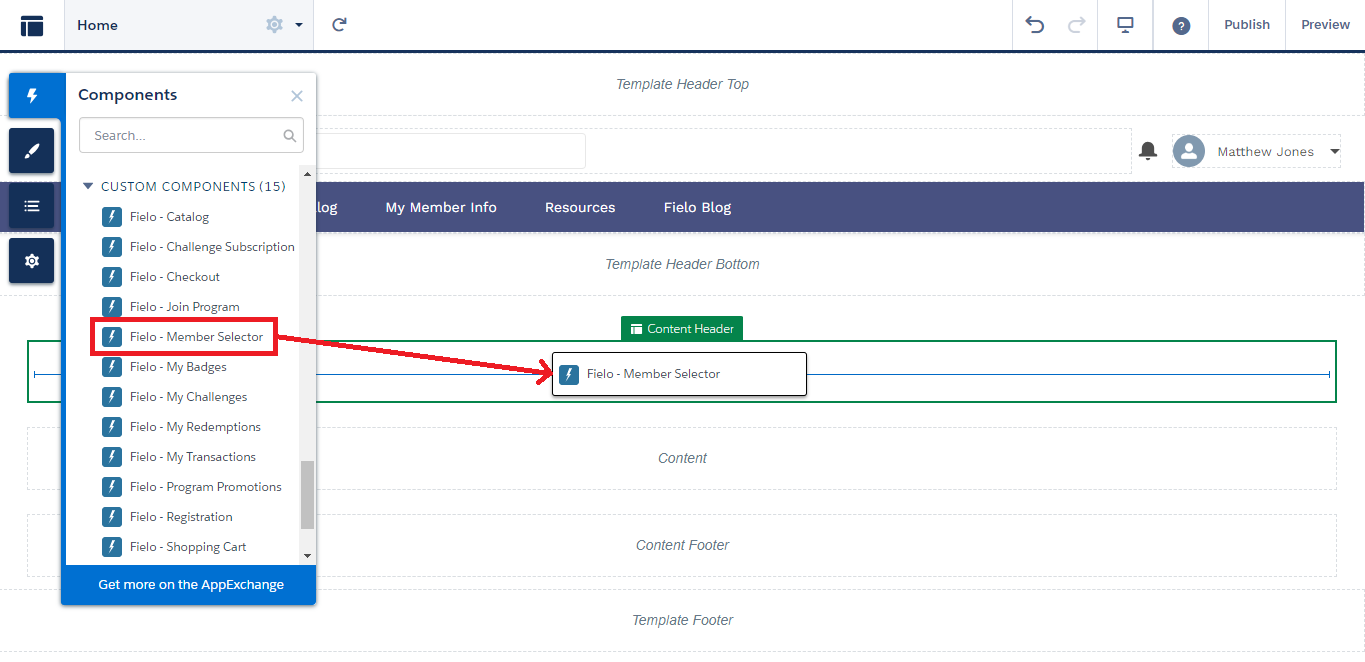
To move a component, click and hold on the icon and drag it to the desired location.

To remove a component, click on the icon.

To duplicate a component or assign one to an Audience, click on in its properties window and select the desired option.
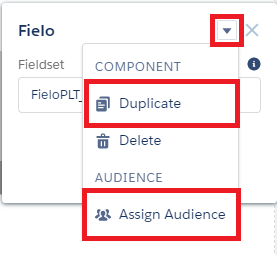
Component Dropdown Menu
Activating Your Community
If you're starting your Community from scratch, you'll want to be sure to activate it when you've finished building out your incentive and loyalty content. See Salesforce's Activate Your Community doc for details.
Remember that when you activate a Community, it will be go live on the Internet and a welcome email will be sent to all users whose profile is associated with the Community.
Fielo Lightning Components
Now, we'll take a deep dive into all of the ways your loyalty portal can leverage Fielo incentive and loyalty solutions.
Updated over 1 year ago
What's next
If you're deploying a brand new loyalty portal, start with Registration.
If you're looking to enable registered users of a preexisting Community to join a Fielo program, check out Join Program.