
Incentivizing Courses and Modules
How to configure an E-learning incentive in your Program
Once you've created your Course and all its constituent Modules and Questions, you need to actually create an Incentive in the Program to ensure that when your Members take a Module or an entire Course they are rewarded with Points and/or Instant Rewards and/or Instant Badges. It's the Rewards after all, that drive your Members towards greater E-learning success!
This is the part of the process where you configure what exactly it is you are incenting, and the detailed settings of the Rules - i.e. what exactly the Member needs to do, and what particular elements of the e-learning Course will earn them Points. Will it be simply taking part? How many Points will they earn? Will there be more than one way of earning Points?
Setting up a Promotion
This is all explained in Incentives: Promotions. It's a simple process in which you define a Promotion name, its period and Segments, if applicable. You can create as many Promotions as you like and each can include several Rules as well.
Defining Rule(s)
This is the stage at which you determine what exactly earns your Members Points.
You can set as many Rules as you like for a given Promotion. After entering the Rule name you need to select the Rule Type which will depend on how many Rules you include. You can also decide:
- whether rules "compete" with each other or not.
- if you want your Members to only obtain Points or Instant Rewards and Instant Badges as well.
Now you need to determine the following:
- Action: for the E-learning App, there are two options here: Module Response or Course Status. These Actions already come when installing ELR and they become available when you enable FieloELR Library.
- Target Object: This field will automatically be filled, when you select Module Response or Course Status.
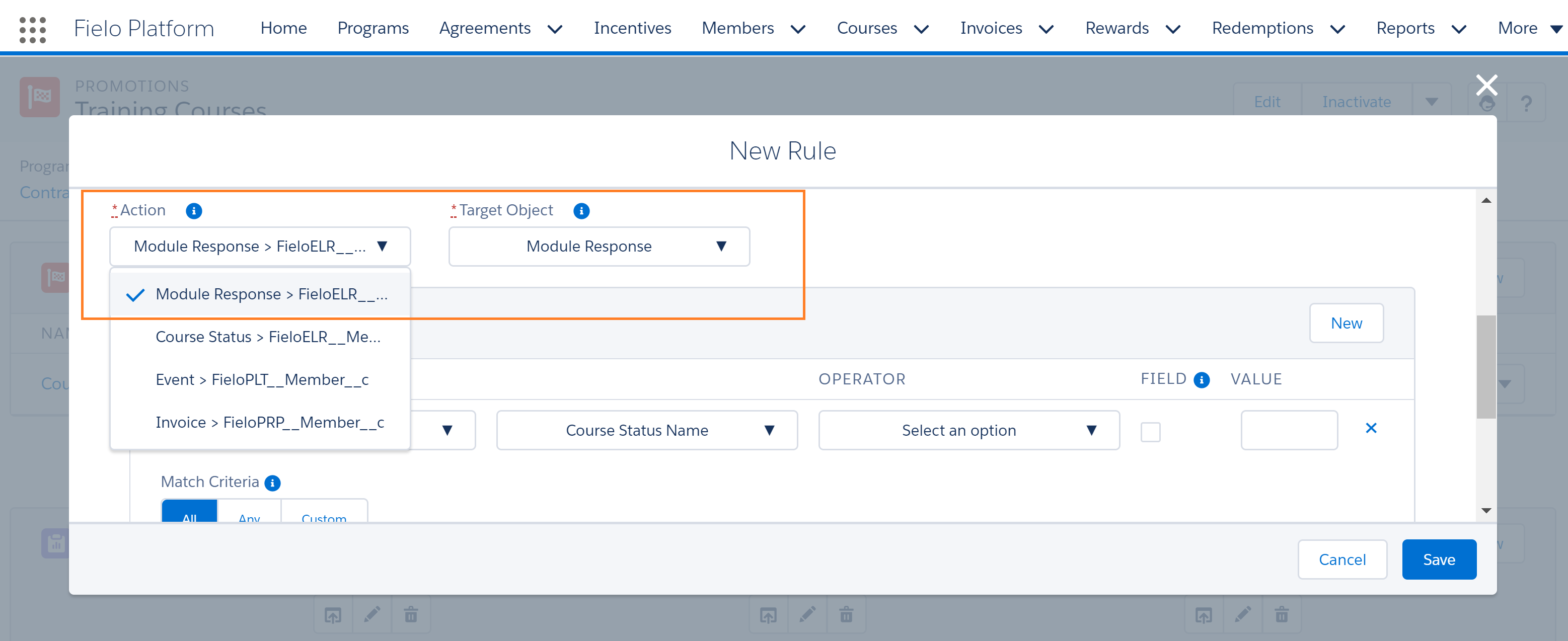
Action: Module Response
Module Response Action
Selecting Module Response means you want to reward your Members based on aspects of each given Module e.g. completing the Module or attempting it.
Once you've selected Module Response under Action, you need to determine what the Filter Criteria for the Rule is i.e. what aspect of the Module you want to give your Members points for. Here are a few options:
- Grade: You can set the Rule so that the Member earns Points if they reach a certain Grade in the Module e.g. If they get 70%, they will earn 100 Points.
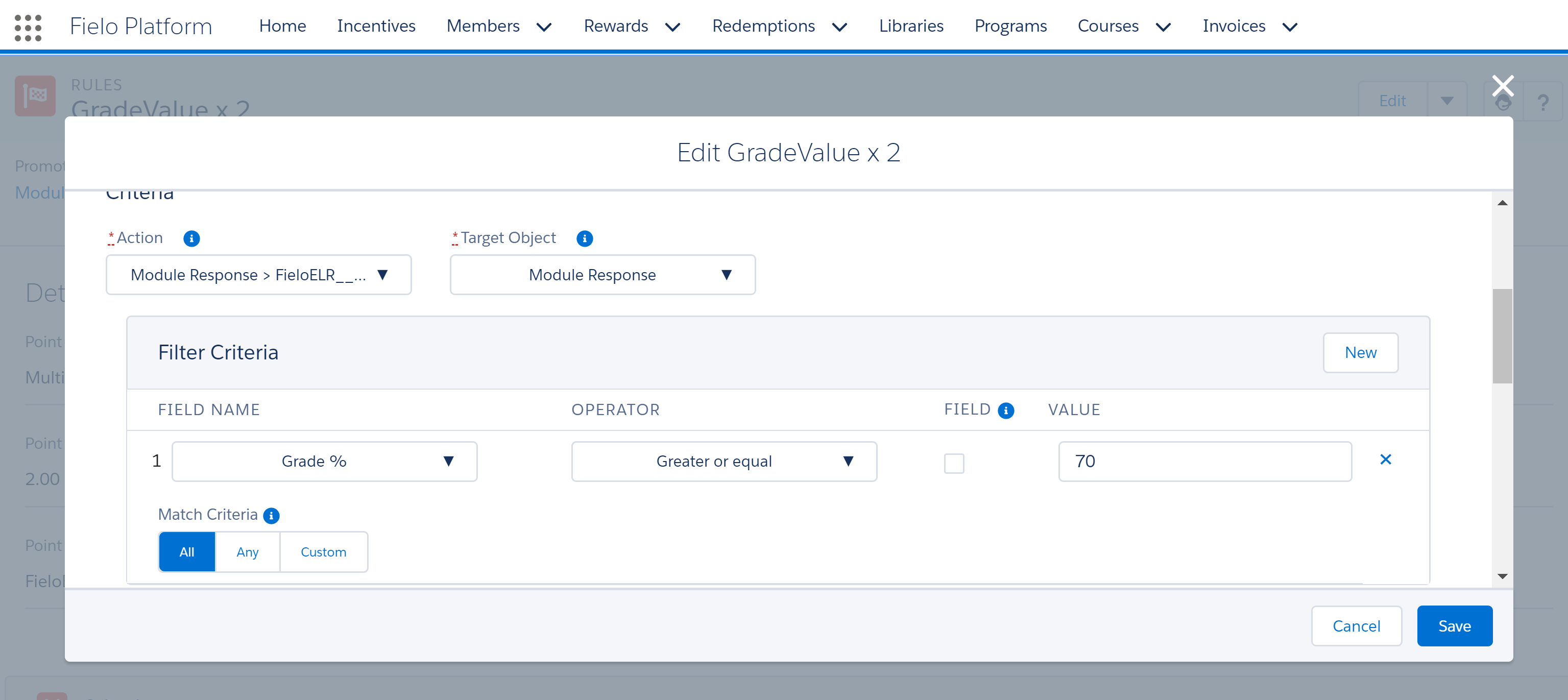
Module Response: Grade 70%
- Passed: By selecting this, you determine that your Members get Points based solely on whether they successfully pass a Modules e.g. Passing a Module, will earn them 50 Points
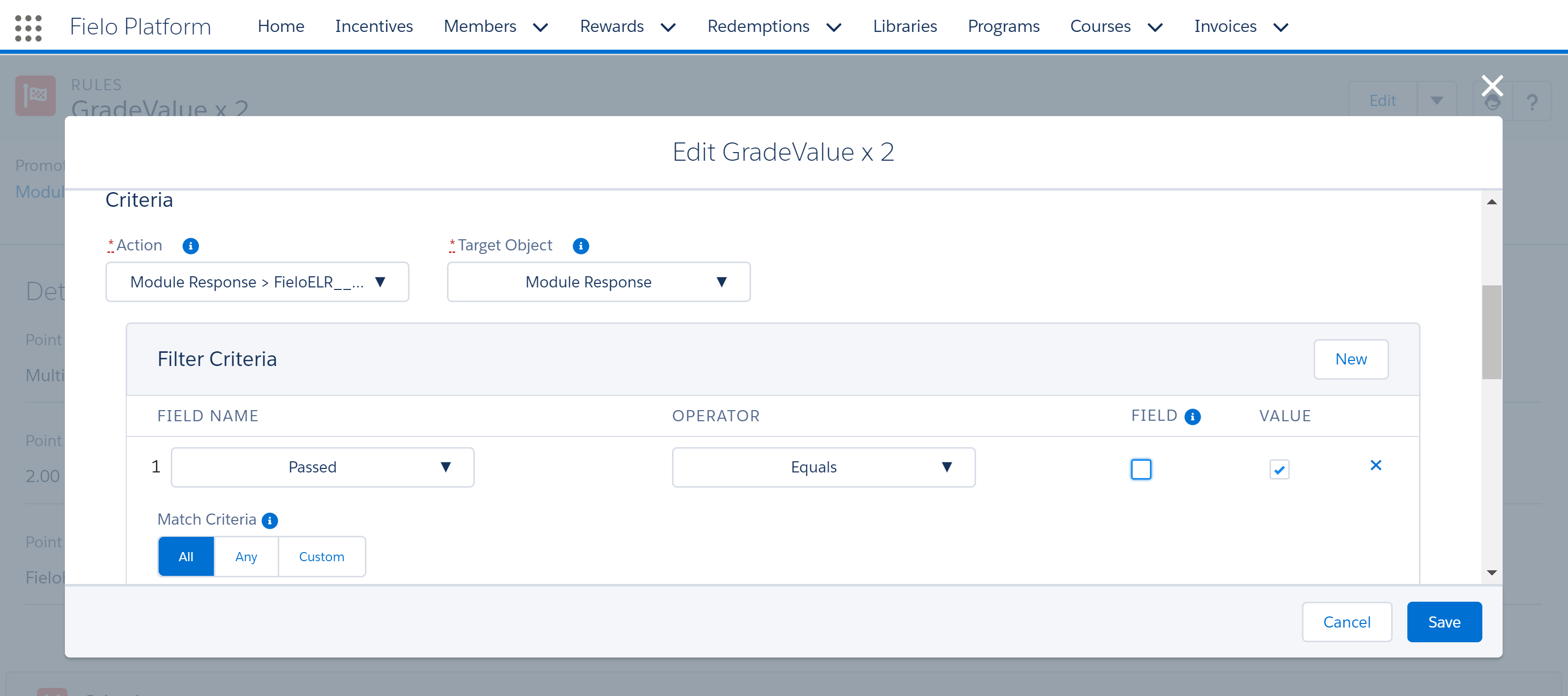
Module Status: Passed
Course Status Action
Selecting Course Status means you want to reward your Members based on aspects of each given Course e.g. completing the Course, it being approved, or how well they did in it.
- Approved Modules: You can reward your Members with Points based on how many Modules within a given Course they have completed, and have been Approved. For example, if your Course has three Modules, you can set your Rule so that the Member has to have two Modules approved in order to received Points.
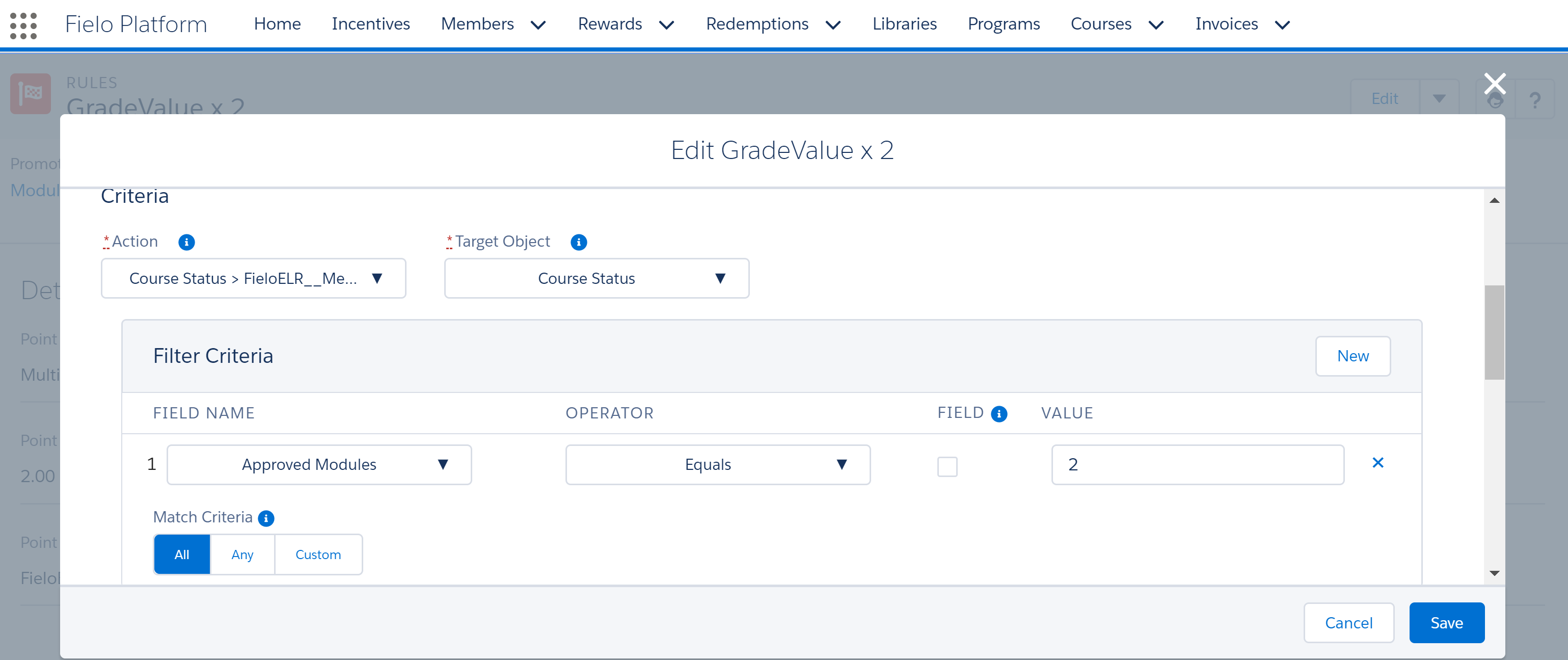
Course Status: Modules Approved
- Progress: If you select this option, you can reward your Members based on how well they have progressed through the Course. For example, you can set it up so that the Member only gets Points once they have completed 90% of a Course.
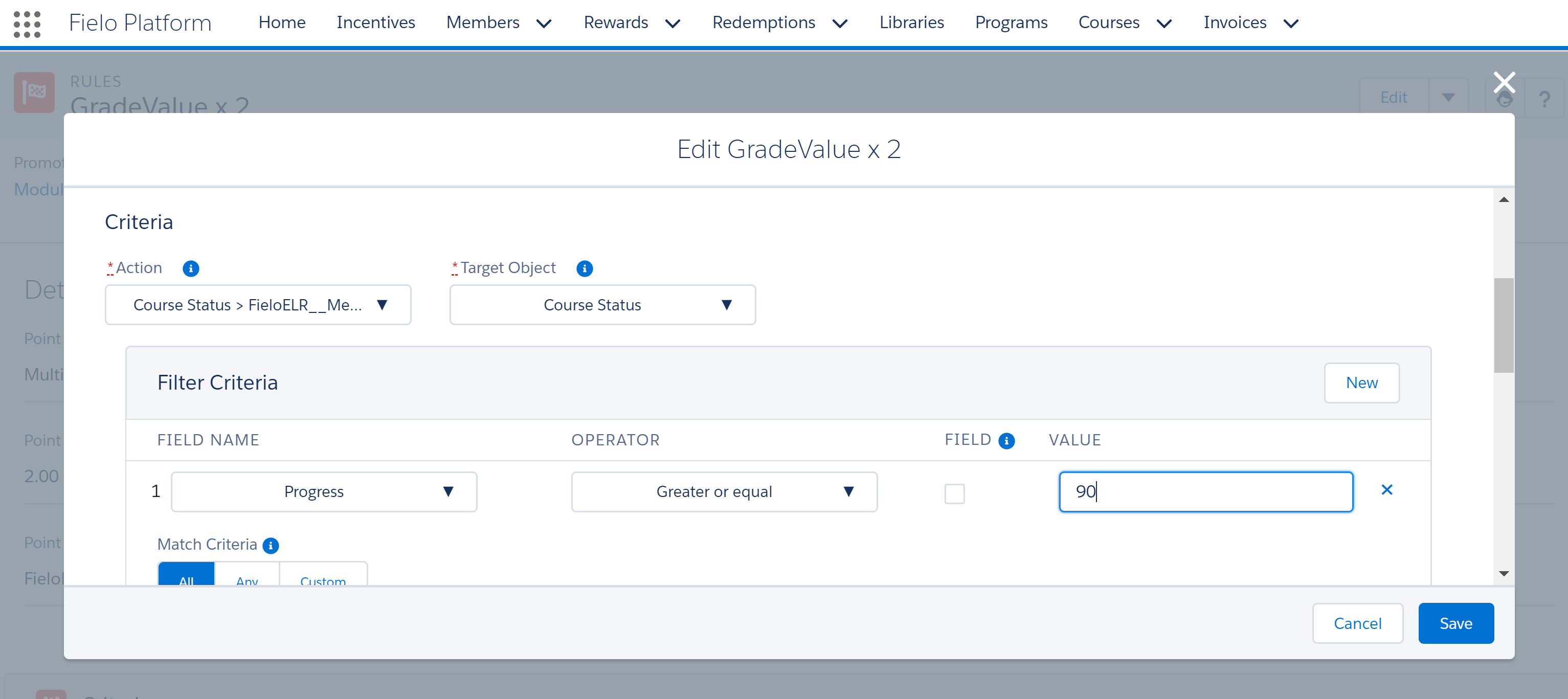
Course Status: Progress
No Competition and Best Option
You now need to choose how the Rule will grant Points to Members. If you choose the Rule Type No Competition, you're able to configure the Rule so that Members can earn Instant Rewards and Badges as well.
You will then Save your Rule settings and finally Activate your Promotion. Do not forget to find out all about how to manage Rules.
Models
We've made your life a little bit easier by creating some pre-configured Models. These Models already have Promotion and Rules set up so all of the heavy lifting has already been done for you. There are two Models you can use for Promotions: Module Promotion and Course Promotion.
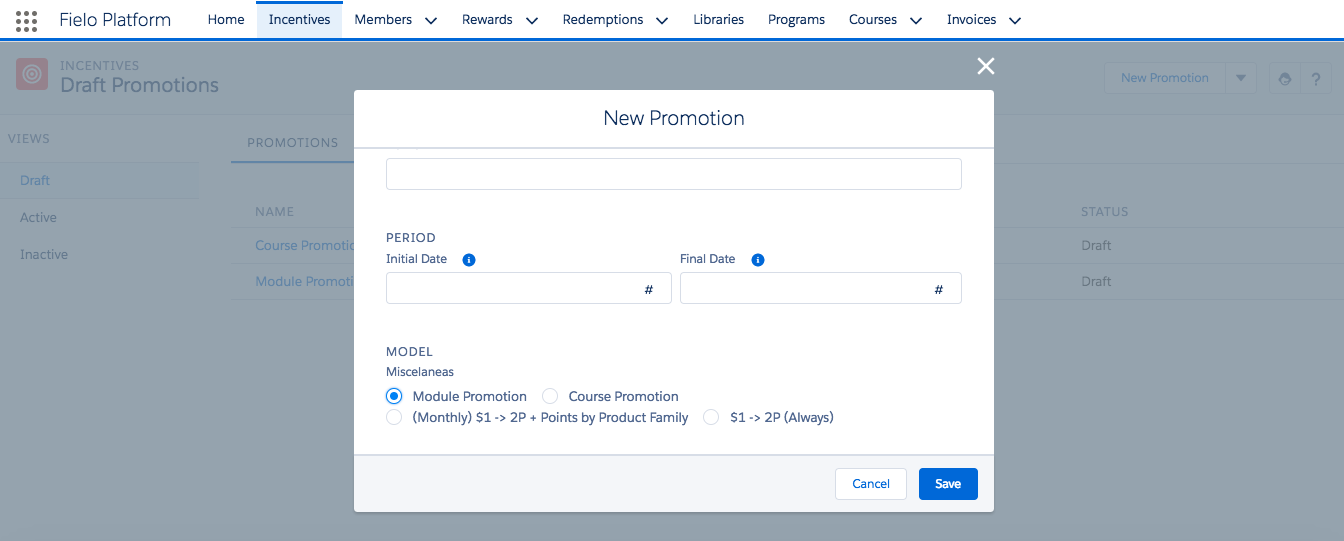
Promotion Models
Module Promotion Model
The Module Promotion Model has one Rule. This Rule is configured so that whatever grade a Member gets in the Module, they get double that value in Points.
When you select the Module Promotion model, and press Save, you're taken through to a Promotion overview Page. You can then see there is one pre-configured entry in the Rules box. Click on this entry and select Edit to see the settings.
The Action is set up as Module Response and so is the Target Object, and the Filter Criteria is set up as follows:
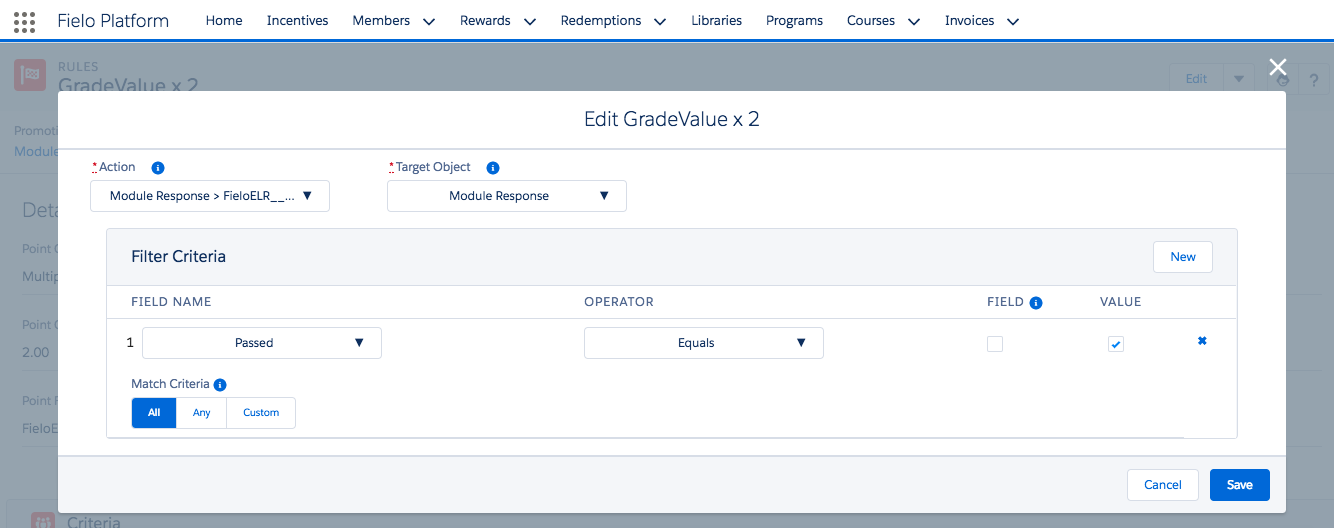
Module Promotion Model: Criteria
This means that the Rule hinges on the Member passing a Module. As Value is selected, it means that it also hinges on the Value (or grade) they obtained in the Module.
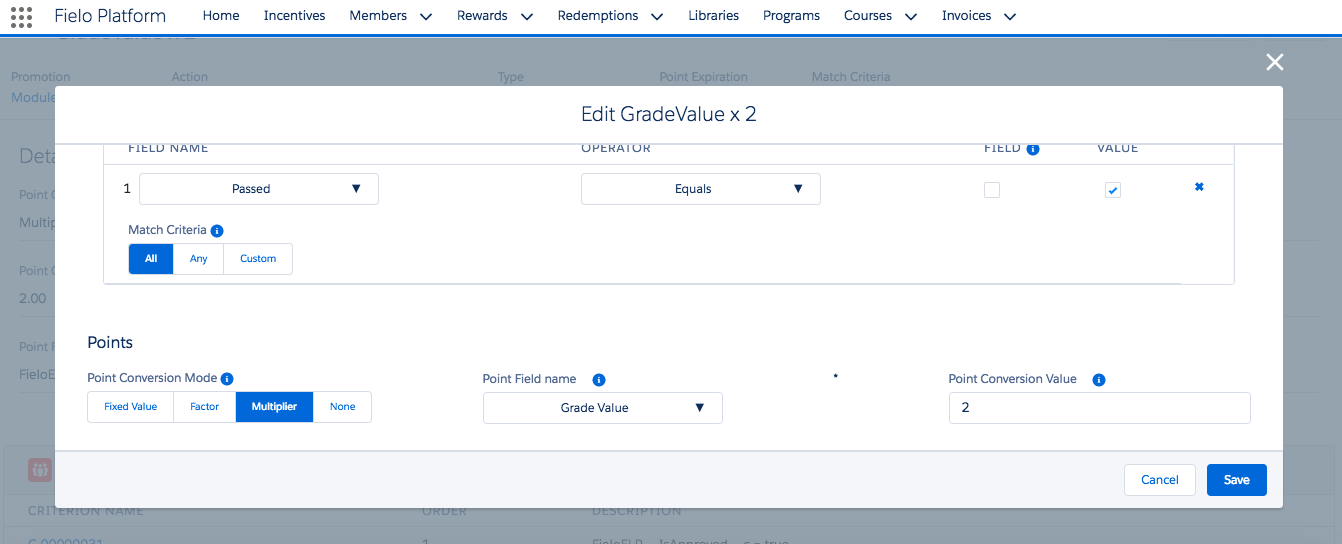
Module Promotion: Points Conversion
As you scroll down you can see that the Multiplier option has been selected, along with Grade Value and the number 2. Therefore, the Member will receive Points equal to their Grade Value multiplied by 2.
You can change the name of this Rule, add more Filter Criteria, change the Multiplier and much more. You can also add more Rules to your Promotion. This is just a Model after all and you are in charge!
Course Promotion Model
The Course Promotion Model has one Rule. This Rule is configured so that if your Members get 100% in the Course, they get 100 points.
When you select the Course Promotion Model, and press Save, you're taken through to Promotion overview. You can then see there is one pre-configured entry in the Rules related list. Click on this entry and select Edit to see the settings.
The Action is set up as Course Status and so is the Target Object, and the Filter Criteria is set up as follows:
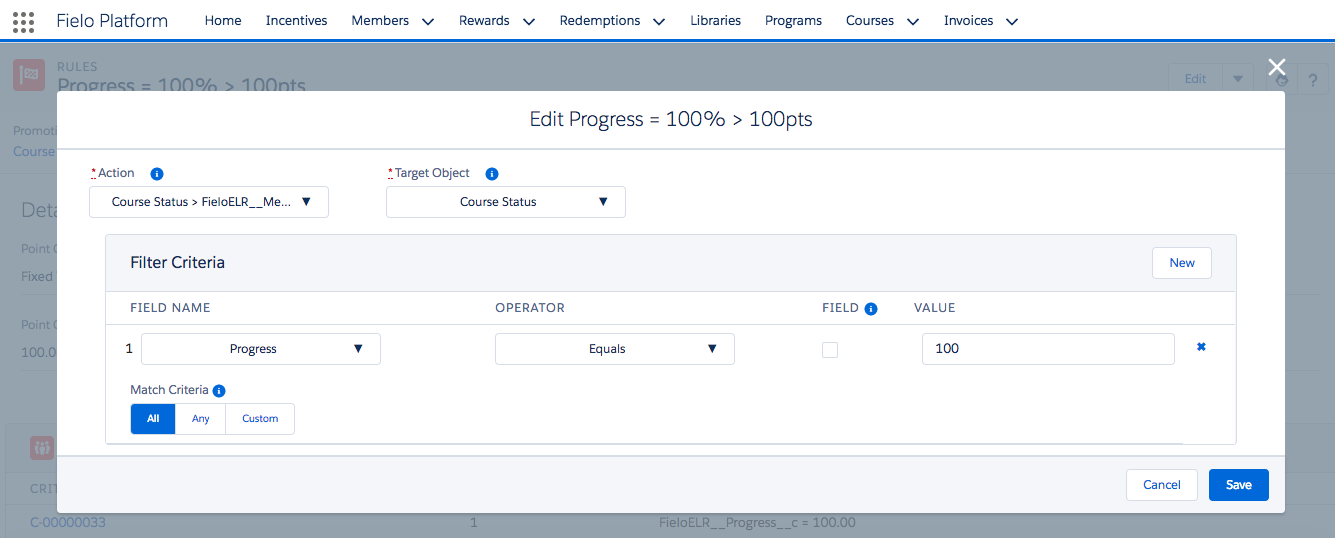
Course Promotion Model
Progress is selected as the criteria of the Course around which Members can earn Points. As the Value selected is 100, it means that the Member has to get 100% in order to earn Points.
It is set up so that the Member earns a fixed amount of Points when they reach this target, and this Fixed Value is set at 100 Points.
You can change the name of this Rule, add more Filter Criteria, change the Points Value and much more. You can also add more Rules to your Promotion. This is just a Model after all and you are in charge!
Reviewing Transactions
Once a Member has successfully passed the criteria of the Rule, the Action will automatically be processed by the Rule Engine, and that Member will be given Points which can be redeemed for Points.
If you want to review these Transactions, go to the Members tab and select the Member you want to review by clicking on their name. Scroll down and you'll get to a box called Transactions where you'll see a list of all of the Processed Actions which have generated Points for your Member.
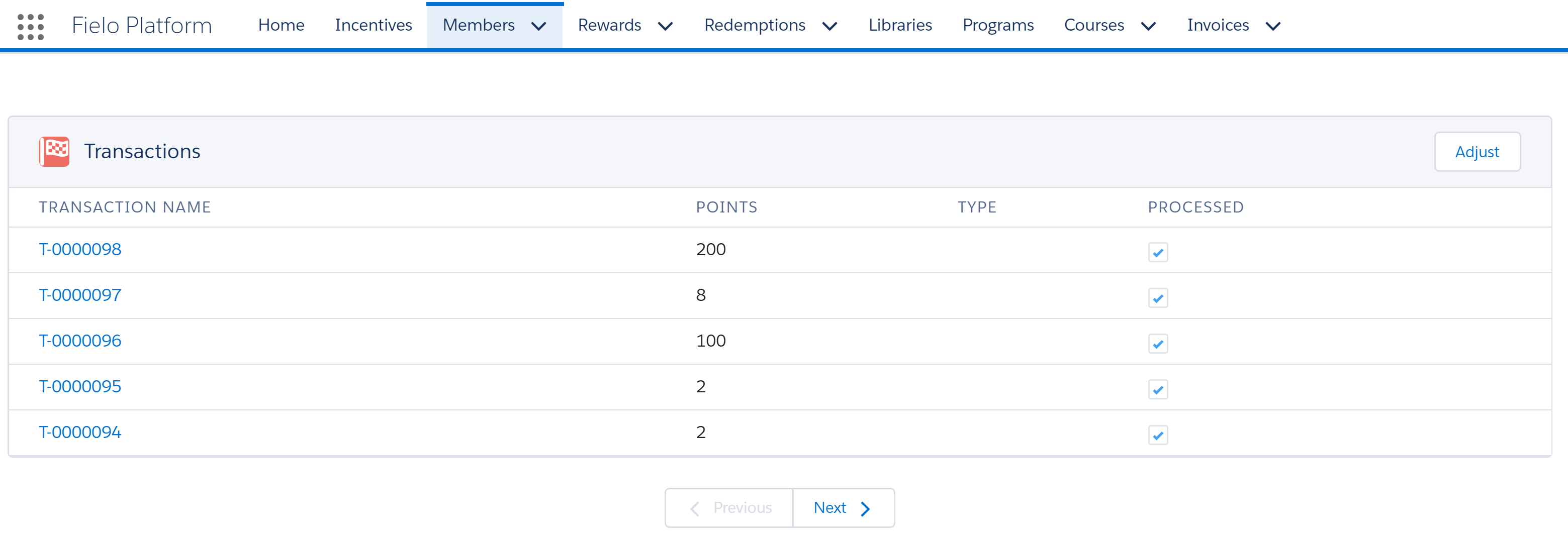
Member Transactions
If you want to review the details of a given Transaction, simply click on the entry and you can see the elements of the Promotion and Rule which generated Points for your Member.
Updated over 1 year ago