
Upgrade from Spring '18 to Summer '18
If you're using our Spring '18 release (v2.51.x), upgrade to Summer '18 (v2.56.6) and enjoy stunningly redesigned lightning components for Community Cloud, GDPR compliance tools, and more.
Versions Prior to 2.51.xIf you're using FieloPLT v2.49 or before, first follow these upgrade instructions for each version up to and including 2.51.
Before getting started, make sure you're logged into your Salesforce org and have system administrator permissions.
Important Consideration: Legacy Lightning ComponentsWe've made significant improvements to our lightning components for Community Cloud. If you're using them in v2.51.6 or earlier, you'll need to delete and replace them with our new-and-improved components after upgrading to Summer '18.
How to Upgrade
Once you're ready to go, follow these steps to upgrade:
- Click here to access the IAS installation package.
- If you're using Salesforce Community Cloud with Fielo lightning components, select Install for Specific Profiles. Otherwise, select Install for Admins Only and skip to step 4.
- Scroll down and find the Community User profile(s) that you'll use with your program members. From the corresponding picklist(s), choose Fielo Community.
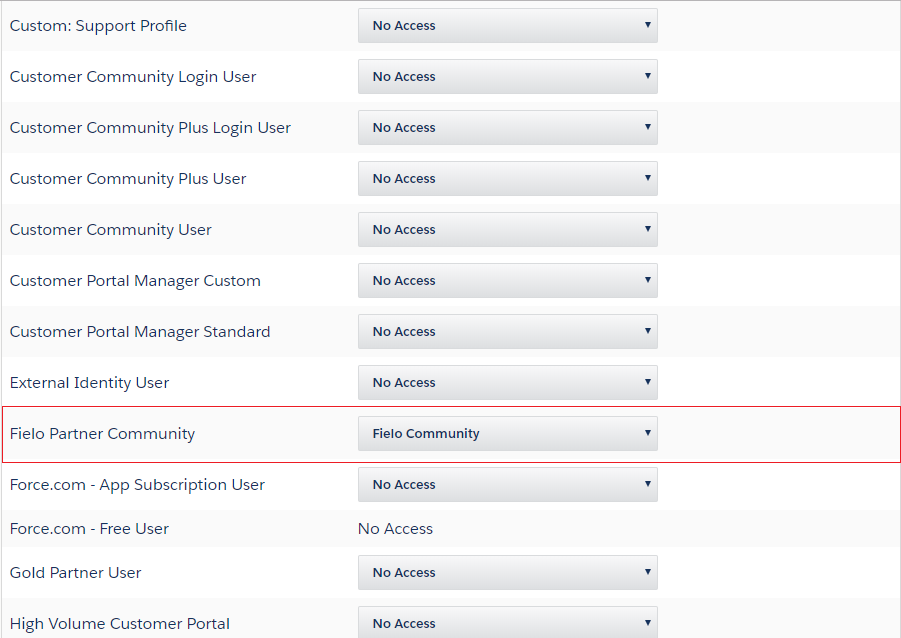
- Click Install. When the upgrade process is finished, you (or the org admin) will be notified by email.
- Once you've received confirmation that the upgrade was successful, click the app launcher and enter IAS ("Fielo Platform").
- In the Libraries tab, upgrade the FieloPLT library to v4.000.
- In the Salesforce Object Manager, access the Member object and add the following picklist values to the Status field (Careful! These picklist values are case sensitive):
- Opt-out
- Merge Pending
- Merged
- Anonymized
- Banned - Access the Redemption object and, on the Status field, deactivate the following picklist value:
- Open - Access the Mission object and add the following picklist value to the Table Type field:
- Cumulative - On the Salesforce Developer Console, select Query Editor and execute the following query:
SELECT Id, Name FROM FieloPLT__PageSettings__c WHERE FieloPLT__Object__c = 'FieloPLT__ProgramPointType__c' AND (FieloPLT__Type__c = 'New' OR FieloPLT__Type__c = 'Edit') AND FieloPLT__IsActive__c = true AND FieloPLT__ExternalId__c != 'FieloPLTPageSettingsProgramPointTypeEdit' - If no records are retrieved, skip to the next step. Otherwise, access each of the Page Settings that were returned by the query and remove the following fields (if found) from Sections:
- FieloPLT__Program__c (Type: lookup)
- FieloPLT__PointType__c (Type: picklist)
- FieloPLT__RequestPointApproval__c (Type: checkbox)
- FieloPLT__AuditPoints__c (Type: checkbox)
- FieloPLT__ExpirationMode__c (Type: picklist) - Then, on the Developer Console menu, click Debug and select Open Execute Anonymous Window.
- Update Fielo's standard point type Points by executing the following script:
//Point represents standard Fielo Points
String defaultPointName = 'Point';

List<FieloPLT__PointType__c> pointTypes = [SELECT Id, Name, FieloPLT__TransactionExpirationDateField__c FROM FieloPLT__PointType__c WHERE Name LIKE: defaultPointName LIMIT 1];
for(FieloPLT__PointType__c pt : pointTypes){
pt.FieloPLT__TransactionExpirationDateField__c = 'FieloPLT__PointExpirationDate__c';
}
update pointTypes;- If you're only using standard Fielo points, skip to step 17. Otherwise, if you have custom point types, go to the Salesforce Object Manager and access the Point Type object. Click Page Layouts and add the Transaction Expiration Date Field to the Point Type Layout.
- For every one of your custom point types (e.g. Miles, Tokens, etc.), create the following field of type Date in the Transaction object, as described in Using Multiple-Point Types.
- Transaction Expiration Date (e.g. Miles Transaction Expiration Date) - From the Programs tab in IAS, click and select Point Types. In each of your custom point types, fill in the Transaction Expiration Date Field with the API name of the field you created in the previous step (e.g.
Miles_Transaction_Expiration_Date__c). - Back on the Salesforce Developer Console, in the Execute Anonymous Window, run the following script:
Set<String> externalIds = new Set<String>();
externalIds.add('FieloPLTPageSettingsBadgeLanding');
externalIds.add('FieloPLTPageSettingsBadgeView');
externalIds.add('FieloPLTPageSettingsBadgeEdit');
externalIds.add('FieloPLTPageSettingsBadgeRelatedBadgeMember');
externalIds.add('FieloPLTPageSettingsBadgeRelatedRule');
externalIds.add('FieloPLTPageSettingsBadgeRelatedChallengeReward');
externalIds.add('FieloPLTPageSettingsBadgeMemberNew');
externalIds.add('FieloPLTPageSettingsBadgeDetailImage');
externalIds.add('FieloPLTPageSettingsLevelDetailImage');
externalIds.add('FieloPLTPageSettingsRewardDetailImage');
externalIds.add('FieloPLTPageSettingsChallengeDetailImage');
externalIds.add('FieloPLTPageSettingsProgramDetailImage');
externalIds.add('FieloPLTPageSettingsPromotionDetailImage');

List<FieloPLT__PageSettings__c> pageSettings = [SELECT Id, FieloPLT__IsActive__c FROM FieloPLT__PageSettings__c WHERE FieloPLT__ExternalId__c IN: externalIds AND FieloPLT__IsActive__c = false];
for(FieloPLT__PageSettings__c ps: pageSettings){
ps.FieloPLT__IsActive__c = true;
}
update pageSettings;- Clear the window and run this script:
Set<String> externalIds = new Set<String>();
externalIds.add('FieloPLTPageSettingsPromotionDetail');
externalIds.add('FieloPLTPageSettingsChallengeDetail');
externalIds.add('FieloPLTPageSettingsRuleViewRecurrentDate');
externalIds.add('FieloPLTPageSettingsRuleViewSpecificDate');
externalIds.add('FieloPLTPageSettingsRuleViewDaysOrMonths');

List<FieloPLT__PageSettings__c> pageSettings = [SELECT Id, FieloPLT__IsActive__c FROM FieloPLT__PageSettings__c WHERE FieloPLT__ExternalId__c IN: externalIds AND FieloPLT__IsActive__c = false];
for(FieloPLT__PageSettings__c ps: pageSettings){
ps.FieloPLT__IsActive__c = true;
}
update pageSettings;- Again, clear the window and run this script:
Set<String> externalIds = new Set<String>{'00D50000000WsHF-a0i5000000Cv44p','00D50000000WsHF-a0i5000000Cv45T','00D50000000WsHF-a0i5000000Cv45Y'};
delete [SELECT Id FROM FieloPLT__KPI__c WHERE FieloPLT__ExternalId__c IN: externalIds];- One more time, clear the window and run this script:
//Update the Configuration Summary field in Mission
Set<Id> missionIds = new Set<Id>();
//Busco Missions con el campo ConfigurationSummary vacio
for(FieloPLT__Mission__c m : [SELECT Id, FieloPLT__ConfigurationSummary__c FROM FieloPLT__Mission__c]){
    if( m.FieloPLT__ConfigurationSummary__c == null ){
        missionIds.add(m.Id);
    }
}
//Traverse all of the ChallengeReward fields to see if they're using multiple point types
SObjectType challengeRewardObj = Schema.getGlobalDescribe().get('FieloPLT__ChallengeReward__c');
List<String> fieldList = new List<String>{'Id','Name'};
for(String s : challengeRewardObj.getDescribe().fields.getMap().keyset()){
    if( s.contains('__c') ){
        fieldList.add(s);
    }
}
String query = 'SELECT Id, FieloPLT__ConfigurationSummary__c ,(SELECT '+String.join(fieldList,',') +' FROM FieloPLT__ChallengeRewards__r ORDER BY FieloPLT__Position__c), (SELECT Id, FieloPLT__Mission__c, FieloPLT__Operator__c, FieloPLT__Order__c, FieloPLT__FieldType__c, FieloPLT__FieldName__c, FieloPLT__DateValue__c, FieloPLT__BooleanValue__c, FieloPLT__IsField__c FROM FieloPLT__MissionCriteria__r ORDER BY FieloPLT__Order__c) FROM FieloPLT__Mission__c WHERE Id In: missionIds';

List<FieloPLT__Mission__c> missions = Database.query(query);
for (FieloPLT__Mission__c m : missions) {
    Map<String, List<SObject>> configuration = new Map<String, List<SObject>>();
    Boolean addJSON = false;
    if( m.FieloPLT__ChallengeRewards__r.size() > 0){
        addJSON = true;
        configuration.put('rewarding', new List<SObject>( (List<SObject>)m.FieloPLT__ChallengeRewards__r) );
    }
    if( m.FieloPLT__MissionCriteria__r.size() > 0){
        addJSON = true;
        configuration.put('criterias', new List<SObject>( (List<SObject>)m.FieloPLT__MissionCriteria__r) );
    }
    if( addJSON ){
        m.FieloPLT__ConfigurationSummary__c = JSON.serialize(configuration);
    }
}
FieloPLT.SObjectService.enableAdminPermission(true);
update missions;
FieloPLT.SObjectService.enableAdminPermission(false);- Go back to the Salesforce Object Manager and, in the Challenge Reward object, delete the validation rule called ValidatesCreationAndEdition. If deletion is not possible, make sure it is deactivated.
- In the Challenge object, delete the validation rule called EditionValidation. If deletion is not possible, make sure it is deactivated.
- Also in the Challenge object, access the Status field. Under Values, change the label of
CompletedtoEnded. Leave the API name as it is. - In the Promotion object, access the Status field and, under Values, change the label of
CompletedtoEnded. Again, leave the API name as it is.
Congrats!You're ready to go with IAS Summer '18 edition.
New Objects and Fields
You may want to make sure your org permissions are up to date. Take a look at this reference guide on new objects and fields included in IAS Summer '18 edition.
We've added the following objects (in bold) and fields (in italics):
- Consent (FieloPLT__Consent__c)
- Code (FieloPLT__Code__c)
- Description (FieloPLT__Description__c)
- External ID (FieloPLT__ExternalId__c)
- Library (FieloPLT__Library__c)
- Member Consent (FieloPLT__MemberConsent__c)
- Active (FieloPLT__IsActive__c)
- Consent (FieloPLT__Consent__c)
- End Date (FieloPLT__EndDate__c)
- Member (FieloPLT__Member__c)
- Program Consent (FieloPLT__ProgramConsent__c)
- Consent (FieloPLT__Consent__c)
- Program (FieloPLT__Program__c)
We've also added new fields (in italics) to the following existing objects:
- Transaction
- Point Expiration Date (FieloPLT__PointExpirationDate__c)
- Point Type
- Transaction Expiration Date Field (FieloPLT__TransactionExpirationDateField__c)
- Program Point Type:
- Default Expiration Mode (FieloPLT__DefaultExpirationMode__c)
- Default Expiration Value (FieloPLT__DefaultExpirationValue__c)
- Default Expiration Date (FieloPLT__DefaultExpirationDate__c)
- Opt-Out Expiration Mode (FieloPLT__OptOutExpirationMode__c)
- Opt-Out Expiration Value (FieloPLT__OptOutExpirationValue__c)
- Program
- Consent Summary (FieloPLT__ConsentSummary__c)
- External URL (FieloPLT__ExternalURL__c)
- Image (FieloPLT__Image__c)
- Description (FieloPLT__Description__c)
- Member
- Consent Summary (FieloPLT__ConsentSummary__c)
- Join Date (FieloPLT__JoinDate__c)
- Merged To (FieloPLT__MergedTo__c)
- Opt-Out Date (FieloPLT__OptOutDate__c)
- External URL (FieloPLT__ExternalURL__c)
- Image (FieloPLT__Image__c)
- Badge
- External URL (FieloPLT__ExternalURL__c)
- Challenge
- Image (FieloPLT__Image__c)
- External URL (FieloPLT__ExternalURL__c)
- Promotion
- External URL (FieloPLT__ExternalURL__c)
- Image (FieloPLT__Image__c)
- Mission
- Configuration Summary (FieloPLT__ConfigurationSummary__c)
Updated over 1 year ago