
Mission Leaderboards
The Mission Leaderboards lets your members and partners see just how well they are performing compared to others working toward the same mission. When you establish competitions, have specific goals you want everyone to meet, or want people to see how they are doing compared to others, you can add this component.
Completed missions will be archived so that members can see how they have performed in the past as well.
Make sure to add Fielo MX - Member Selector” component on the pageIn order for any Fielo MX Component to work, you need to add the “Fielo MX - Member Selector” component on that page (or the “Fielo MX - Member Overview” with the Member Selector sub-component set). You can find more information here Member Overview.
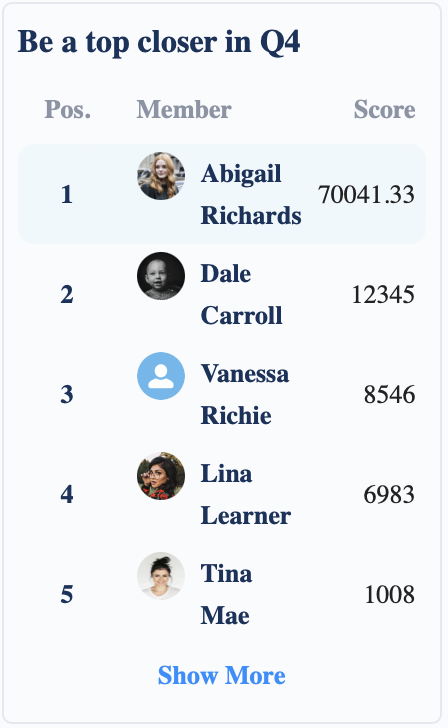
The component supports both Mission Leaderboard modes:
- Rank participants by order of completion
- Rank participants by performance, such as amount sold, courses taken, or sales closed
You can also set up a Mission Leaderboard to work with B2B programs that use Organization Members with associated Individuals or Contributors.
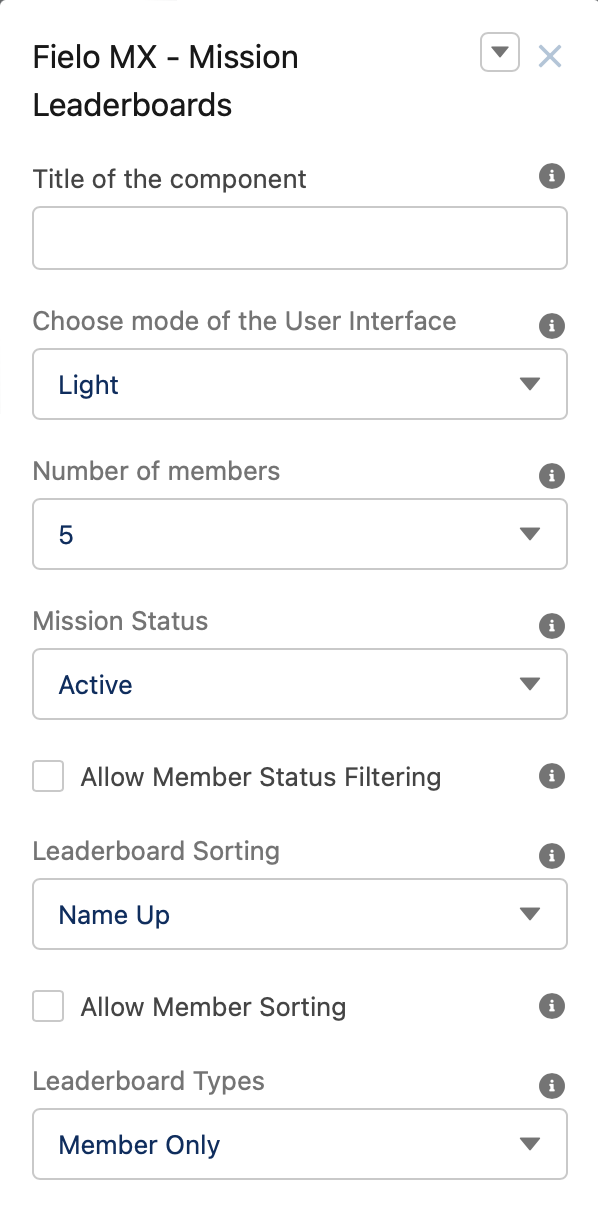
Once you add it to the backend, you can start updating the settings.
Title of the Component
This text field will contain the Title Label. “Mission Leaderboard” will be its default value. An administrator user can customize the message by defining a Salesforce custom label value to be shown instead.
Choose Mode of the User Interface
This field controls the overall look and feel of the component. We can choose between two settings: Light or Dark.
Number of Members
You can choose how many members will appear on each leaderboard, with the maximum number being 20.
Mission Status
This picklist field determines the status of Mission Leaderboards that will display.
- Active when selected, the component will show active missions leaderboards.
- Ended when selected, the component will only display completed missions.
- Both when selected, the component will render both active and complete mission leaderboards
Allow Member Status Filtering
Uncheck this option if you don't want the "Leaderboard Status" filter to be enabled for your members.
Leaderboard Sorting
You can set the default sorting value for the component. These values can be:
- Name Up - This will sort all leaderboards by leader name in ascending order. This is selected by default.
- Name Down - This will sort all leaderboards by leader name in descending order.
- My Position Up - This will sort all leaderboards by the member's position on the leaderboard in ascending order.
- My Position Down - This will sort all leaderboards by the member's position on the leaderboard in descending order.
- Last Activity Up - This will sort all leaderboards by the member's last activity in ascending order.
- Last Activity Down - This will sort all leaderboards by the member's last activity in descending order.
Allow Member Sorting
Uncheck this option if you don't want to allow members to change the sorting value of the component.
Leaderboard Types
You can select which mission leaderboards the member will be able to see:
- Member Only - Select this option if you want Members to see only the Mission leaderboard they are (or had) participating.
- Related Organization Member Only - Select this option if you want Members to see mission leaderboards in which their related Organization Members are (or had) participated.
- Both Member and Organization Member - Select this option if you want to display Member’s mission leaderboards as well as the Member's Related Organization mission leaderboards.
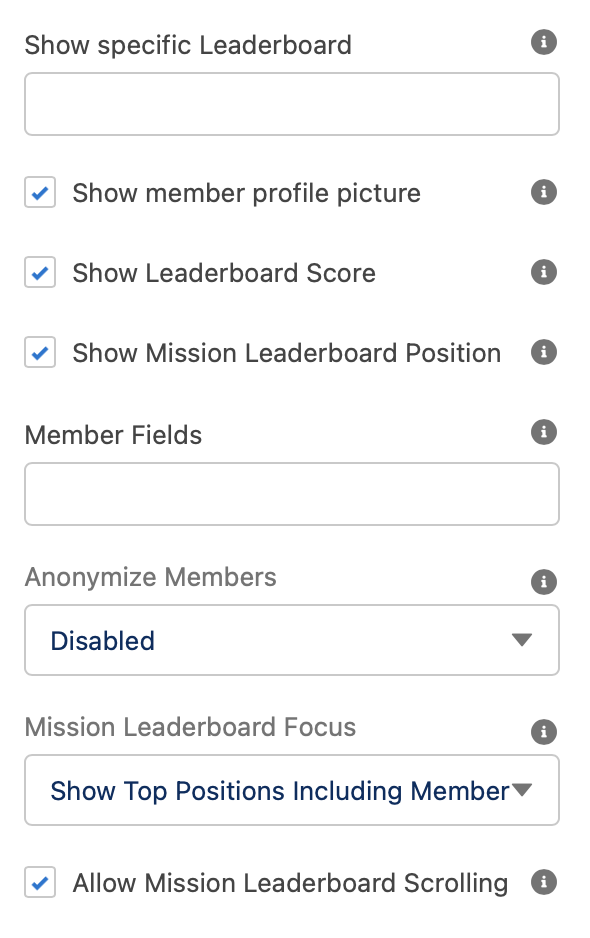
Show Specific Leaderboards
This field allows you to specify which mission leaderboards you want the component to display. You must enter the Id of the mission leaderboards (you want to show) separated by a comma (Id 1, id 2,...id N).
Note: Making use of this feature will disable the "Pagination" and "Page Size" properties.
Show Member Profile Picture
Uncheck this option if you don't want to show the member's profile picture on the mission leaderboards.
Show Leaderboard Score
Uncheck this option if you don't want to show the member's Score on the mission leaderboards.
Show Mission Leaderboard Position
Uncheck this option if you don't want to show the member's leaderboard position on the mission leaderboards.
Member Fields
Use this field to specify which Member field information you want to show. You must enter the field API name separated by a comma (Field1c, Field2c,..., FieldN__c).
Anonymize Members
This field allows you to anonymize the Member information shown by the component. You can choose:
- Disabled - All Member details will be shown.
- Individual Members Outside Organization - Only Member information of those inside the member organization will be displayed.
- All Members - Leaderboard participants will only be able to see their own details. Every other participant will have their information hidden.
Mission Leaderboard Focus
This lets you control how the leaderboard positions are viewed by default. You can choose between:
- Show Top Positions Including Member - This will show the members in the top positions. If the member does not belong to the top positions then will add the member, letting them see how close they are to reach the top positions.
- Show Top Positions - This will show only the people in the top positions.
- Show Neighbors - This will show where the Member is in the center of the leaderboard. Allowing them to see which members are above and below on the leaderboard.
Allow Mission Leaderboard Scrolling
Uncheck this option if you don't want to allow members to load additional data on the mission leaderboards. Allowing them to click on “show more” and view how the other members are doing.
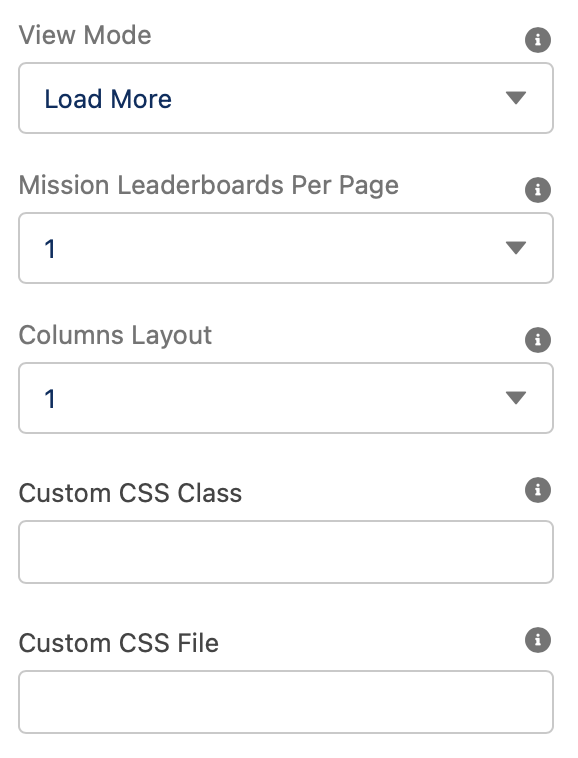
View Mode
If there are more mission leaderboards to show than the amount specified in the "Mission Leaderboards Per Page" setting, you can set up how members will be able to view all of them:
- Load More - A button will be displayed at the bottom of the component. Clicking on it will load the next set of mission leaderboards on top of the already existing ones.
- Pagination - Page number and the total number of pages will be displayed at the bottom of the component. Allowing members to move back and forward the different pages.
- Single Picklist - Setting this option will only show a single mission leaderboard at a time with a Picklist on top. Members can choose what mission leaderboard information they want to see by selecting a value from the picklist.
Mission Leaderboards Per Page
You can choose how many mission leaderboards are viewed on a page at the same time.
Columns Layout
You can specify the maximum number of mission leaderboards that will be shown on the same row (assuming there's enough space on the screen).
Custom CSS Classes
This allowed Custom CSS Classes to be applied in the main element, separated by space. Work with your IT department to update this with their customized CSS code.
Custom CSS File
This allowed a CSS file to be imported from a static resource. Work with your IT department to include the customized CSS information.
Text Orientation:
This picklist setting will control the overall look and feel orientation:
- Left to Right this is the default value. When selected, all elements will be rendered from Left (first) to right (second.)
- Right to Left when this setting is selected all elements will be rendered from the right (first) to left (second).
Updated over 1 year ago