
Create a Portal
Does your organization use Salesforce Experience Cloud? With Fielo Lightning Components, you can build Fielo's best features into your Experience Cloud-based portal, so that the members can access your program and participate in the incentives you make available.
Our components are easy to use: simply drag and drop them onto your pages in Experience Builder and watch your members' experience come to life.
After Joan - EasyTech's channel manager - finishes creating all the incentives that she plans to have in the Incentive Program, she decides to create the portal.

1. Enable Digital Experiences
As EasyTech doesn’t have a Site yet, Joan makes sure that they have the required user licenses to use the Experience Cloud before starting.
Next, she goes to Setup, looks for Digital Experiences in the quickfind, and selects Settings under it. She clicks on Enable Digital Experiences and Saves.
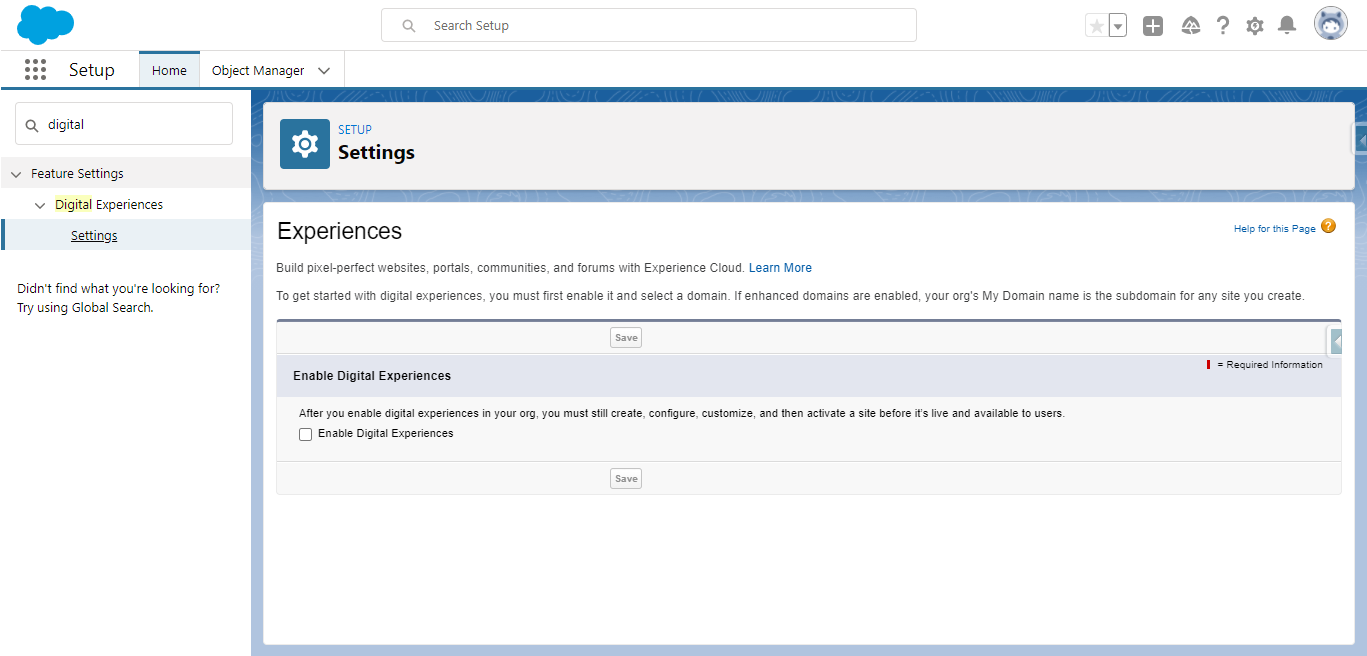
Enable Digital Experiences
2. Create a new Site
After Joan enables the digital experiences, she will be redirected to the All Sites page, where she clicks on New to create a new Site.
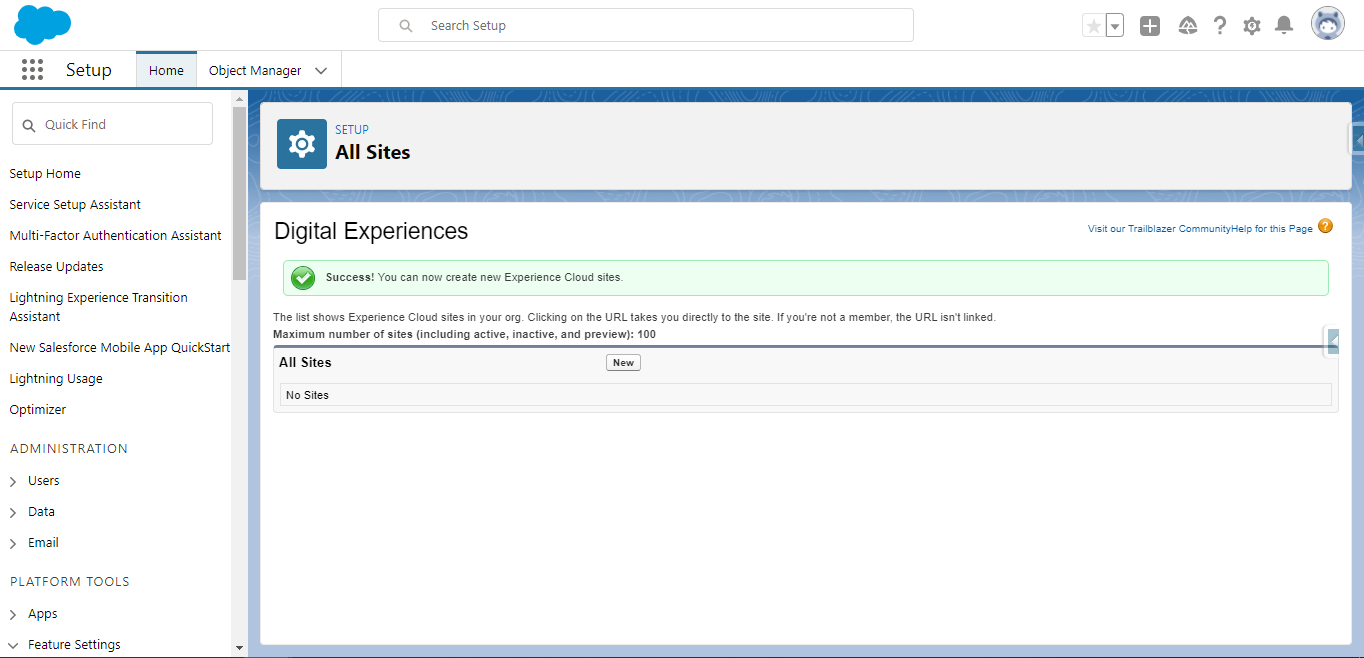
Click on New in order to create a new Experience Cloud Site
This action will redirect her to the page where she must choose a template. She selects the Partner Central template and clicks on Get Started.
Next, she gives a name to the Site and clicks on Create.
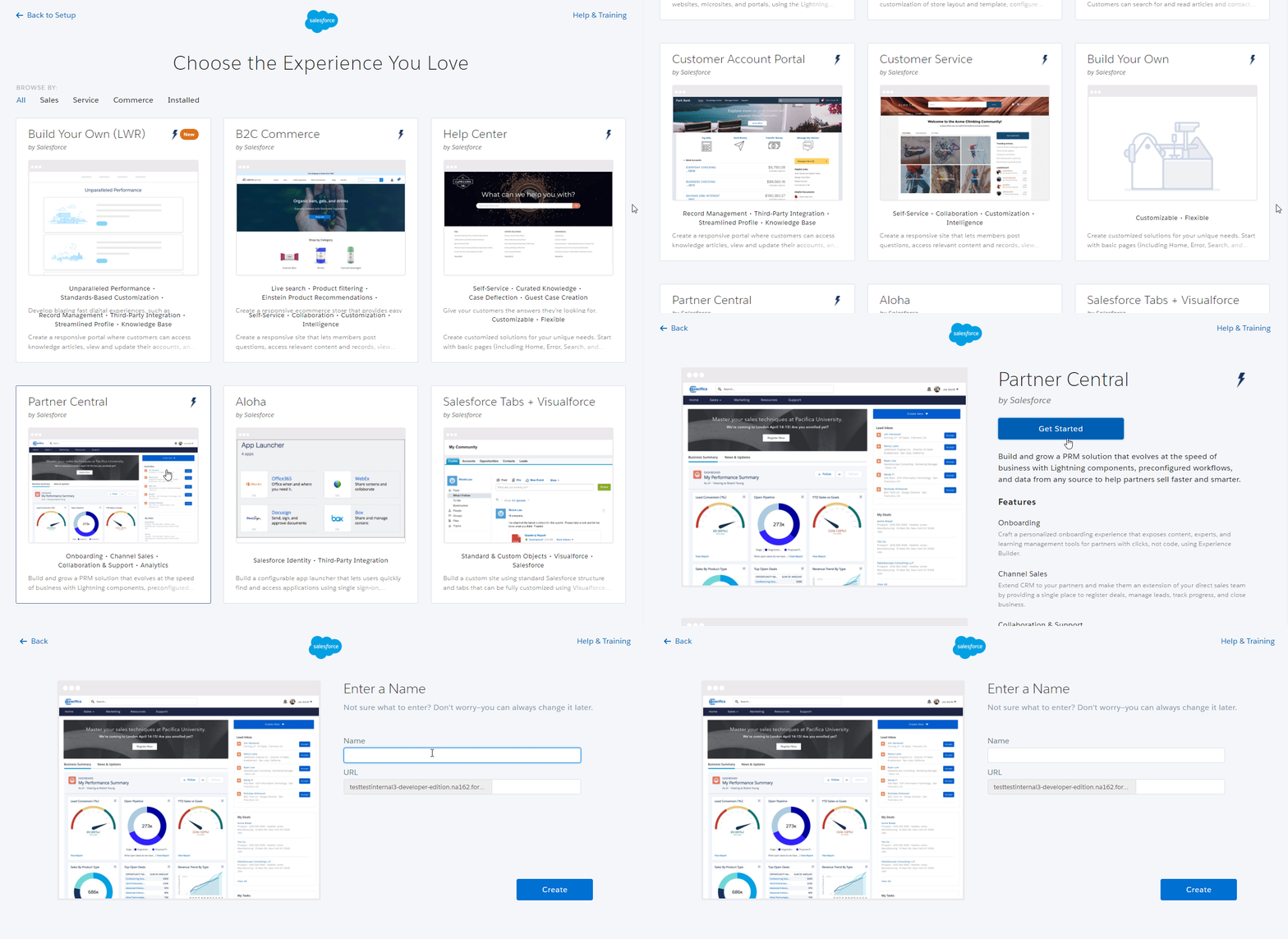
Selecting Fielo's template
3. Setup the Portal
Now is the fun part! This is where you will build the site to be the company's and program's face. Within the Builder you can create custom pages, design the site to match your company's brand, configure the audience, and much more.
As this is a very important step for the member experience, Joan asks the design team to take a look at it and build the Site so it is appealing to the resellers. They create a few custom pages where they can rearrange all elements and insert the program’s detail in the best way.
When Joan receives word from the designers telling that the Site is ready, she accesses the Builder to start inserting the must-have Lightning Components. The most important of all Fielo components, that has to be inserted into almost every page for the other components to work properly and show each member's information, is the Member Selector. So, she goes ahead and adds it to the pages.
From the Home page, Joan goes to the Incentive page to organize the place where the resellers will be able to consult all the incentives active in the program that they can participate in. She clicks on the ⚡ icon on the left menu and, from the Custom Components section and drags & drops the Incentives Lightning Components to the page.
There are much more lightning components that Fielo makes available for you. They go from the Profile component, which displays the member's information, to the Catalog component, which shows a list of all the rewards that the member can redeem using the currencies that they earned in the program.
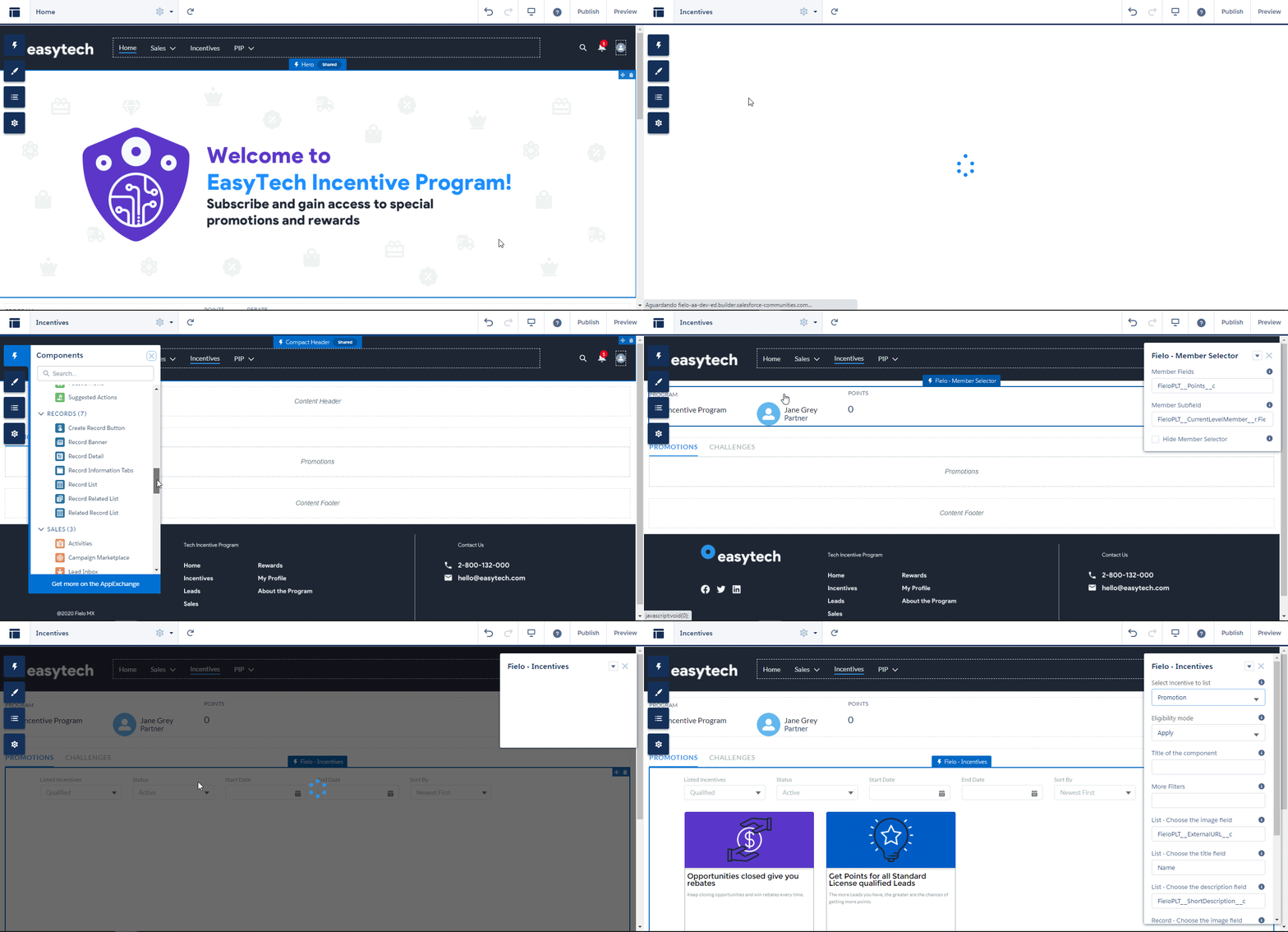
Setting up the Incentives page
Joan goes ahead and also creates some pages where the resellers will be able to:
- Overview their profile information, with their currencies balance and data from all the transactions they receive.
- Create and keep track of their leads.
- Create and keep track of their opportunities.
Take a look at some of the member experience in EasyTech's portal:
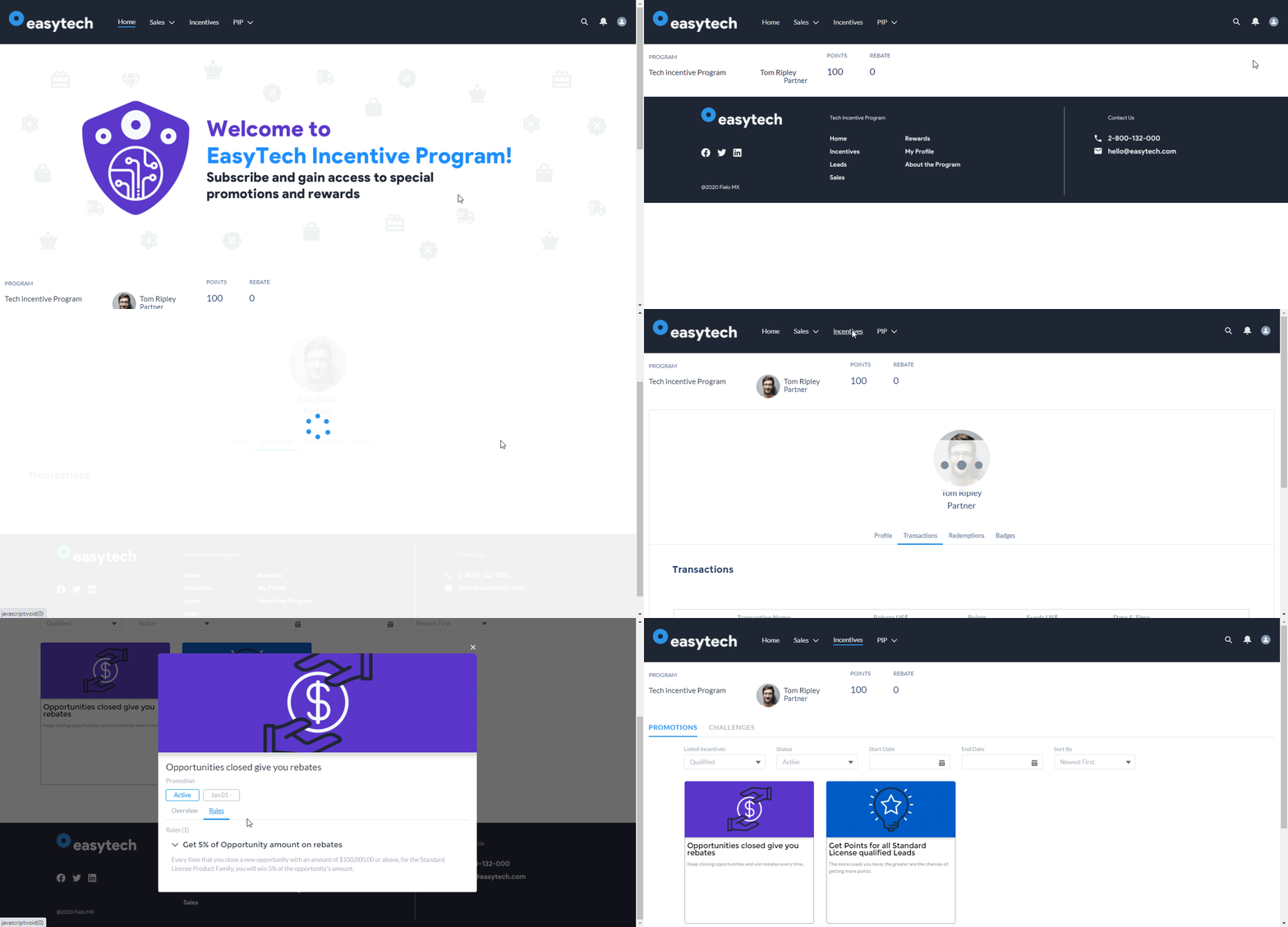
Profile and Incentives page
Great job!You finished setting up a brand-new Partner Incentive Program that can go live at any time. Check out how you can keep track of your program metrics on the next page.
Resources
Check out our articles where we have more in-depth information about the Fielo features that were mentioned here:
-
Fielo's Lightning Components
Updated over 1 year ago