
Upgrade from R1 2022 to R2 2022
FieloPLT v2.152.7
If you're using Fielo’s R1 2022 release, upgrade to R2 2022 to take advantage of all the features and enhancements we've added to the platform. Take a look at What's New in R2 2022. Continue reading to upgrade to Fielo R2 2022.
Versions Prior to R1 2022If you're using a version prior to R1 2022, you must perform all of the upgrades required to get you to the R1 2022 release (v2.134) before proceeding:
- Upgrade steps for versions 2.23 through 2.51
- Upgrade from Spring '18 to Summer '18
- Upgrade from Summer '18 to Winter '19
- Upgrade from Winter '19 to Spring '19
- Upgrade from Spring '19 to Summer '19
- Upgrade from Summer '19 to Winter '20
- Upgrade from Winter '20 to Spring '20
- Upgrade from Spring '20 to Spring '21
- Upgrade from Spring '21 to R1 2022
Also, make sure you're logged into your Salesforce org and have system administrator permissions before getting started.
How to Upgrade
Follow these steps to start the upgrade process:
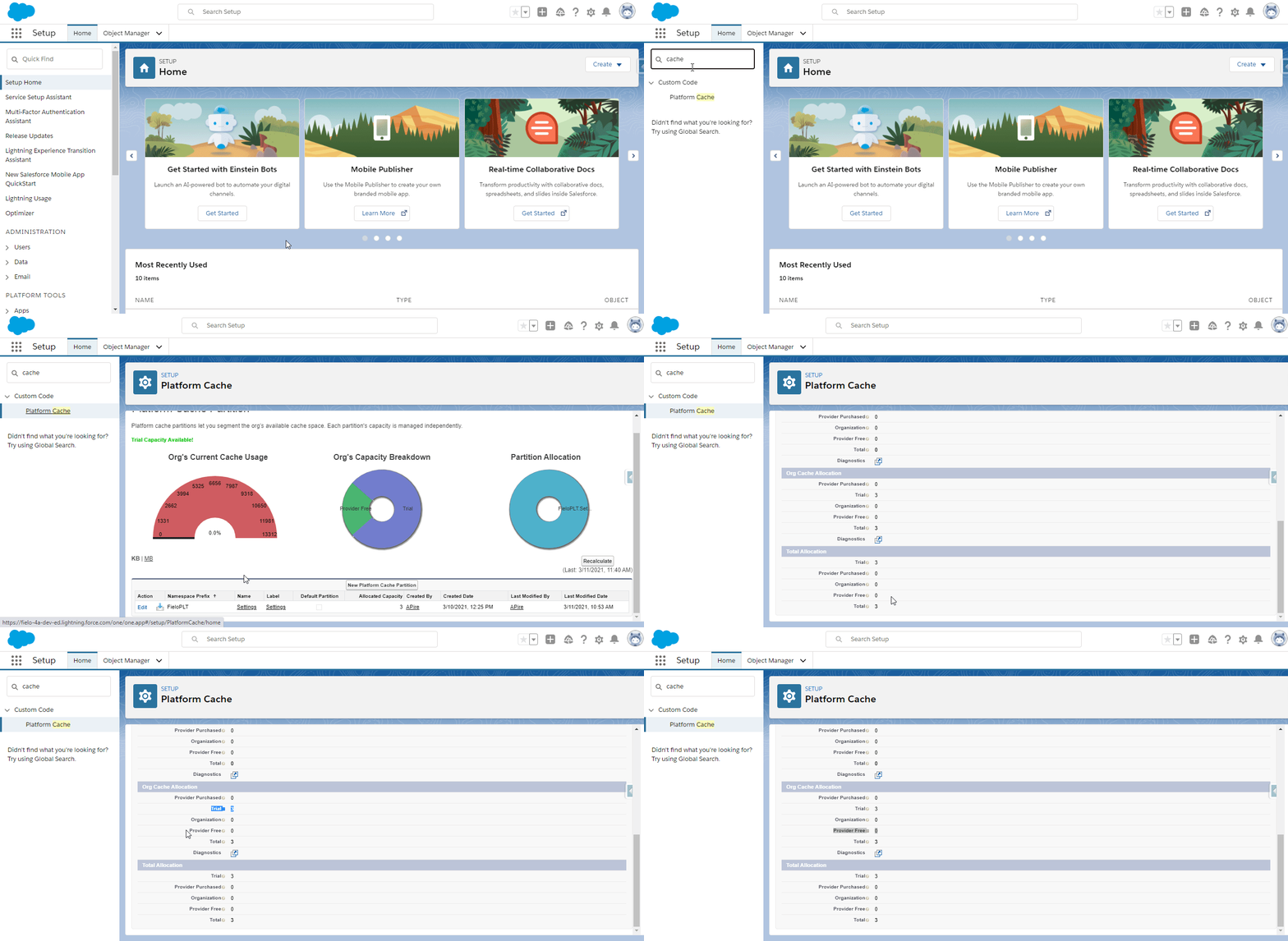
- Make sure that your org has Platform Cache enabled and 3MB or more of Org Cache allocated to FieloPLT.
- On the Incentives tab, check for any Promotions or Challenges that are in Edited status. Before installing the new package, select Apply Changes on these incentives so that their statuses move to Active.
- Click here to install the FieloPLT package.
- If any internal users that are not admins will use Fielo, click Install for Specific Profiles and select Full Access on the profile(s) of those users. If only System Administrators will use Fielo, or if internal users are granted permissions via the FieloPLT Admin permission set, click on Install for Admins Only.
- Click Upgrade. When the first part of the upgrade process is finished, you (or the org admin) will be notified by email.
- Once you've been notified, in Salesforce Setup, search for and select Apex Classes and then click Compile all classes.
Skip Fielo Setup
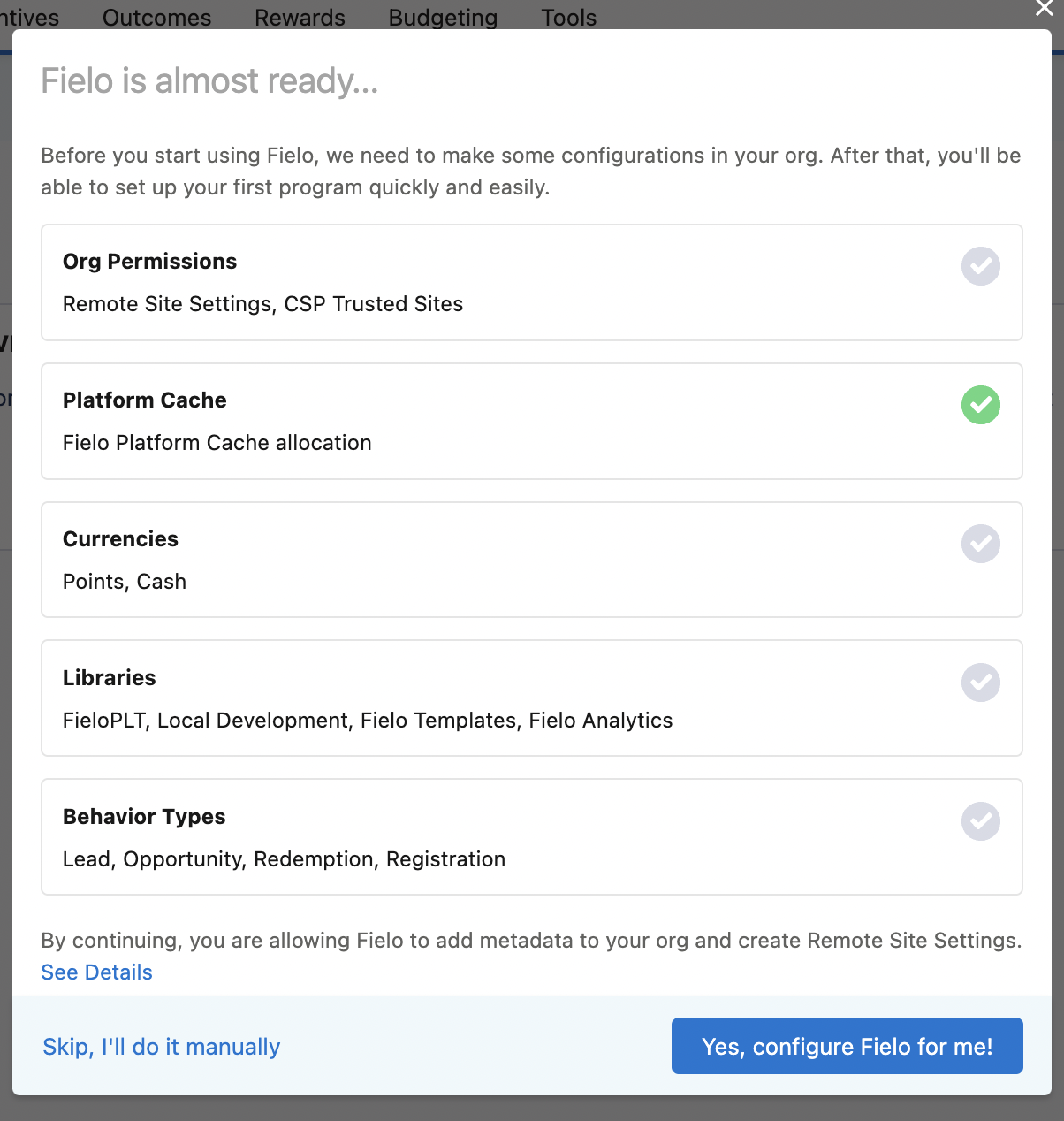
Since you already have Fielo up and running in your environment, you will want to skip the Setup modal. But before doing so, it's best to verify a few things first.
Keep reading...
Most customers will already have Org Permissions and Platform Cache set up (the first two checkboxes should be lit green).
If Org Permissions is not green...
In Salesforce Setup, go to Remote Site Settings and ensure that you have an endpoint pointing to your org's base URL.
Then, back in Setup, navigate to CSP Trusted Sites and verify that the following trusted sites are enabled with the CSP directives relevant to your use case:
MyDomain.my.salesforce.com, where MyDomain is your org's My Domain NameMyDomain.file.force.com, where MyDomain is your org's My Domain Name
If Platform Cache is not green...
In Salesforce Setup, go to Platform Cache and ensure that FieloPLT Settings has at least 3MB of Org Cache Allocation.
When all is good...
Go ahead and click "Skip, I'll do it manually."
Organization-Wide Default Permissions
If you are going to use Fielo Member Experience LWCs on a Digital Experience site, you must provide Default External Access for some Fielo objects.
Go to Salesforce Setup > Security > Sharing Settings
In the Organization-Wide Defaults section, check whether the Default External Access column is set to Private on any of these objects:
- Badge
- Member Badge
- Challenge
- Challenge Member
- Content (if using Fielo Learning)
- Criterion
- Criterion Group
- Language
- Level
- Level Member
- Member Activity
- Point
- Currency
- Program
- Program Currency
- Promotion
- Reward
- Rule
- Translation
If any of these objects is set to Private on the Default External Access column, change the setting to Public Read/Write.
Update Libraries
Upgrade FieloPLT Library
The latest version of the FieloPLT library is 4.020. Go to Fielo > Tools and verify that you're on the latest version. If an upgrade for the FieloPLT library is available, click Upgrade.
Upgrade FieloTemplates Library (Optional)
This step is required if your org has the FieloTemplates library activated. If the FieloTemplates library has not been activated in your org, you can skip this step.
The FieloTemplates library has a new version with some updates. Go to Fielo > Tools and, next to FieloTemplates, click Upgrade.
After that, go to the Salesforce Developer Console and, in the Execute Anonymous window, run the following script:
List<FieloPLT__RuleTrigger__c> behaviorTypes = new List<FieloPLT__RuleTrigger__c>();

for(FieloPLT__RuleTrigger__c rt : [ SELECT Id
                                   FROM FieloPLT__RuleTrigger__c
                                   WHERE FieloPLT__Status__c = 'Draft'
                                   AND FieloPLT__Library__r.FieloPLT__ExternalId__c = 'FieloTemplates']) {
   behaviorTypes.add(new FieloPLT__RuleTrigger__c(
       Id = rt.Id,
       FieloPLT__Status__c = 'Active'
   ));
}

FieloPLT.CacheAPI.enableOnDemand(false);
FieloPLT.CacheAPI.enableCacheAccess(false);
List<Database.SaveResult> saveResults = Database.update(behaviorTypes, false);

if (saveResults?.isEmpty() == false) {
   List<Database.Error> errors = new List<Database.Error>();
   for (Database.SaveResult sr : saveResults) {
       if (!sr.isSuccess()) {
           errors.addAll(sr.getErrors());
       }
   }

   if (!errors.isEmpty()) {
       List<FieloPLT__ErrorLog__c> errorList = new List<FieloPLT__ErrorLog__c>();
       for (Database.Error e : errors) {
           errorList.add(
               new FieloPLT__ErrorLog__c(
                   FieloPLT__Message__c = e.getStatusCode() + ' ' + e.getMessage(),
                   FieloPLT__Type__c = 'Database.Error',
                   FieloPLT__UserId__c = UserInfo.getUserId()
               )
           );
       }

       if(!errorList.isEmpty()){
           insert errorList;
       }
   }
}
Finally, from the Salesforce App Launcher, search for and open Fielo Cache. Click the Refresh All Cache button.
Activate New Libraries (Optional)
Fielo R2 2022 adds 3 new libraries:
- FieldSvc: Contains Field Service behaviors. Salesforce Field Service license required.
- SalesCld: Contains Sales Cloud behaviors. Salesforce Sales Cloud license required.
- ServiceCld: Contains Service Cloud behaviors. Salesforce Service Cloud license required.
Feel free to activate the libraries that fit your business needs.
Simulation API Update (Optional)
This step is required only if you use the FieloPLT.SimulationAPI class as part of a custom implementation of the Partner Incentive Planner.
If that is your case, you must change the method you're using from FieloPLT.SimulationAPI.simulateRewarding to FieloPLT.SimulationAPI.simulate. Also, you must change the wrapper from FieloPLT.SimulationResponse to FieloPLT.SimulationResult. This new wrapper was created to support Salesforce external objects and is the one now employed by the FieloPLT.SimulationAPI class.
Example
If you have something similar to the following code in your org, like in a custom Lighting component, you need to make the following adjustment.
Change from:
@AuraEnabled
public static String simulate(String memberId, List<SObject> records){

   Map<Id, FieloPLT.SimulationResponse.PointType> result = FieloPLT.SimulationAPI.simulateRewarding(records, Id.valueOf(memberId), false);

   doSomethingWithOutput(result);

   return JSON.serialize(result);
}
To:
@AuraEnabled
public static String simulate(String memberId, List<SObject> records){

   Map<Id, FieloPLT.SimulationResult.PointType> result = FieloPLT.SimulationAPI.simulate(records, Id.valueOf(memberId), false);

   doSomethingWithOutput(result);

   return JSON.serialize(result);
}
Upgrading R2 2022 from Beta—versions 2.135-2.150 to GA—versions 2.151+If you are upgrading from a beta version of R2 2022 (2.135-2.150) to GA (versions 2.151+), and the post-installation scripts have succeeded, be sure to:
- delete the field: FieloPLT__Member__c.FieloPLT__ExternalId__c
- add the field: FieloPLT__Member__c.FieloPLT__UniqueExternalId__c to the Member layout
If a post-installation script fails, execute the UpdateSummer22 method described in the Platform Event Service class.
That's all. You are ready to use the R2 2022 Fielo release!
Updated over 1 year ago