
Programs
Get your loyalty program up and running in no time!
Programs establish the framework for your incentive and loyalty program. They allow you to develop and manage the community of members that you want to incentivize. Fielo is Multi-Program, which means that it can handle more than one program at a time. This allows you to:
- Create different programs for different geographical areas, such as states or countries, or for different brands or product lines within your company.
- Build different loyalty portals for your different programs.
- Set up different incentives for your different programs.
Creating a Program
It only takes a few seconds to create your first program. First make sure you've activated the FieloPLT Library. Then, go to the Programs tab and click New Program.
In the Create Program form, enter a Program Name and Description.
If you've created any Models, you will also be able to select a Model to apply to your new program. You can apply a model only when first creating a program.
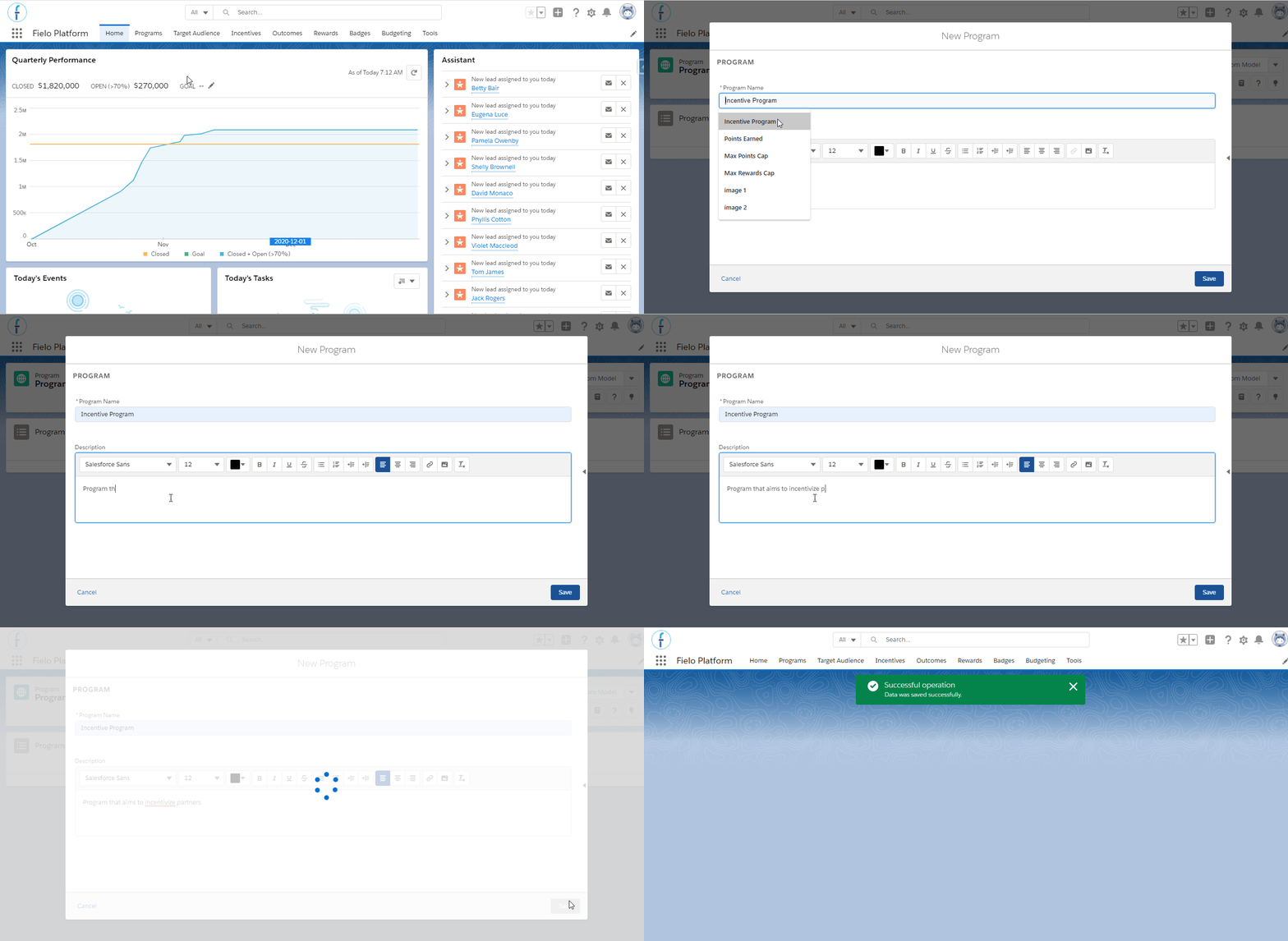
Creating Program
Success!You just created a new program, congratulations!
After creating your program, you can see all the options necessary to edit or manage it within its page.
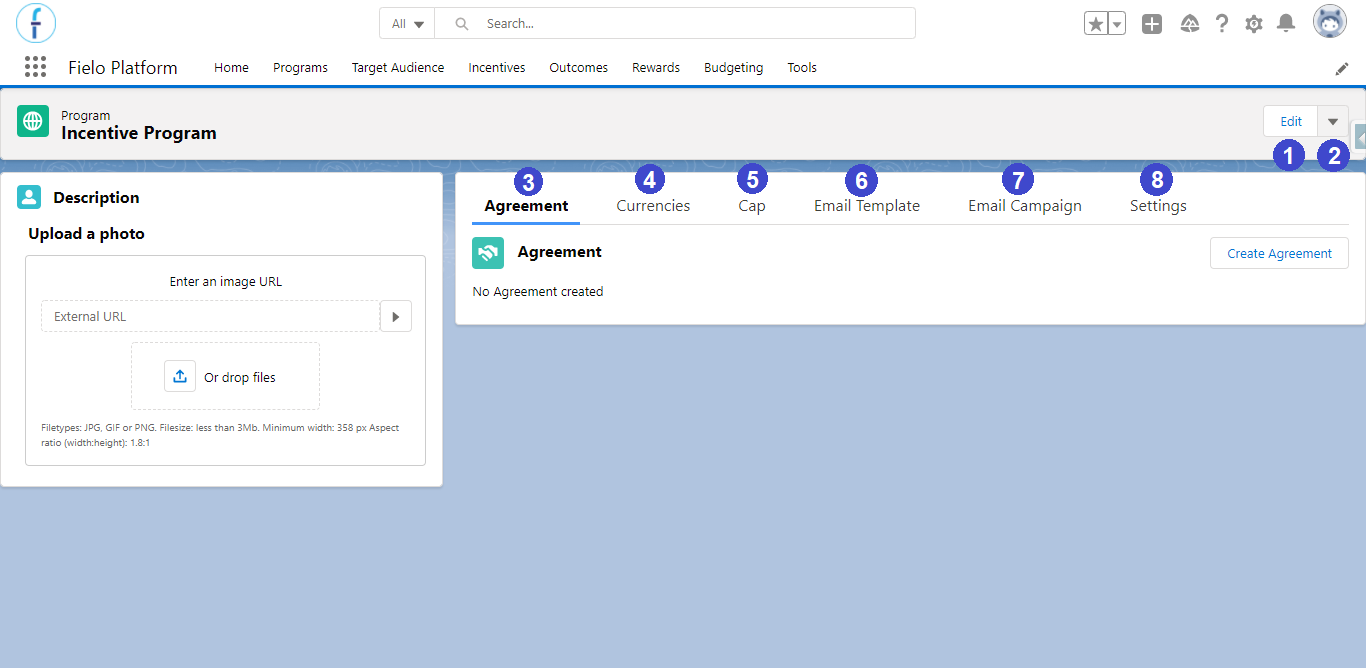
Program options
- Edit your program - Change the program's name and description.
- Program Management Tools - Export the program in a JSON file, save it as a model, and Delete your program.
- Agreement - Create terms and conditions for your program
- Currencies - Relate newly created currencies to your program or delete them from it.
- Cap - Manage all the caps your program has from this tab.
- Email Template - Create and manage your email templates, to be used in an email campaign.
- Email Campaign - Create and manage email campaigns.
- Settings - Change any default setting for this program, such as consents.
Settings
You may want to change the default configurations that came with your program based on your requirements. For that, go to the Settings tab, on the detail page of the program you want to edit.
Check more details about that on Editing Program Settings.
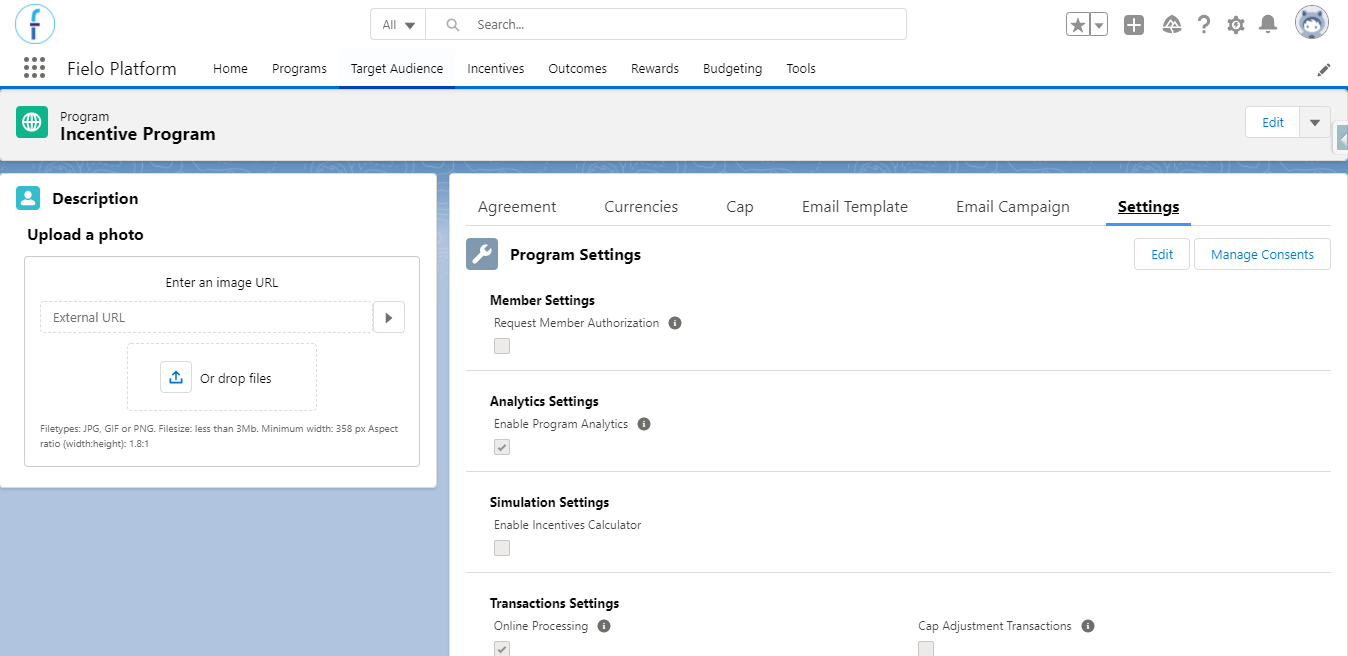
Edit Program
Extend Program SettingsYou can extend the Program settings form in order to add more fields. See how to do that in our advanced settings page.
Manage Programs
You can run more than one program at a time and manage them all under the Program tab. Multi-Program support is really useful for loyalty and incentive programs that, for example, operate in several geographical areas and require different functionality for each area.
Moreover, there are several tools to help you manage programs. You can access these tools in the top section or by clicking on the program detail page.
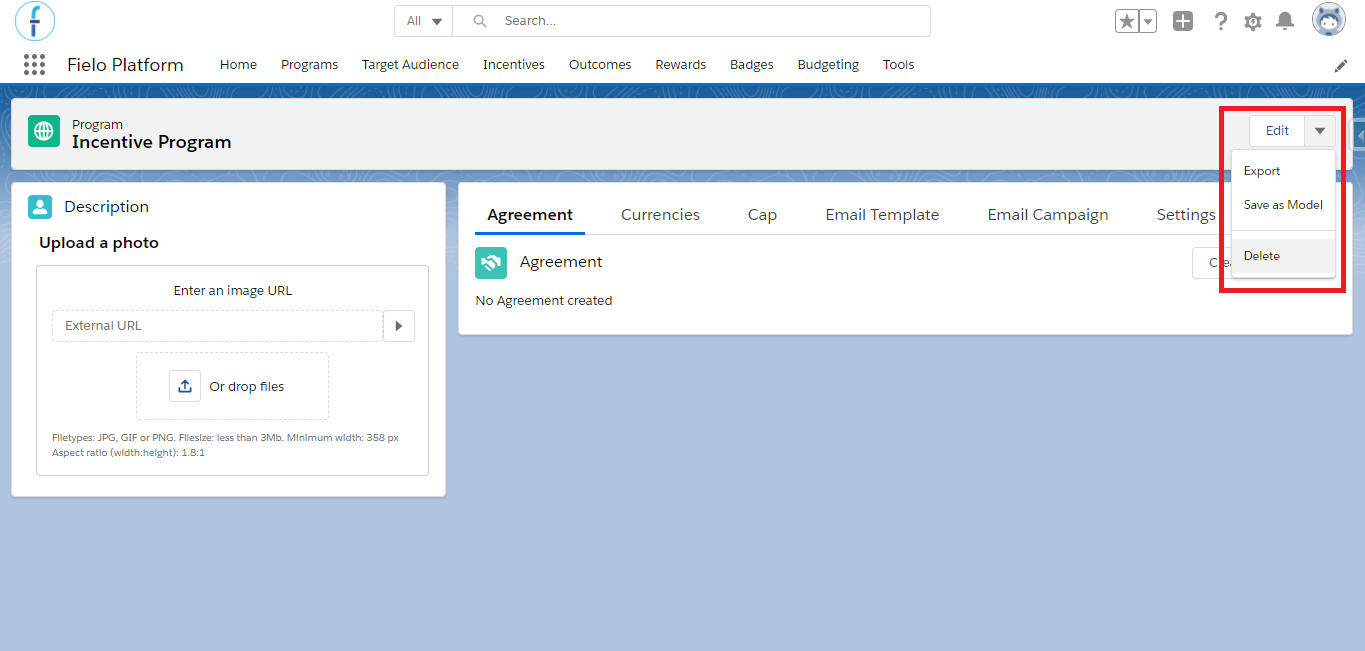
Program management tools
- Edit
- Export
- Save as a Model
- Delete
Editing a programYou can also use the Program Setup to edit a program.
Deleting a programAs deleting a program may cause an unexpected consequence, this is not allowed by default. In case you need to do it, please contact Fielo's support so that the team can help you to review any dependencies and inactivate your program.
Workflow rules
When you install Fielo's package to your Org, some new workflow rules are added to it. Most are system-related, updating fields to fill them with an external ID, and must not be deactivated. However, some come deactivated by default and you can activate them if you want to, such as the Notify Instant Reward and Welcome Email.
Workflow lets you automate standard internal procedures and processes to save time across your org. A workflow rule is the main container for a set of workflow instructions. These instructions can always be summed up in an if/then statement.
Go to Salesforce Setup, quick find, and select Workflow Rules. On this page, you can review, edit, activate or deactivate all of them.
In case you'd like to activate the email alerts, click on Activate next to the Rule name. Note that, since they were added by a package, these workflows cannot be deleted.
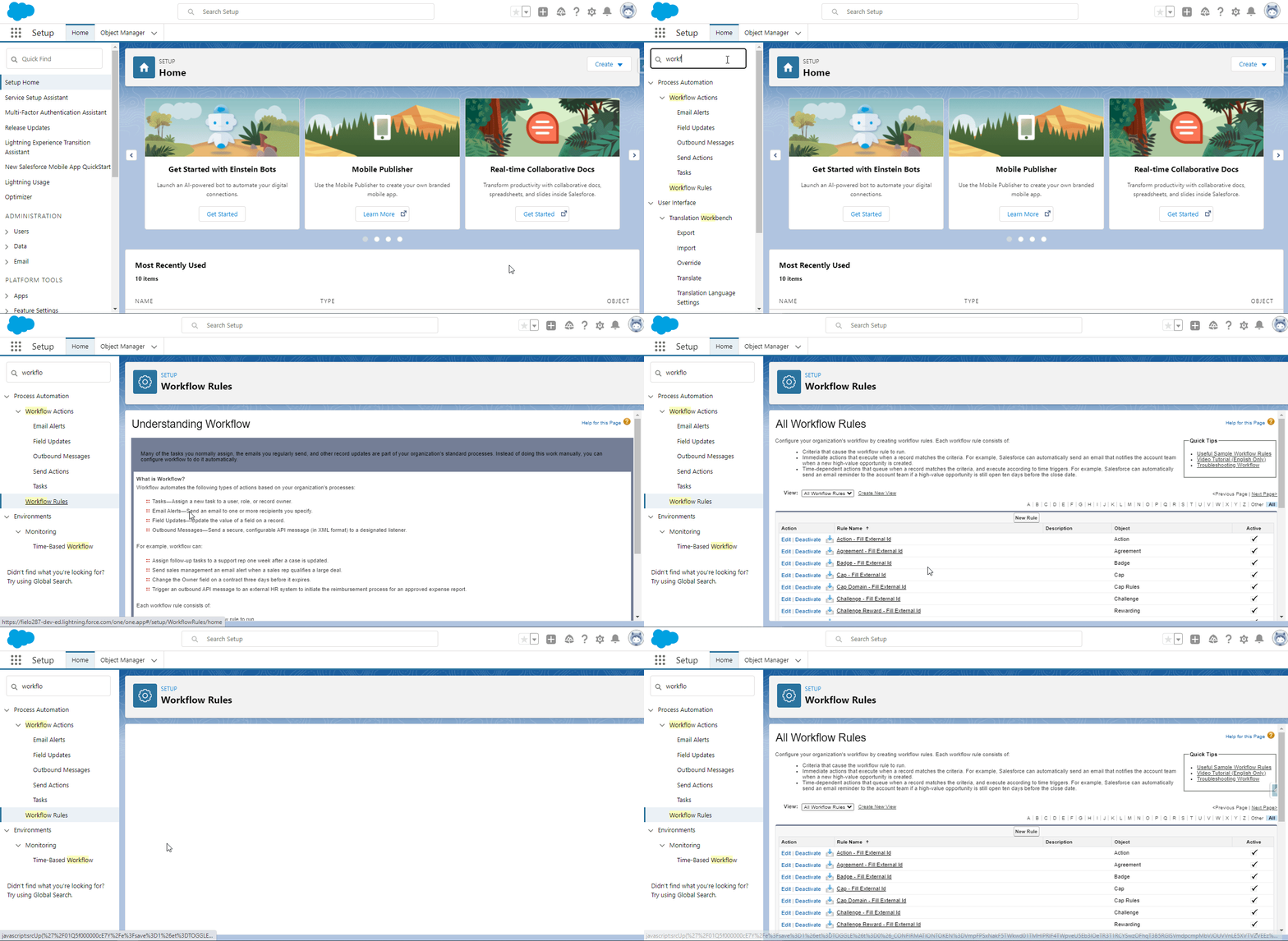
Workflow rules in Salesforce Org setup
You can also change their template to one that better suits your needs. For that, quick find and select Classic Email Templates, choose the Fielo Templates folder, click on the template you'd like to change and edit it.
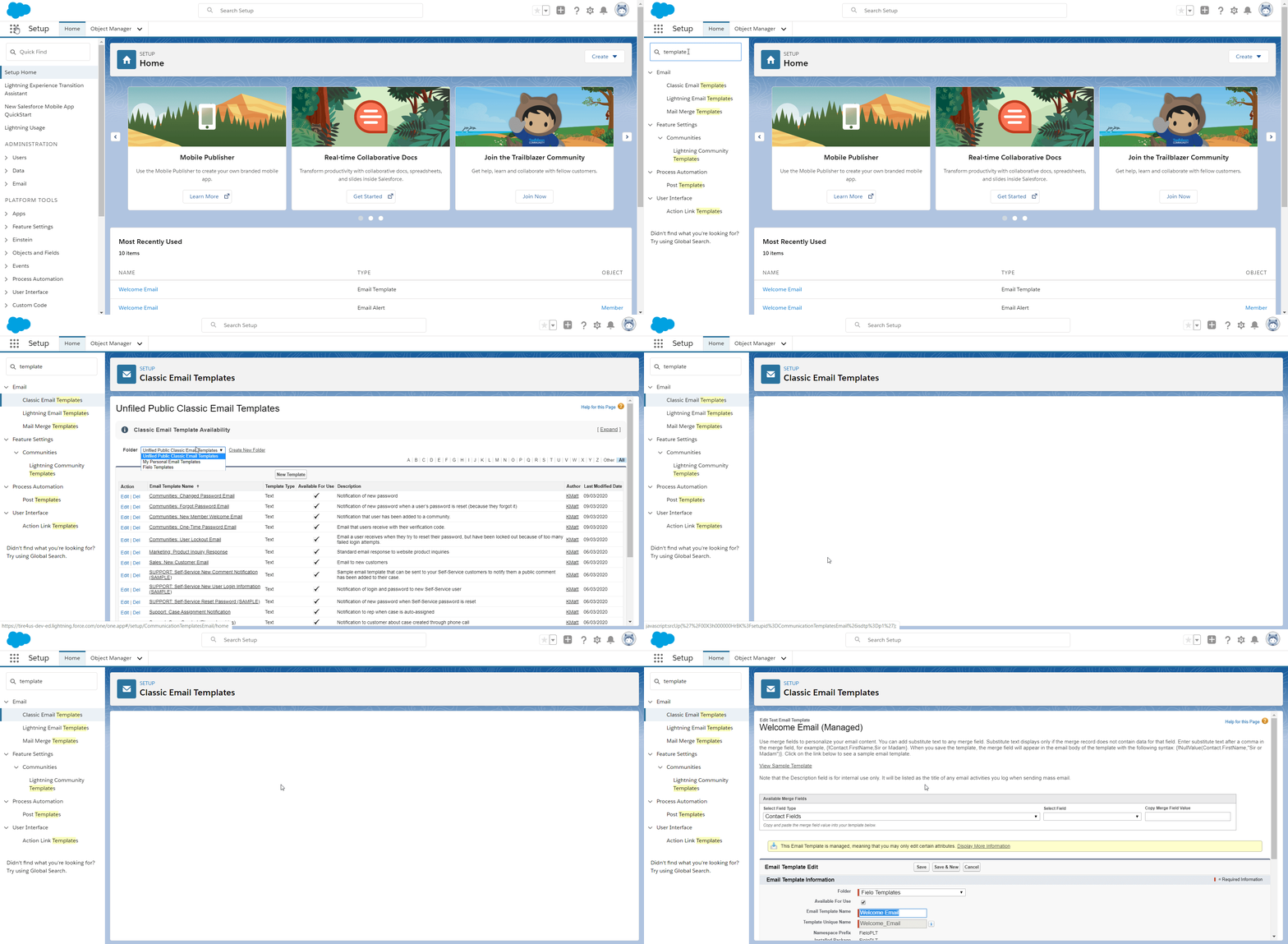
Classic Email Templates in Salesforce Org setup
Updated over 1 year ago