
Preloaded Unique Codes
If you offer catalog rewards to your members, you know that redemption item code uniqueness is important, especially at scale.
By default, Fielo generates redemption item codes "on the fly" as redemptions are made. However, at high volume, this can sometimes result in duplicated codes. Our Preloaded Unique Codes feature allows you to generate unique codes ahead of when they are needed, so that when redemptions are made, the system will pull from that prevalidated list of codes. This allows Fielo to maintain performance at scale while ensuring code uniqueness.
Enabling Preloaded Unique Codes
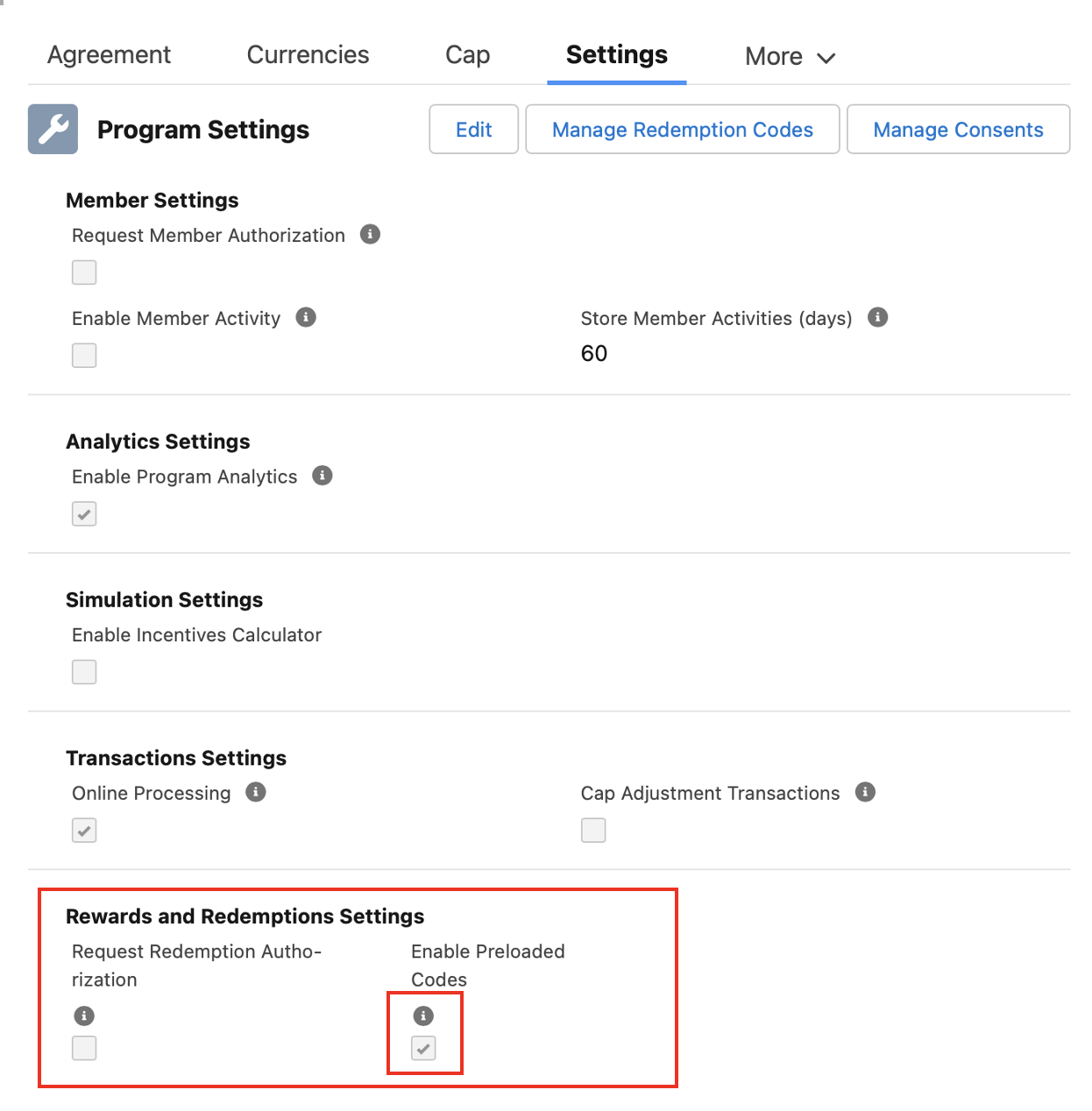
Preloaded Unique Codes is an optional feature. To use it, you must first enable it.
- Click on the Program tab.
- Select your program.
- Click on the Settings tab.
- Scroll down to Rewards and Redemptions Settings.
a. If the box un Enable Preloaded Codes is checked, the feature is already active.
b. If the box un Enable Preloaded Codes is checked, the feature is not enabled. To enable, check the box.
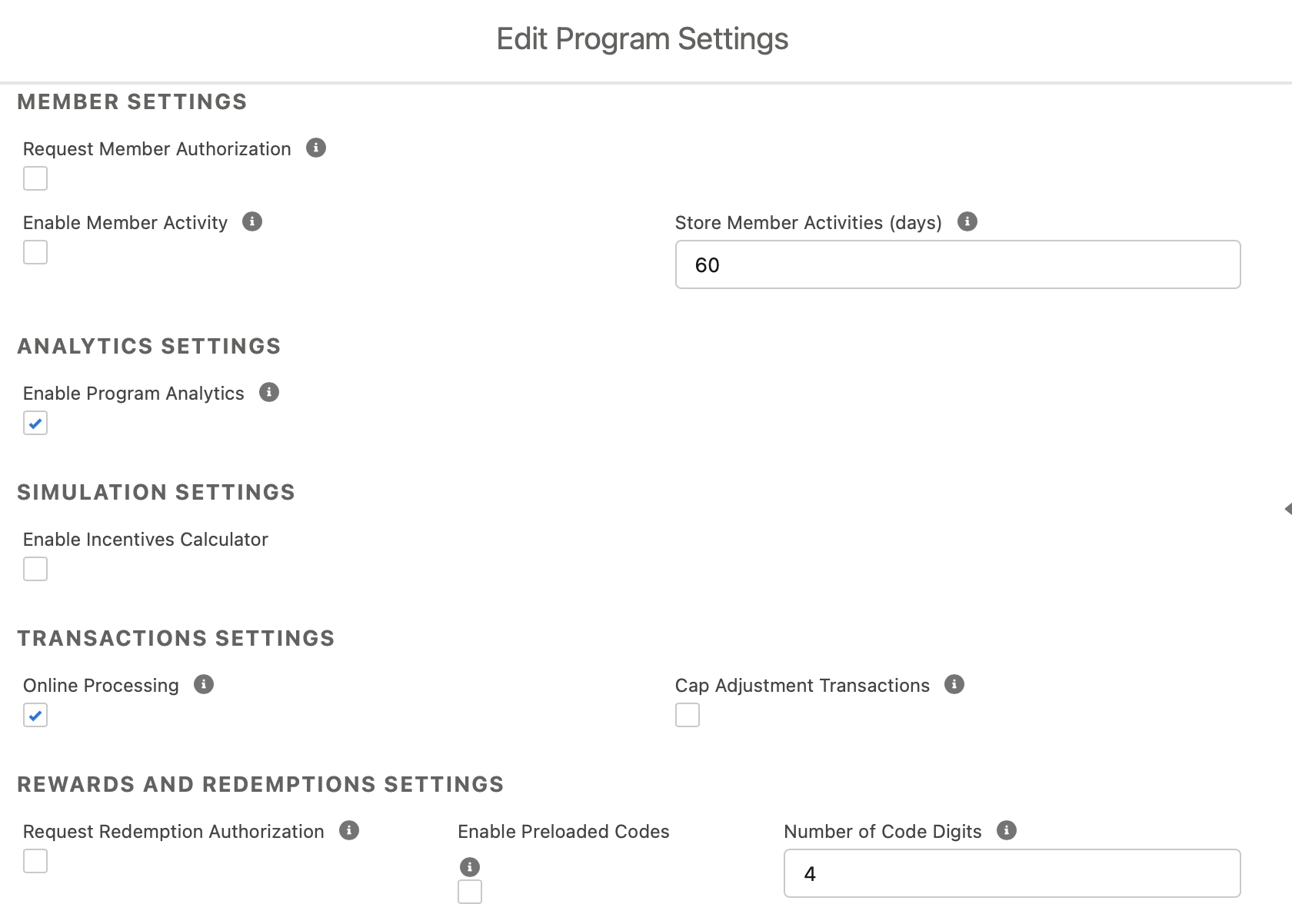
- Save your changes.
Preloaded Unique Code Settings and deployments are not included in the Import/Export tool. You will need to activate it separately.
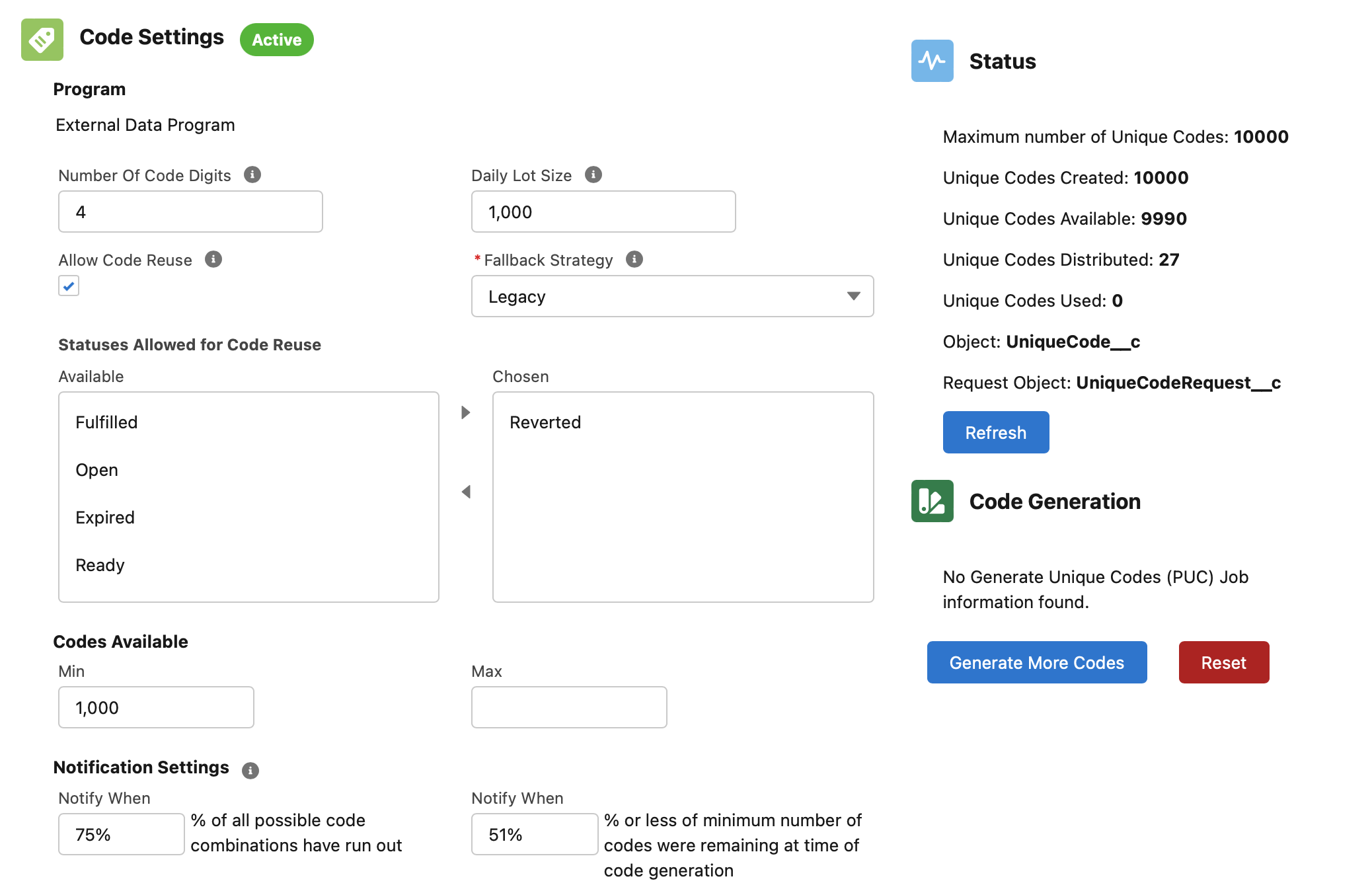
Once you enable the feature, you will need to manage the codes. To do so, navigate the the Settings tab on your program's detail page and click on Manage Redemption Codes.
On the left side are the settings.
On the right side are the statuses of the unique codes. These primarily show you statistics, as well as let you generate more codes manually.
The Apex batch job that generates the preloaded codes runs once a day in the early morning. It automatically checks the generated codes against existing redemption items and discards any codes that have already been distributed.
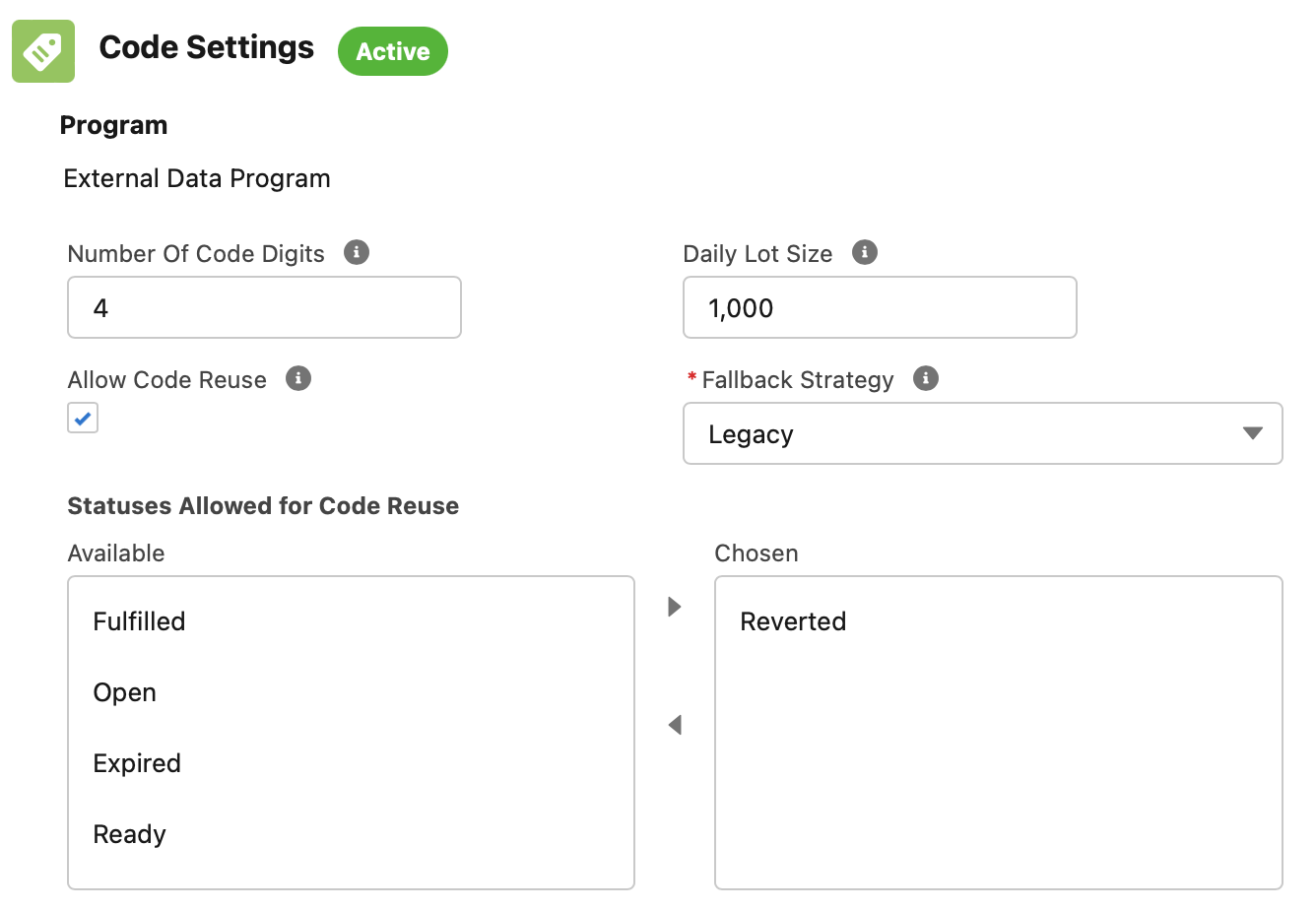
Go into Manage Preloaded Redemption Codes to update other settings. You can update the following information.
Number of Code Digits
This is the number of digits that will each redemption item code will contain.
Daily Lot Size
This lets you determine how many codes will be generated each day.
Allow Code Reuse
When on, previously used codes can be reused. Under Statuses Allowed for Code Reuse, you can choose which Redemption Item statuses you want to be considered for code reuse.
Fallback Strategy
If there aren't enough codes or an error is generated, you can set up one of two strategies.
- Legacy will revert to the default "on the fly" method of generating redemption item codes.
- Error will just throw an error with no resolution for creating redemption items.
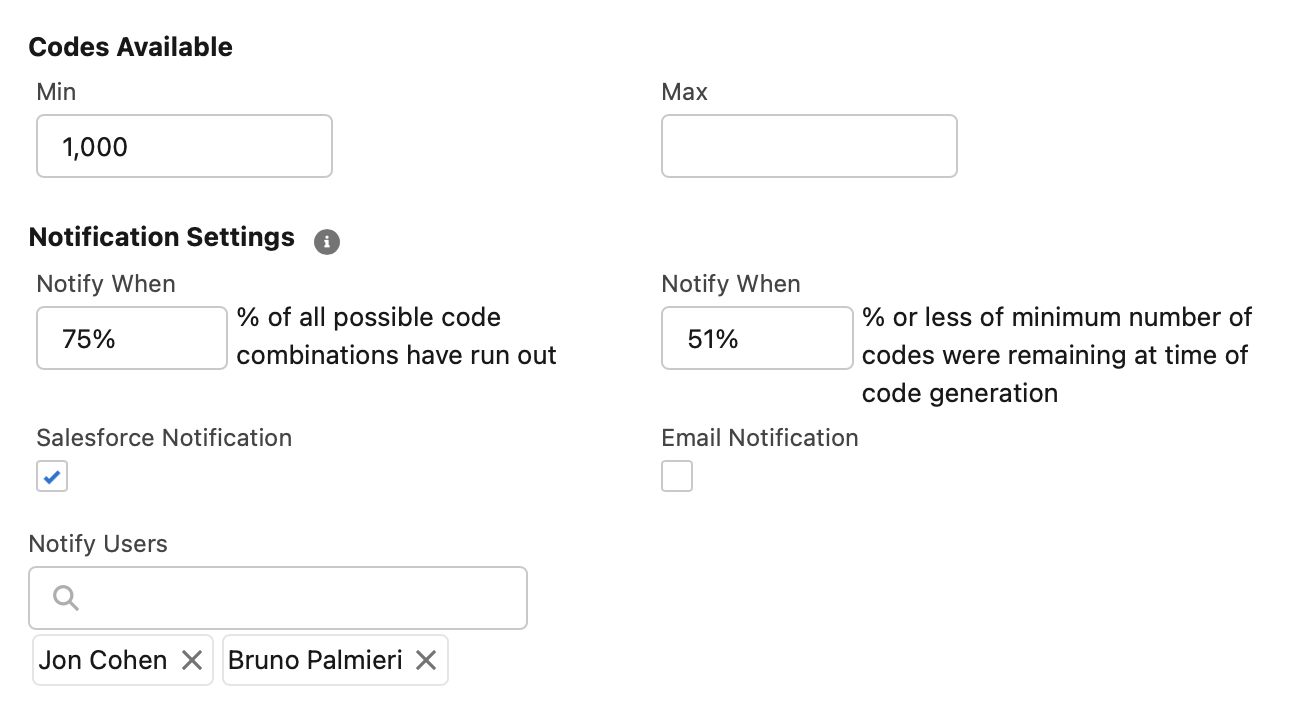
Codes Available
You can set a minimum number for any given time, as well as a maximum. If less than the minimum number of codes are available at the time the batch job runs, enough codes will generate to meet the specified minimum, even if that exceeds the daily lot size. If more than the maximum number of codes are available when the batch runs, no more codes will be generated until the number of available codes falls below the maximum.
These settings are to better manage your storage so that you don't have a slew of codes you don't need.
Notification Settings
You can receive notifications when you have a limited number of possible codes remaining for your current number of digits. You can also be notified when the number of codes available to your members falls too far below your minimum.
Salesforce Notification lets you receive notifications on your Salesforce notifications panel.
Email Notification lets you receive notifications via email.
Notify Users allows you to specify which user(s) will receive notifications.
When sending notifications over email, you must also specify an Organization Wide Address. This must be an address that is already verified in Salesforce.
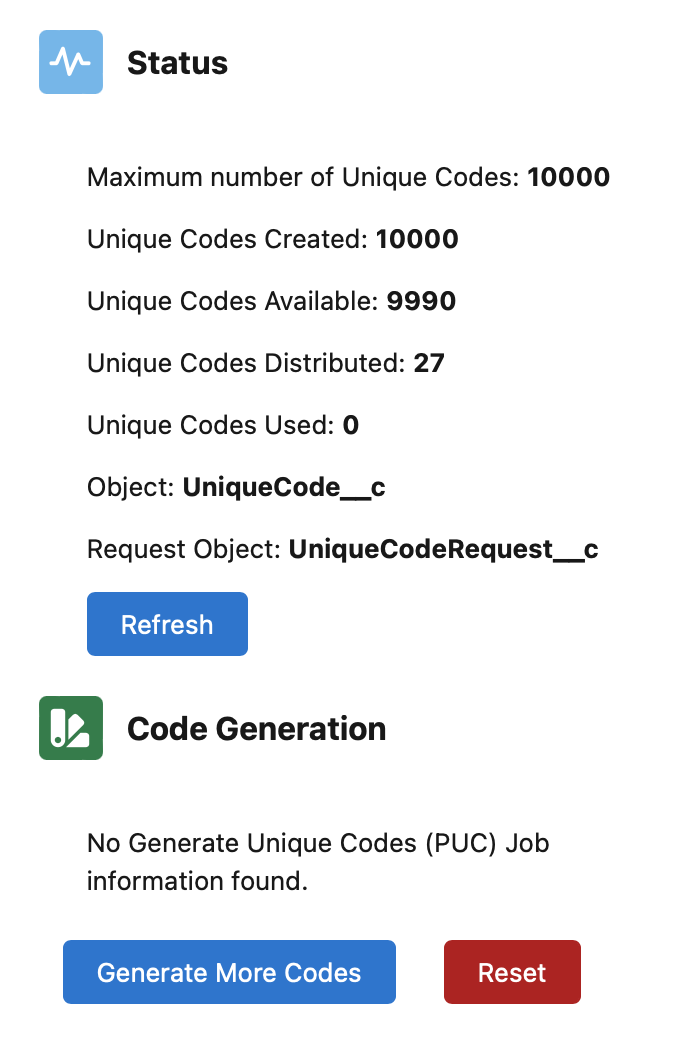
Status
You can monitor the status of your codes over their full lifecycle.
- Maximum Number of Unique Codes displays the total number of possible codes for your chosen number of digits.
- Unique Codes Created shows how many codes have been created. If this number matches the Maximum Number of Unique Codes, then no more codes can be generated because you've reached your maximum number of codes.
- Unique Codes Available shows how many codes are currently available to be distributed to members.
- Unique Codes Distributed shows how many codes have been distributed to members, including codes distributed prior to activating the Preloaded Unique Codes feature.
- Unique Codes Used shows how many codes correspond to redemption items that have been fulfilled, such as the item being delivered or used in a store.
Testing Your Preloaded Unique Codes
Testing is going to be important to make sure that you have the right setup prior to enabling it for your users. Here's how you can test it and what to watch for to make sure that it is working the way you expect.
- Go to your test program.
- Verify that the feature is enabled.
- Save the changes.
- Updates the Code Settings. If there are two programs using the same digits, it will result in a message to let you know that there is more than one program using the same codes.
- Update any other settings you want to change.
- Click Save and Activate to enable it. (Save for Later will save the changes, but will not deploy to the program.)
This is everything you need to set up to start testing the changes. It will take a while to save and deploy.
From here, you can start reviewing the changes and testing them.
- Check the Status side of the screen once the deployment finishes; the first lot of codes will increase. The Apex job that generates the codes will run every night at 3am.
- Verify the numbers in the other settings match what you entered.
- You can manually generate more codes by clicking on the Generate More Codes button.
- You can reset the function by clicking on the Reset button. This means that any undistributed codes will be erased.
Keep in mind that once the function is enabled, it will be available to everyone, so make sure that you begin testing once it is enabled. This will allow you to find potential problems before days' to weeks' worth of codes are generated and used.
Updated over 1 year ago