
Rewards Notification
Rewards Notification lets your members know when they have earned a reward with a pop-up window providing details about the reward earned. You can establish the details that the notification provides when a member earns a reward. The notifications do not include Funds rewards and Additional Custom Rewarding.
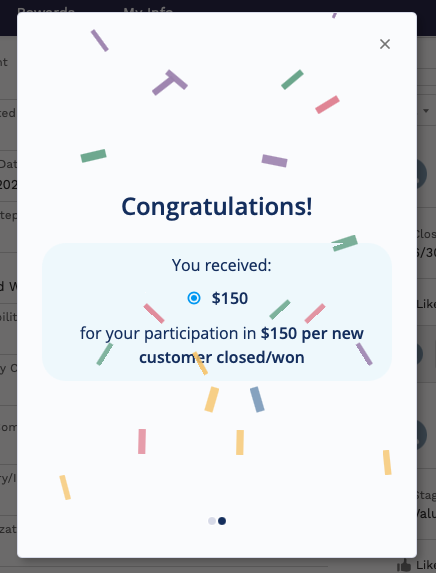
On each of your Incentives (Promotions & Challenges) and Levels, you can control whether members will receive notifications about activities related to them.
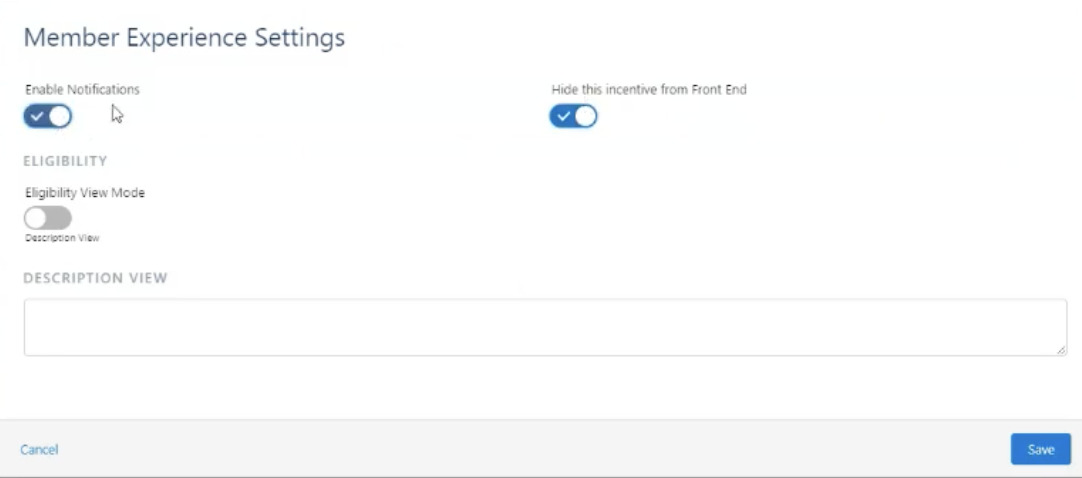
Including and Excluding Incentives and Levels from Reward Notification
If you need specific incentives and/or levels to be included or excluded by the Reward Notification component, can be done by going to Home > Incentives > Member Experience Settings, then setting the Enable Notifications field. On existing incentives, this setting is off by default. On new incentives, this is turned on by default.
You can do the same on Level records, either in Fielo or on Fielo Admin UIs.
Setting up the Rewards Notification Component
When you add “Fielo MX - Reward Notification” component, drag and drop it into the Template Header. This will make it visible to you, but not to your members. They will only see the popups when they earn rewards.
This is a fairly easy component to manage as there are only a few fields for you to set before you release it to your members.
Make sure to add Fielo MX - Member Selector” component on the pageIn order for any Fielo MX Component to work, you need to add the “Fielo MX - Member Selector” component on that page (or the “Fielo MX - Member Overview” with the Member Selector sub-component set). You can find more information here Member Overview.
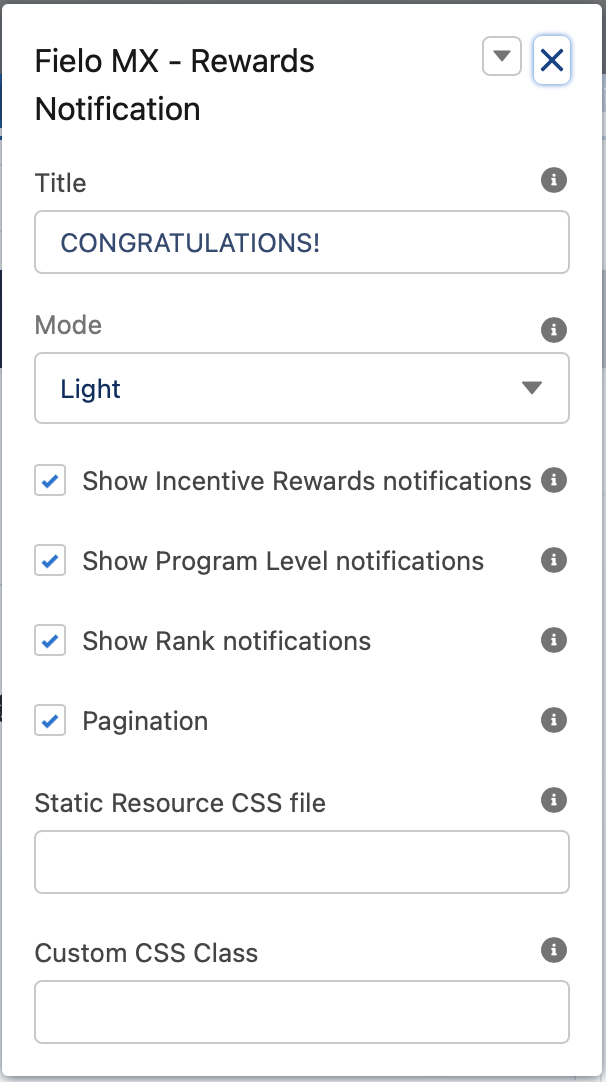
Set the Reward Details
Since the notification is a popup window, it provides just a few details, making it easy to set up.
Title
This text field will contain the Title Label. “CONGRATULATIONS!” will be its default value. An administrator user can customize the message by defining a Salesforce custom label value to be shown instead.
Mode
This field controls the overall look and feel of the component. We can choose between two settings: Light or Dark.
Animation
This picklist setting will control if there will be an animation or not for the component:
-Confetti
-Firework
-**None
Show Incentive Rewards Notifications
If checked the component will show Incentive Rewards notifications.
Show Program Level Notifications
If checked the component will show Program Level notifications.
Show Rank Notifications
If checked the component will show Rank notifications.
Pagination
If checked, when more than one notification is triggered, all notifications will be grouped in the same popup allowing the member to navigate through them with the pagination. If not, all popups will stack.
Pagination Type
This setting defines the pagination type:
-Carousel
-Pages
Carousel Time
This field controls the time (in milliseconds) before changing notifications when the carousel is selected.
Custom CSS Classes
This allowed Custom CSS Classes to be applied in the main element, separated by space. Work with your IT department to update this with their customized CSS code.
Custom CSS File
This allowed a CSS file to be imported from a static resource. Work with your IT department to include the customized CSS information.
Text Orientation:
This picklist setting will control the overall look and feel orientation:
- Left to Right this is the default value. When selected, all elements will be rendered from Left (first) to right (second.)
- Right to Left when this setting is selected all elements will be rendered from the right (first) to left (second).
Incentive Reward Image Path
This field applies an Incentive Reward Image Path that can be an internal or external URL. If the URL is external, make sure to add the domain to CSP Trusted Sites. Sizes greater than 53x53 are recommended to have css handling.
Level Up Image Path
This field applies a Level Up Image Path that can be an internal or external URL. If the URL is external, make sure to add the domain to CSP Trusted Sites. Sizes greater than 53x53 are recommended to have css handling.
Rank Up Image Path
This field applies a Rank Up Image Path that can be an internal or external URL. If the URL is external, make sure to add the domain to CSP Trusted Sites. Sizes greater than 53x53 are recommended to have css handling.
Updated over 1 year ago