
Profile
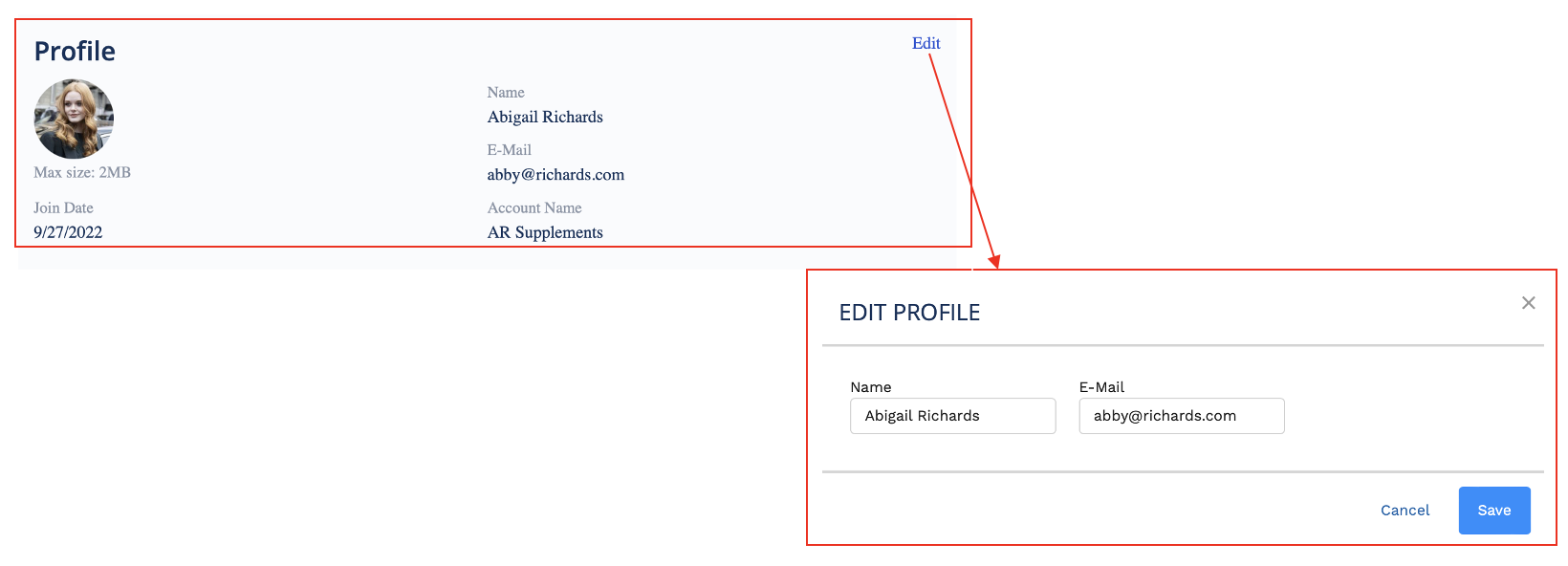
The Profile component gives your members a place to add or update basic information about themselves.
They can add an image to make it easy to identify them at a glance. This image is used for other Fielo components, such as the Mission Leaderboards.
You can make any field on the Member object available for your members to view and/or edit.
How It Works
Members are able to go to the component and review their details. This means that they can (if allowed) add a better picture and make edits to editable fields. They will have two places to click to make edits:
- Edit - clicking on the link pops up a window to make changes.
- Image - they will need to click on the existing image to upload the new image.
Setting up the Profile Component
When you drag and drop the Profile component [Fielo MX - Profile] onto your preferred page, you can begin setting the values for the fields. This is a fairly easy component to manage as there are only a few fields for you to set before you release it to your members.
Make sure to add Fielo MX - Member Selector” component on the pageIn order for any Fielo MX Component to work, you need to add the “Fielo MX - Member Selector” component on that page (or the “Fielo MX - Member Overview” with the Member Selector sub-component set). You can find more information here Member Overview.
Note Be careful about what you allow your members to change. Some of these fields are largely used for you to track data about the members, particularly the Join Date. If you allow members to change this field, it likely will not be accurate as this is a field that is populated based on their actual account addition date. If their email address is managed by you, it also doesn't make much sense to allow them to change this field. You can give them access to make the changes if you wish.
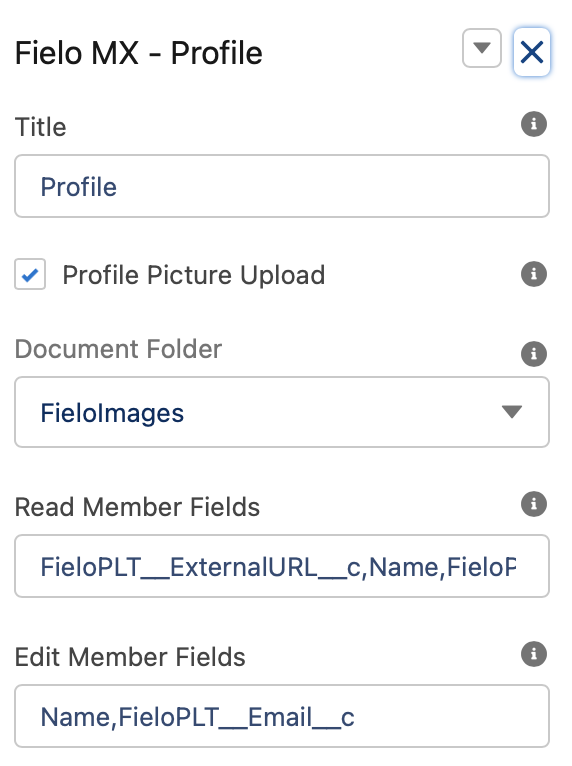
Title
This text field will contain the Title Label. “Profile” will be its default value. An administrator user can customize the message by defining a Salesforce custom label value to be shown instead.
Profile Picture Upload
Checking this allows members to update their profile picture.
Document Folder
This field controls on which Salesforce document folder member profile pictures will be stored. By default, it is set to FieloImages.
Read Member Fields
This field controls the list of fields the member will be able to see (view). Enter the API names of the Member field, separated by commas ',' (no spaces). You can add empty spaces between fields by using 'blank' (instead of an API field name).
Note If you want the component to show a member's profile picture make sure to include FieloPLTExternalURLc.
Edit Member Fields
This field controls the list of fields the member will be able to edit. Enter the API names of the Member field, separated by commas ',' (no spaces). You can add empty spaces between fields by using 'blank' (instead of an API field name).
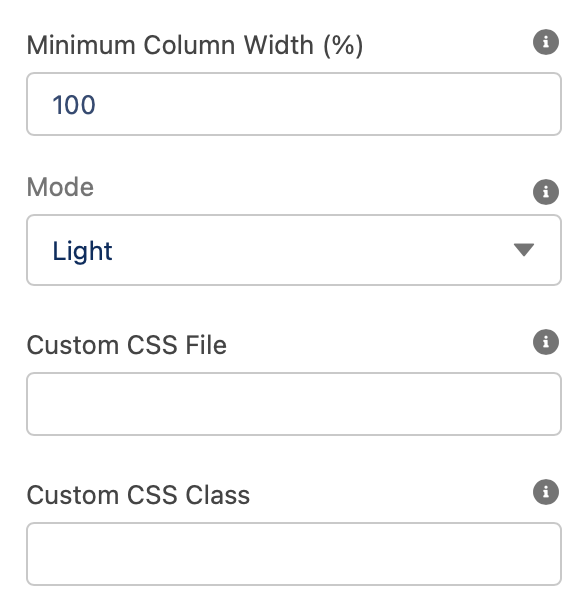
Minimum Column Width (%)
This field lets you decide what percentage of the screen you would like for the component to take up on the screen. The range is between 1% and 100%; by default, it is set to 100%.
Mode
This field controls the overall look and feel of the component. We can choose between two settings: Light or Dark.
Custom CSS Classes
This allowed Custom CSS Classes to be applied in the main element, separated by space. Work with your IT department to update this with their customized CSS code.
Custom CSS File
This allowed a CSS file to be imported from a static resource. Work with your IT department to include the customized CSS information.
Text Orientation:
This picklist setting will control the overall look and feel orientation:
- Left to Right this is the default value. When selected, all elements will be rendered from Left (first) to right (second.)
- Right to Left when this setting is selected all elements will be rendered from the right (first) to left (second).
Updated over 1 year ago