
Installation and Setup
FieloCC v1.17
Prerequisites
- Your org should have FieloPLT installed.
- FieloPLT should have at least one program and at least one segment in each program.
- You should have 10 custom objects available on your org.
Install the Fielo Comms package
Click here to log in to your org and begin installation.
Choose which users in your org will be configuring. If it will be just you and/or other system admins, select Install for Admins only and click Install. When the installation process concludes, you will be notified by email.
Deploy the Comms Connector
Go to the Fielo Comms Connector public repository on GitHub and click Deploy to Salesforce at the bottom of the page.
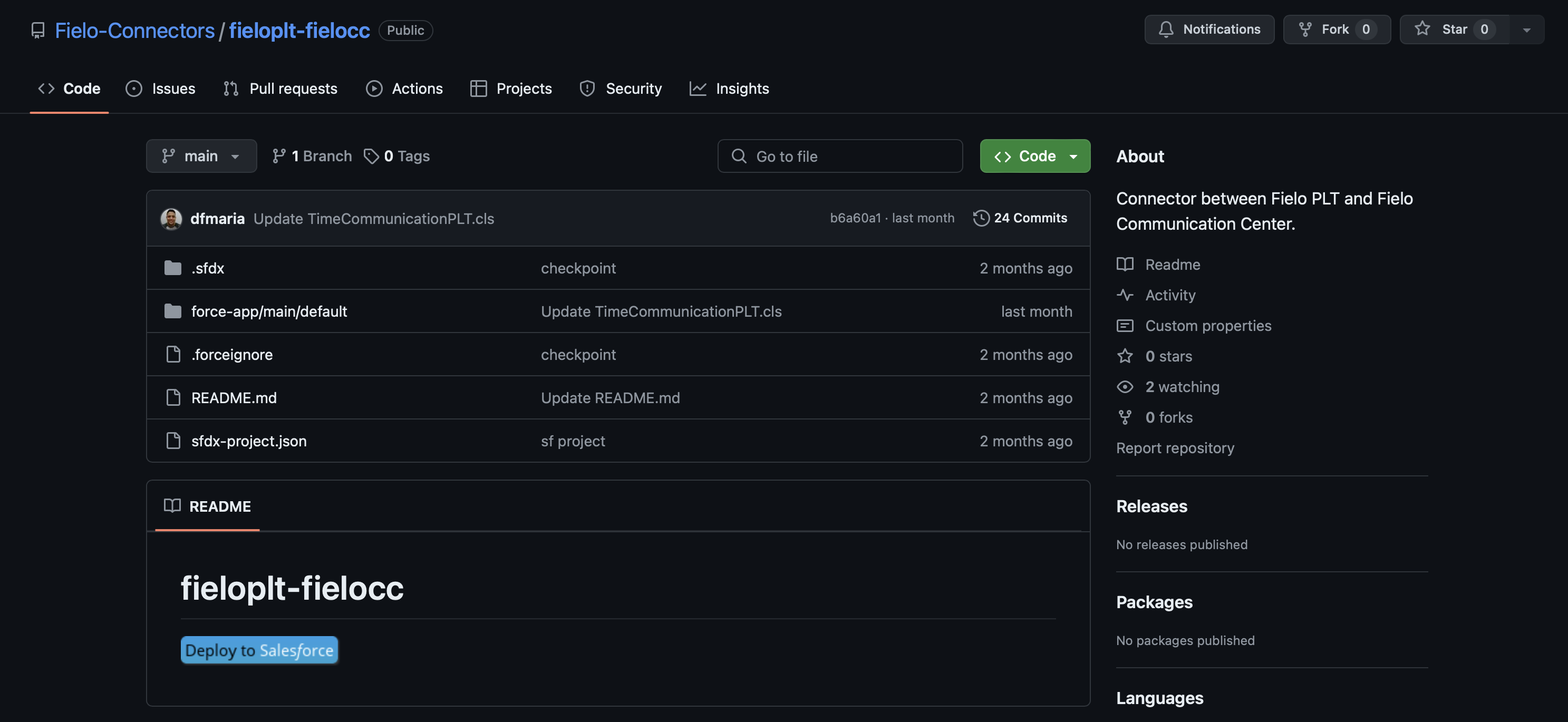
If prompted, log in to Salesforce using your org credentials.
If you are already logged in to Salesforce, click Allow to enable the GitHub Salesforce Deploy Tool to access your org.
If you are not logged in to Salesforce, enter your username and password. Click Allow to enable allow the deployment tool access to your org.
Click Deploy. The deployment status should be confirmed at the bottom of the page.
Provide user permissions
Grant the following permission sets to users who will access Fielo Comms:
- FieloPLT Admin
- FieloCC Admin
- FieloCC Connector
Ensure also that these users have access to organization-wide email addresses.
Review email senders
Comms Center leverages your Organization-Wide Addresses to send email. Your Salesforce org should have at least one verified Default No-Reply Address. This way, you control which display name and email address your recipients see.
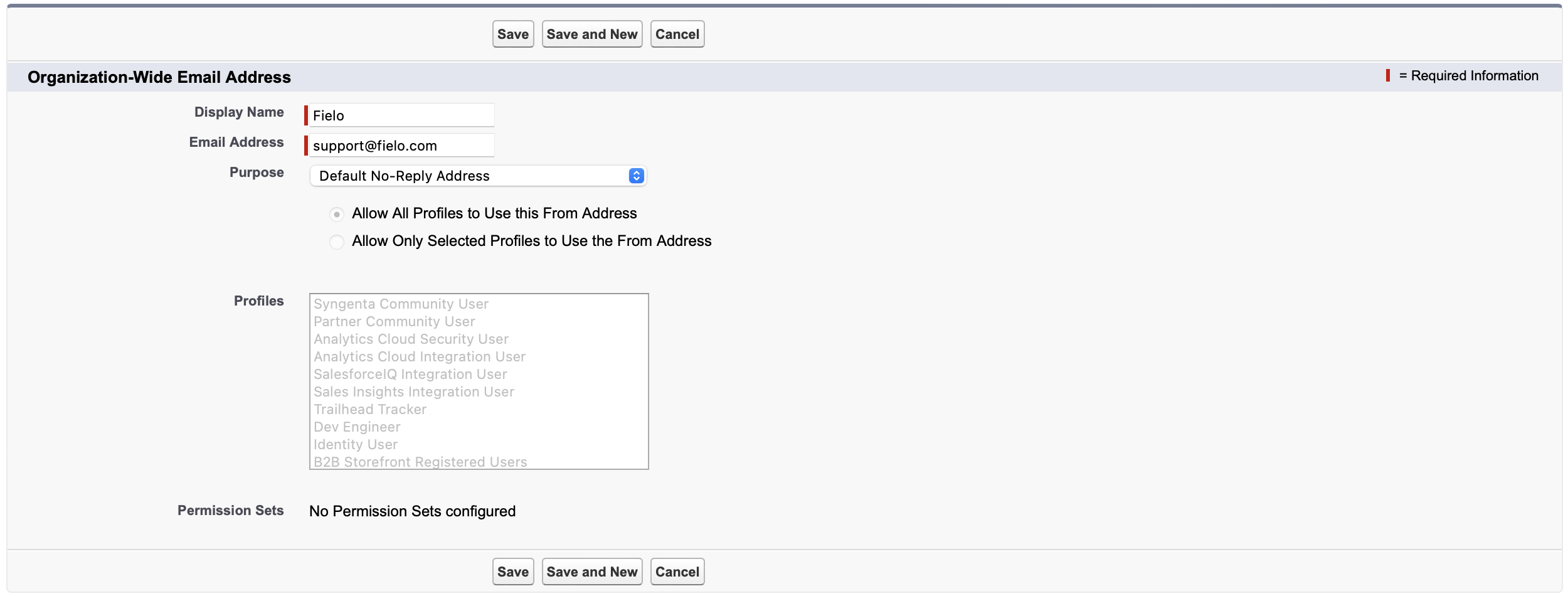
For more details on configuring organization-wide addresses, see Set Up Organization-Wide Email Addresses.
Connect SendGrid to Comms Center
If you plan to use Comms Center to send email, you'll need to add an unsubscribe group and a SendGrid API key to Comms Center's settings.
SendGridCheck out SendGrid's Email API pricing options and, when you're ready, create an account.
Unsubscribe Group
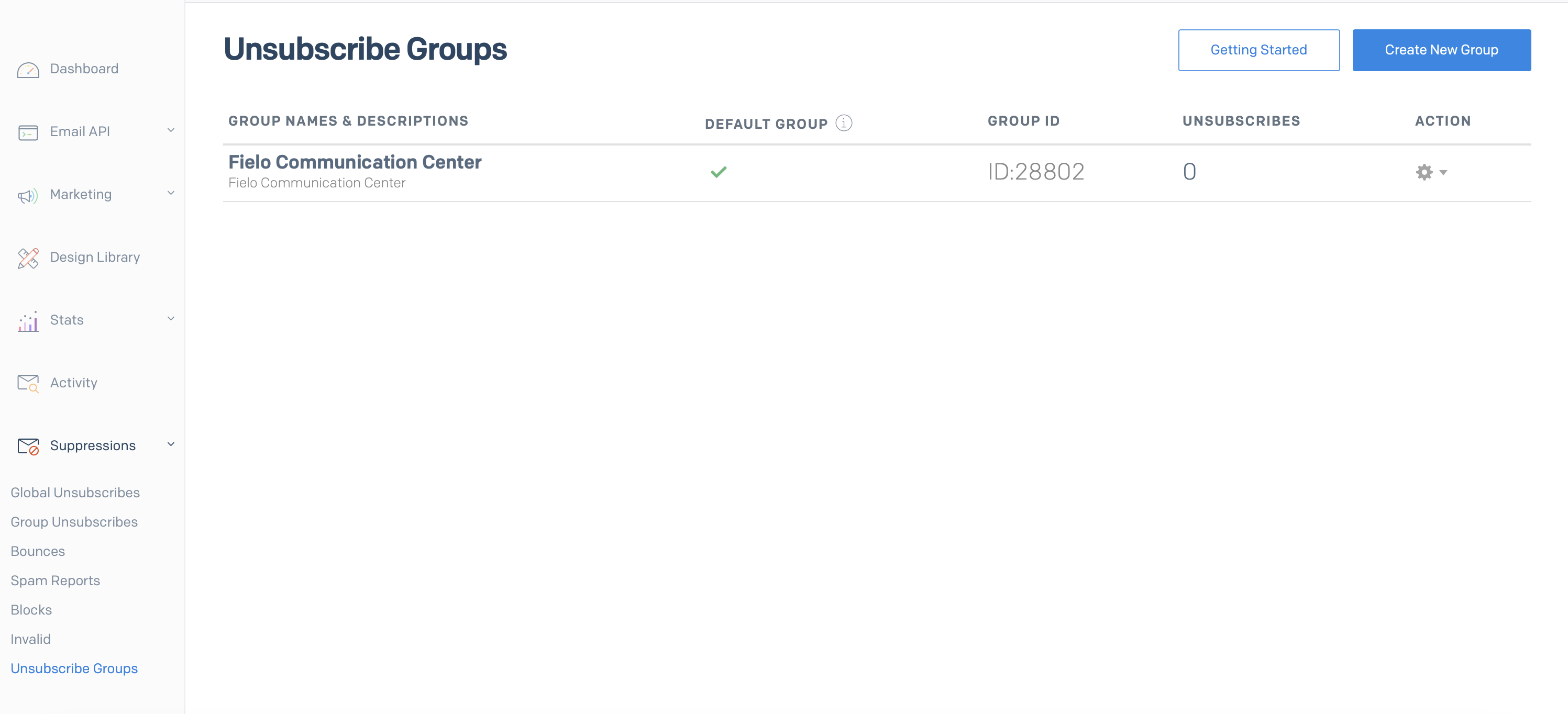
First, ensure that you have a default unsubscribe group. From the SendGrid app, under Suppressions, select Unsubscribe Groups. If you have one already, note its ID (you'll need it later). Otherwise, click Create New Group. Give it a name and description, make it a default group, and save. Note down its ID.
API Key
Next, if you haven't already, generate a SendGrid API key.
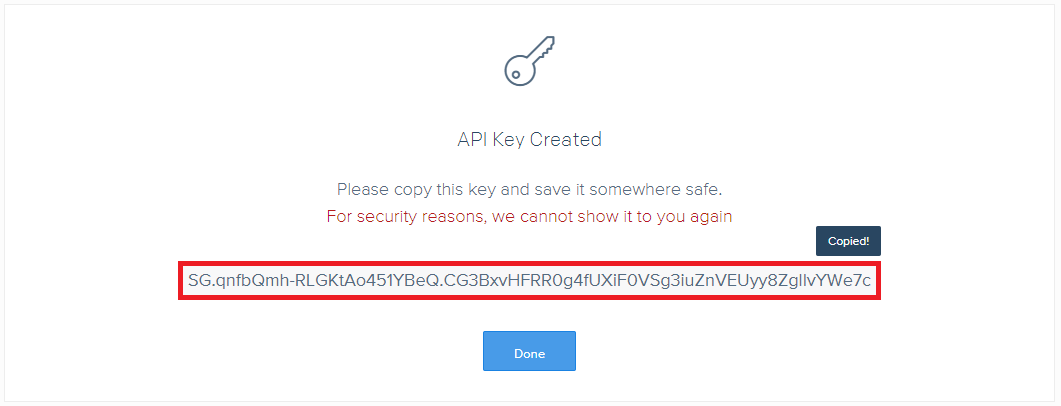
From the SendGrid app, under Settings, select API Keys. Click Create API Key. Give it a name, choose Full Access and click Create & View.
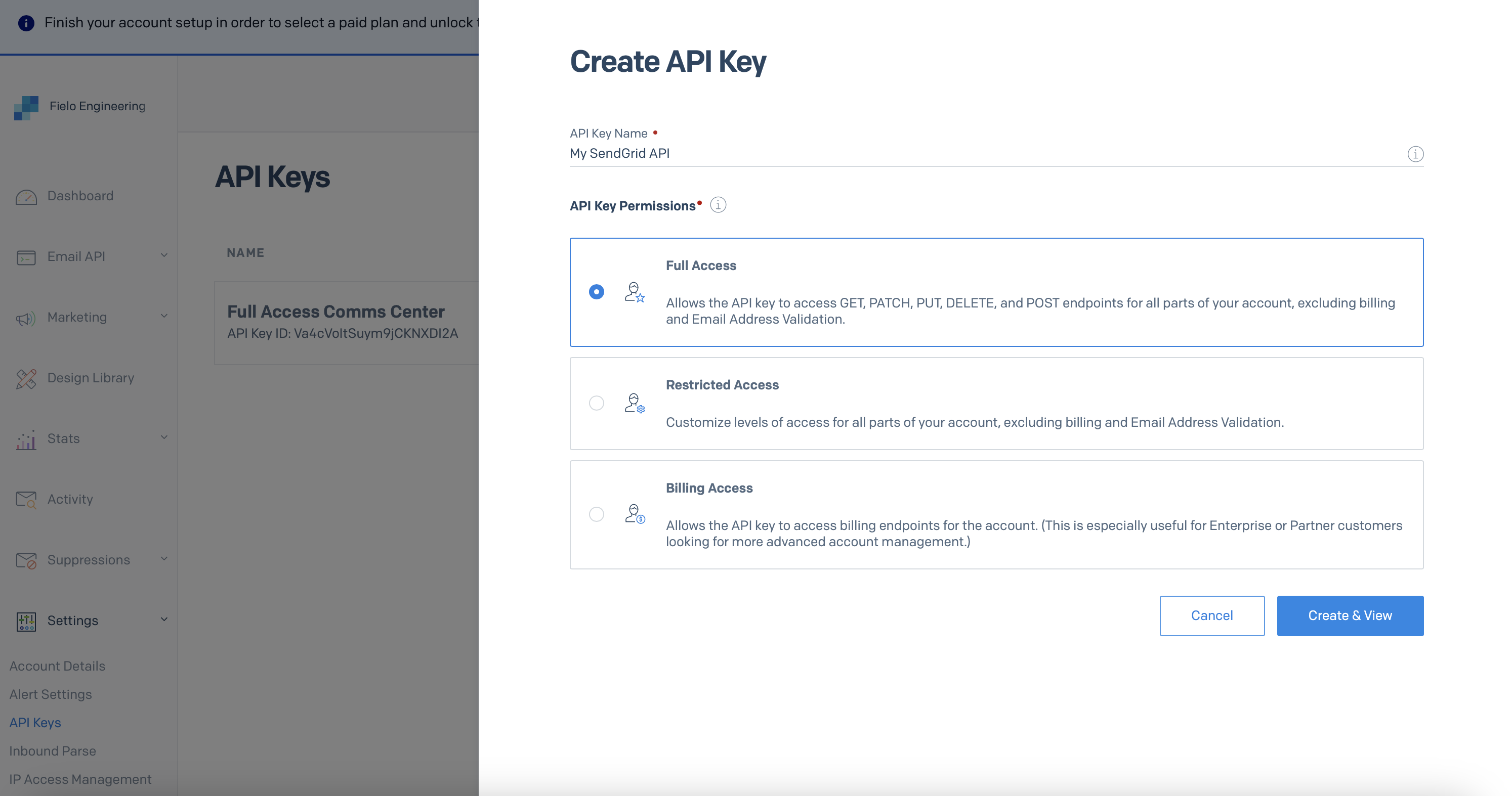
Copy the key to your computer's clipboard. Be sure to store it securely.
The API key will only be displayed once. Once you exit this page, you won't be able to see it again.
FieloCC Settings
With your unsubscribe group ID and API key in hand, switch back to Salesforce. From Setup, navigate to Custom Settings and, next to Public Settings (namespace: FieloCC), select Manage.
Create or edit the Default Organization Level Value. In the corresponding fields, enter your SendGrid API key and unsubscribe group ID.
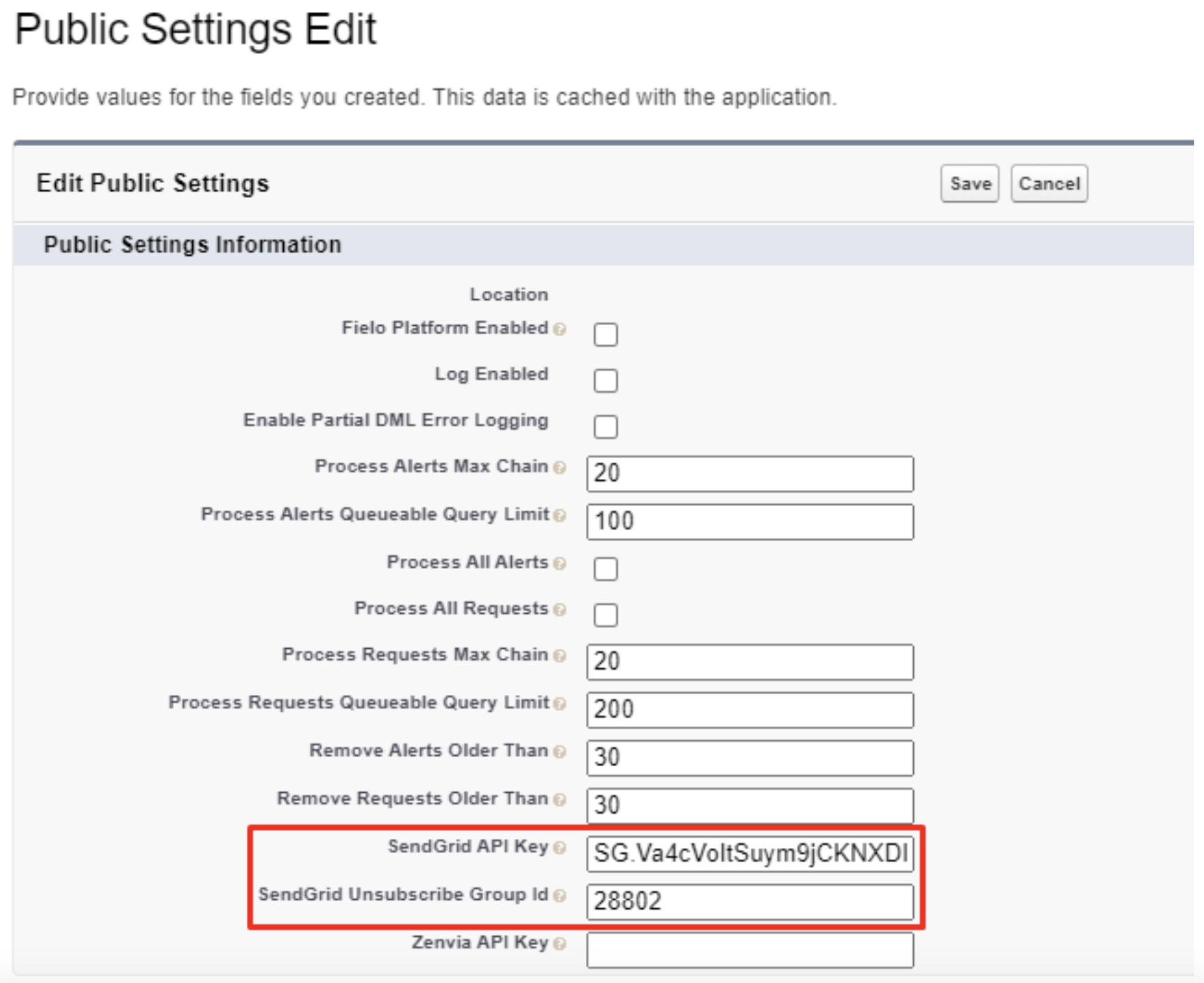
Finally, click Save.
Great job!You're officially ready to use Fielo Comms Center. Now you can create your first template.
Updated over 1 year ago