
Processing Invoices
How to approve or reject submitted invoices
You have now defined all your Program Settings. You may have also configured your Experience Cloud site so that Members have their own portal and can upload their Invoices. Or you've decided to Upload Invoices yourself.
The next step is Processing the Invoices. Every uploaded Invoice needs to be processed before the Member can start receiving Points. This can either be a speedy, automatic process, or a bit of a delayed one, depending on whether you have configured Program Settings so that the Invoice needs to be approved by a third party.
Once uploaded and saved, the Invoice will register as Open - you can see this status on the top left of the screen.
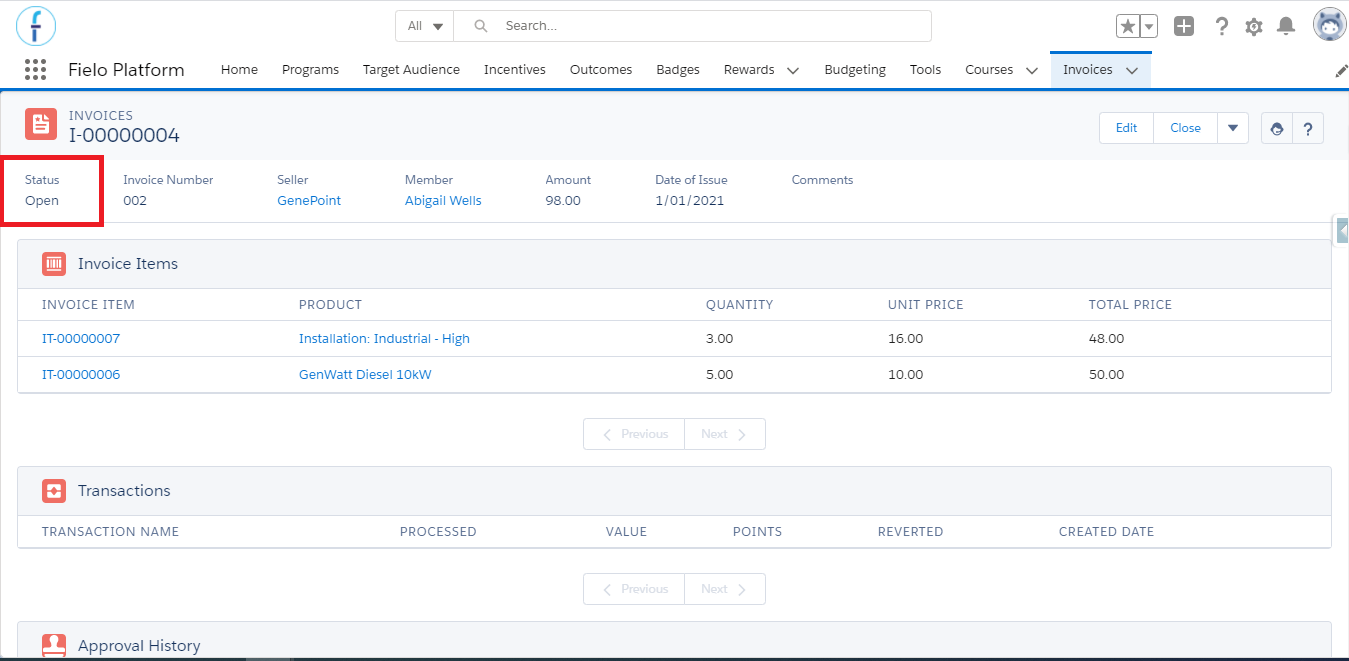
Invoice: Open Status
You will also see all of the information you or the Member inputed for the Invoice on this overview screen.
There are two ways your Program may have been configured in Program Settings:
- Approval process is mandatory: This means that, to be approved, it will automatically be sent to a third party for approval. For this to be the case, the Program field Request Invoice Authorization must be set as (true).
- Approval process is optional: This means that the invoice will be approved immediately after it has been submitted. For this option, the Program field Request Invoice Authorization must be set to (false).
Approving Invoices
- If Request Invoice Authorization has been set to (true), the Close button will send the Invoice for approval where it will be analyzed by the third party, defined for the approval process. The Invoice status will change to Pending for Approval, while waiting for the approvers' decision.
- If Request Invoice Authorization has been set to (false), the Close button allows you to immediately approve the Invoice, changing its status to Approved.
Even if Request Invoice Authorization is set to false, you still have the option of sending the Invoice for a third party's approval if there's some aspect of it that you're unsure about - provided there is an Approver configured for the Program. Do this by pressing the Submit for Approval button.
Once you have submitted, or Closed the Invoice, the following statuses can appear:
- Pending for Approval: This will show when the Invoice is in the hands of the approver and you are waiting for their verdict.
- Approved: This means either you or a third party haven't found any problems and the invoice has been approved. If, for any reason, the invoice was improperly approved, this status can be revoked by clicking on the Revert button.
- Rejected: This means that when analyzed, inconsistencies were identified, preventing the Invoice from being validated. It is possible to restart the process as soon as the inconsistencies are eliminated by pressing the Reopen button. After this, the Invoice status will return to Open.
Invoice RejectedNote that if the invoice is rejected by you or a third party, the Member will not be able to edit their submission and try to submit it again. They will have to start the entire invoice submission process again from scratch.
- Canceled: This is the Invoice status after you click Revert in an approved Invoice. If accidentally reverted, the Invoice can be returned to its Approved status by pressing the Reprocess button.
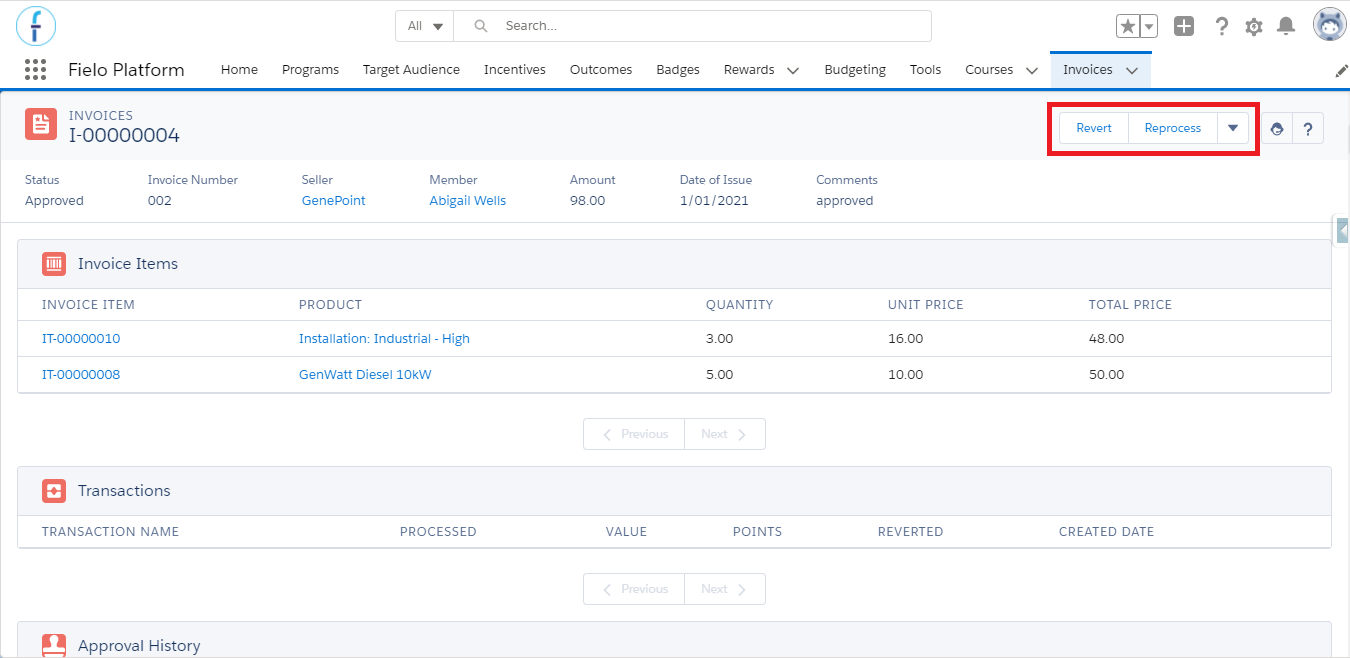
Reprocessing a cancelled invoice
Transactions
This list relates to the Currencies generated for the Member as a result of the Invoice submission. Transactions will be calculated automatically so long as you have configured a Rule which says that a submitted Invoice will generate a certain number of Points for a Member, either due to its Amount, Status, Product, etc. For example: Invoice = 100 Points.
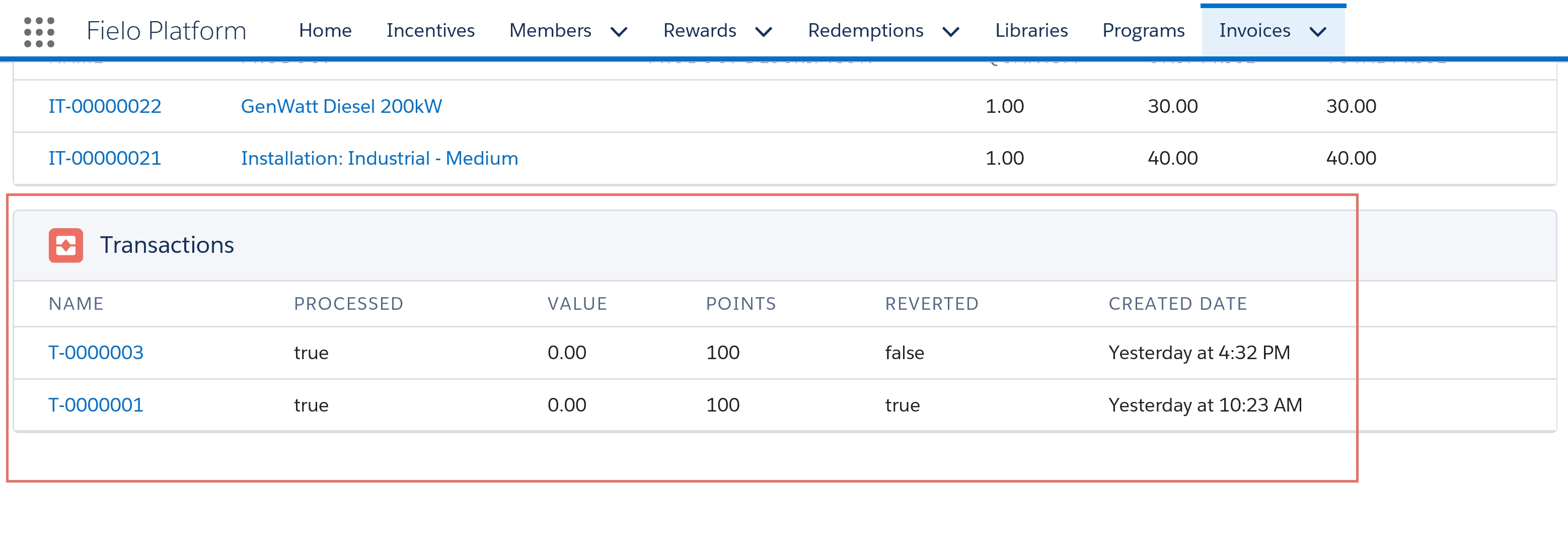
Invoice Transactions
After approvalThe transaction will only appear on the screen once the status of the invoice is Approved.
Updated over 1 year ago