
Questions
Learn to make Questions for each of your Modules in no time!
Now that you've made a Course and set up the Course Modules, you can start designing your Questions.
Creating Questions
In the Module overview page, go to the Questions box and click New. You will then be asked to select which type of Question you want to add. Here are the five Question Types explained:
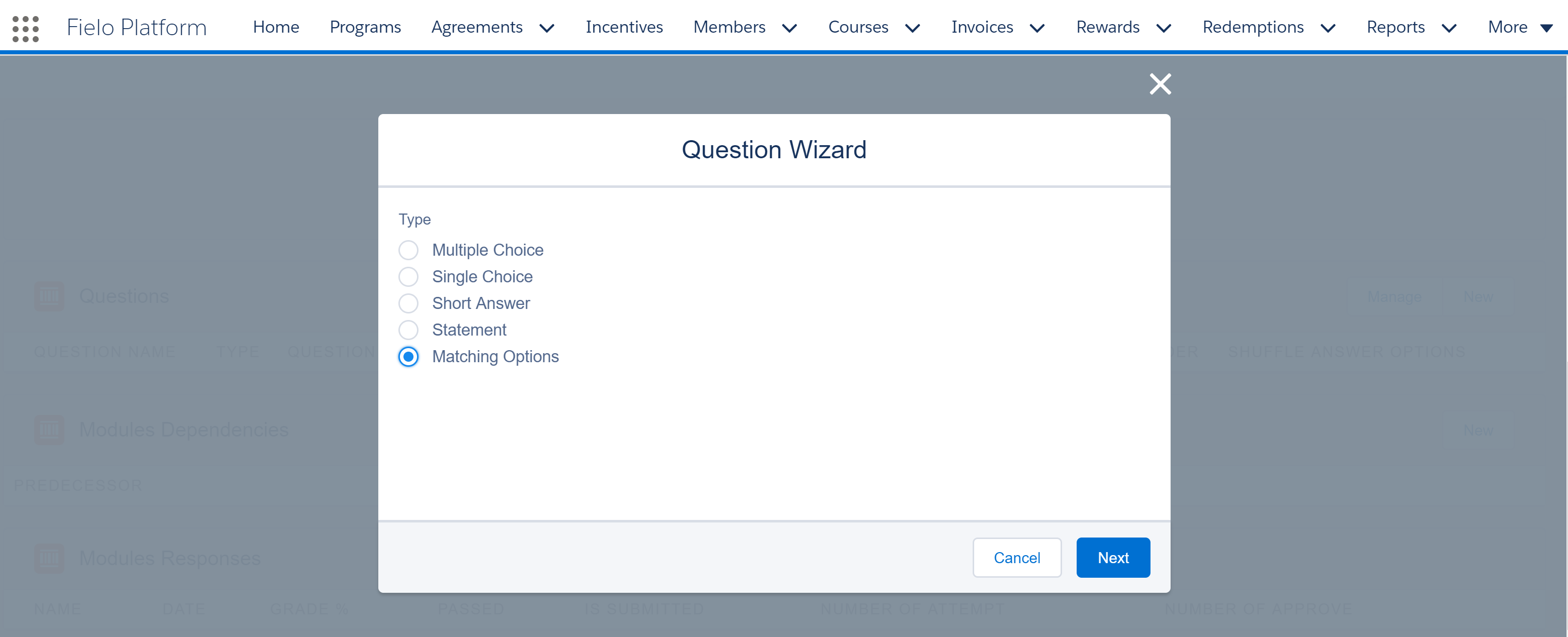
Question Wizard
- Multiple Choice: If you select this option, more than one of the potential answers can be correct.
- Single Choice: If you select this option, only one answer option can be defined as correct.
Single Choice QuestionsIf no Answer option is defined as Correct, the Module cannot be activated.
- Short Answer: If you select this option, you have to make sure that you write out all of the possible Answers someone might give, which could be correct. For example, if you have a question that can be answered with a number, set the answer as figures, in word form, in capitals and so on. All the included Answer options are automatically considered correct.
- Statement: For this type of Question, the Member can select one of two options: True or False.
Statement QuestionsIf no Answer option is defined as Correct, the Module cannot be activated.
- Matching Options: If you select this option, for each Answer option, there is a matching pair. Each combination of answer option x matching pair is considered correct. It's possible to add some entries that don't have an answer option, in order to give the Member more combination options.
Multiple Choice
If you go for the Multiple Choice option, you'll fill out the following fields:
- Question Name: Write something that will identify the Question, in a maximum of 80 characters.
Empty Question NameQuestion Name will be automatically filled with the first 20 characters of the Question Text.
- Shuffle Answer Options: When this option is , different Answer options are displayed in a different order each time the Member makes a new attempt.
- Question Text: This is the wording of the question. Make sure to make it super clear and concise.
- Answer Option Text: Write out your options, selecting New every time you want to add a new one. Each option has a 255 character limit. Select the correct answers as .
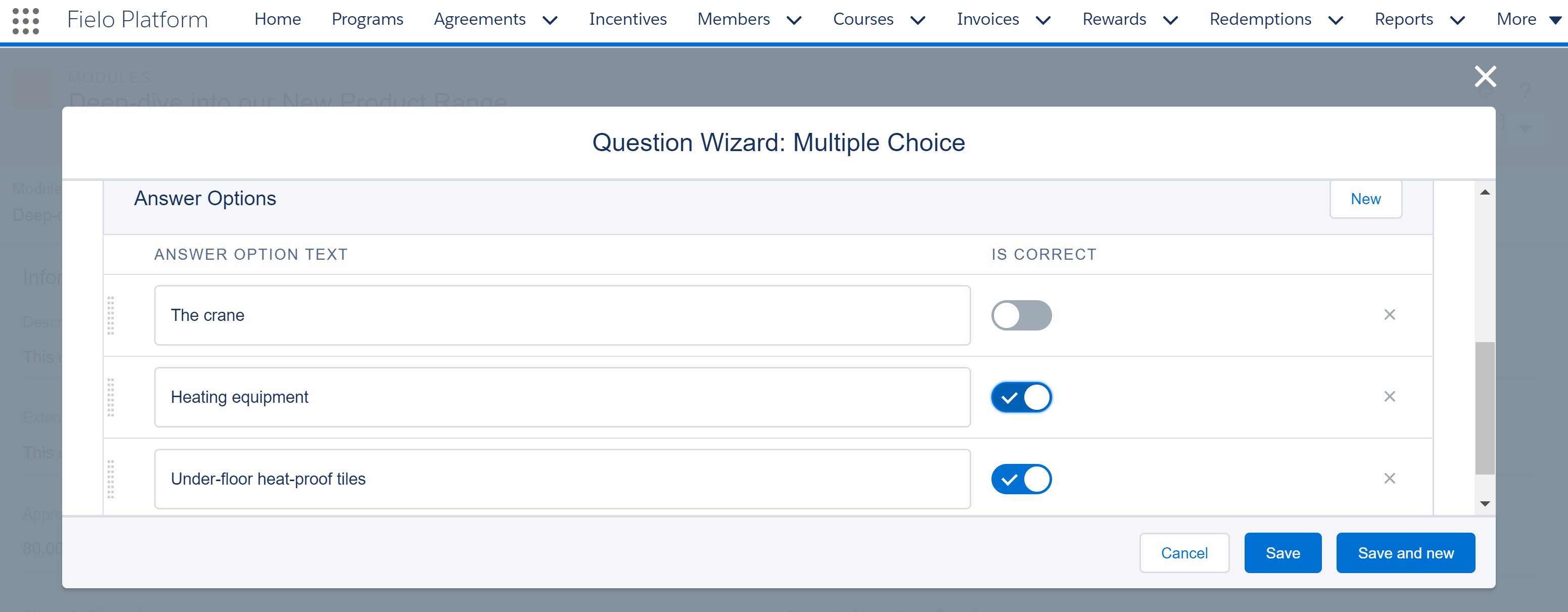
Multiple Choice Question
Member SiteThese Questions will be displayed to the Member with checkboxes, enabling them to select one or more Answers.
Any of the included Answer options can be removed by clicking the remove icon on the right.
It's also possible to reorder the Answers by dragging and dropping them in the desired order.
You can then press the Save and New button which saves the question and automatically allows you to create the next one, or you can press the Save button which saves your Question and takes you back to the Module overview Page.
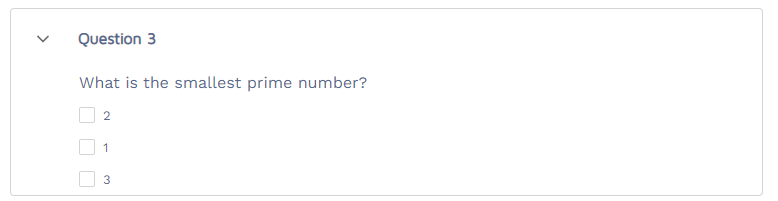
Multiple Choice question example
Single Choice question
If you select this option, you'll fill out the following fields:
- Question Name: Write something that will identify the Question, in a maximum of 80 characters.
Empty Question NameQuestion Name will be automatically filled with the first 20 characters of the Question Text.
- Shuffle Answer Options: When this option is , the Answer options are displayed in a different order each time the member makes a new attempt.
- Question Text: This is the wording of the question. Make sure to make it super clear and concise.
- Answer Option Text: Write out your options, selecting New every time you want to add a new one. Each option has a 255 character limit. Select the correct answer .
Member SiteThese options are displayed to the Member with radio buttons, so that they can only select one Answer.
Any of the included Answer options can be removed by clicking the remove icon on the right.
It's also possible to reorder the Answers by dragging and dropping them in the desired order.
You can then click the Save and New button which saves the question and automatically allows you to create the next one, or you can press the Save button which saves your Question and takes you back to the Module overview page.
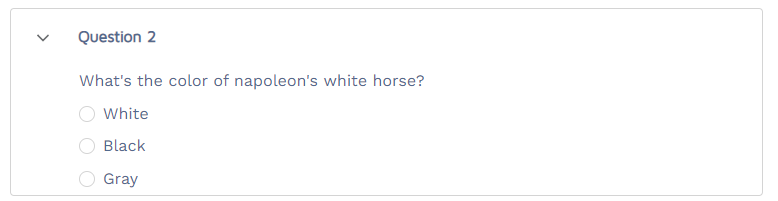
Single Choice question example
Short Answer Question
If you selected the Short Answer option, fill in the following fields:
- Question Name: Write something that will identify the Question, in a maximum of 80 characters.
If left blank...The system will automatically set the Question Name field as the first 20 characters of the Question Text.
- Question Text: This is the wording of the question. Make sure to make it super clear and concise.
- Answer Option Text: Write out your answer here. Make sure to write out all the possible ways the answer could be answered correctly, by selecting New every time you want to add a new one. For example, if you're writing the number 30, make sure to also write thirty. Each option has a 255 character limit.
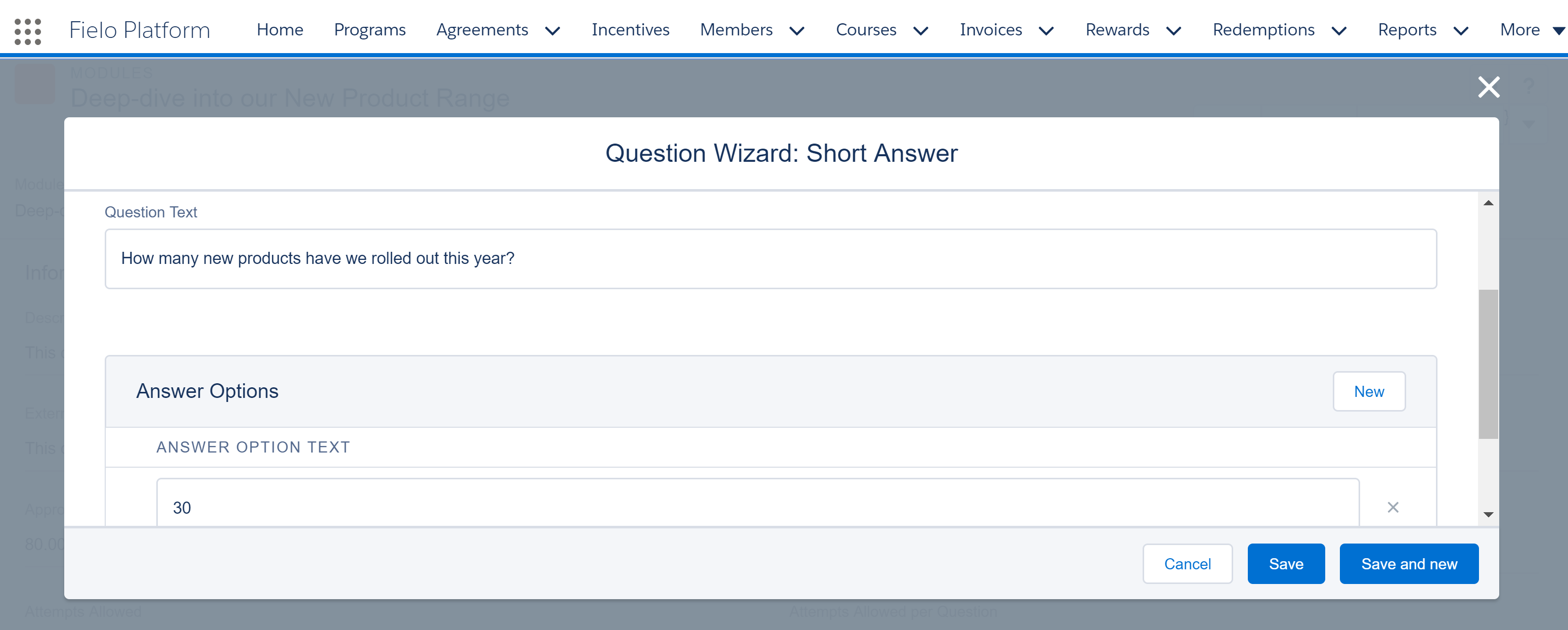
Short Answer Question
Any of the included Answer options can be removed by clicking the remove icon on the right.
You can then press the Save and New button which saves the question and automatically allows you to create the next one, or you can press the Save button which saves your Question and takes you back to the Module overview Page.
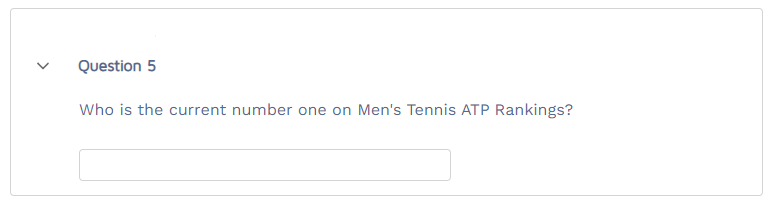
Short Answer question example
Statement Question
If you selected the Statement Question option, fill in the following fields:
- Question Name: Write something that will identify the Question, in a maximum of 80 characters.
- Question Text: This is the wording of the question. Make sure to make it super clear and concise.
- Answer Option Text: The two available options are True and False. Select the correct answer as (true). The Member must select the answer they think is correct.
From the Member siteThese options are shown to the Member with radio buttons, so they can select only one answer.
You can then press the Save and New button which saves the question and automatically allows you to create the next one, or you can press the Save button which saves your Question and takes you back to the Module overview Page.
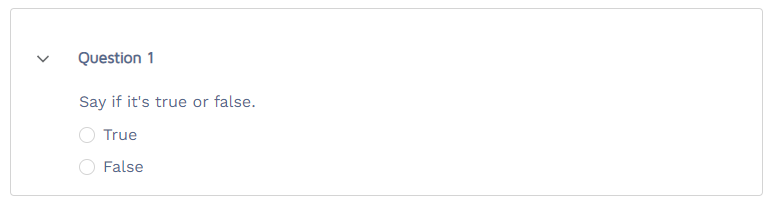
Statement question example
Matching Options Question
If you selected the Matching Options Question, fill in the following fields:
- Question Name: Write something that will identify the Question, in a maximum of 80 characters.
- Shuffle Answer Options: When this option is selected (true), both the left and right side of the matching fields will be randomly displayed to the Member. If it is not selected, only the matching text, on the right hand side, will be randomly displayed.
- Question Text: This is the wording of the Question. Make sure to make it super clear and concise.
- Answer Option Text: These fields represent the items that are going to be matched. Simply create new ones by selecting New. This field has a 255 character limits.
- Matching Text: These are the options that need to be matched with what you wrote in the Answer Option Text fields. They also have a 255 character limit.
Each combination of answer option x matching pair is considered as (true). Pairs which have no answer option text field filled are considered as (false).
Any of the Answer Option Text and Matching Text can be removed by clicking the delete icon on the right hand side.
You can then press the Save and New button which saves the question and automatically allows you to create the next one, or you can press the Save button which saves your Question and takes you back to the Module overview Page.
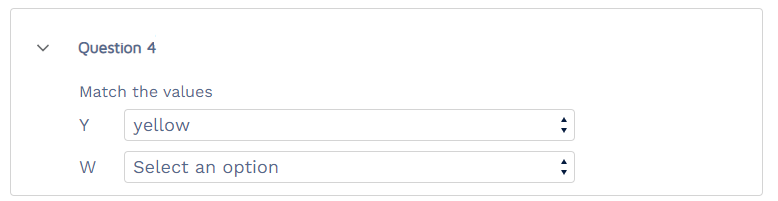
Matching Options question example
Manage Questions
There are a few other Question settings that can be configured, such as the value of individual questions, and whether Members lose points for getting things wrong.
Go to the Module overview Page and scroll down to the Questions related list, and then click on Manage.
Quiz Timer (SF Experience Cloud Sites Only)
Setting this value will determine how much time (in seconds) the Member has to complete all quiz questions.
When a Member takes a quiz, a countdown timer will be shown in the modal, indicating how much time left has to complete the quiz. If the timer reaches 0 before the Member finishes the quiz, any unanswered questions will be automatically submitted and considered wrong. Member will be graded based on the result of all questions. If Admins leave this field blank (or empty), Member will have unlimited time to complete the quiz.
Show correct answers (SF Experience Cloud Sites Only)
This field controls if questions will show the answer correctness after the member has submitted the question. One of the following settings can be selected:
- Both[default]: system will show Member if the question was answered correctly or incorrectly. In the Quiz and Quiz response view.
- Only Quiz Response: system will show the right/wrong answers to Members only when viewing the quiz response, not when taking the Quiz.
- Only Quiz: will only show the right/wrong answer to the questions when a Member is taking the Quiz, but not on the Quiz Response screen.
- None: will not show right/wrong answer to the questions when a Member is taking the quiz or viewing the quiz response.
Penalty Mode
This refers to whether getting a question wrong means that a Member loses points. There are three options here:
- None: This means that the Member incurs no penalty for getting an answer wrong.
- Percent Decrease: This means that each Question answered incorrectly causes the Member to lose a certain percentage of the points for the Question. If this option is selected, a box will appear, and you can fill out your desired penalty as a percentage.
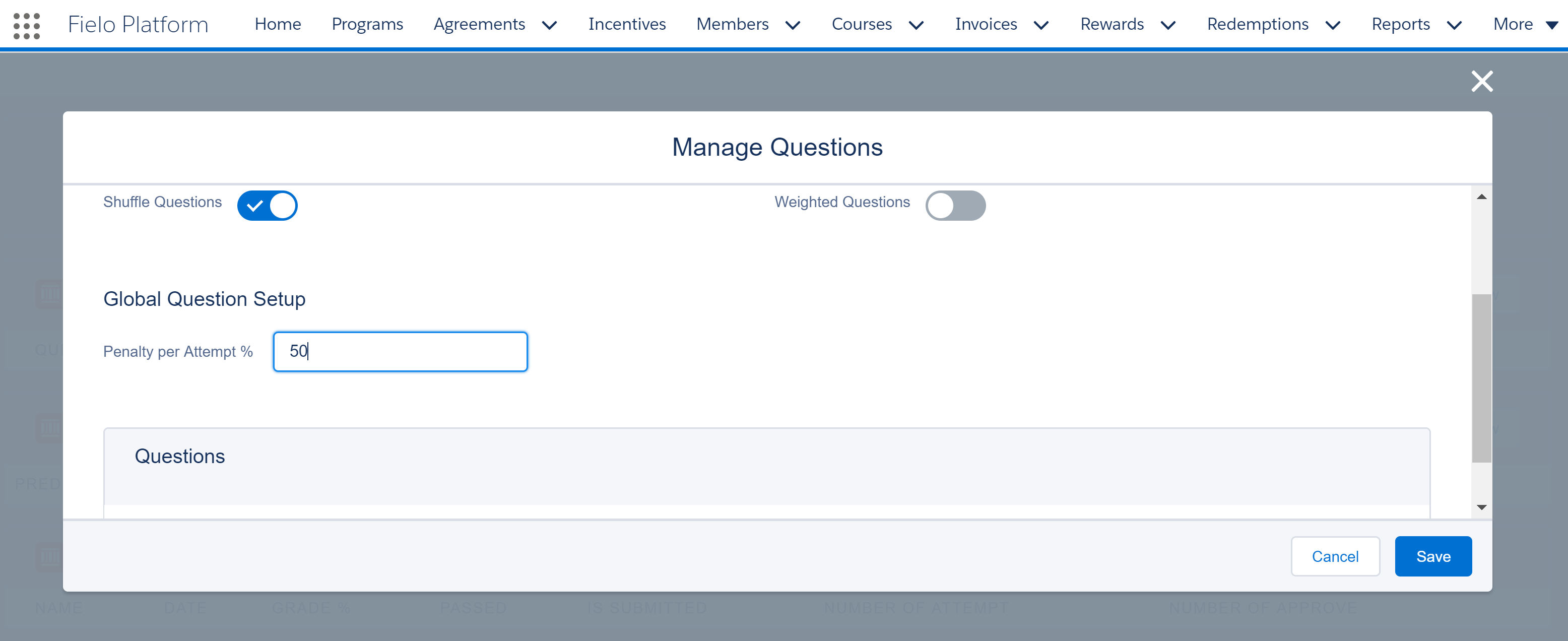
Penalty Mode
The Member is penalized for each attempt where he or she gives an incorrect answer. When he or she finally answers correctly, his or her grade will have been reduced by a percentage of the whole grade.
The value inputted in the Penalty per Attempt field defines the percentage value to be decreased with each wrong answer and must be between 0 and 100.
Formula used to Calculate the GradeCW x (1 - PA (%)) ⌃ (AN - 1)
where:
CW = Correct Weight
PA = Penalty per Attempt
AN = Attempt Number
Weighted QuestionsIf you select Percentage Decrease Penalty Mode, the Global Question Penalty per Attempt field will appear, allowing you to give the same penalty value to all questions in the Module.
This option applies to a Module with non weighted questions - e.g. all questions have the same Correct Weight which is equal to 1 (one).
For Modules where each Question has a different weight, you need to set the Weighted Questions field to true. This allows you to set a Correct Weight and Penalty per Attempt for each individual question.
Example 1: Weighted Questions is . Global Penalty per Attempt is 10. Three attempts allowed per question. The Member incorrectly answers the first 2 attempts and correctly answers the third one. He or she will have the following partial grades:
0 + 0 + 0.81 = 0.81
Example 2: Weighted Questions is . Correct Weight is 10. Individual Penalty per Attempt is 20. Two attempts allowed per question. The Member incorrectly answers the first attempt and correctly answers the second one. He will have the following partial grades:
0 + 8 = 8
- Negative Weight: This means that each question answered incorrectly will cause the Member to lose points. If this is selected, a box will appear for you to fill out how many points you would like Members to lose for answering Questions incorrectly.
The Member is immediately penalized for each attempt where he or she gives an incorrect answer. For each attempt he or she will receive a partial grade:
Correct Weight - if the Member correctly answers the question
Incorrect weight - if the Member incorrectly answers the question
Weighted QuestionsIf you select the Negative Weight penalty mode, you will automatically be able to select the global question Incorrect Weight field, allowing you to give the same "incorrect value" to all questions in the Module.
This option applies to a Module with non weighted questions - i.e. all questions have the same Correct Weight, equal to 1.
For Modules where each question needs to have different weights, you have to set the ]Weighted Questions](doc:questions#weighted-questions) field to true. That way, you can determine the Correct Weight and Incorrect Weight for each individual question.
Example 1: Weighted Questions is . Global Incorrect Weight is -0.01. Three attempts allowed per question. The Member incorrectly answers the first 2 attempts and correctly answers the third one. He or she will have the following partial grades:
- 0.01 - 0.01 + 1 = 0.98
Example 2: - Weighted Questions is . Correct Weight is 10. Individual Incorrect Weight is 0.5. One attempt allowed per question.
If the Member incorrectly answers the question, his or her partial grade equals 0.5.
If he or she correctly answers the question, his or her partial grade equals 10.
Attempts Allowed per Question
Here you can define how many times the Members can answer a question until he gives the right response. It may vary from 1 to 10 or be set to unlimited, which means that the Member will be allowed to answer the question indefinitely until he's able to give the right answer.
Module GradesIf you want to guarantee that members receive numerical grade feedback (e.g. 80%), set Attempts Allowed per Question to 1.
Members who provide incorrect responses on their quizzes and do not use up all of their question attempts will not receive a numerical grade.
Configuring the Question Pool
Suppose the Module has loads of questions and you only want a few of them to be displayed. In this field you can select how many questions will be shown. You can type in any number from 1-100 and each time the Module is taken by the Member, a random assortment of your questions will be displayed.
When setting a question pool, all Questions automatically have their Correct Weight set to 1 (one), so it's not possible to select Weighted Questions.
If left blankNo subset is picked and all Questions will be displayed.
Shuffle Questions
If you've configured the Module so that Members can take Questions more than once, you might want to shuffle the Questions so they don't appear in the same order for every attempt.
By selecting Shuffle Questions, each time the Member takes the Module, the questions will be displayed in a different order.
Weighted Questions
By selecting this option, you can give certain Questions greater weight than others. This field is taken into account when working out the Penalty for each Penalty Mode previously described.
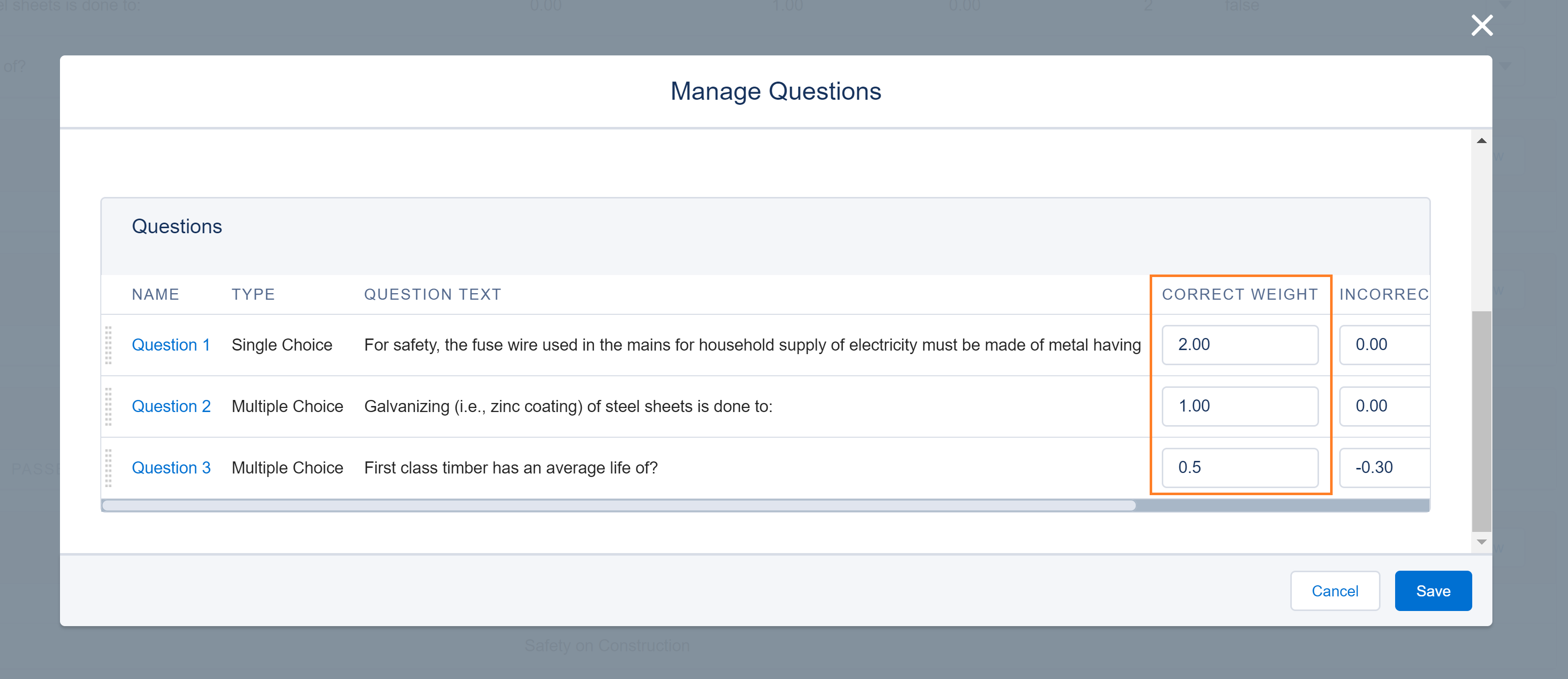
Weighted Questions
Ordering Questions
It's possible to reorder the Questions by dragging and dropping them in the desired order. The only time you're unable to order Questions is when Shuffle Questions or Question Pool is selected.
Question Display Mode (SF Experience Cloud Sites Only)
You can control, module by module, whether your questions are shown to members one by one or all at once.
To locate this setting, go to the detail page of your module and click Edit. You'll find the Question Display Mode picklist in the Community Settings section.
Salesforce Experience CloudPreviously known as Community Cloud, as of Salesforce Spring '21 release, Community is now referred to as Experience Cloud and/or Site.
Updated over 1 year ago