
Configure SCORM Settings
If you've subscribed to our SCORM service, follow these steps to get the SCORM content type up and running on your org.
Before Starting
To use the SCORM content type, after you have installed the FieloELR package on your Salesforce org, kindly open a support case to request activation of the feature. Please provide the IDs of the orgs on which you have installed the package. Our support team will enable SCORM and share the SCORM settings with you.
Custom Settings
From Salesforce Setup, search for and select Custom Settings. In the row corresponding to Scorm Settings (FieloELR), click Manage.
Create a Scorm Settings record as the Default Organization Level Value with the following info:
- Authenticate Endpoint:
/v1/authenticate - Client Id: Enter the value Fielo provided to you. This will be the same for all of your orgs.
- Environment Secret: Enter the value Fielo provided to you. There will be a different one for each of your orgs.
- Environment: Enter the value Fielo provided to you. There will be a different one for each of your orgs.
- Scorm Domain:
scorm.fielo.com - Scorm Stage:
v1 - Notify Stage:
v1
CSP Trusted Sites
From Salesforce Setup, search for and select CSP Trusted Sites.
Add a trusted site with the following info:
- Trusted Site Name:
ScormWebServiceApi - Trusted Site URL:
scorm.fielo.com - Active: ✔️
- Context: All
- CSP Directives: All ✔️
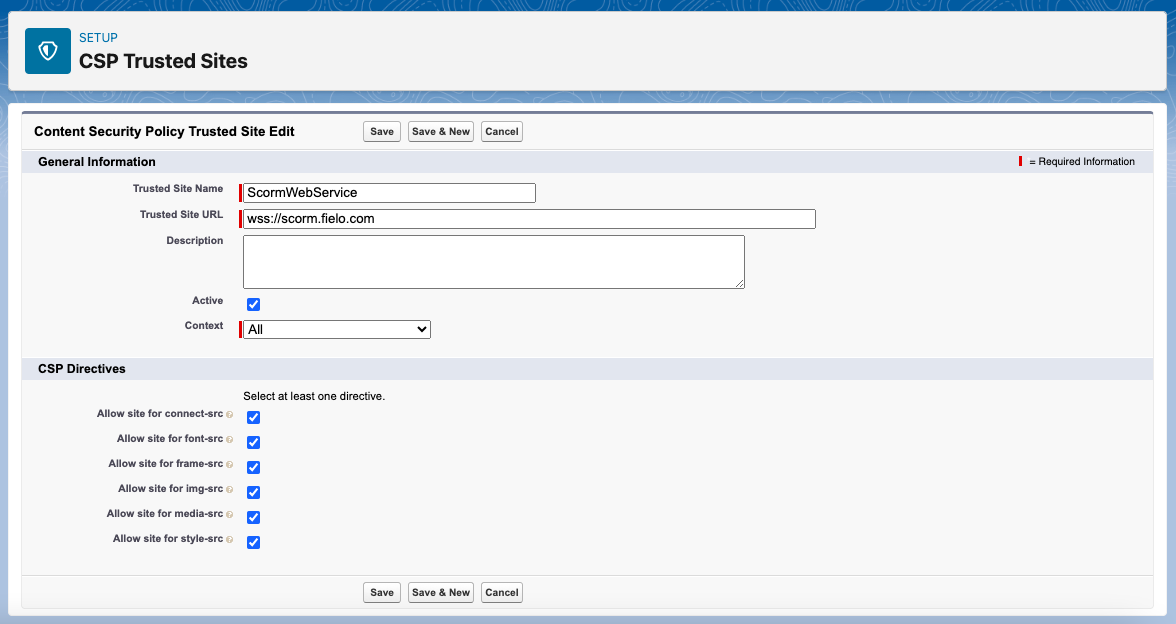
Add another trusted site with the following info:
- Trusted Site Name:
ScormWebServiceNotify - Trusted Site URL:
wss://scorm.fielo.com - Active: ✔️
- Context: All
- CSP Directives: All ✔️
Remote Site Settings
From Salesforce Setup, search for and select Remote Site Settings.
Add a remote site with the following info:
- Remote Site Name:
ScormWebServiceApi - Remote Site URL:
https://scorm.fielo.com - Active: ✔️
Experience Cloud Content Security Policy
If your learners access Fielo Learning through an Experience Cloud site, you'll also need to configure our SCORM web client as a trusted site in Experience Builder.
From Experience Builder, go to Settings and select Security & Privacy. Under Security Level, choose Relaxed CSP: Permit Access to Inline Scripts and Allowed Hosts.
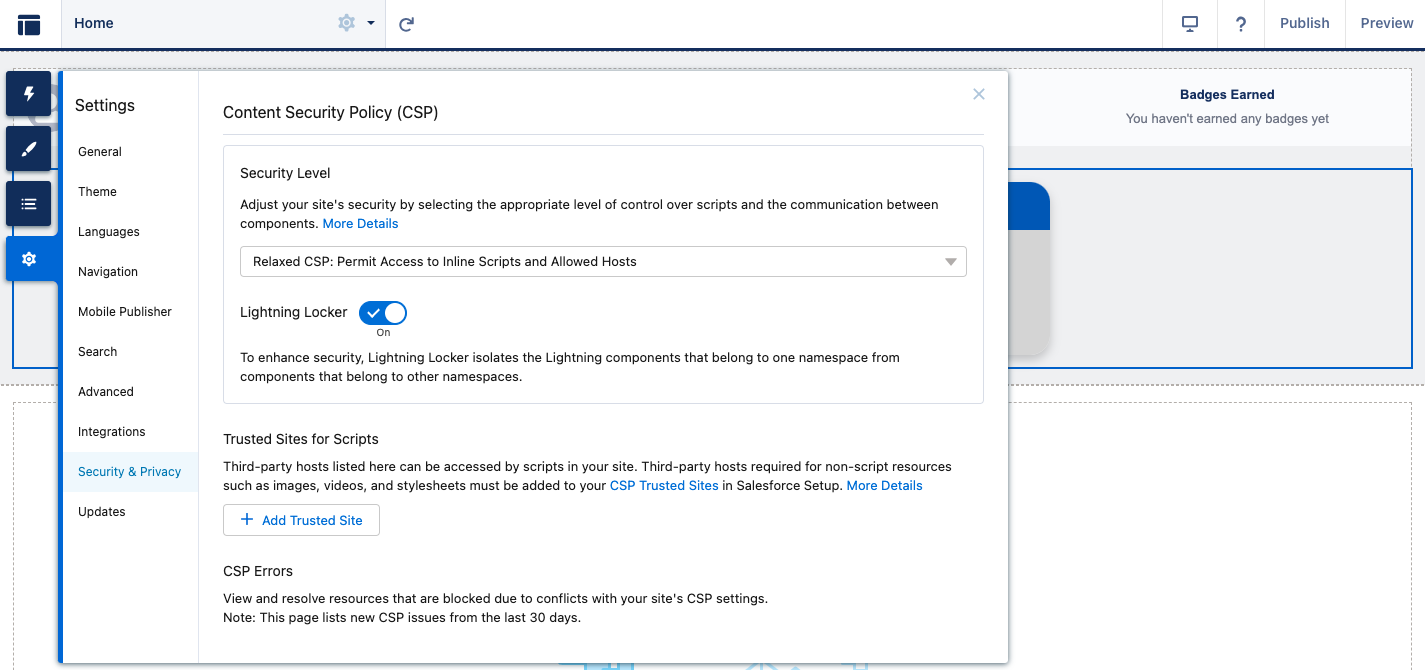
Next, add a trusted site with the following info:
- Name:
ScormWebServiceApi - URL:
https://scorm.fielo.com - Active: ✔️
That's all! You're ready to use the SCORM content type.
Updated over 1 year ago