
Payouts
The Payouts component allows your members to check the status of incentive payouts, including those that are pending, approved, and paid out.
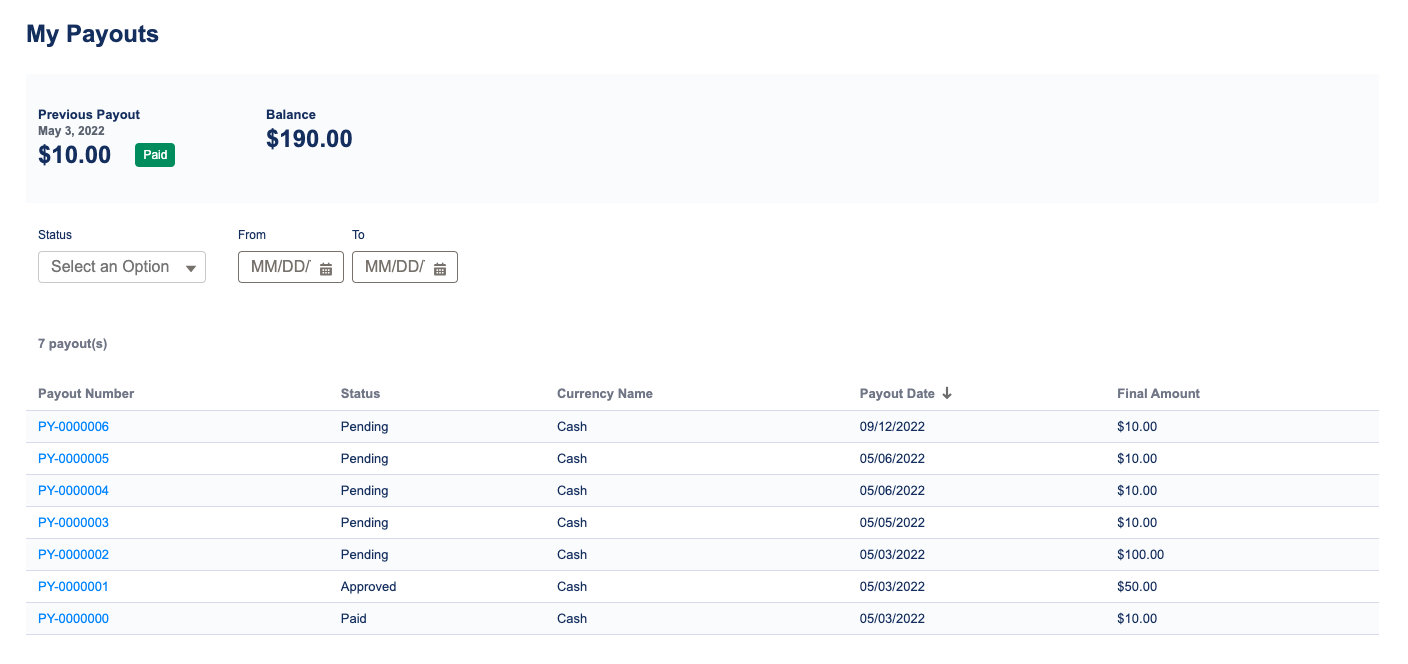
Members can also view details on individual payouts, such as itemized reward amounts and related incentives.

Getting Started
To get going, make sure you have a member associated with your user, as well as some payouts assigned to that member. This way, you can get an idea of how the component will appear as you're configuring your member experience.
When you drag and drop Fielo MX - Payouts onto a Lightning page or Experience Cloud page, remember to also place the Member Selector on that page.
Configuring Payouts
Once you've dragged and dropped Fielo MX - Payouts onto your page, you can tailor the look and feel using the component properties.
View Mode
You can set the default view mode for payouts and payout details to Table or List. Note that, for responsiveness purposes, the component will always render in List view mode on narrow screens.
Payout Currencies
Choose which program currencies should be displayed. This should be a comma-separated list of Currency names. These should always be payout-enabled currencies. By default, we show Cash.
Dashboards
Choose which dashboard items to show and in what order, using this default as a model:
PreviousPayout,NextPayout,BalancePayout Fields
Choose which payout fields should be displayed on the main view. This should be a comma-separated list of API names of fields from the Payout object. By default, we show the payout number (Name), status (FieloPLT__Status__c), currency (FieloPLT__Currency__c), payout date (FieloPLT__PayoutDate__c) and amount (FieloPLT__Amount__c).
Payout Item Fields
Choose which fields should be displayed on the payout detail view. This should be a comma-separated list of API names of fields from the Point object. By default, we show the item number (Name), related incentive (FieloPLT__Incentive__c), earn date/time (CreatedDate), currency name (FieloPLT__PointType__r.Name), itemized amount (FieloPLT__CurrencyBalance__c) and amount to be paid (FieloPLT__PayoutBalance__c).
Payout Order By
Using SOQL syntax, choose how you want payouts to be ordered on the main view. By default, they are listed newest first based on the Payout Date (FieloPLT__PayoutDate__c DESC).
Payout Item Order By
Using SOQL syntax, choose how you want payout items to be ordered on the payout detail view. By default, they are listed newest first based on the earn date/time (CreatedDate DESC).
Allow Member Sorting
When enabled, members will be able to sort payouts and payout items by all of fields you make available on the Payout Fields and Payout Item Fields properties. By default, items will be sorted as defined on the Payout Order By and Payout Item Order By properties.
Allow Member Filter Status
When enabled, members will be able to filter payouts by status, except for any statuses you exclude in the Exclude Payout Statuses property.
Exclude Payout Statuses
Choose which, if any, payout statuses you wish to exclude from the payout status filter. This should be a comma-separated list of API names of picklist values from the Status field of the Payout object. All is also an appropriate value that you can use in this list. If this property is left blank, all Payout statuses, including All, will be shown.
Show Details
When enabled, members will be able to view the details, including payout items, of any payout by clicking on the payout number.
Page Size
Choose the maximum number of payouts or payout items you want to load at a time.
Page View Mode
When the number of payouts or payout items to show is greater than the page size, you can choose to display a paginator or a "show more" button.
Updated over 1 year ago