
Create Email Templates
You can create templates in order to get a head start on your email communications. With email templates, you can set up formatting, colors, layouts, copy and more ahead of time, making email communication setup inside your campaigns quick and easy.
From the Fielo Comms app, on the left nav, select Email Templates and click New Email Template.
Give the template a name and email subject. Optionally, you can also give it a category and description.
Add CategoriesYou can create more categories by adding picklist values to the Category field on the Communication Template object. If you don't have access to Salesforce Setup, ask your org admin to do this.
AI Assistant
Next, define the body of your email. For help in writing email copy, feel free to ask our AI Assistant by clicking Help me write this message.
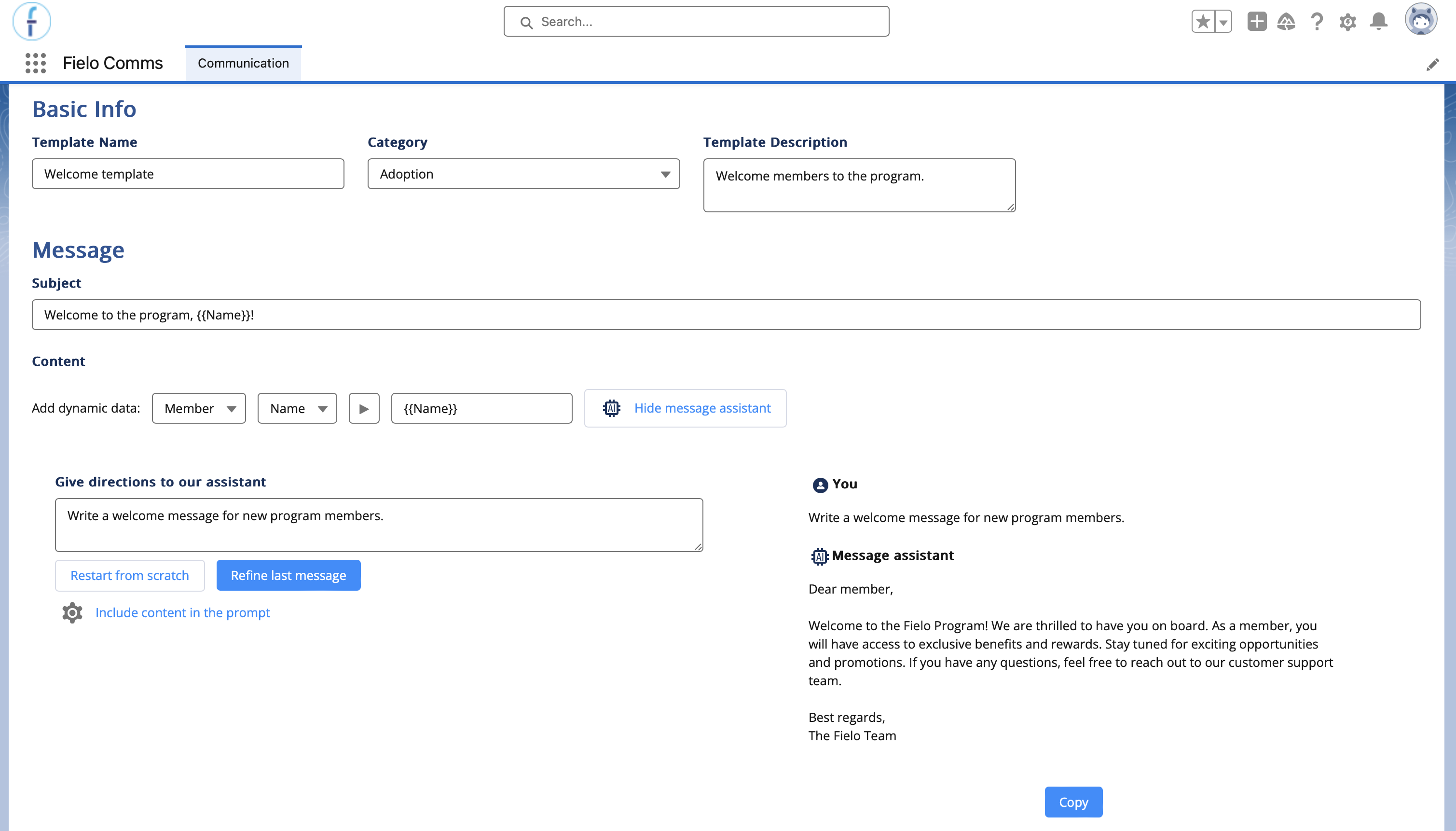
When using the AI Assistant, you send initial instructions and then, optionally, refining instructions. Alternatively, you can restart from scratch, in which case the assistant will discard any previous dialog. When you're satisfied with the text, you can copy and paste it into the template builder.
Additional ContextBy default, Fielo will include contextual information to help the assistant craft better copy. You can control what supporting data is sent in the Include content in the prompt settings.
Dynamic Content
You can add dynamic data to your message. On the template, this can be data from the Member and Program objects. When you use your template on a Communication, you may also have the options of Promotion or Challenge (if the Campaign's scope is a specific incentive) and/or triggering object (if the Communication is triggered by the Fielo rules engine or via a Salesforce Flow).
To use dynamic data, select an object and then a field of that object, and then copy the resulting string and paste it into the message body.
Advanced: Multi-HopIf you know how to work with Salesforce field paths, you can hop up to 4 times on Fielo objects and up to 5 times on triggering objects. Be sure to append lookups from custom objects with
__rinstead of__c.Example:
{{FieloPLT__LevelMember__r.FieloPLT__Level__r.FieloPLT__Benefits__c}}
Message Body
Fielo Comms leverages the BeeFree editor for email content. BeeFree allows you to add rows, spacers, images, buttons and more. For in-depth info on the editor, check out BeeFree's End User Guide. (Note: Not all features listed on the guide are available in Comms.)
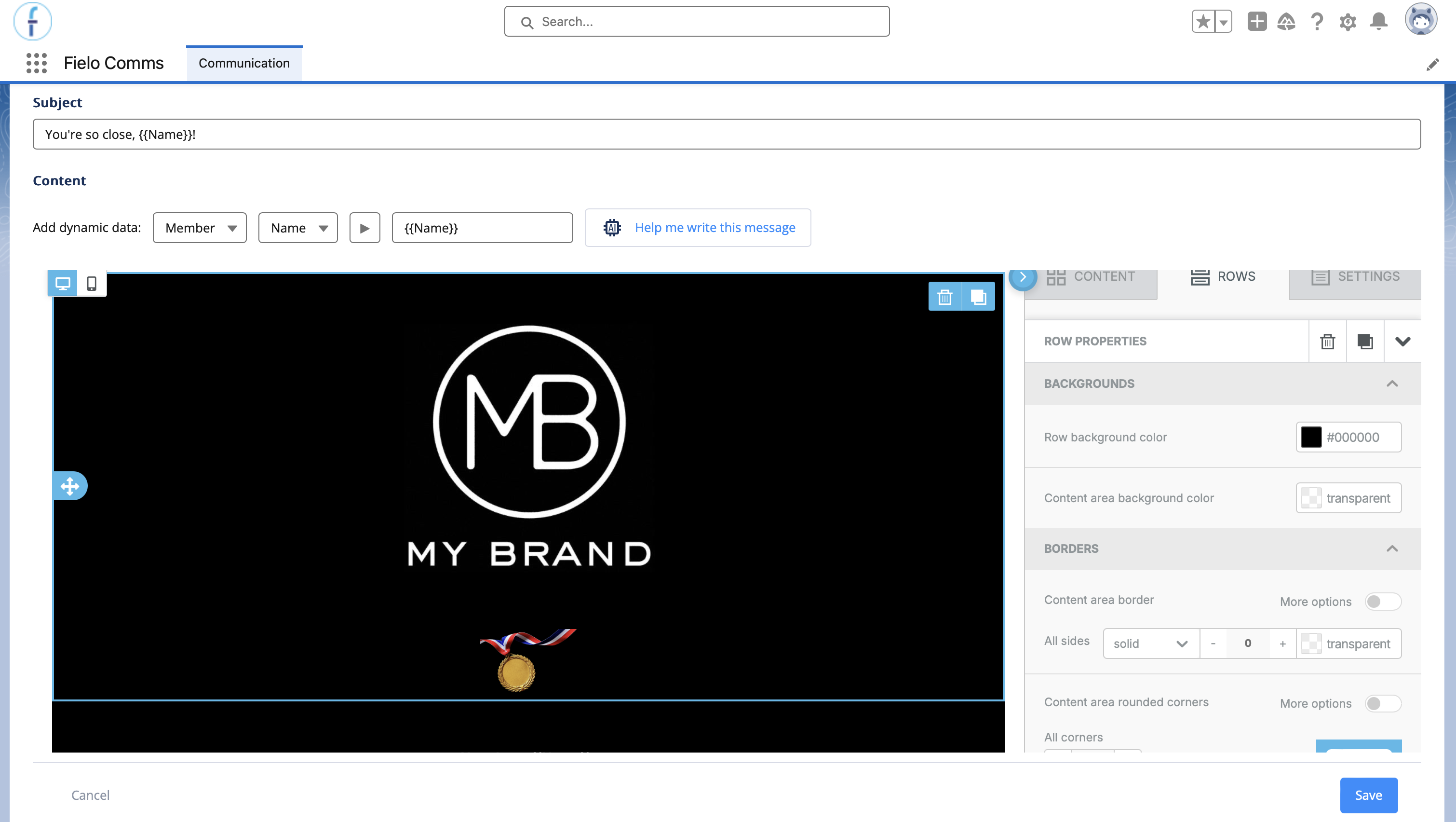
When you're done configuring message content, go ahead and save.
Click Save on the bottom of the page. Do not click the "Save" button located inside the BeeFree editor.
Activate Your Template
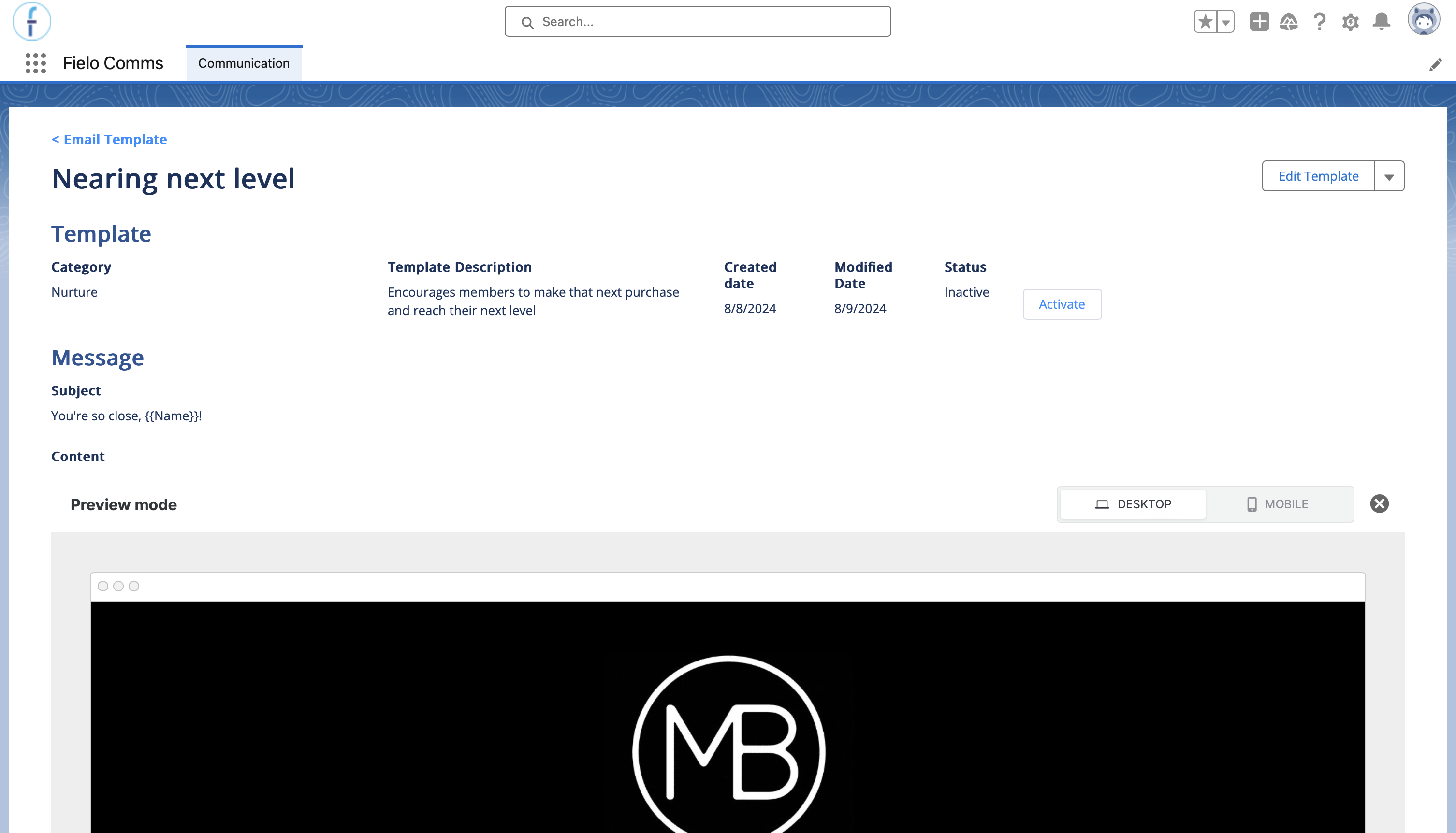
When you're ready to make your template available for use in communications, navigate to the template's detail page and click Activate.
Updated over 1 year ago