
Adding Members
Add Members to your Program through Fielo and Salesforce
Fielo offers a variety of ways for you to add members to your Program. We're all about getting you on the fast track to incentivizing the customers and partners who matter most!
You can add a new member from a Salesforce Account or Salesforce Contact, or directly from Fielo. Let's see how.
Extend Member FormYou can extend the Member form in order to add more fields. See how to do that in our Extending a Form page.
Adding a Member from a Salesforce Account
You can add a member to your program right from a Salesforce Account record. Business Accounts become Organization Members and Person Accounts become Individual Members.
The new member will include the account name and a lookup to the account.
Before Starting
Before getting started, you'll want to make sure the Create Fielo Account button is included in the page layout for accounts in your Org.
To do so, navigate to account in the Salesforce Object Manager. Click Page Layouts and edit the Account Layout.
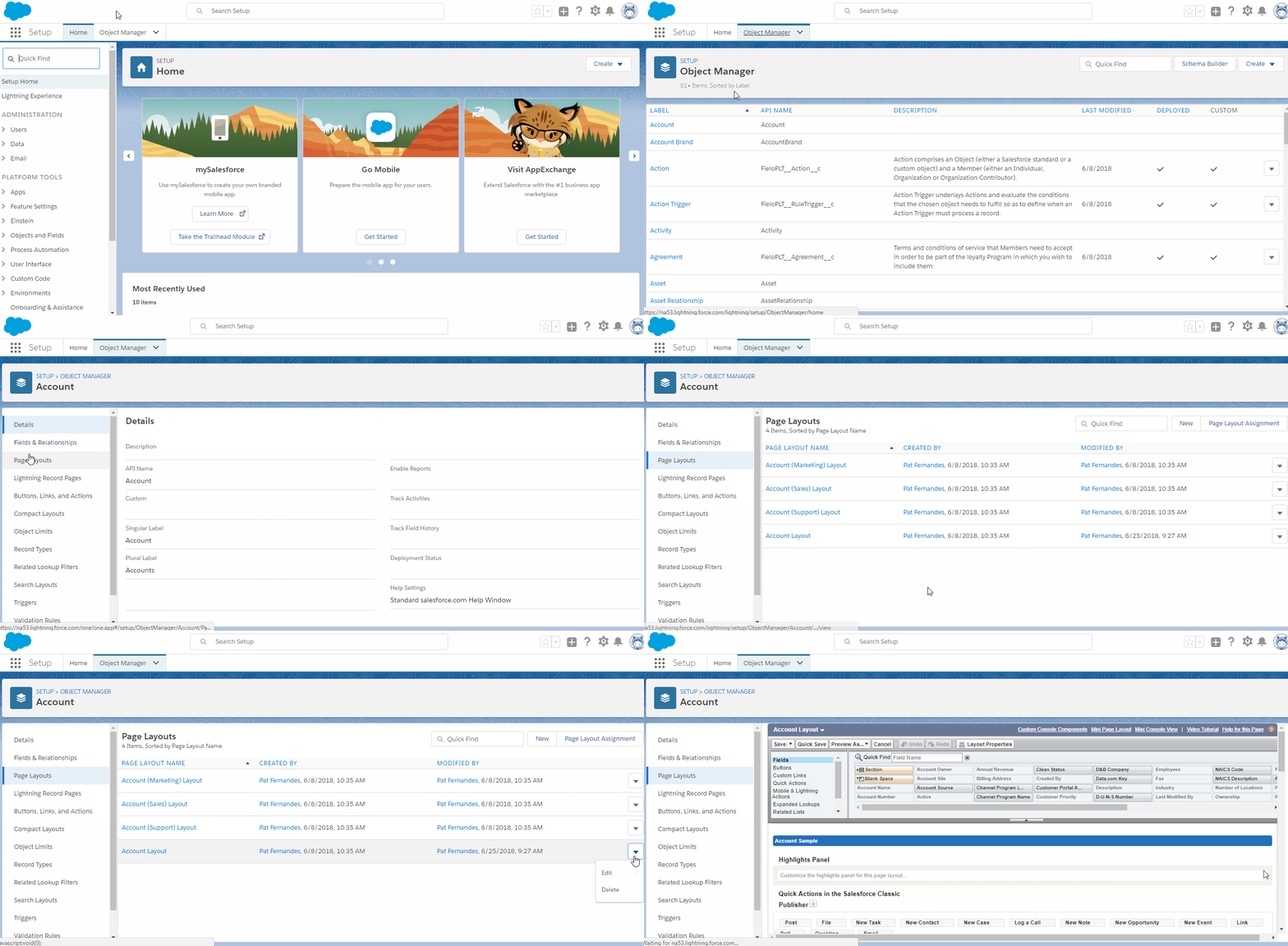
In the layout pane, click Mobile & Lightning Actions. Drag and drop Create Fielo Account into the Salesforce Mobile and Lightning Experience Actions area. Then click Save.
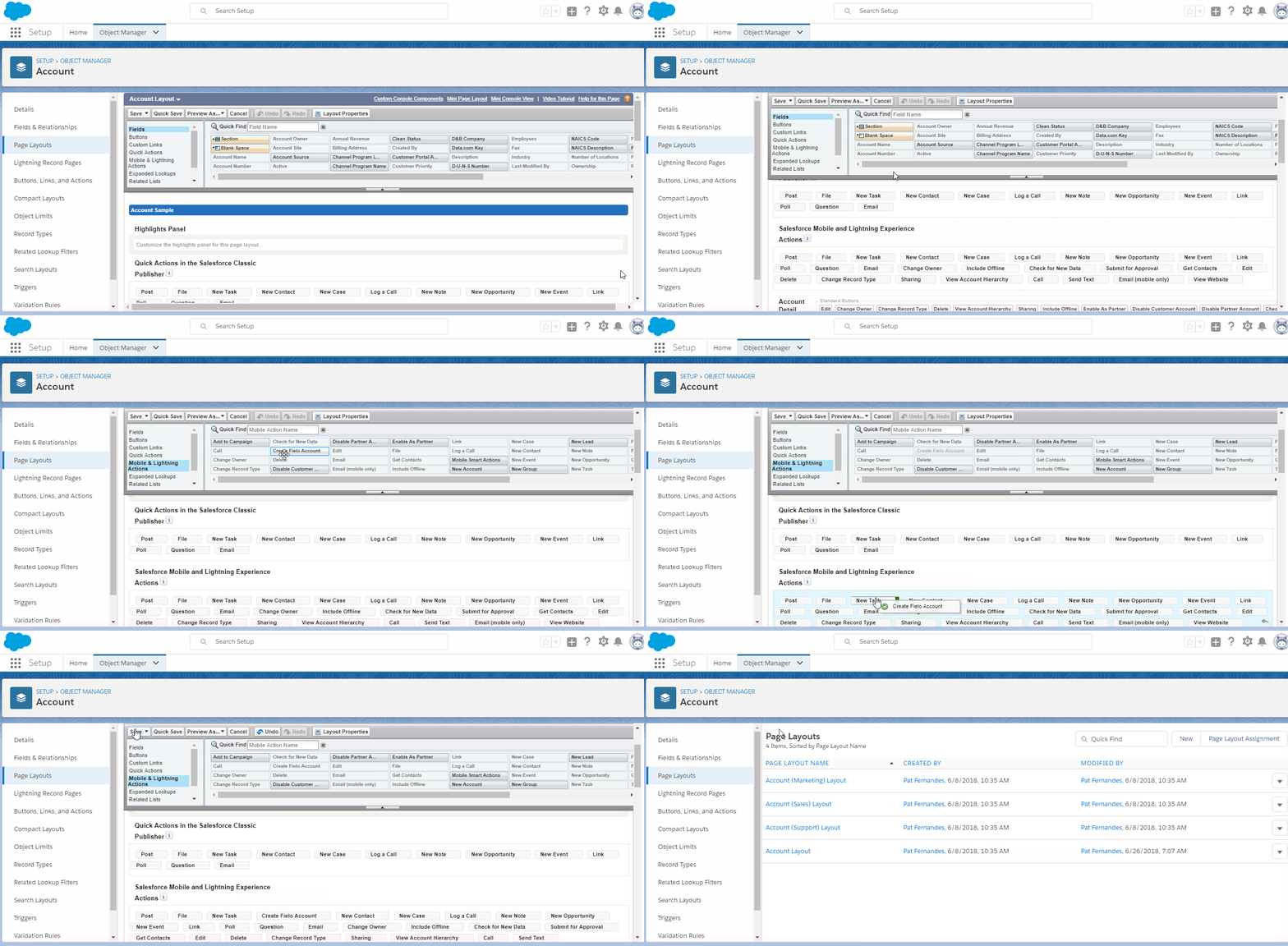
Adding a Member from an Account Record
Once you've made sure the Create Fielo Account button is enabled on your account record pages, let's see how to use it.
From an account page, click Create Fielo Account. Depending on where in the layout you included the button, you may have to access it by clicking . Choose the program you want the new member to be a part of and click Create.
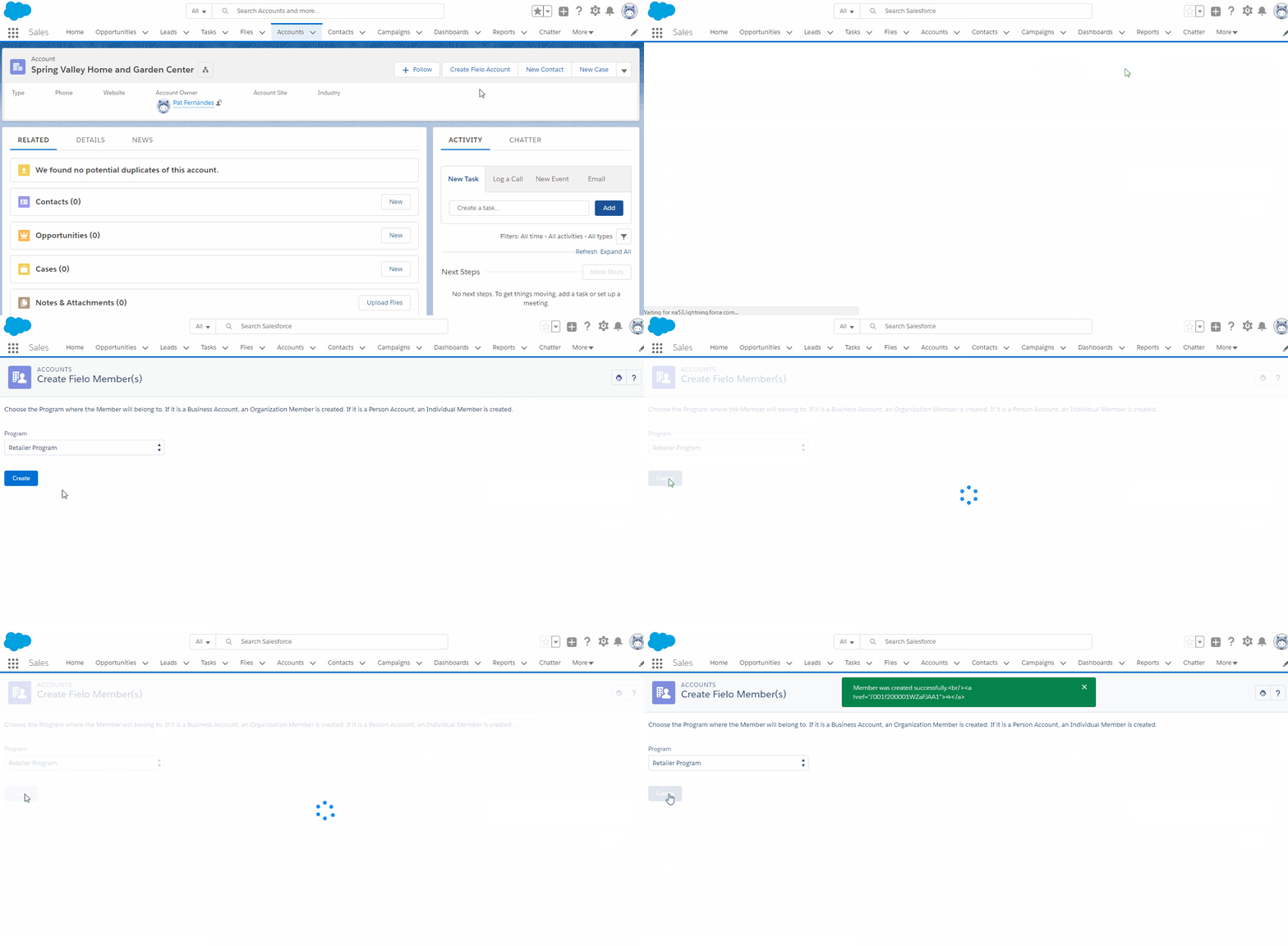
Adding a Member from a Salesforce Contact
You can also add a member to your program right from a Salesforce Contact record. You can make the contact an Individual Member or an Organization Contributor Member.
The new member will include the contact name and email address, a lookup to the Contact and a lookup to the Account associated with the contact (if any).
Before Starting
Before getting started, you'll want to make sure the Create Member button is included in the page layout for contacts in your Org.
To do so, navigate to the Salesforce Object Manager, look for and enter the Contact object. Once you are on its page, click on the Page Layouts tab and, then, edit the Contact Layout.
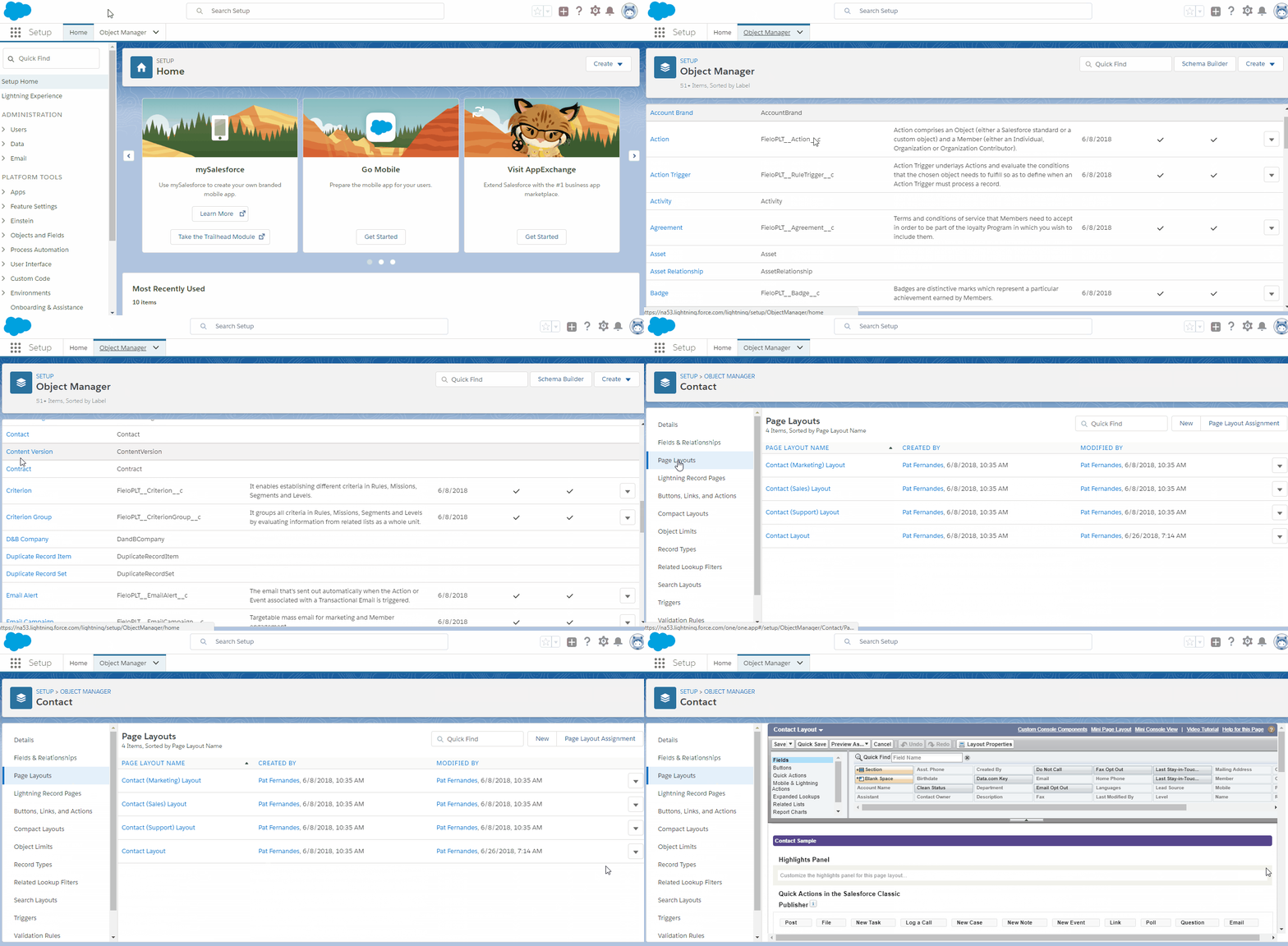
In the layout pane, click Mobile & Lightning Actions. Drag and drop Create Member into the Salesforce Mobile and Lightning Experience Actions area. Then click Save.
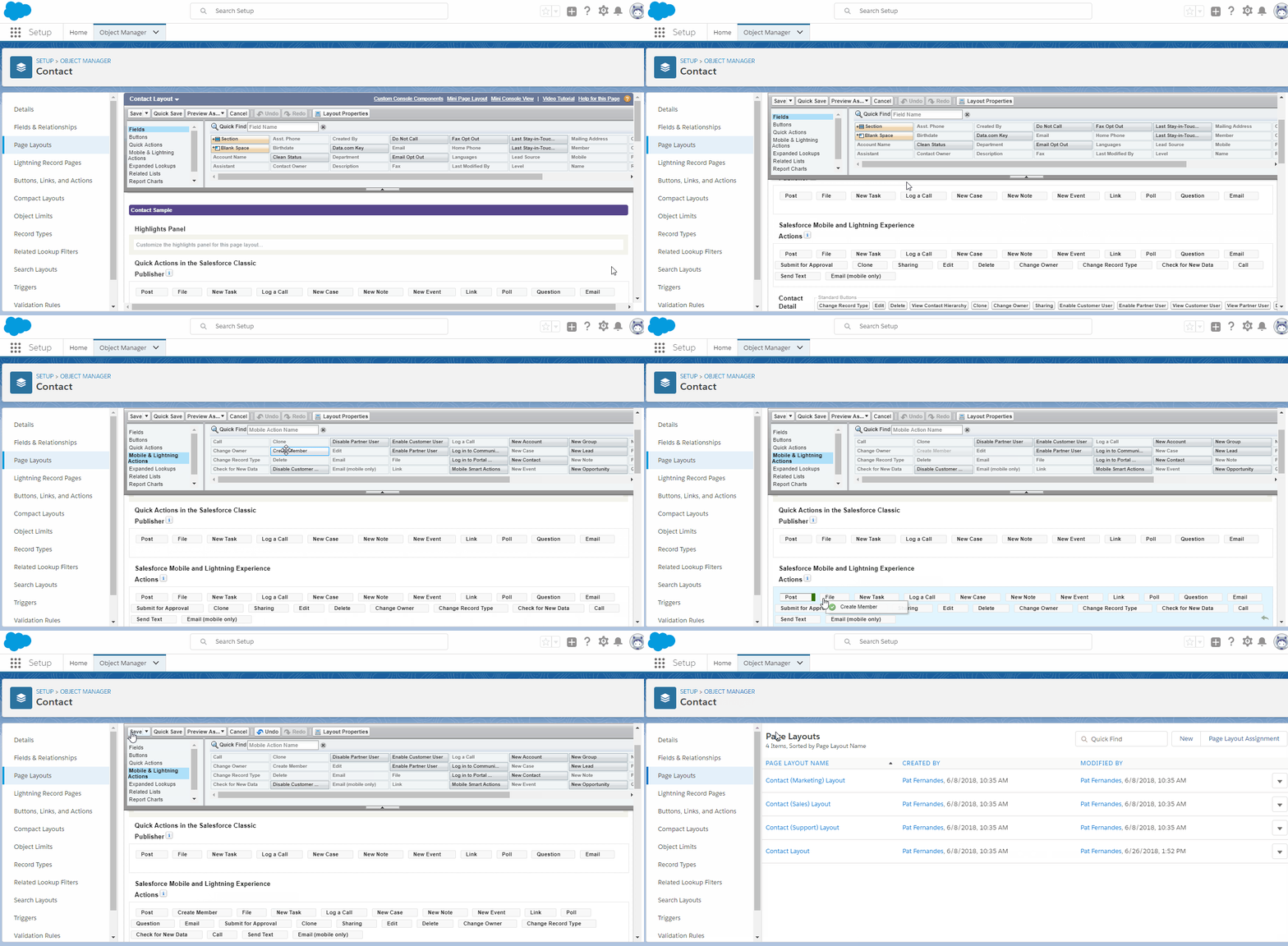
Adding a Member from a Contact Record
Once you've made sure the Create Member button is enabled on your contact record pages, let's see how to use it.
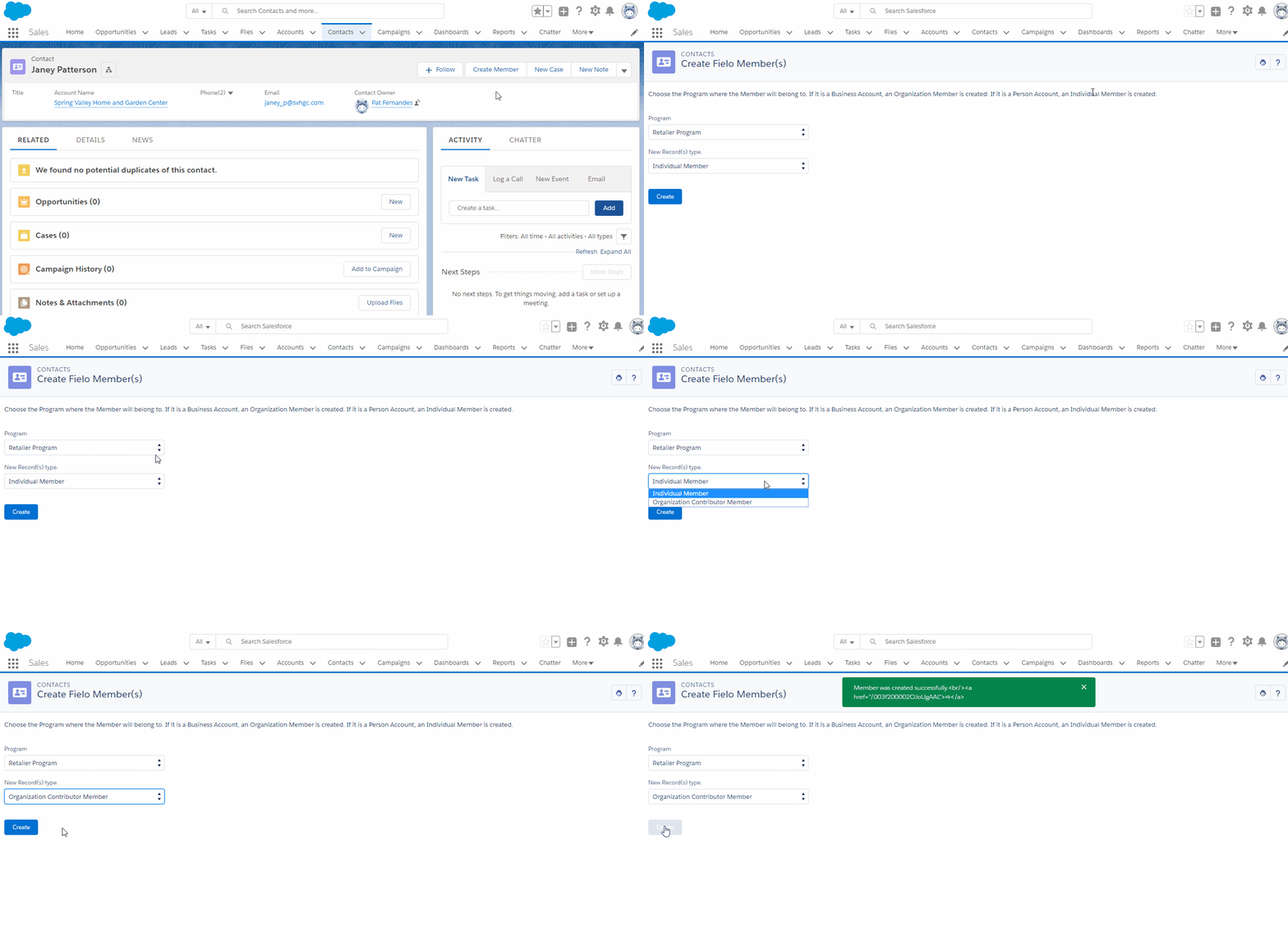
From a contact page, click Create Member. Depending on where in the layout you included the button, you may have to access it by clicking .
Choose the program you want the new member to be a part of. Then, choose whether you'd like the new member to be an Individual Member or an Organization Contributor Member.
Organization Contributor MemberTo create a new Organization Contributor Member, the Contact must be associated with an Account that is an Organization Member in the Program you've chosen.
When you're ready, click Create.
Adding a Member from Fielo
You can add a member to your program directly from Fielo.
When creating a new Individual Member or Organization Contributor Member from Fielo, the new record automatically includes a lookup to the contact with the same email address. If no contact with the same email address is found, a new contact is created with the name and email address of the new member and the member includes a lookup to the new contact.
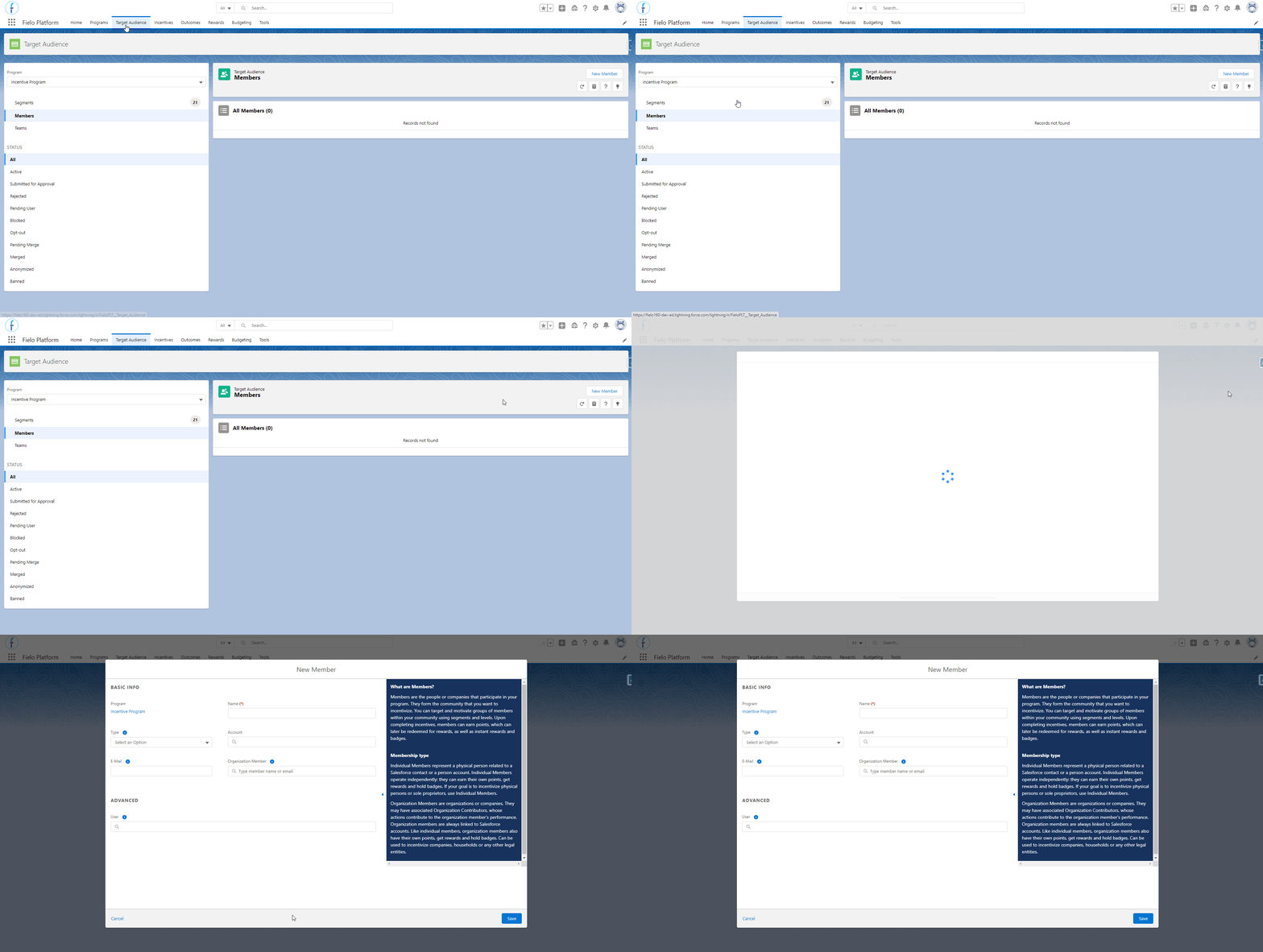
To start, enter Fielo and navigate to the Target Audience tab. Choose the program that you want to create a member for in the left section, click Members below it and then click New Member.
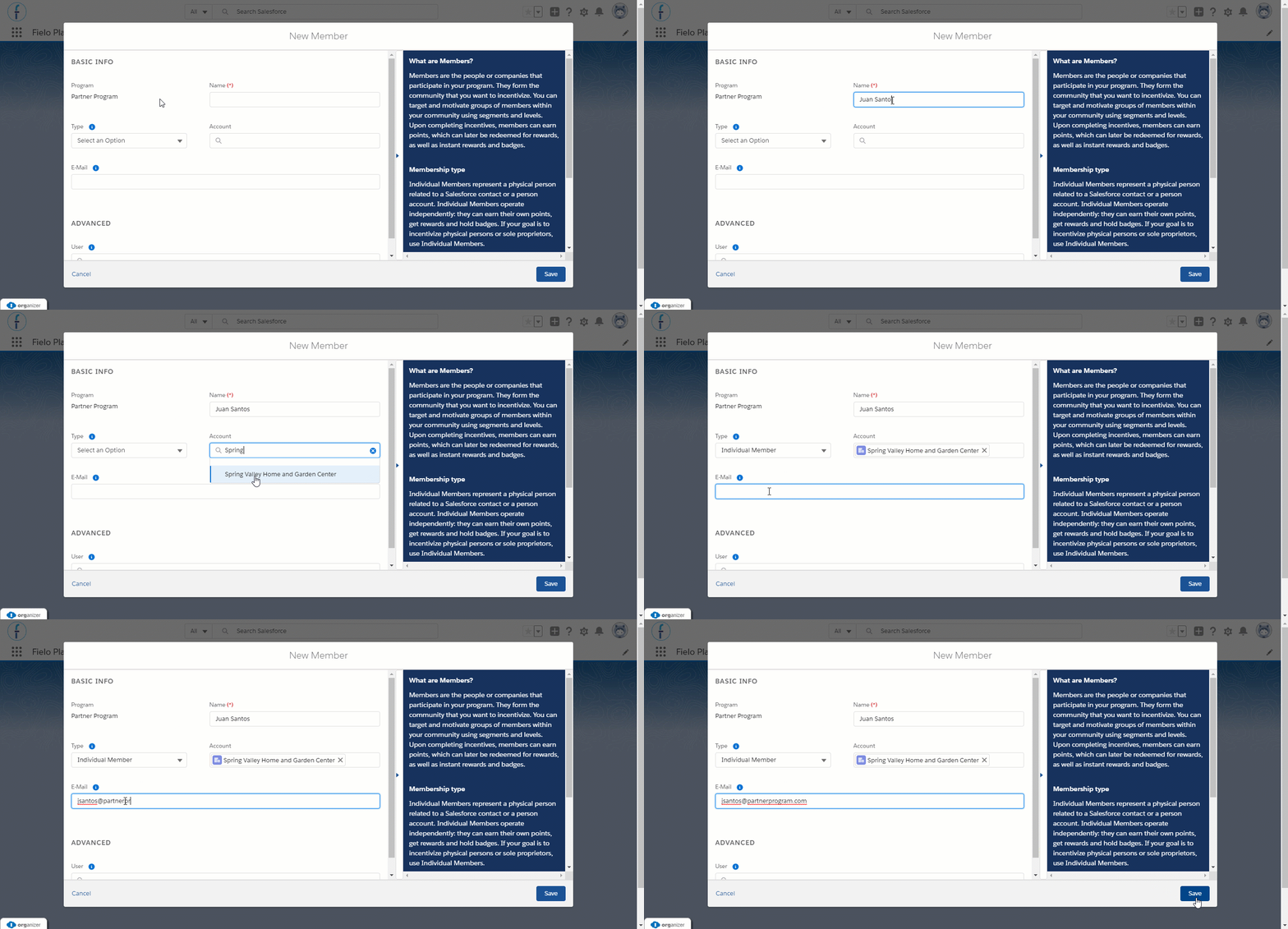
Enter the name and email address of the new member, as well as the associated account and Organization Member (if any). Then, choose a Membership Type.
Account Required for Organization MemberIf you're creating an Organization Member, you must enter an account to associate with the new member.
If you choose Organization Contributor Member, you'll also need to enter the Organization Member that the new member will contribute to.
When you're ready, click Save.
Adding Members: bulk upload
You can add several members to your program using a CSV file, so that you are able to create them with a simple action, instead of doing so manually one by one. This way, you can save time for other equally important activities.
Before Starting
Before getting started, you must create a .CSV file including the members name, type, email and the ID of the Program they belong to.
You can add other information (e.g. Account or Contact) in the file too, if you'd like, provided that they are an existing field in your Org. Check all Member fields accessing its Fields & Relationships page in Salesforce Object Manager.
The Program ID is an 18-character alphanumeric ID that can be found near the end of the URL of the Program (or any other object) view page, right before /view.

When you create the file, pay attention to the Type field, you must say if the member is an Individual Account, Organization Account or Organization Contributor. If there is any error with the fields labels and API names, the system won't create the members.

Note that when you are adding an Organization Member or an Organization Contributor Member, it is mandatory to relate them to a Salesforce CRM Business Account or an Organization Member, respectively.
To relate an Organization Member to an Account, create a column named "Account" and add its ID under it. To relate an Organization Contributor Member to an Organization Member, create a column named "Member" and add its ID under it. This is the same that was done for Program, you can find the Account and Member IDs in the URL of their view pages.
When ready, save your spreadsheet in Comma-Separated Values (.CSV) format.
Adding Members from a CSV file
In order to upload the file, use the Data Import Wizard. From Salesforce setup, go to Data Import Wizard and click Launch Wizard!.
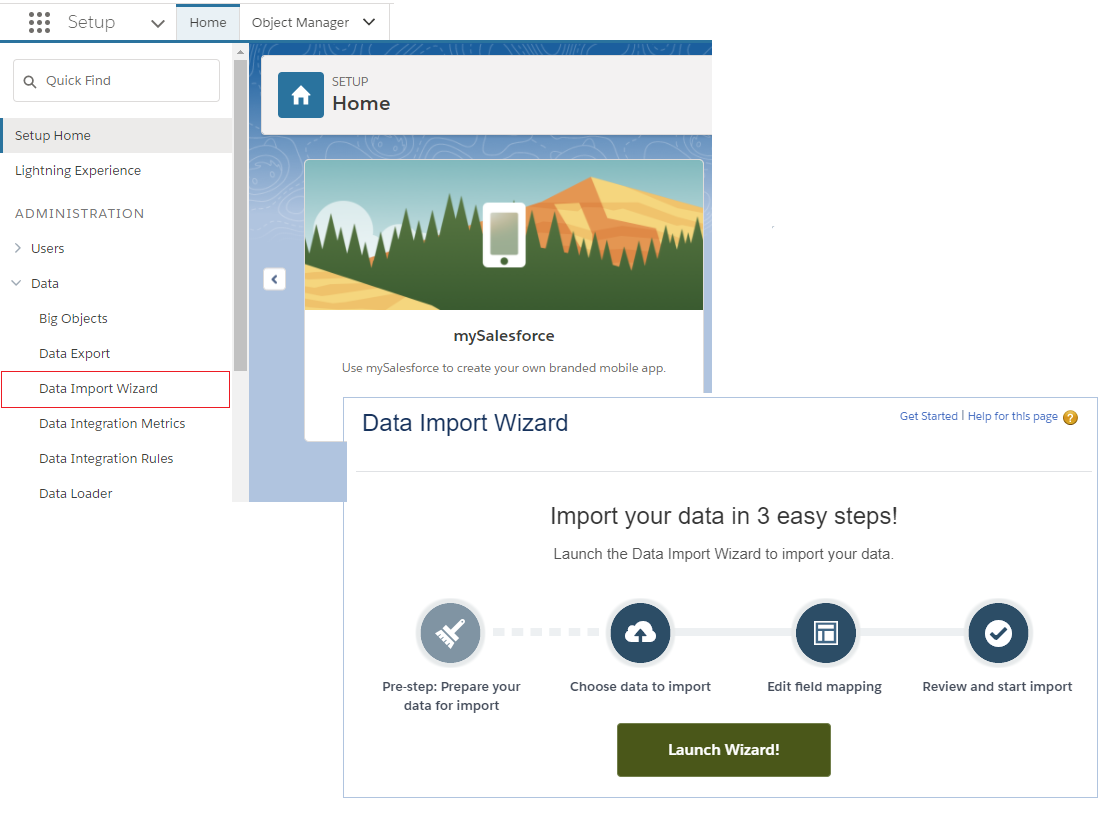
Data Import Wizard
- For What kind of data are you importing? question, choose Custom Objects tab and scroll down to Members.
- For What do you want to do? question, choose Add new records. Complete the question Which Program field in your file do you want to match against to set the Program lookup field? with Salesforce.com ID. Leave all the other questions in None.
- For Where is your data located? question, drag the .CSV file from your PC's File Explorer to Drag .CSV file here to upload.
Other than that...In case you're adding an Organization Member type, complete the
question Which Account field in your file do you want to match against to set the Account lookup field? with Salesforce.com ID.If it's an Organization Contributor Member type you're adding, complete the
question Which Member field in your file do you want to match against to set the Organization Member lookup field? with Salesforce.com ID.
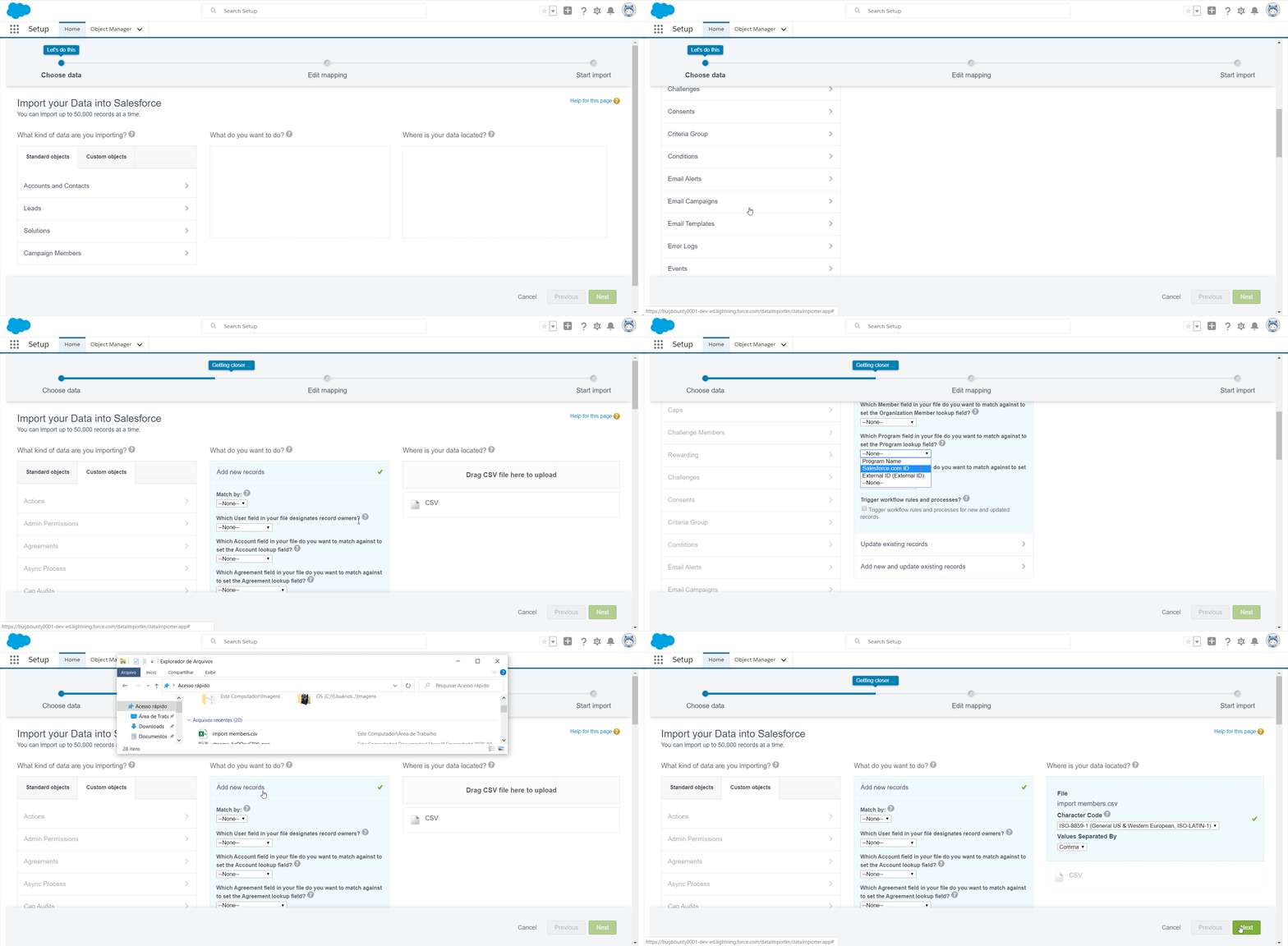
Once you've hit Next, confirm your field mapping and click Next again to start the importing process.
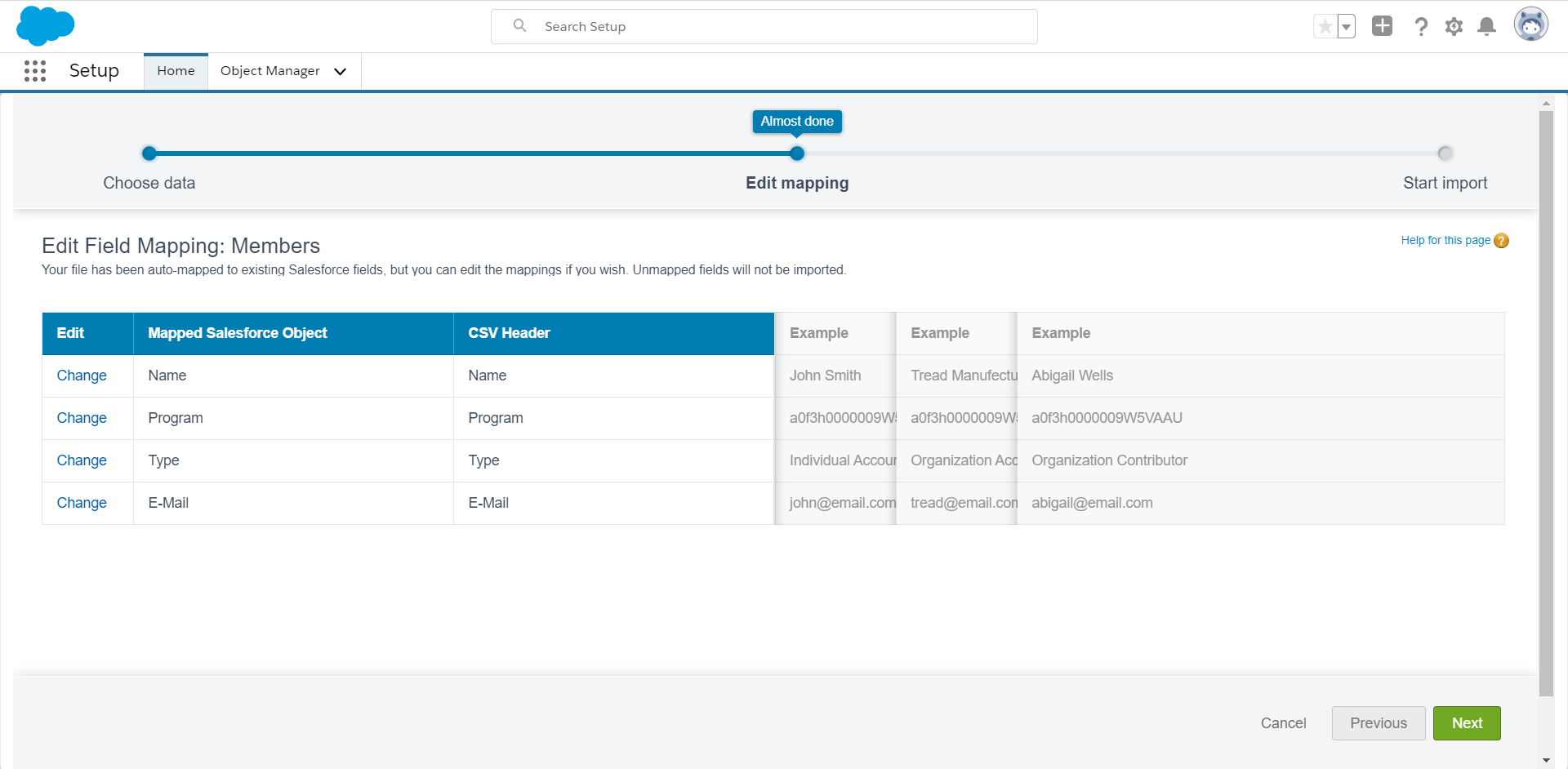
After reviewing your import data, click Start Import. When finished, you'll be redirected to Bulk Data Load Jobs, which will include all the details of the imported job, such as Start and End Time, Total Processing Time, etc.
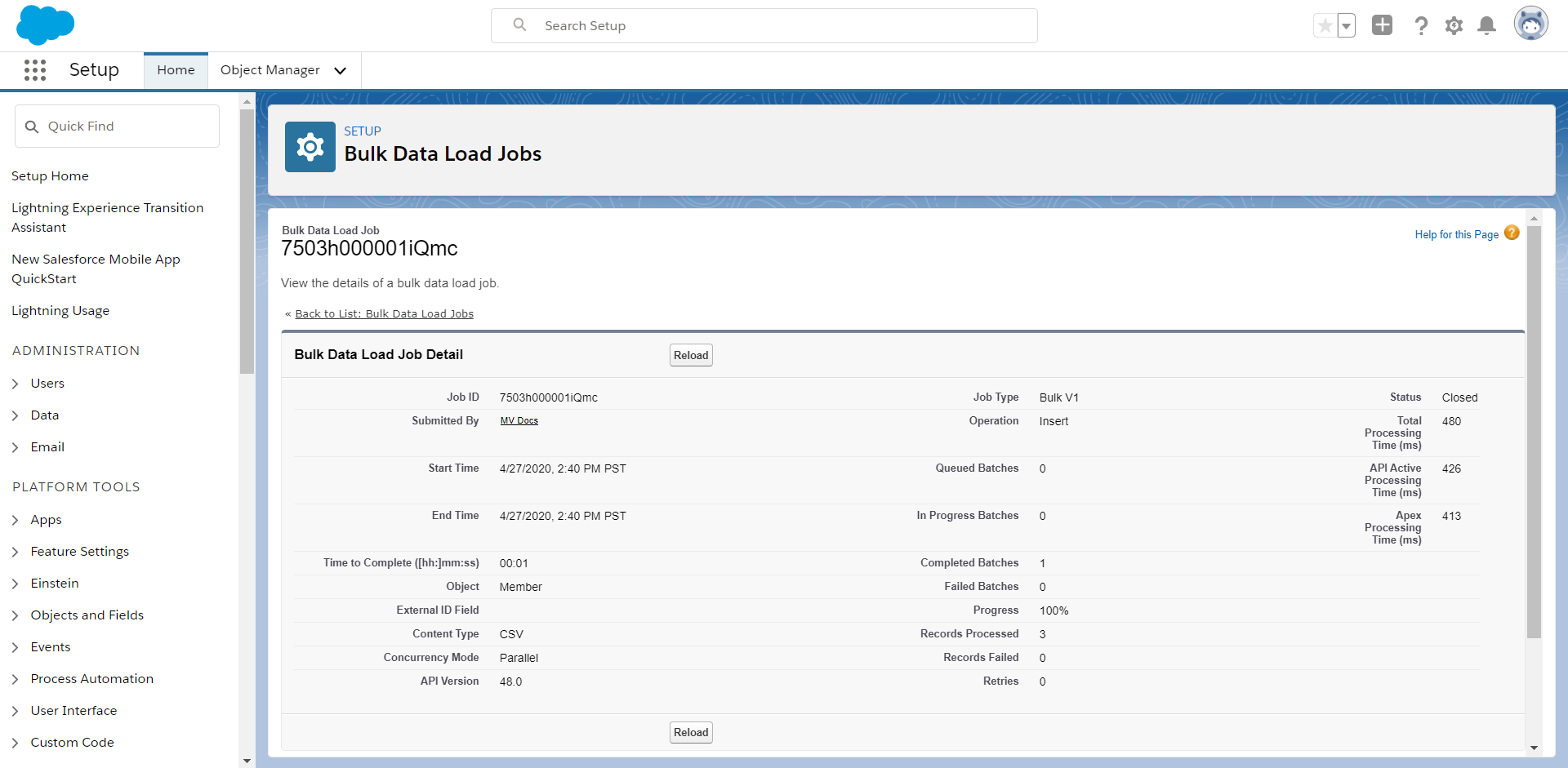
Bulk Data Load Job details
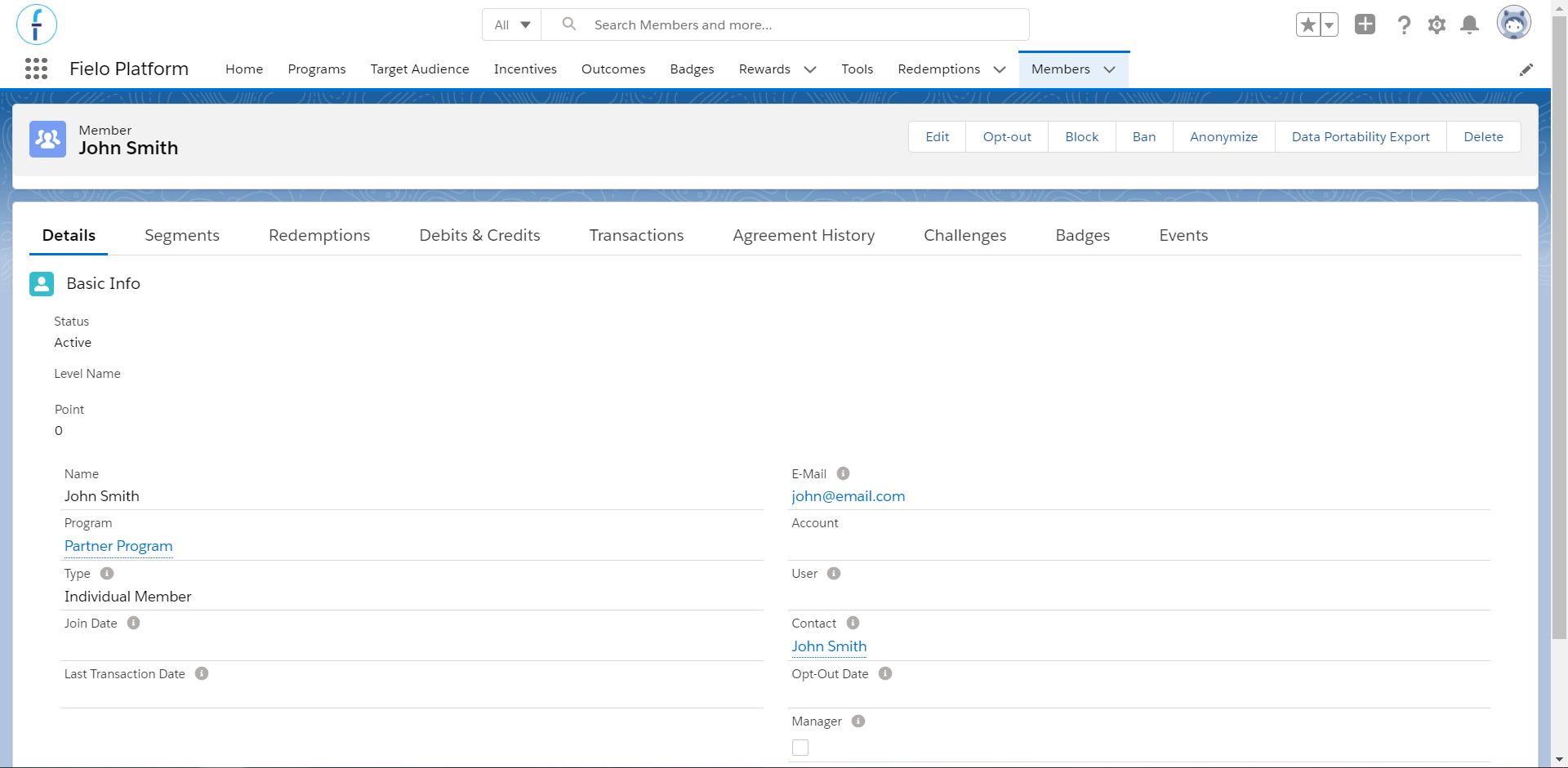
Check the new members on Fielo's Members tab.
Using Salesforce Data LoaderIf you're using Data Loader instead of Data Import Wizard, don't forget that:
- Members must be referred by their Field API name.
Adding Members to Experience Cloud Community Users
Last but not least, this is a common scenario when you already have a Salesforce experience cloud site up and running, with its own User base, and now you have to relate Fielo's Members to those Users, so that they can take part in your brand new Loyalty Program.
You can do that by bulk uploading Members to your Org. Check the section above to know how it is done, but beware that there are some extra steps:
- In your spreadsheet, add a new column named "User". Under it, add the ID of the Users you want to relate to the Member.
- Within the Data Import Wizard:
- choose whether you want to Add new records (to create new Members) or Update existing records (to update existing Members);
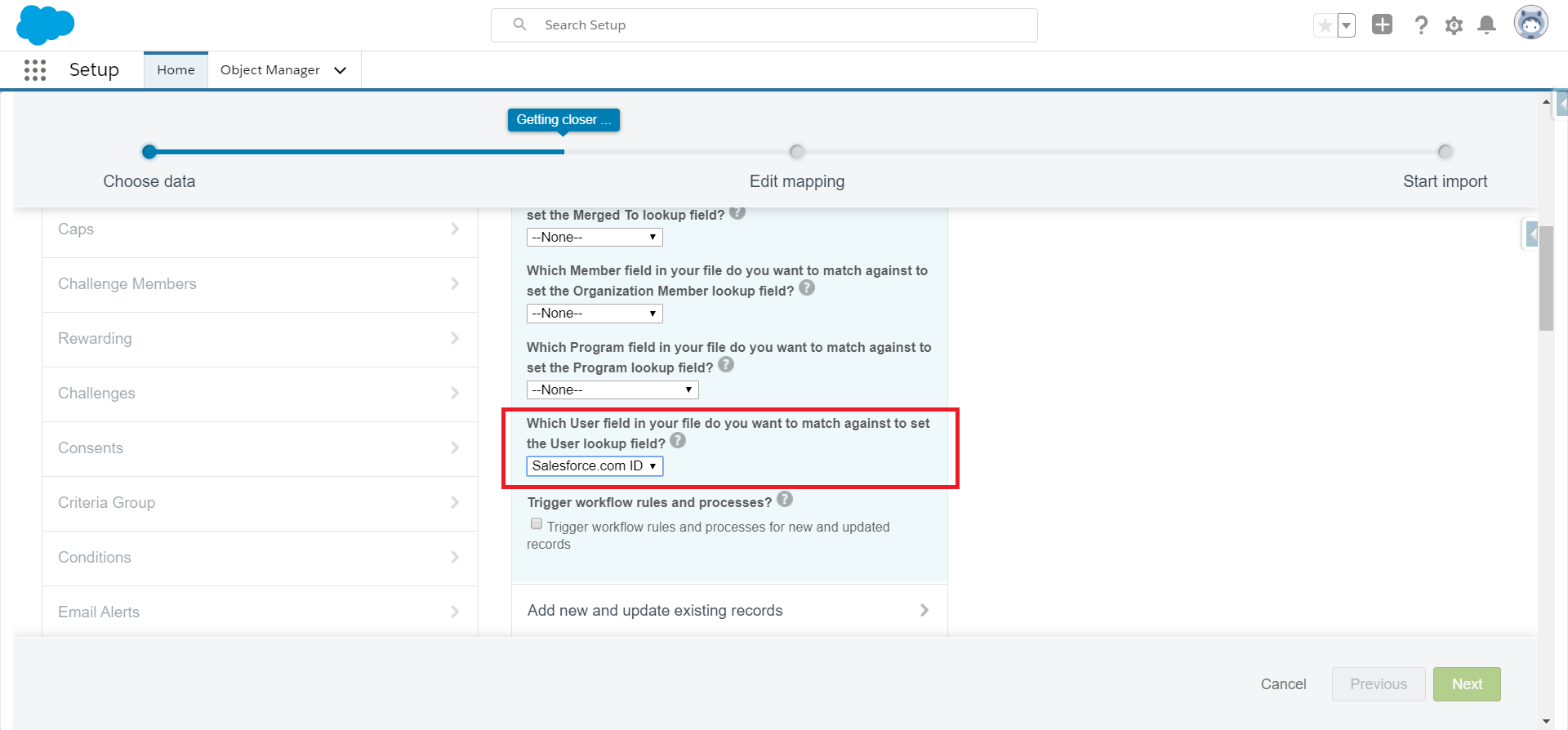
- complete the question Which User field in your file do you want to match against to set the User lookup field? with Salesforce.com ID.
To find out all Members and Users ID to include in the spreadsheet, you can do some data manipulation mapping FieloPLT_Members _c and User records.
Note that, ordinarily, when you create the Member from Fielo, you will do the correlation with the Users by populating the required field.
Updated over 1 year ago