
Promotions
Create and configure Promotions
Promotions are a way of encouraging members to behave in a particular way so as to drive their engagement. Promotions can be addressed to different audiences (depending on Segmentation) within a specific time period and may go through a range of statuses along their way.
Promotions consist of one or more rules.
Creating Promotions
From Incentives, go to the right of the screen and click on the New Incentive or on the New Incentive from Model button.
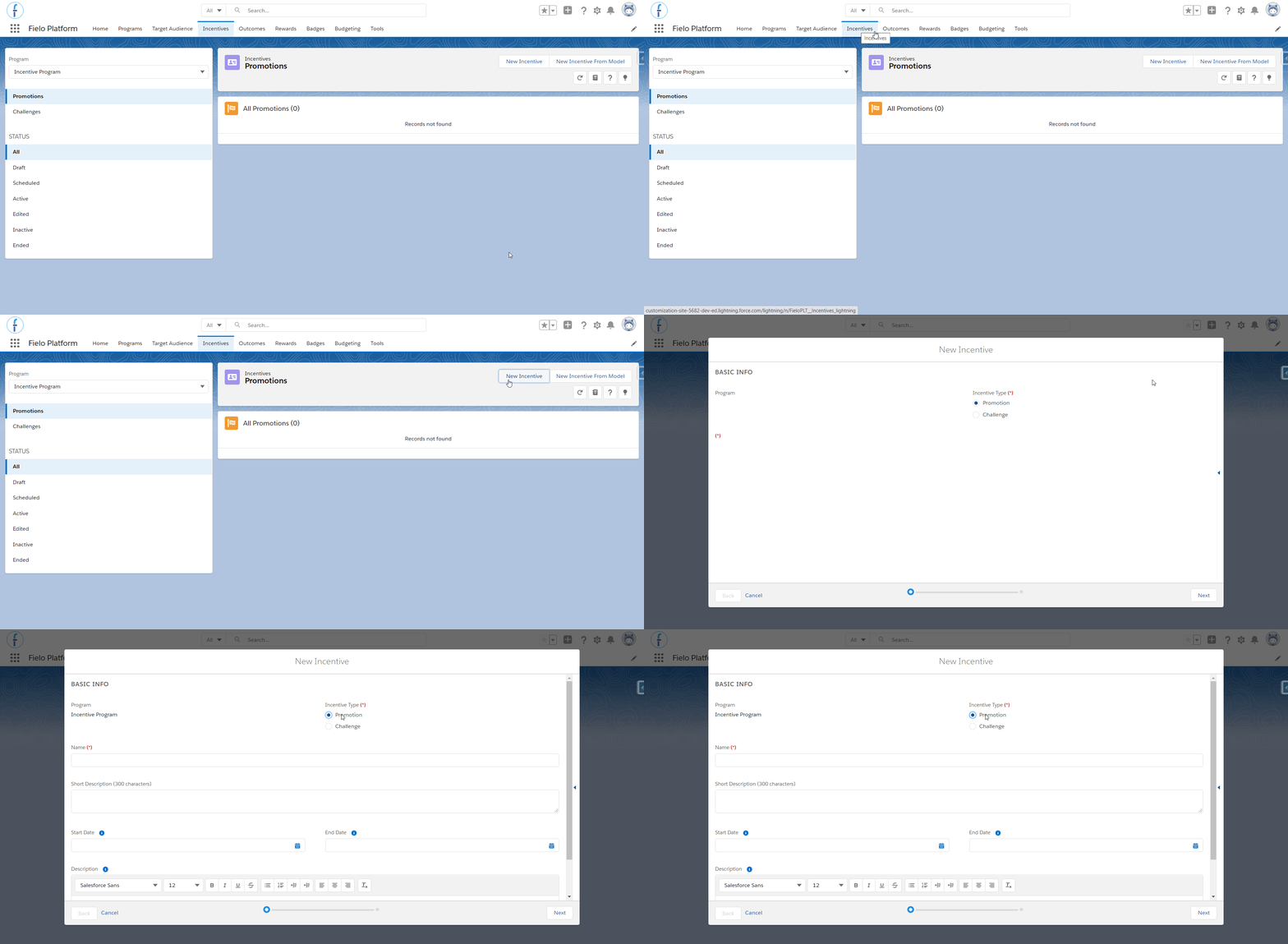
Creating a Promotion - part 1
Choose Incentive Type
First, you need to specify whether you are creating a Promotion or a Challenge. In this case, click Promotion.
Enter a Name and Description
Enter a name and description for your promotion. Your members will see these, so make them exciting!
Set a Period
Choose a Start date for the Promotion, so that it automatically becomes Active on that date. Similarly, choose an End date in order for it to get an Ended status on a specific day.
However, note that a Promotion does not require a Start or End Date. If you leave these fields blank, it becomes Active when manually activating it or otherwise it remains in Draft status. If no end date is established, Promotion lasts indefinitely as long as it remains Active.
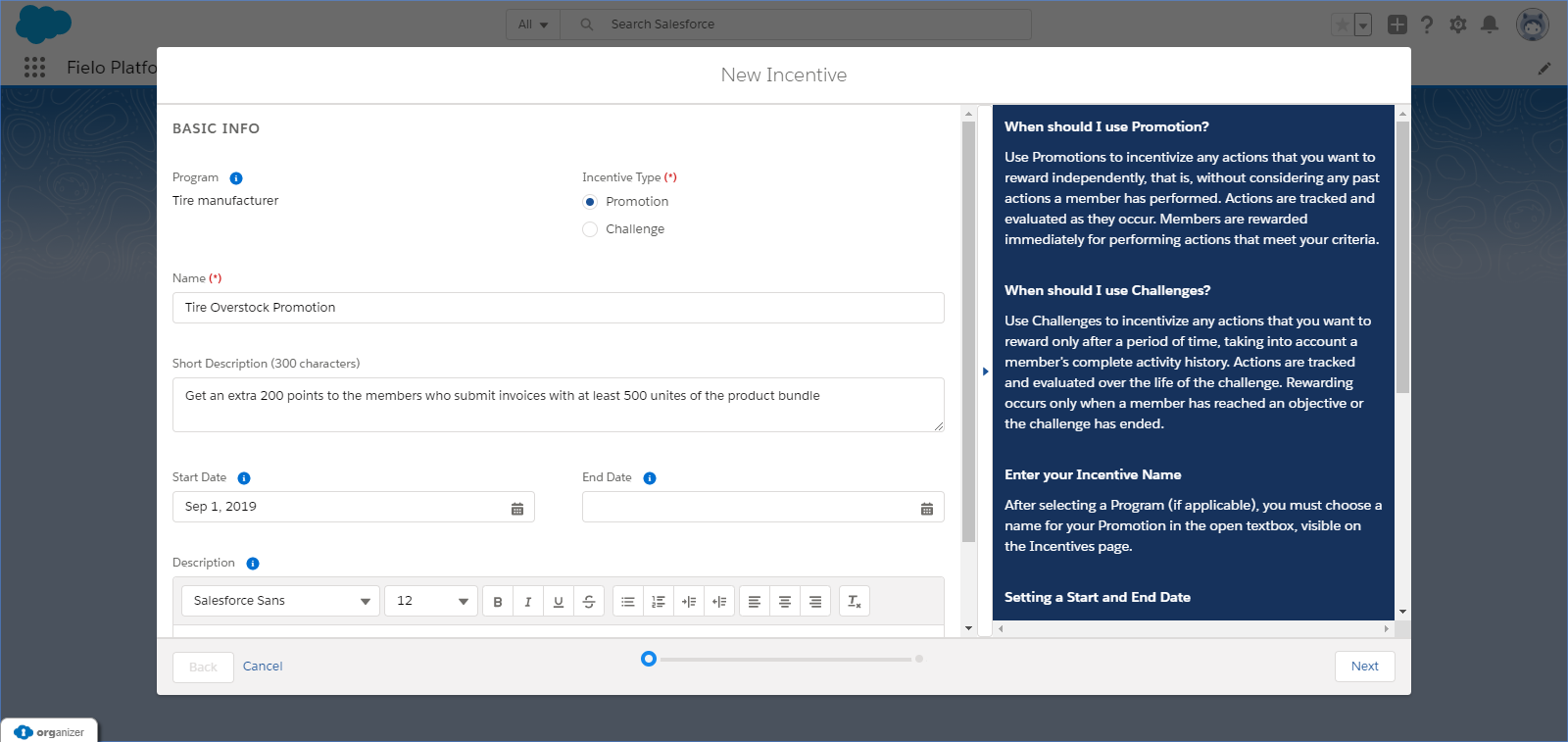
Creating a Promotion - part 2
UTC Date/Time & the Promotion's periodSalesforce processes all transactions considering the UTC (Coordinated Universal Time) Date/Time that they were created in, not the ORG's Date/Time. So, if they are different, Salesforce might understand that the member performed the incentivized action in a day before or after the Promotion's period that you intended, causing the member to not be rewarded for it.
You should take that into consideration and - if it imposes an issue for you - convert your time to UTC and define the Promotion's period accordingly or create a formula to save your ORG's time in the transactions.
Choose Segments (Optional)
Optionally, you can target your promotions to one or more segments you've defined in your program. Therefore, when using segmentation, only members in your targeted segment(s) will be able to participate in your Promotion.
To add a segment, select it on the list to the left and click . To remove one, select it on the list to the right and click .You can leave your promotion open to all segments by leaving the list on the right empty.
If you don't have segments createdThe Segments section will just have an warning box informing you don't have any segments created. To include a segment in your program, go to the Target Audience tab. In the Segments list, click on the "New" button.
Changing Segments in your PromotionNote that, if a member is already participating in the Promotion, they will continue to participate in it even if they change segments or the admin changes the Promotion's eligible segments.
Eligibility
This is an optional feature for Fielo's Program Promotions and Incentives Lightning Components for sites, which displays to members what they still need to accomplish in order to be able to take part in a Promotion.
You have the choice of showing logged members a Progress View or a Description View:
Progress View: it will compare their current information with the segments' criteria selected above and it will show to the logged member, through a dashboard, the conditions required for them to to be able to participate in a Promotion.
Description View: it enables you to write a customized message to be shown to the logged member instead of the dashboard. If chosen, a text box will appear below for you to write that, for example, it is necessary to speak to the manager in order to participate in the Promotion.
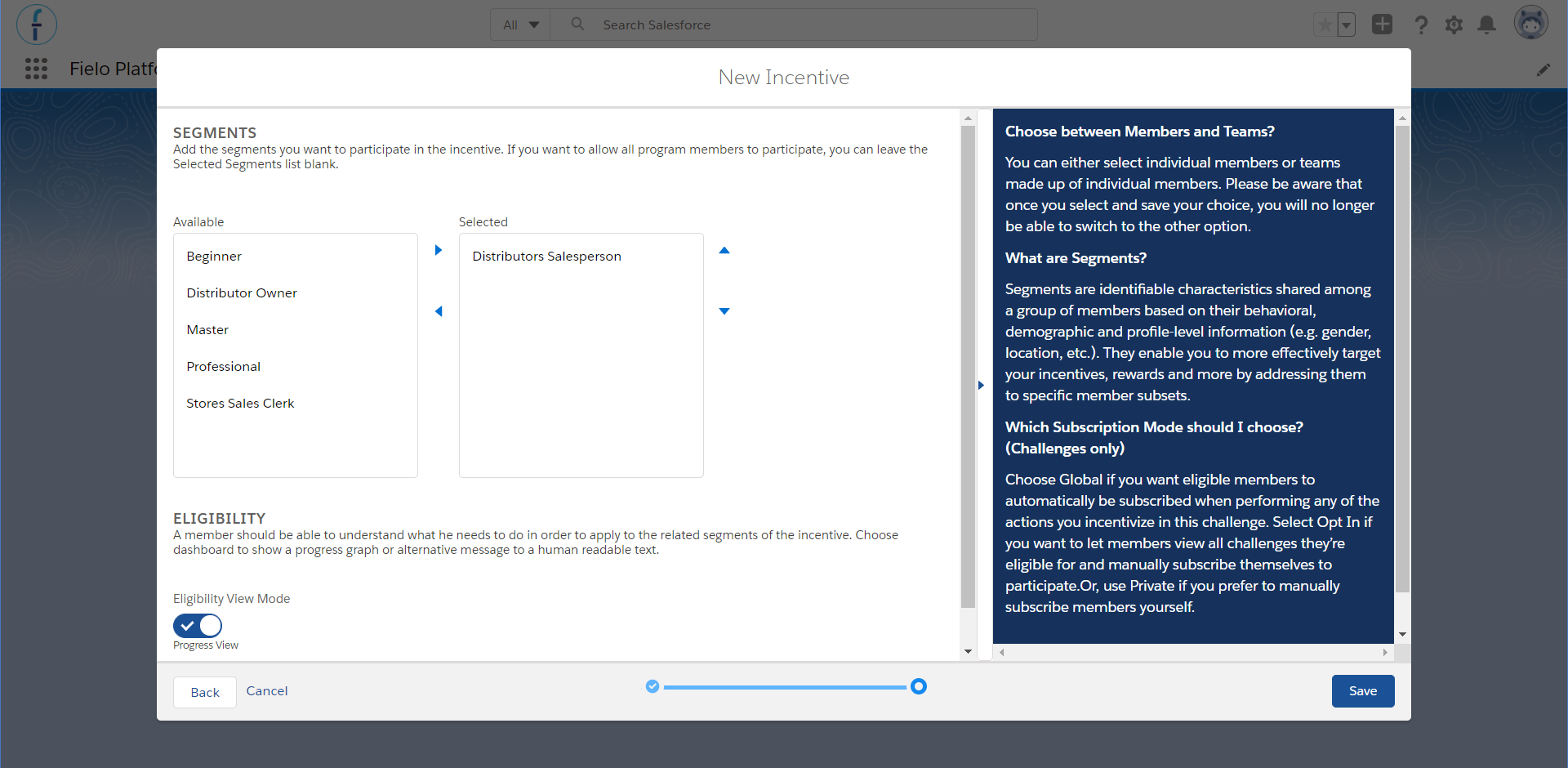
Selecting segments and eligibility mode
When you're ready, click Save.
Options within a Promotion
Now that you have created a promotion, you will gain access to additional features within your promotion.
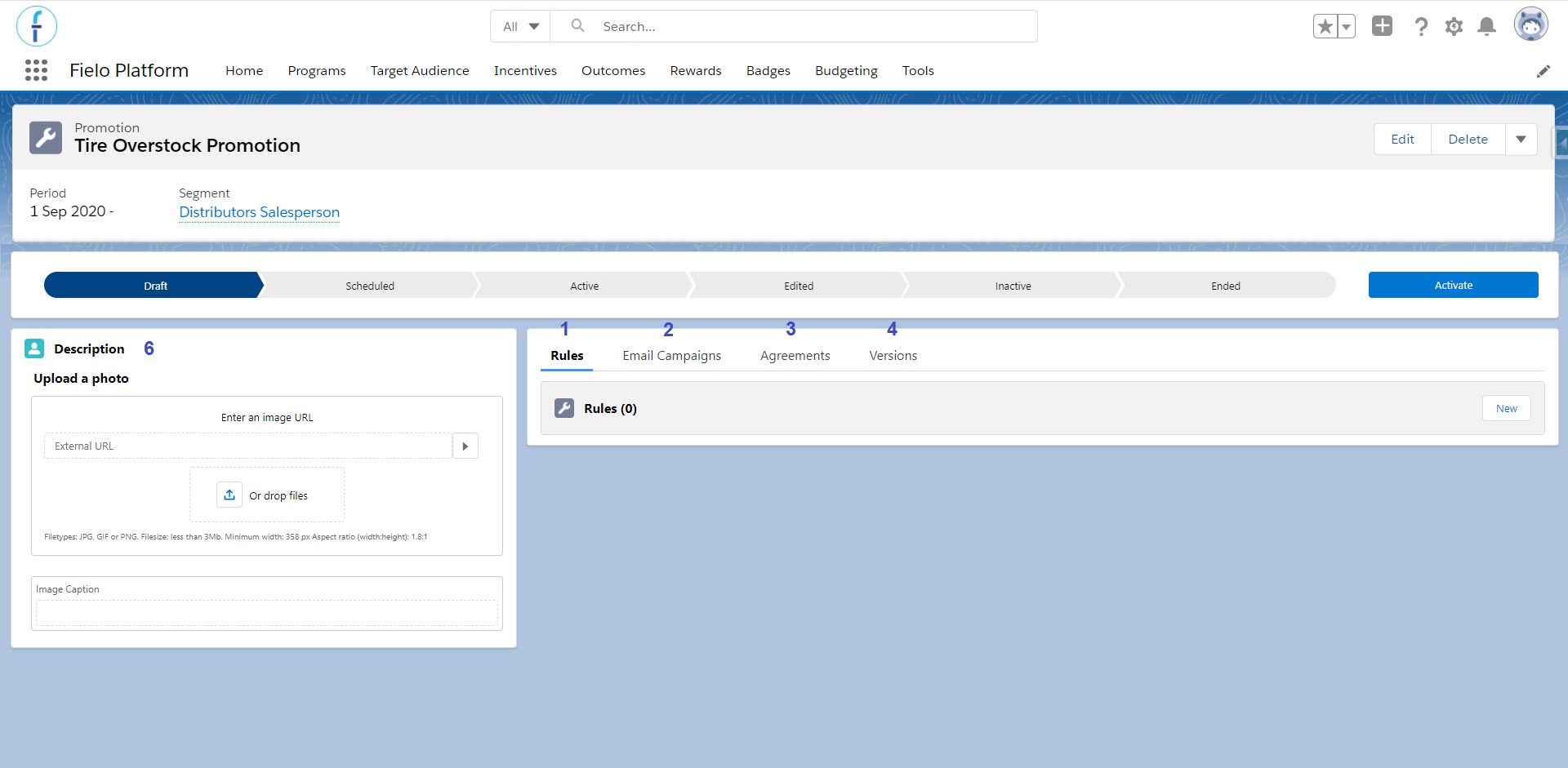
Promotion detail page
- Rules - Rules define what your members can do to get points, instant rewards and/or badges. When a member performs an incentivized action, the rule criteria are evaluated and, if met, the points or rewards you specify are given.
- Email Campaigns - The ability to create an email campaign for this promotion
- Agreements - Check the agreements set for this specific Incentive, its data and status.
- Versions - Keep track of all Promotion Versions
- Upload a photo - You can upload a picture from your computer or enter an external URL to create a cover for your Promotion. This will look good in your site's lightning component.
External URL PhotoBy default, Fielo avoids the usage of External URL in order to prevent browser hijacking. Deactivating the validation rules allows to use it under the responsibility of the client’s Salesforce Administrator.
In order to be able to use an external URL for your promotion's photo, you must first deactivate the DisallowExternalImage validation rule. For that, go to Object Manager in Setup and, within the Promotion object, access the Validation Rules tab to deactivate the rule.
Agreement
In addition to the Agreement that can be set throughout the entire Program, Fielo gives you the option of setting terms and conditions that members will be prompted to confirm acceptance to when first accessing a Promotion. Otherwise, they won't be able to take part in it.
From the Agreements tab, click on Create Agreement. Write your terms in the text box that will appear, or choose a model from another challenge's agreement, and click Save afterwards.
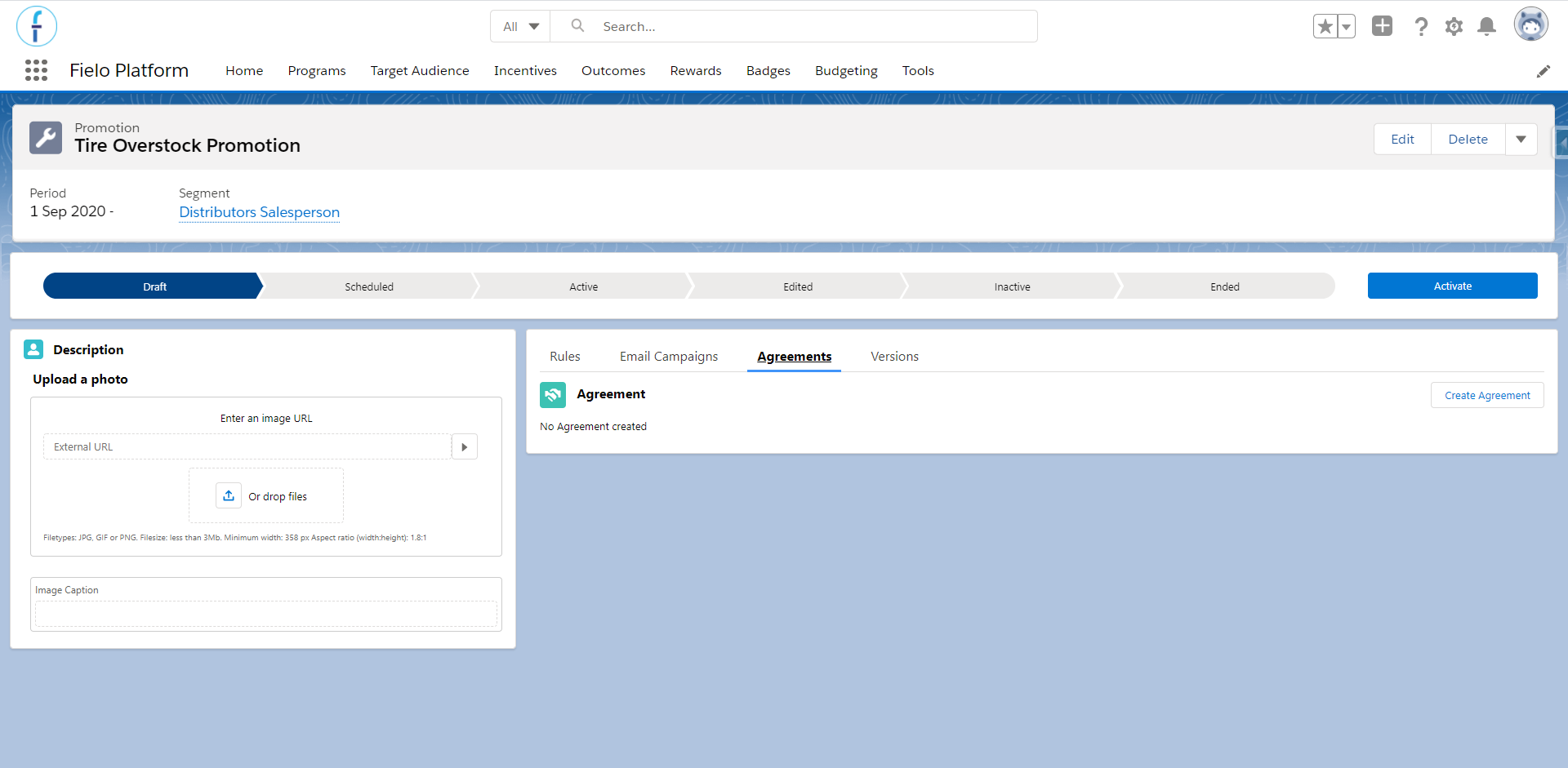
Promotion's agreements
Agreement modelThis is a way of using the same terms already written for a current agreement you have in another promotion. In order to be an option to be used as a model, it can't be from a challenge.
The model's name is the same as the promotion to which it is related. You can alter the text after selecting its name and the text box is populated.
After you save it, the agreement is created in a draft status and, as long as it is still a draft, you are able to delete it. Do not forget that, like some other features, for it to be shown to members you'll need to activate it first. When that occurs, its status will be changed to current.
You may be wondering, though, what would happen if you need to change the text after it is activated. That's not a problem: you can still edit the agreement, it will only be created a new version that will be set as current while the old one will be deprecated.
In this case the member will have to accept the new agreement next time they enter the site, but they won't be blocked from taking part in the Promotion if they don't. Their actions will still be taken into account to complete it.
Other than that, it is possible to keep track of every agreement that was accepted by the member. A list will be available in the Agreements History tab within the member's page, presenting its code, the incentive or program they were created for and created and end date.
Note that the created date displays the time and date the member accepted it and that the end date will be populated when only the member accepts a new version of the agreement related to an incentive or program. Every agreement with an end date, then, can be consideres invalid.
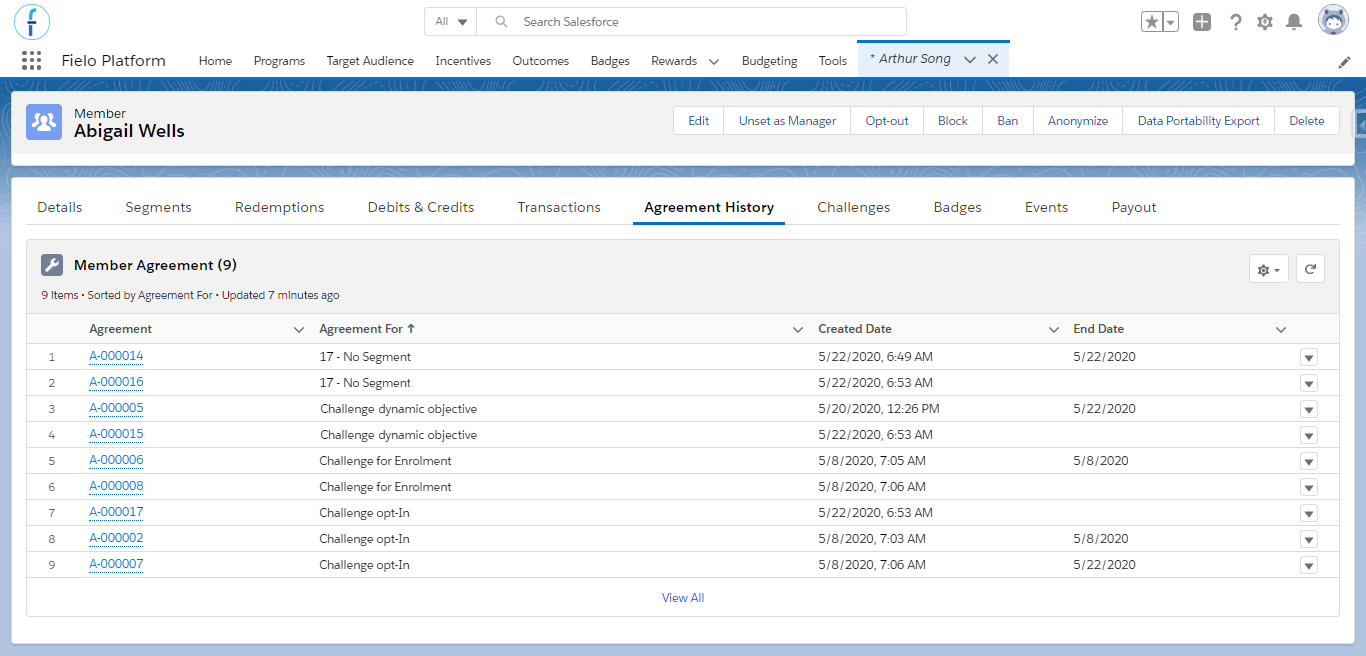
Agreement history
Managing Promotions
After creating your promotion, you can perform some actions within it.
Activating Promotions
You must activate your promotions before members can participate in them. However, note that before activating your promotion, it must have at least one rule.
Number of conditions in RulesIt is not possible to activate the Promotion if the sum of conditions in all of its Rules is more than 33. In case you need more than 33 conditions, consider splitting those conditions into more than one Promotion.
For example, consider that you have a Rule with 20 conditions and another with 15 conditions. Instead of grouping these two Rules in one Promotion, create two Promotions with one Rule each.
Delete
Select Delete to delete this promotion.
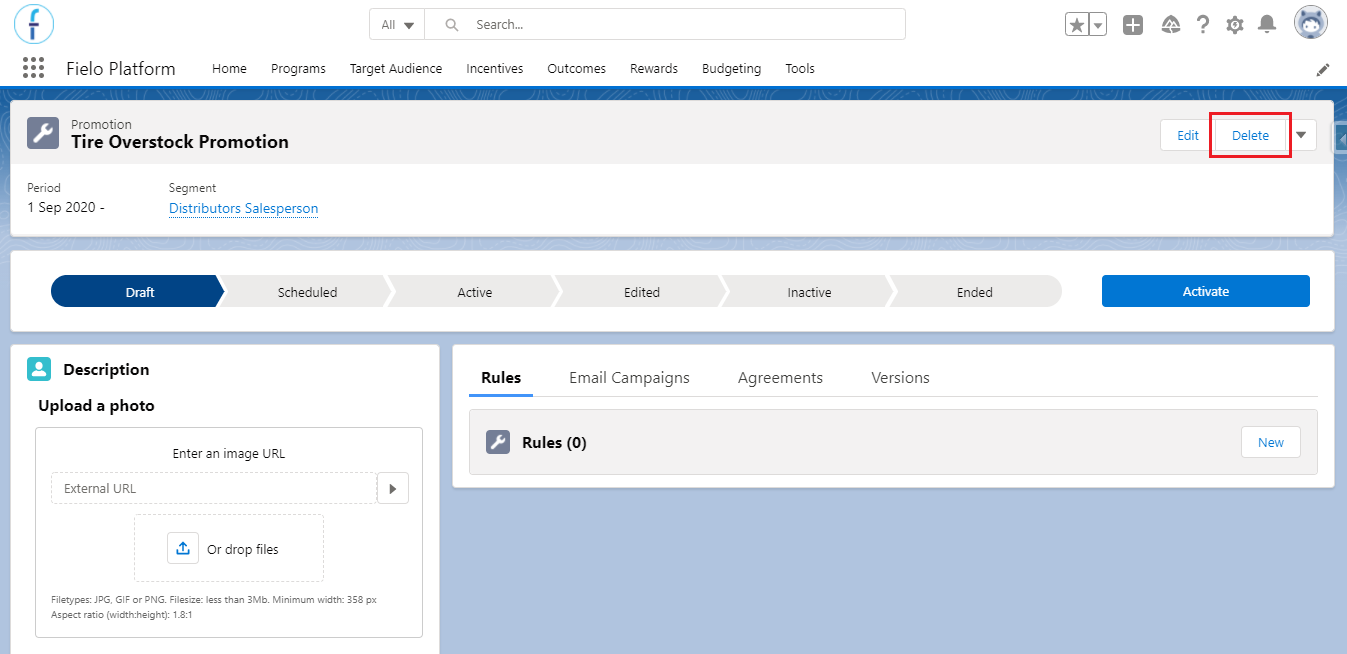
Delete button
Editing Promotions
After creating and saving a promotion, your promotion will be in draft mode. Keeping it in draft mode lets you modify any information needed before promotion becomes active.
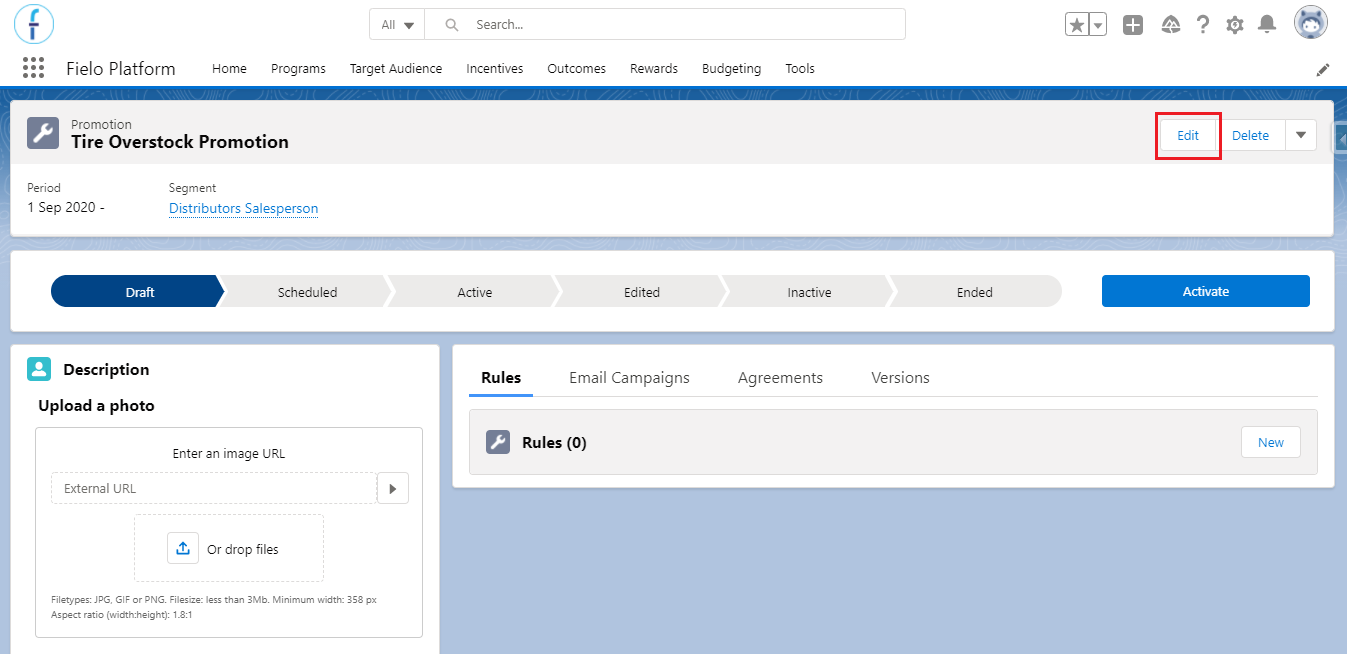
Edit button
Save as Model
Imagine that you've created a Promotion with a structure, Agreement, Rules, and built-in and all the settings you're really happy with, you may want to save it as a Model so you can use the same structure again. To do this, from the Incentive detail page, simply click on the on the top right of the page, and select Save as Model.
You can use a model when creating a Promotion using the default PLT feature (through the Incentives tab).
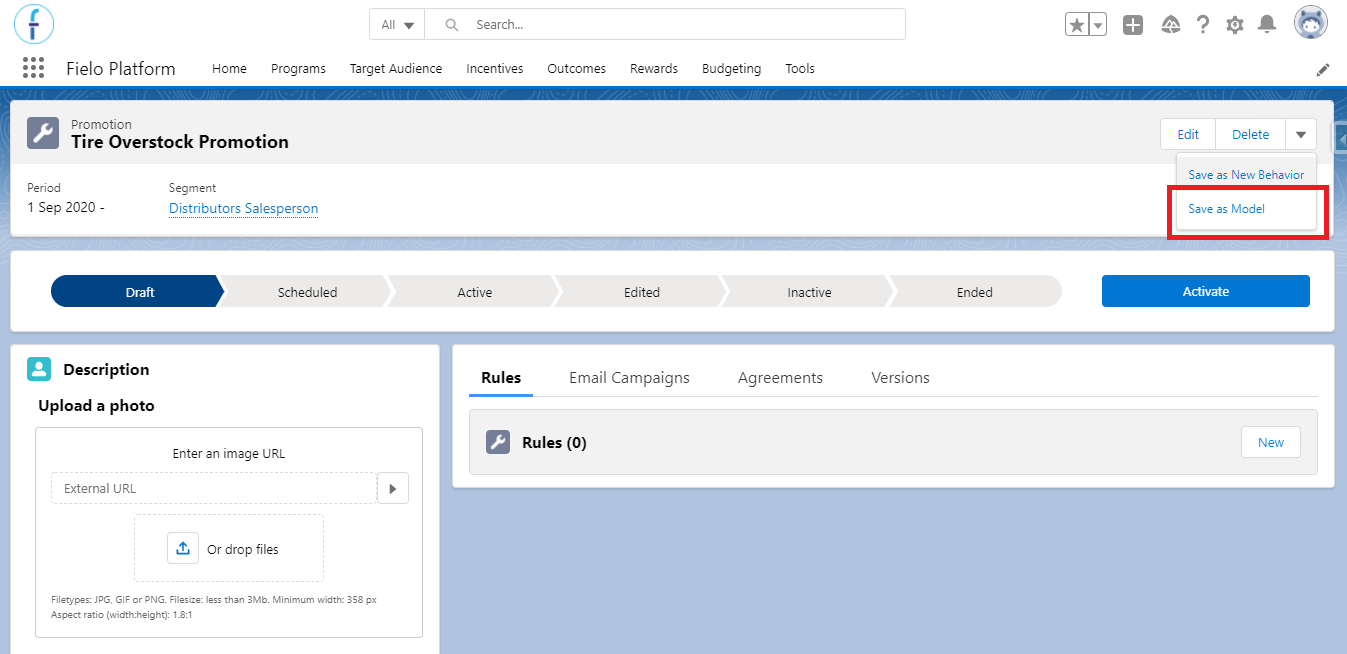
Save as model button
Save as New Behavior
Once you have your Incentive ready, you can save it as a new Behavior Type template, so that it will show up as an available template the next time that you open the Quickstart Incentive Tool and you can use it as a base to create another incentive.
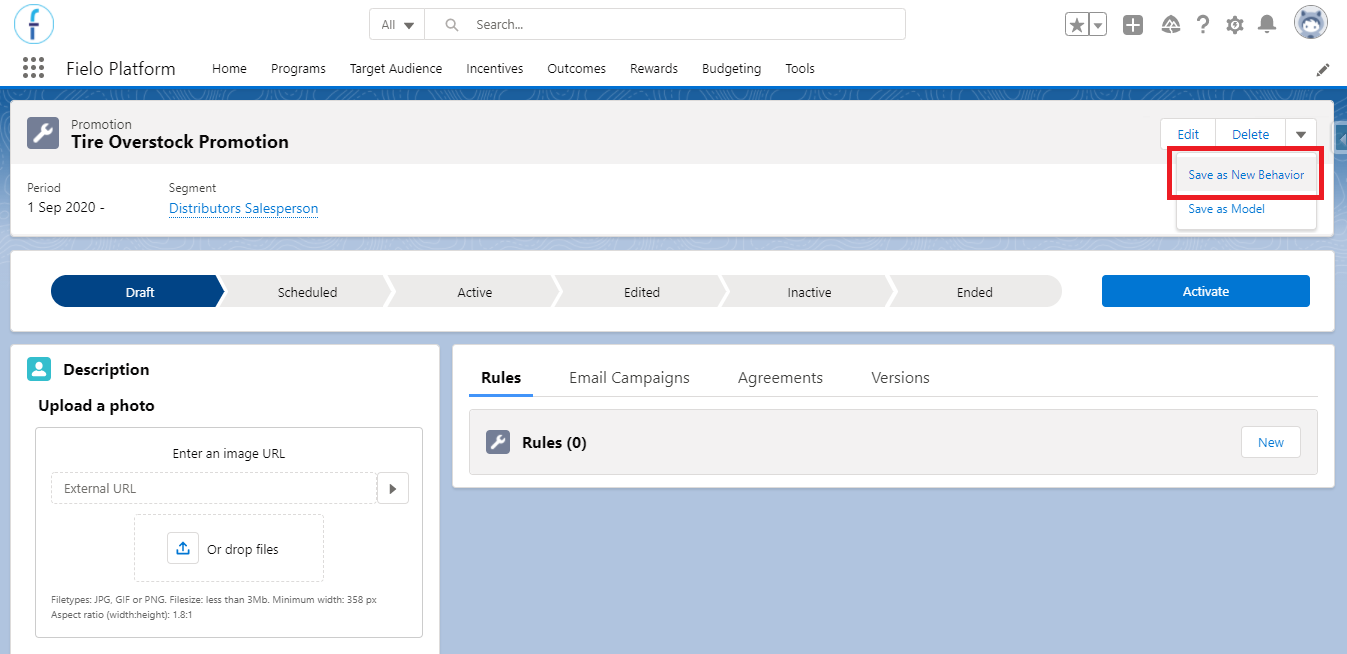
Save as new behavior button
Save as New Behavior RestrictionsTo save an incentive as a behavior, pay attention to these details:
- Rules must reward Always and all the rules in the same promotion must have the same configuration (same incentivized action, criteria, and rewards).
Versioning
When keeping a rewarding history to know exactly how and why a Promotion Rule rewarded currencies, badges or funds to a member, it is important to have access to what details from the Promotion might have been edited after the reward was given.
In Fielo, you have easy access to that kind of information, thanks to Versioning. Versions are created in order to store all Promotion data every time you edit it, so that you can know if anything in it was different when the Member received the reward.
For example, imagine that you create a Rule with the criteria Opportunities with an amount greater than $1,000, but you decided to change it to consider Opportunities with an amount greater than $1,500 instead. Without versions, it might get confusing to differentiate the rewards given before and after the change was made.
The first version is created when a Promotion is activated for the first time - it doesn't matter if it goes to an Active or Scheduled status - and subsequent versions are created every time you edit the Promotion and apply changes. You can access all of them in the Versions tab.
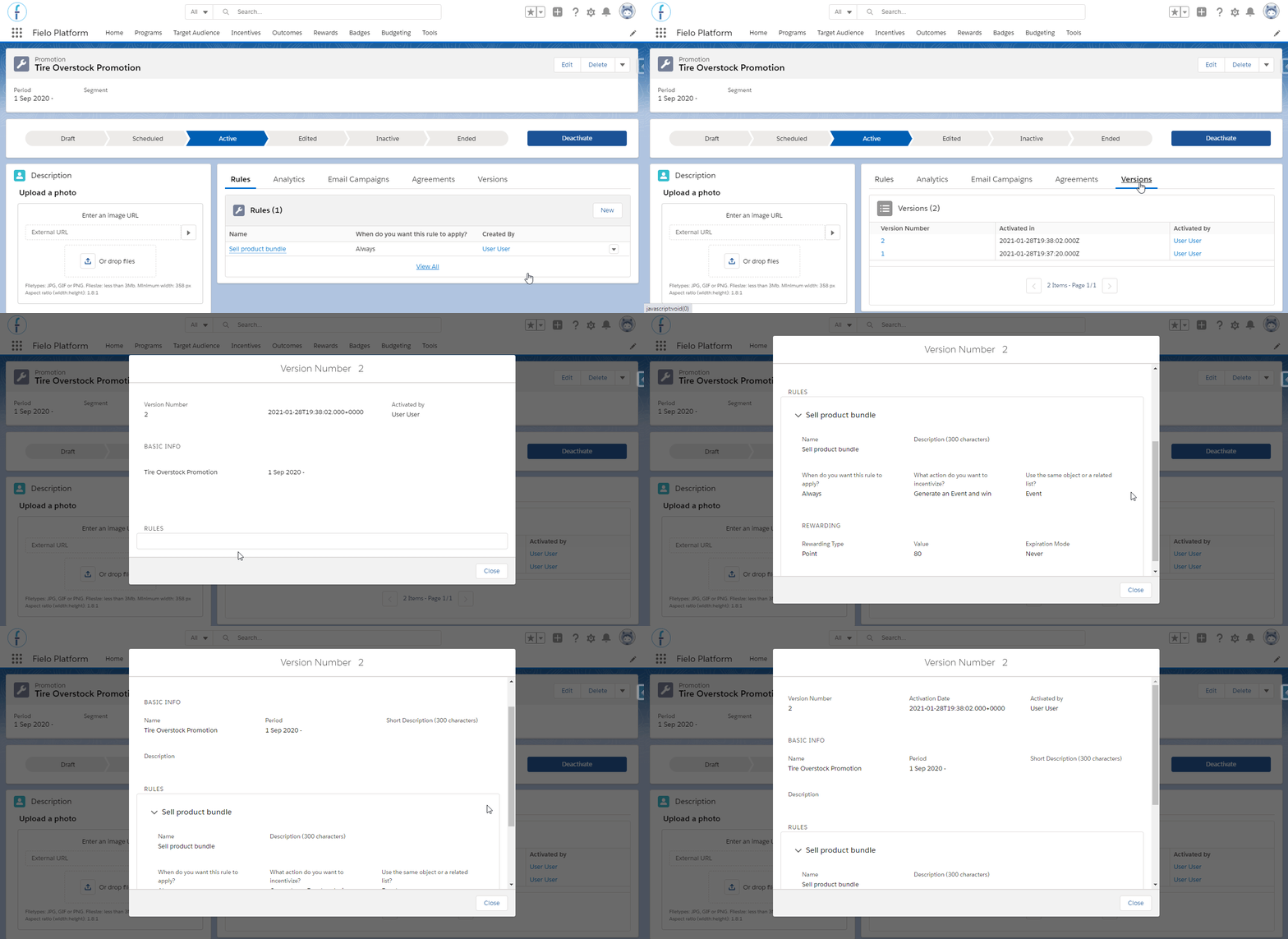
Promotion's versions
You can click on the Version Number in order to access its page, where you'll be able to see:
- The Promotion and Rule details.
- The version number.
- The user who activated the version.
- The date/time when it was activated.
When are New Versions Created?
New Promotion versions are created when you:
- Create a new Promotion Rule
- Delete a Promotion Rule. In this case, the promotion will not go through the Edited status. It will be kept as Active or, if it is in the Edited status, it will automatically be activated.
- Edit from the Promotion
- Name
- Description
- Start date or end date
- Related segments
- Eligibility view
- Edit from thePromotion Rules
- Name
- Description
- Rule Type (When do you want this rule to apply?)
- Criteria or criterion group
- Reward amount
- Conversion Mode
- Percentage, Factor or Multiplier Conversion Value
- The field in which the Conversion Mode is based on
- Rewarding type (e.g. currency, badges, instant reward)
- Currency's and badge's expiration mode and date
Apply Changes
Whenever you edit an Active or Scheduled Promotion, its status will be changed to Edited. You need to apply the changes for a new version to be created and the changes you did to the Promotion to be taken into account the next time that a member performs the incentivized action(s).
If you don't click on the Apply Changes button after editing a Promotion, the system will keep processing the Promotion with the configuration from the previous version.Also keep in mind that, once you edit a Promotion, a new version will be created even if you undo the change before hitting Apply Changes.
For example, let's say that you decided to remove the only Segment allowed to participate in the Promotion - making the promotion available to all Program members - and to change the Rule's reward from 50 to 100 Points. If you do not apply the changes after editing, only the members who are in the original qualifying segment will continue receiving 50 Points when they perform the incentivized Action.
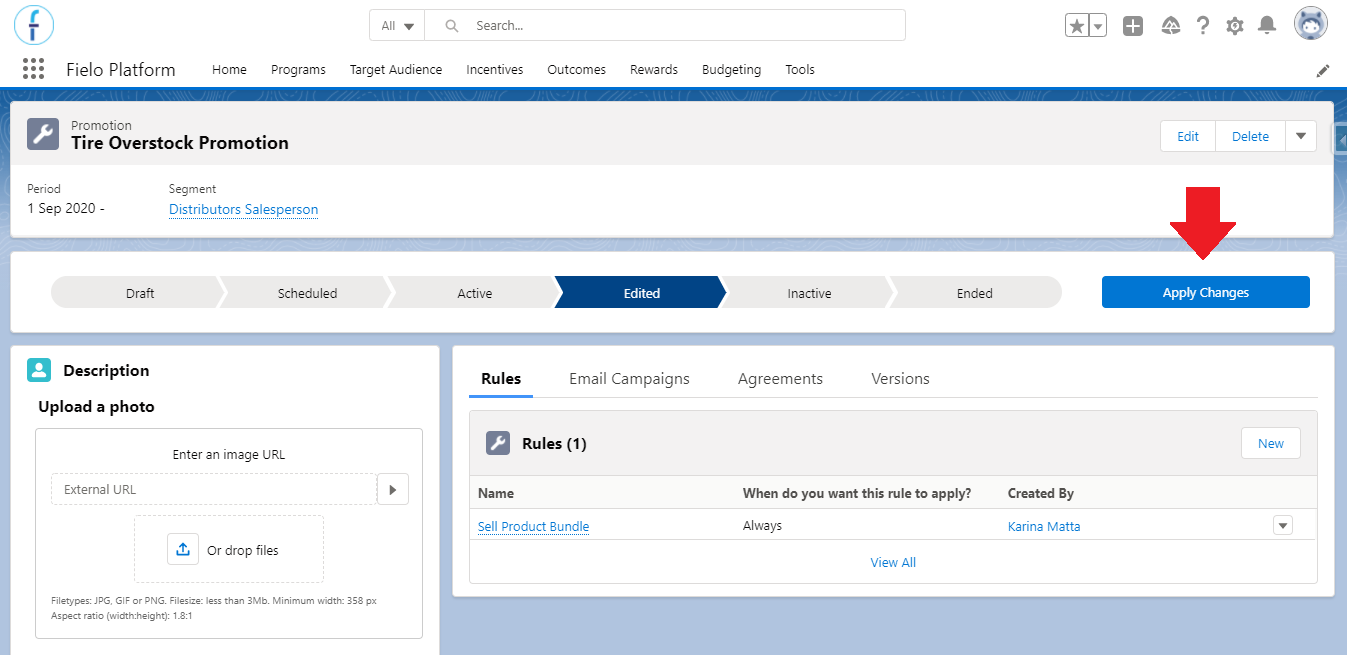
'Apply Changes' button appears when the Promotion is in Edited status
Lightning ComponentsMembers will see Promotions that are in Edited status as Active in the Incentives and Program Promotions Lightning Components for Experience Cloud sites.
Audit Versions
Other than simply having access to the different versions to overview the alterations done, it is also possible to access which one of them was responsible for generating a currency reward, Funds allocation or instant reward for the member.
In order to access that information, enter the Transactions tab from the member's page. Find the transaction that you'd like to know the details from and click on it.
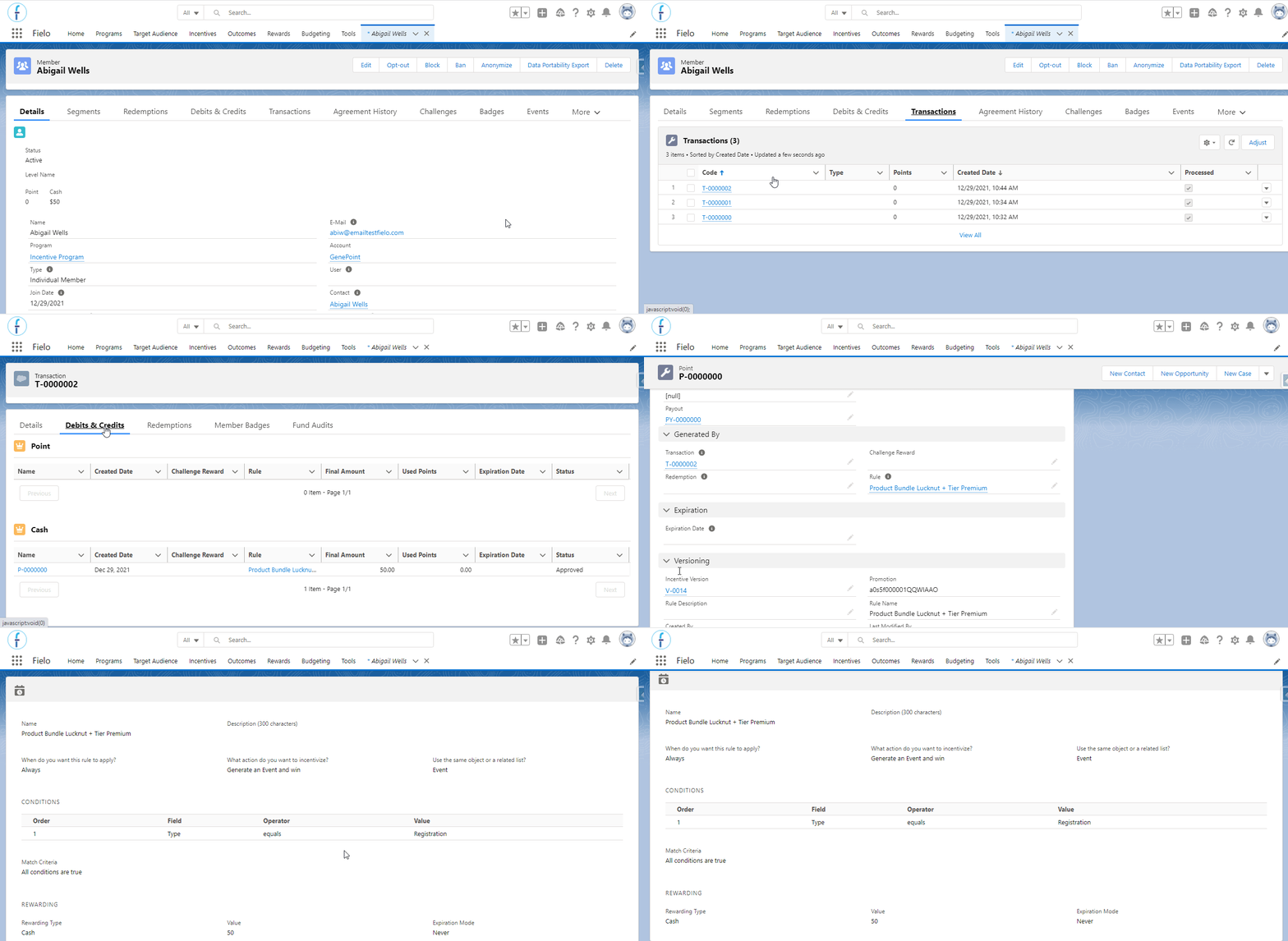
Promotion version in Transactions
In the transaction page you'll be able to find a section with the currency, Funds or redemption data and which Incentive generated it, including the specific version that was active when that transaction was created. You can click on the Version Name to access its page and overview the details related to it:
- Promotion Rule name.
- Rule's description, type and incentivized action.
- Rewarding details, including the reward type and value.
Updated over 1 year ago