
Incentives
Show Portal members their incentives in one place
Incentives gather in only one place all of your Program's incentives available for the members. It is a simple way of displaying Promotions or Challenges. It also allows members to enroll to the incentive.
This lightning component will allow the logged member to easily see incentive details such as its description, status, rules and each mission description, progress status bar and leaderboard - if applicable - with only one click and without leaving the page.
Where can I use the Incentives component?Like all of our Lightning components, the Incentives component was designed and tested for use on Digital Experience sites. It is also available to use on Lightning pages (FlexiPages). Though we don't anticipate any major issues, we do not guarantee all functionality when the component is used on a Lightning page (FlexiPage).
Additionally, when the member is part of a team which is participating in a Challenge for teams, they will be able to see the team's name in the Challenge detail. In case the member belongs to more than one team subscribed to the same Challenge, though, they will see a picklist to choose which one they want to view the mission details (i.e. progress and leaderboard) as.

Incentive Lightning Component for Promotion
Leaderboard and Member Progress
The leaderboard shows members how they’re performing on the Mission compared to their fellow participants. It is great for fostering competition among members and increasing engagement in the Challenge.
The leaderboard will display the members who are in the first three positions plus the member who is viewing the component - and their current position - if they are not among the top three.
- Example A: when the logged member is in the top 3, only 3 members appear.
- Example B: when the logged member is in the 10th position in the mission, there will be 4 members displayed. The top 3 members + the logged member ranked as 10th place.
In order to make it even simpler for the member to keep track of each Mission's leaderboard - if it has this option set -, all of its information is automatically displayed as soon as they open the Mission details.
The Incentives Lightning Component also displays the member's progress in the Mission, in two different ways:
For Teams and Members audience: if the Mission is Based on a fixed metric, the progress will be shown as a bar, which represents a percentage of the total required conditions to complete the Mission.
For Members audience: if the Mission is a Compare among members type, each Member's accumulated value will be shown instead.
There are some differences, though. In case the Challenge's audience is Members, then it shows the individual members' information. However, if the audience is Teams and the logged member is part of a team subscribed to the Challenge, then the participating teams will appear in the leaderboard and have their progress displayed (even if the logged Member is an individual related to an organization member which is part of a team).
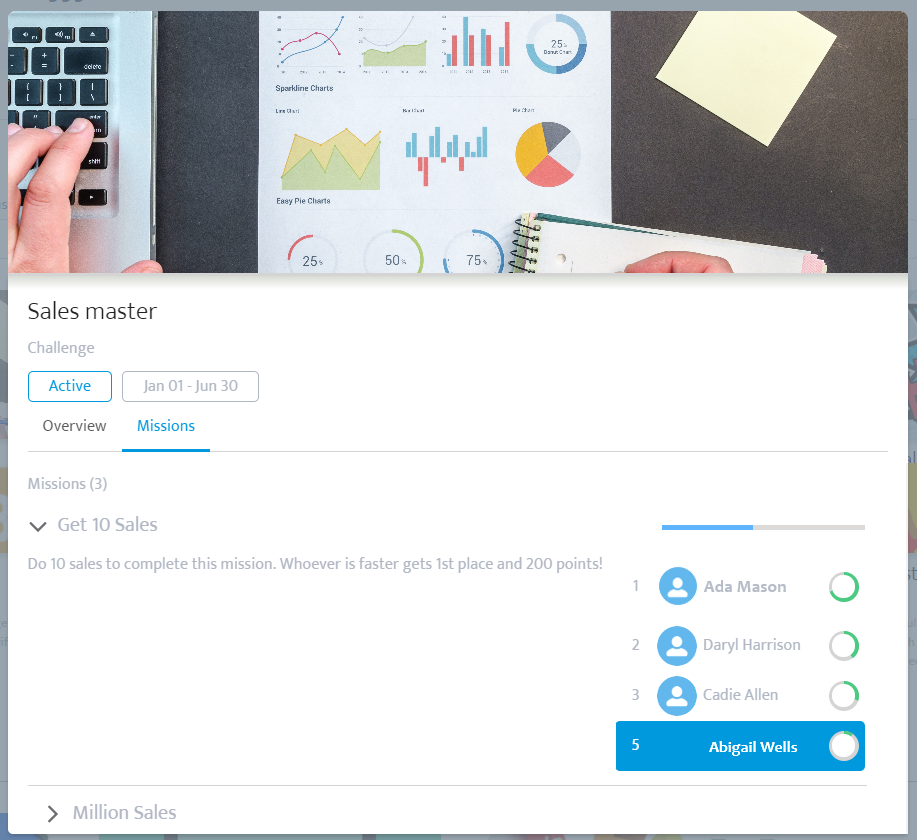
Incentive Lightning Component for Challenges with a mission that uses leaderboard. The logged member is currently ranked as 5th place.
Agreement
The agreement is a way of setting terms & conditions that Members need to accept in order to take part in your incentive. When you have a current agreement set in a Promotion or Challenge, the member will have to Agree to it the first time they access and try to enroll to that active incentive, or Cancel their enrollment.
If the Member doesn't accept the Promotion's agreement, their actions won't ever be processed. If they don't accept a Challenge's agreement, though, the program administrator will still be able to subscribe them to it and their actions will be processed.
And there's no need to worry about what would happen if the terms are changed after the member accepts it! In the next time they access the Experience Cloud site, the system will warn older Members that they have to accept the agreement's newest version. The changes made to it will be described in the same form, separated by sections (Promotions from Challenges) and by tabs (Incentive Agreements from Program Agreement).
In this last scenario, the Member won't be blocked from continuing to take part in the incentives. Their actions will still be taken into account. The agreement form will simply keep showing up every time they log in, until they Agree to it.
Note that the agreement is available only for Challenges that have an opt-in subscription mode.
The enroll option won't be available for Promotions that don't have any related agreement in status current, since the member will automatically start to participate in it once they perform the incentivized action.
Member experience
When accessing the Experience Cloud site and viewing the Incentives component, the logged member will be able to:
- Filter the incentives by their start and end date, which can be used independently or as a range.
- Filter Promotions and Challenges by status active or scheduled (in combination with the Potential filter) or by active, scheduled, inactive or ended (in combination with Qualified filter). Incentives in a draft status are not shown under any circumstance.
- Filter Promotions by Qualified or Potential.
- Qualified refers to Promotions in any status (except draft), without segment or with segments that the member applies to. The filter also considers the agreement, showing Promotions without one or with any version that the member has already accepted before.
- Potential are active and scheduled Promotions that the Member can participate in, but don’t apply to any of its related segments or hasn't yet accepted its agreement.
- Filter Challenges by Qualified or Potential.
- Qualified refers to the active, scheduled, inactive and ended Challenges the member is already subscribed to.
- Potential refers to the active or scheduled Challenges with Opt-in and Global subscription mode that members are not subscribed to.
- Sort the active incentives by:
- Newest to oldest or vice versa, considering their activation date. This date is automatically set by the system when the Incentive status changes to active.
- For Challenges that the member is already subscribed to, it will also be possible to sort by recent or past activity. It takes into account the member's last activity related to enrollment, mission progress and accomplishment.
- Click on the Enroll link to start to participate in Potential Challenges that have Opt-in subscription mode. Once the member enrolls in it, the Challenge will disappear from the Potential filter and appear in Qualified.
- Click on the Enroll link to start to participate in Potential Promotions that have Agreement related. Once the member enrolls in it, the Promotion will disappear from the Potential filter and appear in Qualified.
The Potential filterThe filter will also take into account the chosen eligibility mode, showing only the Challenges or Promotions related to it. More details on this feature can be found below.
Members will not be able to enroll in a Global Challenge that appears on the Potential filter page, since they will be automatically enrolled when any of the actions incentivized in the Challenge is performed.
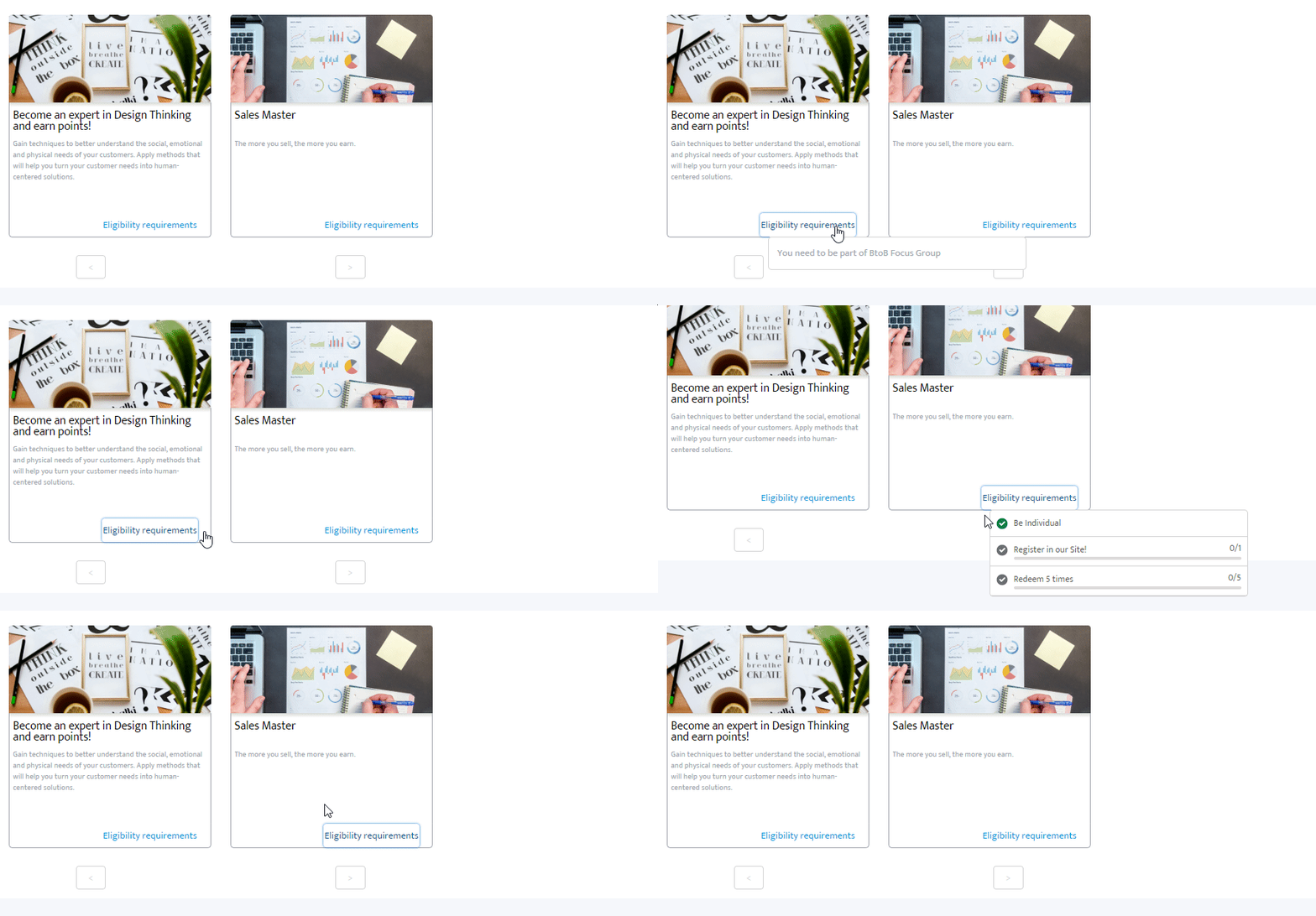
Eligibility: Description View and Progress View
Configuring Incentives Component
Once you've added Member Selector and Incentives to your page, you can customize how and what data is shown.
If you wish to have both Promotions and Challenges in the same page, we suggest setting up Tabs along with Incentives.
Incentives can be configured via the following properties:
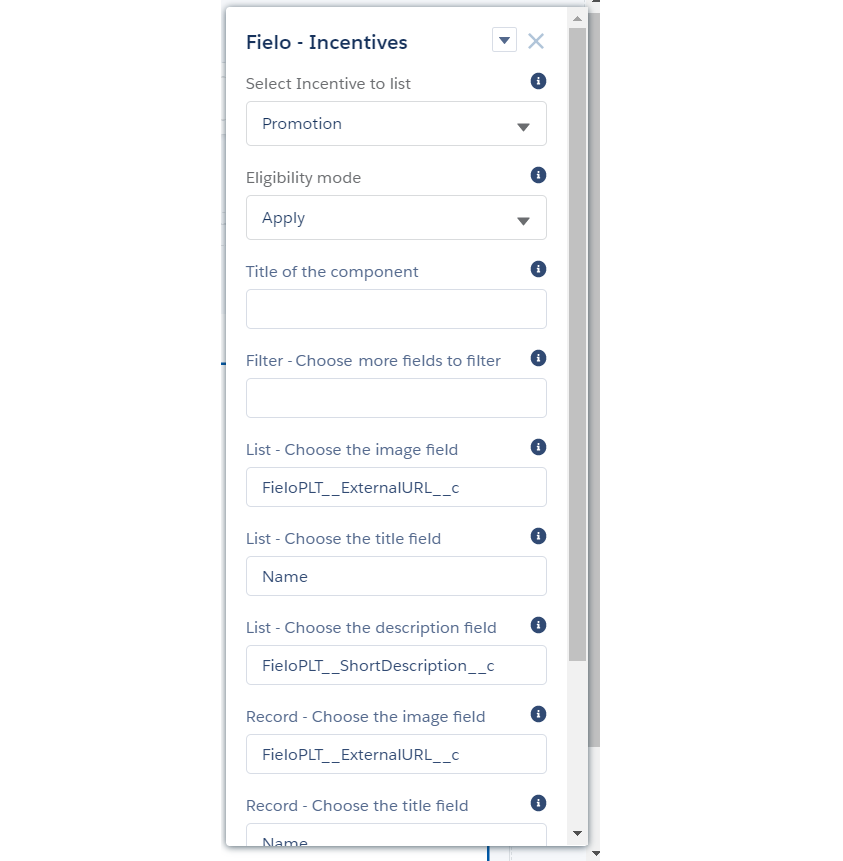
Incentives setup bar in Experience builder
- Select Incentive to list: Choose between Challenges or Promotions.
- Eligibility mode: Choose which incentives the member will be able to see when they use the Potential filter. On some of them, a Eligibility requirement link will appear. Further configuration must be done while creating or editing a Challenge or a Promotion.
- Apply: it will only show incentives that aren't segmented and those that use segments to which the member applies to. This is the standard.
- Not Apply: will list the incentives with segments that the member doesn't apply to and also shows the Eligibility requirements link, which will open a dashboard (Progress view option) or message (Description View option) detailing which actions they need to accomplish in order to be able to participate in the Promotion or Challenge.
- All: it will show all active and scheduled incentives, displaying the Eligibility requirements link in the ones that the Member doesn't apply to any one or all of its segments.
- Title of the component: Enter the title you want displayed at the top of the component.
- More fields: Enter the API name of fields you want to add as filters that the logged member can use. They can be a numeric, boolean, picklist, string or date/date time type. By standard, it will be blank.
- List - Choose the image field: Enter the API name of the field that contains the image you want to be shown in the incentives list. By default, it is External URL.
- List - Choose the title field: Enter a title for the list. By default, it is Name.
- List - Choose the description field: Enter the API name of the field that contains the list description. By default, it is the Short Description. This will be shown at the top of the component.
- List - Enable Sorting: Check this box to allow members to sort their payouts. By default, it will be checked and offer the members to sort the incentives by newest first or oldest first.
- Sort By Fields: If sorting is enabled, enter the API names of the fields you want members to be able to sort by, separated by commas, and use ASC for ascending order or DESC for descending order. E.g. CreatedDate ASC.
- Default Sorting: If sorting is enabled, enter the API name of the field by which the incentives will be sorted by default; i.e. if the member doesn't select another sorting option. Write the field's API name + ASC for ascending order or DESC for descending order.
- Record - Choose the image field: Enter the API name of the field that contains the image you want to be shown in the incentives records. By default, it is External URL.
- Record - Choose the title field: Enter a title for the record. By default, it is Name.
- Record - Choose the description field: Enter the API name of the field that contains the record description. By default, it is the Short Description.
- Record - Show More Fields: Enter the API name of the fieldset that contains what you want to include in the incentive list. This will be shown if the logged member clicks on the see more link.
Updated over 1 year ago