
E-mail Provider
Messaging lets you use an external email provider in order to send large bulk e-mails to members without overloading our resources. We use their infrastructure, tools, and expertise to make the process nice and easy. You can choose to use your existing e-mail provider, or use our default - whichever you prefer!
Salesforce is Messaging's default email provider. If this works for your implementation, then you don't need to change any settings.
Salesforce vs. Other ProvidersForce.com has some e-mail provider limitations, including a ceiling on the number of emails you're allowed to send out. For details, see Email Limits.
For that reason, some customers prefer to use services like SendGrid. SendGrid offers a wide range of paid packages, allowing you to send as many or as little emails as you need each day.
Email Sender
E-mails should be sent to members from an e-mail address that represents the organization. If you use Salesforce as your email provider, it automatically adopts one of the e-mail addresses configured in Organization-Wide Addresses as the sending e-mail account.
Organization-Wide Address ConsiderationsYou need to have already set up an Organization-Wide Email Addresses in your Salesforce ORG in order for the Messaging to work properly.
If your org has more than one organization address, any one of those addresses may be chosen as email sender. But, if you want to guarantee that a particular sender address be displayed, make sure it is the only organization-wide address in your org.
Changing Your E-mail Provider
If you want to check your Provider settings, this is how you go about it:
From Setup, enter Custom Settings in the Quick Find box and then select Custom Settings. Select Public Settings (the one whose Namespace Prefix is FieloPLT).
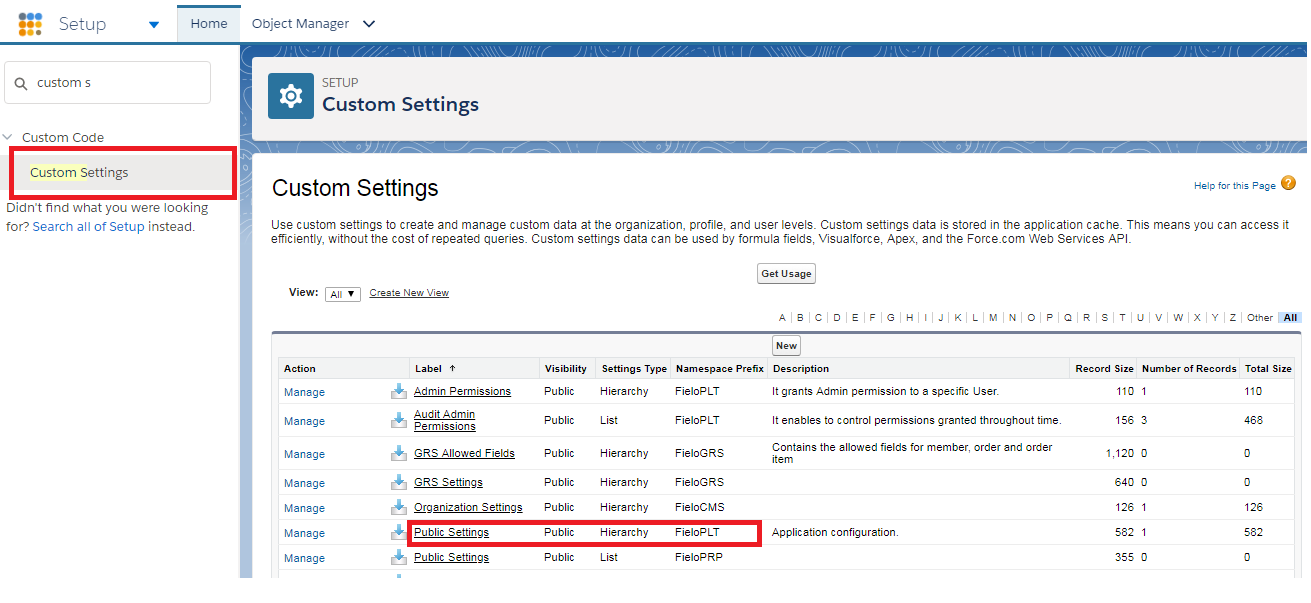
Custom Settings: Public Settings (Fielo PLT)
Click on the Manage button and then click Edit. (If you don't see an Edit button, then click New to create a custom setting.) Then, in the Email Reflection Class field, enter the Apex class corresponding to your provider.
SendGrid IntegrationIf you're using Messaging with SendGrid integration, check our SendGrid guide for specific setup details.
Updated over 1 year ago