
Badges
Badges are emblems which represent a particular achievement earned by members. Badges are some of the most visible elements of gamification as they confer status and recognition to the members who earn it. Some typical examples of badges are Achiever, Top Performer and Superuser.
When should I use badges?Badges are commonly used in training contexts, such as corporate and business training, to reinforce soft skills. They're also a great way for members to show off their skills to fellow members and even prospective customers.
Before Starting
Be sure to have your badge image files ready! We recommend using images in PNG format with a transparent background.
Creating a Badge
Creating your first badge is easy. In the platform, from the Outcomes tab, go to the Badges section and click on New Badge.
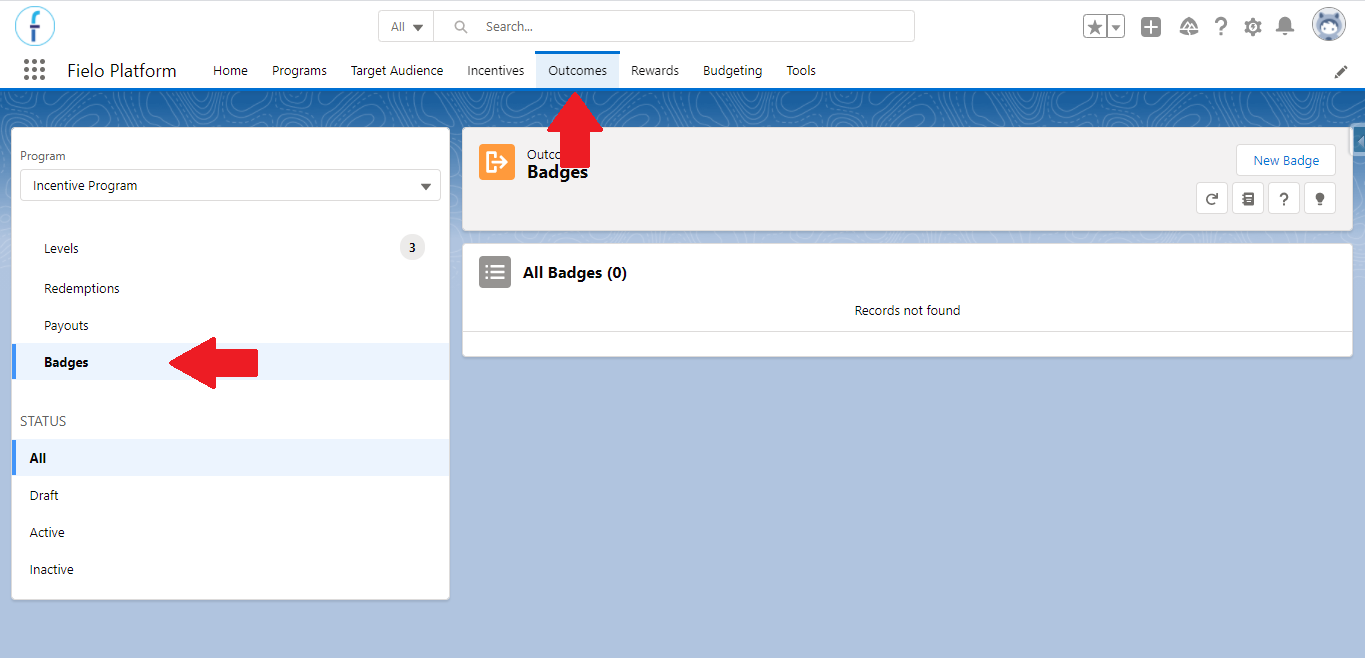
Badge page
Enter the name of your badge and click Save.
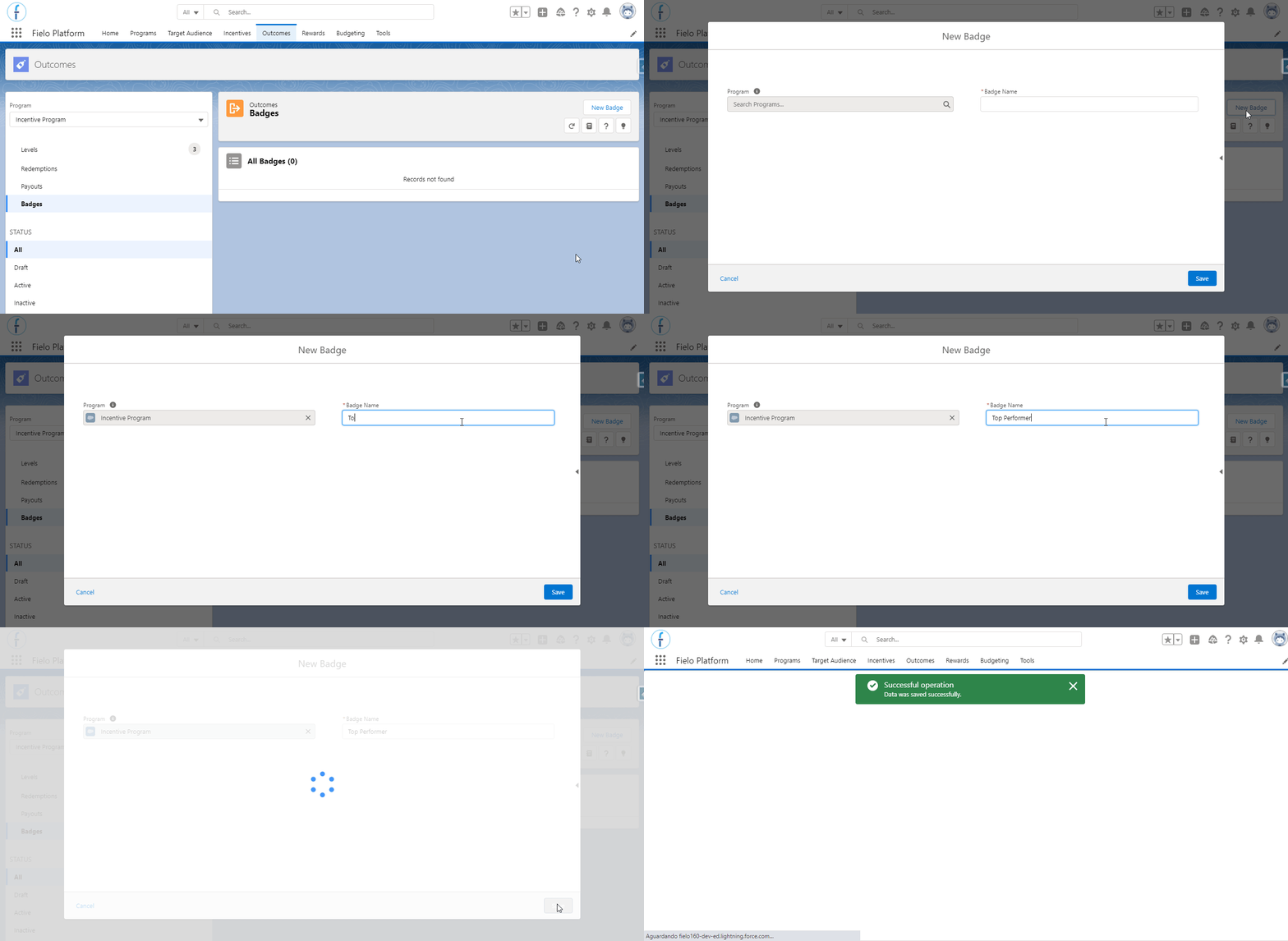
Creating a badge
If you need to change the name of your badge, just click Edit. To delete a badge, click and select Delete.
Assigning a Badge Image
With your badge created, go ahead and assign the image that members will see. You can upload an image from your computer or provide the URL of an externally-hosted image.
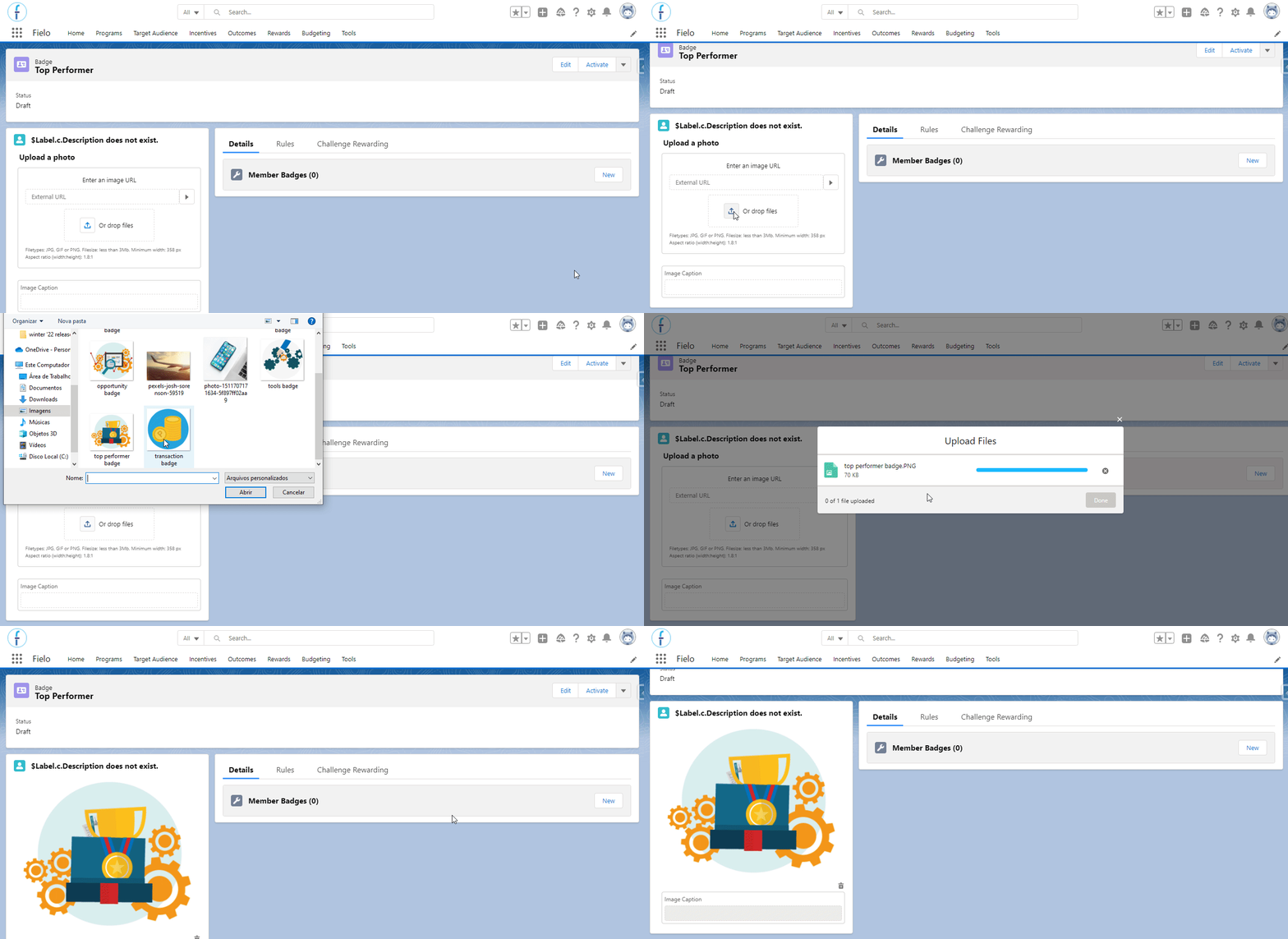
Now that your badge is ready to go, you can start using it when creating rules or setting up challenge and mission rewarding.
Manually Granting a Badge to a Member
Badges are awarded automatically when specified as part of an incentive reward. However, you can manually give a badge to any member who belongs to the same program as the badge and whose status is Active, Submitted for Approval or Pending User.
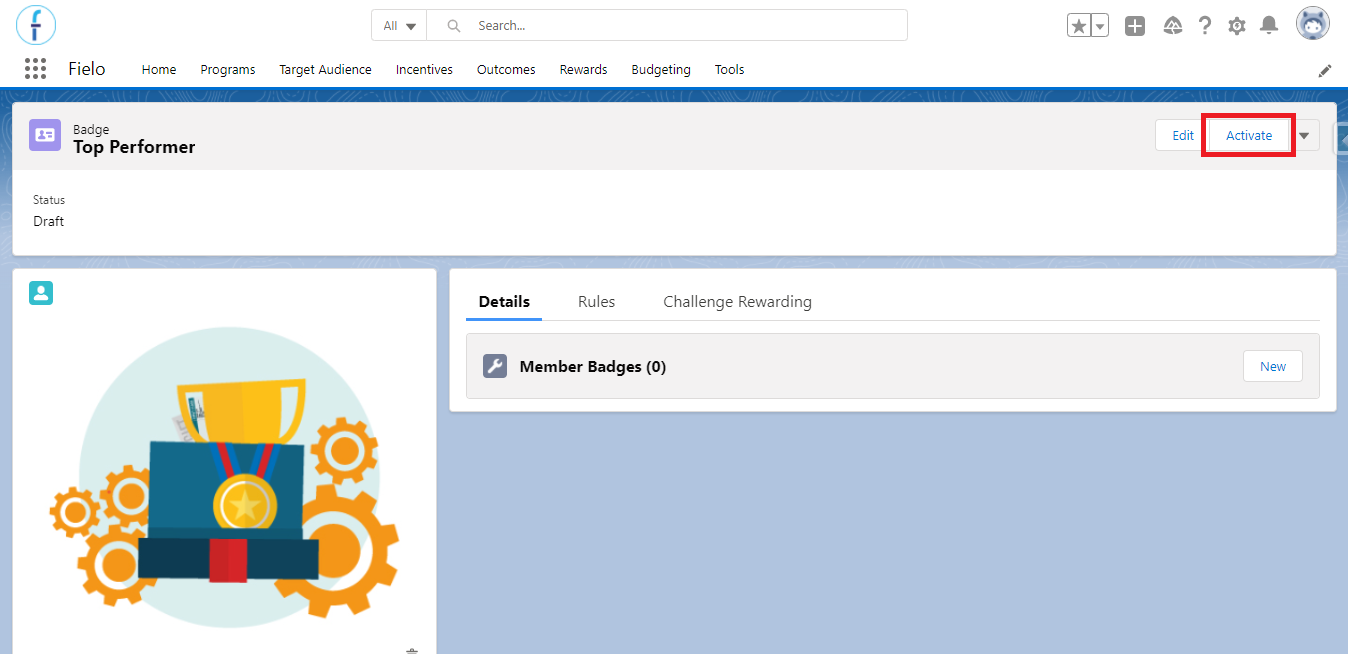
First, be sure to activate the badge, if it's not already active.
Then, scroll down to the Member Badges related list and click New. Enter the relevant details and click Save.
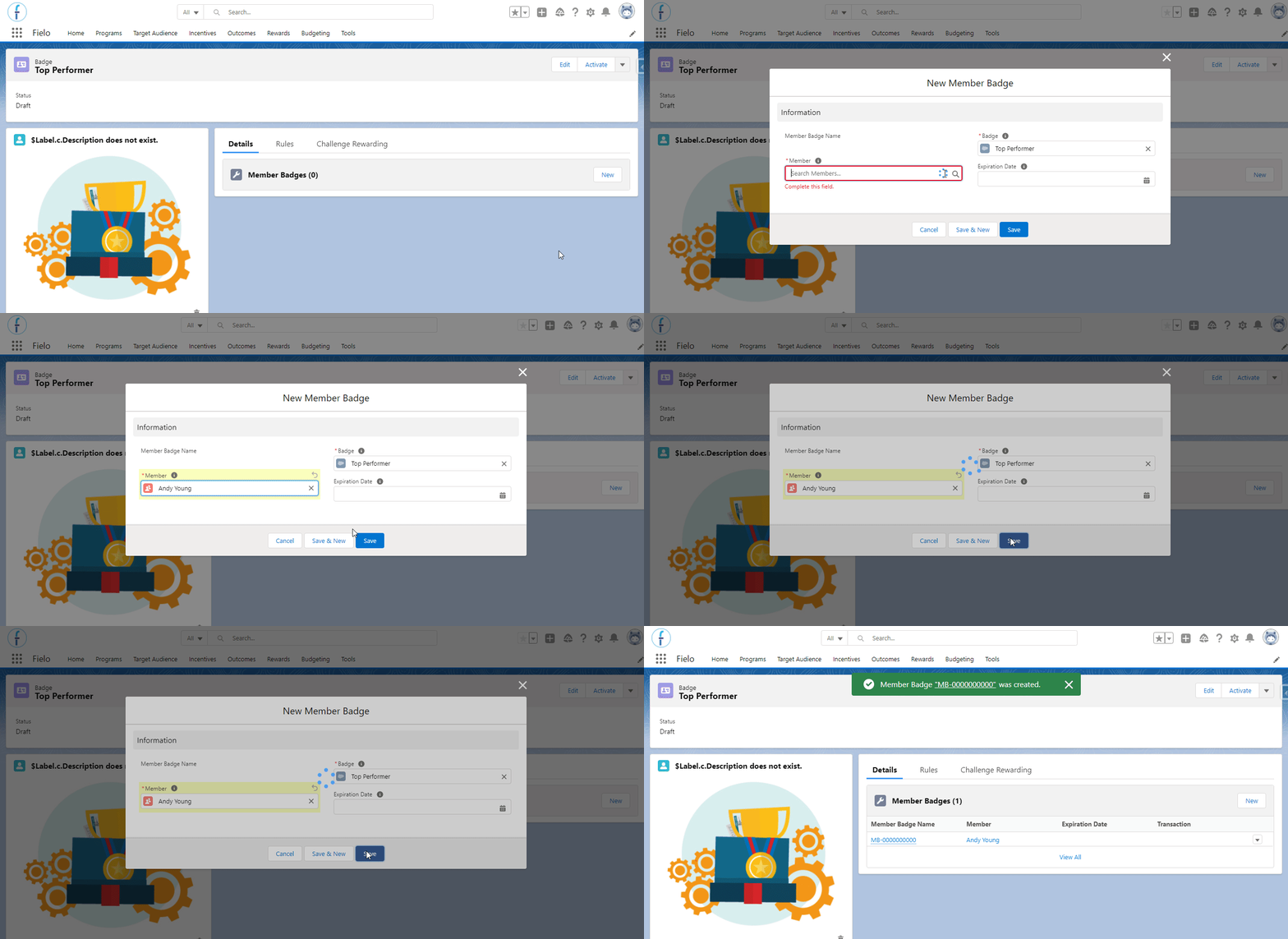
Manually creating a member badge
Awarding Badges via ProcessesIf you decide to award badges using Salesforce processes, be sure to use criteria that confirm:
- The member has a status of Active, Submitted for Approval or Pending User.
- The member is part of the same program as the badge.
ExpirationThe Expiration Date is stored within the Member Badge record, which is created when a member receives a badge. Therefore, it is the member badge the one that expires, not the badge itself.
Badge Statuses
A badge's status can be as follows:
- Draft: Badges are in draft when they are first created. You are not able to set a draft or inactive Badge as an Incentive reward.
- Active: You can activate a Badge by clicking on the Activate button on its page. Only active badges can be set as a reward for an Incentive and manually rewarded to a member.
- Inactive: You cannot deactivate a badge when it is being used as a reward in an active or scheduled Incentive. You are also not able to activate an Incentive that rewards an inactive or draft Badge.
Updated over 1 year ago